Imagine you come across a WhatsApp chat backup labeled msgstore.db.crypt15 and wonder how to decipher it. Or perhaps you see the note “Messages and calls are end-to-end encrypted” in every chat and ask yourself what that means for accessing your conversations. You’re not alone – with over 3.3 billion users globally and more than 100 billion messages exchanged each day on WhatsApp, many people want to know how to read encrypted WhatsApp messages safely and legally. WhatsApp’s encryption is fantastic for privacy, but it can make retrieving your own chats feel tricky. Don’t worry – this comprehensive guide will explain WhatsApp’s encryption, show you legitimate ways to read your encrypted messages (on your phone, computer, or from backups), and answer common questions. By the end, you’ll know exactly what’s possible (and what’s not) when it comes to accessing those secured WhatsApp chats.
1. What Does End-to-End Encryption Mean on WhatsApp?
End-to-end encryption (E2EE) is the technology that keeps WhatsApp messages private. Since 2016, end-to-end encryption has been enabled by default on WhatsApp, meaning every chat, photo, voice note, or call is securely how to read encrypted WhatsApp messages so that only you and the intended recipient can read or hear it. When you send a message, WhatsApp “locks” it with a unique cryptographic key before it leaves your device, turning the content into unreadable code during transit. Only the recipient’s device has the matching key to decrypt (unlock) the message, restoring it to readable form. This happens automatically in the background – you don’t need to manually encrypt or decrypt anything.
For users, WhatsApp’s E2EE means greater privacy and security. No third party (not even WhatsApp’s own servers) can read the content of your messages in transit. In fact, WhatsApp displays a small notice in new chats: “Messages and calls are end-to-end encrypted. No one outside of this chat, not even WhatsApp, can read or listen to them.” This system, built on the robust Signal Protocol, has no backdoors – a fact that has frustrated hackers and even governments. (For example, one government attempted to force WhatsApp to break its encryption, but WhatsApp refused – even threatening to pull out of that country rather than compromise its security.) In short, end-to-end encryption is what makes WhatsApp one of the most secure messaging platforms by ensuring that only the devices involved in a chat hold the keys to read the messages.
2. How to Read Encrypted WhatsApp Messages and Can Read by Others?
After hearing how strong WhatsApp’s encryption is, the natural question is: Can anyone else read these how to read encrypted WhatsApp messages? The answer is no – not unless those messages are intended for them or they have direct access to one of the devices. In practical terms, you cannot read how to read encrypted WhatsApp messages unless they are sent to you (i.e. you’re a participant in the chat). Any app or service that promises to decrypt someone else’s WhatsApp messages is lying or a scam. WhatsApp’s encryption is so robust that even advanced government agencies with cutting-edge tools cannot break it directly. For instance, when authorities demanded a way to intercept WhatsApp chats, the company held firm – they themselves don’t have access to the plaintext messages, so they cannot comply without fundamentally weakening the security for everyone.
What about WhatsApp itself – can it read your chats? No. Because of E2EE, WhatsApp’s servers only act as messengers passing encrypted blobs of data around. They do not store your chat in readable form. The keys to decrypt messages live only on user devices. This means that if someone intercepts your message in transit (or tries to retrieve it from WhatsApp’s servers), all they see is gibberish. Only the recipient’s phone (or authorized linked device) can decrypt it.
It’s also important to note that end-to-end encryption cannot be turned off in WhatsApp’s personal chats – it’s a built-in feature integral to your security. So if you’re wondering “how to unlock or disable encryption,” the answer is simply that you can’t (and wouldn’t want to). Instead, the real question becomes how can you, as an authorized user, read your how to read encrypted WhatsApp messages across different scenarios? The sections below will cover exactly that – from reading messages on your computer to restoring them from backups – all using official, safe methods. And if you’re thinking about more dubious methods (like “hacking” someone else’s chats), we’ll address why that’s not feasible or legal in a later section.
Bottom line: WhatsApp’s encrypted messages cannot be read by unauthorized people. If a message isn’t meant for you, there is essentially no way to decipher it without the encryption key. This protects your privacy by design. Now, let’s focus on how you can access and read your own WhatsApp messages in various situations, even though they’re encrypted.
1. Use WhatsApp on Authorized Devices (Phone, Web, or Desktop)
The easiest way to how to read encrypted WhatsApp messages is simply to use WhatsApp itself on a device linked to your account. End-to-end encryption works seamlessly in the background for authorized devices. If a message was sent to you, WhatsApp will decrypt it automatically on your phone (or any linked companion device) so you can read it. In other words, if you have access to your WhatsApp account, you don’t need any special tricks – just open the chat in the app and you’ll see the plaintext.
But what if you want to read your messages on a bigger screen, like a PC or laptop? That’s where WhatsApp Web and Desktop come in. WhatsApp offers an official web client and desktop app that let you access your chats on a computer. Thanks to a feature called Linked Devices (multi-device support), you can use WhatsApp on up to 4 additional devices (like a computer or tablet) while maintaining encryption. Even if your phone is offline, these companion devices can receive and decrypt messages on their own once linked. Here’s how to set it up:
Open WhatsApp Web or Desktop: On your computer, open a browser and go to web.whatsapp.com, or launch the WhatsApp Desktop application. You’ll see a QR code on the screen.
Link Your Phone: On your phone, open WhatsApp and go to Menu > Linked Devices (on iPhone, this is in Settings). Tap Link a Device, which will open your camera to scan a QR code. Use it to scan the QR code shown on the computer screen.
Complete the Connection: Within seconds, your phone will authenticate the link. Your WhatsApp chats will then appear on the computer. All messages are still end-to-end how to read encrypted WhatsApp messages during this sync – WhatsApp simply shares your encryption keys securely across devices. Now you can read and send messages from your computer as if you were on your phone.
Using WhatsApp Web/Desktop is one of the most effective and straightforward methods to access how to read encrypted WhatsApp messages conversations on a PC. It’s essentially an official mirror of your account. Everything stays encrypted: messages are encrypted on your phone, transferred to the web client, and then decrypted in your browser using keys stored on your devices. From your perspective, you just see your chats normally. This method is great for when you’re at work or need to type long messages – you get the convenience of a full keyboard and large screen, without sacrificing security.
2. Export Your Chat to Read it Outside WhatsApp
What if you want to save a copy of a conversation or read your messages outside of the WhatsApp app entirely (say, in a text editor or as a document)? WhatsApp provides an official “Export Chat” feature that lets you convert an how to read encrypted WhatsApp messages chat into a plain text file (or even a ZIP file with media) that you can read on any device. This is the easiest way to get a readable transcript of your WhatsApp messages without any complex tools.
For example, suppose you have an important discussion with a client or friend that you want to archive or print. Instead of trying to decrypt WhatsApp’s internal database, just export the chat. The steps are simple:
Open the WhatsApp Chat: On your phone, go into the chat you want to export (it can be an individual or group conversation).
Tap Menu > Export Chat: Tap the three dots ⋮ (on Android) or the contact name/menu (on iPhone) and choose More > Export Chat.
Choose to Include Media or Not: WhatsApp will ask if you want to attach media files (images, videos, etc.) or export Without Media. Including media will bundle those files, but note it can make the export file very large. If you choose without media, it will export just the text and emojis.
Select the Destination: You’ll be prompted to share the resulting file. You can email it to yourself, save it to cloud storage (Google Drive, iCloud Drive, etc.), or send it via another app. The exported chat comes as a .txt text file (and possibly a .zip if media is included).
Read Your Messages: Open the .txt file on your computer or phone – you’ll see all the messages from that chat in chronological order, complete with timestamps and sender names. The encryption is already taken care of by WhatsApp during export, so the text is readable. It’s like getting a chat transcript.
This Export Chat method is extremely handy if you still have access to your WhatsApp app and just need the messages in a document format. It’s safe and reliable – you’re using WhatsApp’s built-in function to decrypt and export the messages for you, so you’re not giving your data to any third-party service.
One scenario where this is useful is for legal or personal record-keeping: many people export chats to have a backup of important conversations (e.g. agreements made over chat, sentimental messages, etc.). Another scenario is if you’re switching phones and just want to save certain chats in plain text instead of restoring the whole app.
Keep in mind that the exported text is no longer how to read encrypted WhatsApp messages– so treat it carefully. Once you have that .txt file, anyone who gets hold of it can read those messages. It’s a good idea to keep it in a secure location (or add a password if you compress it). And of course, never trust any service that says “upload your .crypt file here and we’ll decode it for you” instead of using official export. As WhatsApp experts note, if someone claims they can decrypt your WhatsApp data without your key, it’s almost certainly a scam. The Export Chat feature avoids all that risk by letting you do it through the app itself.
3. Restore Encrypted WhatsApp Backups to Read Your Chats
Another common situation is when you have an encrypted WhatsApp backup – for example, you got a new phone or you deleted WhatsApp and want to restore old chats. WhatsApp backups (whether on Google Drive for Android or iCloud for iPhone) are themselves how to read encrypted WhatsApp messages so you can’t just open them like a normal file. The proper way to read the messages in those backups is to let WhatsApp restore them for you. During a backup restore, WhatsApp will decrypt the backup using the key from your account and load the chats into the app, making them readable again.
Here’s how to restore and read messages from an encrypted backup:
Verify a Backup Exists: First, ensure you actually have a backup to restore. On your old phone (or the source device), WhatsApp > Settings > Chats > Chat Backup will show when the last backup was made and whether it’s on Google Drive/iCloud (and if it’s end-to-end how to read encrypted WhatsApp messages). It’s good to know if the backup is protected with a password or 64-digit key – if so, you’ll need that to restore.
Set Up WhatsApp on the New/Reset Device: Install WhatsApp on the new phone (or reinstall it on your phone if you wiped it). Go through the initial setup by verifying your phone number (make sure it’s the same number associated with the backup).
Restore When Prompted: WhatsApp will detect the cloud backup linked to your number/email. It will say “Backup found” (e.g. on Google Drive) and ask if you want to restore chats. Choose Restore. At this point, if the backup is end-to-end how to read encrypted WhatsApp messages with a password, WhatsApp will prompt you to enter the password or 64-digit encryption key that was set for the backup. Provide that, and the app will proceed to download and decrypt the backup file.
Wait for Decryption: WhatsApp uses the stored encryption key (or the password you entered) to unlock your backup. This might take a few minutes depending on size. Once done, your chats will appear in WhatsApp just as they were at the time of backup – voila, you can read all your messages again. Media (photos, videos) will also re-download after the messages restore.
Backup Decrypted! You are now able to scroll through and read those previously archived messages within WhatsApp. Essentially, by restoring, you’ve allowed the app to do the heavy lifting of decryption for you using authorized credentials.
This method is straightforward because WhatsApp’s design assumes you’ll use it to recover backups. It’s the official solution for moving chats to a new device or retrieving old chats. Just remember: you must have the same phone number (account) and, if applicable, the backup’s password. If you forgot the password for an end-to-end encrypted backup, unfortunately even WhatsApp cannot help you recover it. In their own words: “You can’t access your encrypted backup if you don’t have your encryption key or password… WhatsApp can’t reset your password or restore your backup for you.”In such a case, you essentially lose access to those backup messages forever (this is the trade-off of strong encryption). One workaround – if you still have your old phone logged in – is to disable the how to read encrypted WhatsApp messages backup from the old device and create a new backup without encryption (or with a known password), then try again.
For most users, though, as long as you know your Apple ID/Google account and your WhatsApp number, the restore process is smooth. On Android, WhatsApp will first look for a local backup (in the WhatsApp/Databases folder) if no cloud backup is found. Advanced tip: you can even force WhatsApp to restore a local backup by placing a .crypt14 or .crypt15 file in that folder with the name msgstore.db.crypt14 (for example) and then installing the app. This is useful if you have an older backup file from somewhere. WhatsApp will decrypt it during setup as long as it’s the correct file and you haven’t changed the number.
iPhone users: The process is similar with iCloud. After verifying your number on a new iPhone, sign into the same iCloud account and you’ll be prompted to restore the iCloud backup. Enter the encryption password if you had set one for the backup, and WhatsApp will decrypt and load your chats.
The key takeaway is that restoring backups is the intended way to how to read encrypted WhatsApp messages chats when migrating or recovering messages. It uses WhatsApp’s built-in capabilities, so you don’t risk any security breach. Just be mindful to remember your passwords and keep your cloud account secure – if someone gains access to your Google Drive/iCloud and your phone number, they could attempt to restore your chats on another device (which is one reason WhatsApp now offers two-step verification PINs to prevent unauthorized re-registration). Also, for privacy, consider enabling end-to-end encryption for backups if you haven’t already – otherwise, those cloud backups could be a weak link (unencrypted backups could theoretically be accessed by Google, Apple, or anyone who hacks your cloud account). With an encrypted backup, even the cloud provider can’t read your chat history.
This section is for the tech-savvy users who like to tinker. In some cases, you might have a WhatsApp database file (like msgstore.db.crypt14 on Android) and you want to manually decrypt it on a PC without using the WhatsApp app itself. Perhaps you only have the file and no easy way to restore via the app, or you’re curious about the contents. It is possible to decrypt WhatsApp’s message database outside the app, but this requires some technical steps and access to the encryption key from your device. We’ll outline the process here for completeness – but if the earlier methods are available to you, use those first, as they’re far simpler and safer.
On Android, WhatsApp stores your message history in an how to read encrypted WhatsApp messages database file (with names like msgstore.db.crypt14 or .crypt15). The key to decrypt that file is saved separately on your phone’s internal storage (in a secure location). The strategy is: obtain the database file and the key, and then use a tool to decrypt the database into plain format. For example, a popular tool is WhatsApp Viewer – it’s a program that can load a WhatsApp database and key to produce a readable chat log. Here’s a high-level breakdown of the steps:
Get the WhatsApp Database File: On your Android device, use a file manager to navigate to the WhatsApp databases folder. It’s typically located at /Android/media/com.whatsapp/WhatsApp/Databases/ (for modern WhatsApp versions) or in older versions just /WhatsApp/Databases/ in internal storage. You’ll see files like msgstore-YYYY-MM-DD.1.db.crypt14. Copy the latest msgstore.db.crypt14 file to your computer. (Note: On Android 11+ this folder is accessible without root via a file manager app, since it’s in the media directory. On older devices, it might be in a protected area requiring root access.)
Obtain the Encryption Key: This is the crucial part. The key file is typically stored in a protected system folder: /data/data/com.whatsapp/files/key on Android. To get this, you usually need root access to your phone (or use a workaround tool, as iTunes backups for iPhone or specific Android adb tricks). On a rooted Android, you can navigate to that path and copy the key file to your compute. If your Android isn’t rooted, there are some PC programs (like WhatsApp Key/DB Extractor scripts or backup extractors) that can sometimes retrieve the key by exploiting the debug backup function – but those can be involved. Let’s assume you managed to get the 256-bit key file.
Use WhatsApp Viewer (or a Similar Decryption Tool): Install WhatsApp Viewer on your PC. In WhatsApp Viewer, go to File > Decrypt .crypt14 (or the option matching your backup format). It will ask you for two things: the database file and the key file. Load the msgstore.db.crypt14 from earlier and the key file from your phone. Then click “Decrypt”. The program will generate a decrypted output file (often named msgstore.decrypted.db).
Read the Decrypted Messages: You can then either open that decrypted database in WhatsApp Viewer (which can display the chats in a nice format), or you can use an SQLite browser to read the messages (WhatsApp’s database is essentially a SQLite file once decrypted). WhatsApp Viewer allows you to select a contact and view all the messages, and even export them to HTML or text. Now you’ve successfully read the messages that were inside the how to read encrypted WhatsApp messagesbackup!
This advanced method is essentially replicating what WhatsApp does internally – using the stored key to decrypt the database. It’s perfectly legal for your own data, but it’s a bit technical. iPhone users have a different challenge: WhatsApp chats on iOS are stored in an how to read encrypted WhatsApp messages iTunes backup or in WhatsApp’s sandbox. You’d need to use an iPhone backup extractor or a program like Dr.Fone or iExplorer to retrieve the chat database and key from an iPhone, which can be complex. There are third-party iPhone WhatsApp recovery tools that claim to do this without jailbreak by analyzing backups.
Important: This method requires that you have access to the device (or its backup) that originally created the messages. You cannot magically decrypt someone else’s WhatsApp database without their key – the key is unique to their device and WhatsApp installation. Also, rooting or using extraction tools can risk your device’s security and warranty. Only tech-savvy users should attempt manual decryption, and even then, proceed with caution. Always work on copies of your files (don’t delete the original backup until you’re sure you got what you need).
For the average person, if you just want to retrieve your own messages, using the official app restore or export features (Methods 2 and 3 above) is much simpler. The advanced route is there if you absolutely need direct access to the raw data and are comfortable with some hacking. Just remember: without the correct key, the strongest computer on earth can’t decode WhatsApp’s encryption in any reasonable timeframe – that’s by design. This is why all the steps above focus on obtaining the key legitimately from the device.
We’ve covered how to read encrypted WhatsApp messages, but it’s worth emphasizing: reading someone else’s WhatsApp chats without permission is nearly impossible and illegal. Given WhatsApp’s security, the only practical ways anyone could read another person’s messages are:
Physical Access & Linking a Device: If an unauthorized person gets hold of your phone (unlocked) for a few minutes, they could potentially link your WhatsApp to their WhatsApp Web by scanning the QR. This would let them quietly receive your messages on their computer. The risk of this can be mitigated by always securing your phone with a PIN/biometric and checking your Linked Devices list for any unknown sessions. WhatsApp also shows a persistent notification on the phone when WhatsApp Web is active, and you can log out devices remotely.
Malware/Spyware on Your Device: If someone installs a spy app on your phone (which often requires getting your phone in hand and possibly rooting/jailbreaking it), that app could capture your messages once they are decrypted on your device. Essentially, it’s like eavesdropping after the message has been decrypted for you. Apps like these exist under the guise of parental control or stalkerware. However, they often require continuous access to the target device and can be detected or stopped by security measures. No spyware can magically break WhatsApp’s encryption on the network – they only work by stealing the data from an unlocked device where messages are readable.
Social Engineering: Rather than breaking encryption, hackers sometimes trick users into giving up their WhatsApp account (for example, by obtaining the 6-digit verification code via SMS phishing). Once they register your account on their device, they can see your chats (not past chat history, unless they also somehow get your backups). This isn’t “decryption” of how to read encrypted WhatsApp messages – it’s account takeover. Using two-step verification PIN helps protect against this.
Unencrypted Backups: If someone gains access to your cloud backup and it wasn’t end-to-end encrypted with a password, theoretically they could restore it on a device and read the contents. Law enforcement and hackers see this as a potential weak link. That’s why we strongly recommend enabling how to read encrypted WhatsApp messages backups and securing your cloud accounts. Compromised backups have been a source of leaks in the past.
Outside of these scenarios, which all involve some form of hacking around the encryption (not through it), there’s essentially no way to read another person’s WhatsApp messages. Brute-forcing the encryption is not feasible – the algorithms are too strong. Even WhatsApp cannot read messages due to how E2EE is implemented. This is great for privacy, but yes, it can be frustrating if you’re a parent wanting to monitor a child’s chats or if you suspect something and want to spy – WhatsApp intentionally makes that difficult to protect everyone’s data. Some ethical monitoring tools exist (for example, parental control apps like AirDroid or KidsGuard with the child’s consent), but again, these work only with proper device access and usually the knowledge of the person being monitored (or in the case of a minor, under parental rights). Always ensure you have legal permission if you’re attempting to monitor WhatsApp usage; unauthorized access to someone’s communication can lead to serious legal consequences.
In summary, if you’re not a participant of the chat, you shouldn’t expect to read those messages. And if you are a participant, WhatsApp already gives you the means to read them on your devices or through exports/restores as we discussed. The encryption that keeps bad actors out is the same mechanism that might make it a bit involved for you to retrieve your own chats in special situations – but as we’ve shown, it’s doable with the right approach.
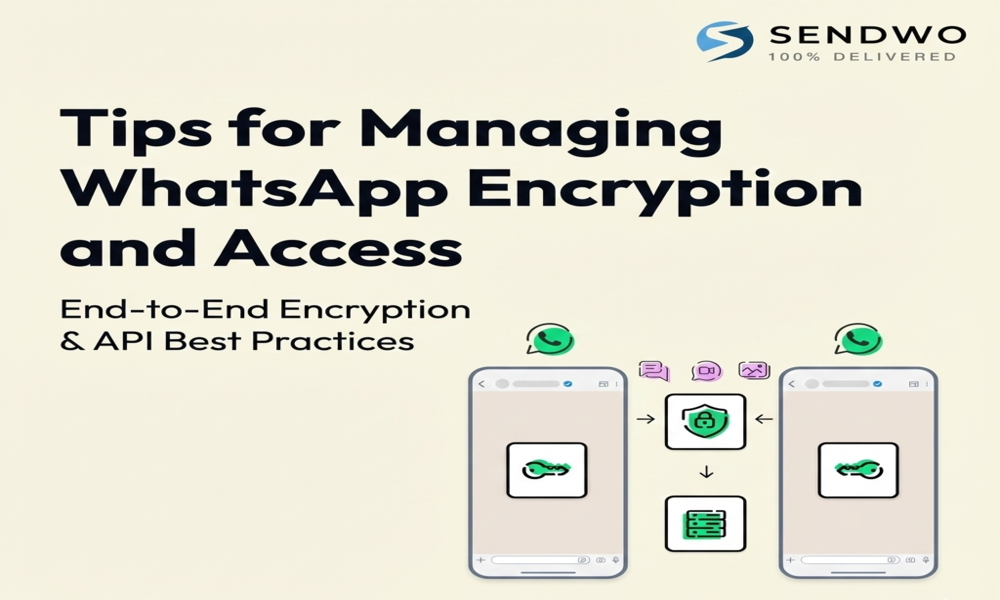
3. Tips for Managing WhatsApp Encryption and Access
Before we wrap up, here are a few quick tips to better manage your WhatsApp chats and their encryption so that you can always access what you need, when you need it, without compromising security:
Enable End-to-End Encrypted Backups: If you care about privacy, use the option in WhatsApp settings to encrypt your cloud backups with a password or 64-digit key. This ensures that even if someone gets your Google Drive or iCloud data, they can’t read your chats. Just don’t forget the password! Consider writing it down and keeping it safe. (Without it, you won’t be able to restore your backup .)
Keep Your Own Device Secure: Encryption won’t help if an intruder can simply open your WhatsApp. Use a strong phone lock, and enable two-step verification in WhatsApp (a secondary PIN that’s occasionally required, especially when registering the number on a new device). This prevents SIM-swap attacks or rogue reinstallation of your WhatsApp on another device.
Regularly Export Important Chats: For chats that are very important (business deals, cherished memories), consider exporting them periodically (as described in Method 2). This gives you human-readable backups that you can store in secure locations. It’s a good safeguard in case something happens to your WhatsApp app or if a backup gets corrupted. Remember these exports are sensitive data – protect them accordingly (e.g., store in a private folder or add a password to the file).
Monitor Linked Devices: Check WhatsApp > Linked Devices on your phone once in a while to make sure you recognize all logged-in sessions. If you see an unknown device, log it out immediately – this could mean someone had access and linked their device to your account. WhatsApp will also list the last active time for each linked device.
Stay Updated: Use the latest version of WhatsApp. Security protocols are periodically enhanced. For example, WhatsApp has rolled out additional layers like “Code Verify” (a browser extension that verifies the integrity of WhatsApp Web) and constant improvements to how multi-device encryption is handled. Staying updated ensures you have the most secure and smooth experience when reading your messages across devices.
Beware of Phishing and Scams: Finally, be cautious of any message or email claiming you can view someone else’s WhatsApp messages or asking for your verification code. These are almost always traps. Also, avoid modded WhatsApp apps or unauthorized clients – they might compromise encryption and your privacy. Stick with the official app and official methods to access your chats.
By following these tips, you’ll make the most of WhatsApp’s encryption – enjoying both security and convenience when accessing your messages.
Conclusion
Reading how to read encrypted WhatsApp messages is entirely possible – as long as you stick to the right methods. We learned that WhatsApp’s end-to-end encryption is incredibly robust, protecting billions of messages every day from prying eyes. For your own chats, it doesn’t pose a barrier: just use WhatsApp on your phone or linked devices and your messages display normally. Need a transcript? Export the chat to a text file. Recovering old messages? Restore from a backup and let WhatsApp decrypt it for you. And if you’re a power user, you can even manually decrypt the WhatsApp database with the proper key – though thankfully, most people will never need to go to that extreme.
In contrast, trying to read someone else’s how to read encrypted WhatsApp messages without permission will hit a dead end – WhatsApp’s security measures ensure that those secrets stay secret, which is ultimately a good thing for privacy and trust. Any tool or service that claims to bypass this is misleading you or requiring you to compromise a device.
By understanding how WhatsApp’s encryption works and using the tips and techniques we outlined, you can confidently access your important conversations when needed, while still enjoying the peace of mind that your chats are safe from eavesdroppers. It’s the best of both worlds: your messages remain private, but never lost to you.
Ready to make the most of WhatsApp while keeping your communication secure? Try SendWo’s free WhatsApp marketing platform to streamline your messaging and grow your business. SendWo, as an official Meta Business Solution Provider, offers tools like bulk WhatsApp broadcasting and AI chatbots – all while respecting WhatsApp’s encryption and privacy standards. With SendWo, you can enhance your WhatsApp communication strategy without compromising security. For more WhatsApp tips and in-depth guides, visit the SendWo blog – your trusted resource for smarter, safer communication!
(FAQs)
Q1. How to read encrypted WhatsApp messages?
Just open WhatsApp – it automatically decrypts messages for you. You can also read chats on WhatsApp Web/Desktop or restore encrypted backups using the same account.
Q2. Can I decrypt WhatsApp messages without a key/password?
No. Without your unique encryption key or password, the data can’t be read. Any tool claiming otherwise is fake.
Q3. I forgot my encrypted backup password — what now?
You can’t recover encrypted backups without the password or 64-digit key. If you still have the old device, disable encryption and re‑backup with a new password. Otherwise, the data is lost.
Q4. Can WhatsApp chats be hacked or leaked?
Not in transit, but leaks happen through cloud backups, malware, social engineering, or user mistakes. Always secure backups, enable two‑step verification, and keep your phone updated.
Q5. Is it legal to read someone else’s WhatsApp messages?
No. Accessing another person’s messages without consent is illegal and unethical. Only do so with explicit permission, such as for parental control with consent.
Aditi, a content marketer at SendWo, is a passionate writer and marketing enthusiast. She excels in driving revenue campaigns, building client relationships, and mastering content creation, SEO, customer service, and project management.
SendWo is Meta's official business solution Provider. Broadcast Bulk WhatsApp messages and automate using AI Chatbots.