In today’s fast-paced world, timing is everything in communication. Imagine sending birthday wishes at midnight or launching a marketing campaign exactly at 9 AM without being awake. WhatsApp – with over 3 billion active users globally and an astounding ~98% open rate is a powerful channel for personal and business messaging. Yet, WhatsApp does not natively let you schedule messages. Fortunately, there are workarounds and tools that make scheduling possible, saving you time and boosting engagement. In this guide, we’ll explain why scheduling WhatsApp messages matters, cover How to Schedule Messages on WhatsApp on various platforms, and show how businesses can use official tools like SendWo to plan broadcasts. Read on to automate your outreach and stay organized.
1. Why Schedule WhatsApp Messages?
How to Schedule Messages on WhatsApp offers big benefits for both individuals and businesses:
Save time: Automated messaging frees up hours. Companies that use scheduling and automation recover about 20–30% of employee work time. Rather than manually sending the same update hundreds of times, you can set it once.
Higher engagement: Sending messages at optimal times boosts response rates. For example, messages sent in the evening (8 PM–midnight) have about 20% higher engagement than midday posts. Timed messages meet customers when they are most attentive.
Meet customer expectations: Studies show 85% of consumers prefer proactive WhatsApp updates from brands, and 75% expect 24/7 responsiveness. How to Schedule Messages on WhatsApp (like auto-replies or follow-ups) help maintain constant communication and customer satisfaction.
Better conversions: One report found businesses using scheduled WhatsApp campaigns saw about 32% more conversions than those sending messages manually. Reaching people at the right moment can directly impact sales and leads.
Global reach and consistency: How to Schedule Messages on WhatsApp lets you send messages in customers’ local time zones, ensuring a global audience is covered. It also ensures brand messaging is consistent and timely, regardless of staff availability
High open rates: WhatsApp messages see roughly 98% open rate – far above email’s ~21%. This means your scheduled WhatsApp alerts or offers are very likely to be seen.
By planning ahead, you can engage contacts efficiently and free your team to focus on high-value tasks. In short, automated, well-timed WhatsApp messages boost productivity and keep customers happy.
2. Can You Schedule WhatsApp Messages Natively?
Short answer: No built-in scheduler in WhatsApp. Neither the regular WhatsApp app nor the WhatsApp Business app has a “send later” button for arbitrary messages. However, that doesn’t mean scheduling is impossible. Users have devised two main workarounds
Personal use (manual solutions): Individuals can use third-party tools or smartphone features. For example, Android apps like SKEDit or Wasender can automate sending texts at a set time. iOS users can use Apple’s Shortcuts app to build an automation that sends a WhatsApp message at a scheduled time.
Business use (official tools): Businesses and professionals can use the WhatsApp Business App and the WhatsApp Business API for automation. The Business app has an “Away message” scheduler (to auto-reply outside office hours). More powerfully, the Business API (through a service like SendWo) lets you schedule broadcasts and reminders in advance So while WhatsApp doesn’t offer native scheduling, how to Schedule Messages on WhatsApp texts with assistance – either via your phone’s apps or by using official marketing tools. In the next sections, we’ll explore each method in detail.
3. How to Schedule Messages on WhatsApp (Away Messages)
If you use the WhatsApp Business app, how to Schedule Messages on WhatsApp are limited auto-replies using the “Away message” feature. This is primarily intended for letting customers know you’re offline (for example, outside business hours). Here’s how it works:
Install and set up WhatsApp Business: Download WhatsApp Business from the Google Play Store (Android) or App Store (iOS). Register your number and complete your profile.
Access Business Tools: In the app, tap the three-dot menu (Android) or settings (iOS), then choose Business tools.
Enable Away Message: Select “Away message”, then turn on the toggle to send away messages automatically.
Schedule the Away Message: Tap the schedule option. You can set it to send outside business hours, or define a custom schedule. Write your message (for example: “Thank you for contacting us! We’ll get back to you soon.”) and save.
Add Recipients (Optional): You can choose to send the away message to all customers or only a custom list. Once configured, WhatsApp Business will automatically send your “away” text during your chosen hours. This is not the same as sending a one-off promotional message, but it is useful for scheduling generic replies.
Key point: The Business app’s scheduling is limited to these automated replies. You cannot schedule a one-time marketing message or chat reply at a future date in the app. For that, you need other methods (see below).
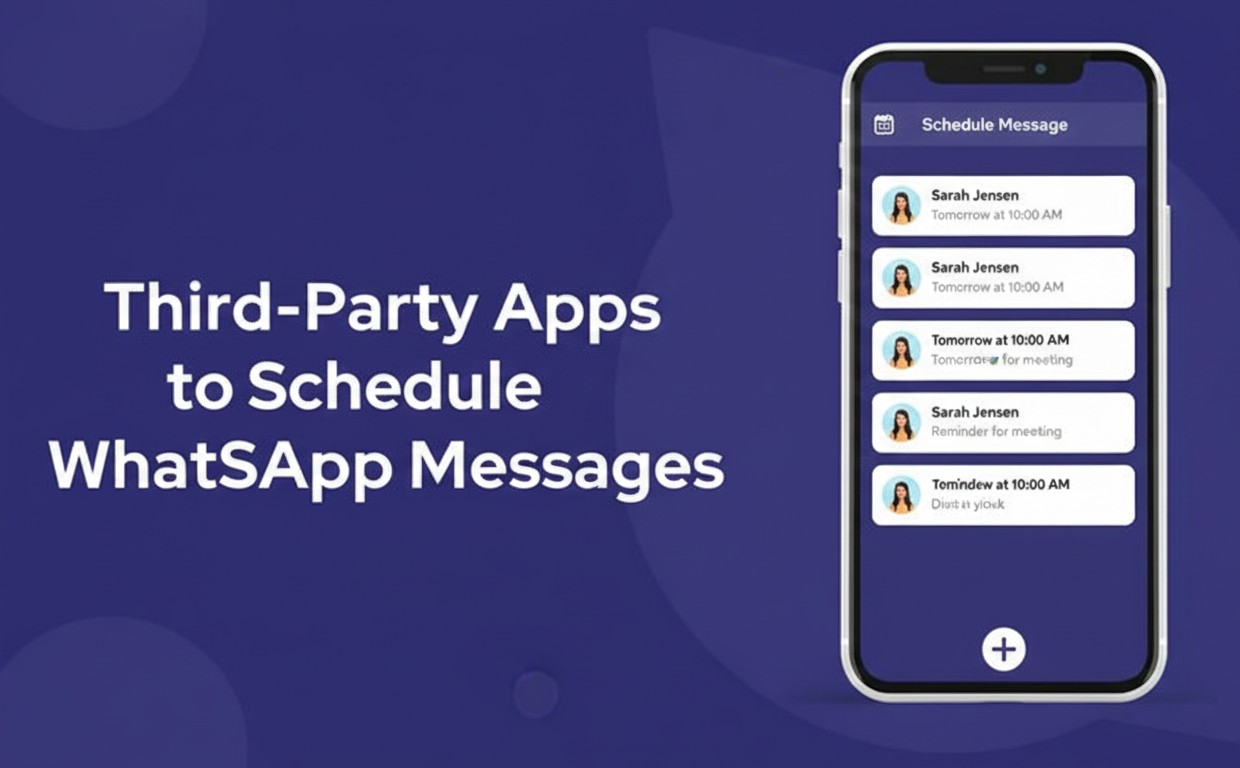
4. Third-Party Apps to Schedule WhatsApp Messages
For personal and small-business users, third-party apps can fill the gap. These apps run on your phone and simulate sending at the scheduled time with how to Schedule Messages on WhatsApp.
Be aware: using such apps usually requires granting special permissions (accessibility) and can have privacy or battery implications. Use them carefully.
Android Apps (e.g. SKEDit)
On Android, popular schedulers include SKEDit and Wasender. For example, SKEDit lets you automate WhatsApp (as well as SMS, emails, calls). Here’s a quick overview of using SKEDit
Download SKEDit: Install SKEDit – Schedule WhatsApp, SMS & Call from Google Play
Set up permissions: Open SKEDit and sign up. Grant Accessibility permission to SKED it so it can trigger WhatsApp for you.
Create a Schedule: In SKEDit, tap the plus icon and choose WhatsApp. Select the contact you want to message. Type your message and set the date/time to send. You can also enable “Ask me before sending” if you want a reminder just before it goes out.
Save the schedule: SKEDit will then automatically open WhatsApp and send the message at the right time. (Note: if you disable the “ask me” alert, SKEDit may require turning off your phone’s lock screen and power-saving features, which raises privacy/security concerns.). Other Android scheduling apps work similarly. They queue your message and launch WhatsApp when the time comes.
iPhone (iOS) with Shortcuts
Apple’s Shortcuts app can automate messages on a schedule. While not officially a “WhatsApp feature,” here’s a general approach:
Install Shortcuts: Ensure Apple’s Shortcuts app is on your iPhone (free on the App Store)
Create Automation: In Shortcuts, go to the Automation tab and tap “Create Personal Automation.” Choose Time of Day and set when you want the message sent (e.g. 9:00 AM tomorrow). Add WhatsApp Action: Tap Add Action, search for “Send Message via WhatsApp”. If needed, first create a Text action and enter your message text. Then add “Send Message through WhatsApp”, select the recipient(s).
Save and Run: Finish the automation and save. At the scheduled time, Shortcuts will run and open WhatsApp with the message ready. (Note: You’ll usually have to tap “Send” manually or confirm, due to iOS restrictions.). This method doesn’t fully auto-send without any touch (Apple locks down the last step). But it does queue a WhatsApp message at your chosen time.
Caveats: These phone-based solutions can be finicky. They may break if your device restarts, or if permissions change. And because they often require disabling locks or battery optimizations (see SKEDit), they are best for one-off needs, not large campaigns.
5. Scheduling via WhatsApp Business API and Tools
For serious business use, the most reliable way is to use the WhatsApp Business API through a platform like SendWo. These official tools are designed for bulk messaging and include scheduling, templates, analytics, and compliance safeguards. Here’s how the process typically works:
Connect Your WhatsApp Business API number: Sign up on a WhatsApp API platform (e.g. SendWo) and complete verification. You’ll link your business number via the API (official onboarding forms make this easy)
Create and Submit Templates: WhatsApp requires pre-approved message templates for outbound communications. In SendWo, you can draft a message (with buttons, media links, etc.) and submit it for Meta’s approval
Import Contacts: Upload your contact list (CSV file or via integration) into SendWo, segmenting as needed. Ensure all recipients have opted in to receive your messages.
Schedule Your Broadcast: In the SendWo dashboard, choose your approved template and contact list, then pick “Schedule.” Set the date/time for sending. You can also send immediately or save it for later.
Send & Analyze: At the scheduled time, SendWo will automatically dispatch the messages via the WhatsApp API. Afterward, check SendWo’s analytics dashboard for delivery and engagement stats.
Using SendWo (or similar tools) has big advantages: compliance and scale. Because SendWo is built on WhatsApp’s Business API, it won’t get your number banned as long as you follow rules. You can schedule large campaigns (thousands of messages) days in advance and track every send. In fact, SendWo explicitly lets you “schedule WhatsApp campaigns in advance” so your messages go out without you needing to be online
Steps at a Glance: To recap, here’s a simplified setup using SendWo
Schedule your message and let SendWo broadcast it for you.
This approach is ideal for businesses running marketing blasts, order updates, event reminders, etc. It frees you from timing issues and ensures every customer gets their message exactly when planned.
6. Best Practices for Scheduled WhatsApp Messages
To make your scheduling strategy effective and customer-friendly, follow these best practices:
Respect local time zones: How to Schedule Messages on WhatsApp in your recipients’ local time. Avoid middle-of-the-night sends (typically stick between 8 AM and 9 PM local time)
Personalize content: Use dynamic fields (names, order details, etc.) in your templates. Personalized messages have up to 41% higher engagement. Tailoring content shows you value each recipient.
Segment your audience: Don’t blast everyone the same message. Schedule different broadcasts for different groups (new customers, loyal clients, etc.) at the most relevant times for each.
Test and iterate: A/B test send times. Try sending some messages on weekday mornings and others on evenings to see what yields better open/reply rates. Use SendWo’s analytics to learn and refine your schedule.
Avoid over-messaging: Even if you can send 24/7, don’t spam. Maintain a reasonable frequency. Quality and relevance trump quantity. As Gallabox points out, scheduling is powerful only if messages stay helpful and desired
Compliance first: Only message people who have opted in. Follow WhatsApp’s policies closely. Authorized API tools like SendWo ensure you use approved templates and honor consent, keeping you compliant
Set up fallbacks: Combine scheduling with auto-responders. For example, if someone replies to a scheduled message, an autoresponder or chatbot flow can handle common replies immediately, improving customer experience
By following these guidelines, your scheduled outreach will feel timely and professional, rather than robotic or intrusive.
(FAQs)
Q: Can I schedule WhatsApp messages on my phone?
A: WhatsApp has no built‑in scheduler. On Android you can use apps like SKEDit, and on iPhone you can use Apple Shortcuts to trigger messages at a set time.
Q: How to Schedule Messages on WhatsApp Business app?
A: You can only schedule “Away messages” during non‑business hours from Business tools → Away message. For real scheduling and broadcasts, you need an external tool or WhatsApp Business API.
Q: Which Android apps can schedule WhatsApp messages?
A: Popular options are SKEDit, Wasender, and Do It Later; they let you draft a message, pick contacts, set date/time, and send automatically, but need special permissions like Accessibility.
Q: Can I schedule WhatsApp messages on iPhone?
A: Yes, using the Shortcuts app with a time‑based automation that prepares a WhatsApp message; often you must confirm or tap Send at the scheduled time.
Q: What is the best tool to schedule WhatsApp messages?
A: For business use, an official WhatsApp API platform like SendWo is best, as it supports scheduled campaigns, contact management, and chatbots with compliant messaging and transparent WhatsApp fees.
Aditi, a content marketer at SendWo, is a passionate writer and marketing enthusiast. She excels in driving revenue campaigns, building client relationships, and mastering content creation, SEO, customer service, and project management.
SendWo is Meta's official business solution Provider. Broadcast Bulk WhatsApp messages and automate using AI Chatbots.