
Imagine updating a Google Sheets spreadsheet and instantly reaching your audience on WhatsApp – without lifting a finger. This isn’t a far-fetched scenario, but a reality that savvy businesses are leveraging today. WhatsApp is one of the world’s most popular messaging platforms, now boasting over 3 billion monthly users, and about 80% of its messages are read within 5 minutes of receipt (with ~98% overall open rates).
By integrating Google Sheets (a powerful, cloud-based spreadsheet tool) with WhatsApp, you can automate personalized messages, send bulk updates, and streamline communication workflows. The result? Huge time savings, lightning-fast engagement, and communication at scale with the human touch of personalization.
In this comprehensive guide, we’ll explore how to send WhatsApp messages via Google Sheets using multiple methods – from simple formula hacks to official API integrations and no-code automation tools. Whether you’re a small business owner looking to send order updates or a marketer planning a campaign broadcast, these strategies will help you connect Google Sheets with WhatsApp easily.
We’ll also cover the benefits, best practices, and answer frequently asked questions. Let’s dive in and supercharge your WhatsApp messaging workflow!
Connecting Google Sheets to WhatsApp can be a game-changer for individuals and businesses alike. Here are some key benefits and scenarios where this integration shines:
Instead of manually sending the same message to multiple contacts, you can automate the process. For example, a teacher can send exam reminders to all students listed in a sheet with one setup, or a salesperson can follow up with leads recorded in a spreadsheet automatically.
✔ This saves time and reduces manual effort significantly.
Google Sheets makes it easy to store and manage data like names, phone numbers, and custom details. By linking it with WhatsApp, you can send bulk messages that feel personal. Each message can pull in the recipient’s name or specific info from the sheet (like an appointment date or order number), creating a personal touch at scale.
✔ This leads to better engagement and customer experience.
Many teams use Sheets to log status updates (e.g., order processing, task progress, inventory levels). With an integration, any update on the sheet can trigger an instant WhatsApp notification. For instance, imagine a small restaurant using a Google Sheet to track delivery orders – when an order’s status changes to “Ready” or “Dispatched” in the sheet, a WhatsApp message could automatically notify the customer and delivery driver.
✔ This real-time communication keeps everyone informed and improves efficiency.
By using Google Sheets as your central hub for messaging data, you maintain an organized record of what was sent and to whom. You can easily update contact lists, tweak message content, and see a history of communications all in one place (the spreadsheet). This is much easier than juggling a phone’s broadcast lists or copying and pasting messages one by one.
As noted, WhatsApp messages enjoy extremely high open and response rates compared to email or SMS. If you have critical alerts (payment reminders, important announcements, meeting links, etc.), automating them through WhatsApp ensures they’re seen promptly. Integrating with Google Sheets means you can manage those alerts in a structured way (e.g., schedule or trigger them based on data changes), combining WhatsApp’s immediacy with Sheets’ organization.
✔ In short, linking Google Sheets with WhatsApp allows you to work smarter, not harder.
Next, let’s explore the various methods to achieve this integration, from quick hacks to more robust solutions.
One of the simplest ways to send WhatsApp messages through Google Sheets is by using clickable WhatsApp web links.

This method requires no coding or third-party tools – just a clever use of formulas in your spreadsheet. It’s perfect if you want a quick, free solution for moderate messaging tasks.
Here’s how it works:
Create WhatsApp Message Links: In a new column (say, “WhatsApp Link”), use a formula to generate a WhatsApp API URL for each row. WhatsApp offers a simple URL format that can pre-fill a chat with a specific number and message. The format is:
https://api.whatsapp.com/send?phone=<PhoneNumber>&text=<URL-encoded message>
In Google Sheets, you can build this dynamically. For example, if the phone number is in column B and the message text is in column C, your formula in the “WhatsApp Link” column might look like:
=HYPERLINK("https://api.whatsapp.com/send?phone=" & B2 & "&text=" & ENCODEURL(C2), "Send via WhatsApp")
Pros: This method is extremely easy and free. You can prepare dozens or hundreds of personalized messages in your sheet and send them out relatively quickly by clicking each link. It leverages the official WhatsApp click-to-chat feature, so it’s not violating any rules (since you are manually sending each message). It’s great for scenarios where you have a list of recipients and need to send each a message with minimal effort (e.g., event invites, reminders, etc.).
Cons: The drawback is that it’s not fully automated – you still have to click each link and send it manually. For a small list, this is fine, but it doesn’t scale well to thousands of messages, and it won’t send on its own without your action. Also, your WhatsApp must be open and connected for each message, and you can’t schedule these for later automatically. Essentially, it streamlines manual sending but doesn’t eliminate manual work entirely.
This no-code hyperlink hack is a fantastic starting point and requires almost no technical setup.
However, if you’re looking for true automation (where messages are sent automatically based on triggers or in bulk at once), you’ll want to consider using the WhatsApp API along with some scripting or third-party tools, which we’ll cover next.
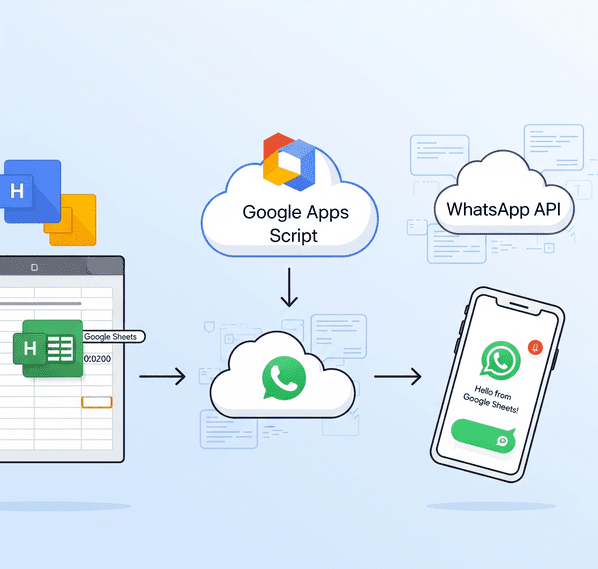
For a more powerful and hands-off solution, you can use Google Apps Script (JavaScript-based scripting in Google Workspace) to connect to the WhatsApp Business API. This approach allows Google Sheets to send WhatsApp messages automatically – for example, the script could iterate through a list and send out messages to all contacts with one command, or even trigger messages when new rows are added. This method does require some technical setup and coding, but it’s very effective for bulk messaging and advanced automation. Let’s break down the steps at a high level:
1. Obtain WhatsApp API Access: You have two main routes to get access to WhatsApp’s API:
Don’t worry, basic templates (like appointment reminders, order updates) usually get auto-approved quickly. The Cloud API is great because it’s official and free to start, but note that if you want to send messages beyond the 5 testing numbers or to customers at scale, you will have to move to production: that means connecting an actual WhatsApp Business number, getting it verified, and potentially incurring costs per message (WhatsApp charges a small fee per template message in most regions once you exceed free limits). Still, it’s the proper way to automate WhatsApp and avoids any risk of getting your number banned for automation, since this is fully authorized by WhatsApp.
The advantage of using a provider is that they often have simpler onboarding – e.g., Twilio’s sandbox lets you test by joining a sandbox via code and sending messages to any number that joined it, and for production, you can get a Twilio WhatsApp number without dealing with Facebook directly. The downside is cost – BSPs charge their own fees per message or monthly plans on top of WhatsApp’s fees. If you’re just experimenting or prefer a smoother UI, a BSP can be helpful.
In either case (official or BSP), by the end of this step, you should have: a WhatsApp API endpoint, an API token, and possibly a template name (if using templates) or the permission to send session messages (messages within 24h of user interaction, if applicable).
2. Write a Google Apps Script to Send Messages: Now, go to your Google Sheet, click on Extensions > Apps Script to open the script editor. You’ll write a script that reads data from the sheet and makes an HTTP POST request to the WhatsApp API for each contact. In pseudo-code, the script will do something like:
Writing this script requires some coding knowledge. Thankfully, you don’t have to start from scratch – Meta’s documentation and community tutorials provide examples. For instance, developer Amit Agarwal’s tutorial on using WhatsApp API with Google Sheets includes sample Apps Script code that demonstrates how to format the payload and loop through sheet data. You can adapt such examples to your needs.
Approve those. If everything is set up correctly, the script will go through each row and send out the WhatsApp messages in sequence. Monitor the execution log for any errors (e.g., if phone numbers are formatted incorrectly or if the API credentials are wrong, you’ll see errors that you can troubleshoot).
If using the official testing sandbox, check on your phone that the messages arrived to the test numbers. They should match your template with data from the sheet. It’s quite magical to see your spreadsheet essentially blasting out WhatsApp messages on its own!
Or schedule a trigger to send reminders every morning using data from the sheet. This way, you achieve hands-free automation – you don’t even need to click a button; new entries or scheduled times will cause messages to go out.
Pros: Using Apps Script with WhatsApp API is very powerful and scalable. You can send hundreds or thousands of messages (just be mindful of WhatsApp rate limits and message template rules) without manual effort. It’s fully customizable – you have full control over how and when messages are sent, message content, logic to skip certain rows, etc. It is an officially supported method (when using WhatsApp’s Cloud API or a BSP), so it complies with WhatsApp’s terms of service, meaning no risk of bans as long as your content is legitimate. This is the kind of setup large businesses use for CRM integrations, order notifications, OTPs, etc., albeit with more robust infrastructure. But thanks to Google Sheets and Apps Script, even individual users can build a mini system like this.
Cons: The obvious con is the technical complexity. You need to be comfortable writing and debugging code, or have a developer to help. The initial setup with Facebook Developers or Twilio can be a bit tedious if you’re not familiar with APIs. Also, once you go beyond testing (more than 5 people, or long-term use), you likely need to pay for WhatsApp API usage – costs vary by region, but typically it’s a few cents per message template delivered (incoming messages are free). It’s generally very cost-effective for the impact it delivers (especially compared to SMS), but it isn’t entirely free like using your personal WhatsApp app.
Additionally, WhatsApp Business API requires that you only send messages to users who have opted in to receive messages from your business, and any template messages have to be approved and non-spammy. So you can’t just blast a million unsolicited messages – that’s not allowed, and your API access could be revoked for spam. But for legitimate use cases (notifications, subscribed alerts, customer communications), this method is gold.
If coding isn’t your cup of tea, don’t worry. There are no-code solutions that achieve similar results. Let’s explore those next.

Not everyone is comfortable with scripting or API details. Fortunately, a number of third-party tools, integrations, and Google Sheets add-ons exist to help you send WhatsApp messages from spreadsheets with little to no coding. These solutions often provide user-friendly interfaces or connectors that do the heavy lifting in the background.
Below, we’ll cover some popular options that you can leverage:
Similarly, Interakt (another WhatsApp API solution) has a Google Sheets plugin: you can find it by searching “Interakt” in the Add-ons store. It’s listed as “WhatsApp sender – Jio Haptik Technologies Ltd”. After installing, you log in and basically can send messages directly from your sheet through Interakt’s service. The big advantage of these add-ons is simplicity – they integrate into the familiar Google Sheets interface. They often provide a sidebar UI to set conditions or pick which message template to send. If you already use a particular WhatsApp API provider (like WATI, Interakt, or others), check if they have an official Google Sheets integration or add-on; using it will save you from dealing with raw scripts.
The process typically involves signing up on SendWo, configuring a “flow” or “campaign,” and linking it to your Google Sheet (often by pasting a webhook URL and adding a small Apps Script to your sheet, which SendWo provides – this script sends data to SendWo when the sheet changes occur). Once set up, SendWo handles the message sending through the WhatsApp API on their end.
Other notable platforms include Picky Assist, which has a “Connector” feature for Google Sheets similar to SendWo’s approach, and AiSensy, Gupshup, Haptik, etc., which are official API providers that may allow sheet integrations or CSV uploads to send bulk messages. These platforms often come with intuitive dashboards – you might upload your Google Sheet of contacts to their system or use their preset Google Sheets integration to map columns to message template parameters.
The key benefit here is that you get a full-fledged solution with support and possibly advanced features (scheduling, analytics, managing replies via a shared inbox, etc.), usually for a subscription fee or per-message cost. When mentioning platforms like SendWo, it’s important to note: they are not “WhatsApp hacks” but legitimate services using WhatsApp’s Business API on your behalf. Thus, they ensure compliance and reliability, which is crucial for business use.
There are community Zap templates like “Send a WhatsApp message via Twilio when a Google Sheet row is added” – you’d configure your Twilio WhatsApp account in Zapier, and then map sheet fields to the message content. Make.com provides a more flexible scenario builder and actually has modules for WhatsApp Business Cloud API, where you can input your Facebook Cloud API credentials and connect to the Google Sheets module on the other side.
Essentially, these automation platforms are ideal if you already use them or if you want to connect multiple steps. They can, for example, take a new row from Sheets, look up additional info from somewhere else, then send a WhatsApp, and even log the result back to another sheet – all without coding. The trade-off is that Zapier and Make have usage limits for free accounts and can get costly at scale, and you still need an API provider or account to do the actual WhatsApp sending (Zapier/Make are just middlemen orchestrating the process). But for moderate volume and for those who prefer visual workflow builders, this is a user-friendly solution.
However, there are significant drawbacks: since they automate WhatsApp Web, they violate WhatsApp’s terms of service. If you send a large number of messages this way (especially unsolicited ones), your number can be flagged and banned by WhatsApp's spam detection. The extensions themselves even warn that premium versions can’t guarantee avoiding bans. Essentially, they are workarounds suitable for very small-scale use or one-off needs. We mention them for completeness, but businesses should be careful.
If you’re serious about WhatsApp outreach, using official API methods or trusted providers (as discussed above) is far safer and more reliable. That said, for a hobby project or a very limited personal use (like messaging a club’s members who expect your message), tools like WA Sender might do the trick. Just remember the risk that comes with anything that isn't officially endorsed by WhatsApp.
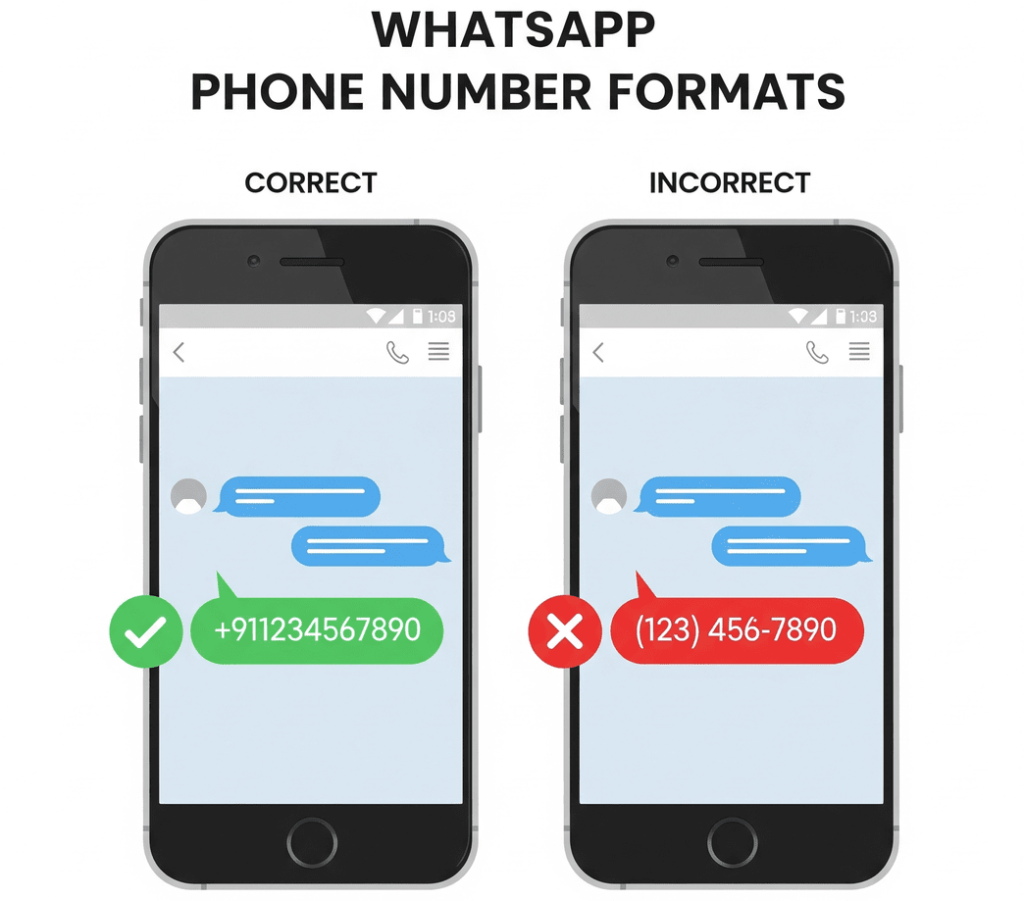
Always include the country code and avoid any symbols or spaces in the phone numbers in your Google Sheet. For example, use +911234567890 instead of writing 0 or using parentheses. WhatsApp API requires the international format and ensures your clickable links (in Method 1) work universally.
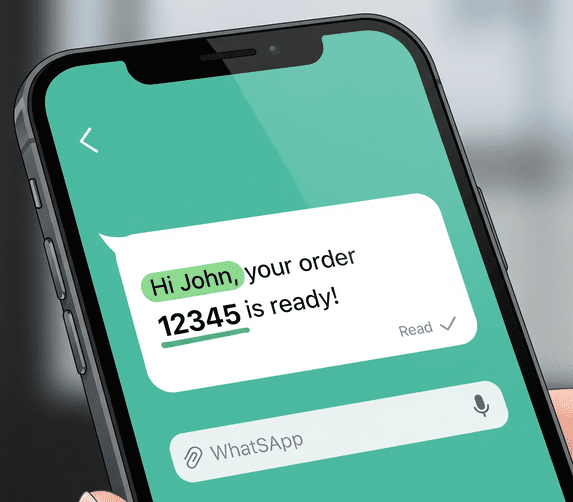
One of the advantages of using a spreadsheet is the ability to personalize each message (e.g., “Hi John, your order 12345 is ready!”). Take advantage of this – personalized messages tend to receive better responses. However, make sure the core message is short and clear, especially since many will read it on mobile. Include key information early in the message (WhatsApp shows a preview of the first line or two in notifications).
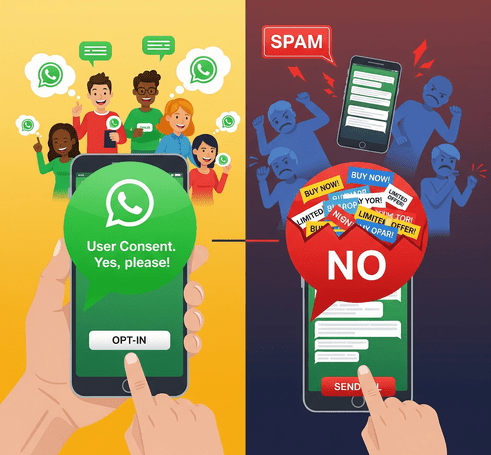
Just because you can send bulk messages doesn’t mean you should spam people. WhatsApp is a personal platform, and users can quickly report numbers that send unsolicited promos. If you’re using the Business API, you are required to have user opt-in before messaging them and to use approved templates for outbound messages. Even if you’re sending manually or via extension, ensure your recipients expect to hear from you and find your message valuable.
This will protect your number’s reputation and deliverability. Quality over quantity is key – a well-targeted message to 100 interested customers is far better than blasting 1,000 strangers and getting blocked.
When setting up an automation (be it a script, add-on, or Zap), do a dry run with a few test entries. Use your own number or colleagues’ numbers to see how the messages look on WhatsApp. This helps catch any formatting issues (like an incorrectly encoded URL or a placeholder that didn’t get replaced properly) before you send to real customers. It also ensures the timing and triggers work as expected. Only scale up once you’re confident the system is behaving.
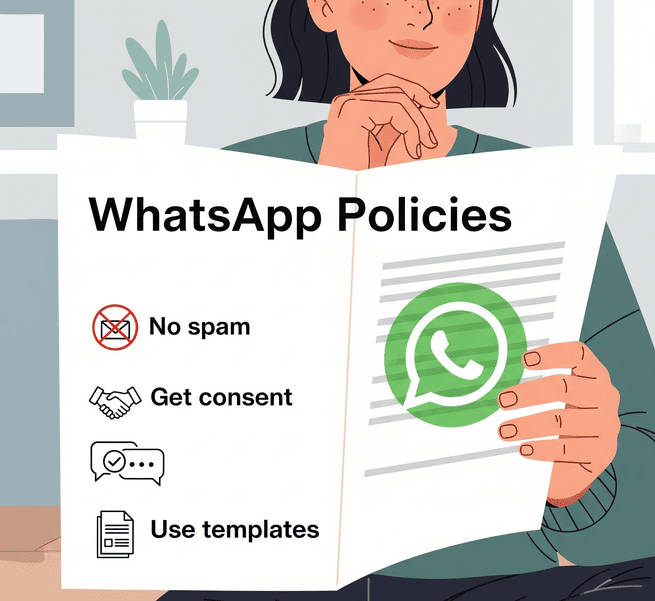
If using the official API, get familiar with WhatsApp’s messaging rules. For instance, template messages cannot be purely promotional – they should either be transactional, informational, or contain some utility to the user (WhatsApp has categories like authentication, shipping update, alert update, etc.). If a template is too salesy or spammy, it might not get approved.
Also, respect the 24-hour customer service window: if a user messages you, you have 24 hours to freely chat with them (session messages) before needing templates again. For those using personal WhatsApp via web or app, note that sending too many identical messages rapidly can trigger spam flags. If you’re using a workaround method, consider spacing out messages and avoiding message content that might look like spam. Ultimately, adhering to the platform rules will ensure your number isn’t blocked and your messages consistently get delivered.
Google Sheets often contains personal data (names, phone numbers, maybe even confidential info). If you integrate with third-party services, make sure they are reputable and secure, since you might be sharing contact data with them. Use the principle of least privilege – for example, if using an Apps Script, do not publish broad access to your sheet if it is not needed. And of course, keep your WhatsApp API tokens or service credentials safe; treat them like passwords.
Following these best practices will help you maximize the benefits of Google Sheets–WhatsApp integration while minimizing any potential pitfalls.
Conclusion
Linking Google Sheets with WhatsApp can transform the way you communicate, turning a simple spreadsheet into a powerful messaging engine. We’ve explored various methods, from a quick no-code link formula to advanced API scripts and user-friendly integration tools. The right approach for you depends on your needs and resources, but one thing is clear: automating WhatsApp messages can save you time, ensure timely outreach, and leverage WhatsApp’s incredible engagement rates to keep your audience informed and engaged.
Ready to supercharge your workflow? Pick a method from this guide and give it a try. If you’re a beginner, start with the easy hyperlink trick or a trusted add-on. If you’re tech-savvy or have growing business needs, explore the API/script route or sign up with a WhatsApp API provider for a more scalable solution. The sooner you implement one of these methods, the sooner you’ll free yourself from tedious manual messaging and start focusing on what matters – crafting great content and conversations that build relationships.
Don’t get left behind while others automate their communication. Embrace these tools and tips to streamline your WhatsApp messaging via Google Sheets today. With a bit of setup, you’ll reap the rewards of faster responses, happier customers, and a more efficient workflow. Happy messaging, and here’s to your newfound productivity!
If you found this guide useful, take action now – set up a small test in your Google Sheet and send yourself a WhatsApp message automatically. Seeing it in action is the best proof of how much time and effort it can save. Start leveraging the power of WhatsApp and Google Sheets integration and watch your communication processes become smoother than ever!
Yes! You can use no-code methods to send WhatsApp messages from Sheets. The simplest is using a hyperlink formula (as described above in Method 1), which creates a click-to-chat link for each message – you click and WhatsApp opens with the message ready to send. Additionally, there are Google Sheets add-ons (like those from WATI or Interakt) and services like SendWo that don’t require you to write code. These let you configure WhatsApp messaging through menus and templates. You could also use automation tools like Zapier or Make to connect Sheets to WhatsApp without coding (you’d configure a workflow visually). So, even if you’re not a programmer, you have plenty of options to get Google Sheets talking to WhatsApp.
Several tools have emerged to make Google Sheets ↔ WhatsApp integration easier. To name a few reliable ones:
1. SendWo
2. WATI
3. Interakt (Jio Haptik)
4. Picky Assist
5. Zapier / Make
6. Heltar
7. AiSensy
8. Gupshup
9. 360dialog
10. WA Sender (SheetWA)
Each of these has its pros and cons (pricing, ease of use, limits). “Reliable” also depends on your context: For mission-critical business messaging, stick to official API-based solutions (WATI, SendWo, etc.). For quick personal tasks, a free extension like WA Sender might be “reliable enough.” It’s always a good idea to read recent reviews and documentation of these tools, since WhatsApp policies and integration features can evolve. As of 2025, the ones listed above are among the well-known options in this space.


