With SendWo, you can build a fully functional WhatsApp chatbot all without coding in just a few minutes using a simple drag-and-drop builder.
This guide will help you understand how to create a WhatsApp chatbot in SendWo, demonstrating all steps with ease.
1. Log in to SendWo Dashboard
Visit the SendWo Dashboard and sign in using your registered email and password. Once you’re inside, you’ll be on the main dashboard.
2. Navigate to Chatbot Manager
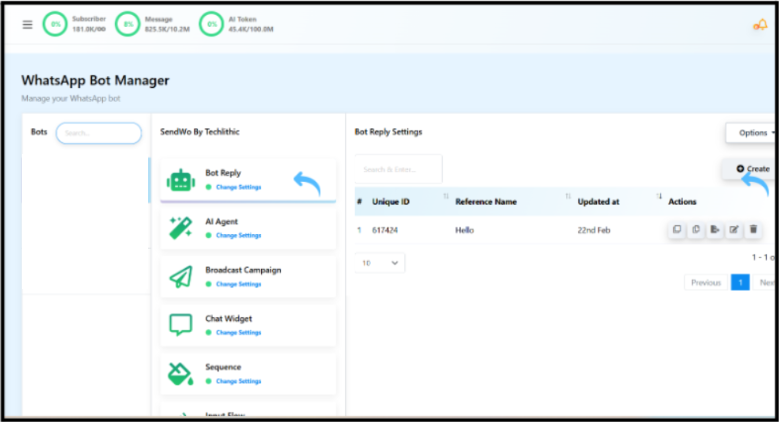
In the left sidebar, click Chatbot Manager > WhatsApp Chatbot. This is a place where all your bot automation flows are stored and managed.

3. Create a New Bot Flow
Click on Bot Reply and then hit the Create button to start a new bot flow.
4. Start the Flow Design
Double-click on Start Bot Flow and start designing your automation logic.
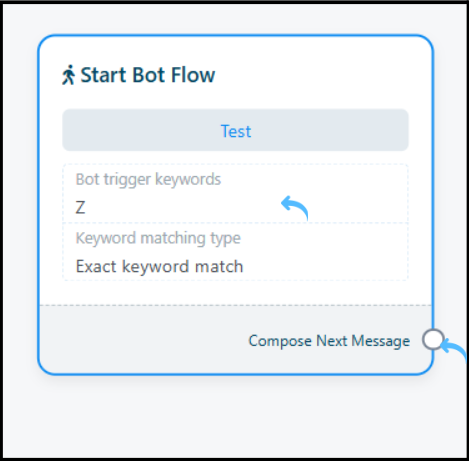
The keyword triggers define when your bot should activate.
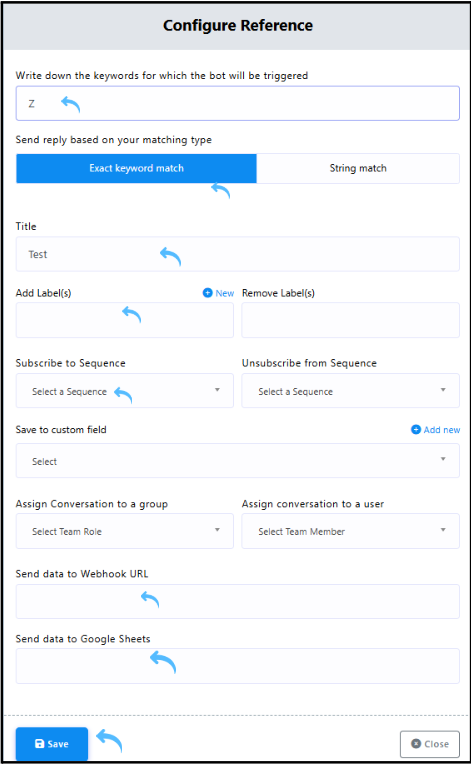
1. Add Keywords
Enter all the words or phrases that should trigger your chatbot.
Example: “Hi”, “Help”, “Pricing”, “Z” (for testing)
If your user sends any of these keywords on WhatsApp, the chatbot starts the corresponding flow.
2. Choose Matching Type
3. Add a title for the bot flow
Add a clear title for your internal tracking.
4. Optional Enhancements
a. Label: Segment subscribers for your targeted marketing.
b. Google Sheet Integration: This helps in auto-saving new lead details.
c. Sequence Attachment: Connect with follow-up messages for your drip campaigns.
d. Webhook URL: Send collected data to your external system, like CRMs, ERPs.
4. Save Your Settings
Once configured, click Save. Your chatbot trigger setup is now ready.
This step involves designing your chatbot to talk to users.
1. Add a Welcome Message
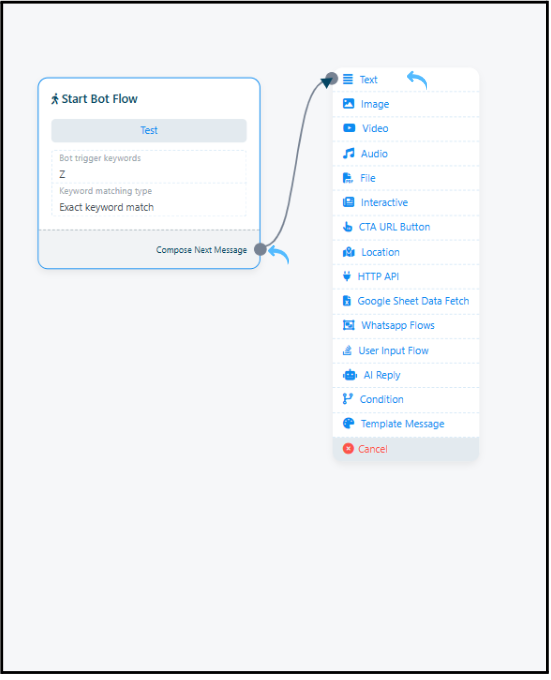
Drag the Text component from the panel and connect it to the Start node.
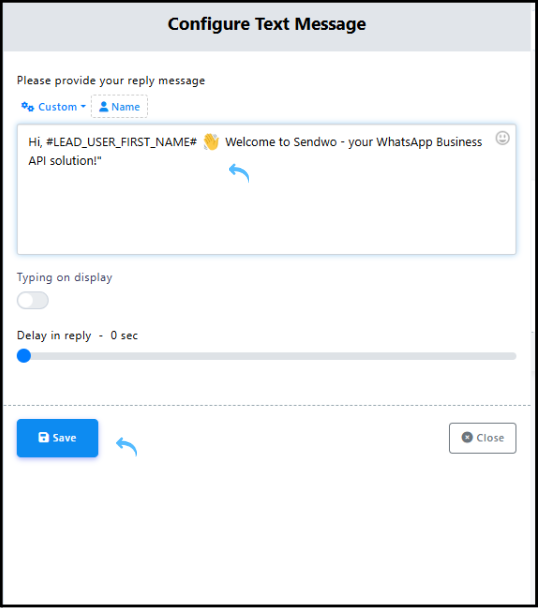
E.g., Type your greeting message, such as:
“Hi 👋 I’m your SendWo Assistant! How can I help you today?”
2. Add Interactive Buttons
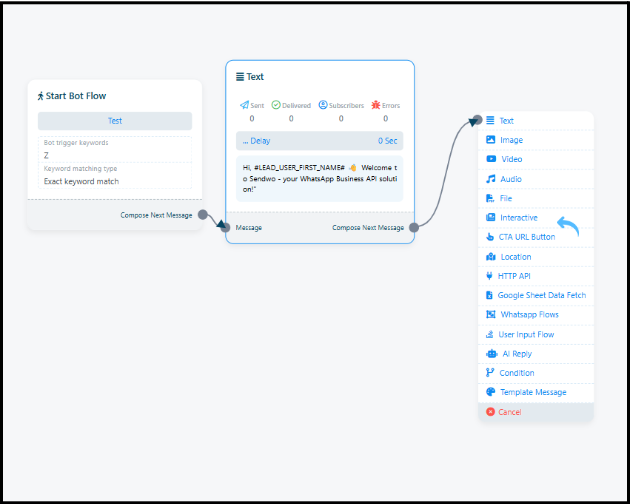
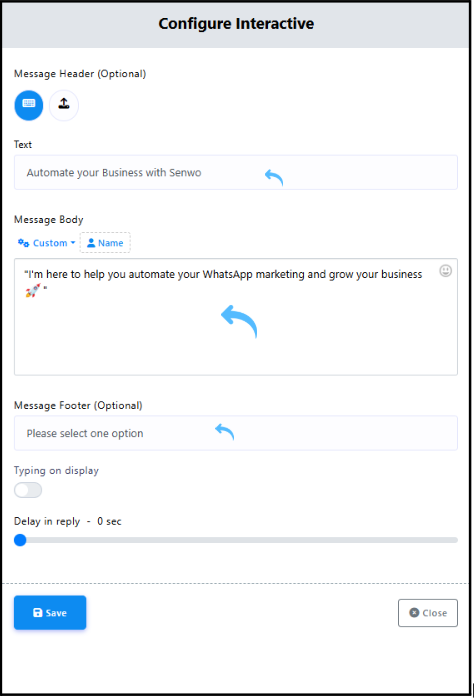
Below your welcome text, add Quick Reply Buttons like: Learn about features, Book a demo, Talk to support.
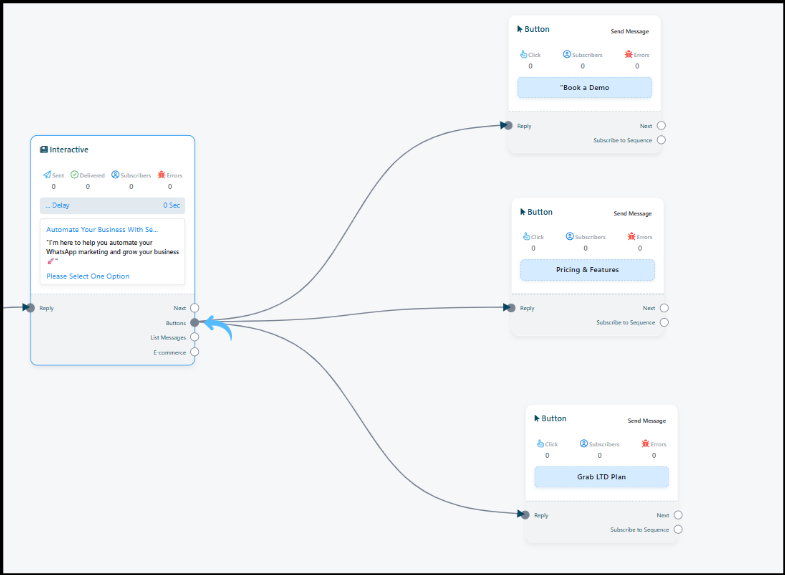
3. Design Each Button Path
For every button, connect the next component:
a. Text Node: Send more info about features.
b. Image/Video/File: Share media or product visuals.
c. Interactive URL Button: Direct users to your website or booking page.
d. AI Reply Block: Automatically answer common queries using AI.
e. User Input Fields: Ask for name, email, or phone number.
f. Google Sheet Block: Instantly save collected data.
g. WhatsApp Flow: Add multi-step guided processes (e.g., onboarding or surveys).
h. Condition Block: Branch based on user input (e.g., “If yes, then show details”).
i. API/Webhook Block: Integrate external tools like CRM, payment gateway, or ticketing systems.
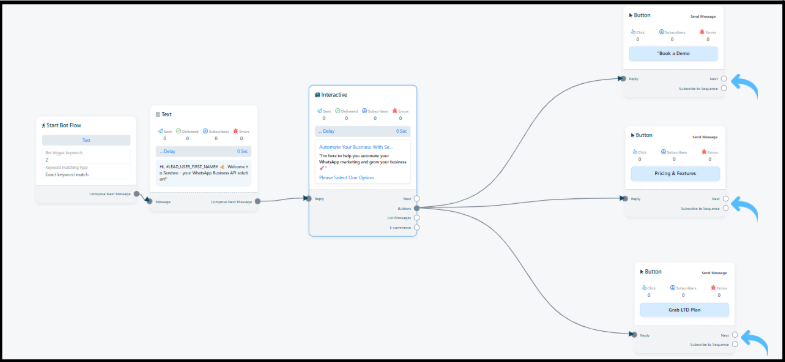
Pro Tip: Keep your chatbot flow conversational. Avoid long text blocks. Always use short, friendly messages that sound natural.
1. Review All Connections
Double-check your chatbot flow. Ensure that each buttons, node, and condition are connected correctly.
2. Save Your Flow
Once you’re confident everything is set for your chatbot flow, click the Save button.
3. Test the Bot Flow
Use SendWo’s built-in simulator to test your chatbot behaviour. Send test messages and verify that triggers, responses, and button clicks work seamlessly.
4. Go Live
When satisfied, publish your chatbot flow and start responding to real users on WhatsApp.
Creating a WhatsApp chatbot in SendWo is fast, flexible, and powerful. Within minutes, you’ll have a smart assistant ready to engage your audience 24×7.
Yes, absolutely. SendWo’s chatbot builder is completely no-code.
You can create multiple flows inside SendWo. For example, one for lead capture, one for demo booking, and another for customer support, all under the same dashboard.
Yes. SendWo’s AI Reply block can automatically answer user questions based on your predefined knowledge base or FAQs, making your chatbot more intelligent and context-aware


