Connecting Google Sheets to your WhatsApp chatbot in SendWo lets you automate data workflows and supercharge your messaging. As Meta’s official Business Solution Provider, SendWo enables WhatsApp marketing and support automation, and its Google Sheets integration is a powerful no‑code feature to connect spreadsheets and chatbots.
By following the steps outlined below, you will easily be able to link your Google account, create or sync a sheet, configure a WhatsApp bot flow in SendWo, and automatically log conversation data.
Let's Start !!
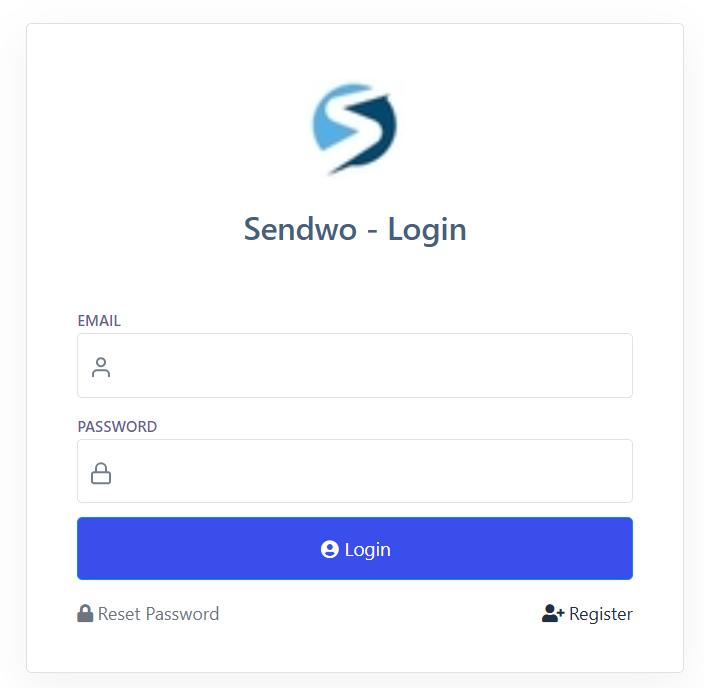
1. Log in to SendWo: With your credentials, log in to the SendWo Dashboard.
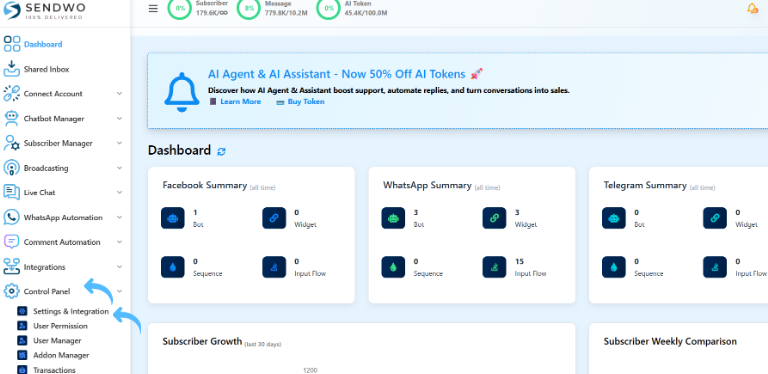
2. Go to Settings: Go to the Control Panel and click Settings & Integration. Look for the Google Sheets panel.
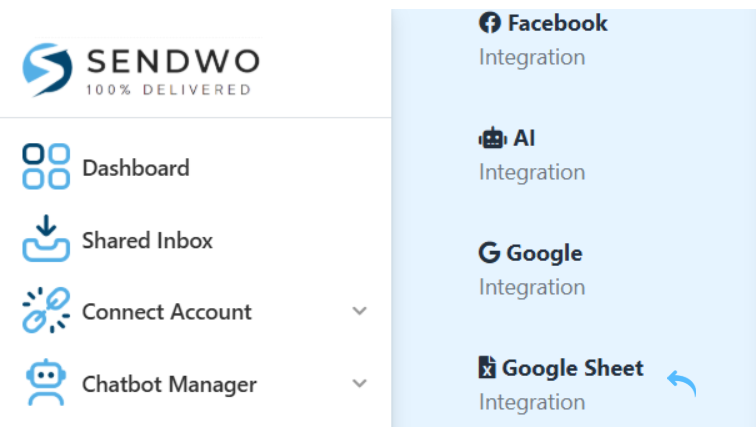
Tip: If you don’t see the Google Sheets option immediately, ensure you’re using SendWo’s latest interface. The Google Sheets integration panel is available for all users (including the free plan) and supports multiple sheets and accounts.
Next, link your Google account and give Sendwo access. Follow the steps as given:
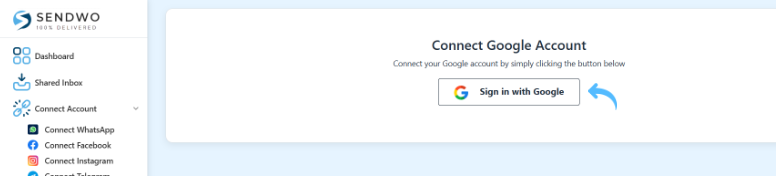
1. Prepare to connect with Google: Click on Google sheet, Navigate to Sign in with Google or Connect Google Account. This is the beginning of linking your spreadsheets.
2. Sign in with Google: Click the Sign in with Google account that contains the Google Sheets you want to use, and grant SendWo the requested permissions. This authorizes SendWo to fetch data from (or write data to) your sheets.
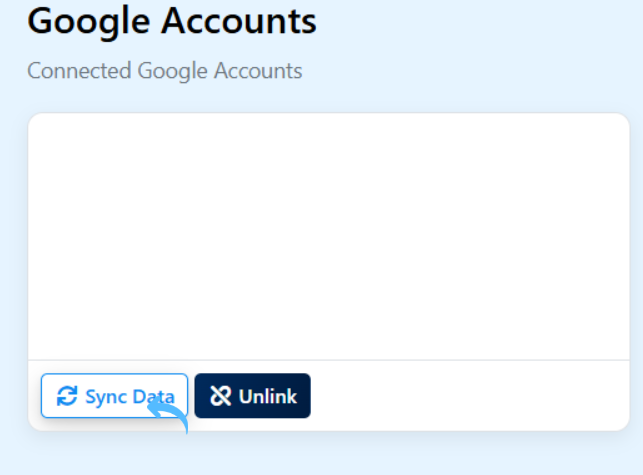
3. Sync Data: After authorization, click Sync Data. This pulls in your available spreadsheets from Google into SendWo’s interface.
4. Grant permission carefully: Only the Sheets you select will be accessed by the bot.
Best practice: Always use a dedicated Google account or service account for your chatbot data. Keep sensitive data in sheets private, and only share the necessary sheet with Sendwo. Regularly review and update permissions if team members change.
If you don’t already have a sheet prepared, Sendwo lets you create one on the spot.
1. Click Create Sheet: Choose Create Sheet. A dialog will prompt you to pick which connected Google account to use and to enter a title for the new sheet. SendWo will then create a new Google Sheet in that account.

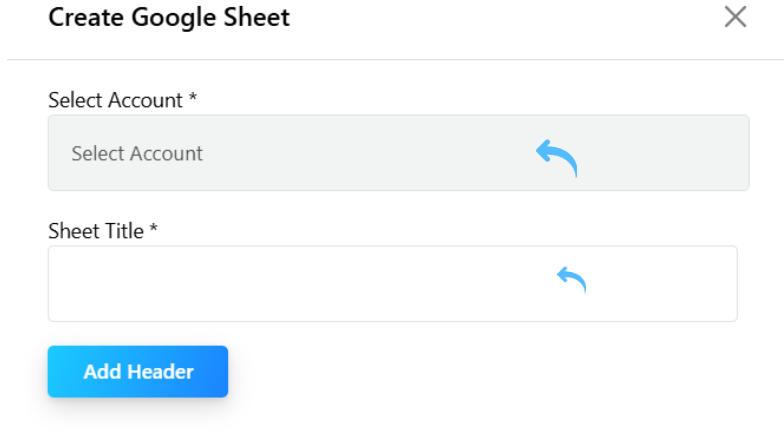
2. Confirm creation: Once the sheet is created, the new sheet will automatically appear in your Sendwo integration list. You can refresh with Sync Data if needed.
Now set up the chatbot flow that will use your sheet. In your SendWo dashboard:
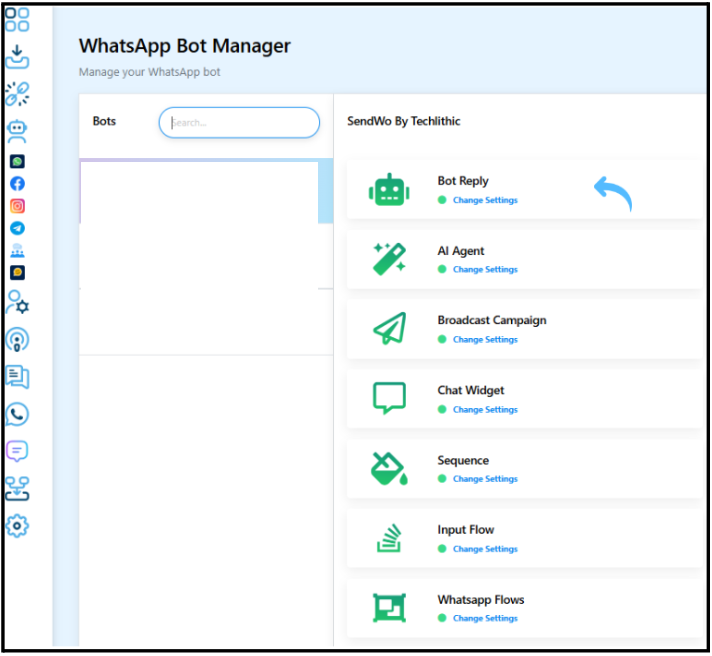
1. Go to Chatbot Manager: Select WhatsApp Bot in the menu.
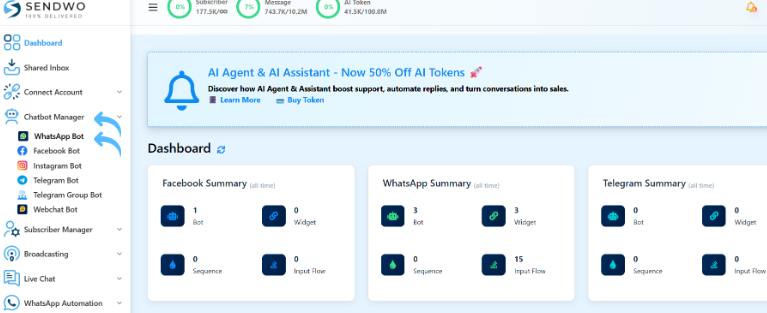
2. Choose Bot Replies: Within Bot Manager, click Bot Reply. This is where you build keyword-driven chat flows.
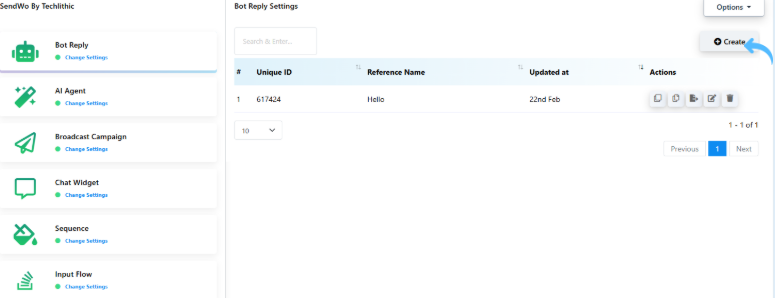
3. Click Create: Click the Create button to launch the bot editor. You’ll see a drag‑and‑drop canvas with nodes like Start Bot Flow.
4. Configure the Start node: Double-click on the Start Bot Flow element. This opens the settings for the trigger.
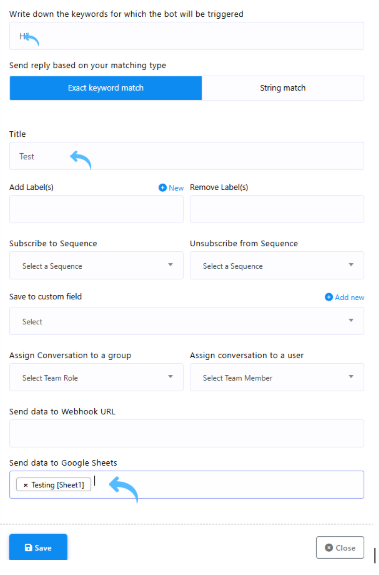
5. Set your trigger keyword(s): In the pop-up, enter the keyword or phrase that will start this bot flow. This is what a user will text to activate the bot.
Note: In SendWo chatbot, Exact Keyword Match means the bot only triggers when the user’s input matches the keyword exactly (no deviations), while String Match triggers the bot if the user’s input partially matches (contains) the keyword anywhere in the message.
E.g., Keyword “order now” triggers only for “order now” — not “order now please” or “Order Now!”(this is an exact keyword match). The keyword “order” triggers for “I want to order now”, “place an order”, or “order please”( this is in case of string match).
6. Name the flow: Give the flow a meaningful title. This helps you manage multiple bots.
7. Select your Google Sheet: There should be a dropdown labeled something like Google Sheet or Database. Select the spreadsheet you synced or created earlier. This ties the flow to that specific sheet, so the bot can log messages or retrieve data from it.
8. Save the settings.
Now add the bot’s response message:
1. Add a Text component: In the bot editor, drag a Text or Send Message component from the sidebar onto the canvas.
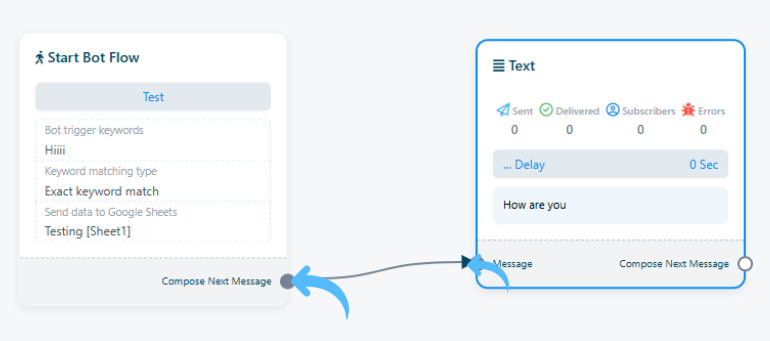
2. Configure the reply: Double-tab the Text component. Enter the message you want your bot to send automatically.
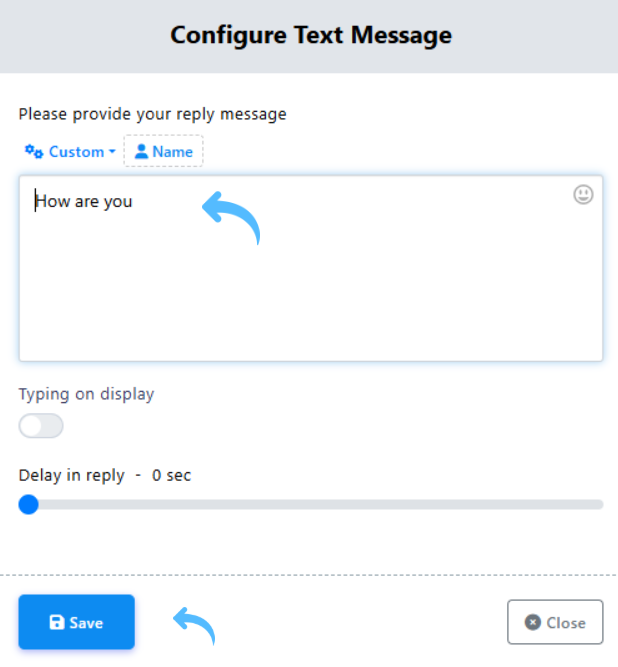
3. Click Save, and you’re done.
1. Verify connections: In the bot flow canvas, ensure there is a link from Start Bot Flow to your Text component.
2. Click the Save button in the bot editor.
3. Publish and Activate: Click Publish and Activate the flow. This activates the bot, allowing it to respond to incoming messages.
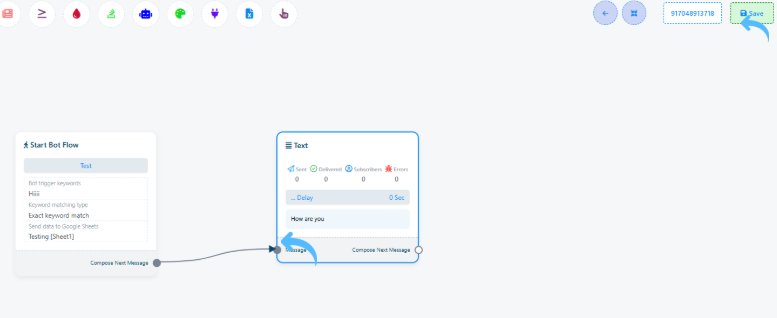
Once published, the flow is active on your WhatsApp number.
At last, always test the complete integration:
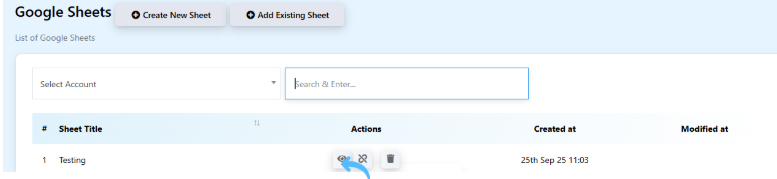
Every time a user activates the flow, the bot replies instantly, and the conversation data flows into your sheet automatically.
SendWo even notes that you can use Google Sheets to “store and analyze data” from your chatbot. In other words, your spreadsheet acts like a live CRM for your WhatsApp interactions.
Try it today! Head to the SendWo dashboard, integrate your Google account, and launch your first Google Sheets-powered chatbot flow. Your customers will get instant answers, and you’ll have their details automatically logged.
It’s a feature that lets your WhatsApp chatbot read from or write to Google Sheets. You connect your Google account in SendWo, then link a specific sheet to a bot flow. Now the bot can fetch data (like names, prices, contacts) from the sheet or log user interactions into it automatically.
In your SendWo dashboard, go to Settings > Google Sheet Integration, click Sign in with Google, and grant access. Then hit Sync Data so SendWo can load your available sheets. You can select an existing sheet or click Create Sheet to make a new one. Finally, in your bot flow (the Start Bot Flow node), choose the linked sheet from the dropdown.
Yes. Using the “Create Sheet” option in the integration panel, you pick an account and enter a sheet title. SendWo will generate a new Google Sheet in that account and add it to your integrations. It’s a quick way to start a data file for your chatbot without leaving the platform.


