October 26, 2025

Using External APIs in SendWo Flow Builder with Dynamic List Display

- No Comments

This guide will help you understand how to use an external HTTP API inside SendWo Flow Builder to display a dynamic product list in WhatsApp and handle user selections with precision.

Integrating external APIs into your SendWo Flow Builder unlocks endless automation possibilities. Whether you want to fetch live product data, display real-time lists, or connect to your CRM or eCommerce store, SendWo empowers you to bring external data directly into WhatsApp conversations, automatically and interactively
Step-by-Step Instructions

Step-by-Step Guide to Using External API in SendWo FlowBuilder

Follow the simple steps given below to build your own dynamic WhatsApp bot in SendWo.

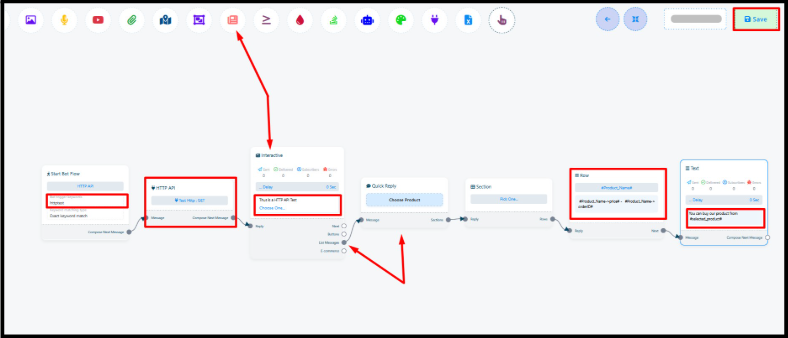
Step 1: Create a Bot Flow with a Trigger Word

  1. Log in to your SendWo Dashboard.
  2. Navigate to Bot Reply and click to Create button.
  3. Enter a flow name, for example: HTTP API Test Flow.
  4. Assign a trigger keyword, such as httptest.

Whenever a user types this keyword in WhatsApp, the flow will activate and fetch data using your configured API.

Step 2: Add an HTTP API Call Element

  1. Inside your flow, drag the HTTP API element and connect it to the trigger node.
  2. Choose your pre-configured GET request (for example: Product List API).
  3. This will fetch your API endpoint and retrieve JSON data — such as product names, IDs, prices, and links.

Step 3: Add an Interactive Element

  1. Next, drag an Interactive Message element into the flow.
  2. Enter your prompt message, for example:
    • Text: Here’s our latest product list!
    • Button Label: Choose One...
  3. Connect this to your previous API call step.

This step helps the bot introduces the list dynamically and let the user to pick from available options.

Step 4: Configure the List Picker

  1. Select List Message element.
  2. Always keep only one row and delete the other two (as per your need).
  3. Configure it as follows:
FieldValue
Quick Reply NameChoose Product
Section NamePick One
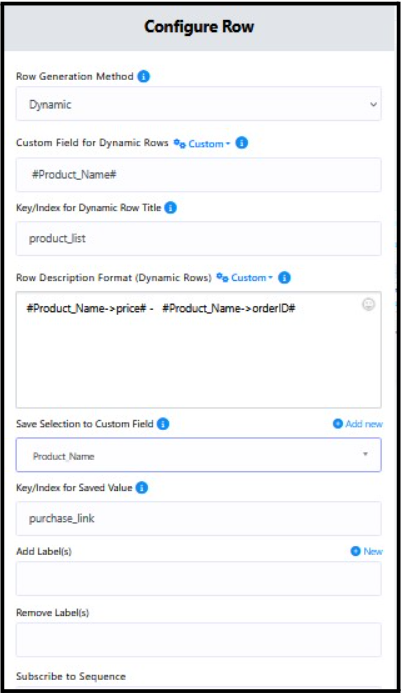
Row Generation MethodDynamic
Custom Field for Dynamic Rows#Product_Name#
Key/Index for Row Titleproduct_list
Row Description Format#Product_Name->price# - #Product_Name->orderID#
Save Selection to Custom Fieldproduct_name
Key/Index for Saved Valuepurchase_link

Configure Row Element

  • Keep only one row and delete the other two (as per your need).
  • Set Row Generation Method to Dynamic.
  • Use the following configuration:
Configure Row

This setup dynamically generates rows based on your API response. Each product from your JSON data will appear as a clickable list item in WhatsApp.
Step 5: Add a Response Message for Selection Feedback

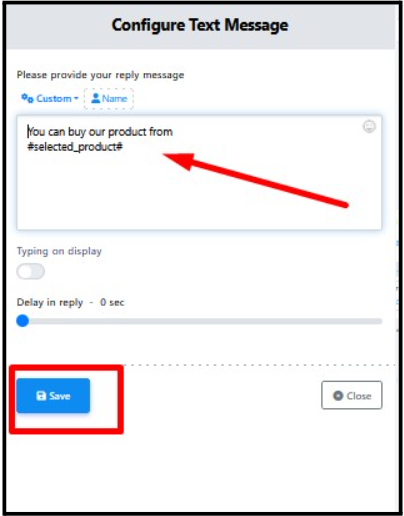
  1. Add a Text Message element.
  2. Configure the reply as:

    “You can buy our product from this link: #selected_product#”
Configure Response Message

Step 6: Save & Test Your Bot Flow

  1. Click on Save on the top-right corner of your Flow Builder.
  2. Go to your connected WhatsApp number.
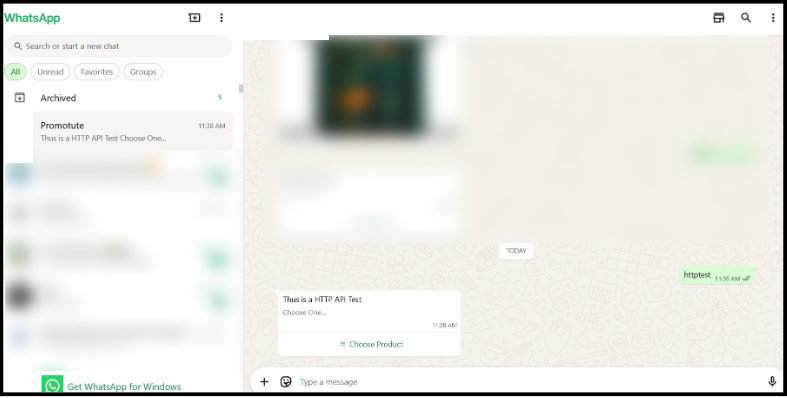
  3. Send your trigger keyword (httptest).
Save and Test Bot

This will make you receive instantly a dynamic product list fetched from your API. Once you select a product, the bot replies with a personalized message containing the relevant link or details.

Bravo, you’ve successfully created an API-driven WhatsApp bot in SendWo.

Popular Use Cases

Here are some practical ways businesses use SendWo’s API integration feature:

  1. Display products from your WooCommerce, Shopify, or your custom store directly in WhatsApp.
  2. Track real-time order updates or shipment info.
  3. Show available appointment slots or service categories dynamically.
  4. Empowers you with CRM Sync and respond instantly.
  5. Display reports, invoices, or personalized stats directly inside WhatsApp.

Conclusion

Using External APIs inside SendWo Flow Builder bridges the gap between automation and real-time personalization.

Whether you’re running an eCommerce store, a real estate agency, or a service business, SendWo’s Flow Builder empowers you to build conversational experiences that feel smart, dynamic, and human.

1. Can I connect any third-party API to SendWo?

Yes. SendWo supports both GET and POST requests, hence you can connect APIs from CRMs, eCommerce platforms, ERP systems, or even custom endpoints.

2. Do I need coding knowledge for this setup?

Not at all. SendWo’s no-code Flow Builder.

3. What happens if the API response changes?

Your flow automatically adapts to the structure of the JSON response. You can map new fields inside the dynamic row configuration whenever the API output changes.

About The Author:

Snehil Prakash

Snehil Prakash is an expert WhatsApp consultant with SendWo. He has expertise in implementing WhatsApp API for enterprise businesses and built automation, chatbot and AI powered solution.
Terms & ConditionsPrivacy PolicySupport SLARefund PolicyShipping Policy
Copyright © 2026 | SENDWO - Bulk WhatsApp Sender Software & Multichannel Chatbot Software
linkedin facebook pinterest youtube rss twitter instagram facebook-blank rss-blank linkedin-blank pinterest youtube twitter instagram