Imagine you send a WhatsApp message and see only one gray tick – the dreaded sign that it’s not delivered. With over 100 billion messages sent every day on WhatsApp, a single undelivered message is usually no catastrophe, but it can be frustrating, especially if it’s urgent or for business. The one-tick state means WhatsApp accepted your message but it hasn’t reached the recipient’s device yet. The good news? It’s almost always fixable.We’ll cover everything from simple network hiccups to account issues, and share tips (and a tool like SendWo) to maximize your delivery rates. Let see WhatsApp Message Not Delivered? 5 Common Reasons & Fixes.
1. Common Reasons & Fixes for WhatsApp Message Not Delivered
1. Poor Internet Connection or Offline Recipient
WhatsApp messages can only deliver when both sender and receiver are online. A single gray tick often means “in transit” – your phone sent the message, but the other phone isn’t connected to the internet.
Common scenarios include:
Phone switched off or in airplane mode. The recipient’s device is simply off or unreachable.
No data/Wi-Fi. Their phone has no mobile data or Wi-Fi signal (e.g. underground, rural area).
Network issues or low signal. Even if on, a poor connection can block delivery.
How to fix it: Ensure your own internet is working first – try sending any WhatsApp Message Not Delivered to another contact or load a webpage. You can also toggle airplane mode or switch between Wi-Fi and mobile data to reset your connection. If your internet is fine, ask the recipient to check their phone: have them turn on data or Wi-Fi, recharge the battery, or toggle airplane mode. In most cases the message will deliver once the recipient’s phone reconnects. (If you both are online and the tick still stays gray, move to the next possible causes.)
2. Wrong Number or Contact Not on WhatsApp
WhatsApp only delivers to valid, registered numbers. If the phone number is wrong or isn’t linked to a WhatsApp account, your message will never go through. For example, your contact may have changed numbers, deleted WhatsApp, or you might have entered a digit incorrectly (even the country code).
Signs: You’ll see one gray tick permanently, and the message status may show “Undelivered.” Business users often see an “unregistered user” error in their dashboard.
How to fix it: Double-check the number. Make sure you have the correct country code and no typos. If possible, verify via another channel (SMS or call) that the person’s WhatsApp number hasn’t changed. For businesses, maintain a clean contact list: use opt-in forms with OTP verification or CRM integration so only valid, active WhatsApp numbers are saved.
3. You’ve Been Blocked (or Have No Opt-In)
One permanent cause: the recipient blocked you. If someone blocks your number on WhatsApp, your messages will never deliver. You’ll see one gray tick forever, and you won’t see the contact’s profile changes or “last seen”. Other tell-tale signs are that your calls to them never ring, and you have no access to their status or profile updates.
For businesses, a similar effect happens when you send messages to users who never opted in to receive them. WhatsApp requires explicit consent to message people. If you ignore opt-in rules or spam users with marketing content, WhatsApp’s system may block or throttle your messages.
How to fix it: If you’re personally blocked, there’s no technical fix – respect their privacy and try another way to contact them. For business messaging, always obtain clear opt-in from customers (e.g. a form sign-up or keyword). SendWo and other official WhatsApp platforms enforce opt-in and will warn you if you violate rules. Focus on high-value, relevant messages. Providing an easy “STOP” reply or unsubscribe option also keeps your quality rating high and helps prevent silent blocks.
4. Outdated App or Device Issues
If either you or the recipient is running an ancient version of WhatsApp, it can cause delivery problems. WhatsApp updates frequently, and old apps may have bugs or compatibility issues. In some cases (like updates in 2021), outdated clients simply stop receiving messages. Also, device problems like full storage can block incoming messages.
How to fix it: Update WhatsApp to the latest version on both phones (Google Play or App Store). Also ensure both phones have enough free space and a stable OS. A quick restart of the app (or the phone) can clear minor glitches. After updating, try resending the message.
5. WhatsApp Service Outages or Policy Limits
Sometimes the issue isn’t on your end at all. WhatsApp’s servers can go down. Although rare, global outages happen even to apps with 2+ billion users. If you notice many contacts can’t be reached or social media lights up with “#WhatsAppDown”, check sites like Downdetector. All you can do is wait for WhatsApp to restore service.
For businesses, also be aware of WhatsApp’s messaging rules. WhatsApp enforces a 24-hour customer service window: non-templated messages after 24 hours will not deliver. That means if a customer hasn’t messaged you recently, you must use an approved template to reply or the WhatsApp Message Not Delivered will simply fail. Likewise, WhatsApp now limits how many promotional broadcasts each user can receive. Industry reports show broadcast delivery rates dropping to around 50% because once users hit a quota, new messages are blocked.
How to fix it: For outages, be patient and retry later. For business rules: use only approved template messages for notifications outside the 24-hour window. Don’t blast thousands of users at once – segment your audience and space out campaigns to avoid hitting rate limits. Official WhatsApp API platforms like SendWo handle these rules automatically (for example, SendWo can retry messages when limits lift, and ensures you use templates properly). By following WhatsApp’s guidelines, your messages are much more likely to reach their destination.
Conclusion
In summary, most “WhatsApp Message Not Delivered” issues boil down to these five reasons: poor internet, wrong number, being blocked, outdated apps, or WhatsApp’s own rules. By methodically checking each cause, you can usually restore normal messaging quickly. For businesses, the simplest solution is to use a trusted WhatsApp messaging platform like SendWo.
SendWo is built on the official WhatsApp Business API, which means no bans or hidden filters – it verifies contacts, manages opt-ins and templates, and retries any failed sends. In practice, SendWo’s verified API and analytics give you the best chance that every broadcast or notification arrives. Ready to keep your messages from getting stuck? Try SendWo’s free plan and see how reliably your WhatsApp campaigns can perform.
FAQs
1.Q: Why is my WhatsApp message stuck on one gray tick even if the recipient is online?
A: Single tick means sent to server but WhatsApp Message Not Delivered. Causes: blocked, their poor network, or (business) no opt-in. If blocked, it stays one tick forever. Otherwise, ask them to check internet/app and confirm permission.
2.Q: Does one gray tick always mean I've been blocked?
A: No—it means sent but WhatsApp Message Not Delivered (e.g., phone off, no data). Confirm block: perpetual one tick, no status/profile updates, calls won't connect. Otherwise, wait or troubleshoot.
3.Q: How do I fix WhatsApp messages failing to deliver?
A: Check your connection first. Then: 1) Verify number (with country code). 2) Ask recipient to enable phone/data or update app. 3) For business, ensure opt-in and valid templates.
4.Q: Why did my WhatsApp message deliver after a delay?
A: Recipient was offline; WhatsApp queues and sends when they reconnect. Be patient. Consistent delays suggest their spotty internet.
5.Q: Can I force a message to deliver if blocked?
A: No—blocked messages never deliver. Use another number/channel to ask them to unblock, or respect privacy and move on.
WhatsApp has evolved from a personal chat app into a powerful marketing channel. With over 3 billion monthly active users worldwide, it offers reach and engagement unlike any other platform. In fact, WhatsApp messages boast an ~98% open rate and 45–60% click-through rate– roughly 5× higher than email or SMS. No wonder businesses that use WhatsApp for promotions, updates, and support see far more engagement (and sales) than traditional channels.
Below are 10 proven strategies to harness WhatsApp Marketing Strategies. We’ll cover building your audience, crafting messages, leveraging automation, and more – with examples and stats. We’ll also show how SendWo’s WhatsApp Business API platform supports each strategy. By following these tips, you can boost visibility, conversions, and customer loyalty via WhatsApp. Let see Top 10 WhatsApp Marketing Strategies for Your Business.
1. WhatsApp Marketing Strategies for your Business
1. Build a Permission-Based Subscriber List
Always start with opt-in. Collect explicit permission before sending messages. Use website signup forms, chat widgets, or QR codes to invite customers to “message us on WhatsApp.” For example, add a click-to-WhatsApp link or QR code on your homepage, email footers, or social profiles. This way, people choose to join your list and know what to expect. As SendWo advises, “always start by obtaining consent” – never message anyone who hasn’t opted in.
Grow through ads and referrals. Run Facebook/Instagram Click-to-WhatsApp (CTWA) ads or Google ads with a “Message on WhatsApp” button. These ads take the user straight into a WhatsApp chat with your business. Because the user initiates contact, they’ve essentially opted in. Likewise, encourage current subscribers to share your messages or refer friends. Forwardable coupons or viral content can spark organic growth.
Key tactic: Offer an incentive to join. SendWo recommends exclusive deals or freebies in exchange for opt-in. For instance, “Subscribe on WhatsApp for a 10% welcome coupon” turns visitors into subscribers. Once opted in, these contacts form the foundation of all your WhatsApp campaigns – and a well-built, permission-based list ensures high engagement.
2. Segment and Personalize Your Campaigns
Treat WhatsApp as a 1:1 channel, not a generic broadcast tool. The more you tailor your messages, the better the response. Segment your audience into meaningful groups – by demographics, purchase history, location, or interests. SendWo suggests grouping contacts (e.g. “loyal customers” vs “new leads”) so you send relevant content. For example, send urban subscribers info about a local store opening, or B2B clients a case study link. More than 60% of consumers appreciate brands that engage them in a tailored way.
Use merge fields and personalization. Address recipients by name and reference past behavior. WhatsApp templates support custom fields, making it easy. A personalized message like “Hi Alex, we thought you’d love this new winter jacket…” feels like a chat from a friend, not a cold ad. (Research shows 71% of customers expect personalized outreach.) Personalizing even simple campaigns can double engagement. As one study noted, personal WhatsApp messages “turn engagement into sales” far more often than generic blasts.
Examples: Send a segment of repeat buyers a “loyalty VIP” offer; send recent cart abandoners a reminder with items they viewed. Use SMS or email data to enrich your list – then sync with SendWo’s CRM tags for laser-focused broadcasts.
3. Provide Value with Every Message
Make each message useful. Before you hit send, ask: “What value is this offering to the customer?” Every WhatsApp message should inform, help, or reward the recipient. High-value content builds trust and keeps customers subscribed. For instance, share order updates or tips (“Your order has shipped ?”), exclusive promo codes, how-to guides, or early access to sales. Because WhatsApp is a chat, not a billboard, customers expect relevance.
When users see your messages as helpful (not spammy ads), they’ll open almost all of them. In fact, one report shows 80% of WhatsApp messages are read within 5 minutes. Keeping messages concise and conversational also helps. Avoid email-like blocks of text – instead write like a friend: short paragraphs, bullet points, and even emojis if appropriate. Short, conversational tone wins on WhatsApp.
Tip: Mix in some interactive elements like polls or quizzes (“Reply with 1️⃣ if you prefer red, 2️⃣ if blue”) to engage readers. Always tie it back to value: e.g., “We’ll pick a winner to win that color for free!”
4. Leverage Rich Media and Interactive Templates
WhatsApp isn’t just text. Rich media grabs attention. Include images, short videos, audio clips, or PDF attachments in your campaigns. Visual content can double clicks compared to plain text. For example, a fashion brand might send a photo carousel of new arrivals, or a restaurant might share a brief cooking demo video. Use PDFs for menus or product catalogs, and even voice notes for a personal touch.
Also use WhatsApp’s interactive templates. Business templates can include buttons, lists, or carousels. For example, add a “Buy Now” button, or a list of quick replies (“Track Order”, “Shop Collections”). SendWo’s platform fully supports these features – you can send carousels with “Shop Now” buttons and rich media to thousands of contacts in one go. (Imagine broadcasting a rich-media newsletter: high-quality image, a 15-second video clip, and buttons that lead to your store.)
Catalogs & Status: Don’t forget built-in features – WhatsApp Business Catalog lets you showcase up to 500 products in-app. And WhatsApp Status (Stories) can be used for time-sensitive offers or behind-the-scenes content. Rich content makes your messages memorable and clickable.
5. Run Timely Broadcast Campaigns
Broadcast lists let you send bulk messages to many contacts at once, while still appearing 1:1. Use them for promotions, announcements, or newsletters. For best results, schedule broadcasts thoughtfully. Avoid late-night pings – SendWo recommends messaging mid-morning or early evening for B2C audiences (and during work hours for B2B). Don’t spam your list; a few high-quality updates per week usually works better than daily blasts.
When crafting broadcasts, use approved template messages (required by WhatsApp Business API) and include variables. According to SendWo, you can broadcast “to thousands or even millions of contacts” using WhatsApp-approved templates, ensuring no one gets flagged. For example, send an exclusive “VIP sale” announcement one morning, and follow up with cart reminders the next. Since WhatsApp has no spam folder, well-timed blasts are almost guaranteed to be seen.
Example strategy: Coordinate a series – e.g., announce a flash sale, then an hour later send a “last chance” reminder. Track which messages drive clicks (SendWo’s analytics can help) and iterate.
6. Automate with Chatbots and AI
WhatsApp is a live chat channel – leverage that by automating common tasks. Deploy a WhatsApp chatbot to answer FAQs, qualify leads, or guide users through menus. A chatbot can handle inquiries 24/7, instantly sending product links, FAQs, or payment prompts without human effort. For example, a restaurant’s chatbot could immediately send the menu when someone types “Menu”, or an e‑commerce bot could share shipping status when asked.
SendWo highlights that its AI Chatbot can be “trained with FAQs” and “share product links, images, payment links – basically anything – in a human-like manner”. Use quick-reply buttons (“Track Order”, “Contact Agent”) to speed up response. If the bot can’t help, it hands off to a human agent via SendWo’s shared inbox. This blends automation with personal service.
Benefits: Chatbots can generate 5× more leads on messaging channels (vs. traditional channels) and serve customers when staff are offline. They also free your team to focus on big tasks. Always include a way to reach a human if needed, so users feel supported.
7. Leverage Click-to-WhatsApp Ads and QR Codes
Supercharge your audience growth by integrating WhatsApp with your other channels. Click-to-WhatsApp ads (on Facebook/Instagram) or Google Click-to-chat take potential customers directly into a WhatsApp conversation with one tap. This removes friction – users avoid landing pages and immediately start a chat. For example, an ad for a webinar could say “Sign Up on WhatsApp” and open a pre-filled chat. The first message (or a SendWo preset “icebreaker”) can greet them warmly and capture the lead.
Similarly, use WhatsApp-enabled QR codes offline and online. Place a QR code on store windows, flyers, receipts, or presentations that opens a WhatsApp chat when scanned. This is great at events: attendees can scan to join your WhatsApp list.
SendWo notes that CTWA leads can be automatically nurtured – an “icebreaker” message is sent, then the lead flows into your CRM and drip campaigns. In fact, SendWo reports you can achieve 7.5× ROI by retargeting WhatsApp ad leads with follow-ups. Whatever the channel, the idea is to make it easy for people to connect on WhatsApp Marketing Strategies, since once they do, engagement is almost guaranteed.
8. Recover Abandoned Carts & Sell Directly in Chat
WhatsApp’s immediacy makes it ideal for abandoned cart recovery and in-chat sales. When a customer leaves items in an online cart, send a gentle reminder via WhatsApp with the cart contents and a payment link. These timely reminders convert amazingly well – industry data suggests WhatsApp flows recover ~60% of abandoned carts.
For e-commerce, integrate your store (Shopify, WooCommerce, etc.) with your WhatsApp platform. SendWo, for example, lets you showcase a WhatsApp product catalog and trigger automated cart recovery messages. You can even handle the sale right in chat: WhatsApp supports secure payments (UPI, credit card) so customers can complete orders without leaving the app.
Beyond carts, use WhatsApp for order updates and receipts. Confirm purchases instantly, send shipping updates and tracking, and even follow up with reorder reminders. These post-purchase messages make customers feel cared for (and are read almost universally). According to SendWo, automating these flows is a direct path to more sales (and happier customers).
9. Use WhatsApp for Real-Time Customer Support
Because WhatsApp is inherently conversational, it’s perfect for customer support and engagement. Offer a number where customers can ask questions, or route incoming chats into your shared team inbox. Multiple agents can use tools like SendWo’s multi-agent inbox to respond promptly.
Fast response matters: data shows 57% of WhatsApp messages get a reply within 1 minute. Meeting users in the channel they prefer builds loyalty. In fact, 67% of consumers say WhatsApp Marketing Strategies builds a stronger personal connection with a brand. Use pre-saved quick replies and chatbots for common queries to stay speedy.
As with messaging, be mindful not to overwhelm customers. Follow best practices – respond within 24 hours to avoid message restrictions, and set “away” messages if you’re offline. With WhatsApp Marketing Strategies, you can resolve issues faster (and at lower cost) than phone or email. One stat finds WhatsApp support can cut service costs by up to 30%.
In short, treat WhatsApp as both a support channel and a sales channel: answer inquiries and subtly pitch products when appropriate. The two-way nature of chat (encouraging replies, using quick-reply buttons) turns customers into participants, not passive recipients.
10. Measure Results and Optimize Continuously
Finally, track and improve. Like any marketing channel, WhatsApp Marketing Strategies campaigns should be data-driven. Monitor delivery rates, read receipts (open rates), link clicks, and response rates. Platforms using the Business API (like SendWo) provide analytics on each broadcast. For example, see which template got 60% clicks vs. 30% clicks and learn why.
Run A/B tests: vary the time of day, the message copy, or multimedia elements. SendWo’s blog suggests testing with small segments to find what resonates. If a particular message leads to unsubscribes, adjust frequency or content. Over time, even small optimizations compound: a 5–10% improvement in engagement each month can translate into significantly higher sales.
Also measure business outcomes: track how many WhatsApp chats lead to orders, bookings, or support resolutions. According to industry benchmarks, WhatsApp Marketing Strategiesp campaigns often drive 45–60% conversion rates when used well, so even a few conversions can justify more budget.
Key point: Make WhatsApp a living part of your WhatsApp Marketing Strategies. Incorporate feedback, keep content fresh (not same promos over and over), and stay on top of new features. By continuously optimizing, WhatsApp will remain a high-ROI channel for your business.
Conclusion
WhatsApp Marketing Strategies can transform how you reach and serve customers. By following these WhatsApp Marketing Strategies – from building an opt-in list, personalizing messages, and using rich media, to automating chats and analyzing performance – you’ll tap into one of the most engaged audiences on the planet.
For businesses ready to act, a platform like SendWo can make execution easy. SendWo is built on the Official WhatsApp Business API, ensuring reliable, compliant messaging. It offers bulk broadcasting with templates and multimedia, AI chatbots, e-commerce integrations (catalogs & cart recovery), and a shared team inbox– all without coding. Best of all, SendWo has a free plan so you can get started at no cost.
Ready to unlock WhatsApp’s potential? Start by creating your first campaign today. For example, sign up at SendWo and send a welcome message to the new subscribers you’ve just collected. Then iterate through the WhatsApp Marketing Strategies above. With each WhatsApp message you send, you’re connecting in a more personal, engaging way than ever before.
Get started now – try SendWo’s free WhatsApp marketing software and see the results for yourself!
FAQ
1. Why use WhatsApp for marketing?
WhatsApp has 3B+ users and ~98% open rates. Click-throughs and conversions (45–60%) beat email/SMS, ensuring promotions and alerts get seen and acted on.
2. How do I avoid being marked as spam on WhatsApp?
Message only opted-in users via official tools like SendWo. Keep messages valuable, relevant, and timed right—avoid unsolicited or frequent blasts.
3. Do I need the WhatsApp Business API for marketing?
Business App works for small scale but lacks automation. For bulk broadcasts, chatbots, and multi-agents, use the API—SendWo provides official access.
4. How do I measure success on WhatsApp?
Track delivery/read rates, clicks, and responses via API tools like SendWo. Link to sales/leads and compare ROI (often 4–12× better than email/SMS).
5. What should I not do on WhatsApp for business?
Avoid spam: no unsolicited messages, excessive volume, or long texts. Always get opt-in, reply promptly (use chatbots), and keep it conversational.
Gathering Collect More Customer Reviews is critical for building trust and boosting sales. In fact, research shows that up to 93% of people make purchasing decisions based on ratings and reviews. Positive testimonials, star ratings, and user-generated content are powerful proof points that influence prospects. Yet many businesses still rely on low-response channels like email or SMS to request reviews.WhatsApp is a game-changer here. Plus, discover how SendWo’s WhatsApp marketing platform can streamline this process so you can collect reviews at scale.Let see How to Use WhatsApp to Collect More Customer Reviews.
1. Why Customer Reviews Matter
Reviews drive trust and conversions. Today’s consumers expect social proof. 72% of customers trust a business more after seeing a positive review. Conversely, 66% will avoid a brand with negative reviews. Even one review can make a big difference: a study by Northwestern’s Spiegel Center found that a product with five reviews is 270% more likely to be purchased than one with none. As review volume increases, the effect compounds: products with 11–30 reviews convert ~68% better than those with zero, and items with 50+ reviews convert nearly 5× better.
It’s not just about quantity – fresh, detailed reviews are gold. 77% of consumers distrust reviews older than three months. Platforms also reward recent feedback: businesses with 25+ new reviews (posted in the last 90 days) earn over 100% more revenue than those with few recent reviews. Rich reviews (with text, images, or video) build even more confidence; 88% of shoppers prefer text reviews over a star rating alone.
In short, more authentic reviews = more sales. By using WhatsApp to ask for feedback, you tap into a channel that Collect More Customer Reviews actually use and respond to – creating a continuous feedback loop that boosts your online reputation.
2. Why WhatsApp is Ideal for Review Requests
WhatsApp isn’t just another messaging app – it outperforms traditional channels in engagement and immediacy. Business marketing messages on WhatsApp routinely achieve ~98% open rates (compared to ~21% for email). Even better, click-through and response rates on WhatsApp are typically 45–60%. In practice, this means up to half of the recipients might follow through on your CTA. By contrast, a typical email review request might only see 2–5% click-through.
Why is WhatsApp so effective? People treat WhatsApp like a personal space for friends and family. When a customer sees a message from your business there – especially one they’ve opted in to receive – it feels direct and personal, not like a generic blast. WhatsApp’s instant notifications ensure about 90% of messages get opened within minutes. In other words, if you send a review request after delivery or service, you’ll reach the customer at the peak of their satisfaction before they even check email.
Moreover, WhatsApp supports rich, interactive content. You can send image carousels, buttons, quick-reply surveys, or even short videos to make it easy and engaging to leave feedback. For example, you might send a quick 1–5 star rating prompt with buttons. If they click “4” or “5”, you instantly follow up with a “Thank you!” and a direct link to your Google reviews page. This two-step “feedback filter” ensures that happy customers end up on your public review page, while those who had issues can be routed to private support before going public.
In short, WhatsApp amplifies your review campaign: the messages get seen, they get responses, and you can automate the entire process with the WhatsApp Business API.
3. Best Practices for Collect More Customer Reviews WhatsApp
Implement these strategies to maximize review collection:
Ask at the Right Time (Peak Satisfaction): Timing is crucial. For e-commerce or product sales, wait 2–3 days after delivery before sending a review request – long enough for the customer to try the product, but soon enough that excitement is still fresh. For service businesses (salons, gyms, events, home services), the best moment is immediately after service completion – often the same day or the next day when positive results are top of mind. Example: “Hi [Name], your order arrived! ? We hope you love it. Can we ask a quick favor?” — then follow up a day or two later with a review request. Research shows review response rates plummet after a week, so send your WhatsApp review request within 3–7 days of service completion for maximum impact.
Personalize Your Request: Use the customer’s name and reference their specific order or appointment. A personal touch makes a big difference: “Dear [Alice], how was your haircut today with [Stylist Name]?” People tune out generic requests, but a personalized message feels conversational and genuine. Pull in dynamic fields (first name, order number, service type, etc.) to customize the text. Keep the tone friendly and concise – remember, many people use WhatsApp daily, so an informal style is perfect. As the expert guide suggests, frame the review ask as a “quick favor” to lower the barrier: “If you could spare just 10 seconds to leave us a rating, it would mean a lot to our small business”.
Use Interactive Elements: Leverage WhatsApp’s buttons and quick replies to simplify feedback. For instance, start with a one-click rating poll: send a message like “On a scale of 1–5, how satisfied were you with your experience?” with star-button options. If the customer taps 4 or 5 stars, immediately reply with: “Awesome – glad you’re happy! Would you mind sharing a short review? It really helps us out.” Then provide the review link. If they tap lower (1–3 stars), trigger an internal alert to follow up personally or solve any issue before it turns into a negative public review. This “feedback filter” workflow protects your brand’s reputation while maximizing positive reviews.
Make It Effortless with Links: Include a direct, clickable link to your review page. For example, use the Google Business Profile “Get more reviews” link (or similar on Yelp, Facebook, Trustpilot, etc.) so the customer lands straight on the review form. Tip: shorten the URL with a service like bit.ly or your own domain to avoid looking spammy. For WhatsApp Status or catalogs, you can also share review screenshots (with permission) or embed review links. The easier it is, the more reviews you’ll get.
Offer an Incentive or Thank-You: While incentives must be used ethically (and in line with review platform rules), a small reward can boost participation. For example, after a customer submits a review, instantly send a thank-you message with a discount code or loyalty points as a token of appreciation. This not only increases goodwill but also encourages future purchases. Example: “Thanks so much for your feedback! ? As a thank-you, here’s 10% off your next order: THANKS10 (valid 30 days).” The image below illustrates a friendly feedback exchange that ends with a coupon – notice how simple and rewarding it is for the customer.
Follow-Up and Engage: Don’t stop once the reviews start rolling in. Send a second WhatsApp message or broadcast thanking customers who left a review publicly. Engage with review comments on platforms too. Studies show that 88% of consumers would choose a brand that responds to all reviews, versus only 47% for a brand that ignores them. A quick “Thank you!” or “We’re on it” goes a long way in turning reviewers into loyal fans and even repeat buyers. Plus, if someone had an issue, public responsiveness signals to all prospects that you care about customer satisfaction.
4. How SendWo Can Streamline Review Collection
While you can ask for reviews via WhatsApp manually, using an automated platform like SendWo makes the process effortless and scalable. With SendWo’s official WhatsApp Business API solution, you can set up automated post-purchase flows in minutes. For example, integrate SendWo with your e-commerce platform and define a rule: “When an order is delivered, send Review Request Template after 3 days.” Every eligible customer then automatically receives a personalized WhatsApp template you’ve pre-approved.
SendWo supports bulk broadcast and chatbot features, so you can manage your entire campaign from one dashboard. Import your contact list, segment it by labels (e.g. VIP, frequent buyers), and schedule your review broadcasts with rich media or quick-reply buttons. All of SendWo’s messages use WhatsApp’s official templates, keeping your account in good standing. The platform also provides analytics – track how many Collect More Customer Reviews messages were sent, delivered, and how many responses came back. In short, SendWo automates the mundane, freeing you to focus on engaging with customers and Collect More Customer Reviews.
Key Takeaway: With SendWo’s WhatsApp API tools, you can consistently capture feedback from satisfied Collect More Customer Reviews without any extra manual work.
Example WhatsApp Review Template
Here’s a simple example of an approved WhatsApp template that asks for a review:
“Hi {{name}}, thank you for your order {{order_id}} delivered on {{delivery_date}}. We hope you’re happy with it! Could you rate your experience on a scale of 1–5 stars?”
If the customer replies with 4 or 5, follow up automatically with:
“That’s wonderful to hear! ? Would you mind sharing a quick review on Google? It really helps our business. [Insert shortened review link]”
For a lower rating (1–3), you could instead reply:
“We’re sorry to hear that. ? We’ll reach out to make this right. Could you tell us what went wrong?”
This kind of flow keeps the tone friendly and makes the path to leaving a review straightforward.
Conclusion
WhatsApp is a powerful, high-engagement channel for Collect More Customer Reviews. By leveraging its 98%+ open rates and interactive features, you can significantly outpace email or SMS in generating feedback and social proof. Key strategies include personalizing your message, timing it for peak satisfaction, using quick polls or buttons, and rewarding customers’ time. According to one case study, an online retailer automated WhatsApp Collect More Customer Reviews requests and saw 400% more reviews on Trustpilot.
Ready to Collect More Customer Reviews? Try SendWo’s WhatsApp Marketing platform to set up automated review campaigns quickly. With SendWo, you can create WhatsApp templates, import customer lists, and schedule follow-ups in just a few clicks. Start capturing authentic customer testimonials and watch your star ratings—and conversions—soar. Get started with SendWo today to transform your customer feedback into your biggest asset.
FAQs
Q: How soon after purchase/service to send WhatsApp review request?
A: Day 1 check-in for products, request 2–3 days post-delivery. Same/next day for services. Act within 3–7 days—reviews drop after a week.
Q: Why WhatsApp over email for reviews?
A: 90–98% open rates (vs. ~20% email); 3–4× higher responses. WhatsApp Google review requests hit 25–40% action rates vs. 3–8% email.
Q: How to automate WhatsApp review requests?
A: Use WhatsApp Business API + SendWo. Integrate store/CRM, set triggers (e.g., "delivered → review request in 2 days"). Auto-sends approved templates.
Q: What to include in review request message?
A: Short & personal: "Hi [Name], loved your [Product]? Quick 2-min review? [Link]" Add emojis, direct link. Keep friendly.
Q: Can I incentivize reviews on WhatsApp?
A: Yes, post-review thank-you (e.g., coupon)—transparent, not for positive reviews only. Boosts responses without violating terms.
WhatsApp Business has become a powerhouse channel for customer engagement. In fact, over 3.3 billion people use WhatsApp worldwide (as of 2026), and 175 million of them message a business every day. With 200+ million businesses on WhatsApp globally, your profile must grab attention instantly. Your WhatsApp Business description is the first thing new contacts read under your business name and logo – essentially a digital business card. A clear, compelling description builds credibility, boosts search visibility, and can turn profile visitors into customers
1. Why Your WhatsApp Business Description Matters
Your WhatsApp Business profile is like a digital business card. When potential customers find you on WhatsApp, the description helps them quickly understand your brand. A concise, on-point description:
Establishes trust and credibility: A clear overview of your services shows you’re professional and active. Visitors are more likely to engage if they immediately see what you offer.
Improves discoverability: WhatsApp profiles with complete info (name, category, description, contact details) rank higher in searches within the app. More information means customers can find you faster.
Sets customer expectations: Your description should highlight your unique selling points or mission (“who you are and what you do”), so users know what to expect when they message you.
Guides action: A friendly call-to-action (CTA) like “Message us to order!” or “Tap to learn more” turns visitors into conversations.
With 500+ million WhatsApp users in India alone and over 200 million businesses using WhatsApp Business worldwide, standing out is key. Remember: a generic “We sell quality products” won’t cut it. Instead, use your brief space (max 256 characters) to convey your value and invite engagement.
2. What to Include in Your Description
A great WhatsApp Business description typically includes these elements:
Who you are: Name your business or brand clearly. Avoid confusing acronyms.
What you offer: In one sentence, describe your main products or services. Use customer-focused language.
Unique value: Highlight what makes you special (e.g. “handmade,” “family-owned,” “20 years of experience,” “fast delivery”).
Friendly tone: Write as if you’re talking to a customer in person. A warm, approachable voice makes your business feel trustworthy.
Call to action: Prompt the user to take the next step (e.g. “Message us for a free quote!” or “Tap to order now!”). A clear CTA boosts response rates.
Example format: “[Business Name] — [what you do/offers] for [target customers]. [Unique benefit]. Message us to [take action]!”
For instance:
“GreenLeaf Cafe – Fresh coffee & pastries daily. Enjoy artisan brews or cozy tea time. ☕️ Tap to view menu and order!”
“Bright Moves Movers – Safe, affordable moving services in [City]. 1000+ happy relocations. ? Message us to book your move!”
Make sure your business hours and location are up to date on your profile too – they appear just below your description in WhatsApp Business. A complete profile (description plus updated hours/contact) not only looks professional, but can reduce repetitive questions.
3. Top 10 WhatsApp Business Description Examples
Here are ten engaging WhatsApp Business profile descriptions (with examples) to inspire your own. Notice how each one is concise, clear, and customer-focused. Use them as templates or ideas and customize for your brand:
1. Local Shop / Cafe:
“Freshly baked treats & hot coffee every morning. ? Open 7am–3pm. Message us to place your pick-up order!”
Emphasizes local freshness, hours, and invites customers to order.
2.Retail Store:
“Quality electronics & friendly service. ? Best prices in town. Need help choosing? Message us for expert advice!”
Highlights product quality and support, with a prompt to ask questions.
3. Services (e.g. Salon/Salon):
“StylePro Salon – Transforming looks since 2010. ?♀️ Trendy haircuts & spa treatments. Book your appointment today!”
Includes business name, track record (2010), offerings, and CTA.
4. E-commerce / Online Business:
“Urban Threads – Handmade apparel for modern women. ? Free shipping on orders $50+. Browse our catalog or message to order!”
Showcases product, special offer (free shipping), and prompts to browse.
5. Consulting / B2B:
“Insight Advisors – Data-driven marketing for small businesses. ? Grow your brand with expert strategies. Contact us to start!”
Focuses on service (marketing consulting) and outcome (grow brand), with contact CTA.
6. Health & Wellness:
“GreenCare Clinic – Holistic healthcare & nutrition services. ? Feel your best with personalized care. Call or WhatsApp to book!”
Combines clinic name, what it offers, benefit (feeling best), and call.
7. Home Services (e.g. Cleaning, Repairs):
“ShineMaid Cleaning – Sparkling homes every time. ? Licensed & insured. Get a free estimate today!”
Mentions trust factor (licensed), what they do, and a CTA for a quote.
8. Food & Catering:
“Bella’s Bakery – Cakes & pastries made with love. ?? Order 24 hours in advance. Message to customize your cake today!”
Emphasizes handmade nature, ordering info, and invites customization.
9. Education / Tutoring:
“Bright Minds Tutoring – Personalized lessons in math & science. ? Experienced tutors available now. Tap to schedule a session!”
Highlights subject focus, benefit (experienced tutors), and scheduling.
10. Professional / Personal Brand:
“John Doe Photography – Capturing your moments in natural light. ? Award-winning portraits. Book your session now!”
Includes photographer’s name, specialty (portraits), trust factor (awards), and CTA. Each of these examples is under 256 characters and ends with a call to action. Notice the use of emoji in some: a well-placed emoji (?, ?, ?) can draw the eye and convey your business vibe, but don’t overdo it. Choose ones that match your brand (e.g. a coffee cup for a café) to add personality.
4. Tips for Writing an Engaging Description
Keep it concise: WhatsApp cuts off descriptions over 256 chars. Aim for 1–2 clear sentences. Busy readers will scan, so make every word count.
Align with your brand voice: Use the same friendly or professional tone as your website or marketing. Consistency builds trust.
Highlight your USP: What problem do you solve? Mention any special deals or guarantees (e.g. “30-day return guarantee” or “24/7 support”).
Use simple language: Avoid jargon or complicated terms. Write as if you’re speaking directly to a customer.
Include a CTA: Encourage an action like “message us for a quote,” “tap to shop,” or “ask us anything.” Direct prompts increase engagement.
Update seasonally: Change your description for holidays or promotions (e.g. “New summer menu – 15% off!”). Fresh info keeps your profile current and relevant.
5. Common Mistakes to Avoid
Being too vague: Phrases like “best products” or “great service” sound empty. Instead, be specific about what you offer.
Using buzzwords: Overused terms like “synergy,” “innovative,” or “solutions” don’t say anything concrete. Focus on real benefits instead.
Overstuffing with info: Don’t cram in long lists or repeat contact details. Keep details like hours or address in the appropriate profile fields, not in the description.
Skipping the CTA: A description without an action loses momentum. Always end with how customers can reach you or what to do next.
Forgetting emojis: While emojis should be used sparingly, relevant emojis can make your text pop. Don’t use unrelated ones, and never string together too many. One or two can work well.
Conclusion
A powerful WhatsApp Business description can differentiate your brand in a crowded marketplace. By clearly stating who you are, what you offer, and what customers should do next, you’ll convert more profile views into chats and sales. Remember, with WhatsApp’s unmatched open rates and engagement, a small change in your description can have a big impact.
Ready to level up your WhatsApp presence? Try SendWo’s all-in-one WhatsApp marketing platform. With SendWo you can manage your profile, send bulk messages, and automate responses – all from one dashboard. Start your free trial today (no credit card required) and see how easy it is to turn your profile into a powerful sales tool.
FAQs
1. What should a WhatsApp Business description include?
Include a brief overview of your business, your key services or products, and what makes you unique. Use a friendly tone and end with a clear call-to-action (e.g. “Message us to learn more”). For example, “XYZ Cafe – Fresh pastries & coffee daily. 100% organic. Message to order now!”.
2. How long can the WhatsApp Business description be?
The WhatsApp Business description supports up to 256 characters. Use this space wisely to highlight your core message. (Note: The shorter “About” field is limited to 139 characters for quick intros.)
3. How do I write a professional WhatsApp Business description?
Stick to your core messaging, use clear and simple language, and highlight your unique value. Keep it customer-focused and concise. Always end with an invitation, like “Message us today!” or “Tap here to get started.”.
4. Can I update my WhatsApp Business description?
Yes! You can edit your description anytime. Just go to your WhatsApp Business app or portal, open Profile > Edit, update the description field, and save. It’s best to refresh it periodically with new offers or updates (e.g. holiday hours or new products).
5. Can I use emojis in the description?
Yes – emojis can add personality and make your profile stand out. For example, a shopping bag ?️ for a store, or a phone ? for support. Use them sparingly and relevantly to complement your text. Overuse can look unprofessional, so one or two well-placed emojis is usually enough.
Imagine turning WhatsApp – the world’s most popular chat app – into your 24/7 online store. An AI shopping assistant on WhatsApp acts like a personal shopper in your customer’s pocket, recommending products, answering questions, and even handling checkouts via chat. With over 3 billion users on WhatsApp globally and open rates above 90%, this conversational channel unlocks sales opportunities impossible on email or traditional chatbots. In this guide, we’ll show you step-by-step how to build your own WhatsApp AI shopping assistant using SendWo’s platform. We’ll cover the technology, business benefits, practical examples, and FAQs – so you can create a AI Shopping Assistant on WhatsApp bot that feels human, drives conversions, and delights your customers.
1. Why Use WhatsApp for Your AI Shopping Assistant?
WhatsApp is more than just a messaging app – it’s a global engagement platform for commerce. Some key reasons businesses use WhatsApp chatbots for e-commerce are:
Massive Reach: WhatsApp has 3+ billion users worldwide, from Brazil to India to Europe. Over 200 million businesses already use WhatsApp Business to chat with customers. Reaching customers on an app they check daily gives your bot instant attention.
High Engagement: WhatsApp messages see open rates of 90–98% (versus ~20% for email). This means product offers, cart reminders, and support replies sent via WhatsApp are almost guaranteed to be seen. In fact, WhatsApp-based catalogs are viewed by 40+ million people each month.
Rich Commerce Features: WhatsApp’s Commerce Manager lets you create a product catalog with images, descriptions, prices and direct “Add to Cart” links. Customers can browse your catalog, add items to a cart, and even pay right in chat. For example, after tapping a WhatsApp catalog link, users add products and complete checkout via a secure link – all inside
WhatsApp.Personalization & AI: Modern AI chatbots use Natural Language Processing (NLP) to understand shopper intent (“I want red sneakers under $100”) and recommend products accordingly. By learning from past interactions, an AI assistant can tailor suggestions to each shopper’s tastes. Gartner predicts AI-powered personalization will drive 25% of e-commerce revenue by 2026.
24/7 Support & Sales: Unlike human agents, an AI bot never sleeps. It can answer FAQs, guide product discovery, and recover abandoned carts any time of day. This increases conversions and customer satisfaction – stores using WhatsApp automation often see cart recovery rates of 15–25% (versus just 3–5% with email).These advantages make WhatsApp an ideal platform for conversational commerce. Whether you sell fashion, electronics, groceries or services, a WhatsApp AI assistant meets customers on their preferred channel and turns chat into sales.
2. What Is an AI Shopping Assistant on WhatsApp?
An AI Shopping Assistant on WhatsApp (or shopping agent) is a smart chatbot that helps customers buy products through natural conversation. Unlike basic chatbots that follow fixed scripts,AI Shopping Assistant on WhatsApp use machine learning and language models to understand context and intent. They don’t just respond to keywords – they “remember” past messages and tailor suggestions on the fly.
Conversational Recommendations: The assistant asks clarifying questions (“Who is this gift for?”, “What’s your size?”) and interprets answers to find the right products. It can suggest exactly what the user needs (e.g. “Here are three red running shoes under $100”), rather than showing generic menus. It dynamically combines filters (price, style, color) with past behavior to present only relevant items.
Real-Time Upsells: During chat, the AI can cross-sell by bundling complementary items. For example, after a user adds a camera to cart, the assistant might suggest memory cards or tripods frequently bought together. It can also offer limited-time discounts or promotions directly in chat.
Order Tracking & Support: Post-purchase, the WhatsApp assistant can send order confirmations, shipping updates, or handle return requests – just like a human rep. Because it’s an AI system, it seamlessly passes complex queries (like a refund issue) to a live agent while keeping the conversation context intact.
Multilingual, Human-Like Dialogue: Modern LLM-driven bots can chat naturally in multiple languages. For instance, a WhatsApp assistant in India might switch between English, Hindi or Tamil based on user preference. They understand intent across languages, not just word-for-word translation. This multilingual ability broadens reach and makes AI Shopping Assistant on WhatsApp feel local and personal.
Multilingual Support: In diverse markets, AI Shopping Assistant on WhatsApp can chat in customers’ preferred languages and dialects. For example, the image above shows a WhatsApp assistant greeting a user in Hindi and Tamil, making the AI Shopping Assistant on WhatsApp experience seamless for different audiences. By preserving context in each language, your bot feels like a natural extension of your brand everywhere.
In short, an AI shopping assistant on WhatsApp behaves like a virtual personal shopper: it can discover customer needs, answer questions instantly, recommend products, and guide them through checkout – all through normal text conversation or voice. This turns every WhatsApp chat into a potential sale.
3. Key Benefits of a WhatsApp AI Shopping Assistant
Building an AI-powered WhatsApp bot for your store offers tangible business wins. Here are some of the biggest advantages:
Personalized Product Recommendations: AI analyzes user data (browsing history, past purchases, preferences) to suggest exactly the products customers want. This relevance dramatically boosts conversion rates and average order value (AOV). (Studies show personalized suggestions increase AOV by ~20–30%.) For example, after a customer buys running shoes, the bot might proactively recommend high-rated socks or fitness accessories.
Abandoned Cart Recovery: When a shopper leaves without buying, the bot can automatically send a friendly reminder via WhatsApp (with a link to their cart). These gentle nudges are highly effective – stores see 15–25% of abandoned carts recovered on WhatsApp(vs only 3–5% with email). The image below illustrates a cart reminder message. By timing these messages (e.g. after 30 minutes of inactivity) and even offering a small coupon, you recapture potentially lost revenue.
Abandoned Cart Reminder: Shoppers who left items in their cart get an automated WhatsApp message like “? Hey! You left some items in your cart – complete your order now while we hold them for you.” This friendly nudge (possibly with a discount) can recover 15–25% of lost sales, far outperforming email reminders.
24/7 Instant Support: Your WhatsApp AI bot never sleeps. It can instantly answer common queries (size guides, return policy, payment issues) any hour of day. This round-the-clock service cuts support costs and reduces cart abandonment – customers don’t drop out waiting hours for a response. In practice, brands see 50% or more reduction in support tickets after deploying chatbots.
Higher Engagement & Conversions: Conversational commerce on WhatsApp often generates 6× more engagement than email campaigns. Because messages feel one-to-one, customers click and interact more. For example, broadcast campaigns with Click-to-WhatsApp ads can flow directly into conversations with your AI assistant, turning ad impressions into active buyers.
Cost Efficiency: Automating routine tasks with AI lets your team focus on high-value work. Chatbots scale to serve thousands of chats simultaneously without extra headcount. In one case, a bank cut costs 10× and boosted NPS by 19% after WhatsApp integration. Automated assistants also reduce costs of missed sales and support overhead.
Rich Media & Branding: WhatsApp supports images, videos, and carousels. Your bot can send product pictures, explainer videos, or image carousels in chat. Using rich media and your brand voice makes interactions engaging. For instance, a fashion bot might show outfit photos or a “shop by image” feature where customers send a photo and the AI finds similar items.
Trusted by Leading Brands: Global companies are already seeing impressive results. Unilever’s AI WhatsApp chatbot campaign drove 138% higher sales, and Nivea hit 207% of its campaign reach target. These successes show that a well-designed WhatsApp assistant can significantly boost marketing ROI and customer loyalty.
Overall, a AI Shopping Assistant on WhatsApp streamlines the buying journey – from discovery to delivery – inside the app customers already love. By reducing friction and personalizing every chat, it converts more prospects into repeat buyers.
4. Core Components and Architecture
Building an AI Shopping Assistant on WhatsApp involves combining several technologies and tools. Here’s how the pieces fit together:
WhatsApp Business Cloud API & SendWo (BSP): Your bot uses the official WhatsApp Business API (hosted in Meta’s cloud) to send and receive messages. Because Meta restricts access, you work with a Business Solution Provider (BSP) like SendWo. SendWo handles the API connection, phone verification, and compliance. Through SendWo’s dashboard you connect your WhatsApp number, configure webhooks, and manage templates. Once connected, messages from users are forwarded to SendWo’s servers for processing.
Product Catalog & Commerce Integration: To allow AI Shopping Assistant on WhatsApp in chat, you’ll set up a product catalog. Using Facebook Commerce Manager, upload your inventory (images, descriptions, prices) and link it to your WhatsApp account. SendWo then synchronizes this catalog. Behind the scenes, SendWo can fetch products (e.g. via API from Shopify/WooCommerce) and let customers browse or add to cart right in chat. When the customer checks out, the catalog delivers a safe checkout link. This end-to-end flow – from catalog sync to payment – happens within WhatsApp.
Chatbot Flow Engine: SendWo’s no-code flow builder lets you design conversation paths with a drag-and-drop editor. You create message blocks, quick-reply buttons, and rules (e.g. “If user says ‘help’, reply with FAQs”). Triggers can be keywords or user actions. For example, a button “View Catalog” can send the entire product list, while “Contact Support” might connect to a human agent. Workflows can also branch based on user input (yes/no, multi-choice, etc.) to guide the chat. This is where you define all the structured flows (like a product finder quiz or menu navigation).
AI/NLP Integration: For open-ended or complex queries, integrate an AI engine. SendWo supports OpenAI (ChatGPT) integration or custom NLP models. Typically, you add a fallback step in your flow: if no rule matches the user’s message, send it to ChatGPT (via SendWo’s AI block). The AI model is given context (like your catalog details and conversation history) and generates a human-like response recommending products. For instance, the bot might send ChatGPT a prompt: “Customer says: ‘I need a gift for my teenage daughter, likes tech and games.’ Recommend 3 products from our kids’ gadgets category.” The model replies with suggestions, which SendWo relays as a chat message.
Webhook & API Calls: In many cases, you’ll connect external systems. SendWo’s HTTP API integration lets you fetch data on the fly. For example, when a user asks “Is this in stock?”, the bot can use a webhook to your inventory API to get real-time stock info. Or it can pull order status from your store. This keeps the conversation dynamic. The flow builder can trigger these webhooks automatically and insert returned data into replies.
Live Agent Handoff: Some queries may need a human touch (e.g. a complaint or a unique request). SendWo provides a Live Chat inbox where support agents can take over. When handing off, the system passes the full chat history and customer profile to the human agent. The bot can be paused for that user so only the person handles responses. This hybrid model (AI first, then human) ensures customers always get an answer.
In summary, the architecture looks like this:
User Chat ⇄ WhatsApp API ⇄ SendWo Bot Engine (Flows + AI) ⇄ Product Catalog / External APIs / Human Agents
Behind the scenes, modern LLMs (GPT-4.5, Claude, etc.) power the “brain” of the assistant, parsing requests and generating replies. Combined with SendWo’s flow logic and product integrations, you get a seamless shopper experience.
5. Step-by-Step: Building Your AI Shopping Assistant on WhatsApp
Ready to start? Here’s a high-level roadmap to create your assistant:
Set Up WhatsApp Business Account: On Facebook for Developers, create a new Business App and add the WhatsApp product. Obtain a WhatsApp Business API key and number. Use SendWo’s Connect Account guides to link your API credentials. This involves generating a callback URL and verify token, then subscribing to message webhooks (as shown in SendWo’s docs).
Create and Sync Your Catalog: In Facebook’s Commerce Manager, create an eCommerce catalog and add your products (images, prices, links). Once filled, go to WhatsApp Manager > Catalog and connect it. Back in SendWo, go to Catalog Sync in the dashboard and pull in your catalog. Now your products are linked to WhatsApp. (SendWo can also integrate with Shopify or WooCommerce to auto-import products.)
Design Your Chat Flows: In SendWo’s Bot Manager, build the conversational flow. Start with welcome messages and menus. For example:
Greet new subscribers (“Hi ? Welcome to [Brand Name]! How can I help you today?”).
Create keyword triggers (e.g. if user types “shoes”, show shoe catalog).
Add FAQ sections: “What are your shipping times?” or “Return policy”.
Use variables (like {name}) to personalize.
Configure an AI fallback node: any unrecognized query should jump to the AI integration (OpenAI) node, which will formulate a custom answer.
Integrate AI (OpenAI/ChatGPT): In SendWo’s AI integration settings, link your OpenAI API key. In the flow builder, set up a step that calls the AI model. Craft a system prompt that gives context (e.g. your store name, product types) so the AI responds on-brand. For example: “You are the virtual shopping assistant for [Brand]. A customer asks: '{customer message}'. Provide a friendly, concise answer with up to 3 product suggestions from our catalog.” Test this by chatting and refining the prompt. SendWo will handle sending the user’s message to the model and returning the response in chat.
Implement Webhooks for Dynamic Data: If you have an external backend (like an order database), set up webhooks. For instance, when the bot asks, “Do you want to check your order status?”, you can trigger a webhook to your system with the customer ID. The response (e.g. “Your order #12345 ships tomorrow”) can be sent back in the bot’s reply. SendWo’s External HTTP API block makes this straightforward.
Test Extensively: Before going live, simulate conversations. Check that AI Shopping Assistant on WhatsApp responses are accurate and appropriate. Ensure quick replies and buttons work. Test language variations. Have teammates pretend to be customers: ask tricky questions and see if the handoff to human agent flows correctly.
Launch & Monitor: Once testing is done, flip your WhatsApp to Live Mode. Share your WhatsApp number via website, ads, and social media (“Chat with us on WhatsApp!”). Monitor analytics in SendWo: track metrics like conversations per day, resolution rate, conversion (e.g. cart checkouts). Use these insights to tweak flows, update AI prompts, or refine your catalog.
By following these steps with SendWo’s platform, even non-developers can deploy a sophisticated AI assistant. (For advanced users, you could also build parts with code via SendWo’s APIs – for example, calling GPT or performing custom logic in a middleware server before returning data to SendWo.)
6. Best Practices and Tips
To make your WhatsApp shopping assistant effective and user-friendly, keep these best practices in mind:
Write Natural, Concise Messages: People read short chat messages. Keep replies to 1–2 sentences and use a friendly tone. Use emojis and images to make messages visual (WhatsApp supports inline images and carousels). For example, send a product photo with a caption, rather than a long text description.
Use Quick Replies and Menus: Offer buttons and menus for common actions. This guides the user instead of forcing them to type everything. For instance, after a greeting, show buttons like “Browse New Arrivals” or “Get 10% Coupon”. Buttons improve conversion because they’re easy taps.
Prioritize High-Value Conversations: Use AI for discovery and recommendations, but script common flows. Program FAQs (shipping time, returns) so the bot can answer quickly. Reserve the AI fallback for queries that truly need understanding. This optimizes costs and ensures accuracy.
Personalize Context: The assistant should use known info (like user’s name or last order). For returning users, you might say, “Welcome back, Alex! Would you like more cat food or try our new gadget sale?”. Personal touches (pronouns, preferences) build trust.
Respect Privacy and Compliance: Only message users who have opted in. Use WhatsApp’s approved templates for any outbound notifications (shipping updates, etc.) outside the 24-hour window. Provide an easy opt-out (Reply “STOP”) to comply with policies.
Monitor and Iterate: Track key metrics (see “People Also Ask” below) such as conversion rate, cart recovery, AI response accuracy and user satisfaction. Regularly review chat logs: fix misunderstood questions by improving the AI prompt or adding rules. Continuously train your bot with new product info and customer feedback.
Language and Localization: If serving multiple regions, localize product names and currency. Test the assistant in each language it will use. Modern AI keeps intent intact across languages
, but you should still ensure product info (descriptions, measurements) is translated.
Balance Promotions with Help: Don’t push sales too hard. Ensure the bot also genuinely helps (answering questions, solving problems). A helpful tone builds loyalty; even when suggesting products, do it in a helpful way (“This backpack has great reviews and matches what you asked!”).
By designing a thoughtful conversational flow and constantly refining it, your AI assistant will feel like a real salesperson. Remember: effective conversation design limits choices to a few relevant options at each step and blends support with sales naturally.
FAQs
1. What is an AI shopping assistant on WhatsApp?
It's a virtual salesperson powered by LLMs like GPT-4. The chatbot chats naturally, answers product questions, suggests items, and completes purchases. Unlike menus, it personalizes recommendations like an always-on store clerk.
2. What are the main benefits?
It boosts engagement and sales with 90%+ open rates, 24/7 support, 15-25% abandoned cart recovery, and upsells. This cuts support workload and doubles/triples conversions for big brands.
3. Do I need coding skills?
No—use no-code platforms like SendWo for drag-and-drop flows and ChatGPT integration. Basic WhatsApp/API setup is needed, but guides and support make it easy for small businesses.
4. How do I integrate products and inventory?
SendWo offers one-click sync with Shopify, WooCommerce, or Facebook Commerce Manager. The bot searches catalogs, shows carousels, handles carts, and auto-updates stock/prices.
5. Can it handle post-purchase support?
Yes—it tracks orders, shipping, and returns in-chat. Complex issues hand off to humans with full context for faster resolutions.
Imagine you’re all set to launch your first WhatsApp Business API campaign, only to discover your messages won’t send without Payment Method in WhatsApp Business API. It sounds like a hurdle, but it’s actually a quick setup step. WhatsApp Business API (now called the WhatsApp Business Platform) is a paid service – Meta charges per message category for your business conversations. Adding a valid credit/debit card in your Meta Business Manager (Business Settings) ensures your account stays active and you avoid service interruptions.
This guide (brought to you by SendWo, an official WhatsApp Business Solution Provider) walks you step-by-step through Add a payment method in WhatsApp Business API. We’ll cover why it’s needed, exactly how to do it in Meta’s interface, tips for smooth setup, and answers to common questions. Follow these steps to quickly link your card, verify business info, and start sending messages without interruption.
1. Why You Must Add a Payment Method
Meta’s WhatsApp Platform is a paid service. Every message category (Marketing, Utility, Authentication, Service) has a nominal fee when messages are delivered. Service conversations (like customer replies) are free, but promotional or utility messages will incur charges.Your WhatsApp campaigns depend on it. Without a valid Payment Method in WhatsApp Business API on file, Meta will eventually block sending non-free messages. In fact, SendWo notes that adding a payment method is mandatory to run campaigns beyond the free testing limits. Stay compliant and uninterrupted. Providing payment details (and legal business info) ensures your WhatsApp Business Account (WABA) is in good standing.
2. Prerequisites: What You Need Before Adding a Payment Method
Before you begin, make sure you have the following in place:
Meta Business Manager account: You need a verified Facebook/Meta Business Manager that has a WhatsApp Business Account attached. (SendWo will guide you through creating and verifying your Business Manager if you haven’t already.)
WhatsApp Business Account (WABA): Ensure your WABA is created under that Business Manager. If you set it up via SendWo, your account should be linked.
Admin access: You must have Admin or Financer roles in your Business Manager so you can manage billing.
Valid payment method: Prepare a credit or debit card (Visa or MasterCard preferred) that allows international and online transactions. Ensure it has sufficient limit.
Business information: Have your official business details ready (legal name, address, phone, website, tax ID/GST). Meta will prompt you to fill these if missing.With these ready, you can Payment Method in WhatsApp Business API in a few clicks via the Meta interface. SendWo’s dashboard even provides a shortcut to launch this flow, but the process ultimately happens in Meta’s Business Settings.
3. Step to Adding Your Payment Method in WhatsApp Business API
Step 1: Log in to your Facebook account
Open your browser and log in to your Facebook (Meta) account.
In a new tab, search for “Facebook Business Manager” and open the official Meta Business Manager (or Meta Business Suite) page.
This ensures you are in the correct environment to manage WhatsApp Business API billing and settings.
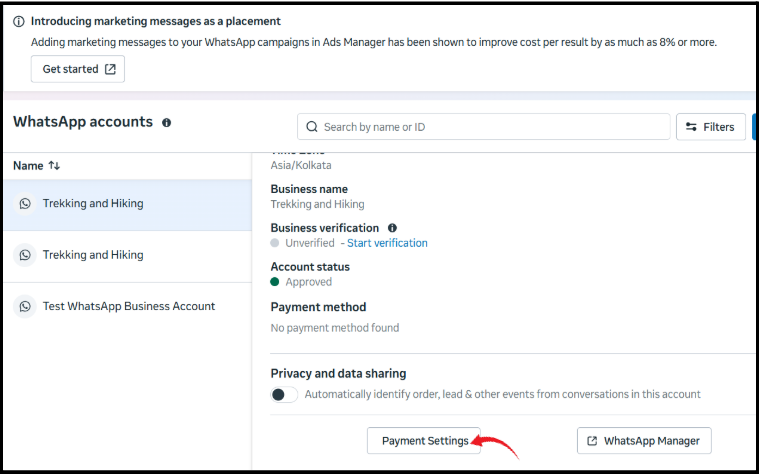
Step 2: Go to Business Settings and WhatsApp accounts
Once you are inside Meta Business Suite or Business Manager:
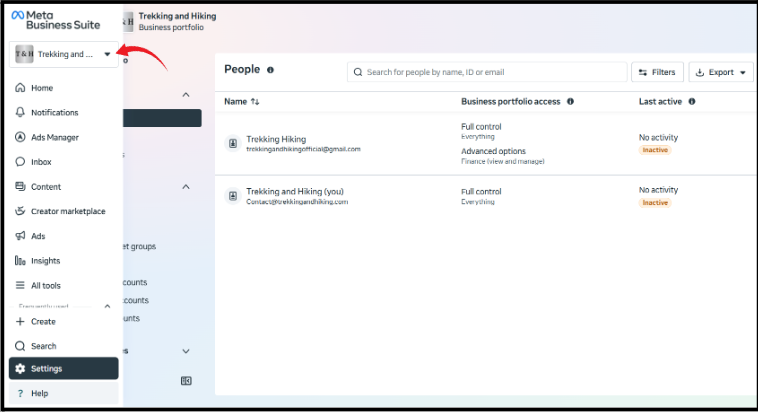
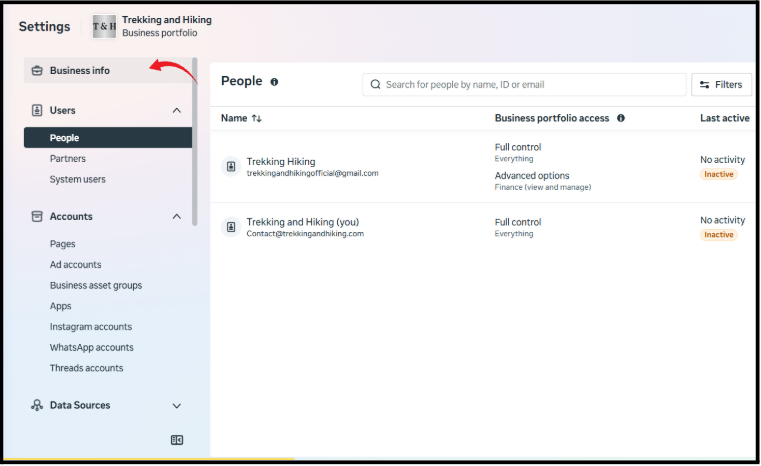
Go to Business settings from the left‑hand navigation.
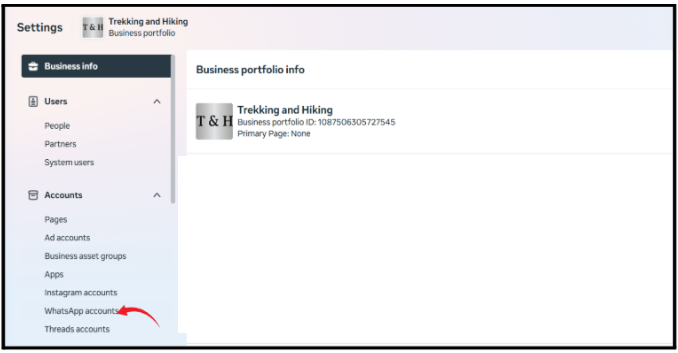
Click On Business Info
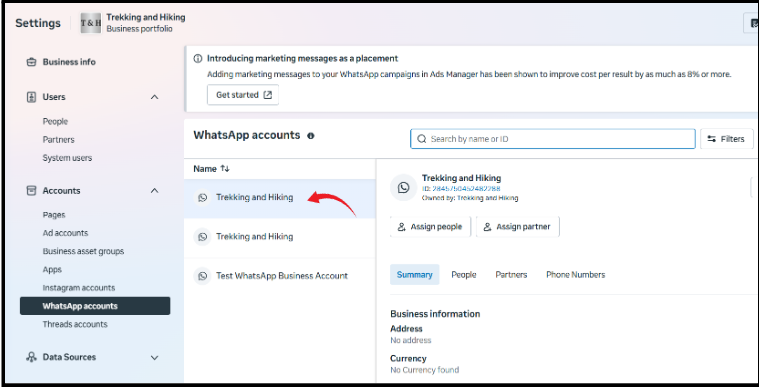
In the Business Info, find and click on WhatsApp accounts.
Step 3: Select your Whatsapp API Account
From the list, select the WhatsApp API account you created (not just a regular WhatsApp Business App).
Click on Payment settings to proceed
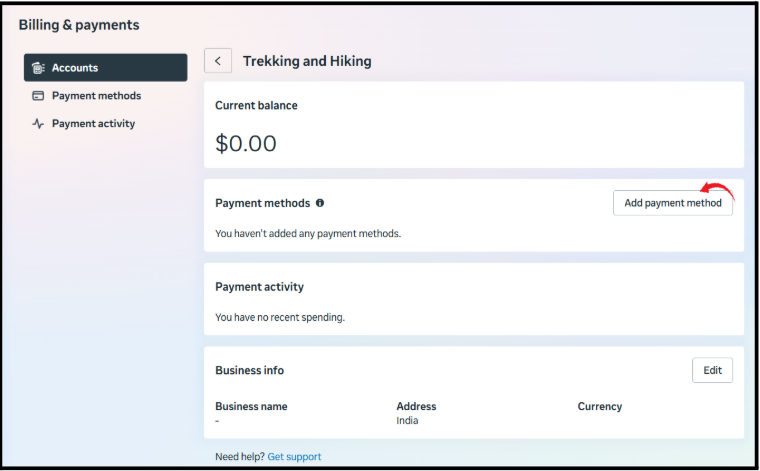
Step 4: Billing and Payments
On the right‑hand side of the screen, locate the option for Add Payment method.
Click on Add Payment method to proceed.
Meta will now redirect you to the Billing and Payments section, where you can manage how your WhatsApp usage is charged.
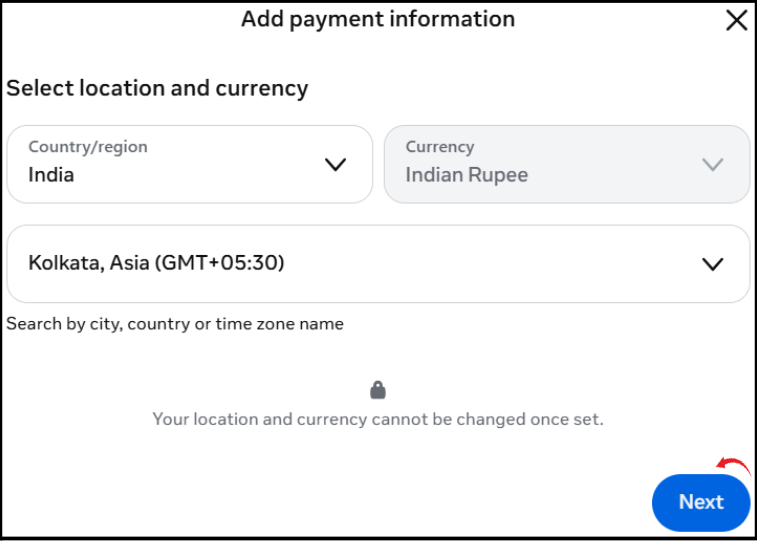
Step 5: Select country, currency, time zone, and card option
In the “Add payment method” flow:
Choose the correct country, currency, and time zone according to your business location and billing preferences.
Choosing the correct country, currency, and time zone helps ensure your invoices and charges appear correctly for accounting and reporting.
Click Next to move to the card details screen
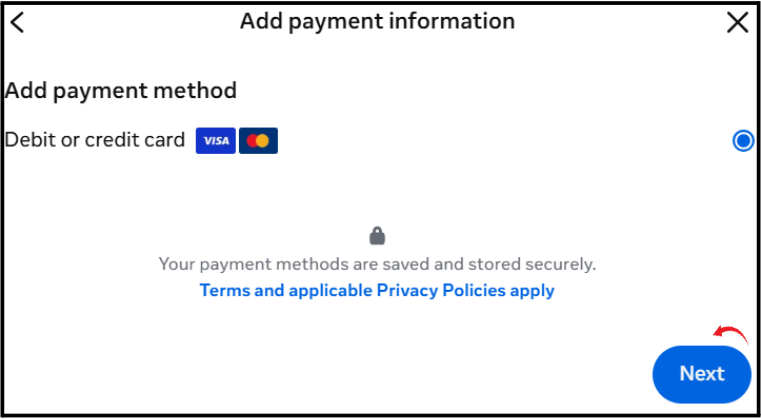
Step 6: Check that your card meets Meta’s requirements
Before you type your card details, confirm that your card is eligible:
For payment type, select Credit or debit card as the payment method.
Make sure international transactions are enabled on the card.
Make sure online transactions are enabled as well.
Use a Visa or Mastercard card, because Meta supports these card networks for payments.
If these features are not active, you should first contact your bank or update your card settings to enable international and online usage.
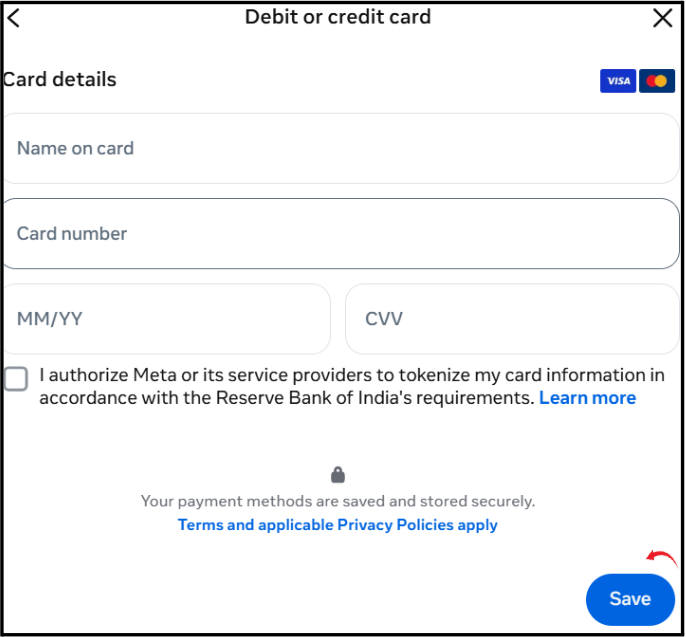
Step 7: Enter your card details
On the card details screen, fill in the following information:
Name on card – exactly as it appears on the card.
Card number – the full card number printed on the front.
Expiration date – month and year when the card expires.
CVV/CVC (security code) – the three‑digit code, usually on the back of the card.
Double‑check all the fields before proceeding, as any mistake can cause the card to be declined.
Step 8: Complete OTP verification
After submitting your card details:
Your bank will send a one‑time password (OTP) to your registered mobile number.
Enter the OTP in the verification screen to confirm the transaction and card ownership.
Once the OTP is correctly entered and verified, your card will be successfully Payment Method in WhatsApp Business API account.
Your card is now added to WhatsApp Business API
When the OTP verification is successful, Meta confirms that Payment Method in WhatsApp Business API is active. From this point, charges for your WhatsApp Business API usage (such as conversation charges) can be billed to this card, helping you keep your WhatsApp communication running without manual payment steps each time.
4. Confirming Currency, Thresholds, and Best Practices
Double-check Currency/Location: Before saving your card, confirm the billing currency. For example, if you select India, your currency will be INR and GST rules apply. Once set, currency generally can’t be changed without reconfiguring the Business Manager.
Message Fees & Thresholds: Remember Meta applies charges per message by category. Initially, a small billing threshold applies (e.g. you might get 1000 free conversation units on Cloud API) and then Meta starts billing your card. Monitor your spending in the Business Manager Billing section to see usage and invoices.
Notifications: Meta will email invoices or send billing notifications to the account admins. Check that the business email on file is correct so you don’t miss any billing alerts.
Stay Secure: Use strong authentication for your Meta account (enable 2FA) to keep your payment info safe. Only grant finance/admin roles to trusted team members.
By following these steps, Rahul (our example e-commerce merchant) was able to add his card via Meta’s interface in under 5 minutes. SendWo’s guided setup handles most of the clicks for you, but the billing setup itself always happens inside Meta’s Business Manager.
5. Troubleshooting Common Issues
Card Not Accepted or Declined: If your card is declined, first ensure it’s international-enabled and has funds. Try another major card if needed. Verify that your name/address matches exactly as per the card. Some users found that switching networks (e.g. mobile data) or trying another browser helps if the page hangs.
“Processing” or Stuck Loading: Sometimes the page hangs on processing. Try refreshing or using incognito mode. Clearing browser cache can help. A few users report success adding the card from a different device or network.
Missing Payment Method Error: If WhatsApp Manager still says Payment Method in WhatsApp Business API” after you’ve saved one, check that you’ve clicked Save and confirmed any pop-ups. Also verify that the card shows up in the list and is set as primary. You may need to logout/login or go back to the page.
Business Info Issues: If Meta asks repeatedly for business info, make sure all required fields are filled (especially legal name, address, and tax ID if applicable) and then save. Incomplete info will block the process.
Contact Support: If problems persist, reach out to Meta Business Support or your BSP (like SendWo). We offer 24/7 assistance for paid plans to help resolve billing setup issues quickly.
FAQs
Q: Why do I need to add a payment method for WhatsApp Business API?
A: WhatsApp Business API (Meta’s Business Platform) is not free like regular WhatsApp. Meta charges per delivered message (except free service replies). Adding a credit/debit card in Business Settings lets Meta bill you after you exceed the free message threshold. Without a card on file, WhatsApp will prevent you from sending any paid messages or template notifications.
Q: How do I add or change my payment method for WhatsApp Business API?
A: Log in to Meta Business Manager, select Accounts > WhatsApp Accounts, pick your WhatsApp business account, and go to Settings → Payment Settings. Click Payment Method in WhatsApp Business API (or edit) and follow the prompts to enter a new credit/debit card. This is the official method for both adding and updating cards.
Q: What payment methods are accepted for WhatsApp API billing?
A: Currently, Meta accepts credit and debit cards (Visa, MasterCard, and certain others) for WhatsApp Business API billing. The card must allow international online charges. (As of 2026, options like UPI or PayPal are not supported for WhatsApp API billing.) If your card fails, try another major card or contact your bank to authorize international charges.
Q: Can I use a prepaid or virtual card?
A: Some users have success with prepaid cards, but Meta may require enough available balance and the ability to do 3D Secure/OTP verification. For reliability, we recommend a full credit/debit card.
Q: Do I need to add GST/Legal Info for Indian businesses?
A: Yes. Indian regulations require a GST number for WhatsApp Business API usage. In the Business Info section of your WhatsApp account settings, enter your legal business details and GST number. Meta will block your API if this information is missing.
WhatsApp commerce in action: a user browses a product catalog and completes checkout all within WhatsApp. By combining this in-chat storefront with timely coupons, businesses dramatically boost conversion rates. According to industry data, WhatsApp campaigns see ~98% open rates and 45–60% click-through rates– far above email or SMS – and about 66% of marketers report positive ROI on WhatsApp marketing. Imagine leveraging that engagement by offering a 50%-off coupon mid-chat, as Unilever famously did to achieve a 14× sales lift. In this post (for SendWo users), we explain step-by-step how to integrate a coupon system into your WhatsApp catalog, why it works so well.Let see How to Add Coupon System in Your WhatsApp Catalog.
1. Why Offer Coupons Through Your WhatsApp Shop?
Coupons drive immediate action. Research shows that 82% of consumers redeem digital coupons within a week (30% on the same day), and shoppers who use coupons spend ~24% more than average. WhatsApp’s channel is ideal for this: messages land directly in hand, notifications pop up, and customers can click to use codes instantly. In practice, businesses see stunning results. For example, a recent SendWo case highlighted that a WhatsApp chatbot campaign offering a 50% off coupon yielded a 14× jump in product sales.
Key benefits of adding coupons to your WhatsApp catalog include:
Sky-high visibility: WhatsApp messages get seen. Campaigns on WhatsApp typically achieve ~98% open rates and 45–60% click rates(versus ~20% open and 2–5% click on email). This means your promo code won’t go unnoticed. As one marketer noted, “Imagine sending an order confirmation, then later a reminder to reorder – all automated through WhatsApp”.
Fast conversions: A timely discount creates urgency. Short-lived coupons (hours to a day) encourage customers to act now. In fact, 82% of recipients use digital coupons quickly. By triggering a coupon code right when a user is browsing or has an abandoned cart, you meet them at the critical moment.
Higher cart value: Coupons can increase Average Order Value (AOV). The data shows coupon users spend about 24% more per order, especially when you tie the code to a minimum spend or specific products.
Increased loyalty: Exclusive deals make customers feel valued. Personalized codes (“FLORAL10 for you”) or VIP-only offers encourage repeat business. Even solving a customer’s question with a little bonus (“thanks for asking – here’s 10% off your next purchase”) builds goodwill.
Integrated experience: Customers already browsing your WhatsApp catalog can immediately apply the code. They browse items, add to cart, and then see the discount, all inside the chat. This frictionless flow (catalog → cart → coupon → checkout) keeps users in one place and dramatically improves the chance of purchase.
In short, coupons fuel WhatsApp sales. By combining SendWo’s official WhatsApp integration (to manage your catalog and flows) with well-timed promo codes, you turn casual catalog browsers into paying customers. Next, let’s look at the platform features that enable this.
2. WhatsApp Catalog & Coupon Features
WhatsApp Business provides built-in tools for catalogs and for sharing promo codes:
WhatsApp Catalog: An official digital storefront. You can list up to 500 products (images, names, prices, descriptions, links) that customers browse directly on WhatsApp. Each item can link to your store or include a “Cart” so users can easily add it to their order in chat. With SendWo, you sync your Shopify/WooCommerce store to this catalog, automatically updating items and prices.
Coupon Templates: WhatsApp supports special message templates for discounts. The “Coupon” template includes a one-tap Copy Code button. When the user taps it, the code is copied to their clipboard. This streamlines redemption (no typos) and makes coupons feel like native app features. You can send such templates via the WhatsApp Business API when messaging customers. (Note: these templates must be pre-approved in your WhatsApp Business Account.)
Limited-Time Offers: There are also LTO templates with countdown timers. Use these to announce flash sales or expiring deals through WhatsApp messages. The ticking timer adds urgency.
Open-Catalog Action: Within a message template (e.g. a marketing broadcast or a chatbot message), you can include a button that opens the WhatsApp catalog. This bridges messages and your store display. For example, a message could say “Check out our new arrivals” with a button that instantly pops open the catalog inside WhatsApp.
Quick Replies & Buttons: Beyond templates, SendWo enables you to craft automated conversations. You might have the bot offer a coupon via a quick-reply option (e.g. user taps “Give me discount code”), or include a CTA button in a template link to a coupon.
All together, this means you can present products and deals seamlessly in chat. One common flow: a user adds items to cart via the catalog → they abandon or hesitate → SendWo triggers a reminder message with a coupon code (copy-button or text) to entice completion.
3. Step-by-Step: Add Coupon System in Your WhatsApp Catalog
Connect Your E-commerce Catalog to WhatsApp (via SendWo)
First, ensure your product catalog is live in WhatsApp Business. In Facebook Commerce Manager create or select an “E-commerce” catalog and upload your products (manually or connect to Shopify/Woo). Then, in Facebook’s WhatsApp Manager, link this catalog to your business (All Tools > WhatsApp Manager > Catalog > Choose Catalog > Connect). Finally, in the SendWo dashboard go to eCommerce Catalog and click Synchronize. Your store’s products will appear under SendWo’s catalog manager, where you can set prices, images, and currency. (If your store updates frequently, Sync will pull new items automatically.)
Create Discount Codes in Your Store
In your online store (Shopify, WooCommerce, etc.), go to the Discounts/Coupons section and generate one or more promo codes. These can be fixed-amount (e.g. $10 off), percentage (e.g. 10% off), free shipping, or even “buy X get Y” promotions. Use clear, simple code names (like WELCOME10 or VIP20) and set any conditions (minimum cart value, expiry date, one-time use). For WhatsApp coupons, it’s often best to keep them short-lived (hours or a day) to create urgency. If you have a large campaign, you might generate unique single-use codes for each user; otherwise a general code works fine. Make sure the code is active and tested on your checkout.
Configure WhatsApp Messages to Deliver the Coupons
With SendWo, you can automate sending those codes via WhatsApp messages. You have two main options:
Message Templates: Create an Approved Template in WhatsApp (via SendWo’s Message Template tool). For example, click Create Default to load SendWo’s built-in templates – one is an “Abandoned cart recovery with coupon” template. You can edit it to include your coupon code (use a variable like {{COUPON}} if your system dynamically inserts it) and call to action. This template will have the copy code button baked in if you set it as a Coupon template. Once approved, you or the bot can send it like any other message.
Chat Flows & Broadcasts: Use SendWo’s automation to send regular messages with the code. For example, set up a workflow that triggers on cart abandonment or after a specific user action. In the chat flow editor or broadcast composer, just include the coupon text. SendWo lets you insert variables (like the customer’s name or product names) and rich media. Pro Tip: Always pair your coupon with a visual or product context – a product image or catalog card – instead of plain text. This feels more engaging. For instance, you might send a product photo plus a caption: “Still thinking it over? Here’s 10% off on this item with code SAVE10 — tap to copy!”. The copy button template is even better because it reduces friction.
Automate Coupon Triggers. Decide when to send coupons:
Abandoned Carts: Configure SendWo’s catalog settings to automatically send a “cart reminder” if a user didn’t complete checkout. In the eCommerce Catalog manager scroll to Catalog Manager and set up an abandoned cart reminder message and timing. Include your coupon code in that reminder to entice return visits.
Post-Purchase Upsells: After an order is placed, you might send a thank-you message with a next order coupon 1–2 days later (ideal for consumables or cross-sells). This prolongs engagement.
Welcome Offers: When a user first opts in, send a welcome coupon (e.g. WELCOME10 for 10% off) via a broadcast or automation. Make it clear it’s exclusive to WhatsApp subscribers.
Broadcast Campaigns: For store-wide sales (Black Friday, holidays), send a broadcast message to a segment (like VIPs or general list) with a coupon and a catalog link. Keep the offer time-bound and the message concise with a clear CTA.
Direct Chats: If a customer initiates a chat (asking about a product or shipping), the support agent or chatbot can respond with help plus a small coupon (“Use code THANKYOU5 for 5% off”). This personal touch often seals the deal.
By automating these flows in SendWo, you ensure coupons go out at optimal moments without manual effort. Monitor your shop analytics to see when carts drop off or what audiences are most active, and adjust the triggers accordingly.
4. Best Practices for WhatsApp Coupons
To get maximum impact, follow these tips:
Personalize Whenever Possible: Use the customer’s name and context. For example, “Hi Alex, since you liked our floral dresses, here’s 10% off with code FLORAL10.” Tailored offers (interest-based or past-purchase-based) convert far better than generic blasts. Personalized codes or messages make customers feel seen.
Use Visuals: Attach a product image, banner, or catalog item when sending the coupon. A vibrant graphic with the discount clearly shown will grab attention. Research suggests that pairing coupons with an image or catalog card feels more engaging and authentic than plain text.
Set Clear Expiry: Always mention the expiration (e.g. “Good for 2 hours only!” or “Expires today midnight”). Limited-time offers drive urgency. In fact, one pro tip is to keep WhatsApp coupons short-lived (12–24 hours) to boost impulse buys.
One Code per Campaign: Avoid sending one code to hundreds of people if you can use dynamic single-use codes. Unique codes prevent sharing and let you track redemptions precisely. Many e-commerce platforms let you bulk-generate unique codes (Shopify has a bulk tool, as does WooCommerce).
Embed in Templates Smartly: Use WhatsApp’s official copy-code template block if possible. This ensures a tidy presentation and instant clipboard copy. Otherwise, even plain text codes work fine – just remind users to copy it exactly. Test Before Sending: Always test your message on yourself or a colleague. Verify the coupon code applies correctly on checkout. Check how it appears on both Android and iOS WhatsApp. Avoid Spammy Behavior: Don’t blast irrelevant promotions. Only send coupons to opted-in users or active customers. Respect privacy and WhatsApp’s 24-hour rules. Segmented, value-driven messages build trust (as SendWo’s best practices remind us).
Track and Iterate: Use your store’s analytics to see how coupons perform. Compare order rate with and without the code, keep an eye on redemption rates, and tweak your offer. If a coupon falls flat, try a bigger discount or different timing next time.
Conclusion & Call to Action
Integrating a coupon system into your WhatsApp catalog can skyrocket engagement and sales by turning passive browsers into eager buyers. As shown above, tools like SendWo make it straightforward: you connect your product catalog, create discount codes in your store, and deploy those codes via SendWo’s WhatsApp templates and automation. The combination of WhatsApp’s ultra-high open rates and the lure of a discount is a powerful marketing tool.
Ready to supercharge your WhatsApp shop? Start by setting up your SendWo-powered catalog today, and plan a small discount campaign. Even a modest offer can wake up your sales. For example, send a “15% off for 2 hours” coupon to cart abandoners or VIPs and watch how quickly customers bite. SendWo’s free plan and built-in templates (like the abandoned-cart coupon template) make it easy to get started. Don’t let your products just sit in a catalog—turn every chat into a potential sale with the right coupon strategy!
Call to Action: Sign up for SendWo (free forever plan) and integrate your store with WhatsApp to begin creating your first coupon-driven campaign. Need help? Book a demo or contact our support to see how easy it is to add coupons, recover carts, and double your sales via WhatsApp. ??
FAQ
1. How do I add a coupon code to my WhatsApp Business catalog?
WhatsApp Catalog lacks a native coupon field. Create the discount in your store (e.g., Shopify, WooCommerce), then use SendWo to send the code via message templates or broadcasts. Example: Add it to an "Abandoned Cart" template with a copy-code button for easy use at checkout.
2. What is a WhatsApp coupon template?
It's a pre-approved message with a promo code and "Copy Code" button for instant copying. Submit under "Marketing" or "Utility" in your WhatsApp Business account. Once approved, send it like any template for seamless discount sharing.
3. Can customers apply a promo code when checking out from a WhatsApp order?
Yes. With SendWo's Catalog integration, customers browse/add items, get a checkout link to your store, and enter the code there. (For WhatsApp payments, handle discounts via payment link or backend.) The WhatsApp message delivers the code; your site applies it.
4. How do I automate sending coupons on WhatsApp with SendWo?
Use SendWo's Broadcasts or Workflows. Trigger via WooCommerce/Shopify webhooks for abandoned carts, inserting coupon templates. Or schedule broadcasts to segments with personalized variables (e.g., "Alex, your 10% code!"). Ready-made templates available.
5. Are coupons effective in WhatsApp marketing?
Yes—high engagement drives quick redemptions. WhatsApp's personal chats boost immediate action; e.g., 15% off codes spike purchases. Pair with flows like cart recovery for higher conversions, AOV, and ROI.
Imagine your WhatsApp support chatbot asking a customer for their details, but when the conversation reaches your team inbox, the customer’s answers vanish. This frustrating gap often stems from a known issue in SendWo’s system – and luckily there are clear fixes. In this guide, we’ll dive deep into How to Resolve User Input Flow Answer Not Displaying in Shared Inbox, and how to fix it step by step. SendWo’s Shared (Live) Inbox is designed for team collaboration: “Shared team inboxes streamline customer support by enabling seamless collaboration and real-time visibility”.
1. Why User Input Flow Answers Don’t Display
Several factors can hide flow answers. The most common causes are:
Known Software Bug (Fixed in Jan 2026): SendWo recently addressed a glitch where User Input Flow answers weren’t displayed in chat. The January 26, 2026 update notes explicitly state: “Fixed: Facebook AI reply and Resolve User Input Flow Answer”. If you’re on an older version or missed an update, you could run into this bug.
Agent Not in Conversation (“Join Chat” feature): If no agent has joined the chat, new bot messages may not be visible. With Signature/Join Chat enabled, only the agent actively in the conversation can reply. Ensure an agent is assigned or has clicked Join Chat so they see everything. Otherwise the bot’s messages (like flow answers) may not show up to the team.
Outdated Business App: Some teams use SendWo’s Business mobile app to respond. An earlier issue caused messages sent from the mobile app to not appear in the Shared Inbox. Updating the app ensures those messages (and any flow replies) sync correctly.
Browser/Cache Glitches: Occasionally, a cached session can hide new messages. If updates were recently applied, a full refresh or re-login can help load the latest chat data.
Latest SendWo Fixes
SendWo’s own release notes confirm the problem was recognized and fixed. On January 26, 2026, SendWo announced: “Fixed: Resolve User Input Flow Answer”. This means if you update to the latest SendWo version, the bug should be gone. They also noted fixing “messages sent from the Business app not appearing in Shared Inbox”, another related symptom.In practice, the fix involves both updating SendWo and using the platform correctly. The steps below will guide you through both.
2. Resolve User Input Flow Answer Not Displaying in Shared Inbox Step-by-Step
Follow these steps to restore flow answers in your Shared Inbox:
Update SendWo to the Latest Version. If your software is self-hosted or if updates are managed centrally, make sure the January 2026 (or later) update is applied. This update contains the fix for missing flow answers. After updating, log out and log back in – this clears cached states so the inbox can load all messages correctly.
Refresh the Shared Inbox. Sometimes simply navigating away and back to the Shared Inbox, or refreshing the browser, will pull in any stuck messages. Check that the Shared Inbox is open (it now opens in a new tab by default) and that the conversation thread loads fully.
Assign or Join the Conversation. If the problem persists, ensure an agent has “joined” the chat. In the Shared Inbox interface, either assign the chat to a team member or click Join Chat (if your Signature Messages/Join Chat feature is enabled). Once an agent joins, the flow answers should appear as part of the chat history.
Update and Restart the SendWo Business App. If your team uses SendWo’s mobile app, update it from the app store. Then send a test message through the app and confirm it shows in the Shared Inbox. This fixes issues where app-originated messages were not syncing.
Check Bot Error Logs. In SendWo’s Bot Manager, open Bot Error Logs to see if any flow steps failed. An error log entry might explain a broken flow sequence (e.g. malformed JSON) that stopped the answer from being sent. Fixing any logged errors (such as correcting an API call or JSON format) can restore normal flow execution.
Test a New Input Flow. As a sanity check, create a simple test flow (e.g. a 2-step Q&A) and complete it with a test user. Observe whether each answer appears in the Shared Inbox. If it works, your system is fixed. If not, re-examine steps 1–5 or contact support.
Throughout these steps, focus on keeping key systems updated and agents actively engaged. Bold points to remember:
Keep SendWo updated to ensure bug fixes are applied.
Join/Assign Chats so that no messages get hidden.
Clear cache/refresh after changes to make sure the inbox shows the latest conversation.
3. Best Practices & Prevention
Beyond fixing this issue, follow these tips to avoid similar problems:
Monitor and Log: Regularly check your bot’s error logs. Proactive monitoring can catch unseen failures before they affect the team. In fact, benchmarks show bots with real-time monitoring can reduce flow failures by up to 48%.
Train Agents on Join Chat: Ensure all agents know to Join any new conversation (especially if multiple agents might handle it). Using signature messages with the “Join Chat” requirement can prevent missed messages.
Document Bug Fixes: Keep a change log of system updates. If a new issue arises, check recent release notes (like those on SendWo’s site) to see if it’s a known bug with a patch.
Use Descriptive Testing: When testing flows, label them clearly (e.g. “TestFlow”) so you can easily find those conversations in the Shared Inbox and verify everything appears.
Conclusion
Lost chatbot messages can disrupt support and irritate customers, but in SendWo’s case the culprit is usually a fixable glitch. By updating SendWo, ensuring agents join chats, and refreshing your inbox, you’ll restore visibility Resolve User Input Flow Answer. In summary, make sure your system is current and monitor for any flow errors – that way, your team won’t miss a single customer reply.
Ready to put these fixes into action? Update your SendWo platform now and test a sample Resolve User Input Flow Answer. If you need help or want to learn more, contact SendWo support or explore the SendWo Dashboard. Don’t let valuable lead information slip through the cracks – get all your WhatsApp chatbot replies logged and visible today!
FAQs
1. Why are my chatbot’s replies not appearing in the shared inbox?
This often happens if the platform is out-of-date or if agents haven’t joined the conversation. SendWo addressed a bug in Jan 2026 that caused answers to not display. Updating to the latest version and refreshing the inbox usually solves it. Also confirm an agent has clicked Join Chat so they see incoming messages.
2. How can I ensure user input flow answers show up for my team?
Always run flows after logging in or updating the app. Assign the conversation to an agent or enable “Join Chat”, so flow responses appear. Make sure the SendWo Business app and web app are updated (updates fixed message-sync issues). In short: keep software current, clear caches, and join the chat.
3. Is this a known SendWo bug?
Yes – as per SendWo’s release notes, a Resolve User Input Flow Answer fixed in Jan 2026. If you still experience missing answers after updating, it may be due to cache or user-action (like not joining the chat) rather than a bug.
4. What if I’ve updated but still see missing answers?
First, refresh or reopen the Shared Inbox to pull new messages. Then double-check that the agent has joined the chat. Also review the specific flow for any errors (use Bot Error Logs). If problems persist, clear your browser cache or try a different browser. As a last resort, reach out to SendWo support for help.
5. What is a user input flow in SendWo?
It’s a sequence of automated questions (like a form) that your chatbot asks in WhatsApp. Each user response should become part of the chat log. SendWo lets you build these under Bot Manager > Input Flow. The answers get saved as custom fields and should appear in the Shared Inbox unless there’s a sync issue.
Managing customer messages across Facebook Messenger has become mission-critical: over 40 million businesses communicate on Messenger, sending 8 billion+ messages with customers every month. In fact, 85% of brands use Facebook Messenger for marketing and support, making it the world’s top business messaging channel.Let see How to Resolve Facebook AI Reply Not Displaying in Your Shared Inbox.
1. Understanding Facebook AI Replies and Shared Inboxes
First, let’s clarify what we mean by AI reply and shared inbox.
AI Reply: Many businesses use chatbot automation on their Facebook Page Messenger. This can be a custom Chatbot (often powered by ChatGPT or another AI engine) that responds to customer messages with pre-trained answers or dynamic AI-generated text. For example, you might train an AI bot to answer FAQs about your products. When a customer sends a message, the AI bot sends an automated reply on the Page’s behalf.
Shared Inbox: A shared inbox (or team inbox) is a unified customer service dashboard that centralizes all messages from multiple channels. In SendWo’s case, you can connect many Facebook Pages (and WhatsApp, Instagram, etc.) into one inbox, allowing your support team to see and manage every conversation in a single place. This makes collaboration easy – agents can assign chats, leave internal notes, and ensure no conversation is overlooked.
In a healthy setup, when a user messages your Facebook Page, that message appears in SendWo’s shared inbox under that user’s thread. If you have an AI chatbot enabled, the bot should respond. Its reply is then also logged in the shared inbox thread as a message from your Page. The agent will see both the user’s message and the AI reply in the conversation.
Key point: If your AI chatbot sends a reply to the user but it doesn’t show up in the shared inbox, it typically means there’s a configuration or permission issue. The user might still get the answer, but your team won’t see it logged in the conversation. This breaks visibility and can cause duplicate efforts or missed follow-ups.
2. Common Causes of AI Replies Not Appearing
There are several reasons a Resolve Facebook AI Reply might not display. Here are the most frequent culprits:
Integration or Token Issues: The connection between Resolve Facebook AI Reply and your inbox system (SendWo) may be outdated or misconfigured. For example, an expired access token or missing permission can allow outgoing messages but prevent them from logging.
Message Type / API Configuration: Facebook’s Graph API requires a messaging_type (e.g. RESPONSE) when sending replies. If the reply is sent with the wrong type or without proper attribution, it may not be recorded in the Page’s conversation history.
Inbox Automation Conflicts: Facebook Business Suite has built-in “Inbox Automations” (like Instant Replies or FAQ Autoresponses). If those are enabled, they can override or interfere with external chatbots. For instance, if Business Suite’s Instant Reply is turned on, it may block or replace the chatbot’s reply.
Shared Inbox Software Bug: Sometimes the fault lies in the team inbox platform itself. A recent software version might have a bug, or you may simply be using an older version that has been fixed in a newer update.
Flow/Trigger Misconfiguration: If the AI reply is part of a conversational “flow” (sequence of messages triggered by user input), a missing trigger or misordered step might send the reply to the user without recording it.
Let’s look at each of these in more depth and how to address them.
1. Check Your Integration and Permissions
Every Facebook chatbot integration relies on the Page access token and granted permissions. If these expire or were never fully approved, messages can misbehave. Here’s what to do:
Refresh the Page Token: In your SendWo settings (or on Facebook’s end), regenerate or refresh the access token for your Facebook Page. Facebook tokens typically last 90 days. A stale token can allow sending but not logging messages. After refreshing, reconnect the Page to ensure the new token is active.
Verify Required Permissions: For Messenger apps, you usually need permissions like pages_messaging and pages_messaging_subscriptions. Go to your Facebook Developer Dashboard for the app that’s linked to SendWo and confirm the messaging permissions are approved. If they were revoked or not granted, re-submit them.
Resubscribe Webhooks: Make sure your app is subscribed to the right webhook events (Messages, Message Replies, Messaging Insights, etc.). In Facebook’s Webhooks settings for your app, verify that Page-Scoped IDs (psid) and message events are properly checked. If you recently changed webhooks, the shared inbox might not see incoming messages or replies.
Re-Authorize Page in SendWo: Sometimes the simplest fix is to disconnect and reconnect the Facebook Page in SendWo (under Integrations or Bot Manager). This forces a fresh handshake with Facebook’s APIs and can resolve hidden sync issues.
Performing these steps ensures that your Resolve Facebook AI Reply app integration is fully up-to-date and has all the rights to read and write messages. If an AI message is sent by the bot, it should now correctly appear in the conversation.
2. Inspect the Messenger Platform Configuration
Facebook’s Messenger API requires certain parameters when sending messages. If the AI bot is sending replies via the Graph API, check:
Messaging Type: Ensure the bot uses messaging_type: RESPONSE when replying to a user’s message. This tells Facebook it’s a standard response in an active thread. If set to something like UPDATE or missing entirely, the message might bypass the normal conversation log.
Tagging (Optional): For non-24h messages (outside the 1-day window), a message_tag is needed. Although user replies usually stay within 24h, ensure that when using message tags you choose an appropriate tag (like HUMAN_AGENT) that allows logging. Some third-party libraries (like n8n’s nodes) have flags to “log this message” – make sure any such setting is enabled. If your bot’s API call lacks the flag or uses a private tag, Resolve Facebook AI Reply might still deliver the text to the user without recording it under the conversation in the Page Inbox.
Ensure Proper “Sender” Attribution: The bot’s reply should come from the Page ID, not a generic app or user ID. In the Graph API call, use the Page Access Token and ensure the sender.id is the Page-scoped ID for the user, and recipient.id is the Page’s ID. Mis-labeling this can cause the message to be treated as a detached notification.
While these settings are a bit technical, any misstep here often leads to “ghost” messages that users see, but agents do not. If you manage your own chat flows, double-check the code or tool (e.g., n8n, chat builder) to ensure it conforms to Resolve Facebook AI Reply API guidelines. (For example, one developer noted that missing a “log this message” flag in n8n caused replies not to appear.)
3. Review Business Suite and Automations
Facebook’s own Business Suite Inbox Automations can override chatbot replies. It’s wise to audit these settings:
Instant Replies & Away Messages: Go to your Facebook Page > Inbox > Automations (or Settings). If “Instant Reply” is turned on, it will automatically send a preset message to any inbound message. If you also have a chatbot replying, the Instant Reply might be taking precedence or blocking the bot’s answer. Either disable Instant Reply or customize it carefully so it doesn’t conflict. The same goes for Away Messages or FAQs.
Meta AI Features: If you have new “AI” features enabled by Facebook (like suggested replies powered by Meta AI), be aware these are user-facing and unrelated to your Page’s bot. They shouldn’t block your bot, but it’s worth toggling off any new experiments in the Page settings to eliminate variables.
Page Inbox Settings: In Page Settings > Messaging, ensure “Show a Messenger Greeting” or “General Messaging Permissions” aren’t limiting replies. Sometimes, turning certain toggles off and on (saving settings) can refresh the inbox behavior.
For example, one walkthrough explains how to set up an Instant Reply: toggle it on, check “Messenger” as the channel, and write the automated message.While you may not need Instant Reply (if a bot handles it), understanding these toggles is key. If an Auto-Reply is active, try turning it off temporarily to see if your AI bot’s response then shows up.
3. Resolve Facebook AI Reply Quick Fix Checklist
To summarize, here’s a checklist of quick actions to get your Resolve Facebook AI Reply showing:
Refresh Integration – Reconnect your Facebook Page in SendWo and refresh the access token.
Verify Permissions – Ensure pages_messaging and other required scopes are approved.
Check Facebook Settings – Turn off conflicting auto-replies in Business Suite (Inbox Automation).
Update Platform – Confirm you’re running the latest SendWo version with the January 2026 fix.
Test API Calls – If using custom code, make sure messaging_type: RESPONSE and proper tags are set.
Review Bot Flows – Ensure each chatbot flow is correctly triggered and has a clear reply action.
Clear Cache / Logout – Sometimes simply clearing browser cache or logging out/back in can surface recent updates.
Try Another Browser or Device – Occasionally, UI glitches can hide messages. Test on desktop vs mobile, or a different browser.
After each change, send a test message to your Facebook Page and confirm whether the AI bot’s response now appears in the shared inbox. Often, one of the above steps will solve it.
4. Real-World Example
Imagine you run a small e-commerce shop. On a busy Monday morning, a customer messages your Facebook Page asking about shipping time. You have a SendWo chatbot that automatically replies: “Hello! Orders usually ship within 2 business days.” The customer receives this reply. However, your support team notices no new message in the SendWo inbox for this user – meaning none of the agents see the conversation.
By following the steps above, you discover that the Facebook Page had an outdated token. You re-authorize the page in SendWo. Now, when another customer asks the same question, the bot replies and the conversation shows up properly: the user’s inquiry and the AI’s answer are both logged in the shared inbox. Your team can now review and follow up as needed.
This illustrates why fix is crucial: if your team didn’t spot that first message, you might miss upselling opportunities or customer issues. By ensuring AI replies appear, you keep the human team in the loop.
5. Best Practices to Avoid Future Issues
To prevent this from happening again:
Monitor Integration Status: Periodically check the “Integrations” page in SendWo (or your tool) for any warning icons on your Facebook connection.
Automatic Token Refresh: If available, set your Facebook token to auto-renew (some platforms handle this).
Regular Updates: Subscribe to SendWo’s newsletter or blog for product updates, so you know when fixes are released.
Test New Flows: Whenever you create or modify a chatbot flow, do a quick live test to confirm the reply shows up.
Document Configuration: Keep a simple doc of your Facebook Page’s settings (which automations are on/off) so that if something changes, you can spot it fast.
Contact Support Early: If you see even one case of a missing reply, tackle it immediately. Letting the issue persist can mask bigger problems.
By following these practices, you minimize downtime and ensure your Facebook AI automation runs smoothly. Remember: a unified inbox is only as good as its integration. When your AI replies reliably appear in the team inbox, you boost customer satisfaction and team efficiency.
Conclusion and Call to Action
Missing AI replies in your shared inbox can derail customer support, but the fix is often straightforward. Check your integrations and tokens, review Resolve Facebook AI Reply settings, and keep your SendWo platform updated. These steps will restore full visibility of all conversations.
If you’re not already using a unified inbox, consider giving SendWo a try. SendWo’s all-in-one dashboard lets you “connect unlimited Facebook Pages & Messenger Inbox” and automate replies with AI or human agents across every page. This means no more switching accounts or losing messages – everything is in one place. Sign up for SendWo today and keep your Resolve Facebook AI Reply flowing seamlessly.
FAQ
1Q: Why isn’t my Facebook Messenger AI reply showing up in the shared inbox?
A: There are a few common causes. Often it’s due to an outdated integration token or missing Messenger permissions, so refreshing the Page connection fixes it. It can also happen if Resolve Facebook AI Reply own “Instant Reply” or other auto-messages are enabled, interfering with your chatbot. Ensure your chatbot uses the proper messaging_type (RESPONSE) when sending messages. Finally, check that your inbox software is updated – SendWo and others released fixes for this exact issue.
2Q: How do I connect my Facebook Page to a shared inbox like SendWo?
A: In SendWo’s dashboard, go to Integrations or Bot Manager and choose “Connect Facebook”. You’ll be prompted to log into Facebook and authorize your Page. Make sure you grant all required permissions (Messaging, Webhook, etc.). Once connected, all incoming Messenger conversations from that Page will start feeding into the shared inbox.
3Q: What Facebook permissions are needed for AI chatbot replies?
A: Your app needs at least pages_messaging and pages_messaging_subscriptions to send and receive messages. It should also be subscribed to the Page’s messages and message_reactions webhook events. In Facebook’s Graph API, the bot should send replies as messaging_type=RESPONSE. If these are set correctly, the AI replies will post in the conversation thread.
4Q: What should I do if future AI replies still fail to appear?
A: If troubleshooting steps don’t work, contact SendWo support. Provide details (screenshots, logs) of what happened. Their team can check if it’s a new bug or configuration issue. Also consider posting in SendWo’s community (if available) to see if others are affected. Most importantly, act quickly so customers aren’t left waiting.
5Q: Does disabling Facebook’s Inbox Automations help?
A: Yes, it often does. If Resolve Facebook AI Replyor Away Messages are enabled, try disabling them to prevent conflicts. This ensures your chatbot’s AI responses have priority. Just remember to manually replicate any critical auto-responses (like after-hours notices) inside your chatbot flow if you disable the built-in ones.
SendWo’s WhatsApp Live Chat interface (agent view) — When working properly, every message (customer question and agent reply) appears in the conversation log. If you send an answer but it never shows up in the chat history, it can throw off your whole support flow. In this post, we’ll walk through why this happens and exactly how to fix it — so you can get your SendWo Live Chat back on track.WhatsApp Business is a critical channel for customer support.Lets see How to Resolve WhatsApp Live Chat Answer Not Storing.
1. Why WhatsApp Live Chat Answers Might Not Be Saving
When a Live Chat response isn’t appearing in the conversation history, it usually boils down to a few key issues. Understanding these will help you fix the problem quickly:
Outdated SendWo Version (Known Bug): SendWo identified a bug where agent replies sometimes failed to save in the Live Chat inbox. This was fixed in the Jan 26, 2026 release. If you’re on an older version, the issue may persist. Always keep SendWo updated – the latest patch specifically “Live Chat Answer Not Storing issue resolved”.
Connection or API Glitch: If your WhatsApp Business API connection drops while sending, replies may not be recorded. Ensure your internet is stable. If using WhatsApp Cloud API, verify that Local Data Storage is enabled (this ensures all chats persist on Meta’s servers). Without local storage, some messages might disappear from logs after short periods.
Message Send Failures: Sometimes a message appears sent to the customer but didn’t actually go through (expired token, permission error, etc.). SendWo’s Bot Error Logs can reveal if an answer failed. For example, JSON or system errors will show up there. If a send fails, the message won’t save in the chat. Check the error log panel (Options → Bot Error Logs) for clues.
User/Agent Error: Occasionally the agent might not hit “Send” or there’s a UI glitch. Try refreshing the Live Chat Answer Not Storing screen or logging out and in. Make sure the Assigned Agent section in SendWo is set correctly, and click Save if you changed assignments.
WhatsApp 24‑Hour Window: Note that WhatsApp only allows businesses to send free-form replies within 24 hours of the customer’s last message. If you try outside this window, the message will fail silently. While this mostly affects sending new replies, it’s worth knowing: always respond within the 24-hour customer care window to ensure the conversation is accepted by WhatsApp.
In short, the most common culprit right now is simply an outdated system. If you haven’t updated SendWo since late Jan 2026, do that first – it may automatically fix the “answer not saving” bug. Beyond that, it’s about ensuring your chat platform is sending correctly and connected properly.
2. Step-by-Step Troubleshooting Guide
Follow these practical steps in order. Each one is an actionable fix you can do yourself:
Update SendWo Platform: Log into your SendWo dashboard and look for system or update notifications. If an update is available, install it (or ask your administrator to update). The January 26, 2026 patch explicitly “Live Chat answer not storing issue resolved”. Once updated, retry your chat. Often the bug will simply go away.
Refresh & Relog: In the Live Chat Answer Not Storing inbox, click the Refresh button (next to notifications). This forces the interface to reload all messages. If that doesn’t work, completely log out of SendWo and log back in. Then open Live Chat again. Simple refresh can sometimes bring back missing messages.
Check Connection: Ensure your Internet is stable and your WhatsApp Business API (cloud or on-prem) is connected. Send a test message from another device or API tool to confirm your number is online. In your WhatsApp Business Manager or SendWo status page, verify there are no reported outages. A drop in the connection can cause replies to disappear.
Verify Message Delivery: When you send a reply, does it appear on the customer’s WhatsApp? If not, the send failed. Check SendWo’s Bot Error Logs:
Go to Bot Manager > Bot Reply, select your bot and number. In the top-right, click Options and then Bot Error Logs. Look for any recent errors (e.g., “Invalid token” or “JSON decode error”). If you spot an error for the time you sent the reply, that’s why it didn’t save. Address the error (update credentials, fix JSON, etc.), then try again. Check SendWo Settings: In Live Chat Answer Not Storing, confirm your agent is properly Assigned to the conversation. If not, assign an agent and click Save. (Unassigned messages may not save correctly.) Also ensure the subscriber hasn’t been accidentally unsubscribed or archived. In Subscriber Manager, look up the user and make sure they’re Active. Re-subscribing or unarchiving may restore chat continuity.
Enable WhatsApp Local Storage (Cloud API Only): If you’re on the WhatsApp Cloud API, contact SendWo support to enable Local Data Storage. This Meta feature stores all message content in the cloud, so nothing vanishes. It’s not yet auto-enabled everywhere, but it’s free and solves many storage concerns.
Reinstall/Cache-Clear (Frontend Troubleshoot): If answers show on the phone but not in SendWo’s panel, clear your browser cache or try a different browser. Rare UI issues can hide messages. Also ensure you’re on the WhatsApp Live Chat Answer Not Storing tab and not filtered by agent or chat status.
Contact Support: If none of the above fixes it, there may be a deeper issue. Reach out to SendWo support via your dashboard or email (talk@sendwo.com). Be ready to provide details (time of incident, chat ID, screenshots). The team can check server logs and confirm that the January 2026 fix was applied to your account.
By following these steps, you should be able to pinpoint and resolve the “answer not storing” issue. Most problems trace back to either using an outdated version or a simple connectivity hiccup.
3. Best Practices to Ensure Every Chat Is Saved
Prevention is better than cure. Here are some tips so you never lose a chat reply again:
Keep Software Updated: Regularly check SendWo’s What’s New page or notifications. Enabling auto-updates means you get fixes (like the storage bug fix) as soon as they’re released. This alone solves many issues proactively.
Use Cloud API Local Storage: For WhatsApp Cloud API users, insist on enabling Local Data Storage. It’s the surest way to keep transcripts, as messages will be stored on Meta’s servers indefinitely (subject to your retention policies).
Regularly Refresh During Live Sessions: Especially if you have a lot of active agents, encourage them to click Refresh in Live Chat Answer Not Storing if something looks odd. This small habit prevents any temporary UI glitch from looking like a permanent loss.
Monitor Bots & Logs: Periodically check the Bot Error Logs and Live Chat Answer Not Storing analytics. If there’s a pattern of missing answers (e.g. always from certain templates or times), catch it early. Use SendWo’s monitoring to detect and correct issues before they bother customers.
Train Agents on 24H Rule: Remind your support team about WhatsApp’s 24-hour messaging window. If they hit send outside that window, the message might not be accepted and thus not logged. Keeping replies timely also keeps your chat history complete.
Backup Data Where Possible: If chat history is vital (for legal or regulatory reasons), consider exporting data periodically. While SendWo doesn’t have an export-chat-button yet, you can save transcripts by copying or using the Subscriber Manager notes. Always have a backup of critical info outside of the app.
By following these best practices, you’ll minimize “answer not storing” problems in the future. In fact, with 400+ million businesses using WhatsApp and billions of chats each day, having a bulletproof chat archive is key. Remember: 33% of customers say the best thing about WhatsApp support is “not having to wait for an answer”. That won’t happen if your answers vanish!
Conclusion & Next Steps
Losing chat replies can feel like your support system let you down, but it’s usually a quick fix – especially with SendWo’s latest updates. Here’s a quick recap:
Update your SendWo app to the Jan 2026 version (the fix’s already in).
Refresh and reconnect your Live Chat and WhatsApp integration.
Enable local storage on WhatsApp Cloud API
so nothing disappears.
Check logs and settings in the SendWo dashboard for any error or misconfig.
These steps will resolve most issues with answers not being saved. If you’re still stuck, our team is here to help: open a support ticket or email us at talk@sendwo.com.
Ready to streamline your WhatsApp support? Try SendWo for free and see the difference. With automatic updates and robust logging, you’ll never lose a message again. Sign up or contact us today to get your Live Chat running smoothly – after all, over 91% of customers are satisfied with WhatsApp support when it works right. Keep every conversation logged, and give your team the full context they need to delight customers.
FAQ
Q: Why are my WhatsApp live chat replies disappearing from the conversation?
A: Most often, it’s either an outdated system or a failed send. Make sure you’ve updated SendWo (the Jan 2026 patch fixed a known bug). Then check that your messages are actually sent via the WhatsApp API. Failed sends (due to token expiry, network issues, etc.) won’t appear in the log. Use SendWo’s Bot Error Logs to spot failures.
Q: How can I force Save or Sync messages in SendWo?
A: You can manually refresh the Live Chat inbox at any time. Also, ensure agents click Save after reassigning a conversation. If a message still doesn’t appear, try clearing browser cache or logging out and in – this reloads the conversation data from SendWo’s servers.
Q: Does SendWo automatically keep a full chat history of WhatsApp conversations?
A: Yes, SendWo is designed to log every incoming and outgoing message in Live Chat (as long as the platform and API allow it). With Cloud API Local Storage enabled, all message content is stored on Meta’s side too. If you notice gaps, follow the troubleshooting steps above. Normally, SendWo will archive each reply under the subscriber’s profile for future reference.
Q: How do I retrieve lost or unsaved WhatsApp chat messages?
A: If a message truly wasn’t saved, you’d have to ask the sender or recipient to resend it. But before that, check SendWo’s Live Chat: refresh or search for the subscriber. Also, look in the 24-hour Service Log (if you have one) or your WhatsApp Business logs. Going forward, ensure Local Data Storage is active so even if SendWo misses one, the cloud API has a backup. And of course, open a SendWo support ticket if critical data is missing – we can sometimes restore logs from backups.