Communication on WhatsApp isn’t just about texts and calls – it’s also about the little things that make conversations fun and efficient. One of those handy features is the ability to how to react on WhatsApp message with emojis. Imagine your friend shares great news in a group chat – instead of typing a full reply, you can simply tap and 👍 give a thumbs-up or ❤️ heart their message. WhatsApp’s message reactions (introduced in 2022) let you respond instantly without cluttering the chat with extra messages. With over 3 billion users sending 150+ billion messages daily on WhatsApp, emoji reactions have become a popular way to acknowledge or express feelings quickly. In this SendWo guide, we’ll show you how to react to messages on WhatsApp step by step, explain the benefits of using emoji reactions, and share pro tips to enhance your messaging experience. By the end, you’ll be reacting like a pro – keeping your chats engaging, organized, and expressive!
1. Understanding WhatsApp Message Reactions
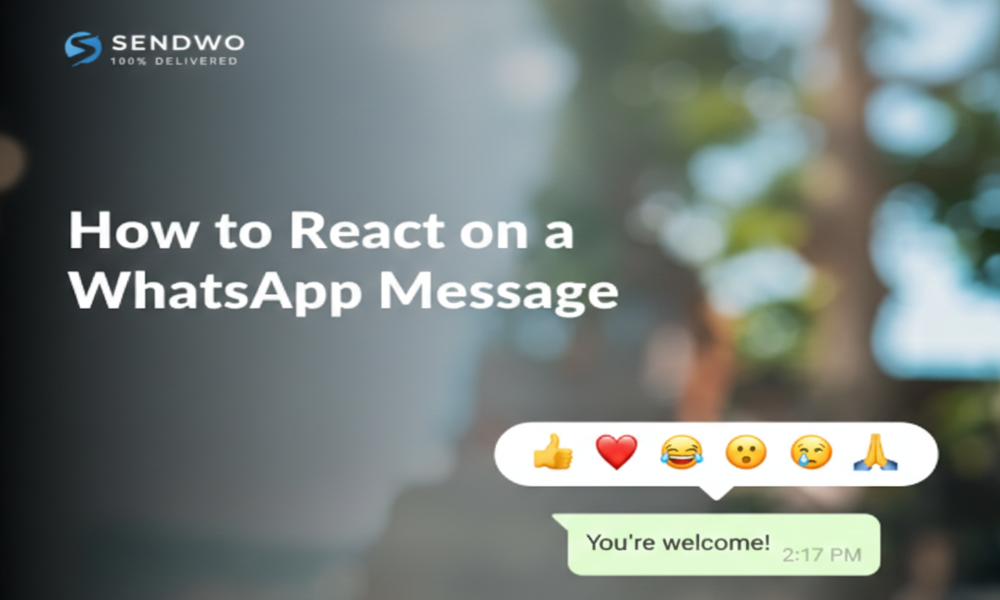
What are message reactions? Message reactions are a WhatsApp feature that allows you to respond to an individual message with a small emoji that appears below the message. Instead of sending a separate reply like “lol” or “okay,” you can attach an emoji (such as 😂 or 👍) directly to the original message. This feature was first rolled out in 2022 and initially offered six basic emoji options – 👍 (thumbs-up), ❤️ (red heart), 😂 (laugh/joy), 😮 (surprised), 😢 (sad/cry), and 🙏 (thanks/praying). Shortly after, WhatsApp expanded it to let users how to react on WhatsApp message with any emoji from the keyboard, giving you a full range of expression.
Why use emoji reactions? Reactions are more than just a gimmick – they serve practical purposes in your chats:
Quick Acknowledgment: If you’re busy or the conversation doesn’t need a full reply, an emoji reaction (like a 👍) shows you’ve seen the message and appreciate it. It’s faster than typing a new message and keeps the conversation flowing.
Reduce Chat Clutter: In group chats, five people saying “Congrats!” or “Me too” can clutter the feed. Instead, each person can how to react on WhatsApp messagewith a 🎉 or 👍 to the original message, consolidating responses. This keeps discussions tidy and focused.
Express Emotion Visually: Emojis convey tone and emotion that text sometimes can’t. A 😆 laugh reaction or 😢 sad reaction can show exactly how you feel about a message without any words. It adds a human touch to the chat, making digital communication feel warmer and more personal.
Silent Feedback: Reactions let you respond without triggering a loud notification for everyone (especially useful in large groups). Only the message sender gets a small alert that you reacted, so it’s a subtle way to communicate agreement, appreciation, or humor.
Real-world example: Picture this: Your colleague shares a long update in the team WhatsApp group. Rather than every team member sending "Got it" or "Thanks," which would create a flood of messages, everyone simply reacts with a 👍 thumbs-up. The original message now shows a thumbs-up icon with a count, indicating multiple people acknowledged it. The result? The group stays organized, the sender knows their update was seen, and no one’s phone blew up with dozens of pings. Reactions make group communication more efficient and considerate.
2. Step-by-Step: How to React to Messages on WhatsApp
Ready to start using message reactions? It’s very simple. You can how to react on WhatsApp message to messages in individual chats as well as group chats, on both mobile and desktop versions of WhatsApp. Below we’ll walk through the steps for different devices.
WhatsApp message reaction menu on mobile.
Above: When you long-press a message, WhatsApp displays six emoji reactions (👍 ❤️ 😂 😮 😢 🙏) along with a “+” icon for more options. These are the default reactions covering common emotions. Tapping the “+” opens the full emoji palette, allowing you to choose any emoji as your reaction.
On Android/iPhone (Mobile):
Long-press the message. Press and hold the WhatsApp message you want to react to. After a moment, an emoji reaction bar will pop up above the message (as shown in the image above).
Select an emoji reaction. The reaction bar will show several emoji. Simply tap the emoji you want to use. For example, tap the 👍 icon to send a thumbs-up reaction. If you want an emoji not shown in the default 6, tap the “+” icon to open the emoji picker and choose any emoji from your keyboard.
That’s it – reaction sent! Once you tap your emoji, it will instantly appear below the message as a small badge on that message. The sender (and others in the chat) will see the emoji attached to the message, indicating your reaction. You’ve now reacted without sending a separate message! 🎉
Note: You can only add one reaction per message (you can’t attach two different emojis to the same message). If it’s a disappearing message, your reaction will vanish when the message disappears.
On WhatsApp Web/Desktop:
Hover over the message. On WhatsApp Web or the Desktop app, move your mouse cursor over the message you want how to react on WhatsApp message. A small 😃 emoji icon (or a dropdown arrow) will appear near the message.
Click the emoji icon and choose an emoji. Click the emoji smiley button, and an emoji reaction menu will pop up. Like on mobile, you’ll see a set of default emoji to choose from. Click the one you want to how to react on WhatsApp message with. (If you see a “+” in the menu, you can click it to access the full emoji list for more options, just like on mobile.)
Emoji appears on the message. The emoji reaction will now show up beneath the message in the chat. Desktop and Web users in the chat will see it the same way mobile users do.
Quick Reaction Shortcut: If you’re using the latest WhatsApp version, there’s an even faster way to react: double-tap the message. WhatsApp introduced a double-tap shortcut so you can how to react on WhatsApp messagewithout even opening the emoji menu. By default, double-tapping a message will send a quick 👍 thumbs-up reaction (on many devices) – a convenient way to “like” a message instantly. This saves time when you just need to acknowledge something quickly. (Make sure you’ve updated WhatsApp to get this feature.)
Ensure you have the feature: If you don’t see the reaction option when you long-press or hover over a message, you might be using an outdated version of WhatsApp. Message reactions were added in 2022, so update your app to the latest version to access them. On rare occasions, connectivity issues might delay reactions from appearing – but generally, updating the app will solve most problems if reactions aren’t working.
3. How to Change or Remove a Reaction on WhatsApp
We’re all human – sometimes you might how to react on WhatsApp message with the wrong emoji or change your mind about a reaction. Don’t worry, you can change or remove your message reactions easily:
Changing a reaction: Simply long-press the message again (or hover and click the emoji icon on desktop) on a message you already reacted to. The emoji menu will open again. Now select a different emoji. The new emoji you tap will replace your previous reaction. For example, if you reacted with 😮 but meant to laugh, long-press and choose 😂 instead – the surprise emoji will be swapped out for the laugh. (Only one reaction per message is allowed, so the old one goes away.)
Removing a reaction: To remove your reaction entirely, long-press the message (or tap the small reaction emoji that you already placed on the message). Then tap the same emoji you had reacted with to deselect it. The reaction will disappear from the message for everyone. WhatsApp confirms that the emoji reaction will be removed once you do this.
When you remove or change a reaction, the update is silent – WhatsApp does not send a notification to the original sender that “so-and-so removed their reaction”. (The only notification was the initial reaction itself.) However, be aware: if the recipient was online or saw the message before you removed the reaction, they might have already seen your original emoji. Also, if for some reason your reaction removal wasn’t successful (say, due to network issues), WhatsApp won’t notify you of that failure. So, if it’s something sensitive, act quickly or double-check.
Example: You accidentally how to react on WhatsApp messageto your friend’s serious message with a 😂 laugh emoji (oops!). Realizing the mistake, you long-press the message and tap the 😂 again to remove it. Your friend won’t get an alert that you removed it, and the laugh icon disappears from their message. Crisis averted!
4. Tips for Using WhatsApp Message Reactions Effectively
Emoji reactions are simple to use, but here are some best practices and tips to get the most out of them:
Use reactions for quick acknowledgment: In busy conversations, a 👍 or ✅ reaction can succinctly show “I agree” or “Noted.” This saves time and prevents extra messages. For instance, if your boss sends an instruction in a team chat, a thumbs-up reaction can signal you’ve seen it, instantly and politely.
Keep group chats organized: In group discussions, encourage use of reactions to tally opinions or feedback. For example, if someone suggests, “Team lunch at 1 PM?”, group members can how to react on WhatsApp message with a 👍 for yes or 🙅♂️ for no. It’s an easy informal poll. By reacting instead of all replying, the chat isn’t flooded with repetitive answers.
Express the right emotion: Choose your reaction emoji to match the tone of the message. 😂 on a joke, 😢 on sad news, 😮 on a surprise – the correct reaction adds empathy and clarity. Avoid using a 😂 laugh on something serious or a 👍 on something that might need a more heartfelt response. When in doubt, a ❤️ heart can convey support or a 🙏 can convey thanks without words.
Mind the context (professional vs personal): In professional or formal chats, use reactions judiciously. A 👍 is generally safe for acknowledgment, but overusing playful emojis in a work context might come off as too casual. Sometimes a brief text reply is better for clarity or record-keeping. Gauge the culture of your chat – for some teams, 👍 is perfectly normal, but for others a written “Yes, got it” might be preferred. When communicating with clients or official groups, consider if an emoji alone carries the right tone.
Everyone can see group reactions: In a WhatsApp group chat, any member can tap the reaction emojis under a message to see who reacted with what. This transparency is great for understanding feedback (you’ll know who loved your photo or who voted 👍 on a plan). Just remember, your reactions aren’t private – the whole group can identify that you reacted. how to react on WhatsApp message as if you’re effectively speaking out loud in the group.
No hiding reactions: You cannot hide your reaction or the reaction count from others. Once you react, that emoji is visible to everyone in the chat (or to the other person in a private chat). So use it thoughtfully – don’t react with something you wouldn’t want others to see.
Stay updated for new features: WhatsApp continues to improve the reactions feature. For example, it recently made it easier by allowing double-tap quick reactions and showing your most-used emojis first for convenience. Even fun visual effects have been added – reacting with certain party or celebratory emojis (like 🎉 or 🥳) can trigger a confetti animation in chat for a festive touch! Keeping your app updated ensures you get these latest goodies and improvements in how reactions work.
Use reactions to maintain chat flow: Reactions can be a polite way to move a conversation along. Instead of derailing a chat with a side comment, a simple reaction can acknowledge a point so the discussion can continue on-topic. It’s a subtle form of active listening in text form – the other person feels “heard” when you react, even if you don’t reply with a full message.
By using these tips, you’ll not only know how to react on WhatsApp message, but also when and why to use reactions for maximum impact. Emoji reactions, when used wisely, can make your WhatsApp communication more engaging and efficient.
Conclusion
Emoji reactions have truly changed the way we chat on WhatsApp – they’re quick, fun, and help convey emotions at a glance. Now that you know how to react on WhatsApp message with just a tap (and even how to undo or change reactions), you can keep your conversations flowing without typing a single word. Whether it’s giving a 👍 to confirm plans, a 😂 to laugh at a joke, or a ❤️ to show support, you have the tools to respond in an instant.
It’s time to put this into practice: open WhatsApp and try reacting to a message today. You might be surprised how such a small feature can make chatting more interactive and lively. And don’t keep this knowledge to yourself – teach your friends or colleagues about message reactions so everyone stays on the same page with minimal chatter.
At SendWo, we’re all about improving communication. If you found this guide helpful, imagine what else you can do! SendWo is a powerful WhatsApp marketing platform that helps businesses and individuals make the most of WhatsApp with smart tools and tips. Ready to take your WhatsApp usage to the next level? Try SendWo today and transform the way you connect with your audience. 🚀 Happy messaging!
(FAQs)
Q1: Why can't I react to WhatsApp messages?
Update WhatsApp—reactions need latest version. Long-press message for emoji bar (needs internet).
Q2: Do people get notified of my reactions?
Yes, only message sender gets " reacted ❤️" alert. Group sees emoji visually, no other notifications.
Q3: Can I use any emoji for reactions?
Yes! Long-press → tap "+" beside 6 defaults → full emoji keyboard (including skin tones).
Q4: How to remove/change reaction?
React again with new emoji (replaces old). Long-press → tap your emoji to remove completely.
Q5: Who sees reactions in groups?
Everyone sees emojis + counts (❤️ x3). Tap shows who reacted. Only sender gets notifications.
Aditi, a content marketer at SendWo, is a passionate writer and marketing enthusiast. She excels in driving revenue campaigns, building client relationships, and mastering content creation, SEO, customer service, and project management.
SendWo is Meta's official business solution Provider. Broadcast Bulk WhatsApp messages and automate using AI Chatbots.