WhatsApp Template Approval Process: Categories, Rejection Reasons & Fixes
Learn WhatsApp template approval rules, categories, rejection reasons, examples, and fixes for Marketing, Utility, Authentication, and Service messages.
 By Aditi Kamini
Published: May 18, 2026
Updated: June 6, 2026
17 min read
By Aditi Kamini
Published: May 18, 2026
Updated: June 6, 2026
17 min read
Learn WhatsApp template approval rules, categories, rejection reasons, examples, and fixes for Marketing, Utility, Authentication, and Service messages.
WhatsApp Business API is one of the most powerful channels for customer communication, marketing, ecommerce updates, support, and automation. But if your business wants to start a conversation outside the customer service window, you cannot send any random message. You need to use a pre-approved WhatsApp message template.
This is where the WhatsApp template approval process becomes important. Every business-initiated WhatsApp template must follow Meta’s messaging rules, use the correct category, avoid policy violations, and clearly explain why the customer is receiving the message.
Many businesses face frustrating template rejections because of simple mistakes such as wrong category selection, spammy wording, invalid variables, unclear message intent, suspicious links, grammar errors, or promotional content submitted as a Utility template.
This guide explains how WhatsApp template approval works, the difference between Marketing, Utility, Authentication, and Service messages, and the 10 most common rejection reasons with practical fixes and examples.
If you want to create, submit, and run WhatsApp templates for campaigns, ecommerce, lead generation, order updates, abandoned carts, COD confirmation, and chatbot flows, you can use Sendwo to manage WhatsApp broadcasts, templates, automation, AI replies, and customer conversations from one dashboard.
Table of Contents
- How the WhatsApp Template Approval Process Works
- WhatsApp Template Categories
- Marketing Templates
- Utility Templates
- Authentication Templates
- Other Related Message Types
- How to Choose the Correct Template Category
- Template Category Examples for Ecommerce
- Top 10 WhatsApp Template Rejection Reasons
- WhatsApp Template Approval Checklist
- Approval Timeline and Best Practices
- FAQs
How the WhatsApp Template Approval Process Works
Before diving into rejection reasons, it helps to understand the approval flow. When you create a WhatsApp message template, you submit it through WhatsApp Manager, Meta Business Manager, or a Business Solution Provider platform such as Sendwo.
Each template must include:
- A template name
- A template category
- A language
- Message body content
- Variables such as {{1}}, {{2}}, and {{3}} where required
- Optional header, footer, button, media, or interactive elements
Meta reviews your template to check whether it complies with WhatsApp Business Messaging Policy, Commerce Policy, category rules, formatting rules, and user experience standards.
Most templates are reviewed quickly, sometimes within minutes. Some templates may take longer if they need manual review. If your template is approved, you can use it to send outbound WhatsApp messages. If it is rejected, you need to fix the issue and resubmit it.
Template approval is not the only thing that matters. Meta also tracks template quality after approval. If too many users block, report, or ignore a template, WhatsApp can pause or disable it. That means your template should be approved, relevant, expected, and useful for the recipient.
WhatsApp Template Categories: Marketing, Utility, Authentication, and Service Messages
Before submitting a WhatsApp template for approval, you must choose the correct category. This is one of the most important parts of the WhatsApp template approval process because the selected category affects approval, pricing, compliance, and how Meta reviews the message intent.
For business-initiated WhatsApp templates, the three main template categories are Marketing, Utility, and Authentication. WhatsApp also has Service messages, but service messages are usually tied to user-initiated conversations inside the customer service window rather than normal outbound template campaigns.
If you choose the wrong category, your template may be rejected, recategorized, priced differently, or delayed. For example, if your template contains promotional wording but you submit it as Utility, Meta may reject it or classify it as Marketing.
| Category | Purpose | Best For | Example | Common Approval Risk |
|---|---|---|---|---|
| Marketing | Promotional, sales, awareness, re-engagement, or conversion-focused messages | Offers, promotions, launches, cart recovery, winback, upsell, cross-sell, event promotion | Hi {{1}}, your special offer is live. Use code {{2}} before {{3}}. | Too spammy, unclear opt-in, misleading offer, excessive urgency |
| Utility | Non-promotional updates tied to a user action, transaction, account, order, appointment, or service request | Order updates, shipping alerts, payment reminders, appointment reminders, account alerts, ticket updates | Hi {{1}}, your order #{{2}} has been shipped. Track it here: {{3}}. | Adding promotional text, discount offers, unrelated CTAs, or sales language |
| Authentication | Verification and security messages used to confirm user identity | OTP, login verification, password reset, two-factor authentication, transaction verification | {{1}} is your verification code. For your security, do not share this code. | Adding marketing text, links, media, or non-security content |
| Service Messages | Replies inside the customer service window after a user messages the business | Support replies, product questions, troubleshooting, order help, live chat responses | Thanks for reaching out. Your appointment is scheduled for 2 PM today. | Trying to use service messages as outbound promotional templates |
Simple rule: if the message promotes, sells, re-engages, or pushes a new action, choose Marketing. If it confirms or updates something the user already did, choose Utility. If it sends an OTP or verification code, choose Authentication. If the user has messaged you first and you are replying inside the customer service window, it is usually a Service message.
Marketing Templates: When to Use Them
Marketing templates are used when the message is meant to generate awareness, drive sales, promote an offer, retarget customers, bring users back, or encourage a new action.
Common marketing template use cases
- Product launches
- Discount offers
- Festive sale campaigns
- Abandoned cart reminders
- Winback campaigns
- Reactivation campaigns
- Event or webinar promotion
- New collection announcements
- Upsell and cross-sell messages
- Lead nurturing campaigns
Marketing template example
Good example:
Hi {{1}}, our new {{2}} collection is now live. Use code {{3}} before {{4}} to get your launch offer. Shop here: {{5}}
Why this works: The message is clearly promotional, so it belongs in the Marketing category. It uses variables, gives context, and avoids spammy wording.
Marketing template approval tips
- Avoid all caps and excessive punctuation.
- Do not use misleading urgency.
- Make sure the offer is clear and truthful.
- Use a branded HTTPS link.
- Send only to opted-in users.
- Segment your audience so the offer feels relevant.
- Avoid restricted products, unrealistic promises, or misleading discounts.
Utility Templates: When to Use Them
Utility templates are used for non-promotional updates related to a user action, transaction, account, order, appointment, payment, delivery, or service request.
Common utility template use cases
- Order confirmation
- Shipping update
- Delivery update
- Payment confirmation
- Invoice reminder
- Appointment confirmation
- Appointment reminder
- Ticket update
- Account alert
- Service request update
- Product recall or urgent service alert
Utility template example
Good example:
Hi {{1}}, your order #{{2}} has been shipped and is expected to arrive by {{3}}. Track your order here: {{4}}
Why this works: The message is tied to an existing order and does not promote a new sale. It gives the customer useful transaction-related information.
Utility template approval tips
- Keep the message transactional and specific.
- Do not include discount codes or promotional offers.
- Use order ID, appointment date, payment amount, ticket ID, or another clear context variable.
- Make the message useful and expected by the customer.
- Avoid vague text like “your request needs attention” without explaining what request.
- Do not add upsell or cross-sell language inside a Utility template.
Important: If you add promotional content to a Utility template, Meta may reject it or classify it as Marketing.
Authentication Templates: When to Use Them
Authentication templates are used for identity verification and security. These templates are usually stricter than Marketing or Utility templates because they are meant for OTPs, login codes, password resets, account recovery, or transaction verification.
Common authentication template use cases
- Login OTP
- Two-factor authentication
- Password reset code
- Account verification
- Transaction verification
- Security challenge
Authentication template example
Good example:
{{1}} is your verification code. For your security, do not share this code.
Why this works: The message is short, security-focused, and does not include marketing language, links, or unnecessary content.
Authentication template approval tips
- Keep the message short and security-focused.
- Do not add offers, promotions, or product suggestions.
- Do not add unrelated links.
- Use the correct OTP or verification code placeholder.
- Do not ask users to share sensitive information.
- Use Authentication only for identity and security use cases.
Other Related Message Types: Service Messages, Interactive Templates, and Media Templates
Many businesses also get confused because WhatsApp has message categories, template formats, and message components. These are connected, but they are not the same thing.
Service messages
Service messages are replies sent after a user messages your business. When a user messages a business, WhatsApp opens a customer service window. During this window, the business can respond with service messages. These are useful for support, product questions, troubleshooting, appointment help, order support, and live chat.
Service messages are different from outbound templates. You normally use templates when your business wants to start or reopen a conversation outside the customer service window.
Interactive templates
Templates can also include interactive elements such as buttons. These buttons can help users visit a website, call a phone number, copy a coupon code, confirm an action, or choose a quick reply.
Examples include:
- Track Order
- Confirm Appointment
- Reschedule
- Pay Now
- Shop Now
- Copy Code
Media templates
Some templates can include media headers such as images, videos, or documents, depending on the template type and platform rules. These are useful for invoices, tickets, order summaries, event passes, product images, brochures, and payment documents.
However, media should support the message. Do not use media to hide spammy claims, misleading offers, or policy-restricted content.
Catalog and ecommerce templates
Ecommerce brands can use WhatsApp templates for abandoned cart recovery, COD confirmation, order updates, payment reminders, review requests, and product campaigns. The right category depends on the message intent. For example, an order status update is Utility, while a cart recovery reminder is usually Marketing.
How to Choose the Correct WhatsApp Template Category
Use this simple decision framework before submitting any WhatsApp template for approval.
| Question | If Yes | Likely Category |
|---|---|---|
| Is the message promoting a product, offer, discount, event, sale, cart recovery, or re-engagement? | Yes | Marketing |
| Is the message confirming or updating something the user already did? | Yes | Utility |
| Is the message sending an OTP, verification code, password reset code, or login code? | Yes | Authentication |
| Did the customer message your business first and are you replying inside the customer service window? | Yes | Service message |
| Does the message include both a transaction update and promotional offer? | Yes | Marketing is usually safer |
| Is the message vague, generic, or not tied to a clear user action? | Yes | Usually Marketing, or rewrite it for clarity |
If you are unsure, read the template as a customer. If it feels like an update they expect, it is probably Utility. If it feels like a sales push, it is Marketing. If it verifies identity, it is Authentication.
Template Category Examples for Ecommerce Businesses
Ecommerce brands often face rejection because cart recovery, COD confirmation, order updates, and payment reminders can look similar at first. Use this table to choose the correct category.
| Use Case | Example Message | Recommended Category | Why |
|---|---|---|---|
| Order confirmation | Hi {{1}}, your order #{{2}} has been confirmed. | Utility | The user already placed an order. |
| Shipping update | Your order #{{1}} has been shipped. Track it here: {{2}}. | Utility | It is a transactional delivery update. |
| Abandoned cart reminder | Hi {{1}}, you left {{2}} in your cart. Complete your order here: {{3}}. | Marketing | It encourages the user to complete a purchase. |
| COD confirmation | Hi {{1}}, please confirm your COD order #{{2}} before dispatch. | Utility | It confirms an existing order before fulfillment. |
| COD-to-prepaid offer | Hi {{1}}, switch your COD order to prepaid and get {{2}} off. | Marketing | It includes an offer and tries to change purchase behavior. |
| Payment confirmation | Your payment of {{1}} for order #{{2}} has been received. | Utility | It confirms a payment transaction. |
| Review request after delivery | Hi {{1}}, your order was delivered. Please rate your delivery experience: {{2}}. | Utility or Marketing depending on context | If tied to a specific transaction, it may be Utility. Generic review or engagement requests may be Marketing. |
| New product announcement | Hi {{1}}, our new collection is live. Explore it here: {{2}}. | Marketing | It promotes a new product or collection. |
For ready examples, explore Sendwo’s WhatsApp template library, WhatsApp campaign examples, abandoned cart templates, and COD confirmation templates.
Top 10 WhatsApp Template Rejection Reasons and How to Fix Them
1. Spammy or Overly Promotional Language
Templates that sound like aggressive ads or use hype-heavy words often trigger spam filters. WhatsApp wants professional, helpful messages, not pushy sales broadcasts.
Rejected example:
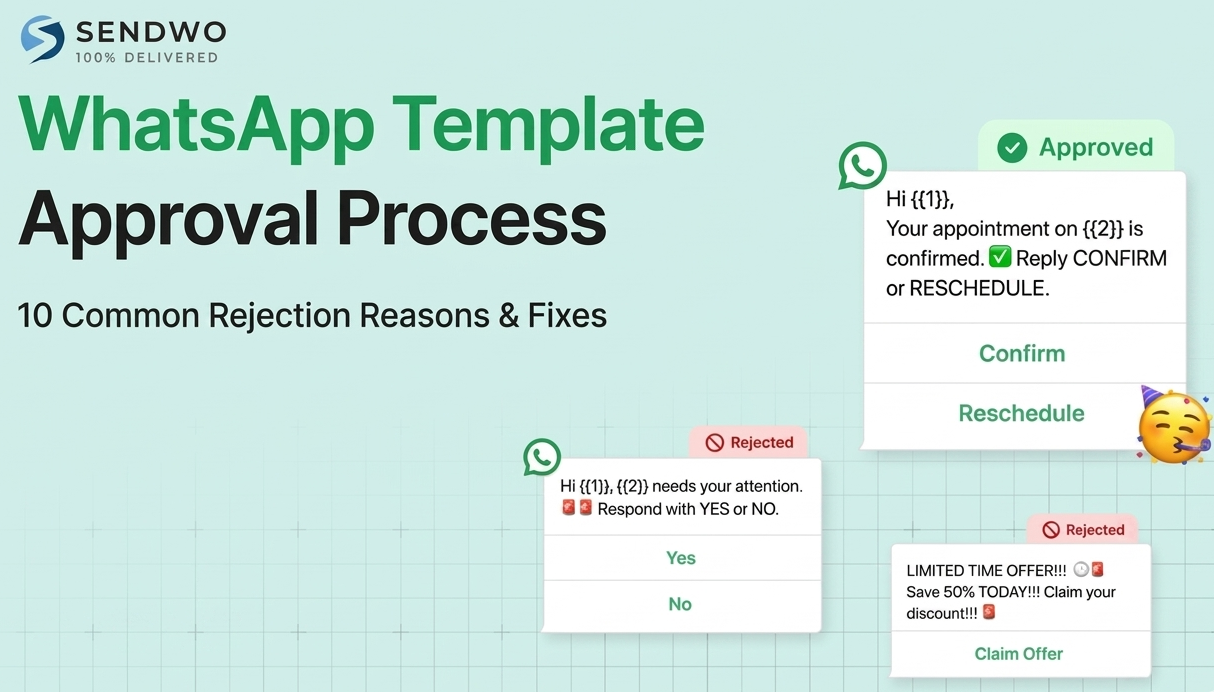
LIMITED TIME OFFER!!! Save 50% TODAY!!! Click now!!!
This sounds too aggressive because it uses all caps, repeated exclamation marks, and pressure-heavy wording.
Better example:
Hi {{1}}, your discount code is {{2}}. Use it before {{3}} to save on your next order.
Fix: remove all caps, excessive punctuation, exaggerated urgency, and misleading claims. Use a friendly, specific, and customer-focused tone.
2. Missing or Malformed Variables
WhatsApp templates use placeholders such as {{1}}, {{2}}, and {{3}} for personalized information. A common rejection reason is invalid variable formatting, wrong brackets, skipped numbers, or variables with no sample values.
Incorrect:
Turn this learning into your next WhatsApp campaign.
Start with Sendwo’s free plan, explore WhatsApp broadcasts, automation, AI chatbot flows, and upgrade only when your business needs more power.
Hi {name}, your order is ready.
Correct:
Hi {{1}}, your order #{{2}} is ready. Track it here: {{3}}.
Fix: use the exact {{n}} format, keep variables in order, and add sample values when submitting the template so reviewers understand the context.
3. Suspicious or Shortened Links
Templates often include tracking links, payment links, order links, or product links. WhatsApp may reject links that look suspicious, use URL shorteners, redirect too many times, or do not match your brand domain.
Rejected example:
Hi {{1}}, track your order here: bit.ly/abc123
Better example:
Hi {{1}}, track your order #{{2}} here: https://yourbrand.com/track/{{3}}
Fix: use full HTTPS links from your own domain. Avoid bit.ly, TinyURL, random domains, or hidden redirects.
4. Wrong Language or Mixed Content
If the template language does not match the selected language code, it may be rejected. For example, submitting Hindi content under English or mixing English and Spanish inside one template can trigger review issues.
Fix: choose the correct language and keep the entire template in that language. If you need multiple languages, create separate templates for each language.
5. Vague or Unclear Message Content
A WhatsApp template should have a clear purpose. If reviewers cannot understand why the customer is receiving the message, the template may be rejected.
Rejected example:
Hi {{1}}, {{2}} needs your attention. Reply YES or NO.
This is too vague because reviewers do not know what {{2}} means or what the user is confirming.
Better example:
Hi {{1}}, your appointment on {{2}} at {{3}} is scheduled. Please reply CONFIRM or RESCHEDULE.
Fix: clearly state the context, reason, and next action. Use variables only where the meaning is obvious.
6. Prohibited or Sensitive Content
WhatsApp policies restrict certain types of content and business categories. Templates may be rejected if they ask users for sensitive information, promote prohibited products, contain misleading claims, or violate WhatsApp Commerce Policy.
Avoid asking users to share:
- Full payment card numbers
- Passwords
- Government ID numbers
- Highly sensitive personal data
- Medical or financial information without proper context and compliance
Fix: keep templates safe, clear, and policy-compliant. For OTPs or security codes, use the Authentication category instead of a generic template.
7. Poor Formatting or Excessive Length
Templates should be concise and easy to read on mobile screens. Very long messages, large text blocks, excessive symbols, and poor spacing can reduce approval chances and user experience.
Fix: keep the message short, structured, and readable. Use line breaks where helpful. Avoid all caps, too many emojis, and unnecessary formatting.
8. Wrong Template Category
Every WhatsApp template must be submitted under the correct category. The three main template categories are Marketing, Utility, and Authentication. Choosing the wrong category can lead to rejection, recategorization, pricing mismatch, or campaign delays.
This issue usually happens when a business tries to submit a promotional message as Utility because Utility messages are often viewed as more transactional. Meta reviews the message intent, not only the category selected by the business.
| Message Example | Correct Category | Why |
|---|---|---|
| Hi {{1}}, your order #{{2}} has been shipped. Track it here: {{3}}. | Utility | It is a transactional order update requested or expected by the customer. |
| Hi {{1}}, our summer sale is live. Use code {{2}} to save 20% today. | Marketing | It promotes an offer and tries to drive a new purchase. |
| {{1}} is your login verification code. Do not share it with anyone. | Authentication | It verifies the user’s identity using an OTP or security code. |
| Hi {{1}}, your appointment with {{2}} is confirmed for {{3}}. | Utility | It confirms an appointment related to a user action. |
| Hi {{1}}, you left items in your cart. Complete your purchase here: {{2}}. | Marketing | Cart recovery is usually treated as a conversion or re-engagement message. |
| Hi {{1}}, your payment of {{2}} has been received for invoice #{{3}}. | Utility | It confirms a payment transaction. |
Fix: choose the category based on the real purpose of the message. Do not add sales language to Utility templates. Do not add links, offers, media, or promotional CTAs to Authentication templates. If a template mixes transactional and promotional intent, it is safer to classify it as Marketing.
9. Grammar, Spelling, or Typos
Even small grammar and spelling mistakes can make a template look unprofessional or spam-like. Reviewers may reject templates with obvious errors because they reduce user trust.
Rejected example:
Your ordr #{{1}} hazz shippid.
Better example:
Your order #{{1}} has been shipped.
Fix: proofread carefully. Use simple, correct language. Avoid slang, confusing abbreviations, and spelling mistakes.
10. Duplicate Content or Template Limits Reached
Meta may reject duplicate template names, identical wording, or templates that look too similar to existing ones. Some accounts also have limits on the number of active templates.
Fix: use unique template names and clear message variations. Remove old templates you no longer use. If you need more templates, check whether your account is eligible for higher limits.
WhatsApp Template Approval Checklist
Before submitting any WhatsApp template, check the following:
- Clear intent: Does the first line explain why you are messaging?
- Correct category: Is it Marketing, Utility, or Authentication?
- Proper variables: Are all placeholders written as {{1}}, {{2}}, and {{3}}?
- Sample values: Did you add realistic sample values for variables?
- Language match: Does the template language match the selected language?
- Readable copy: Is the body concise and easy to read?
- No prohibited content: Does it avoid restricted products and sensitive data requests?
- Trusted links: Are all links HTTPS and brand-owned?
- No grammar errors: Is the text free of spelling and punctuation mistakes?
- Customer expectation: Would the recipient understand why they received it?
WhatsApp Template Approval Timeline and Best Practices
Many WhatsApp templates are approved within minutes, especially when the message is clear, compliant, and correctly categorized. Some templates may take longer if they are flagged for manual review.
If your template is rejected, read the rejection reason carefully. Do not keep resubmitting the same message without changes. Fix the specific issue and then resubmit.
Best practices for faster approval
- Write in a friendly, customer-focused tone.
- Choose the correct category from the beginning.
- Use variables with clear sample values.
- Use branded links only.
- Keep templates short and mobile-friendly.
- Avoid exaggerated sales language.
- Create separate templates for separate use cases.
- Monitor template quality after approval.
- Pause campaigns if block or report rates increase.
Using Sendwo for WhatsApp Template Campaigns
Sendwo helps businesses create and run WhatsApp template campaigns for marketing, ecommerce, lead generation, customer support, and automation use cases.
With Sendwo, you can manage:
- WhatsApp broadcast campaigns
- WhatsApp template library
- WhatsApp campaign examples
- Abandoned cart templates
- COD confirmation templates
- WhatsApp lead generation templates
- WhatsApp chatbot flows
- Sendwo AI replies
- Shared team inbox
If your business wants to start WhatsApp marketing without heavy setup, start free with Sendwo and test your first campaigns.
FAQs
1: How long does WhatsApp template approval take?
A: Many templates are approved within minutes, but some can take longer if they require manual review. If approval is delayed, check the template category, variables, language, links, and policy compliance before resubmitting.
2: Why was my WhatsApp template rejected?
A: Common causes include spammy wording, invalid variables, suspicious links, wrong language, vague content, prohibited content, poor formatting, wrong category, grammar errors, or duplicate content.
3: Can I edit a WhatsApp template after it is approved?
A: In most cases, approved templates are locked. If you need to change the wording, create a new template version and submit it for approval.
4: What happens if a template is paused?
A: WhatsApp may pause a template if it receives poor quality signals such as blocks, spam reports, or negative user feedback. Review the message, improve targeting, and submit a better version if needed.
5: Can I use emojis or images in templates?
A: You can use emojis and media in some templates, but they should support the message and not make it look spammy. Avoid too many emojis, misleading media, or images that promote restricted content.
6: What are the main WhatsApp template categories?
A: The three main WhatsApp template categories are Marketing, Utility, and Authentication. Marketing templates are used for promotions and re-engagement, Utility templates are used for transactional updates, and Authentication templates are used for OTPs and identity verification.
7: Is Service a WhatsApp template category?
A: Service is a WhatsApp message category, but it is different from normal outbound template categories. Service messages are replies sent after a user messages your business, usually inside the customer service window.
8: Which category should I choose for abandoned cart reminders?
A: Abandoned cart reminders are usually Marketing because they encourage the user to return and complete a purchase.
9: Which category should I choose for order updates?
A: Order confirmation, shipping updates, delivery updates, and payment confirmations are usually Utility because they are transactional and tied to a user action.
10: Which category should I choose for OTP messages?
A: OTP, login verification, password reset, and two-factor authentication messages should use the Authentication category.
11: Can a Utility template include a discount code?
A: Usually no. If you add a discount code, promotional offer, upsell, or sales CTA, Meta may classify the template as Marketing or reject it for category mismatch.
12: Why does the wrong category cause rejection?
A: Meta reviews the actual message intent. If the selected category does not match the content, the template can be rejected or recategorized. For example, a promotional message submitted as Utility can trigger a category mismatch.
13: Can I use Sendwo to run approved WhatsApp templates?
A: Yes. Sendwo helps businesses run WhatsApp broadcasts, manage templates, use chatbot flows, automate replies, create ecommerce campaigns, and manage customer conversations from one WhatsApp-first dashboard.
14Q: Where can I find WhatsApp template examples?
A: You can explore Sendwo’s WhatsApp template library, WhatsApp campaign examples, abandoned cart templates, and COD confirmation templates.
Final Thought
WhatsApp template approval becomes easier when your message has a clear purpose, the right category, correct variables, clean formatting, trusted links, and customer-friendly wording.
The most important step is choosing the right category. Use Marketing for promotions and re-engagement, Utility for transactional updates, Authentication for OTP and security messages, and Service messages for user-initiated support replies inside the customer service window.
If you want to plan better templates, run WhatsApp campaigns, build automations, and manage customer replies from one dashboard, start free with Sendwo or explore the WhatsApp template library.
Aditi Kamini
Aditi, a content marketer at SendWo, is a passionate writer and marketing enthusiast. She excels in driving revenue campaigns, building client relationships, and mastering content creation, SEO, customer service, and project management.