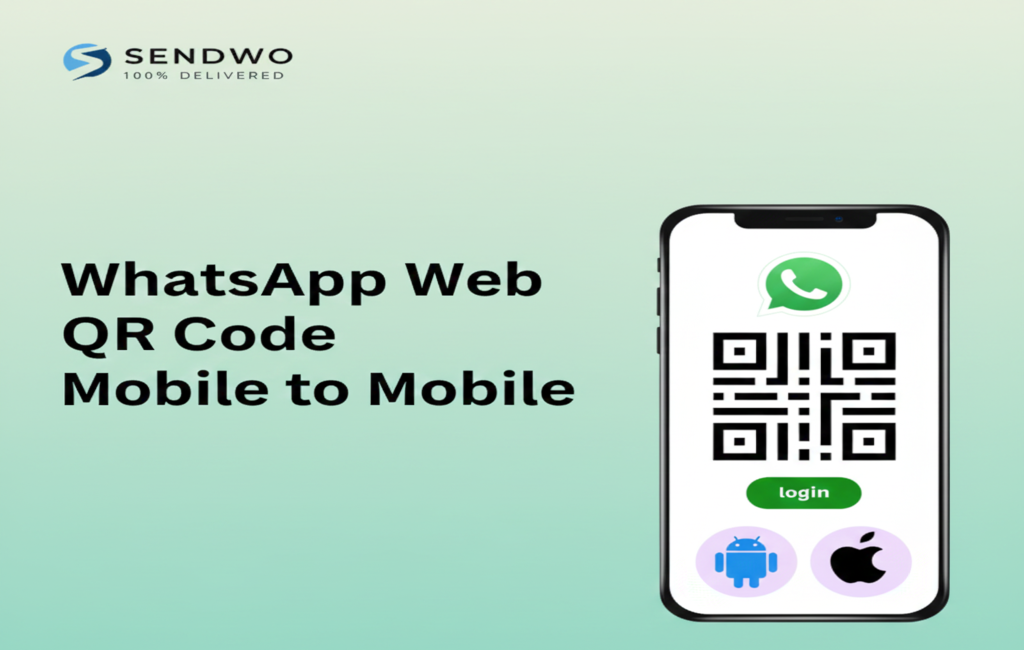
Imagine juggling two phones but needing one WhatsApp account. Thanks to WhatsApp Web, you can scan a QR code to link your chat across devices. In fact, WhatsApp now boasts over 3 billion users worldwide, sending 100+ billion messages daily. With so much traffic, it’s no surprise that businesses (around 50 million of them) rely on WhatsApp Web to sta y connected. Using the WhatsApp Web QR Code Mobile to Mobile method, you can open your chat on a second phone just like on a desktop. This guide (brought to you by SendWo) shows how to set it up, what it’s good for, and how to tr oubleshoot common issues. We’ll also cover the latest multi-device features and answer popular questions. Let’s dive in!
1. What is WhatsApp Web and the QR Code?
WhatsApp Web is simply the web client of WhatsApp (accessible at web.whatsapp.com) that lets you use WhatsApp on other devices. Instead of logging in with a password, WhatsApp generates a unique QR code on the screen of the second device. You scan that code with your phone’s camera to authenticate. This links the new device to your account securely. In practice, when you visit web.whatsapp.com (on a browser) you’ll see a QR login code. Opening your WhatsApp app on your main phone and going to Linked Devices → Link a Device activates the scanner. Point it at the QR code, and your chats and media will sync to the new device.
This QR-code method is actually very secure. The entire process is end-to-end encrypted – WhatsApp confirms that scanning the QR code only grants temporary access tied to your phone number, without ever sharing your password. In other words, only you can log in from that second device. Think of it as a private handshake between your phones. WhatsApp’s design even isolates the QR token so no one else can misuse it. The convenience of not typing a login and the safety of encryption make WhatsApp Web a trusted way to stay connected on multiple devices. In short, WhatsApp Web + QR code = a quick, safe way to mirror your chat on another device.
2. How to Use WhatsApp Web on a Second Mobile (Mobile-to-Mobile Scanning)
To use WhatsApp Web QR Code Mobile to Mobile, you simply treat one phone like the “desktop” and scan its QR with your primary phone. Here’s how:
Prepare both phones: Ensure your primary phone (Phone A) has WhatsApp installed and logged in. Make sure both phones have internet access. Use a modern browser (Chrome, Firefox, Safari) on the second phone (Phone B).
Open WhatsApp Web on Phone B: On Phone B, open your browser’s menu and select Desktop Site or Request Desktop Website. Then go to web.whatsapp.com . You should see the familiar WhatsApp Web login page with a QR code.
Figure: Enable Desktop mode on Phone B’s browser and visit web.whatsapp.com. You’ll see the WhatsApp login QR code appear on screen.
Scan the QR on Phone A: On your primary phone (Phone A), open WhatsApp and tap Menu (⋮) on Android or Settings on iPhone. Choose Linked Devices → Link a Device. This opens the camera viewfinder. Point it at the QR code displayed on Phone B’s screen. The app will recognize the code and instantly link the two devices.
Complete the linking: Once scanned, the WhatsApp interface from Phone A will load on Phone B’s browser. You can now view chats, send messages, and receive updates on Phone B exactly as you would on a desktop. Phone A must stay connected to the internet to keep everything synced.
Figure: On Phone A, tap Link a Device to activate the QR scanner (tapping the + icon if needed). Point it at Phone B’s screen to link both devices.
That’s it! You’ve effectively created a WhatsApp Web QR Code Mobile to Mobile bridge. Phone B is now acting like a WhatsApp Web client. You can chat, read and reply to message, and even send photos – all from the second phone’s browser.
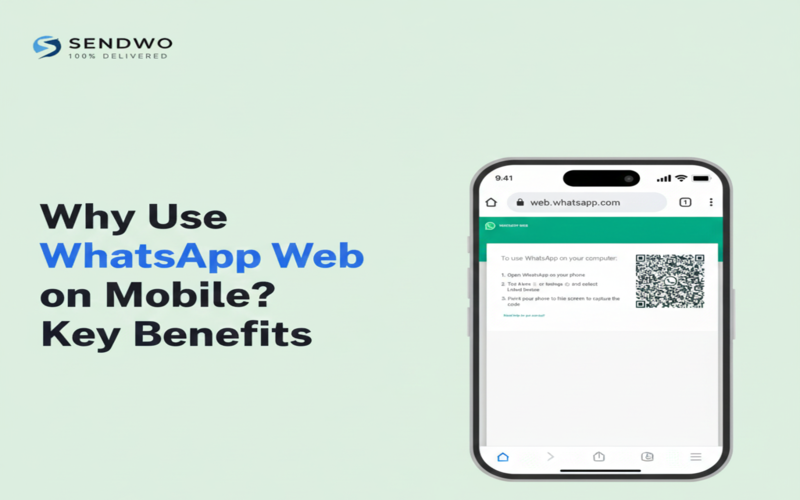
3. Why Use WhatsApp Web on Mobile? Key Benefits
Linking WhatsApp across two phones may seem niche, but it has real-world advantages:
Multi-Device Access: Your WhatsApp can follow you anywhere. For example, if your phone’s battery dies or breaks (ouch), you can still use WhatsApp Web QR Code Mobile to Mobile device by having pre-linked it. In one story, when Lina’s phone cracked, she simply scanned the QR code on a friend’s phone and continued chatting without missing a beat.
Team Collaboration: Small businesses love this. Now multiple employees can handle one WhatsApp Business account. For instance, a clothing store had three staff members log into the same WhatsApp account on different devices via the QR code. This let each team member answer customer inquiries simultaneously from their own device. (WhatsApp’s official blog even highlights this: you can link up to four phones to one account, so your team can all use the same number.)
Easy File Transfer: It’s often faster than emailing. Imagine Rohit, who photographs products with his phone. Instead of emailing each image, he opens WhatsApp Web on his PC (or second phone), and scans the QR code. The photos instantly appear on his larger screen for editing and upload. No copying or cables needed.
Continuity: If you’re working on your laptop or secondary device and your phone rings, you don’t have to switch screens constantly. WhatsApp Web syncs messages, so you can quickly copy and paste text, share documents, or view long chats from the larger interface, saving time.
Security & Convenience: Since scanning the QR code doesn’t transmit your password, you can safely use public or shared devices as temporary terminals. And the link remains active until you sign out. (To end a session, just tap Log out under Linked Devices in the app.)
In short, using WhatsApp Web QR Code Mobile to Mobile keeps you productive and reachable. It turns any phone’s browser into an extension of your WhatsApp account, which is especially handy in business or urgent scenarios.
4. WhatsApp’s Multi-Device and Companion Mode (Latest Updates)
WhatsApp continues to evolve its multi-device support. In 2023 they introduced Companion Mode, officially allowing one account on multiple phones without juggling the old login each time. Now you can link up to 4 additional devices (phones, tablets, computers) under one number. Once linked, each device operates independently. That means you can chat from your office tablet even if your main phone is at home, as long as it’s connected initially.
Importantly, you don’t always need to scan a QR code with Companion Mode. WhatsApp now offers an alternative – you can enter your number on web.whatsapp.com and get a one-time code on your main device, which you use to authorize the new device. This streamlines linking a second phone. Businesses rejoice: as WhatsApp states, this makes “switching between phones without signing out” seamless. Staff members can now “respond to customers directly from their phones under the same WhatsApp Business account”.
To use this, ensure both devices have the latest WhatsApp version. Open Linked Devices on your primary phone and follow the prompts. Once you see the new “WhatsApp Web QR Code Mobile to Mobile” entry for your secondary phone, you’re done. Your chats, contacts and settings sync (all encrypted) so you’ll pick up where you left off. Just remember: WhatsApp enforces security – if your primary phone is inactive for long, it may log out companions.
Pro Tip: Even with multi-device, the QR code method still works great for a quick link. Combine both – use QR scanning to link instantly, then enable companion mode to keep devices connected long-term.
5. Tips & Troubleshooting
Even this simple process can have hiccups. Here are some quick fixes:
No QR Code Appearing? Make sure you’ve enabled “Desktop Mode” correctly on Phone B’s browser. If the QR doesn’t show or refreshes strangely, reload the page or try a different browser. A strong internet connection on both phones is essential.
QR Code Too Small or Won’t Scan? Rotate the phone to landscape or zoom out in the browser so the QR fills the screen. Clearing the browser cache or opening a fresh tab can help. Ensure Phone A’s camera has permission and focus is clear. Often, simply rotating or moving back until the QR fits in view does the trick. Session Dropped / Signed Out? By default, WhatsApp Web QR Code Mobile to Mobile only keeps one session active per account. Logging in on a new device will log out the previous one. If you need multiple concurrent sessions, use the official multi-device mode. Otherwise, just repeat the scan whenever needed.
Data Usage Concerns: Using WhatsApp Web QR Code Mobile to Mobile browser can consume more data than the app, since the full desktop interface and media sync live. If data is tight, ensure you’re on Wi-Fi or limit media downloads in settings.
App Version: WhatsApp Web QR Code Mobile to Mobile won’t work if your phone’s WhatsApp is outdated. Keep both app and browser up-to-date. Also, note that voice/video calls aren’t supported on Web – only messaging and media.
In most cases, following the step-by-step above and keeping devices charged fixes any issue. If a QR scan fails repeatedly, try tapping Log out from all devices in your app and start fresh. The key is patience and a steady setup – once linked, it usually “just works” until you manually log out.
FAQ
Q: Can I use WhatsApp Web on my mobile phone?
A: Yes! Although WhatsApp Web QR Code Mobile to Mobile was designed for desktops, you can use it on a second phone. Simply open a browser on Phone B, enable Desktop Mode, and go to web.whatsapp.com . Then scan the QR code with WhatsApp on your main phone. This effectively lets Phone B act as a desktop client.
Q: How do I link my WhatsApp to a second phone?
A: On your primary phone, open WhatsApp and tap Linked Devices → Link a Device. Then point its camera at the QR code shown on the second phone’s browser (opened to WhatsApp Web QR Code Mobile to Mobile). The code links the two devices instantly. Alternatively, use WhatsApp’s new companion mode (enter your number on web.whatsapp.com) to add the second phone without scanning.
Q: Can I have WhatsApp on two phones with the same number?
A: Yes. With companion mode, one WhatsApp account can be used on up to 4 additional phones. Each linked phone receives the same messages independently. Keep in mind that if your primary phone stays offline for too long, companion devices may log out for security.
Q: Do I need my phone to be online to use WhatsApp Web?
A: It depends. Without multi-device, the primary phone must stay connected to the internet to sync chats. However, once you use multi-device or companion mode, your linked phones and computers maintain their own connections. In other words, after initial linking, secondary devices can continue sending/receiving even if the main phone is offline.
Q: How secure is the QR code scan? Can someone steal my chats?
A: The QR login is very secure. The code is unique and only valid for a short time. Scanning doesn’t expose your password – it simply establishes an encrypted session tied to your phone number. WhatsApp explicitly uses end-to-end encryption and device verification during this process, so only your phone (the one that scanned) can use that login. Always keep your QR codes private and log out of devices you no longer use.
Q: Why won’t my WhatsApp Web scan?
A: Common issues: the code expired (it refreshes frequently), your camera didn’t focus, or the browser isn’t in desktop view. Simply refresh the browser, ensure “Desktop Site” is enabled, and try again. Also make sure no other app is blocking the camera. If problems persist, logging out and starting fresh usually solves it.
Q: How many devices can I connect to WhatsApp?
A: Officially, you can link your account to 4 devices in multi-device mode (this includes computers and phones), plus your one main phone. Regular WhatsApp Web (without companion mode) counts each link individually and will kick out older links if you exceed the limit.
Q: Can this replace using WhatsApp Business API or tools like SendWo?
A: No, WhatsApp Web QR scanning is simply a user interface feature. Tools like SendWo (which use WhatsApp Business API) are for bulk messaging, chat automation, and CRM integration. However, linking devices can complement those tools by letting your team stay logged in. For example, a support agent could use WhatsApp Web on a tablet and still send transactional messages through SendWo’s API on the backend.
Conclusion & Call to Action
Using the WhatsApp Web QR Code Mobile to Mobile feature keeps you flexible and always in touch. Whether you’re a freelancer coordinating projects or a store owner managing customer inquiries, linking your chats across devices can save time and headaches. As demonstrated, it only takes a few taps to connect phones: open the browser on one, scan with the other, and you’re chatting away.
For businesses, pairing this feature with a platform likeSendWo supercharges your strategy. SendWo’s WhatsApp Business API tools let you automate replies, send bulk messages, and integrate with your e-commerce. Meanwhile, you and your team can continue using familiar WhatsApp Web QR Code Mobile to Mobile to monitor and respond to chats in real time.
Aditi, a content marketer at SendWo, is a passionate writer and marketing enthusiast. She excels in driving revenue campaigns, building client relationships, and mastering content creation, SEO, customer service, and project management.
SendWo is Meta's official business solution Provider. Broadcast Bulk WhatsApp messages and automate using AI Chatbots.