October 16, 2025

How to Add Quick Replies to WhatsApp Template Messages in SendWo

- No Comments
add quick replies to WhatsApp template message in SendWo

With SendWo’s Quick Reply buttons, you can let your users respond instantly with a single tap. Whether it’s booking a demo, confirming an order, or getting support, it's at your fingertips.

In SendWo, you can add up to 3 Quick Reply buttons to any approved message template. These buttons enhance response rates and facilitate smooth, automated chat flows with your WhatsApp Bot.

This quick guide will walk you through how to add WhatsApp Message Templates, along with approval tips to help you launch faster.

1. Access Template Creation

a. Login to your SendWo Dashboard.

Log in to your SendWo Dashboard

b. From the left sidebar, go to ChatBot Manager > WhatsApp Bot > Message Templates.
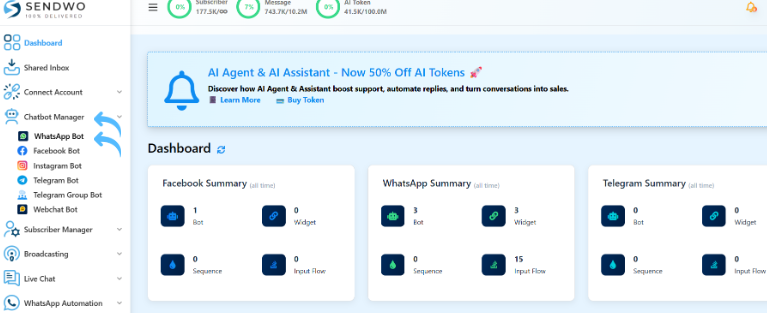
Go to ChatBot Manager

c. Click on the Create button located in the top-right corner.

Tip: Only admins or authorized users with “Template Access” permissions can create message templates.

2. Basic Template Setup

Once you’re done, you can find the template creation screen. Start by filling in all the essential details that are mentioned below:
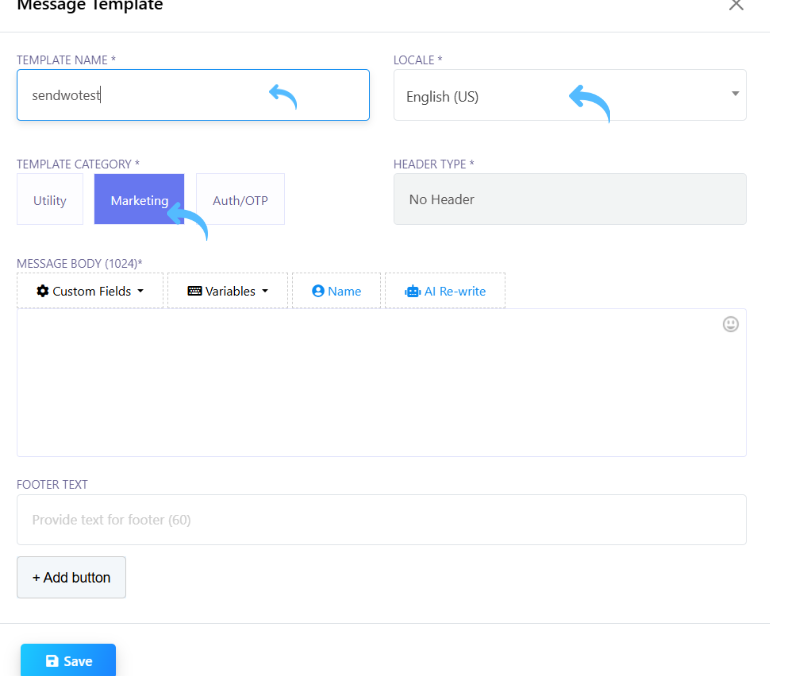
  • Template Name: Enter a descriptive name using lowercase letters and underscores (e.g., order_confirmation or welcome_offer).
  • Locale: Select the language most suitable for your customers (e.g., English, Hindi, Spanish, etc.).
  • Category: Choose from Utility, Marketing, or Authentication (Auth) based on your message type to your customers/users.
Basic Template Setup

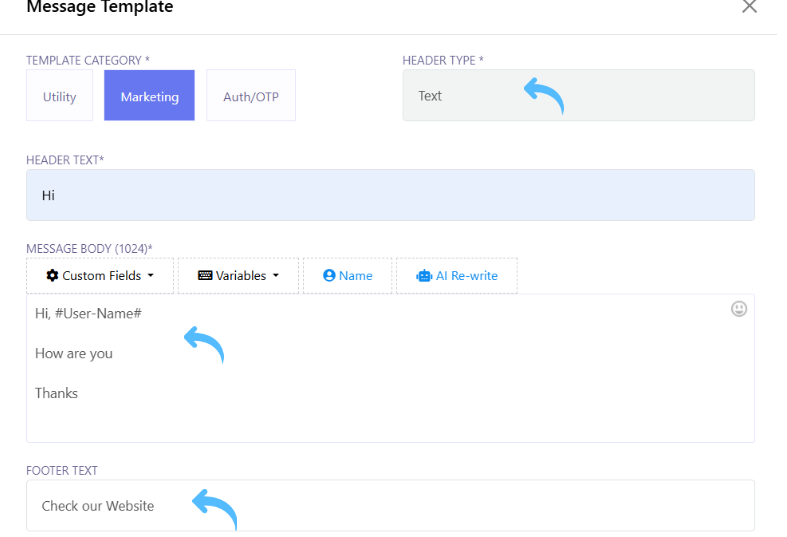
3. Design Message Content

  • Header: Add a text, image, or video to make your message visually appealing. This is optional.
  • Body: Write the main content of your message (max up to 1024 characters).
  • Footer (Optional): Add a small note/disclaimer text. This is also optional.                     
    “Thank you for shopping with us.” or “Reply below to continue.”
Design Message Content

4. Add Quick Reply Buttons

  1. Under the Button Section, select “Quick Reply” as the Button Type.
  2. Here you can add up to 3 Quick Reply buttons in one template.
  3. Configure each button by setting a maximum of 20 characters. (e.g., “Yes”, “No”, “More Info”).
Add Quick Reply Buttons

Tip: Avoid using emojis (WhatsApp doesn’t allow them in buttons).

Best Practice: Keep button labels short, clear, and action-oriented.

5. Submit & Approve

Once you have created the message and the buttons, follow the steps below:
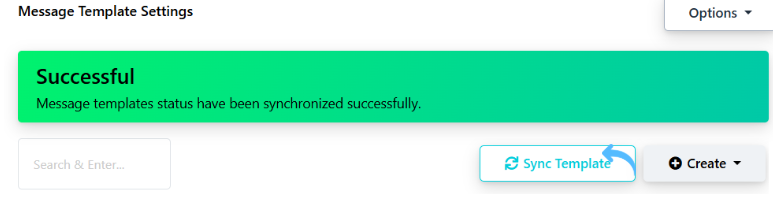
  1. Click to “Save”. This will submit your template for WhatsApp approval.
  2. Approval usually takes between 10 minutes to 24 hours.
  3. You can check your approval status at any time by clicking on “Sync Template” button inside SendWo.
Submit & Approve

Approval Tip: Always avoid promotional language like “Buy now” or “Limited offer” in Utility templates. This may result in rejection by Meta.

6. Final Steps: Test and Deploy

Once the approval is complete, 

  1. Verify that your template shows as “Approved” in the dashboard.
  2. Test functionality before deployment.
  3. Once confirmed, deploy it through your WhatsApp Broadcast or Chatbot Flows.

Pro Tip: Use SendWo’s Broadcast Manager to instantly send your approved templates with Quick Replies to segmented customer lists.

Quick Tips for SendWo Users

FeatureLimit / Recommendation
Buttons per TemplateMaximum 3 Quick Reply Buttons
Button Text LimitMax 20 characters
Message Body LimitMax 1024 characters
Emoji UsageNot supported in buttons
Approval Time10 minutes to 24 hours
TestingAlways test before deployment

Quick Replies are always a game-changer for WhatsApp automation.
They shorten response time, also boost engagement, and make conversations more interactive. At the same time, keep your workflow automated.

1. How long does WhatsApp take to approve a template with Quick Replies?

Typically, WhatsApp reviews and approves templates within 10 minutes to 24 hours. However, templates with promotional content might take slightly longer.

2. Can I edit a Quick Reply button after approval?

No. Once a template is approved by WhatsApp, you cannot edit its content or buttons. You’ll need to create a new template if you want to make changes.

3. Why was my Quick Reply template rejected?

1. Using promotional or misleading language in non-marketing categories.
2. Adding emojis or unsupported symbols in button text.
3. Missing placeholders or incorrect formatting.

About The Author:

Snehil Prakash

Snehil Prakash is an expert WhatsApp consultant with SendWo. He has expertise in implementing WhatsApp API for enterprise businesses and built automation, chatbot and AI powered solution.
Terms & ConditionsPrivacy PolicySupport SLARefund PolicyShipping Policy
Copyright © 2026 | SENDWO - Bulk WhatsApp Sender Software & Multichannel Chatbot Software
linkedin facebook pinterest youtube rss twitter instagram facebook-blank rss-blank linkedin-blank pinterest youtube twitter instagram