SendWo allows your businesses to showcase their products directly inside WhatsApp chats by creating and integrating a product catalog, making it easier for customers to browse, inquire, and purchase, all within the same conversation.
This tutorial will guide you through all the steps on how to create a WhatsApp catalog on SendWo and build interactive chatbot flows to display your products and automate order management with Google Sheets.
Let's Start !!
Begin by setting up your product catalog using Facebook Commerce Manager.
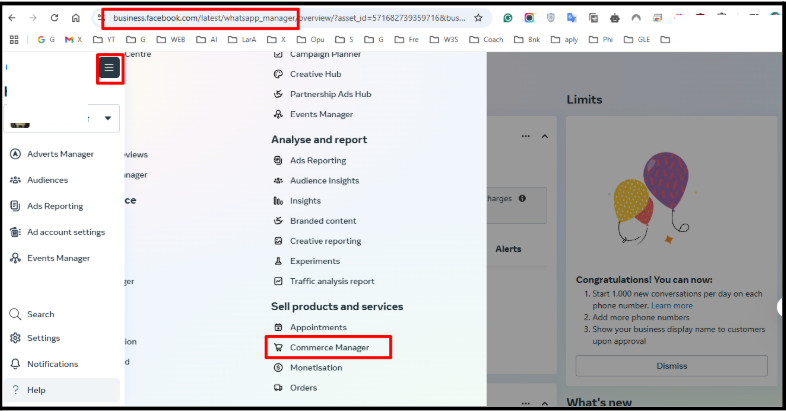
Follow the steps given below:
1. Go to business.facebook.com.
2. Click the Menu (☰) icon and select Commerce Manager.
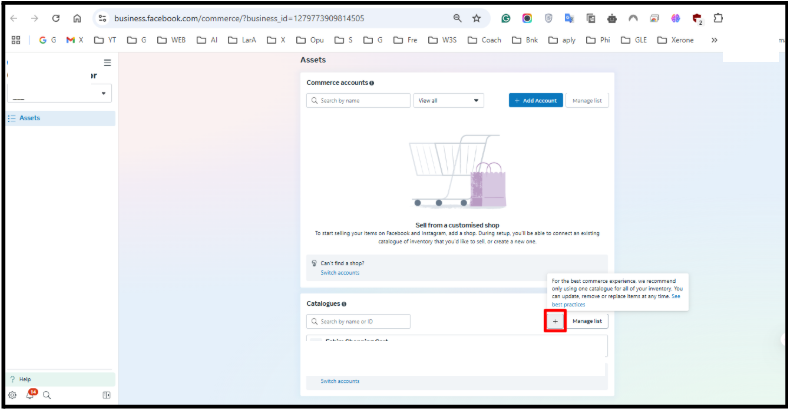
3. Choose Add Catalog > Continue and follow the pop-up instructions to create your new catalog.
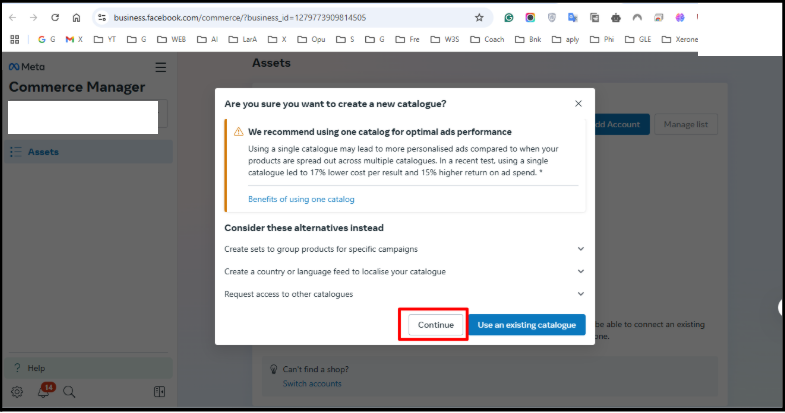
4. Now, enter a catalog name that best suits you (e.g., “Your Store Name Catalog”) and select your business portfolio also.
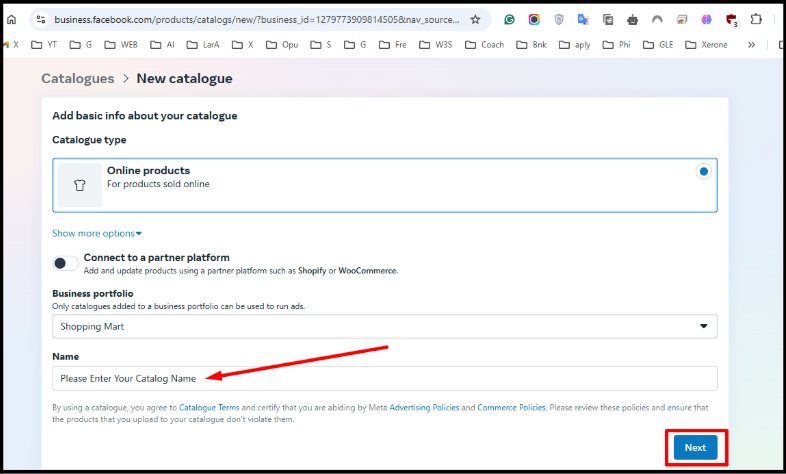
5. You may optionally connect it to an e-commerce platform such as Shopify or WooCommerce.
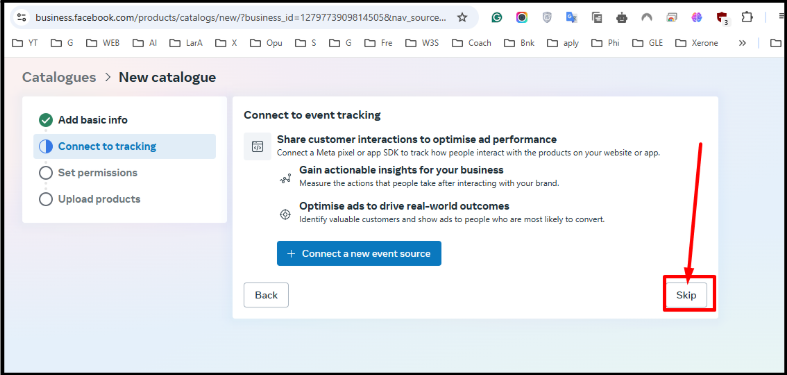
6. Skip the “Connect to Event Tracking” prompt.
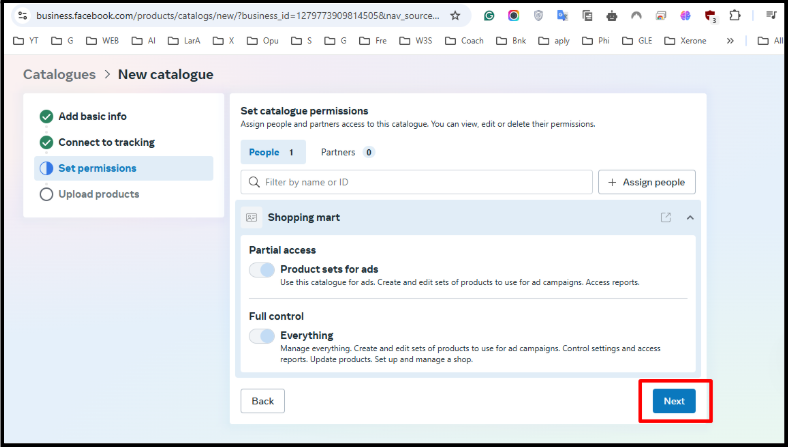
7. Ensure you grant Full Control permissions under “Product sets for ads,” then click on Next.
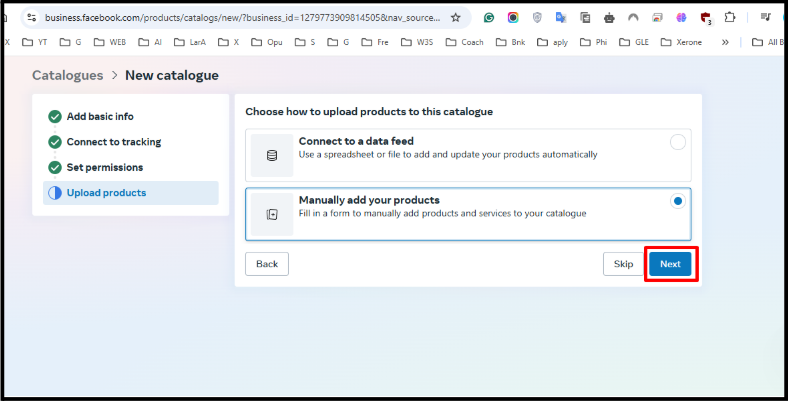
8. Select Manually Add Your Products, then click Next again.
9. Inside your catalog, click first on View Catalog > Add Items to upload product details manually, which includes product names, images, pricing, and descriptions.
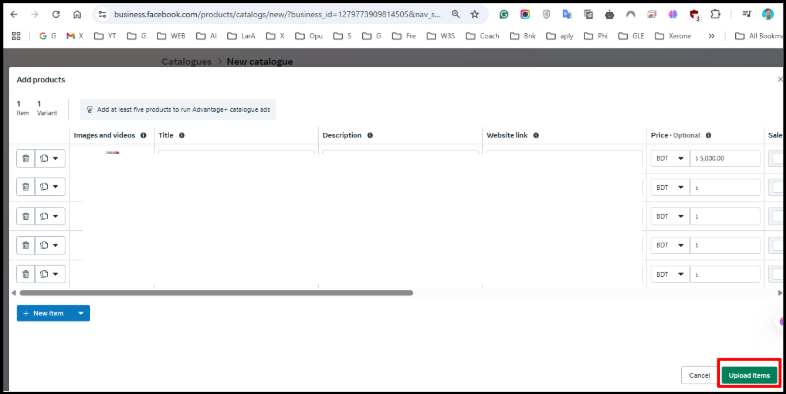
10. Once uploaded, click on Upload Items to save all.
11. On completion, you can also upload more products later using Data Feed or partner integrations.
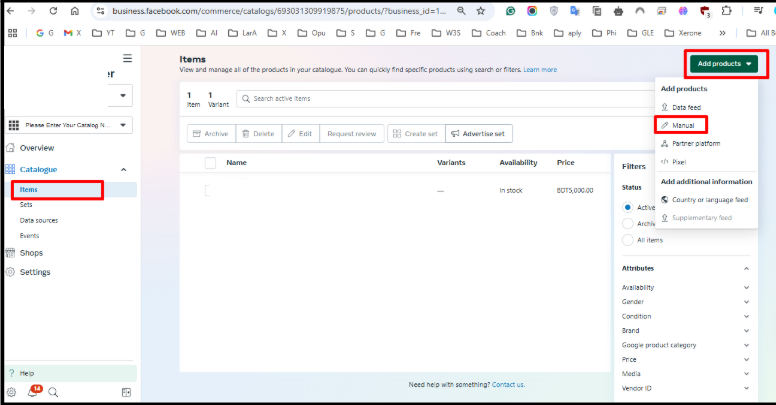
12. Lastly, ensure your WhatsApp Business account is linked to your Facebook Business Manager, and this will enable you with:
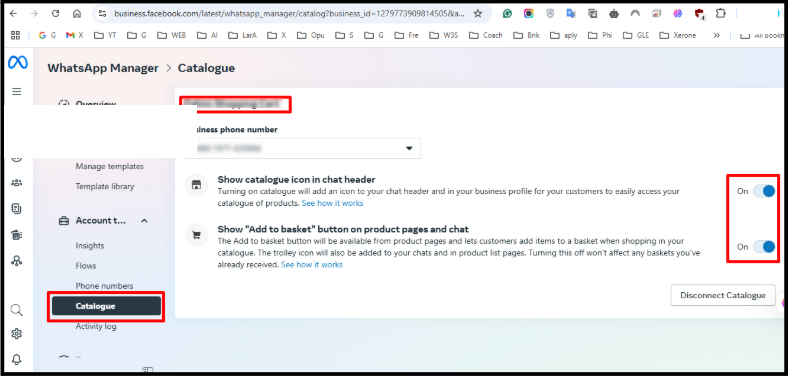
You can see these two options will show in the whatsapp chat section where users will have the ability to see the catalog with a single tap and add products accordingly. (Insights)
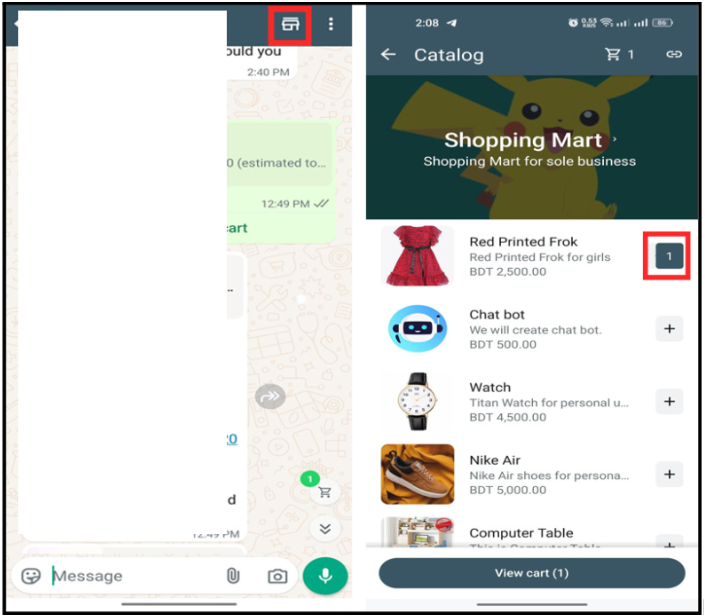
The above options will make your catalog visible in WhatsApp chats and allow your users to view and purchase products effortlessly.
Connect Your Catalog to WhatsApp:
a. Return to All Tools > WhatsApp Manager.
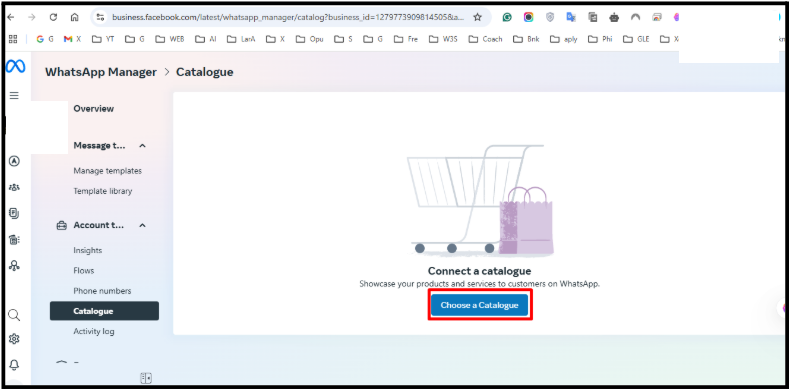
b. Under Account Tools, select Catalog.
c. Choose your catalog and click Connect Catalog. This will link your WhatsApp Business number.
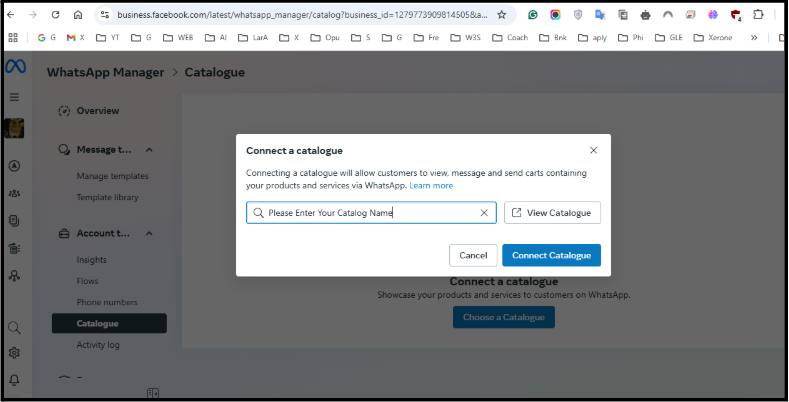
Now that your catalog is ready with the above steps, it’s time to integrate it into your SendWo Dashboard.
To connect your account:
Your catalog will now sync automatically with SendWo. This will allow your WhatsApp chatbot to showcase real-time product listings.
Now that your catalog is connected, it's time to design your interactive WhatsApp chatbot to display products to the customers directly within a conversation.
Follow these steps given below:
This will make your chatbot live, and whenever users send the trigger keyword, they’ll instantly receive your product catalog with images, prices, and “Add to Cart” buttons right inside WhatsApp.
Setting up your preferred payment methods inside Facebook’s Commerce Manager enables a smooth buying experience.
Follow the steps to set up payments:
Always link your catalog to Google Sheets through SendWo to make order tracking and reporting effortless.
Steps to automate order tracking:
Once the full setup is complete, all orders will be placed through your WhatsApp catalog and will automatically populate your Google Sheet, keeping your order data organized and ready for analysis.
The WhatsApp Product Catalog integration in SendWo bridges the gap between browsing and buying, enabling your customers to explore, choose, and purchase products directly in chat.
Yes, you can manage multiple catalogs depending on your plan with SendWo.
Absolutely. Catalogs are created and managed through Facebook Commerce Manager, which must be linked to your WhatsApp Business account.
Yes. Customers can view, add to cart, and initiate checkout directly inside WhatsApp through your SendWo-powered chatbot.
Yes. Any updates you make in your Facebook catalog automatically reflect in SendWo’s connected catalog.
Absolutely. All orders are automatically synced with Google Sheets for reporting and tracking.


