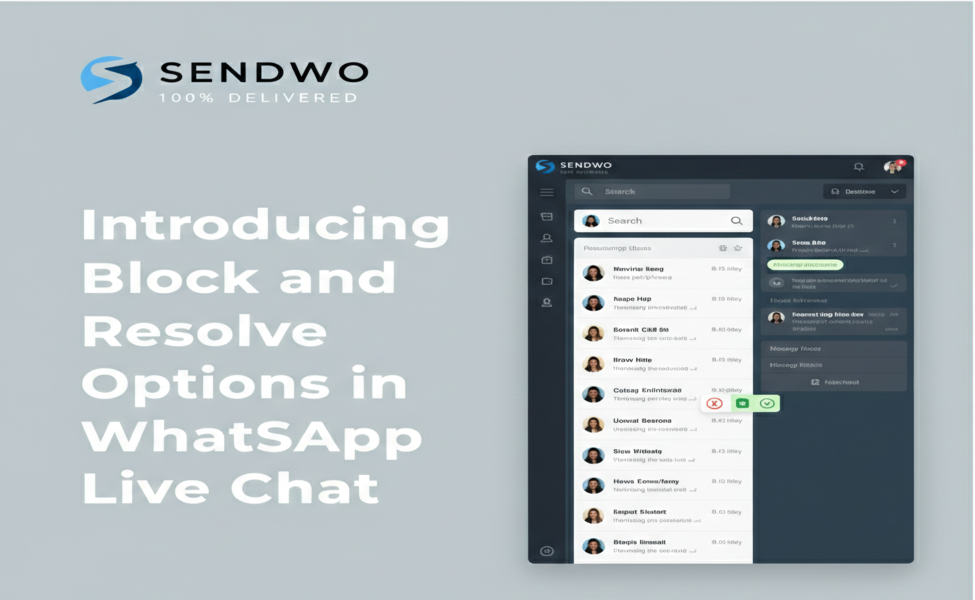
Block and Resolve Options in WhatsApp Live Chat
Discover how Block and Resolve Options in WhatsApp Live Chat options streamline customer support by safely managing problematic conversation.
 By Aditi Kamini
Published: February 23, 2026
Updated: April 2, 2026
9 min read
By Aditi Kamini
Published: February 23, 2026
Updated: April 2, 2026
9 min read
Discover how Block and Resolve Options in WhatsApp Live Chat options streamline customer support by safely managing problematic conversation.
WhatsApp is one of the world’s most popular messaging platforms, and businesses are using Block and Resolve Options in WhatsApp Live Chat to engage customers in real time. With over 2 billion active users worldwide, it’s a key channel for support and sales. However, this popularity means handling many conversations – including unwanted ones. A recent survey found 96% of WhatsApp users receive promotional or spammy messages daily, and 59% of users handle this by simply blocking the sender.A customer support agent responding to live chat messages on a laptop. In this context, SendWo has added powerful new controls to its Block and Resolve Options in WhatsApp Live Chat”. These features let your support team quickly stop unwanted contacts and mark conversations as completed. The result? A cleaner inbox, faster issue resolution, and happier customers. According to industry data, live chat already yields a 73% customer satisfaction rate — far higher than email or phone support. The new Block and Resolve Options in WhatsApp Live Chat help you maintain that high-quality, real-time support by giving agents more control over each chat.
1. Why Manage Conversations on WhatsApp Live Chat?
- Businesses love live chat because customers demand fast, personalized answers. People find live chat extremely convenient: it’s instant, mobile-friendly, and lets you share rich media (images, videos, documents) seamlessly. As one industry guide notes, Block and Resolve Options in WhatsApp Live Chat offers “instant and personalized messaging” on the app everyone uses. In fact, live chat boasts higher satisfaction scores than slower channels.
- At the same time, high chat volume can lead to challenges. Spam or abusive messages can waste agent time and even harm customer experience. For example, WhatsApp reports that only 4% of users say they never get pesky promo or scam messages – nearly everyone else does. With so many messages coming in, it’s crucial to manage conversations wisely. Enter SendWo’s new Block and Resolve Options in WhatsApp Live Chat. These are tools built for agents, in the SendWo live chat interface, to take action on individual chats.
2. What Are the New “Block” and “Resolve” Options?
SendWo’s live chat interface now includes two key actions for each chat:
- Block: Immediately stop any further communication with a specific user. This uses WhatsApp’s Business API “block” event behind the scenes. When you block a user, both sides are cut off: the user cannot send any more messages to your business, and your business cannot message them. (They also won’t see you online.) This is a permanent ban until you choose to unblock.
- Resolve: Mark the conversation as resolved or completed. This is like closing a support ticket. Use this when the customer’s issue has been fully handled. The chat is marked as done and can be hidden from your active queue. If the customer later sends another message, the conversation can simply re-open automatically.
These options complement existing tools like archiving or unsubscribing. Blocking is different from “unsubscribe,” because unsubscribe only stops your outbound messages, while block stops all contact. And “resolve” is more intentional than just archiving; it flags the conversation as successfully closed, helping teams track resolution times and keep their workload organized.
3. How Block and Resolve Options in WhatsApp Live Chat work
- Use Block whenever a user is spamming, abusing, or misusing the live chat. The SendWo agent clicks “Block” on the chat, and a WhatsApp API block event is sent. The result: no more messages from that user. According to WhatsApp’s developer docs, once blocked, the user cannot contact you or see your business online. Likewise, any attempt by you to message them will fail.
- It’s worth noting a policy detail: WhatsApp only allows blocking users who messaged you within the last 24 hours. This aligns with WhatsApp’s 24-hour messaging window policy. In practice, this means you can block any recent chat, which covers most spam scenarios. For example, if a customer sends nasty or irrelevant messages, quickly hit Block. A survey confirms that over half of users who get spam simply block those senders– now businesses can do the same to protect their agents.
Key Points about Blocking
- Blocks are mutual: you and the user are both blocked from each other.
- It stops all message flow (unlike archiving or unsubscribing).
- Only possible if the user messaged you within 24 hours.
- Use it for serious misuse (harassment, spam, privacy violations).
How the Resolve Option Works
- The Resolve button is like clicking “close ticket.” When the agent clicks Resolve, the conversation is marked as finished. This usually moves the chat out of the active inbox (for example, into an “Archived” or “Resolved” folder). It signals that the customer’s concern has been addressed.
- Resolving a chat also helps with reporting and metrics. You can track how many chats were resolved today, or how long it took to resolve, etc. Importantly, resolving doesn’t permanently block future contact. If the customer writes again, the system can automatically reopen the conversation. This mirrors best practices in customer support: close tickets when done, but allow re-opening if needed.
- In WhatsApp’s context, note the 24-hour rule: businesses can only send non-template messages to a user within 24 hours of their last message. After that window, you must use an approved template. Marking a conversation as resolved helps your team know “this issue is closed,” so you won’t mistakenly try to message outside the window. If you do need to restart contact after 24 hours, you’d follow the normal template-sending procedure.
Key Points about Resolving
Marks the chat as completed or “closed.”
Removes the chat from your current queue to reduce clutter.
The customer can still reply later, which re-opens the chat.
Helps your team track resolution rates and avoid messaging out-of-window.
Benefits of Block & Resolve for Your Support Team
The new options give support teams greater control and efficiency. For example:
- Reduce Spam and Abuse: Quickly cutting off abusive or irrelevant chats means agents spend time only on legitimate customers. As one study notes, almost everyone gets annoying messages – giving agents a “Block” button means they won’t have to tolerate them.
- Improve Productivity: Agents can resolve and archive a finished chat with one click, moving on to new issues. This keeps the live chat queue manageable and helps agents handle more chats per day. Live chat is already much faster than email, with average response times of just 2 minutes, and Block/Resolve keeps that speed up by clearing old threads.
- Boost Customer Satisfaction: When agents aren’t bogged down by noise or old tickets, they can focus on the customer’s needs. Faster, focused service is the reason 73% of customers prefer live chat over email or phone. Solving issues quickly and cleanly (using Resolve) makes the customer experience smooth.
- Better Reporting & Workflow: Tracking which chats were resolved vs. blocked vs. in progress helps managers gauge team performance. You can set goals for average resolution time or use block counts as an indicator of potential spam issues.
Best Practices & Use Cases - Spammy Messages: Suppose a random user sends repeated irrelevant links or adult content. The agent can simply hit Block. This prevents further contact and can protect company reputation. For compliance, note that blocked users can’t see you online or message you.
- Off-Topic Chats: If a user rambles about something outside your business or uses profanities, block to keep the chat queue focused. Block spammers stat shows businesses aren’t alone in blocking unwanted contacts.
- Resolved Customer Queries: After an agent has answered all questions in a chat (for example, tracking an order), they should click Resolve. This archives the conversation as solved. If the customer later follows up (“Hey I have another question”), the chat will reopen automatically so the agent can resume help.
- Team Collaboration: In a large support team, it’s good practice to resolve the chat once your part is done, even if another department will follow up. This signals “hand off” and keeps dashboards accurate.
- Automate Where Possible: Combine these with auto-responses or bots. For instance, if a user triggers a bot that can’t answer, you could program the system to mark it as “Pending Human” and later resolve after the agent replies.
Overall, the Block and Resolve Options in WhatsApp Live Chat mirror familiar ticketing tools (close ticket, block user) but right inside the chat interface. They help your team maintain a clean, efficient workflow.
Conclusion
- The addition of Block and Resolve Options in WhatsApp Live Chat gives customer service teams powerful tools to manage chat conversations. Agents can swiftly cut off nuisance contacts and clearly close issues when done. By doing so, you improve efficiency and support quality — live chat already drives higher satisfaction and even increased sales (customers are 513% more likely to buy when live chat is available).
- Ready to boost your WhatsApp support? Try SendWo’s platform today. With these new features (and many more), you can deliver fast, personalized support at scale. Sign up for a free trial or schedule a demo to see how Block and Resolve Options in WhatsApp Live Chat work in action. Take control of your WhatsApp conversations and keep customers happy!
FAQ
1. What does the “Block” option do in WhatsApp Live Chat?
Clicking Block stops all messaging between your business and that user. Once blocked, the user cannot send you any more messages and won’t see you online; likewise, your business cannot message them. Use it for spammers or abusive contacts. (It’s more severe than simply unsubscribing, which only stops outbound messages.)
Turn this learning into your next WhatsApp campaign.
Start with Sendwo’s free plan, explore WhatsApp broadcasts, automation, AI chatbot flows, and upgrade only when your business needs more power.
2. How do I use the “Resolve” option?
Resolve marks a chat as completed/closed. In SendWo Live Chat, agents click “Resolve” when the customer’s issue is solved. The conversation will be archived out of the active queue. If the customer replies later, the chat will reopen, so you can continue seamlessly.
3. Can a resolved conversation be reopened?
Yes. Typically, if the customer sends another message after you resolved the chat, SendWo will reopen that conversation so you don’t lose track of the new inquiry. Think of Resolve as a temporary closing that acknowledges the ticket is done for now.
4. If I block a user, can I unblock them later?
Usually you can unblock a user if you change your mind. However, once blocked, neither party can initiate messages. You would need to use the WhatsApp API “unblock” event to restore contact. (Note: WhatsApp only allows blocking a user who messaged you in the last 24 hours, but unblocking can be done anytime.)
5. Should I use Block or Unsubscribe?
Use Block for serious cases like spam or abuse – it cuts off contact entirely. Use Unsubscribe (if available) if the user simply opts out of your broadcast messages but might still message you. Unsubscribe only stops your side of the chat; block stops both sides.
Aditi Kamini
Aditi, a content marketer at SendWo, is a passionate writer and marketing enthusiast. She excels in driving revenue campaigns, building client relationships, and mastering content creation, SEO, customer service, and project management.