Imagine juggling personal messages and business chats on the same computer. With WhatsApp serving over 3 billion users worldwide, many professionals want to run multiple accounts or sessions on one PC. This guide explains how to “clone” WhatsApp Desktop in practical, safe ways. We’ll cover official multi-device support, simple browser tricks, and smart workarounds. By the end, you’ll know How to Clone WhatsApp Desktop side-by-side on Windows or Mac – all without risking your account.
Here are the main reasons you might want to clone WhatsApp Desktop:
All these scenarios are why cloning or mirroring WhatsApp sessions can boost productivity.
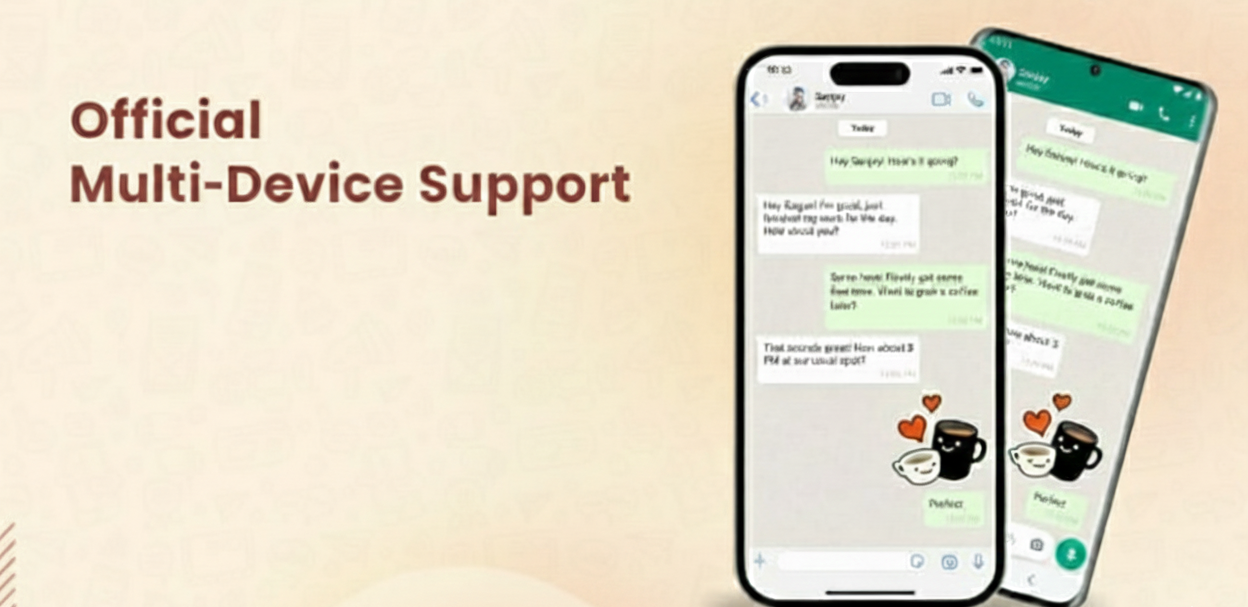
Before exploring tricks, note that WhatsApp now has an official multi-device feature. You can link up to 4 devices (computers, tablets, etc.) to a single WhatsApp account. To use it, open WhatsApp on your phone, go to Settings → Linked Devices → Link a Device, and scan theQR code on web.whatsapp.com or the Desktop app. This syncs your chat across devices without needing your phone to stay online.
WhatsApp also recently announced an official way to add a second account on one Android device. If you have two SIMs (or eSIMs), you can tap Add Account in WhatsApp settings to switch between a work and personal account. This is great for phones, but it still requires a separate number. And importantly, WhatsApp’s own blog cautions users to avoid unofficial clones or fake apps : “only use the official WhatsApp” to keep messages secure.
In summary, the safest official routes are:
One easy way to clone WhatsApp Desktop is by using different browser sessions. Each browser (or browser profile) maintains its own cookies and logins. Here’s how:
Both approaches are practical and require no special software. You’re just using two web sessions. If you prefer not to download anything extra, this is the simplest solution.
If you need a completely separate WhatsApp instance on your PC, you can use an Android emulator (like BlueStacks, Nox, or Genymotion). Here’s the idea:
This method effectively clones WhatsApp Desktop by giving you a virtual Android device on the same computer. You can switch between your main WhatsApp Desktop and the emulator’s WhatsApp side-by-side.
Figure: You could set up an Android emulator on your PC to run a second WhatsApp account. This image shows a modern multi-monitor desk; similarly, you’d run one account on the host OS and another inside a virtual Android.
Another advanced trick is to run multiple Windows user accounts or use virtualization so you can open separate instances of the WhatsApp Desktop app:
These methods are more complex and less user-friendly, use how to Clone WhatsApp Desktop app environment. They require technical setup and resources, so they’re best for power users who really need full separation.

Keep in mind: WhatsApp’s Terms of Service officially allow only one phone number per WhatsApp account. Using unofficial “modded” WhatsApp versions (like WhatsApp Plus) or random cloning tools is risky. WhatsApp explicitly warns against imitations or fake versions – they can lead to permanent bans. Always stick to official methods (multi-device linking or separate official apps like WhatsApp Business) to stay safe.
When using any of the above methods, be careful with QR codes and codes: never share your WhatsApp verification code. Only scan QR codes from the official web.whatsapp.com site or Desktop app. And if you use an emulator or VM, make sure it’s secure and up-to-date.
For Cloning How to Clone WhatsApp Desktop isn’t a single built-in feature, but by using the tricks above you can effectively run multiple WhatsApp accounts on one computer. Whether you use multiple browsers, an Android emulator, or virtual machines, these methods let you juggle personal and business chats side-by-side.
For businesses, a smarter solution is using a WhatsApp Business API platform like SendWo. SendWo lets you manage unlimited chats, broadcast campaigns, and multi-agent inboxes on WhatsApp without manually cloning anything. It’s powered by the official WhatsApp Business API, so you won’t get banned and you get extra automation features.
Ready to streamline your WhatsApp messaging? Sign up for SendWo’s free plan to integrate WhatsApp Business into your workflow. With SendWo, you can handle multiple conversations and accounts from one dashboard, so you never have to log out again.
A. You can’t merge them, but you can run two sessions side by side by using different browsers (Chrome + Edge), separate browser profiles, or an emulator/second OS user account.
A. There’s no official “clone” feature, but using multiple official sessions (Web, Desktop, WhatsApp Business) is fine if you stick to official apps and links; avoid third-party “clone” tools.
A. Yes, the multi-device feature lets you link up to 4 additional devices (PCs, tablets, etc.) to a single WhatsApp account, all active with the same number, but each account still needs its own primary phone.
A. You can link up to 4 devices at the same time, plus the main phone, for example 2 laptops and 2 tablets with one number.
A. Fake or modified WhatsApp apps can steal your data and may get your number banned, so always use official WhatsApp apps and the built-in multi-device feature only.


