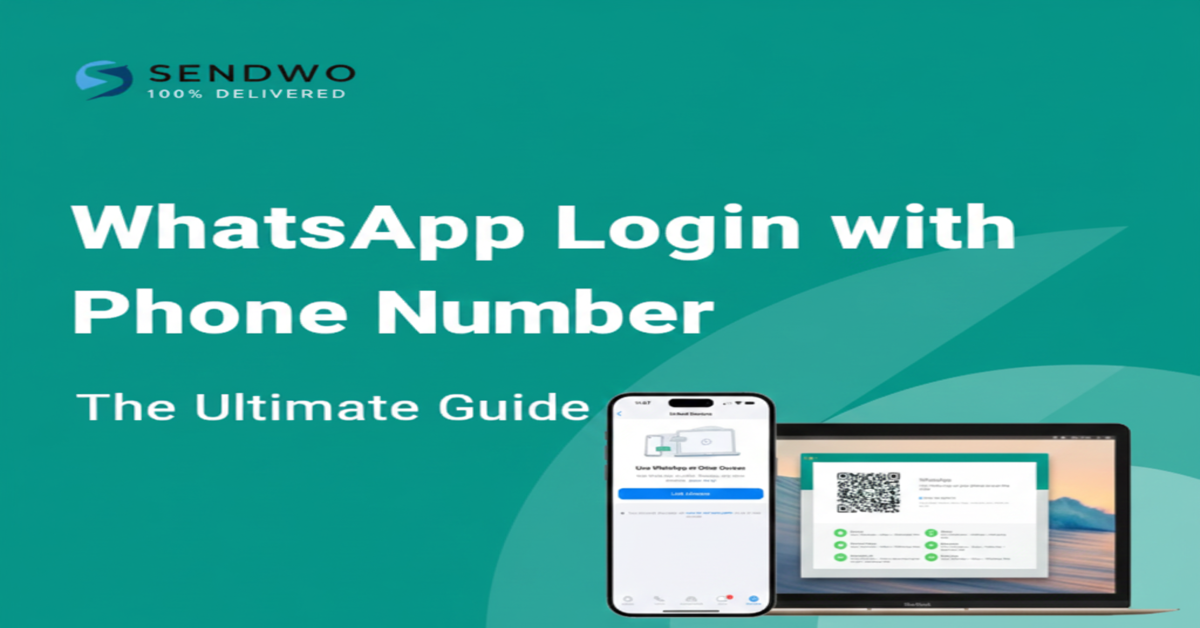
WhatsApp is the world’s leading messaging app, with over 3 billion monthly active users worldwide. Every day, people send more than 100 billion messages on WhatsApp. To protect such a vast network of conversations, WhatsApp uses your phone number as your account ID. In other words, the only way to log in to WhatsApp is by verifying your mobile number. In this guide, we’ll walk through WhatsApp Login with Phone Number step by step. We’ll also cover WhatsApp Web/desktop logins, security best practices, troubleshooting tips, and answers to common questions. By the end, you’ll have a rock-solid understanding of WhatsApp Login with Phone Number process—and how to use it safely for personal or business chats.
1. Why WhatsApp Uses Your Phone Number
Unlike some apps that use usernames or email addresses, WhatsApp ties each account to a real phone number. This design has big advantages:
Security and Identity: Using your mobile number ensures that only someone who can receive an SMS or call to that number can activate the account. In effect,WhatsApp Login with Phone Number is your identity on WhatsApp.
Seamless Contacts: WhatsApp can automatically link you to all contacts who have each other’s numbers saved. When you log in with your number, your phonebook instantly populates your WhatsApp contact list. This makes it easy to stay connected without manual invitations or usernames.
Simplicity: There’s no separate “username” or email to remember. Your login process is simply: enter country code + phone number, then verify a code sent to that number. It’s straightforward and fast on any new device.
This phone-based login works the same for personal and business accounts. Even on the WhatsApp Business app or when using the WhatsApp Business API (as with SendWo), you still register and WhatsApp Login with Phone Number. In fact, as one source explains, “the WhatsApp app login has the same flow. You just need to add your number, get the 6-digit code, and you’re ready to go”.
Key Point: Whether it’s WhatsApp Messenger or WhatsApp Business, logging in always requires your phone number and the 6-digit code that WhatsApp sends to it
2. Step-by-Step: WhatsApp Login with Phone Number
Follow these steps to get started with WhatsApp on any device. We’ll cover both mobile and web/desktop logins. Make sure you have a working phone number (SIM card active) and an internet connection before you begin.
Figure: WhatsApp mobile login screens. First, install the WhatsApp app, agree to the terms, then enter your country code and phone number. You’ll receive a 6-digit verification code to complete login.
On Your Mobile (Android/iPhone)
Install and open the app. Go to the Google Play Store (Android) or App Store (iPhone) and download WhatsApp. Launch it and tap “Agree and Continue” to accept Meta’s terms.
Enter your country code and phone number. WhatsApp will show a country selector. Choose your country; this automatically inserts the correct dialing code (e.g. +1 for USA, +91 for India). Then type your full mobile number (no extra zeros or symbols). Double-check it carefully – even a small typo can prevent you from getting the code.
Verify with the 6-digit code. After entering your number, tap Next. WhatsApp will send a 6-digit verification code via SMS to that number (it may also offer a “Call me” option if the SMS is delayed). Enter that code into the app as soon as you receive it. This step proves you own the number. For example, as one expert notes: “You just open WhatsApp, pick your country, and type your phone number. WhatsApp sends you a 6-digit code. Enter that code to finish logging in. That’s it!”.
Set up your profile (optional). Once verified, you’ll be asked to create a profile: add your name and (optionally) a photo. This helps friends recognize you.
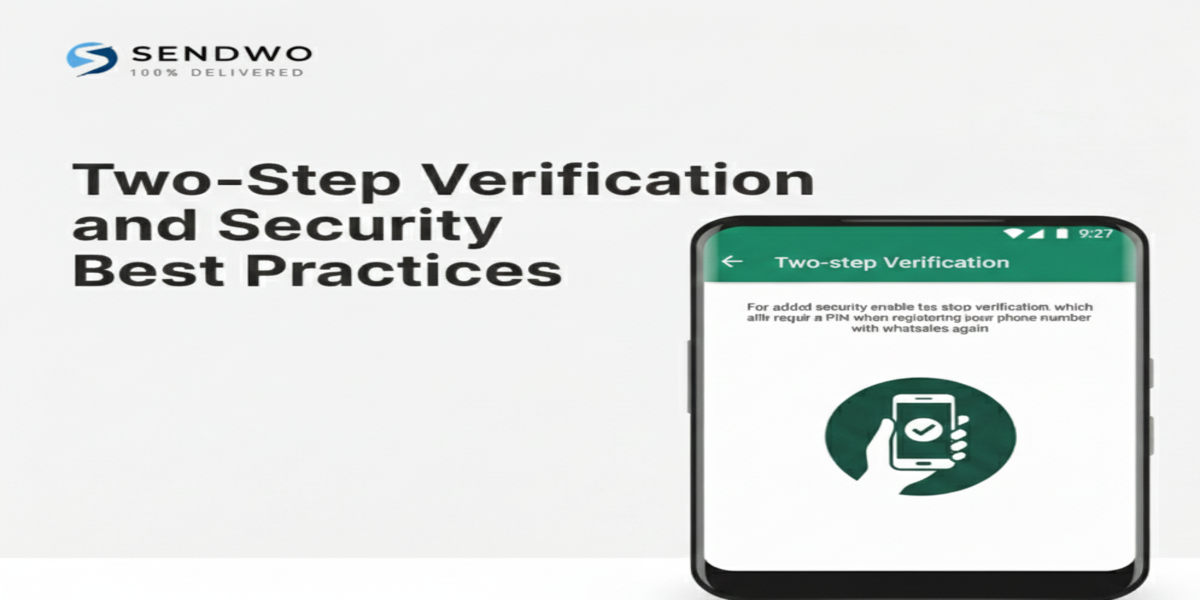
Enable two-step verification (highly recommended). Go to Settings > Account > Two-step verification and Turn On. Pick a 6-digit PIN and add a recovery email. This extra PIN protects your account even if someone somehow gets your SMS code. If you ever re-register WhatsApp, you’ll need this PIN in addition to the code.
By now, you should be WhatsApp Login with Phone Number. WhatsApp will automatically import your contacts (who are also on WhatsApp) and restore any local backup if you chose to.
Troubleshooting Tip: If the verification code doesn’t arrive, first check that you entered the correct number and country code. Ensure you have mobile reception and internet. Try the “Call me” option to get the code by voice. Wait a few minutes in case of network delays.
On WhatsApp Web or Desktop
WhatsApp also runs in web browsers and desktop apps. These let you chat on your computer by linking to your phone’s account. Traditionally, you link by scanning a QR code. However, WhatsApp now offers two methods: using the QR code or using your phone number with a code.
Option A: QR Code (most common)
On your computer, open a browser and go to web.whatsapp.com (or download the WhatsApp Desktop app).
On your phone, open WhatsApp and tap Menu (⋮) > Linked Devices (on iPhone, go to Settings > Linked Devices).
Tap Link a Device. This opens the camera.
Point your phone’s camera at the computer screen to scan the QR code shown on web.whatsapp.com.
Your WhatsApp chats will instantly appear on the browser.
Note: Your phone must remain on and connected to the internet for WhatsApp Web to work. If the phone loses connection, WhatsApp Web will disconnect. Always log out on public computers for security.
Option B: Phone Number (new feature)
If you can’t scan the QR code (e.g. a broken camera), you can log in by entering your phone number directly on the WhatsApp Web site. This is a recent feature that makes linking devices easier. Here’s how it works:
On your computer, open web.whatsapp.com. Click the link or button that says “Link with phone number” (some layouts may label it slightly differently).
A prompt will ask for your phone number. Enter your country and phone number (the same number you use on WhatsApp) and click Next. A unique code will appear on the screen.
On your phone’s WhatsApp app, go to Linked Devices > Link a Device, then choose “Phone number” (or simply tap Link a Device and then “WhatsApp Login with Phone Number”).
Your phone will ask for a one-time code. Type the code displayed on your computer into your phone. This links the accounts. Within seconds, your chats will load on the browser.
Figure: WhatsApp Login with Phone Number. Enter your country code and number on web.whatsapp.com, then verify the code on your phone.
After linking, you’ll stay logged in on that browser until you manually log out or clear cookies. This phone-number method was introduced in 2023, and WhatsApp explains: “You can WhatsApp Login with Phone Number on WhatsApp Web to receive a one-time code… which you can use on your phone to enable device linking.
Key Point: Even when using WhatsApp Web, your phone is required. You’ll always need to have your phone (on or online) to approve the login, whether by QR code or code. As one source warns: “No, you need your phone to scan the QR code or get the login code. Your phone must stay connected to the internet for WhatsApp Web to work.”
Once logged in on the web or desktop, you can chat just like on mobile. WhatsApp will sync messages in real-time. You can have up to four linked devices plus one phone. If your phone goes offline for a short time, web/desktop will keep working thanks to WhatsApp’s multi-device feature (as long as the connection was recently active).
3. Two-Step Verification and Security Best Practices
After logging in with your number, securing your account is crucial. Follow these best practices:
Never share your verification code. WhatsApp will never ask for your 6-digit SMS code in a chat or call. Treat it like a password. “Never share your code with anyone… Keep your code private to protect your account,” advises WhatsApp itself.
Enable Two-Step (2FA). Go to Settings > Account > Two-step verification and turn it on. Create a PIN and add an email for recovery. This adds a second layer – even if someone steals your SMS code, they’ll still need the PIN.
Use a Strong Voicemail PIN. Some attackers try to intercept SMS via voicemail. Set a strong PIN on your voicemail so they can’t simply call your number and retrieve the code.
Review Linked Devices. Periodically check Settings > Linked Devices on your phone and remove any device you don’t recognize. This logs out unknown sessions.
Keep the App Updated. Always update to the latest WhatsApp version on your phone and desktop. Updates patch security holes.
Be Mindful of Public Wi-Fi. When using WhatsApp Web on public networks, log out afterwards. Public Wi-Fi can sometimes allow others to hijack an open session.
By following these steps, you lock down your WhatsApp account. Cybersecurity experts note: “It is crucial to never share the six-digit registration code or your two-step verification PIN with anyone. Enabling two-step verification adds an extra layer of security…”. Think of your WhatsApp account like a bank vault: protect both the code and the PIN!
4. Troubleshooting Common Login Issues
Even with a smooth process, you might encounter hiccups. Here are some quick fixes:
No SMS code received: Check your number and country code carefully. Ensure your phone has signal and internet (Wi-Fi or mobile data) turned on. Try the “Call me” option – WhatsApp will dial your phone and speak the code aloud. Wait 5–10 minutes before retrying; network delays can happen.
Stuck on QR code (Web): Make sure the QR code is fully visible and not warped. Clean your phone camera lens and ensure good lighting. If it still won’t scan, try logging out of web.whatsapp.com and logging back in.
Account locked out: If someone else tried to log in with your number, you’ll get a message like “Try again in X hours.” Don’t panic. It’s a security feature. Just wait the specified time and ensure you enter the right code when you retry. In the meantime, enable two-step verification if you haven’t – it helps prevent locks.
WhatsApp blocked in your region: In rare cases, some countries temporarily block WhatsApp. If you can’t reach WhatsApp’s servers, try using a VPN or switch to a different network. For example, one source notes that WhatsApp login is “available almost everywhere. Some regions block it, in which case, a VPN can help”.
Phone number changed: If you change your SIM or phone number, WhatsApp provides a “Change Number” feature in Settings. This safely migrates your account to the new number. Without using that feature, you’ll have to register the new number and potentially lose some data.
Following these troubleshooting tips should resolve most login issues. For persistent problems, check the WhatsApp Help Center or contact WhatsApp support.
5. Logging into WhatsApp for Business
WhatsApp Business users follow the same login process. Whether you’re using the WhatsApp Business App (for small businesses) or the WhatsApp Business API (for bulk messaging), you register an active phone number in the same way. There’s no separate password – each business number is verified via the 6-digit code.
One common question is whether the login process differs for business accounts. The answer is no: “No, the WhatsApp app login has the same flow. You just need to add your number, get the 6-digit code, and you’re ready to go”.
After login, Business users can leverage extra features (catalogs, automated replies, message templates, etc.), but the initial verification is identical to personal WhatsApp. If you’re setting up a business solution, you’ll also connect your number to a business API provider (like SendWo) after verifying it. SendWo’s platform, for example, guides you to connect your verified number through a simple onboarding form, then you can start sending bulk or automated messages easily.
In short: Whether for personal chat or professional outreach, the WhatsApp Login with Phone Number is the same. The real difference is what you do after you log in – for businesses, that might include setting up chatbots, message templates, or integrating with CRM, which tools like SendWo can help with.
Frequently Asked Questions
Q: How do WhatsApp Login with Phone Number?
A: Open the WhatsApp app, select your country, and enter your phone number. WhatsApp will send a 6-digit verification code via SMS or call. Type in that code on the app to finish WhatsApp Login with Phone Number. It’s that simple.
Q: Can I use WhatsApp Web on my computer without my phone?
A: No. To log into WhatsApp Web (or desktop), you must use your phone. Either scan the QR code on web.whatsapp.com with your phone’s WhatsApp, or use the new phone-number link method (see above). In both cases, your phone needs to approve the login and remain connected to the interne.
Q: What if I don’t receive the verification code?
A: First, double-check your phone number and country code. Make sure your phone has network signal. Then, try the “Call me” option to get the code by a voice call. Wait a few minutes and try again. Often, a brief retry or switching from Wi-Fi to mobile data can solve it. If problems persist, verify that you haven’t blocked WhatsApp in your network or accidentally blacklisted the number.
Q: Is WhatsApp login different for Business accounts?
A: No. Both WhatsApp Messenger and WhatsApp Business (app or API) use the same login flow. You always add your phone number and verify it with the 6-digit code. The only difference is in the features available after login.
Q: Do I need a phone number to log in to WhatsApp?
A: Yes – absolutely. Every WhatsApp account is tied to a phone number. If you don’t have a mobile number to verify, you can’t create or log in to an account. As one source bluntly puts it, “Yes. No number means no account. That’s non-negotiable.”
Q: Can I use one WhatsApp account on two phones?
A: Thanks to WhatsApp’s companion mode, yes. Install WhatsApp on the second phone, then choose “Link as companion” from the menu. You’ll see a QR code or can opt to use your phone number to link. On your primary phone, go to Linked Devices > Link a Device and scan the code (or enter the code shown). This lets you keep one account active on two phones.Q: Is it safe to share my WhatsApp verification code?
Conclusion & Call to Action
WhatsApp Login with Phone Number is quick and secure – just enter your phone number and verify the code. Once you’re in, you can connect with over 3 billion users globally. For businesses and marketers, having that verified WhatsApp number is the first step toward reaching customers effectively.
Now that you know how WhatsApp login works, take the next step in scaling your outreach. With SendWo’s free WhatsApp marketing platform, you can turn that single verified number into a powerful communication tool. Send bulk notifications, set up auto-replies, build chatbots, and collect payments – all from your verified WhatsApp number.
Ready to elevate your WhatsApp game? Sign up for SendWo today and start broadcasting, automating, and selling on WhatsApp with confidence. It’s free to start and uses WhatsApp’s official Business API, so your account stays safe from bans.
Aditi, a content marketer at SendWo, is a passionate writer and marketing enthusiast. She excels in driving revenue campaigns, building client relationships, and mastering content creation, SEO, customer service, and project management.
SendWo is Meta's official business solution Provider. Broadcast Bulk WhatsApp messages and automate using AI Chatbots.