How to Enable the Start Verification Button in Facebook Business Manager
Enable the Start Verification button in Facebook Business Manager by linking your Page and App for brand credibility.
 By Snehil Prakash
Published: October 16, 2025
4 min read
By Snehil Prakash
Published: October 16, 2025
4 min read
Enable the Start Verification button in Facebook Business Manager by linking your Page and App for brand credibility.
For your business verification in Facebook Business Manager is crucial for accessing advanced Meta features and also enhancing your brand credibility. A verified status enables your business to fully utilize Meta’s potential, including advertising, messaging, and customer engagement capabilities, driving greater impact across its platforms.
Let's quickly understand the latest steps to attach a Facebook Page and set up a Facebook Developer App, so that the Start Verification button becomes active.
Attach Your Facebook Page with Business Manager
The first step begins with attaching your official Facebook Page to your Business Manager account. Follow the steps for an easy flow of setup:
1. Log in to your Meta Business Manager account. This should be an admin login.
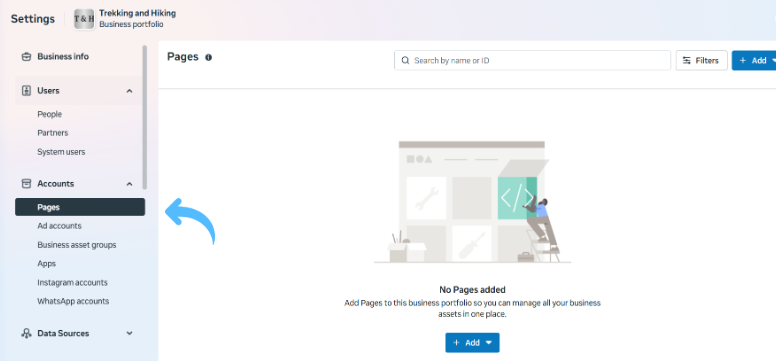
2. Access Business Settings: Click the Settings Menu.
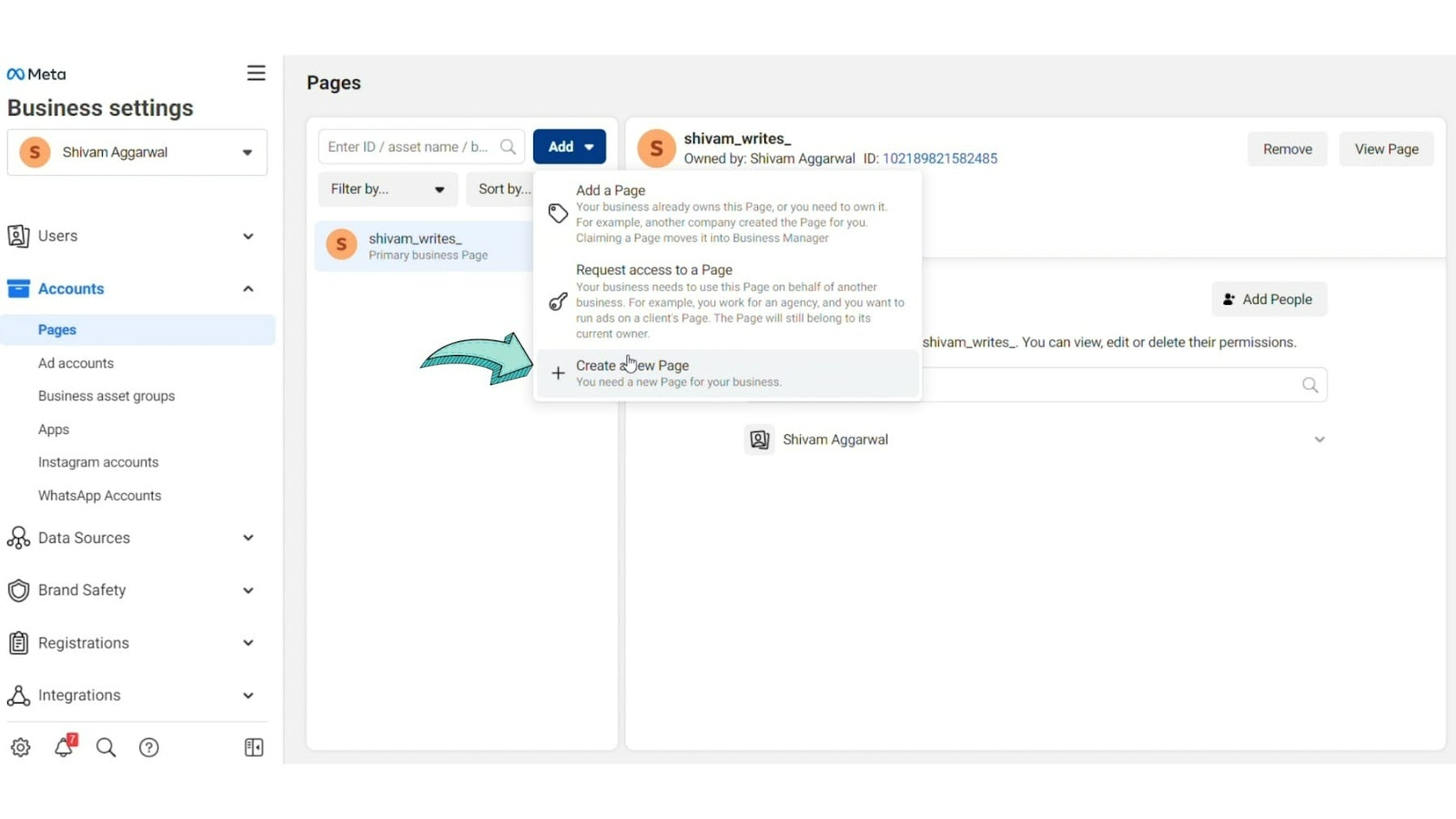
3. Navigate to Pages: Under Accounts, tab on Pages, click the Add button.
4. Add or Create Your Facebook Page: In the pop-up, select Add a Page/ Create a New Page. If you chose 'Add a Page,' then enter your Page name or URL. Click Add Page to attach it.
5. Enter Facebook Page Details: Follow the prompts to confirm the Page name and details.
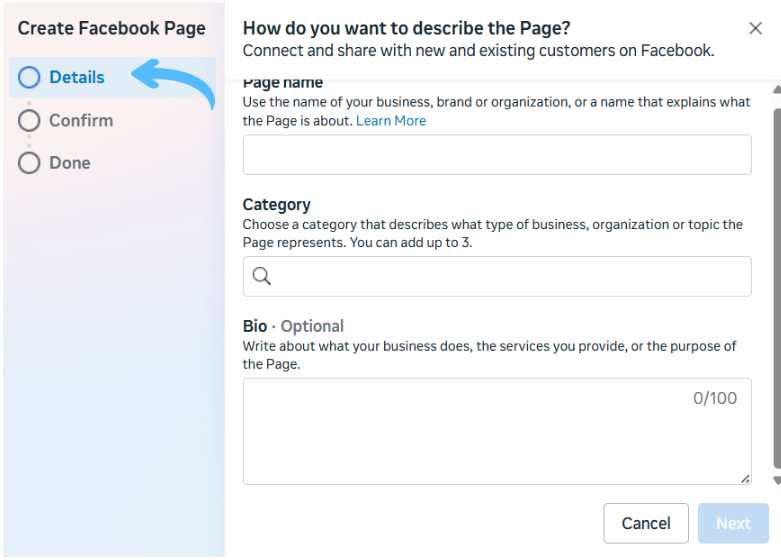
6. Confirm Attachment: Click Confirm/ Finish to add the Page to your Business Manager.
7. Verify Admin Access: Ensure you have an Admin role on that Page.
Note: Only Page admins can attach a Page to Business Manager.
Now, your Facebook Page will be linked to the Business Manager. This satisfies one prerequisite; next, you’ll link a Facebook App.
Add/Set Up an App in Business Manager
The Start Verification button also requires a connected Facebook App in your Business Manager. Follow the steps given below:
1. Access Facebook Business Manager: Log in to Facebook Business Manager.
Turn this learning into your next WhatsApp campaign.
Start with Sendwo’s free plan, explore WhatsApp broadcasts, automation, AI chatbot flows, and upgrade only when your business needs more power.
2. Navigate to Business Settings: In Business Manager, go to Business Settings > Accounts > Apps.
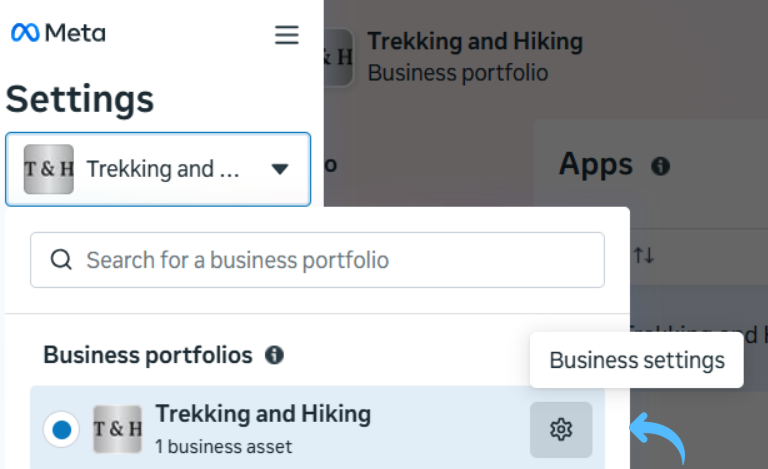
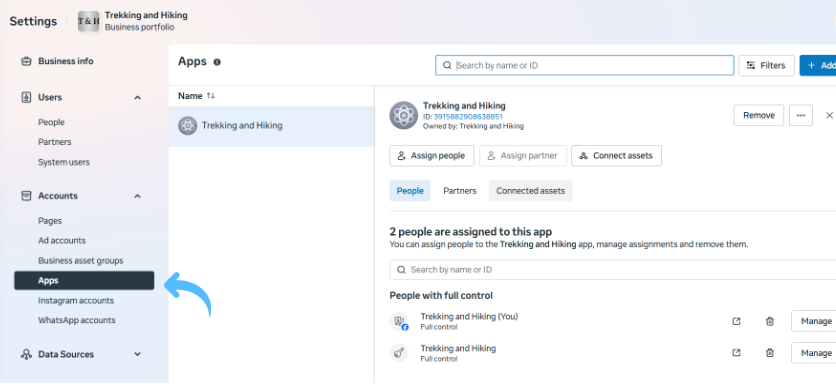
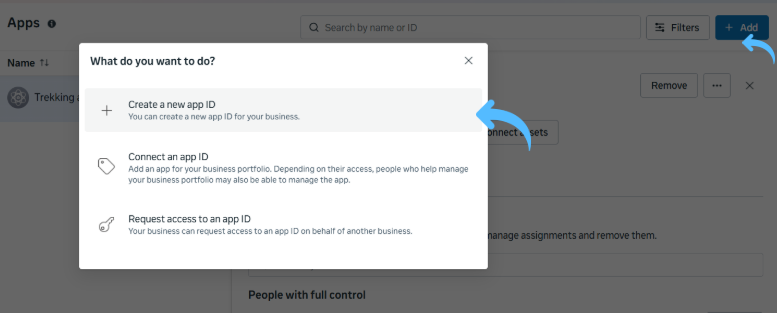
3. Add or Create App: Click Add, followed by Create App.
4. Add Your App Name and Contact Email: Enter an App Display Name (e.g., your company name) and the company’s contact email that is valid.
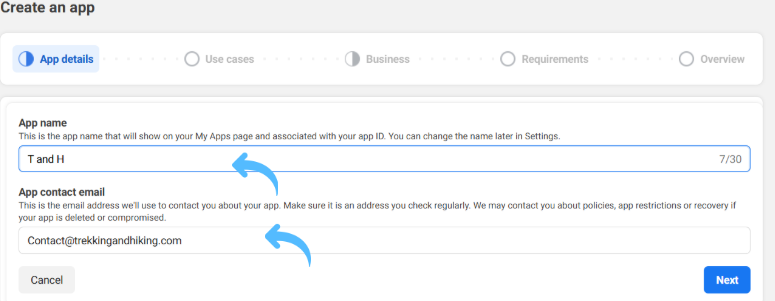
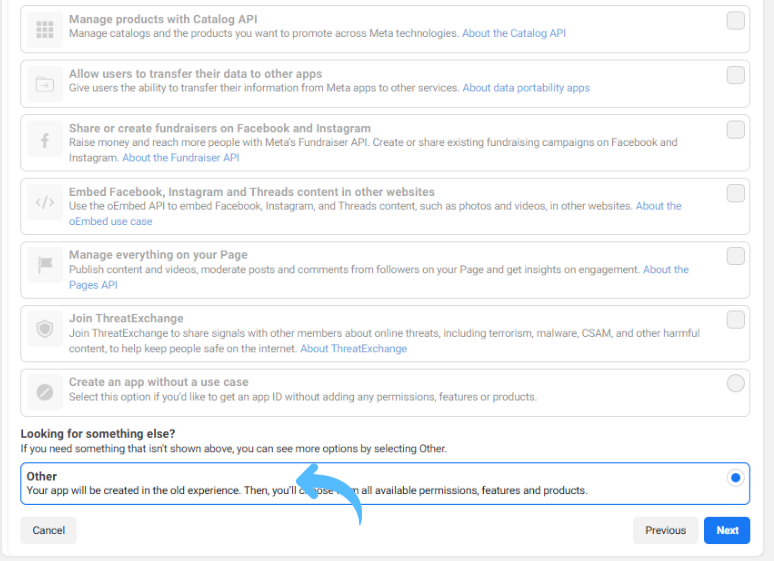
5. Click Other, then Next: When a prompt pops up as “Who is this app for?”, select Other (or the option that describes you best). Then click Next.
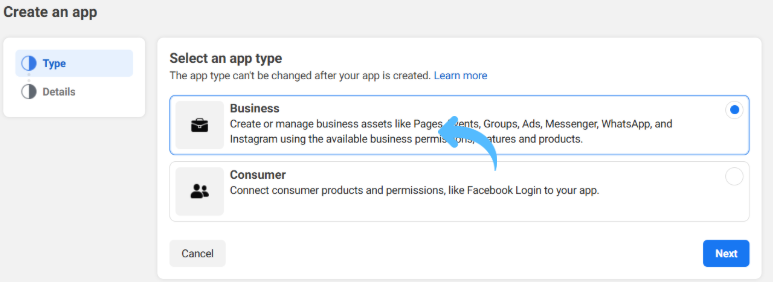
6. Select App Type – Business: Choose Business as the app type and click Next.
7. Select Your Business Portfolio: In the details form (see image below), choose your Business portfolio from the dropdown.
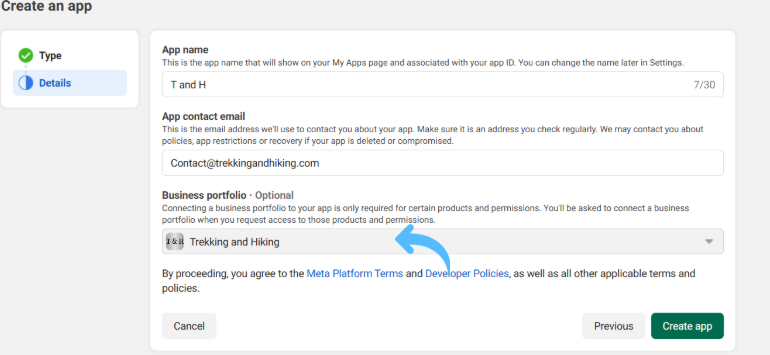
8. Click Create App: Finally, click Create App.
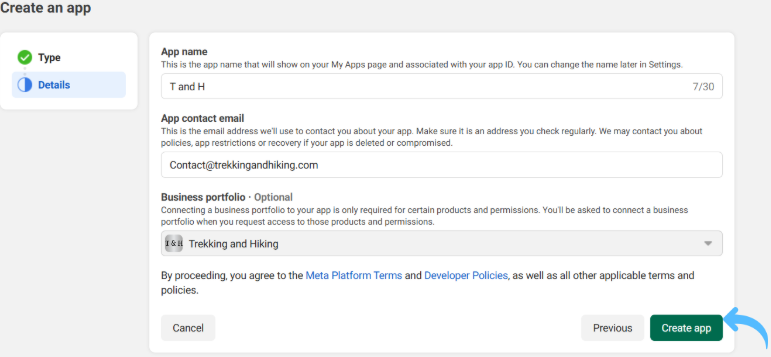
The app will be created and appear in your Business Manager.
After the app is created and linked, return to the Business Settings > Security Centre and refresh the page. Now, the Start Verification button should appear and will be clickable. With this, you can now proceed with the official verification process and details.
Verified businesses gain access to advanced Meta features and increased trust from customers. If you encounter any issues, double-check that all business info (name, address, tax ID) is filled out in Business Settings, and that you have admin rights on the Page and app. Now that the setup is complete, refresh Business Manager and begin the verification process, and tap into Facebook’s full potential for advertising, messaging, and engaging customers on Meta’s platforms.
Good luck, and get verified today!
1. Why is the “Start Verification” button greyed out or missing?
Most often, this happens because your Business Manager lacks a connected page or app. Facebook requires at least one attached Page and one App in your Business Manager before showing the verification option. Also, ensure your business information (legal name, address, phone) is fully entered, with complete info.
2. How do I attach my Facebook Page to Business Manager?
In Business Settings under Accounts > Pages, click Add, then Add a Page. Enter your Page name/URL and confirm. You must be listed as an Admin on that Page to attach it.
3. I followed the steps, but still don’t see the button. What now?
First, refresh the Security Centre page in Business Manager. The button often appears after refreshing. If it’s still not visible, verify that your Page is attached correctly and the app was created under the same Business Manager. Also, ensure the Facebook account you’re using has the required admin roles. As a last resort, try logging out and back in, or clear your browser cache, then check again.
Snehil Prakash
Snehil Prakash is an expert WhatsApp consultant with SendWo. He has expertise in implementing WhatsApp API for enterprise businesses and built automation, chatbot and AI powered solution.