
Let customers tap their next step.
Build menus, offer choices and connect each button to a message, question or action. You decide where every click leads.
Explore productsTrack an orderTalk to our team

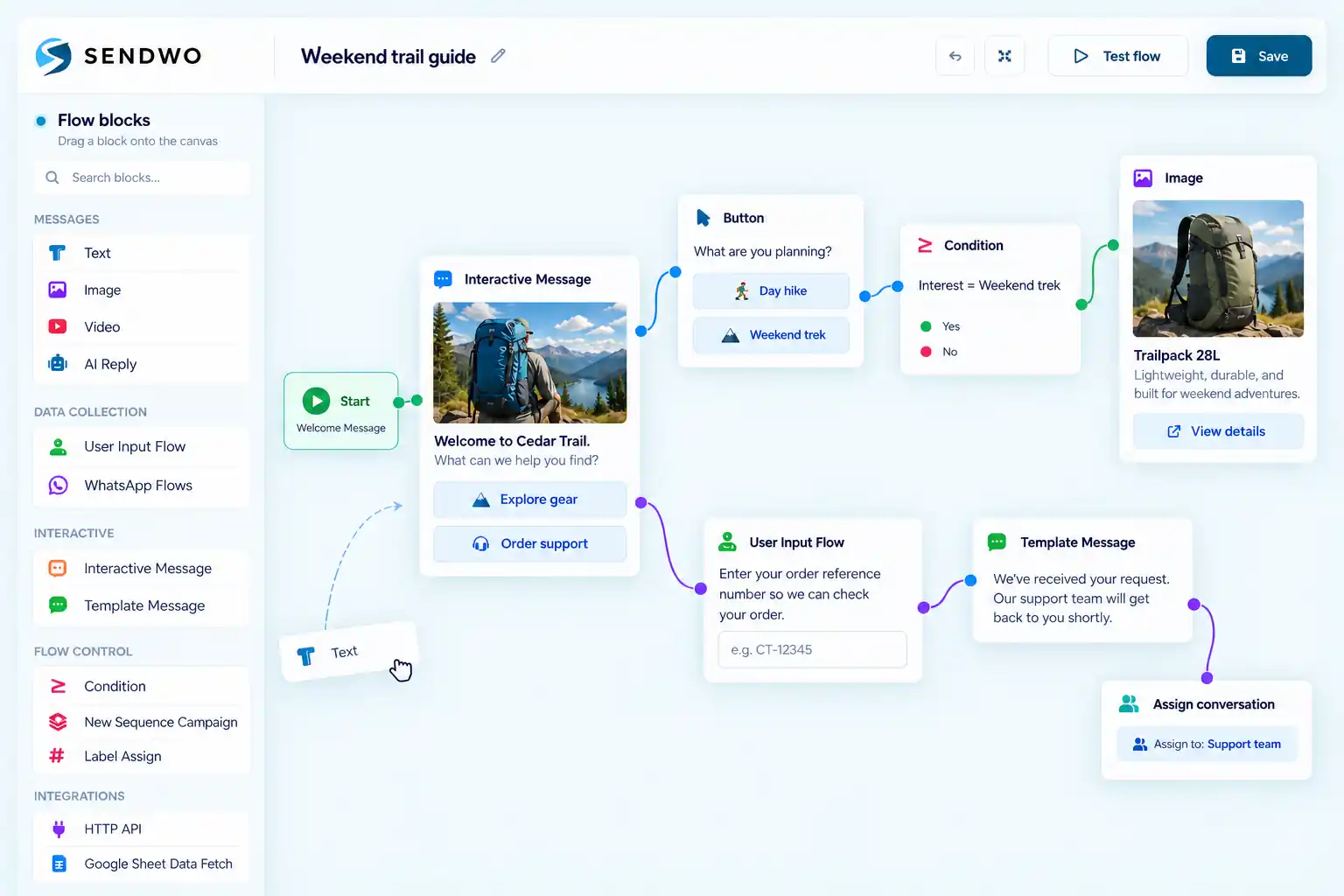
Visual chatbot builder
Create button-based conversations, add AI replies and decide what happens next. Build it visually for WhatsApp, Instagram, Messenger, Telegram and website chat, without coding the conversation.
Brands and teams that have used Sendwo.


Build the chatbot you have in mind
You do not have to choose one approach for the whole chatbot. Use the canvas to combine guided choices, AI replies and the actions that keep your conversation moving.
Build menus, offer choices and connect each button to a message, question or action. You decide where every click leads.
Add AI Reply where a fixed menu is not enough. Keep structured steps around it to collect details, trigger an action or hand over to your team.
Save an answer, check a condition, call an API or start a follow-up. Connect the pieces on the same canvas.
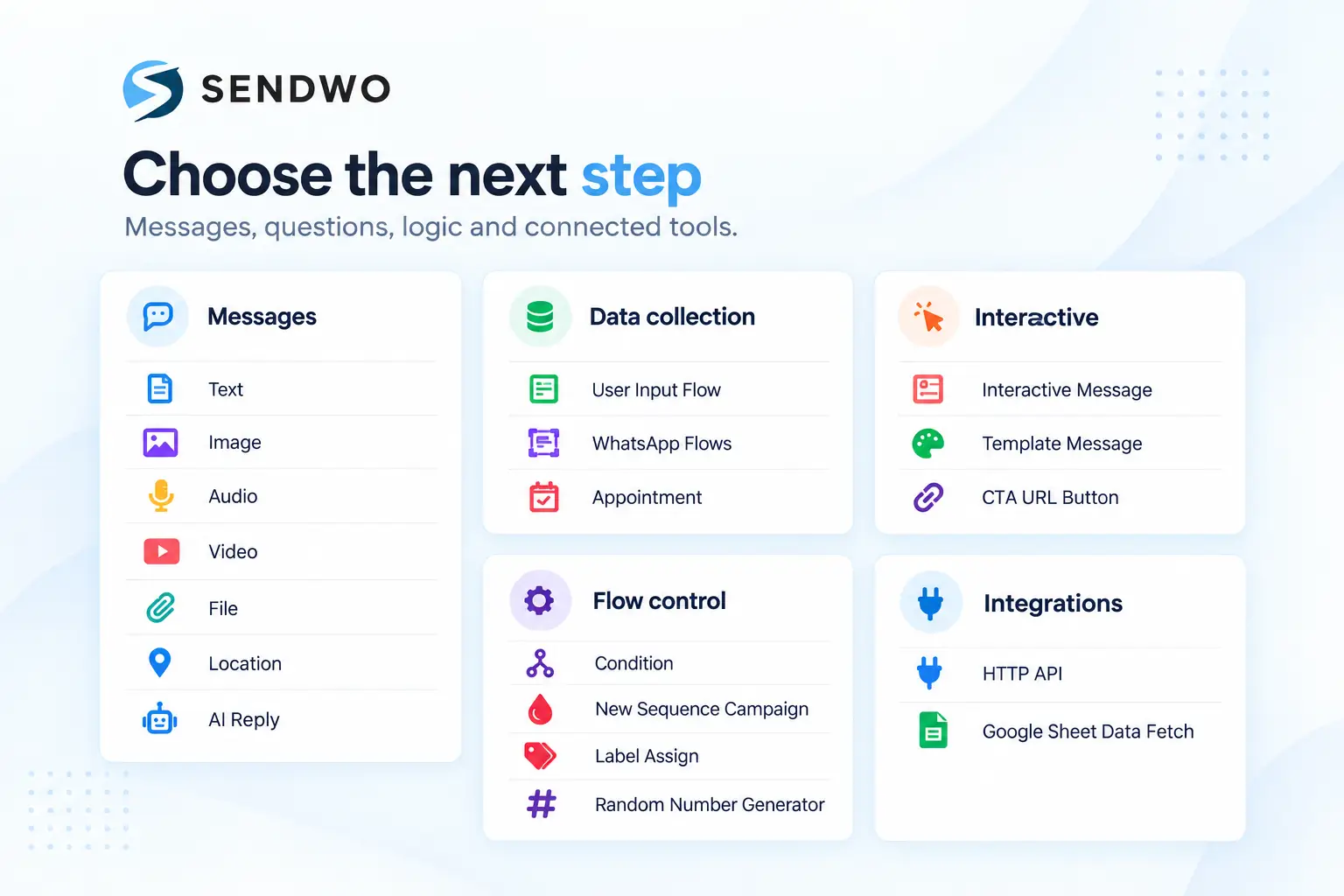
A library of useful building blocks
Start with a message. Add a button. Ask a question. The block library sits beside your canvas, so you can turn the chatbot in your head into a connected flow you can see and edit.
Available blocks and message formats depend on the connected channel.
Conditions and routing
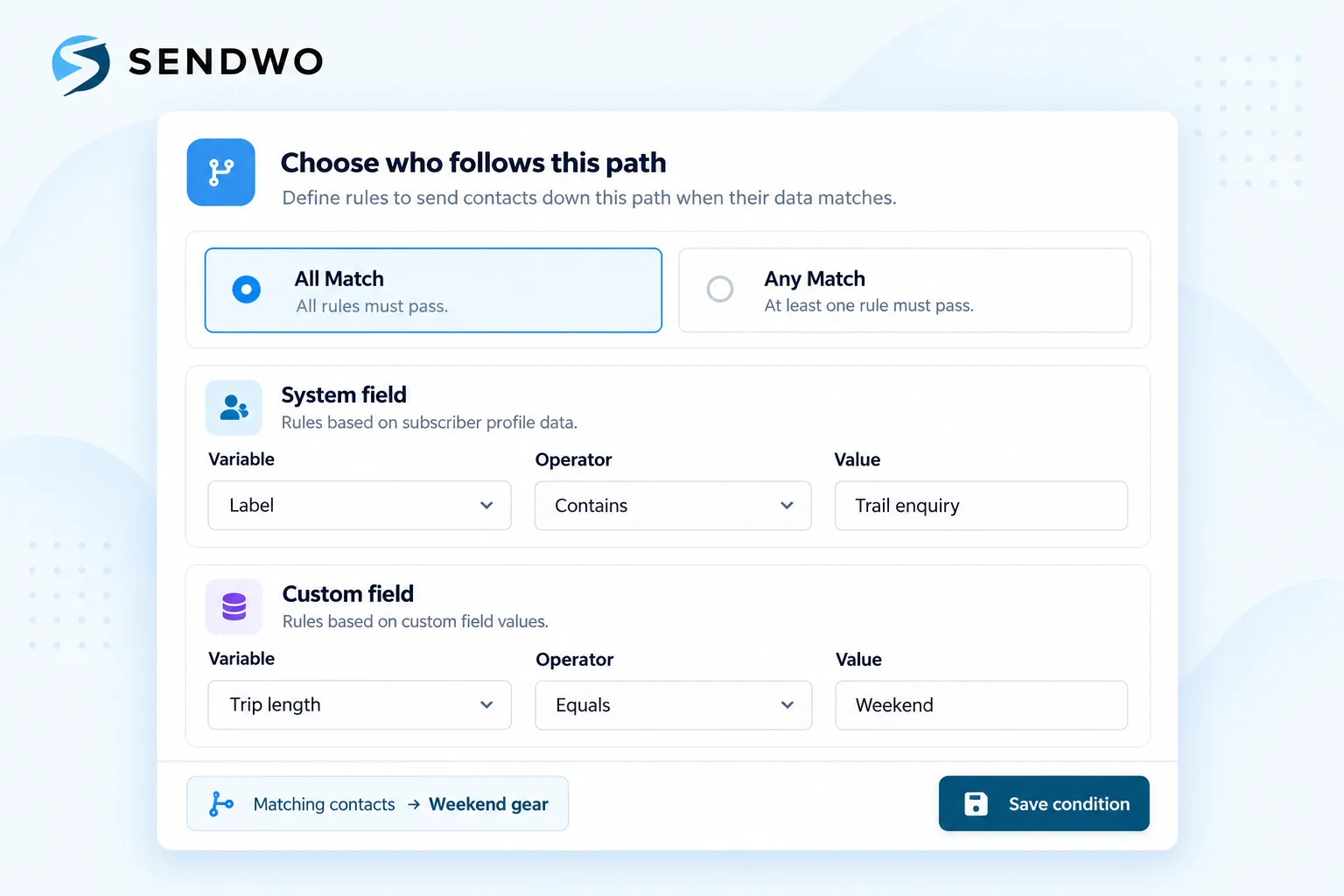
A chatbot should respond to the information it receives. Add a Condition block to check an answer or customer field, then draw a different route for each outcome.
Questions that build customer context
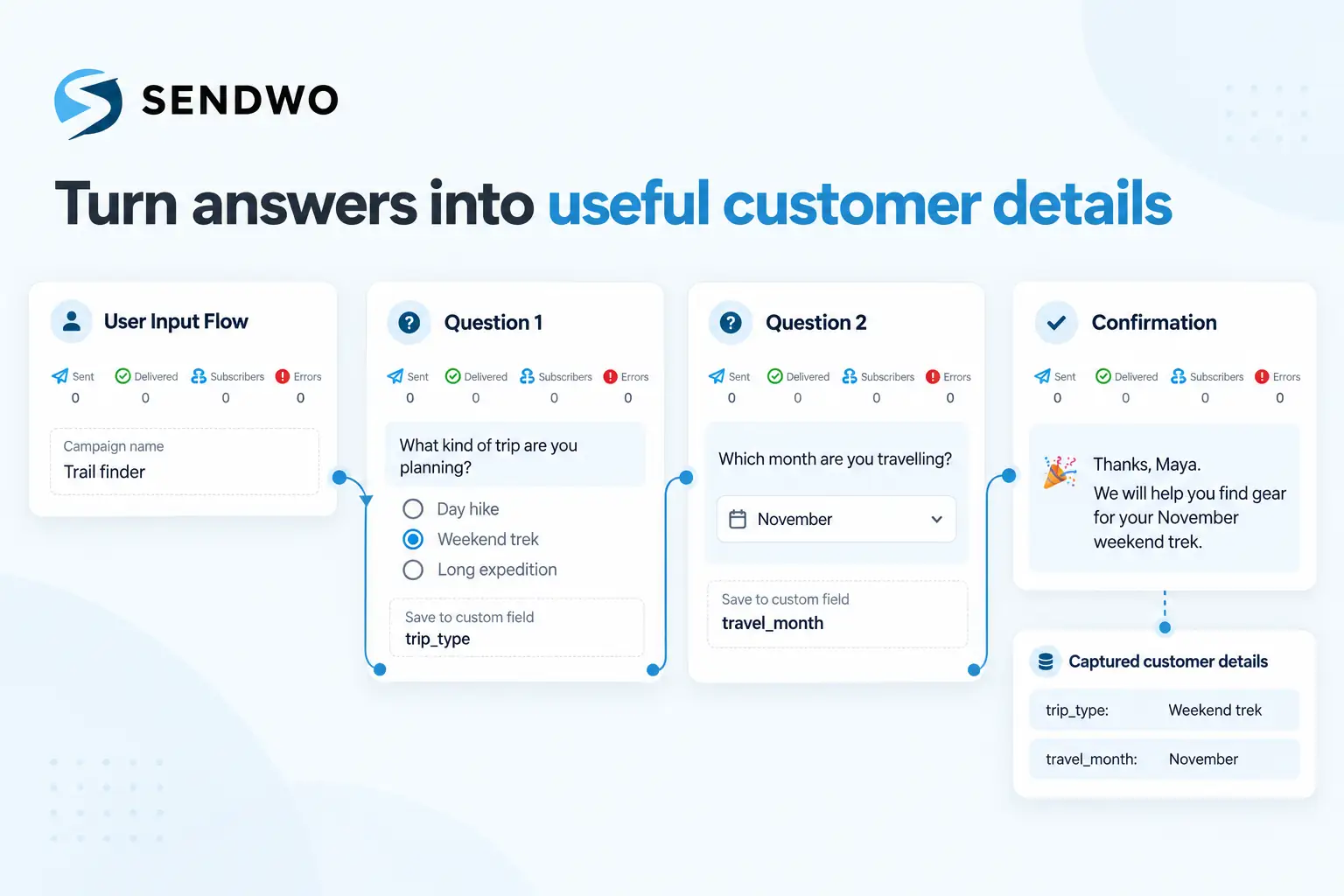
Turn a long form into a guided chat. Ask one question at a time, save the response and use it in the next step. Build an enquiry flow, a preference finder or a simple intake journey.
Timed follow-ups
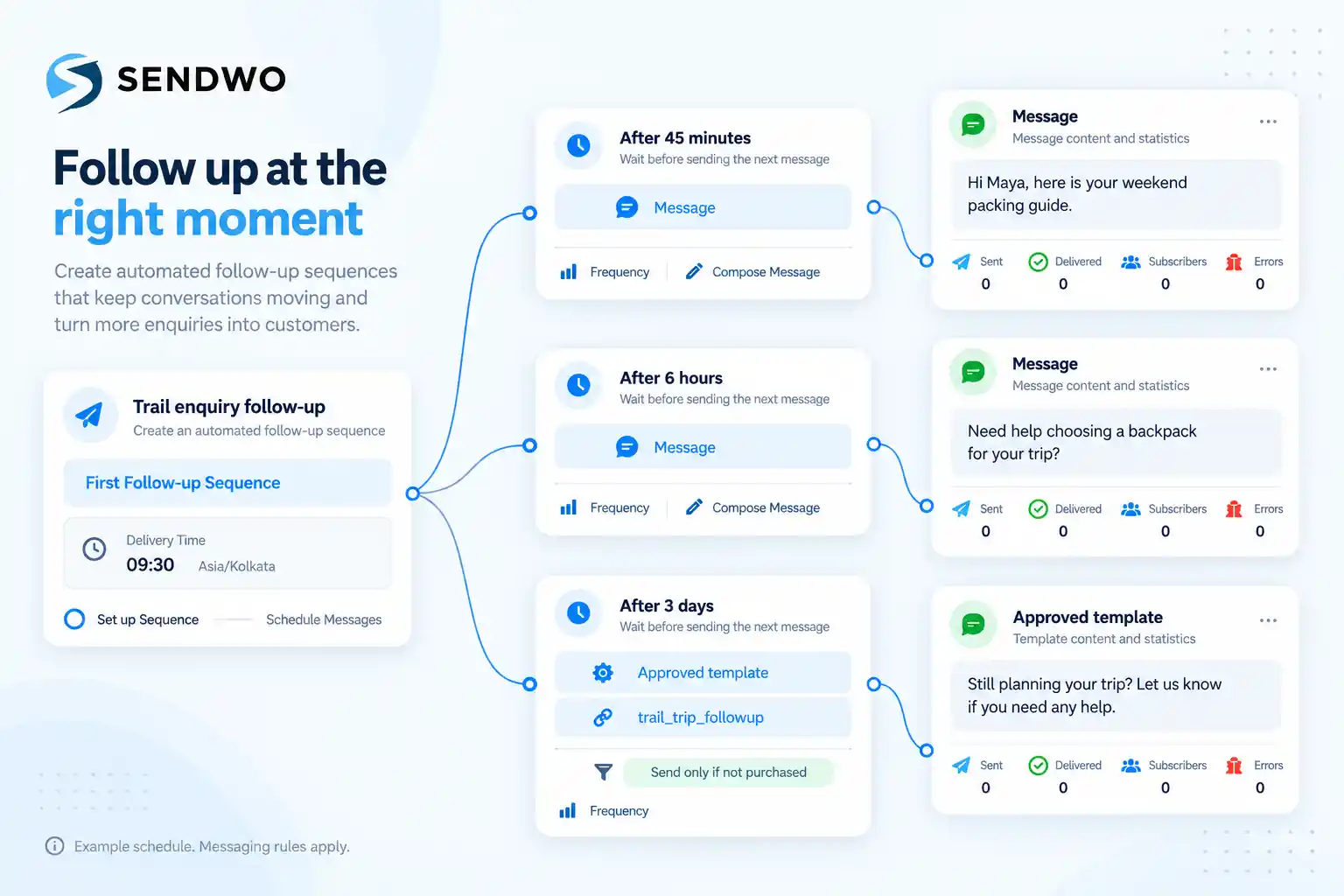
Your chatbot does not have to stop at the first exchange. Add a sequence, choose when each message should go out and set conditions for when it should be skipped.
Illustrated timings are examples. Consent, template requirements and channel messaging rules still apply.
Actions that move the work forward
Use the same canvas to organize contacts, work with connected data and pass a conversation to your team. Build the response and the action together.
Add or remove labels so later steps can recognize the customer’s interest or status.
Keep information such as trip type, preferred month or product interest with the contact.
Group subscribers for the next relevant sequence or campaign.
Pass the conversation to the right person or team in Shared Inbox.
Send information from an interaction to a connected workflow.
Connect spreadsheet data to your customer workflow.
Send a request to your service and map useful response data back into the flow.
Launch a structured WhatsApp form as part of a broader chatbot journey.
Connected services may require account access, credentials and configuration. Available tools depend on your channel and plan.
A clear path to a real person
Add a route to a real person whenever the customer needs one. Your team can pick up the thread in Shared Inbox with the conversation and customer context available.
Explore Shared InboxMeet Sendwo customers
Meet the people behind these customer stories, from dairy updates and resort enquiries to learner reminders.

Dhillon Dairy uses Sendwo for WhatsApp broadcasts, product information, customer updates and follow-up with buyers.


PamV Estates uses AI-powered chat support to answer frequent guest questions and help handle enquiries generated through its campaigns.


EZ35 uses Click-to-WhatsApp conversations with automated replies and lead handling so incoming interest has a clear next step.


Aura International uses WhatsApp workflows for class communication, learning-session updates, reminders and student follow-up.

Questions, answered
How the visual canvas, conditions and customer workflows fit together.
It is a visual workspace for creating chatbot journeys. Use connected blocks to arrange messages, questions, conditions, follow-ups and actions in one flow.
You can create the conversation visually by dragging blocks, connecting sockets and configuring each step. Connecting an external API may require technical information such as an endpoint, credentials and response-field mapping.
Sendwo supports chatbot journeys for WhatsApp, Instagram, Facebook Messenger, Telegram and website chat. Each channel has its own message formats and available features.
Open the block settings to write a message or configure the question, rule or action. Connect its output to the next step and save your changes.
Yes. Conditions can evaluate customer information and route the conversation accordingly. Use All Match or Any Match for a set of rules, and connect further conditions for additional paths.
Yes. User Input Flow can ask questions and save answers to fields. Those values can inform later questions, conditions and connected actions.
Yes. Sequence steps let you configure delays and follow-up content. Conditions can help skip irrelevant messages. Use approved templates when required and follow the connected channel’s messaging rules.
They serve different purposes. Chatbot Builder maps the wider conversation. WhatsApp Flows creates structured in-chat form screens, which can be launched from a WhatsApp Flow block in the journey.
The block library includes AI Reply for AI-assisted parts of a conversation. You can also create a human-support route and assign the conversation to your team in Shared Inbox. This page focuses on building and controlling the visual journey.