Black Friday + Cyber Monday: 50% off annual subscriptions only50% off annual onlyBFCM50Get offer
Sendwo

Multi-channel AI chatbot builder

Build your chatbot.
Just describe the journey.

Turn a prompt into a connected chatbot flow. Review the conversation, refine the canvas and test the experience before you save.

  • Create with Generate with AI using Sendwo AI tokens.
  • Keep full control with drag-and-drop blocks and conditions.
  • Build for WhatsApp, Instagram, Messenger, Telegram or Web Chat.

AI generation and revisions use Sendwo AI tokens. Available blocks and integrations depend on your selected channel and connected accounts.

WhatsAppInstagramFacebook MessengerTelegramWeb Chat
Sendwo Generate a flow dialog with a conversation prompt and five starter options

Brands and teams that have used Sendwo.

Himalaya Honda franchise outlets Liberty Spotify Fortis Google BYJU’S Whirlpool Vissco Eduracle Guardizon
Wojeski & Co. Westorico Stuffco Starvacon StarAgile SGS Plan Rombo Nobel Communication Nitronz Industrial Netrika Neo Travels NEET Support MedSoc MAPS Edu Manoratha Maharashtra Paper Lovenspire Khyati Dental Clinic Keller Logistics Jaglista Irish Golf Leaderboard House Finder H&G Cash and Carry GoHoliday360 fäm Properties Excellence eSchool Electrosmart E-Disha Dezaw Daksya Academy Conecte.ai CIEL HR Catalin Vasiliou Borosil Bishop Heber College BenchTeq Ambica Steels Alpha Kitchen Ajay Car Rental

Create your way

Start with a prompt. Keep the control.

Use AI for the first draft and the visual canvas for the details. You can also build every step yourself.

Describe the conversation

Explain the trigger, questions, answers and next steps in your own words. AI drafts the journey for review.

Shape every branch

Edit messages, map customer fields, add conditions and connect actions on the same canvas.

Connect the next action

Send captured details to your tools, continue with AI replies or route the conversation to your team.

From prompt to working flow

Six clear steps. You decide when to save.

Start with your idea, refine the draft and test the experience before saving your chatbot.

Open the builder

Start with Generate with AI

Choose the chatbot account you want to build for, open the visual builder and select Generate with AI.

  • Keep the flow blocks library beside your canvas.
  • Start from a blank journey or add to your editing workflow.
  • Use drag and drop whenever you want hands-on control.
Sendwo Start with Generate with AI

Describe the journey

Your words become the starting point

Write the conversation you want, or choose one of the five prompt starters to fill the description for you.

  • Qualify a lead, book an appointment or answer product questions.
  • Collect an order or create a support handoff.
  • Describe the keyword, questions, details to capture and final confirmation.
  • Click Generate to create a conversation draft using Sendwo AI tokens.
Sendwo Your words become the starting point

Read and refine

Read it before it reaches the canvas

Review the proposed conversation in Read the conversation. Check the questions, confirmations and field-mapping notes.

  • Nothing is published at this stage.
  • Enter a refinement such as “Make the welcome shorter.”
  • Choose Change something to generate a revised draft. Revisions use AI tokens.
  • Select Place on canvas when the conversation is right.
Sendwo Read it before it reaches the canvas

Place and keep

Keep the flow, or undo the placement

After placement, review the confirmation and choose Keep it to continue editing the generated flow.

  • The flow is placed on your editable canvas.
  • Use Undo if you do not want to keep that placement.
  • Placement and Keep it do not publish the chatbot.
Sendwo Keep the flow, or undo the placement

Fine-tune the flow

Make the generated journey yours

Inspect every connection and make the final adjustments before testing.

  • Open text and question blocks to refine their content.
  • Confirm that answers save to the intended fields.
  • Drag in more blocks and connect additional paths.
  • Zoom the canvas to inspect the whole journey or individual steps.
Sendwo Make the generated journey yours

Preview and save

Test the conversation. Then make it live.

Open Preview, send the starting keyword and walk through the flow as a customer would.

  • Check the order of questions and the confirmation message.
  • Test conditions, handoff routes and connected actions.
  • Return to the canvas to correct anything you find.
  • Click Save when you are ready to activate the flow. Leaving without saving does not save your edits.
Sendwo Test the conversation. Then make it live.
AI provides a draft, not a substitute for checking your configuration. Review field mappings, connected accounts, credentials and channel-specific blocks before saving.

AI agents with your knowledge

Give AI replies the business context they need.

Configure an AI agent with a prompt and connected knowledge sources. Sendwo’s RAG-based approach can use relevant source content to support answers.

  • Content: paste product information, policies or service details.
  • URL: select a page and relevant content sections to build knowledge or FAQs.
  • Files: add supported PDF, Word, Excel, OpenDocument or TXT documents.
  • Media: add a supported media file or image URL with a description.
  • Google Sheet and HTTP API: connect configured data sources for your agent.
Source quality and configuration matter. Review extracted knowledge and test responses before using the agent with customers.
Give AI replies the business context they need.

A visual workspace you already know

AI for the draft. Drag and drop for the details.

Keep the familiar visual builder. Use guided buttons where the path is clear, AI replies for open questions and connected actions to move the work forward.
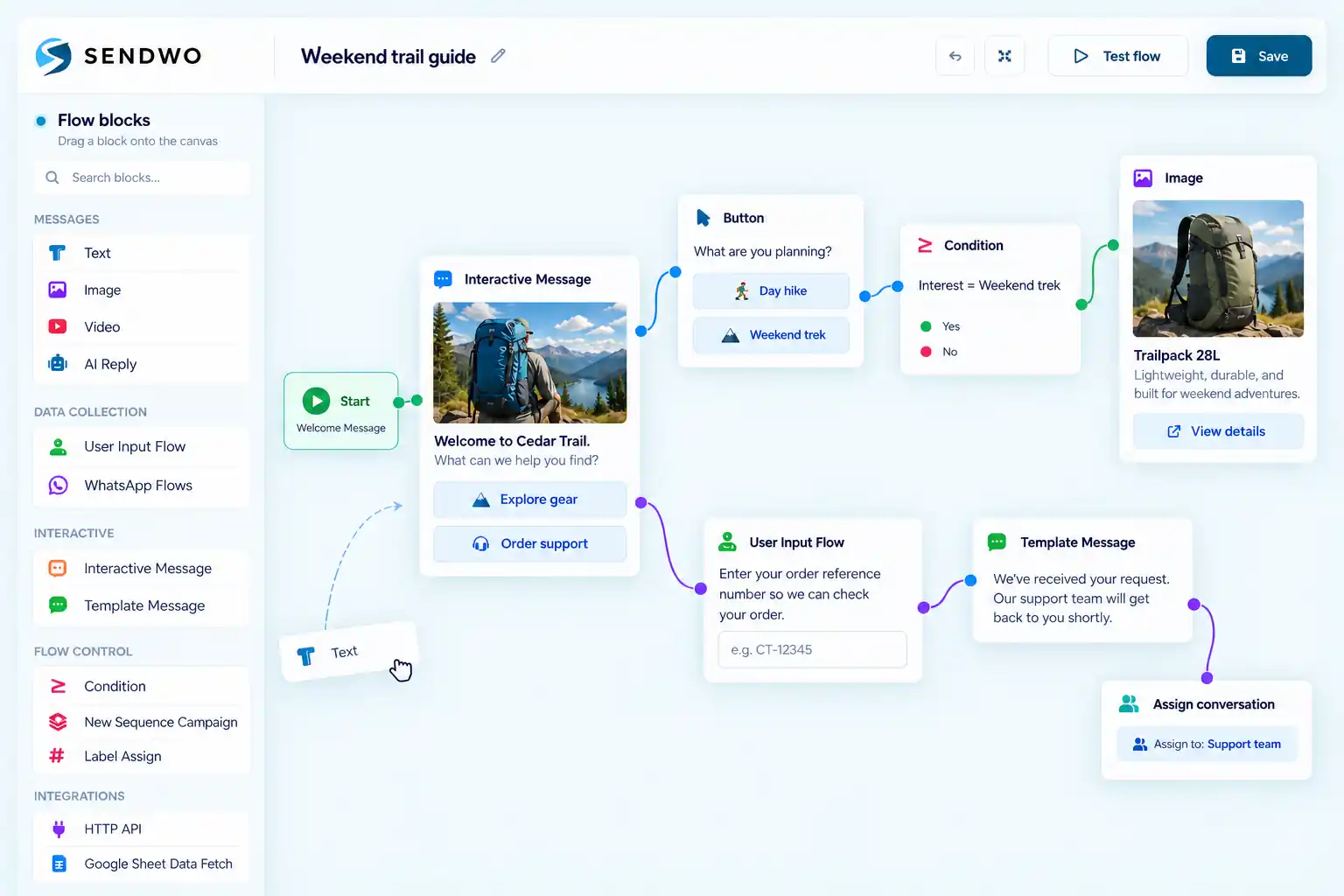
  • Create menus and connect each button to a message, question or action.
  • Add AI Reply where a fixed menu is not enough.
  • Collect details before routing, following up or handing over.
  • See the connections that define your customer journey.
AI for the draft. Drag and drop for the details.

Messages, questions and actions

A block library for the conversations you want to build.

Start with a message, then add the blocks your selected channel supports.
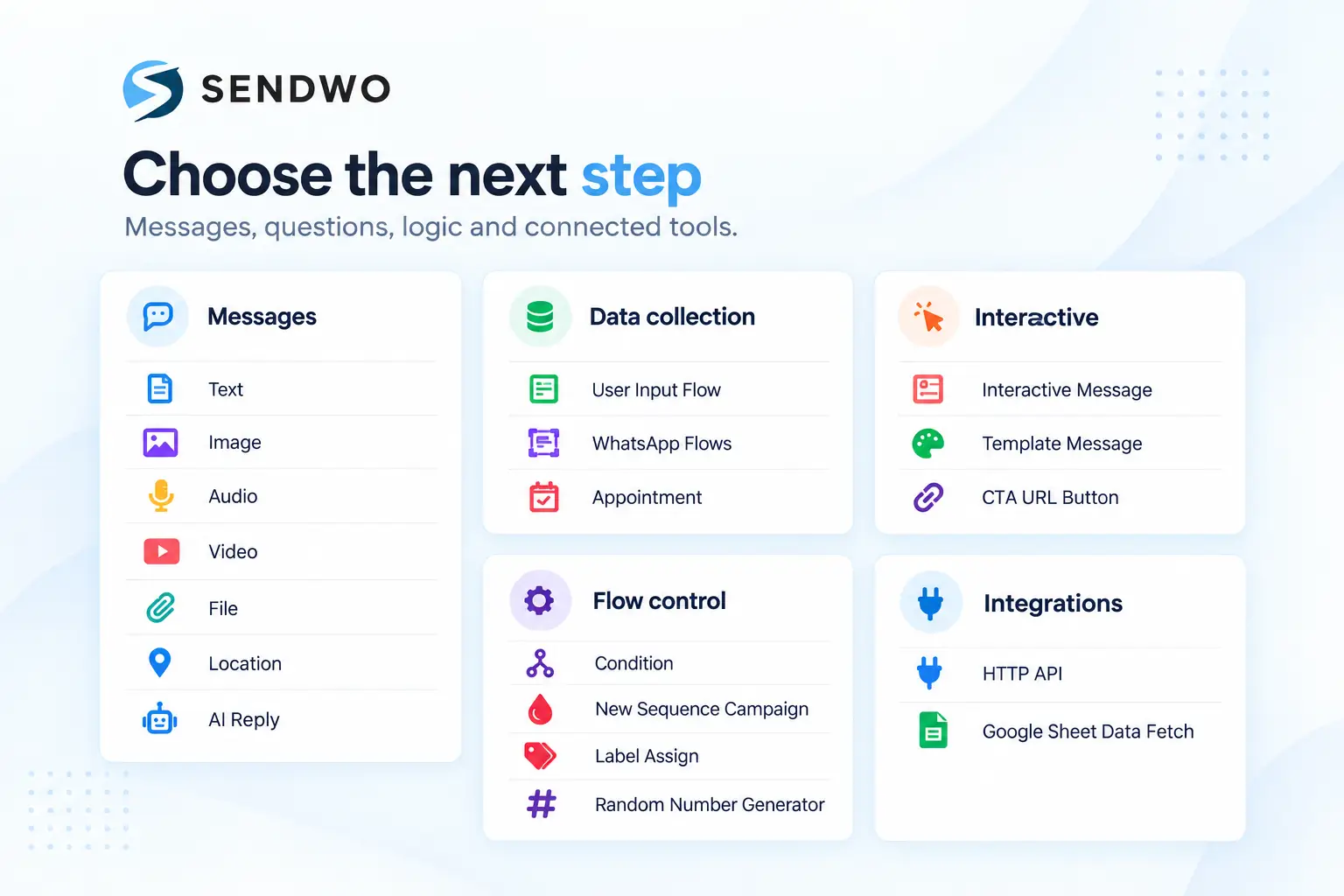
  • Send text, images, audio, video, files or a location.
  • Add interactive messages, template messages and URL buttons.
  • Collect details with User Input Flow, appointment blocks or WhatsApp Flows.
  • Use conditions, sequences, labels, HTTP API and Google Sheet Data Fetch.
Available blocks and message formats vary by channel. WhatsApp Flows are structured WhatsApp forms; User Input Flow collects answers through a conversation.
A block library for the conversations you want to build.

Conditions and routing

Set the rules. See every branch.

Route customers according to the information they share, their saved fields or the labels attached to their profile.
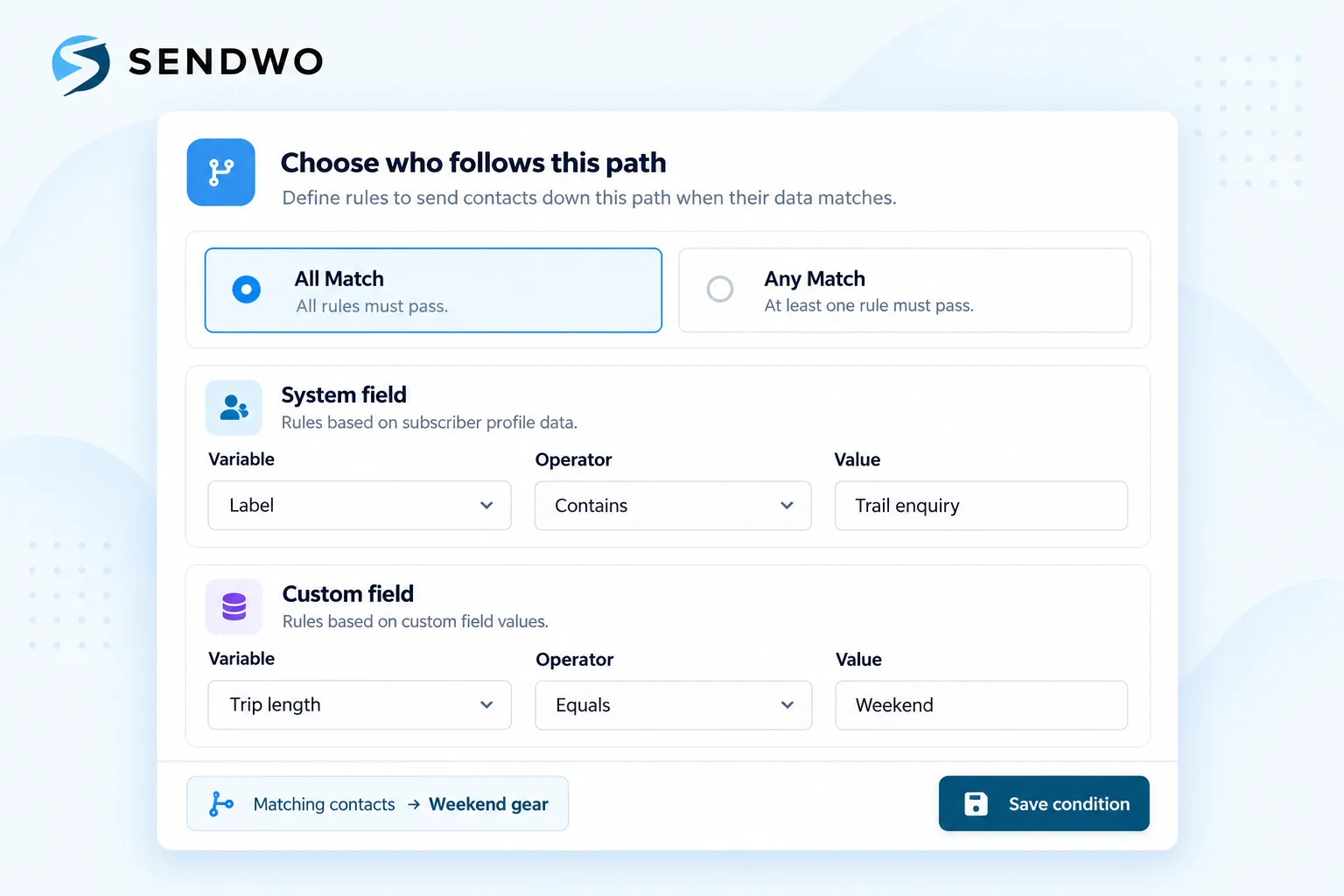
  • Choose All Match when every rule must pass.
  • Choose Any Match when one matching rule is enough.
  • Evaluate labels, groups, field values or previous answers.
  • Connect more conditions when the journey needs additional outcomes.
Set the rules. See every branch.

Personalization and data collection

Build a conversation that remembers the answers.

Replace a long form with a guided exchange. Ask one question at a time and save each response for the next step.
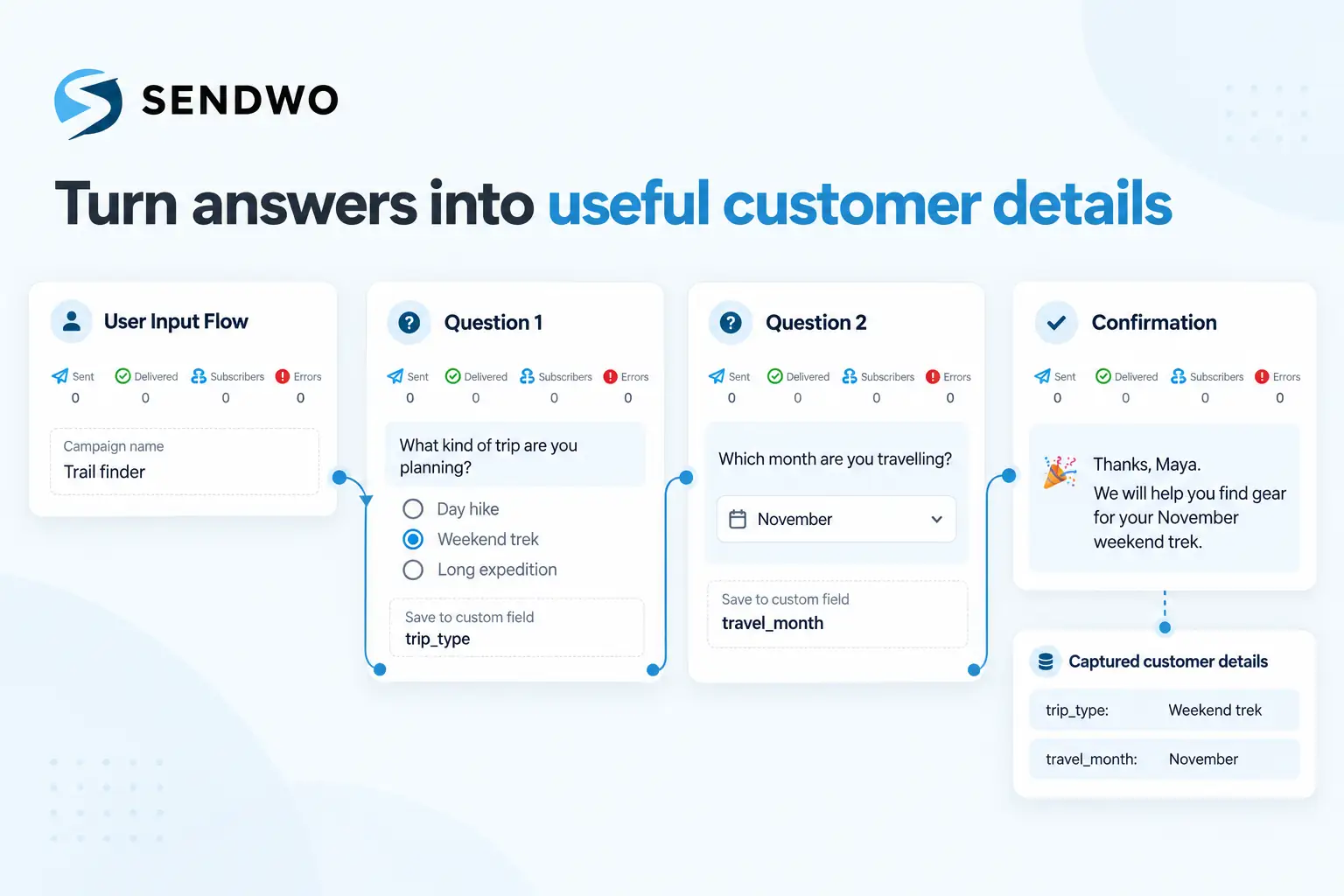
  • Offer predefined choices or accept a typed response.
  • Map the answer to the appropriate customer field.
  • Use saved details in later messages, conditions and connected actions.
  • Finish with a clear confirmation of what happens next.
Build a conversation that remembers the answers.

Sequences and timing

Build the follow-up into the flow.

Continue the journey after the first exchange, with timed messages and conditions that keep the next step relevant.
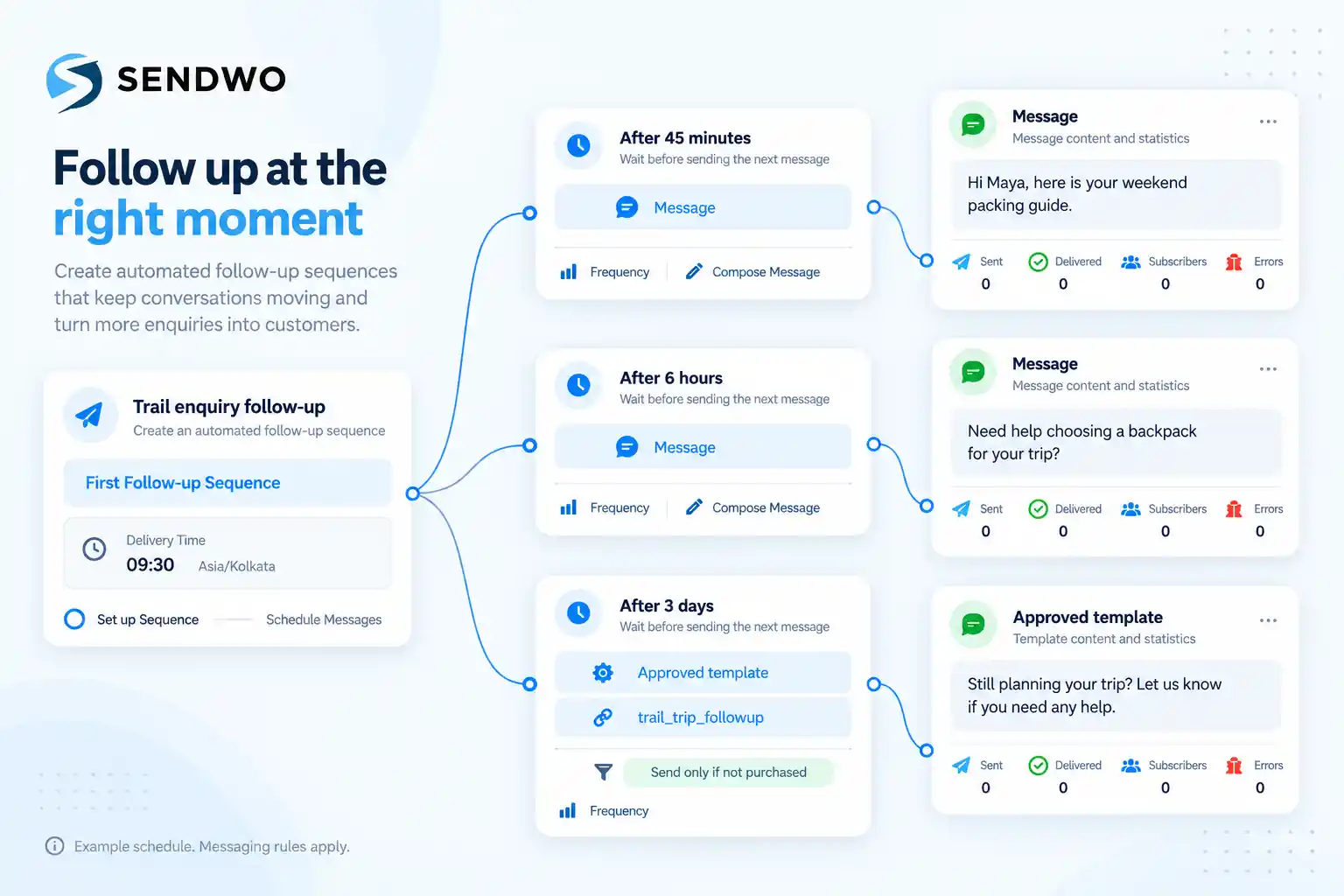
  • Start a sequence from the appropriate point in the conversation.
  • Choose delays in minutes, hours or days.
  • Skip a follow-up when its condition no longer applies.
  • Use the message or approved template appropriate to the channel and messaging window.

Explore follow-up sequences ↗

Consent, template requirements and channel messaging rules still apply to scheduled messages.
Build the follow-up into the flow.

Bot behaviour and customer experience

Set the rules around the conversation.

Configure fallback replies, availability and the way your team and automation work together.

Sendwo Fallbacks and welcome messages

Fallbacks and welcome messages

Keep the conversation moving when there is no match.

  • Enable a no-match reply and connect the custom fallback flow you want to use.
  • Limit fallback frequency: every time, once a day, once a month or once a year, as available in your settings.
  • Choose whether bot replies continue while an agent uses the mobile app.
  • Enable a Get started message and choose every time or once-a-day frequency.
  • Set the email address used for the chat-with-human action.
Sendwo Business hours and off-hours handling

Business hours and off-hours handling

Choose when automation should respond.

  • Set your timezone, working hours and off days.
  • Assign a special bot for business off hours.
  • Use the controls to disable bot replies or the AI assistant during business hours when needed.
  • Plan different responses for an available team and an out-of-hours enquiry.
Sendwo Shared inbox and session controls

Shared inbox and session controls

Make automation and human support work together.

  • Enable a signature message with an agent name or custom text.
  • Control bot replies and the AI agent inside Shared Inbox.
  • Show a typing indicator while a response is being prepared.
  • Set separate expiry times for input-flow and human-chat sessions.
  • Use a label to identify unsuccessful message delivery for follow-up.
Sendwo Outbound webhook management

Outbound webhook management

Keep your bot-event integrations organized.

  • Create named outbound webhook integrations.
  • Search the integrations you have configured.
  • Review the webhook URL, creation date and last-called information.
  • Open the action view to inspect a particular integration.

Outbound actions and webhooks

Send the right data when the right bot event happens.

Name the webhook, enter its destination URL and select the event that should trigger it.

  • Trigger outbound actions from a postback, selected User Input Flow or location event.
  • Choose which subscriber details to send: ID, name, phone number, date of birth, location or labels.
  • Include postback ID or input-flow questions and answers when relevant.
  • Connect collected data to your CRM, internal tools or other third-party workflows.
Bot settings also support webhook triggers for incoming messages, message-status changes, conversation-status changes, new subscribers, CRM stage changes, and CRM follow-ups or reminders. Configure the external endpoints and selected events for your workflow.
Send the right data when the right bot event happens.

Turn captured details into the next step

Your chatbot collects it. Your tools can use it.

Connect the relevant accounts once, choose where information should go and configure what happens after a contact shares it.

Sendwo Send collected emails to your marketing lists

Send collected emails to your marketing lists

Keep new enquiries connected to your email marketing workflow.

  • Connect Brevo, Mailchimp, ActiveCampaign, Mautic or MailWizz.
  • Choose the connected list available in your autoresponder settings.
  • Send email addresses collected through the bot to the selected account and list.
  • Use the appropriate consent and subscription process for your audience.
Sendwo Send collected subscribers to Google Sheets

Send collected subscribers to Google Sheets

Keep the information your bot captures in the spreadsheet your team uses.

  • Connect your Google account.
  • Choose the spreadsheet and the relevant sheet from the connected lists.
  • Send collected subscriber information to your selected destination.
  • Use Google Sheet Data Fetch blocks when the conversation needs connected sheet data.
Sendwo Send an email when a contact shares an address

Send an email when a contact shares an address

Configure a direct automated email without building an autoresponder campaign.

  • Choose a configured email API or SMTP account.
  • Set the email subject and message content.
  • Send the configured email after the subscriber shares their email address through the bot.
  • Supported connections include custom SMTP, Mailgun, Postmark, Amazon SES and Mandrill.
Sendwo Follow up by SMS after collecting a phone number

Follow up by SMS after collecting a phone number

Connect an SMS provider and configure the message to send.

  • Choose your configured SMS API account.
  • Write the SMS content for the subscriber who shares their number.
  • Use a connected provider such as Plivo, Twilio, Nexmo / Vonage or Clickatell.
  • Configure consent, number formatting and provider requirements for your workflow.
Account connections, credentials, selected lists and message content must be configured. Platform availability and connected-service requirements can vary.

Connected actions and control

Build the response and the action together.

Labels, fields and contact lists

Add or remove labels, save customer fields and organize subscribers so later steps can recognize their interests or status.

HTTP API integrations

Call a configured external endpoint, send the relevant data and map useful response values back into the conversation.

Commerce conversations

Use connected Shopify or e-commerce tools and supported product blocks as part of the chatbot journey.

Human handoff

Add a route to a person, assign the conversation and let a teammate continue in Shared Inbox with customer context.

JSON import and export

Export flows as JSON and import them when needed. Check compatible blocks, channel settings and account connections before using a flow.

Bot logs and error logs

Inspect bot activity and error reports when a response or connected action does not behave as expected.

See how your team continues in Shared Inbox ↗

How businesses use Sendwo

Different businesses. Practical customer journeys.

Meet the people using Sendwo for communication, enquiry handling and follow-up.

Dhillon Dairy UK

Promotions, product updates and follow-up conversations with buyers.

Dilbagh Singh
Dilbagh SinghCustomer communications

PamV Estates

AI-assisted guest questions, resort enquiries and booking conversations.

Philip Mensah
Philip MensahCEO, PamV Estates

EZ35

Click-to-WhatsApp enquiries, automated replies and lead handling.

Ingo Lederer
Ingo LedererLead qualification

Aura International

Class communications, learning-session updates and student reminders.

Daren Hunt
Daren HuntLearner engagement

View All Customer Case Studies ↗

Questions, answered

About Sendwo AI Chatbot Builder

What is Sendwo AI Chatbot Builder?

It is a multi-channel visual builder for WhatsApp, Instagram, Facebook Messenger, Telegram and Web Chat. Describe a journey with Generate with AI or build it with drag-and-drop blocks, then review, test and save the flow.

Do I need to write code?

You do not need to code the conversation. AI can draft the flow, and the canvas lets you edit its messages, questions and connections. External API or webhook integrations may require technical configuration such as an endpoint, credentials and field mapping.

Does generating a flow make it live?

No. You first read the proposed conversation. Place on canvas adds the flow to your editing workspace, and Keep it retains that placement. Review the blocks and use Preview to test the journey. Save is the step that saves and activates the flow.

Does changing an AI-generated conversation use more tokens?

Yes. Generating a flow uses Sendwo AI tokens, and asking AI to revise it through Change something also uses tokens. You can make manual edits on the canvas after placing the flow.

Can I start with a predefined prompt?

Yes. The five starters are Qualify a lead, Book an appointment, Answer product questions, Collect an order and Support handoff. They fill the prompt box so you can adapt the instructions before generating.

Can the chatbot use my business knowledge?

You can configure an AI agent with a prompt and knowledge sources such as pasted content, selected URL content, supported documents, media, Google Sheets and HTTP API connections. Review the source content and test the resulting answers.

Can I save answers and send them to other tools?

Yes. User Input Flow can collect answers and map them to customer fields. Configured Google Sheets, autoresponder accounts, email and SMS APIs, HTTP APIs and outbound webhooks can use the collected information for your chosen workflow.

What happens when a customer goes outside the planned flow?

Configure a no-match reply and the fallback flow you want the bot to use. You can control its response frequency, add an AI-assisted route where appropriate, or offer a human-support path.

Can I control availability and human handoff?

Yes. Configure business hours, off days, a special off-hours bot, shared-inbox bot and AI controls, signatures and session expiry settings. Your team can continue conversations in Shared Inbox.

Is Chatbot Builder the same as WhatsApp Flows?

No. Chatbot Builder maps the wider conversation. WhatsApp Flows creates structured in-chat form screens for WhatsApp, which can be opened from a supported WhatsApp Flow block. User Input Flow collects answers conversationally.

Can I reuse a flow and troubleshoot errors?

You can import or export flows in JSON format and inspect bot logs or error logs. Review channel-specific blocks and connected accounts when reusing a flow.

Are all blocks available on every platform?

Available formats, blocks, settings and integrations depend on the selected channel and your connected accounts. Choose the channel you are building for, then configure and test the supported journey in that account.