Configuration Settings in SendWo
Learn how configuration settings in SendWo enable you to manage bot replies, set business hours, allow email & SMS automation, and personalize conversations easily.
 By Snehil Prakash
Published: October 30, 2025
4 min read
By Snehil Prakash
Published: October 30, 2025
4 min read
Learn how configuration settings in SendWo enable you to manage bot replies, set business hours, allow email & SMS automation, and personalize conversations easily.
The Configuration Settings in SendWo give you full control over your chatbot’s behavior. This encompasses business hours and fallback replies to email and SMS automation.
The only goal is to make automation feel human while keeping your workflow efficient and compliant.
This guide will make you explore each section of SendWo’s configuration panel step-by-step so you can personalize your automation, optimize your response strategy, and deliver consistent engagement 24/7.
Use Cases
Things you can opt for with SendWo’s configuration settings:
- Restrict bot replies outside your business hours
- Send fallback messages for unmatched or invalid queries
- Automatically send emails or SMS based on user input
- Sync leads to email tools like Mailchimp or Brevo automatically
- Add branded signatures to human chats in the shared inbox
- Run drip campaigns through pre-defined SMS sequences
By now, it's quite evident that SendWo’s automation is smarter, more personal, and always on-brand.
Section 1: General Settings
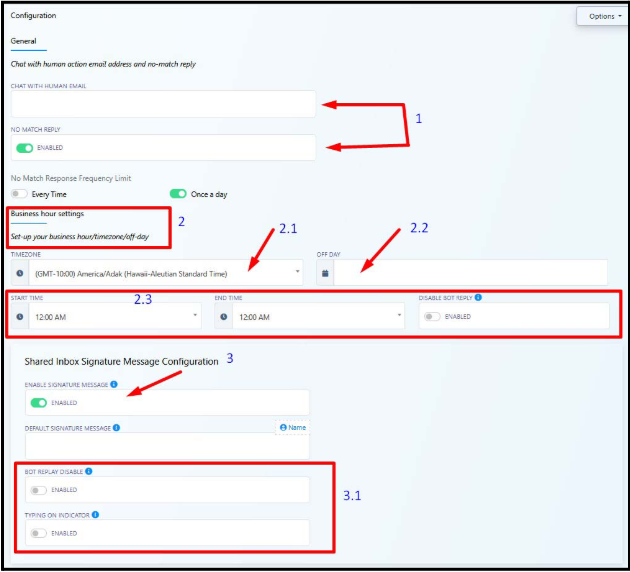
Human Chat Email & No Match Reply
- Human Chat Email: Whenever a user requests human assistance, an instant email notification is sent. It ensures that no chat goes unanswered.
- No Match Reply: It sets up an automated message that triggers when the bot doesn’t understand a query. Perfect for keeping conversations active even when there’s no keyword match.
- Response Frequency: It allows you to choose how often to send fallback messages, either every time or once per day, to avoid spammy repetition.
Section 2: Business Hour Settings
This step controls when your bot should stay active and when it should be disabled/in sleep mode.
a. Timezone
Set your preferred timezone. This ensures that all the scheduled messages and automations are perfectly aligned to your audience’s location.
b. Off Day
During these days, your bot will automatically pause replies or be in disabled mode. You can select your weekly off day, like Sunday or a public holiday.
c. Start & End Time + Toggle
Define daily working hours and enable “Disable Bot Reply Outside Business Hours”.
Section 3: Shared Inbox Signature Message
a. Enable Signature Message
Toggle this ON and you can add your default signature message. Example:
“Thanks for reaching out! – Team SendWo”
Turn this learning into your next WhatsApp campaign.
Start with Sendwo’s free plan, explore WhatsApp broadcasts, automation, AI chatbot flows, and upgrade only when your business needs more power.
It gives your replies a professional look, giving a human touch.
b. Additional Toggles
- Bot Reply Disable: Bot auto-replies are prevented when your agents/team are typing manually.
- Typing Indicator: Displays a “typing…” signal while a team member composes a message, adding a realistic human touch.
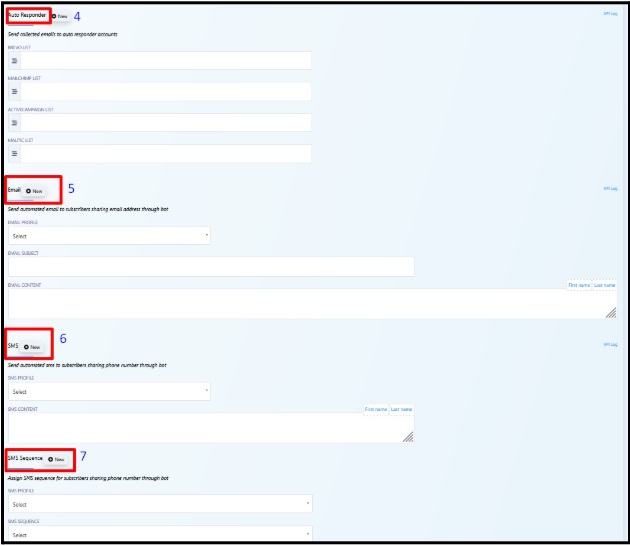
Section 4: Auto Responder (New)
Automatically push collected emails and leads to external email platforms without manual export.
SendWo supports:
- Mailchimp
- Brevo (formerly Sendinblue)
- ActiveCampaign
- Mautic
Simply enter your list ID or API credentials, and SendWo will automatically sync new subscribers to your preferred mailing list, keeping your CRM always updated.
Section 5: Email Automation (New)
Convert WhatsApp leads into email conversations automatically.
- Email Profile: Choose your preferred email configuration (e.g., your business domain email).
- Subject & Content: This part ensures that messages are personalized with dynamic variables like {{first_name}} or {{email}}.
- Instant Trigger: Automatically send an email when a user shares their email address in chat.
Section 6: SMS Automation (New)
Expand your reach with instant SMS responses to collected phone numbers.
- SMS Profile: Select your active SMS gateway provider.
- SMS Content: Use merge tags to personalize messages (e.g., “Hi {{first_name}}, thanks for connecting!”).
- Trigger Point: Once the user submits their number in the conversation, it automatically sends an SMS.
Section 7: SMS Sequence (New)
Set up multi-day follow-up campaigns directly from your SendWo dashboard.
- Select your SMS profile.
- Choose a drip sequence, for e.g., you can take, Day 1: Intro, Day 3: Offer, Day 5: Reminder.
- Automate nurturing without lifting a finger.
This consistently leads to engagement and higher conversion rates without constant manual tracking.
Summary Table
| Section | Function |
| Human Chat & No Match Reply | Handles unknown queries and routes users to human help |
| Business Hours | Defines active hours, timeline, and off-days |
| Shared Inbox Signature | Adds branding and professional closure to live chats |
| Auto Responder | Pushes lead to external email platforms automatically |
| Email Automation | Sends instant emails based on collected user data |
| SMS Automation | Sends instant SMS replies upon number collection |
| SMS Sequences | Runs scheduled SMS drip campaigns for lead nurturing |
Conclusion
The Configuration Setting in SendWo bridges the gap between automation and personalization. Whether you want to limit replies after hours, route chats to humans, or automate follow-ups across email and SMS, it all happens here. By setting up these configurations once, your brand can operate on autopilot, engage leads smartly, and never miss a message again.
1. What happens if a message arrives outside my business hours?
If you’ve enabled “Disable Bot Reply,” SendWo will pause auto-responses during your off-hours to maintain professional communication standards.
2. Can you enable both Email and SMS Automation at the same time?
Yes. Both automations can run independently and trigger based on the data a user shares during a conversation.
3. Will the no-match message keep sending repeatedly?
No. You can set the frequency, either once per day or every time an unmatched query occurs.
4. What’s the difference between Auto Responder and Email Automation?
Auto Responder: Syncs collected emails to third-party tools like Mailchimp.
Email Automation: Sends an actual email message directly to the user.
Snehil Prakash
Snehil Prakash is an expert WhatsApp consultant with SendWo. He has expertise in implementing WhatsApp API for enterprise businesses and built automation, chatbot and AI powered solution.