Choose the entry point
Start an input sequence from the appropriate trigger or step in your chatbot journey.
User Input Flow
Collect customer details through guided conversations on WhatsApp, Instagram, Messenger and Telegram. Ask for what you need, check the reply format and save answers where your team can use them.
Built inside Sendwo’s drag-and-drop Flow Builder.
 WhatsApp
 Instagram
 Facebook Messenger
 Telegram
Brands and teams that have used Sendwo.









From conversation to usable information
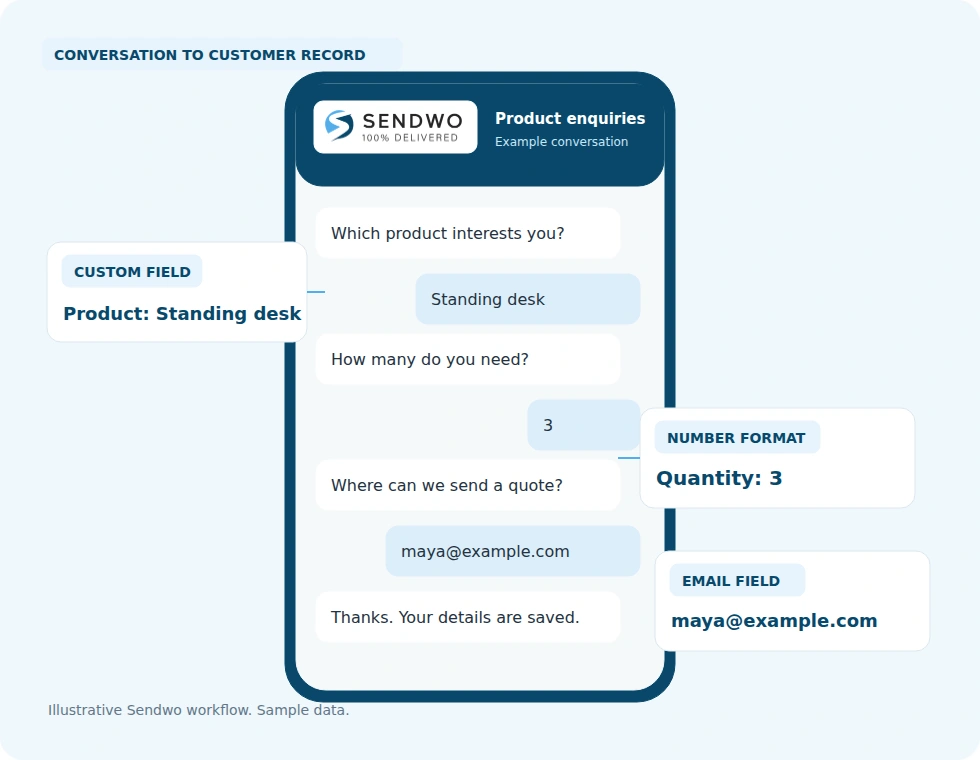
A product request needs quantities. A support enquiry needs an order reference. Build a short conversation that gathers the details before your team steps in.
Start an input sequence from the appropriate trigger or step in your chatbot journey.
Write each prompt, choose the expected reply type and map the answer to a field.
Review the response, send it to a connected tool or continue the conversation with useful context.
A focused workflow inside the builder
The Flow Builder is your visual workspace. User Input Flow is the sequence that asks questions and captures answers. Connect it to the rest of your customer journey without confusing it with a native WhatsApp form.
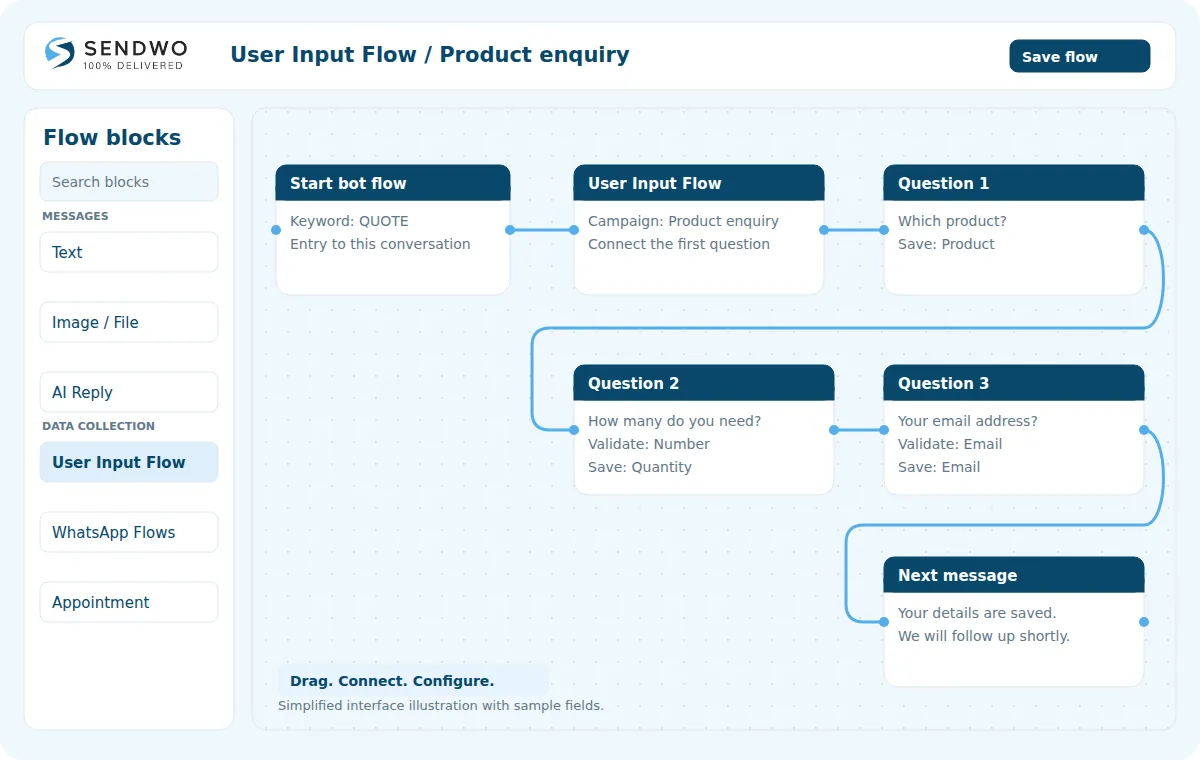
Bring a User Input Flow block onto the canvas and connect it to the conversation.
Arrange prompts in the order that makes sense for your customers.
Connect a confirmation, another action or the next step in your wider flow.
Your input flows, organised
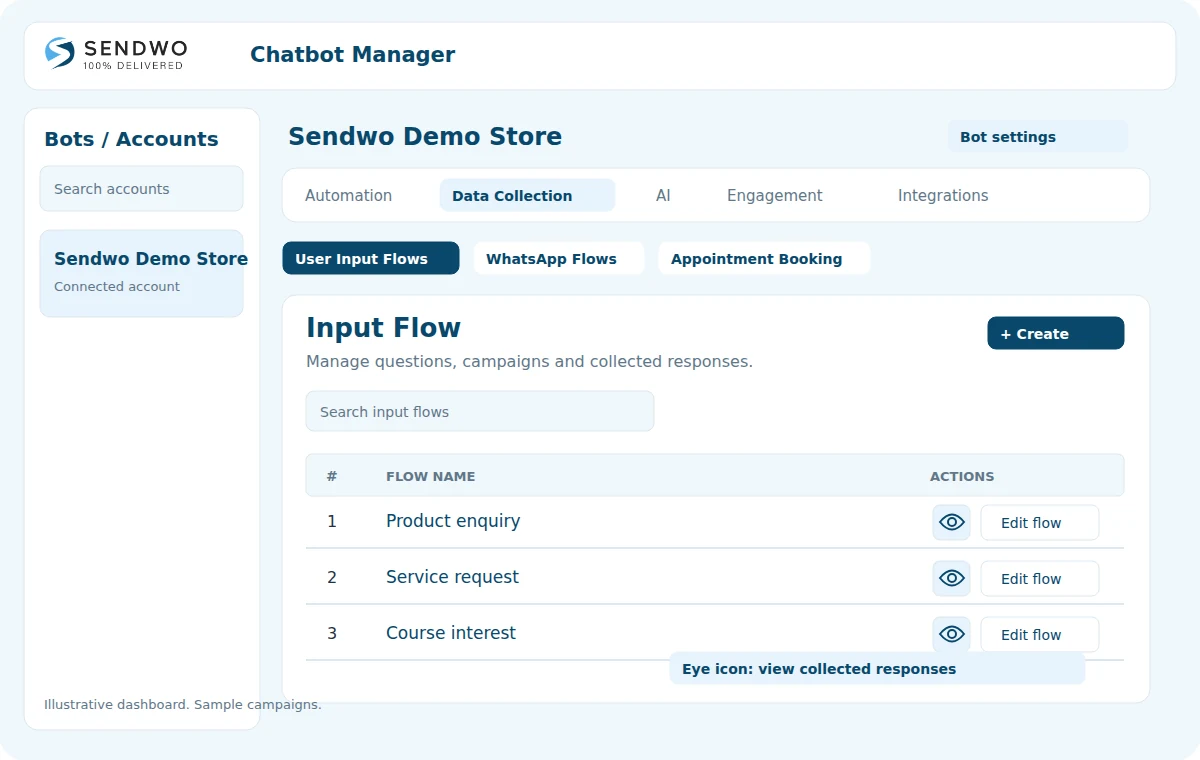
Keep separate input flows for product enquiries, service requests and other repeatable conversations. Open the flow you need to change, or review the responses it has collected.
Ask, check and save
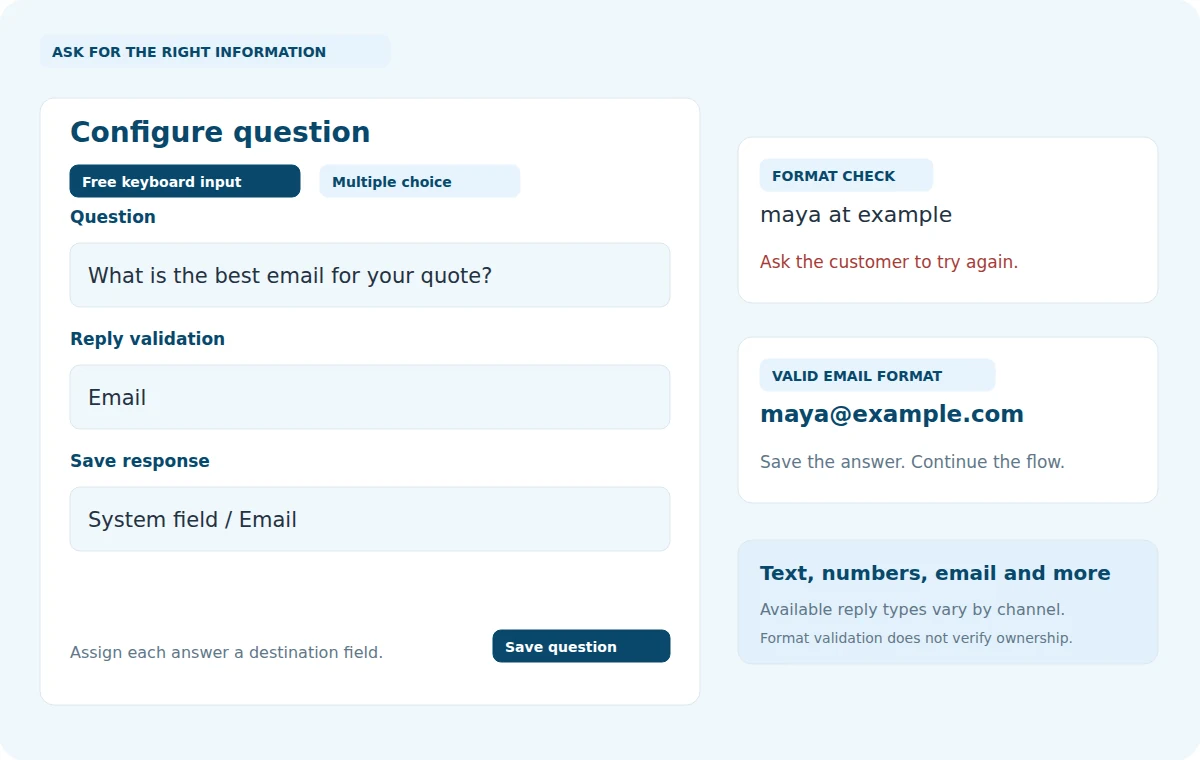
Define the question and its destination together. A customer’s email belongs in the email field; an order quantity belongs in a number field.
Validation checks the expected format. It does not independently verify identity, email ownership or phone ownership. Available settings vary by channel.
Collected responses
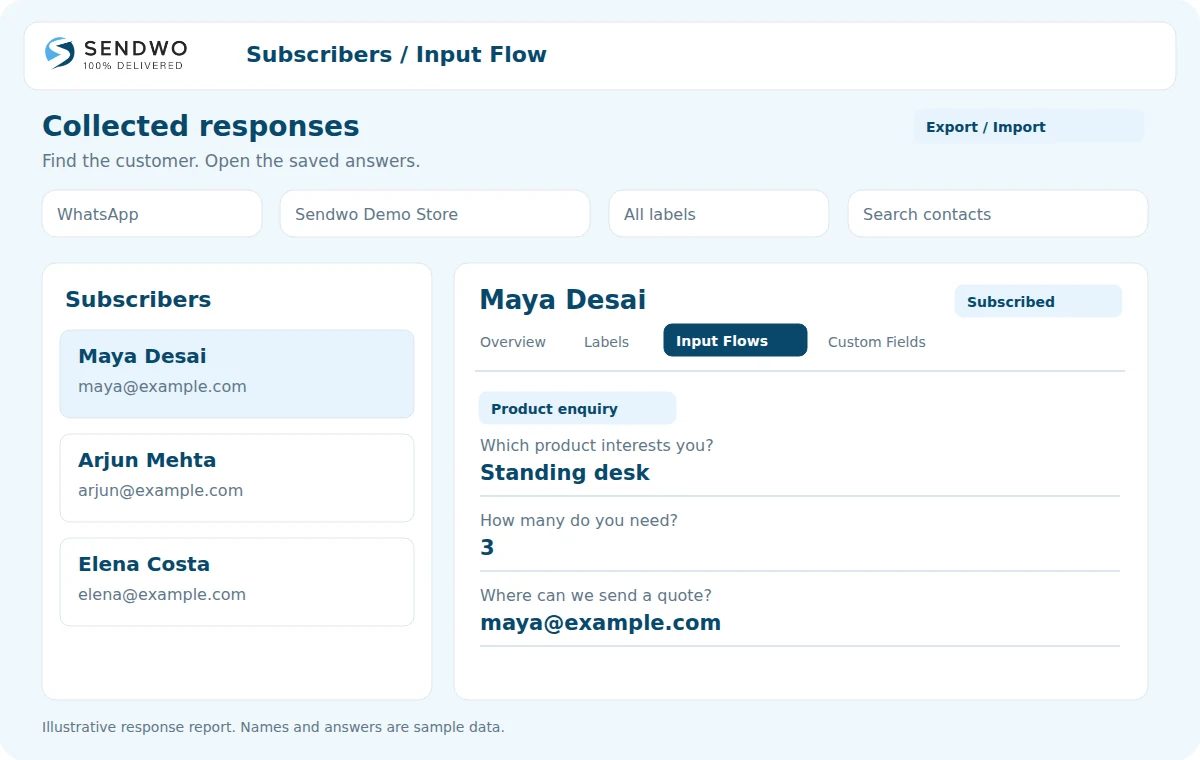
Open the response report from the input flow’s eye icon. Select a subscriber and review their answers in the Input Flows tab, with the customer record alongside them.
Connected data
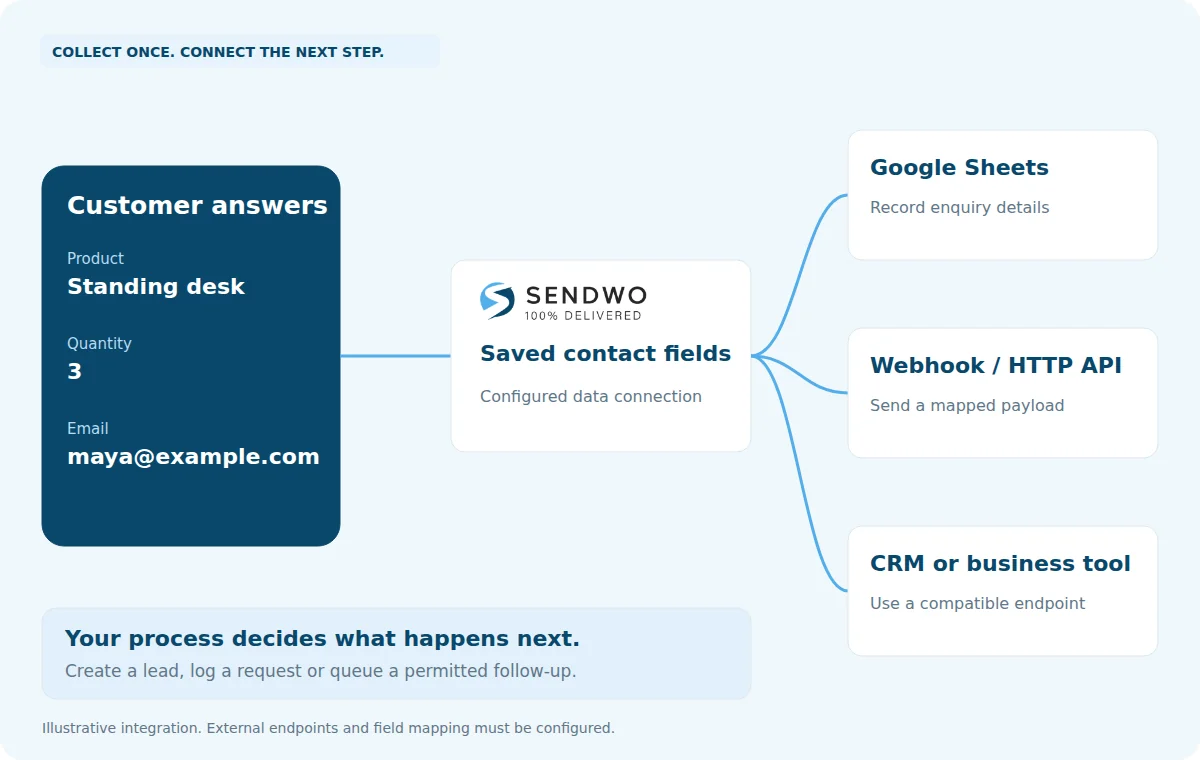
Use collected answers to feed your existing process. Log an enquiry in Google Sheets or pass mapped fields through a webhook or HTTP API connection to a compatible business system.
Four channels. Purpose-built settings.
Use the same question-and-answer approach across your connected channels. Configure each channel with the options it supports.
Gather customer details in chat. Use supported multiple-choice, optional skip and date/time settings, with response reporting for the input flow.
Turn incoming DMs into structured information. Configure supported question-level labels and sequences alongside saved answers.
Build a guided intake conversation with reply validation and saved fields. Add internal question notes where available.
Build around the information you need
Choose the questions that move a real task forward. These examples show how collected answers can feed a configured workflow.
Ask about the service, budget and preferred timeline before someone from your team follows up.
Example destination: CRM lead via APIGather the product, quantity and delivery details for your team to confirm an order.
Example destination: Order request sheetAsk for the order reference and a description of the issue before handing over to support.
Example destination: Ticketing tool via webhookCollect the course, experience level and preferred contact details for an admissions conversation.
Example destination: Admissions spreadsheetAsk focused questions after a purchase or service, then review the collected responses.
Example destination: Feedback reportAsk which service the customer needs and their preferred date before the booking step.
Example next step: Configured appointment flowMeet Sendwo customers
Meet the people behind these customer stories, from dairy updates and resort enquiries to learner reminders.

Dhillon Dairy uses Sendwo for WhatsApp broadcasts, product information, customer updates and follow-up with buyers.


PamV Estates uses AI-powered chat support to answer frequent guest questions and help handle enquiries generated through its campaigns.


EZ35 uses Click-to-WhatsApp conversations with automated replies and lead handling so incoming interest has a clear next step.


Aura International uses WhatsApp workflows for class communication, learning-session updates, reminders and student follow-up.

Questions, answered
Understand the questions, saved fields and connected actions.
Flow Builder is the drag-and-drop interface for arranging messages and automation. User Input Flow is a specific data-collection sequence within that interface: it asks questions, waits for responses and saves the answers.
No. User Input Flow collects answers through messages in a conversation. A native WhatsApp form opens a structured form screen inside WhatsApp. Sendwo supports both, for different experiences.
User Input Flow supports WhatsApp, Instagram, Facebook Messenger and Telegram. Configure each channel separately and check the available question types and actions for that channel.
Open User Input Flows in the dashboard and select the eye icon for the relevant flow. In the subscriber view, open the Input Flows tab to review saved answers.
Yes. Use a configured Google Sheets connection or map collected fields to a supported webhook or HTTP API request. The destination tool needs a compatible integration or endpoint.
You can arrange and configure the questions visually. An external API connection may require technical help with authentication, endpoint details and field mapping.
No. Format validation checks the type of answer. It does not prove ownership, identity or deliverability. Use a separate verification process if your workflow requires one.
You can collect the service and date preferences before a booking step. Confirmed time slots, availability and payment settings belong to the appointment-booking configuration.