External HTTP API Integration in SendWo
Learn to set up External HTTP API Integration in SendWo to automate and personalize WhatsApp chats.
 By Snehil Prakash
Published: October 26, 2025
4 min read
By Snehil Prakash
Published: October 26, 2025
4 min read
Learn to set up External HTTP API Integration in SendWo to automate and personalize WhatsApp chats.
With SendWo, you can seamlessly connect any external systems to your WhatsApp chatbot, automate workflows, and deliver smarter, data-driven conversations. This guide walks you through the entire process with every single setup to map responses, so you can make your WhatsApp automation truly powerful.
Understanding External HTTP API Integration in SendWo
SendWo’s HTTP API Integration allows your WhatsApp chatbot to communicate with any third-party application that provides an API. Your chatbot can send data, retrieve information, or trigger actions across platforms like WordPress, Shopify, Google Sheets, Zoho CRM, or any custom app.
For example:
- Fetch live product details from WooCommerce and display them in WhatsApp.
- Push submission of forms directly to your CRM.
- Retrieve order status or customer details dynamically.
The possibilities are endless, and all without writing a single line of code.
Step-by-Step Guide: How to Set Up External HTTP API Integration in SendWo
Step 1: Access the HTTP API Section
- Log in to your SendWo Dashboard.
- From the left-side menu, navigate to Integrations > HTTP API.
- Now, click “Create New API Connection.”
This is the step that will help you to configure how your chatbot interacts with an external service.
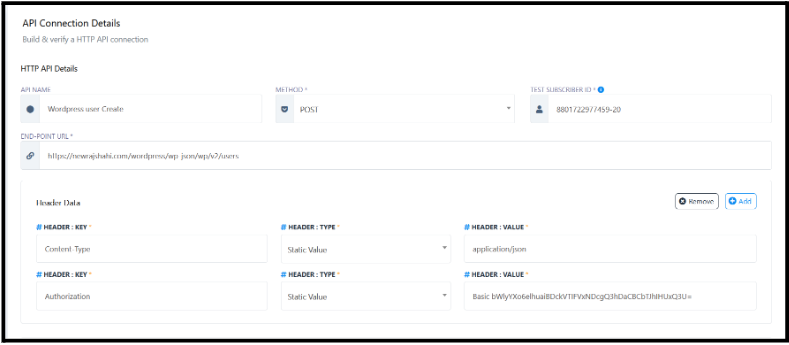
Step 2: Add API Connection Details
This step will help you define the key connection parameters that are stated below:
- API Name: Enter a recognizable name (e.g., “Add Lead to Zoho CRM”).
- Method: Choose the appropriate HTTP method required by your external API - GET, POST, PUT, or DELETE.
- Endpoint URL: Enter the full API endpoint (e.g., https://api.zoho.com/v2/leads).
- Test Subscriber ID: Use a subscriber ID (you can copy your own phone number ID from the subscriber manager).
This helps SendWo simulate the API call for initial verification.
Step 3: Configure Request Headers
Headers define how your API communicates with the external system.
Common header examples include:
| Header Name | Value |
| Content-Type | application/json |
| Authorization | Bearer {your-access-token} |
If your API requires authentication, such as a Bearer Token or Basic Auth, include the correct credentials here.
Step 4: Configure Request Body (Optional)
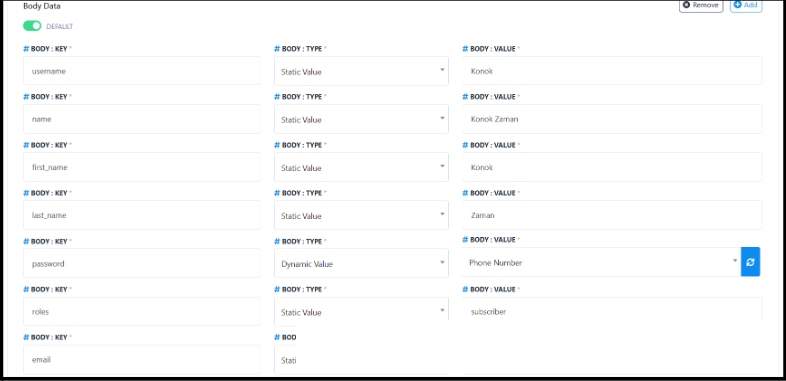
If your chosen API requires sending data (typically for POST or PUT requests), configure the request body.
You can:
- Add fields like name, email, phone, or order_id.
- Choose whether each field is a static value or a dynamic value (captured from the user’s chat input).
- Switch between Form Data, X-WWW-FORM-URLENCODED, or Raw (JSON) formats, depending on the API type.
Step 5: Save and Verify the Connection
Once you’ve configured all the details required:
- Begin by selecting “Verify Connection” to send a test request.
- Now, sendWo will check if the endpoint and the credentials are valid or not.
- When successful, you’ll see a confirmation message pop up.
- Finally, click on “Save API” to store your integration.
Tips: If, for any reason, verification fails, always double-check the endpoint URL, authorization token, and request format.
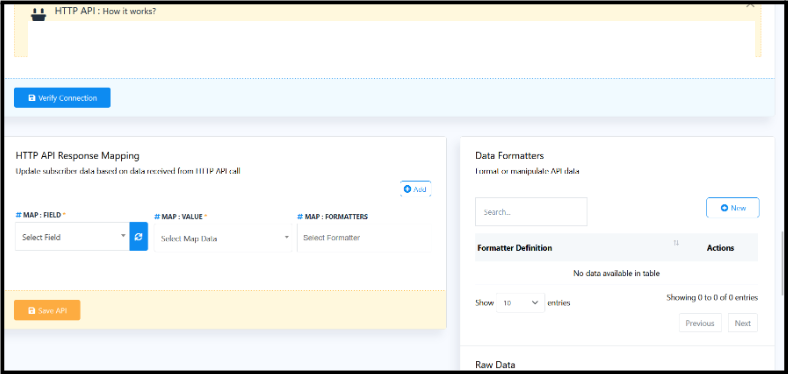
Step 6: Map API Response Data
Once the connection is verified, it’s time to map the response so your chatbot can interpret and use it.
Turn this learning into your next WhatsApp campaign.
Start with Sendwo’s free plan, explore WhatsApp broadcasts, automation, AI chatbot flows, and upgrade only when your business needs more power.
For instance:
If the API returns a response like:
{
"status": "success",
"user_id": "12345",
"email": "john@example.com"
}
You can map user_id and email to SendWo’s subscriber fields or use them in later messages.
SendWo also allows you to save JSON responses as list items, making it easy for you to build dynamic interactive messages (like displaying a list of WooCommerce products inside WhatsApp).
Step 7: Use in Flow Builder
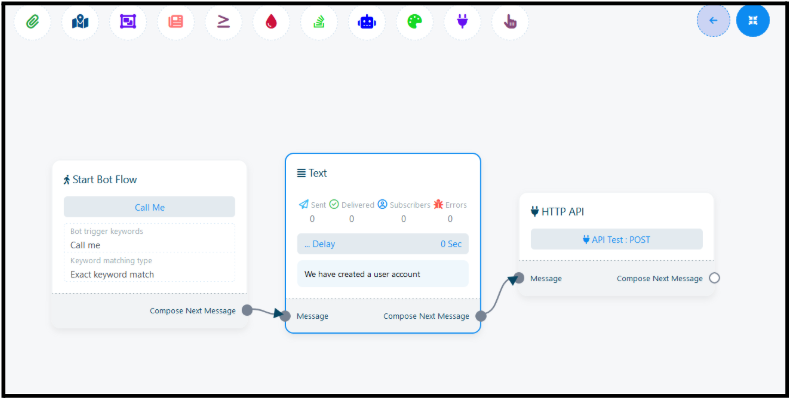
Now comes the part where you will be using your integrated API directly in SendWo Flow Builder.
- Open your desired chatbot flow.
- Add an element called HTTP API at the desired step.
- Choose the API connection you created earlier.
- Define when and how the API should trigger (e.g., after a user selects an option or fills a form).
The API will automatically execute during the conversation, passing and retrieving data in real-time.
Conclusion
SendWo’s External HTTP API Integration lets your WhatsApp chatbot do much more than just respond. It helps you connect with other platforms, automate tasks, and create personalized experiences for your customers.
With this setup, you can build end-to-end conversational journeys that pull live data, push customer information, and create intelligent workflows, all inside WhatsApp.
1. What types of APIs can I connect to SendWo?
You can connect any RESTful API that supports standard HTTP methods (GET, POST, PUT, DELETE), including platforms like WordPress, WooCommerce, Google Sheets, Zoho CRM, or any custom web service.
2. Do I need coding knowledge to integrate APIs?
Not at all. No manual coding required for the SendWo interface.
3. Can I pass user input dynamically to APIs?
Yes, you can easily take the user inputs collected during a chat, like their name, email, or location, and pass them as parameters or in the request body when making an API call.
4. Is the data transfer secure?
Absolutely. All API requests in SendWo are transmitted securely using HTTPS protocols, which ensures data integrity and privacy.
Snehil Prakash
Snehil Prakash is an expert WhatsApp consultant with SendWo. He has expertise in implementing WhatsApp API for enterprise businesses and built automation, chatbot and AI powered solution.