How to Send Automated Shopify Order Notifications to WhatsApp
Send Automated Shopify Order Notifications to WhatsApp in seconds with SendWo with no code needed, real-time updates, and higher sales.
 By Snehil Prakash
Published: October 28, 2025
5 min read
By Snehil Prakash
Published: October 28, 2025
5 min read
Send Automated Shopify Order Notifications to WhatsApp in seconds with SendWo with no code needed, real-time updates, and higher sales.
When you run an online store, speed and communication are everything. In today’s digital era, even your customers expect instant updates about their orders, right after checkout. That’s where SendWo’s WhatsApp automation comes in. Here, SendWo is a game-changer that has the ability to integrate seamlessly with Shopify, enabling you to send automated WhatsApp order notifications the moment an order is placed, confirmed, or shipped.
Our tutorial guide will help you learn how to connect your Shopify store with SendWo and automatically send WhatsApp notifications for every order, without writing a single line of code.
How to Set Up Shopify Order Notifications
SendWo offers two methods to automate Shopify order notifications:
- Method 1: Using Shopify Automation (pre-built integration)
- Method 2: Using Webhooks Workflow (custom automation)
Let’s go quickly step by step.
Method 1: Using Shopify Automation
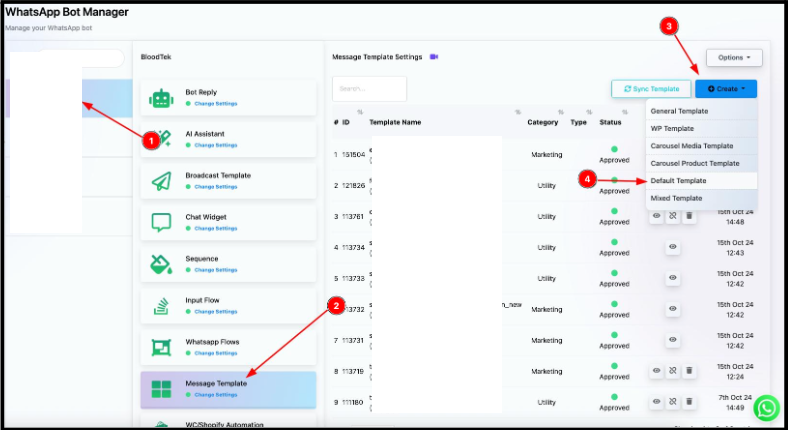
Step 1: Access the Bot & Template Settings
- Log in to your SendWo Dashboard.
- From the left menu, navigate to Chatbot Manager > WhatsApp Bot.
- Choose the WhatsApp bot you want to use for sending notifications.
- Inside the bot settings, now, scroll down to Message Templates, where you can manage pre-approved templates used for WhatsApp notifications.
Step 2: Sync or Create a New Template
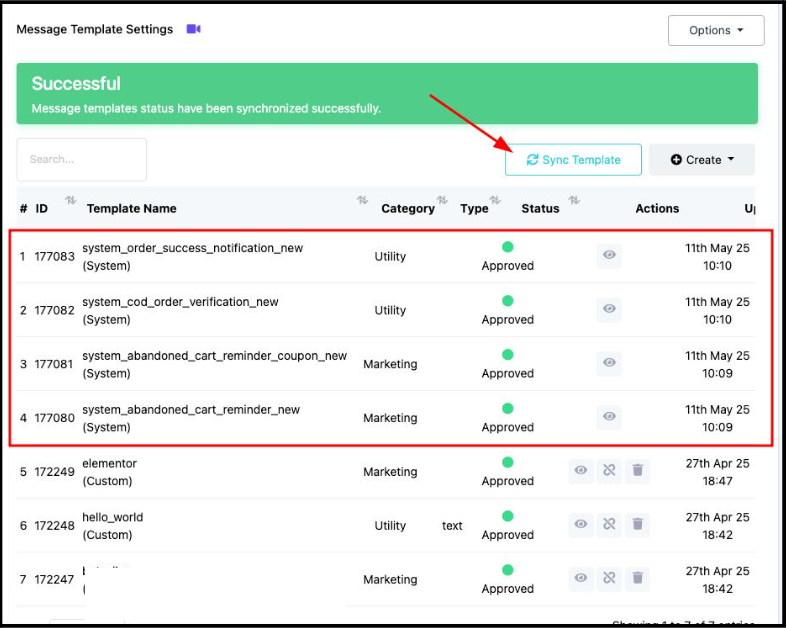
You can either opt for any of the 2 options provided below:
- You can sync existing templates from your WhatsApp Business API account, or
- You can create a new template using SendWo’s Template Manager.
To create one:
- Click Create Template.
- Choose the type (e.g., “Default” or “System Template”).
- Add variables like {{customer_name}}, {{order_number}}, and {{product_list}}.
Step 3: Configure Shopify Automation
- Go to WooCommerce/Shopify Automation inside SendWo.
- Click Create New Automation.
- Select Shopify as the store type.
- Choose Order Notification as the action.
- Set Message Delay to 0 minutes for immediate message delivery.
- Select your WhatsApp Template (e.g., order_confirmation_message).
- Click Save to finalize the setup.
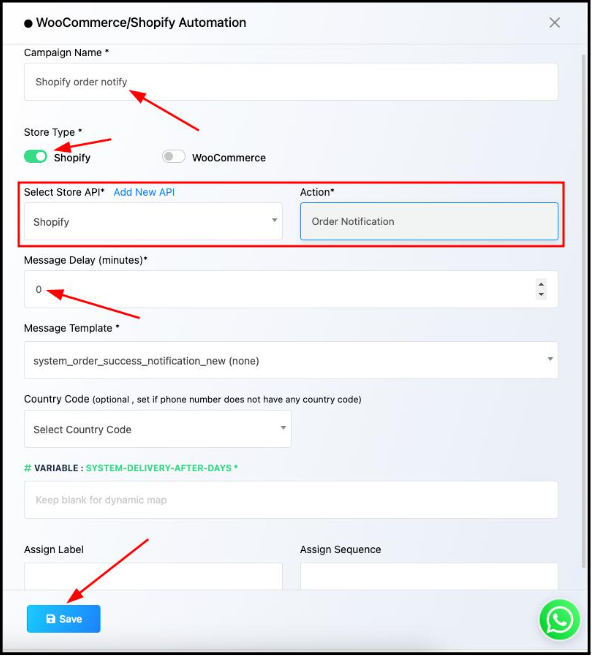
Once the above steps are done, SendWo will automatically send a WhatsApp message to customers the moment an order is created in Shopify.
Method 2: Using Webhook Workflow
If you prefer more control or want to include custom data, use SendWo’s Webhook Workflow.
Step 1: Create a WhatsApp Webhook Workflow in SendWo
- From your SendWo dashboard, navigate to Webhook Workflow.
- Click Create.
- Name it something like “Shopify Order Notification.”
- Select the WhatsApp account that should send the messages.
- Choose or create a pre-approved Message Template.
- Click Create Workflow to generate it.
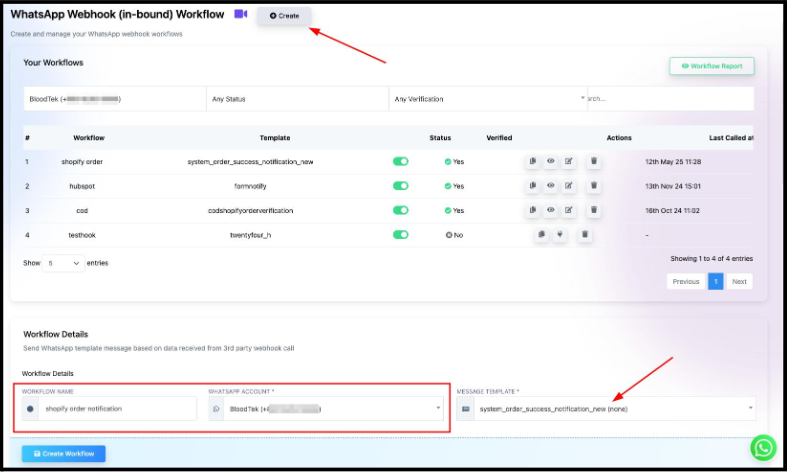
Step 2: Copy the SendWo Webhook URL
- After creating, you’ll be able to see a Webhook Callback URL.
- Copy this, and it’s where Shopify will send order details when a new order is created.
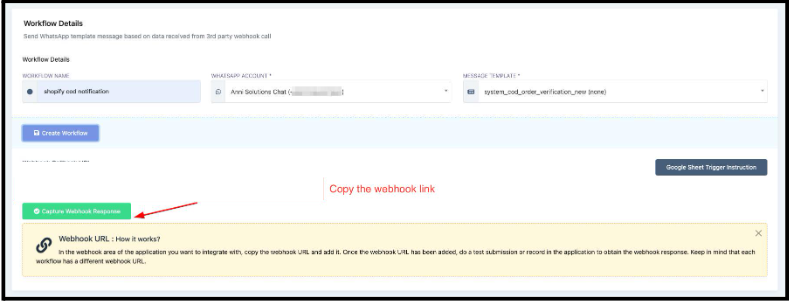
Step 3: Add the Webhook in Shopify
- Log in to your Shopify Admin.
- Navigate to Settings > Notifications > Webhooks.
- Click Create Webhook.
- Choose Event: Order creation.
- Format: JSON.
- Paste your SendWo Webhook URL.
- Keep the API Version as the Latest Stable Version.
- Click Save.
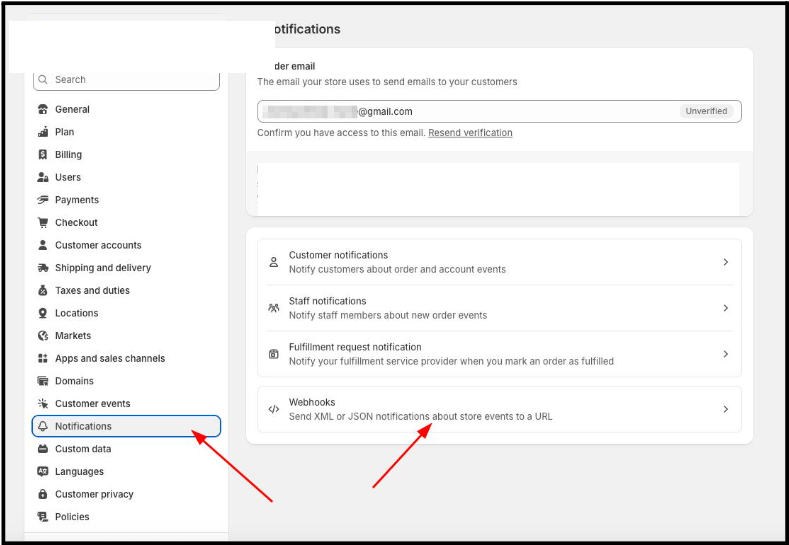
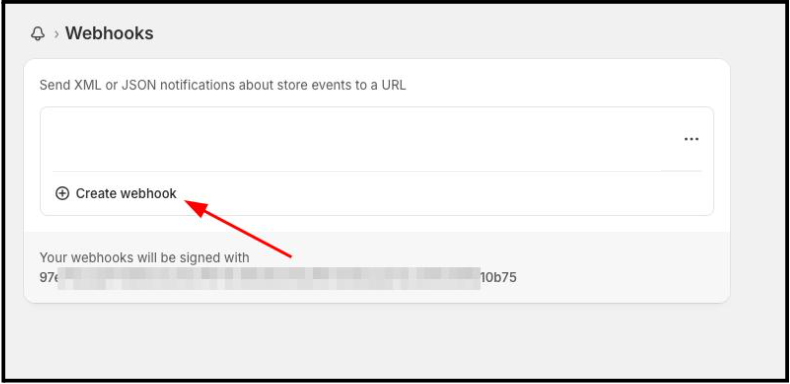
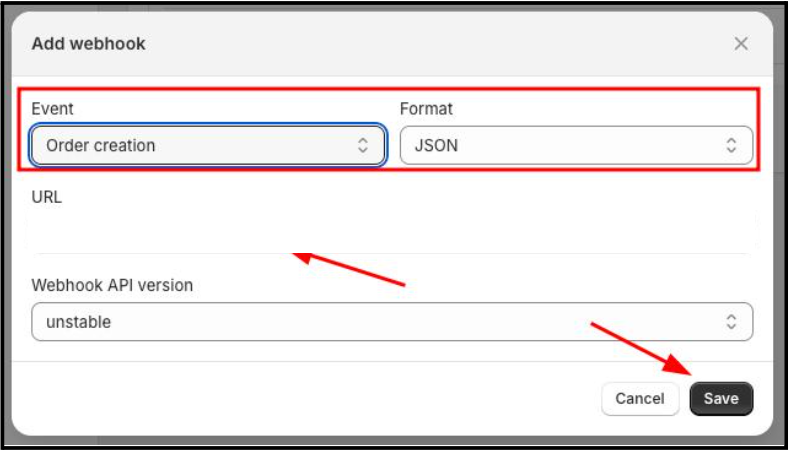
Your Shopify store will now send every new order’s data to SendWo instantly.
Step 4: Map Webhook Data in SendWo
- Go back to your SendWo Webhook Workflow.
- Click the workflow name.
- Hit Capture Webhook Response.
- Trigger a test order in Shopify or click Send Test from the Webhook settings.
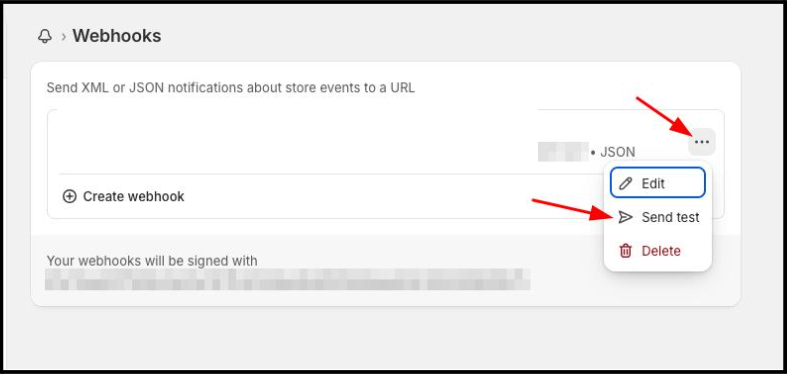
Once SendWo captures the data, map the relevant fields:
- Phone Number → Customer phone field
- Name → Customer name variable
- Product List → Order items
- Order Number → Unique order ID
You can also use SendWo’s Data Formatter to clean or format values before sending them in WhatsApp messages.
Turn this learning into your next WhatsApp campaign.
Start with Sendwo’s free plan, explore WhatsApp broadcasts, automation, AI chatbot flows, and upgrade only when your business needs more power.
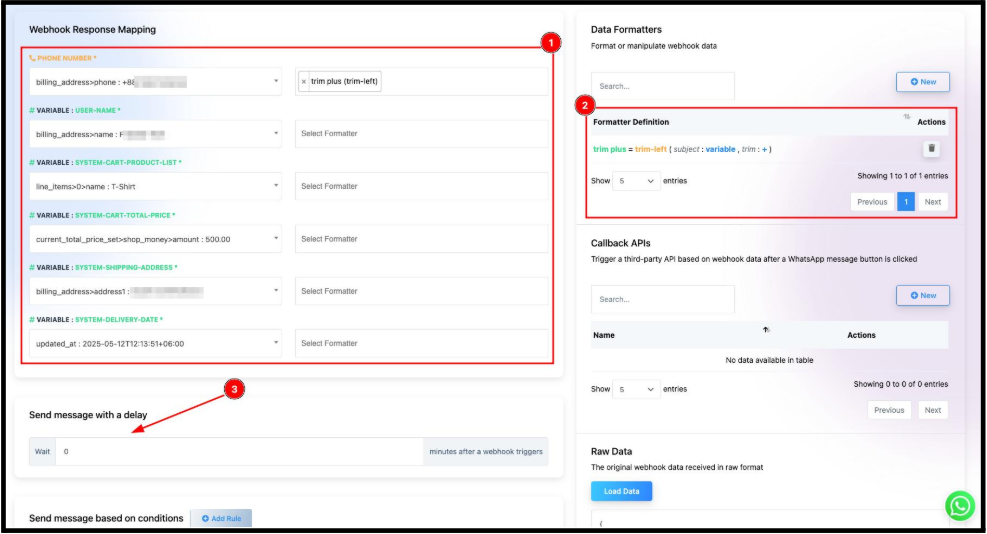
Set Delay = 0 minutes for instant notifications.
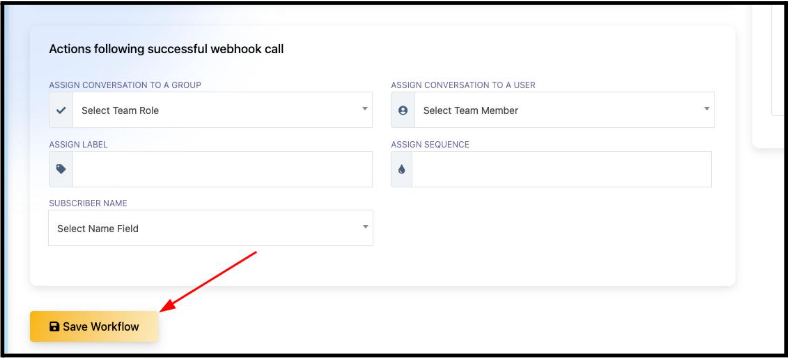
Optionally, you can trigger additional actions — like assigning labels or routing conversations to specific agents.
Step 5: Save and Test
- Click Save Workflow in SendWo.
- Place a test order on Shopify.
- Confirm that a WhatsApp message is sent to your customer instantly with all order details.
Step 6: Track and Monitor
You can view message delivery analytics in SendWo > Webhook Workflow > Reports:
- Sent
- Delivered
- Read
- Skipped
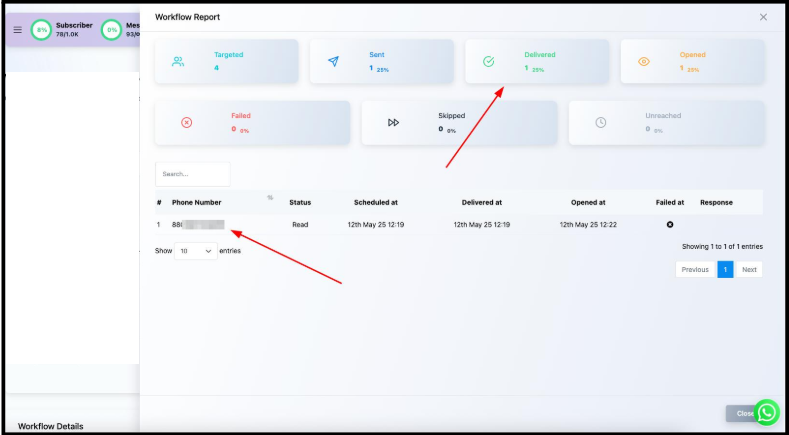
This helps track campaign performance and ensure message reliability.
Example of Shopify WhatsApp Order Notification
After setup, your customers will receive order notifications similar to the image that has been illustrated below:
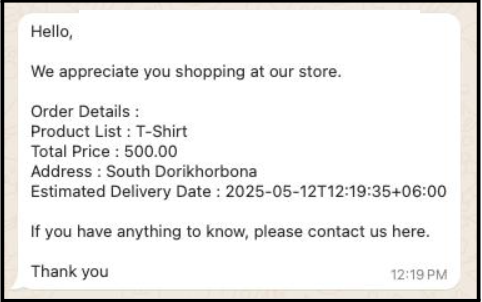
SendWo ensures such personalized notifications reach your customers instantly with no coding and manual effort.
Conclusion
Automating Shopify order notifications with SendWo not only saves time but also enhances customer experience and builds lasting brand trust. With just a few clicks, all your customers will receive real-time order confirmations, payment updates, and shipping alerts directly on their WhatsApp.
So, why wait!
Start automating today and turn every order into an opportunity for stronger engagement.
1. Do you need a WhatsApp Business API account for SendWo?
Absolutely. You need a verified WhatsApp Business API connected to SendWo to send template-based notifications.
2. What happens if the webhook fails?
If Shopify fails to send data, the message won’t trigger. So always check Shopify Webhook Logs and SendWo Workflow Logs to troubleshoot.
3. Can you send other updates, like shipping or refund notifications?
Yes. You can create additional workflows for different events, such as Order Fulfilled, Refund Created, etc.
4. How fast will the message be delivered?
Typically, within 2-3 seconds after the order is created. Depending on WhatsApp’s API queue.
5. Is this feature available on all SendWo plans?
Shopify automation is available on SendWo Pro and Enterprise plans. Check your plan or contact support for details.
Snehil Prakash
Snehil Prakash is an expert WhatsApp consultant with SendWo. He has expertise in implementing WhatsApp API for enterprise businesses and built automation, chatbot and AI powered solution.