How to Create WhatsApp Message Templates in SendWo Dashboard
Create WhatsApp message templates in SendWo dashboard with ease and automate your customer notifications, marketing, and support instantly.
 By Snehil Prakash
Published: October 16, 2025
4 min read
By Snehil Prakash
Published: October 16, 2025
4 min read
Create WhatsApp message templates in SendWo dashboard with ease and automate your customer notifications, marketing, and support instantly.
WhatsApp message templates are the pre-approved message formats that let your business send notifications outside the standard 24-hour support window. These templates ensure your messages comply with WhatsApp policies and get delivered reliably. And with SendWo’s dashboard, it’s easy to craft and manage these templates.
So follow the steps below to set up a WhatsApp template, and start automating your customer communications in minutes.
1. Access the Template Manager in SendWo
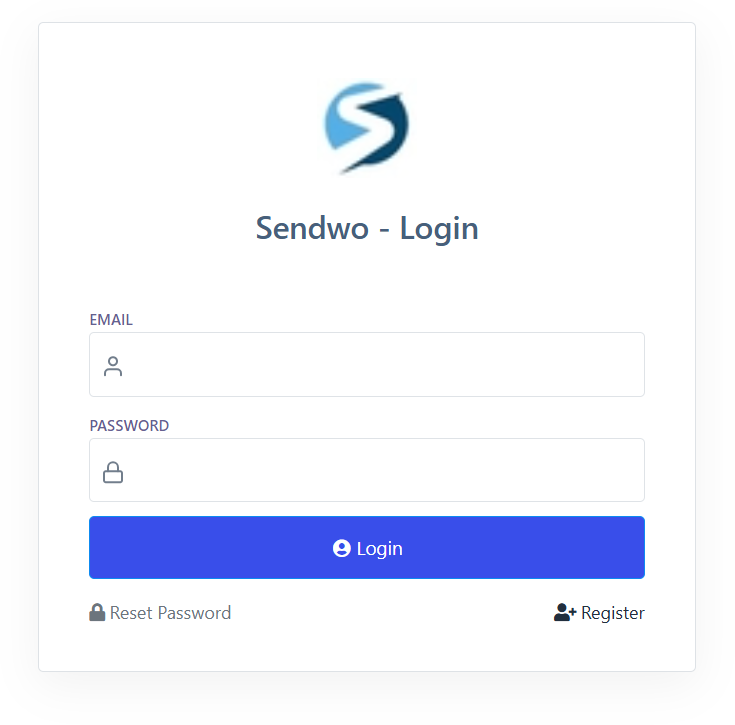
a. Log In: Visit SendWo’s dashboard and enter your credentials.
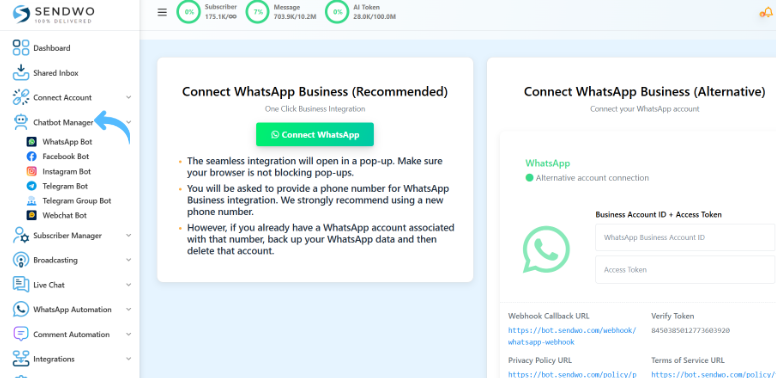
b. Navigate to Chatbot Manager: After logging in to the dashboard, you can find the Chatbot Manager on the left side of the screen.
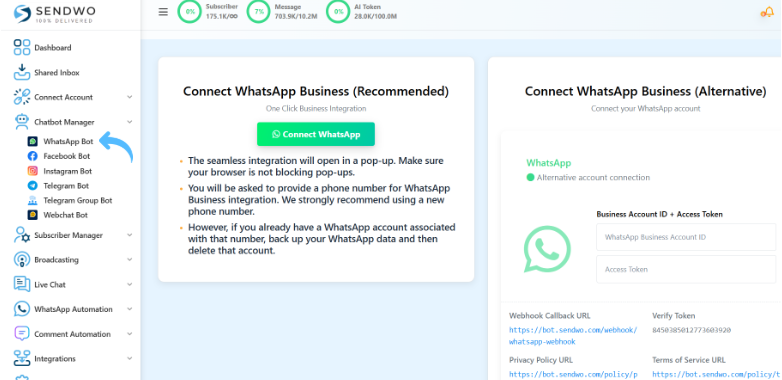
c. Select WhatsApp Bot: Under Chatbot Manager, select WhatsApp Bot from the sidebar.
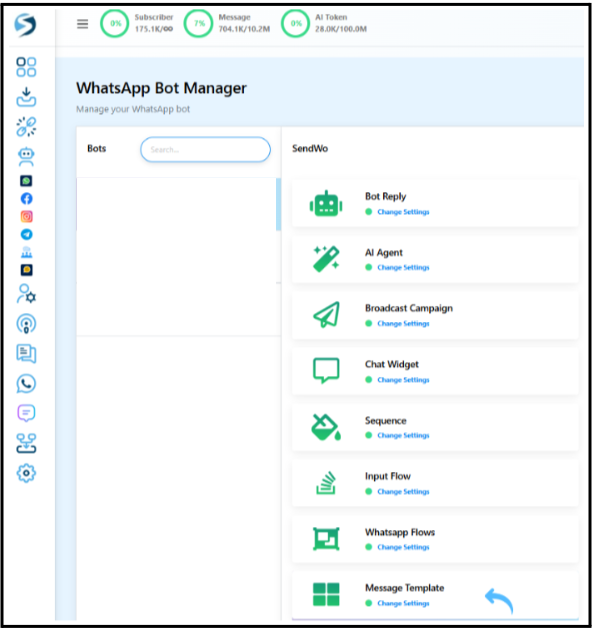
d. Click “Message Templates”: Slide up and click “Message Templates”.This opens the template creation and management screen.
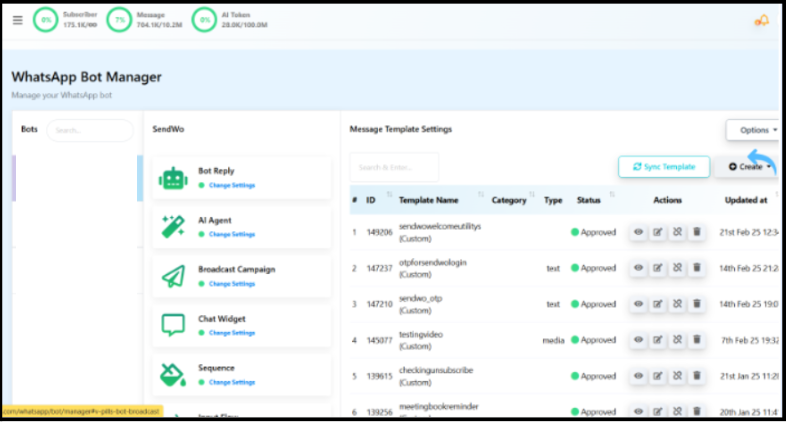
Now you’re in the Template Manager, ready to create a new WhatsApp template.
2. Start Template Creation
Once you’re in the Message Templates section, begin a new template by just clicking the Create button. You can usually find it at the top-right of the page. This will launch a form where you will enter all the details of your template. Click "Create," and the template creation form will appear.
3. Template Selection and Setup
The most important step is filling in the text and choosing the right category and header for your template. WhatsApp classifies templates as Utility, Marketing, or Auth/OTP. Pick the category that matches your message purpose (e.g., Marketing for promotional offers, Auth/OTP for one-time passcodes, Utility for alerts and notifications). You can also optionally add a header, such as an image, video, or document. This is totally optional.
Turn this learning into your next WhatsApp campaign.
Start with Sendwo’s free plan, explore WhatsApp broadcasts, automation, AI chatbot flows, and upgrade only when your business needs more power.
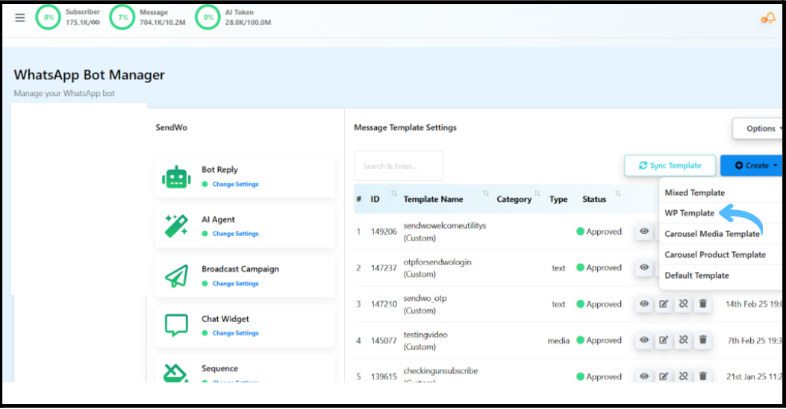
Tips: Choosing the right category and header helps WhatsApp approve your template and ensures it fits your campaign.
4. Essential Template Details
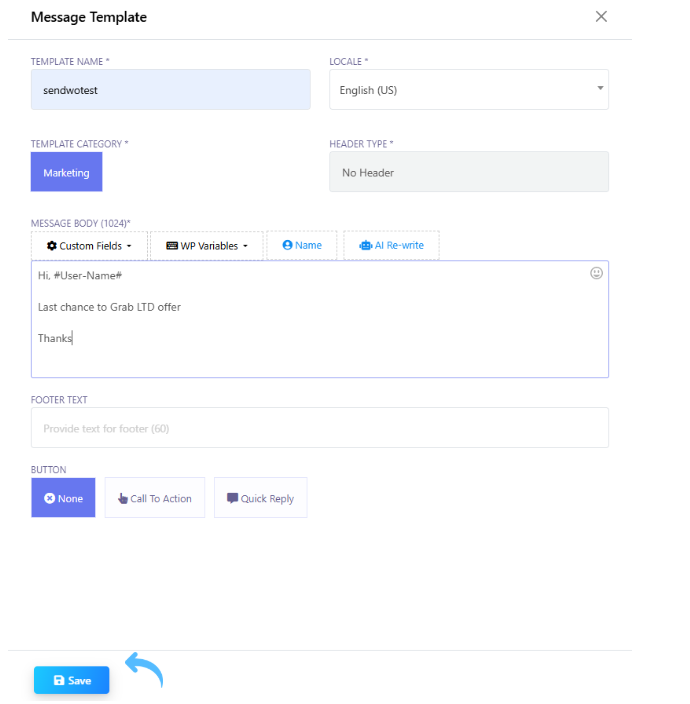
Fill out all the mandatory fields carefully while going through template form creation. Essential details to enter are given below for easy understanding:
- Template Name: Assign a unique identifier to your template in lowercase (without spaces). For instance, welcome_offer or order_update.
- Locale: Choose the language/locale for the template
- Template Category: Select one of Marketing, Utility, or Auth-OTP to classify your template as per the purpose.
- Header Type: If you want a header, pick Text, Image, Video, or Document from the dropdown. This is optional.
- Message Body: Enter the main content of your message(max 1024 characters). Be clear and concise. You can personalize the text by inserting template variables.
- Footer Text: You may add a short footer for extra info or disclaimers. This is also optional.
- CTA (Call To Action) Button: If you want recipients to take an action, enable the Call To Action option. This may be like “Visit Website” or “Call Now”.
- Quick Reply Button: Alternatively, enable Quick Reply to add a prompt button (e.g., “Confirm” or “Help”). These are predefined replies for faster user response.
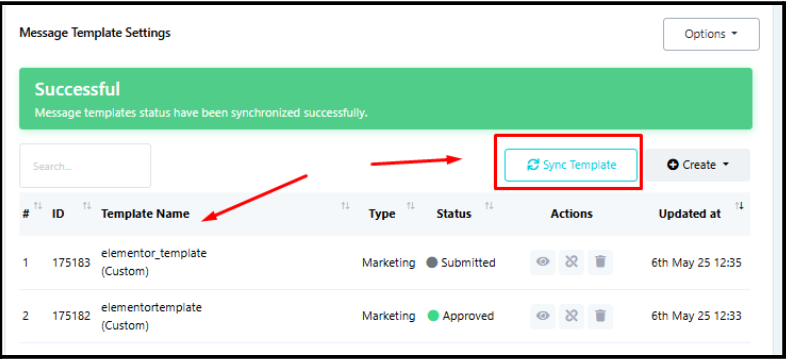
Clicking the sync button in the WhatsApp template section instantly fetches and updates your existing templates from the WhatsApp server or connected platform, ensuring you see the latest status and ready-to-use versions for communication flows.
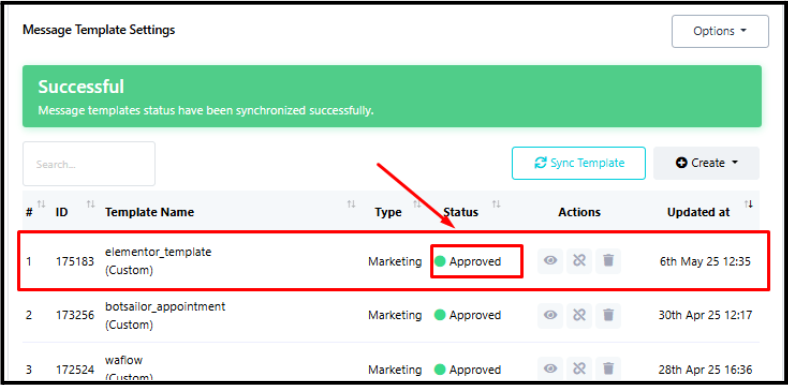
After filling all the fields completely, click Save. The template you created on SendWo’s dashboard will be submitted to WhatsApp for approval. It will appear in the list with status “Submitted”. It typically takes minutes or hours for WhatsApp to review templates. You can track the status using the Check Status button in the dashboard. Once approved, the status will change to “Approved,” and you can start using the template in broadcasts or automated flows.
With SendWo, you can streamline marketing campaigns and customer support on WhatsApp without any coding required.
So why wait? Start automating your messages today!
1. What template categories are available?
WhatsApp defines three template categories: Utility, Marketing, and Auth/OTP. Choose Utility for general information (e.g., alerts or notifications), Marketing for promotional content, and Auth/OTP for authentication messages (like login codes).
2. What’s the difference between CTA and Quick Reply buttons?
CTA (Call-To-Action) buttons prompt an external action: for example, “Visit Website” (opens a URL) or “Call Now” (dials a phone number). Quick Reply buttons simply send a quick predefined response text back to the business (e.g., “Yes” or “Support”).
In SendWo’s template form, you can add one CTA button or one Quick Reply button as needed.
3. How can I check if the template is approved?
After saving a template, its status will show as Submitted. Once reviewed by WhatsApp (which can take a few minutes to hours). In SendWo, use the Check Status button next to the template to refresh its approval status. Once WhatsApp approves it, the status will change to Approved, and the template is ready for use.
Snehil Prakash
Snehil Prakash is an expert WhatsApp consultant with SendWo. He has expertise in implementing WhatsApp API for enterprise businesses and built automation, chatbot and AI powered solution.