Frustrated by missing WhatsApp photos? Many users with billions of active WhatsApp account worldwide face the problem of sent or WhatsApp Images Not Showing in Gallery. This can happen on both Android and iPhone. The good news is that it’s usually due to a minor setting or glitch, and you can fix it yourself. In this post, we’ll explore why WhatsApp Images Not Showing in Gallery and give you step-by-step solutions to get them back. We’ll also answer common user questions and offer tips to prevent this issue in the future.
WhatsApp doesn’t save images to the usual photo folders by default – it uses its own directory. As Lifewire explains, downloaded WhatsApp pictures and videos are stored in a WhatsApp folder (in internal storage on Android, or in Albums on iPhone) rather than the generic “Downloads” or “Pictures” folder. If your device isn’t set up to display that folder or auto-save media, your images can seem to disappear. Other common culprits include disabled settings, lack of storage space, missing permissions, or even a hidden .nomedia file in the WhatsApp folder. We’ll cover all these points next.
1. Why WhatsApp Images Not Showing in Gallery
Media Visibility / Auto-Download is Off. On Android, WhatsApp has a Media Visibility toggle (under Settings > Chats) that controls whether downloaded media shows in your Gallery. If this is turned off, your images won’t appear. Similarly, if auto-download settings or “Save to Camera Roll” (on iPhone) are disabled, photos won’t automatically save. (Learn how to enable these in the fixes below.)
Checking the Wrong Folder. WhatsApp stores images in a dedicated folder. As Lifewire notes, downloaded WhatsApp media isn’t in the standard photo albums – it lives in a WhatsApp folder on your device. If you browse only the main Gallery, you might miss it. Use your file manager to navigate to Internal Storage > WhatsApp > Media > WhatsApp Images (Android) or check the Photos “Albums” on iPhone. Also, make sure “Show hidden files” is enabled in your file manager, as hidden .nomedia files can hide folders from WhatsApp Images Not Showing in Gallery apps.
App Permissions and Privacy Settings. If WhatsApp lacks permission to access storage or photos, it can’t save images to your WhatsApp Images Not Showing in Gallery. On Android, check Settings > Apps > WhatsApp > Permissions and ensure Storage (or Files & Media) is allowed. On iOS, go to Settings > Privacy & Photos and set WhatsApp’s access to “Read and Write” or “Full Access”. Also, WhatsApp privacy settings let you hide media for specific chats; if you chose “No” under Media Visibility for a contact, pictures from that chat won’t show.
Insufficient Storage or Network Issues. If your phone is almost full, WhatsApp won’t save new media. Check Settings > Storage on your device and clear space if needed. Likewise, a weak or paused internet connection can prevent images from downloading. As Cashify notes, interruptions in Wi-Fi or mobile data are common causes of WhatsApp media failing to load. Ensure you have a stable connection (and try toggling Airplane mode on and off) so WhatsApp can fetch the images properly.
Damaged SD Card or Storage Glitches. If you use an SD card for storage, a corrupted or read-only SD card can block media from being saved. Test this by temporarily switching WhatsApp to internal storage (or vice versa) in Settings. It might also just be a temporary glitch in the app or phone. Often restarting your device or updating WhatsApp solves these random errors.
Each of the above issues can hide images from your WhatsApp Images Not Showing in Gallery. Next, let’s fix the problem with simple steps.
2. How to Make WhatsApp Images Show in Gallery
Follow these steps to restore missing WhatsApp photos. You don’t need any tech skills — just tap a few settings, restart apps, or manage storage. We’ll cover both Android and iPhone where applicable.
Enable Media Visibility (Android) or Save to Camera Roll (iPhone).
On Android: Open WhatsApp → Settings (⋮ menu) → Chats → Media visibility and turn it On. Also in Settings > Storage and Data, ensure auto-download is enabled for images under Wi-Fi or mobile data.
On iPhone: Open WhatsApp → Settings (gear icon) → Chats → toggle on “Save to Camera Roll”. This ensures new photos land in your iPhone’s Camera Roll. After changing these, exit WhatsApp and have someone send you a new photo. Check WhatsApp Images Not Showing in Gallery again — it should now show up.
3. Grant Storage/Photos Permission.
On Android: Go to Settings > Apps > WhatsApp > Permissions. If Storage (or Files & media) isn’t allowed, tap and select Allow.
On iPhone: Go to Settings > Privacy & Security > Photos and select WhatsApp. Choose “Add Photos” or “All Photos” to give full access. Granting these permissions lets WhatsApp save images to your device.
Restart WhatsApp and Your Phone. Sometimes the solution is as simple as a reboot. Close WhatsApp completely (swipe it off recent apps) and restart your phone. This refreshes system processes and can clear temporary glitches. Cashify and AirDroid both note that quick restarts often resolve download hiccups. After restarting, ask someone to resend a photo or try downloading it again.
Update WhatsApp to the Latest Version. An outdated app can have bugs. Go to the Google Play Store or Apple App Store, find WhatsApp, and hit Update if available. Updating fixes known issues and ensures compatibility with your phone’s OS. Once updated, reopen WhatsApp and check if images now appear.
Clear WhatsApp Cache (Android Only). Cached data can get corrupted over time. On Android, you can clear the app cache without losing chat. Go to Settings > Apps > WhatsApp > Storage & Cache (or Storage), then tap Clear Cache. (On iOS there’s no direct cache clear; instead you’d have to reinstall WhatsApp, which is more disruptive.) Clearing cache often fixes media display bugs.
Delete Hidden “.nomedia” Files (Android). An accidental .nomedia file in your WhatsApp folders will hide all images from the WhatsApp Images Not Showing in Gallery. To fix this, use a file explorer to navigate to WhatsApp/Media/WhatsApp Images (and subfolders) and delete any .nomedia files. Then restart your phone so the gallery re-scans the folder. As one Android forum answer explains, deleting the .nomedia file and rebooting forces the WhatsApp Images Not Showing in Gallery to index those images again.
Free Up Storage Space. If your device is low on storage, new photos can’t be saved. Go to Settings > Storage and delete unneeded apps, videos, or downloads. You can also move photos to the cloud (Google Drive or iCloud) or an SD card. Once space is available, WhatsApp should be able to download and save images normally.
After each step, check your phone’s WhatsApp Images Not Showing in Gallery for the missing images. In many cases, one of these fixes will make your WhatsApp photos reappear. If you still have trouble, try manually moving the images:
4. Prevent Future Image Issues on WhatsApp
To avoid this problem later, keep these best practices in mind:
Keep WhatsApp and Your OS Updated. Regular updates patch bugs. Enable auto-updates for WhatsApp in your app store, and keep your phone’s operating system up to date.
Enable Automatic Backups. Turn on WhatsApp backups (Settings > Chats > Chat Backup) to save photos to Google Drive or iCloud. This way you won’t lose images even if your WhatsApp Images Not Showing in Gallery misses them.
Regularly Clear Cache/Storage (Android). Periodically clear WhatsApp’s cache in Settings and free up space. This prevents data corruption.
Check Settings When Changing Devices. If you switch phones, remember to enable “Show hidden files” and copy the WhatsApp Media folders, so old images don’t get hidden.
Taking these steps helps ensure you won’t wake up one day to find your precious photos gone.
Conclusion
Don’t let missing photos spoil your WhatsApp experience. In most cases, enabling the right settings and giving WhatsApp the permissions it needs will make all your images visible again. Follow the steps above to troubleshoot and fix your gallery issues.
If you rely on WhatsApp for business or marketing, even one lost image can be costly. For reliable WhatsApp messaging at scale, consider using a dedicated platform like SendWo. SendWo’s official WhatsApp Business API tools help you send images and other media seamlessly to thousands of customers, ensuring delivery. Get started with a free SendWo account today to streamline your WhatsApp communications and avoid these common pitfalls.
We hope these tips helped you find your WhatsApp photos again. Feel free to share which fix worked for you or ask questions in the comments below!
FAQ
Q1: Where are WhatsApp images on my phone?
Android: File Manager > WhatsApp > Media > WhatsApp Images. iPhone: Photos app (if "Save to Camera Roll" enabled).
Q2: Why aren't WhatsApp photos showing after download?
Check auto-download, media visibility, storage permissions. Restart phone after enabling.
Q3: Why did WhatsApp images disappear from gallery?
Settings > Chats > "Save to Camera Roll" ON > Photos access FULL > Restart.
WhatsApp is a global messaging powerhouse – over 3 billion people use it every month, exchanging more than 150 billion messages daily. Crucially, group chats dominate this usage: roughly 57.5% of all WhatsApp messages happen in group conversations. With well over 2 billion WhatsApp groups and 700+ million active participants every day, standing out in the crowd matters. The group name is often the first thing members see, and as Times of India notes, choosing the perfect chat name “adds a touch of personality, creativity, and cohesion to your conversations”. In this guide, we’ll explore creative and engaging WhatsApp group names, covering why they matter, tips for crafting them, top name ideas by category, and FAQs – so you can give your group the best name in 2025.
1. Why WhatsApp Group Names Matter
A clear, creative group name does more than label a chat – it sets the tone and theme of your group. When someone glances at the group list, a unique name gives them immediate context and invites engagement. For example, in a friends’ chat, a funny or themed name (like “The Meme Team” or “Late Night Legends”) can spark excitement and camaraderie before anyone even read the first message. In professional or event groups, a descriptive name (such as “Project Phoenix Team” or “Spring 2025 Conference”) helps everyone stay organized and on the same page.
Beyond clarity, a clever name can increase engagement and memorability. Groups with fun or meaningful names tend to spark curiosity – members feel more connected and are likelier to participate. Remember, millions of groups exist, so a standout name helps yours be memorable. As the Times of India highlights, clever puns or thoughtful expressions in group names offer “limitless possibilities”. In short, a great WhatsApp group name can keep members smiling and interacting, which is key whether you’re chatting with friends, family, teammates, or community members.
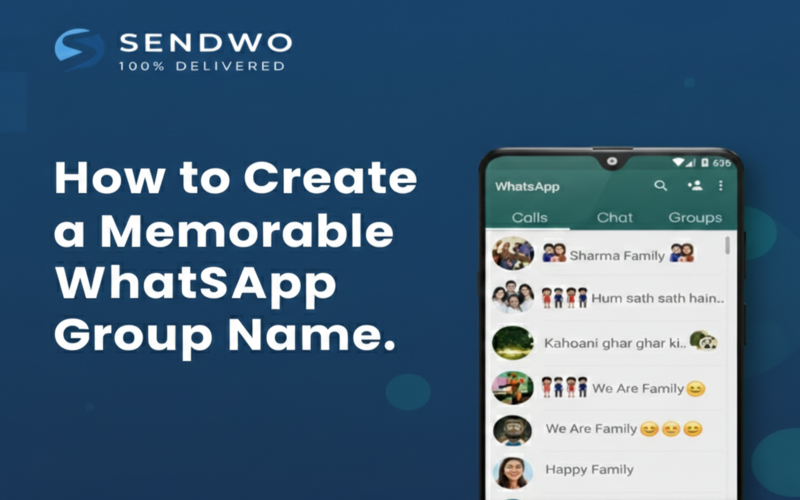
2. How to Create a Memorable WhatsApp Group Name
Crafting the perfect group name is part art and part strategy. Here are best practices to consider:
Reflect the Theme or Purpose: Choose a name that clearly hints at what the group is about. For a travel group, something like “Wanderlust Crew” or “Trip Planners” fits. For a study group, try “Exam Avengers” or “Brainiac Club”. This clarity helps members instantly recognize the group’s focus.
Keep It Short & Sweet: WhatsApp allows up to 100 characters in a group name, but shorter names are easier to read and remember. Aim for a concise name (around 20–30 characters) that rolls off the tongue. Short names also display fully on phones, whereas overly long titles may get cut off.
Use Humor and Puns: Funny or punny names grab attention. A little humor can set a lighthearted mood. For example, a friends’ chat could be “Gossip Gurus” or “Meme Dream Team”. For colleagues, a tongue-in-cheek name like “Conference Call Champions” or “Ctrl+Alt+Delete” might get a chuckle. Just be sure the humor is appropriate for the group’s audience.
Include Emojis for Flavor: Emojis are fully supported in group names. Adding a relevant emoji can make your group name pop. For instance, a book club could be “Bookworms ?”, or a foodie group could be “Snack Attack ??”. Emojis add personality and can convey theme visually.
Make It Inclusive and Positive: Avoid names that might alienate or offend. Keep it inclusive so every member feels welcome. Also avoid overly trendy slang that might date quickly. A timeless or universal theme will keep the name relatable over time.
Use Capitalization & Special Characters Sparingly: Capital letters or symbols (within reason) can make your name stand out (e.g. “Fun Factory!” vs “fun factory”). However, avoid excessive punctuation or unusual symbols that might confuse members or look unprofessional.
Check for Length & Clarity: After choosing a name, double-check it fits within WhatsApp’s 100-character limit and that it’s easy to understand at a glance. Avoid lengthy explanations or complex phrasing. A clear, catchy name will have more impact.
By following these tips – matching your group’s purpose, keeping it catchy, and adding creative flair – your WhatsApp group name can become a conversation starter in itself.
3. Top WhatsApp Group Name Ideas by Category
To spark inspiration, here are top 10 WhatsApp group name ideas in different categories. Use these examples as a starting point, or as templates you can tweak for your own group’s theme.
Funny Group Chat Names for Friends
These playful names inject humor and fun into any friends’ chat:
The Meme Team – Perfect for a group that loves sharing memes and jokes.
Giggle Gang – Great for a lighthearted, laugh-filled chat.
Late Night Legends – For friends who stay up chatting into the wee hours.
Squad Goals – A trendy name for a close-knit friend circle.
Chatterbox Club – Ideal for a chatty friend group.
Crazy Crew – Conveys fun chaos and excitement.
LOL Factory – Promises laughter in every message.
Pun Intended – Suggests a sense of humor and wordplay.
Forever Young – For friends who keep the spirit of youth alive.
Party Starters – Great for a group that loves to go out or celebrate together.
Example: If you have a group of college friends planning a reunion, something like “Late Night Legends” paired with a ? emoji could build excitement for late-night chats and plans.
Creative Names for Family Groups
Family groups often cover multiple generations, so choose names that feel warm and inclusive:
Family Circle – Simple and classic for any family.
Home Sweet Home – Conveys comfort and closeness.
Forever Kin – Emphasizes family bonds.
Home Team Heroes – Great for a sports-loving family.
Clan Conclave – A fun play on family gatherings.
Love & Laughter – A positive, feel-good name.
Roots & Wings – Suggests unity and support.
All in the Family – A friendly TV-show reference.
Kinship Connection – Emphasizes your family link.
Generations United – Highlights family legacy.
Example: A simple name like “The Johnsons Clan” (with a ? emoji) can create a sense of unity for family chats about gatherings or daily updates.
Cool & Trendy Names for Colleagues or Teams
For work or project groups, a professional yet fun name helps maintain focus and teamwork:
Task Force Alpha – Dynamic and mission-driven.
Project Powerhouse – Shows strength and collaboration.
Deadline Dynasty – A witty nod to meeting project deadlines.
Cubicle Crew – Casual and team-oriented.
Innovation Nation – Great for a creative team.
Meeting Mavericks – For those who make meetings productive.
Office Ninjas – Lighthearted, suggesting skill and stealth.
Goal Getters – Motivational for achieving targets.
Synergy Squad – Focuses on teamwork.
Brainstorm Brigade – For groups that love idea-sharing.
Example: A marketing team might use “Creative Catalysts” to highlight their role in sparking big ideas.
Catchy Names for Clubs & Interest Groups
If your group is based on a hobby or shared interest, pick a name that reflects that passion:
Wanderlust Warriors – For travel enthusiasts.
Bookworms United – A great name for a book club.
Fitness Fanatics – For a workout or running group.
Culinary Crew – For food lovers sharing recipes or restaurant tips.
Music Mania – Perfect for a band or music fan group.
Pet Pals – For a group sharing cute pet photos and tips.
Game On! – For video gamers or board game nights.
Green Thumbs – For gardening enthusiasts.
Example: A group of movie buffs might love a name like “Film Fanatics” paired with a ? emoji, making it instantly clear what they chat about.
4. Top 10 All-Purpose WhatsApp Group Names
Here are 10 versatile names that work for various group types (feel free to adapt them to your context):
The Chat Pack – Casual and fun for any group.
Dynamic Duo (or Trio, Squad, etc.) – Customizable to group size (“Dynamic Quartet”).
The A-Team – Conveys teamwork and camaraderie.
United Voice – For any community or interest group.
Digital Den – Modern-sounding and broad.
The Inner Circle – Implies an exclusive, tight-knit group.
Happy Campers – Cheerful and positive for any friendly group.
Circle of Trust – Suggests close friendship and confidentiality.
Connected Crew – Emphasizes the group’s bond.
Friendly Fire – A playful oxymoron, good for banter-loving friends.
Each of these can be modified or combined with emojis to fit your group’s vibe. For example, “The Chat Pack ?️” or “Happy Campers ?️” add extra flair.
Conclusion & Call to Action
Choosing the right WhatsApp group name is a small step with a big impact. A creative, relevant name sets expectations, builds excitement, and can even boost participation. Whether your group is for business, study, family, or fun, use the ideas above to craft a name that reflects your group’s personality. Be bold, keep it positive, and don’t be afraid to update the name as your group evolves – a fresh name can rekindle interest.
Ready to take your WhatsApp groups to the next level? With over 3 billion users worldwide, WhatsApp is a powerful platform – and managing it smartly can benefit both personal and business communication. If you’re looking to leverage WhatsApp for marketing or community engagement, consider usingSendWo’s tools to schedule messages, broadcast updates, and analyze engagement. By combining a catchy group name with tools like SendWo, you’ll keep your members informed and entertained, every day. Start a free trial of SendWo today and grow your WhatsApp presence with ease!
FAQs
Q1: How do I change WhatsApp group name?
Open group > Tap name > Edit (pencil icon) > Enter new name > Save. Admins only.
Q2: WhatsApp group name max length?
100 characters. Keep short (2-4 words) for readability + emojis.
Q3: Can I use emojis in group names?
Yes! "Movie Club ?" works perfectly. Counts toward 100-char limit.
Q4: How to create creative group names?
Use theme + puns/rhymes/emojis: "Laugh Lounge", "Fit Fam ?". Brainstorm with group.
Q5: What to avoid in group names?
Offensive words, too long names, misleading titles. Keep respectful + relevant.
Using WhatsApp Web at work or in a café is convenient – but what about privacy? Even though WhatsApp uses end-to-end encryption, your chat previews and contact details can be visible on-screen. A privacy extension for WhatsApp Web solves this by blurring or hiding sensitive elements. These browser add-ons act like a digital padlock on your chats, so prying eyes only see blurred shapes instead of your actual messages.
The WhatsApp Web interface (shown above) can be protected with privacy extensions. These tools blur chat, images, and contact info until you choose to reveal them.
1. Why You Need a WhatsApp Web Privacy Extension
Imagine working on WhatsApp in an open office or a shared space. A colleague or passerby might glance at your screen and see private conversations. In fact, India Today notes that if “someone passes by and catches a glimpse of our chats,” it can be awkward or worrisome. Privacy extensions solve this by automatically hiding chat previews and names. For example, the WA Web Plus extension “will blur your recent messages, contact names, contact photos, and conversation messages so no one can see them”. It’s like having a virtual privacy shield whenever you’re away from your desk.
Protect Sensitive Data: If you use WhatsApp for business or handle customer information, keep confidential details hidden. A privacy extension blurs or masks customer names, phone number, and messages, helping you comply with data protection laws like GDPR/CCPA.
Secure Business Chats: For businesses sending marketing or support messages, a privacy tool ensures that colleagues or clients can’t accidentally see private conversations. This is vital when discussing financial data, strategies, or personal information.
Prevent Snooping: In cafes, libraries, or co-working spaces, onlookers shouldn’t read your chats. Privacy extensions give you peace of mind by blurring on-screen text and images.
A privacy extension acts like a digital padlock on your Privacy Extension for WhatsApp Web sessions. By blurring message content, these tools keep your conversations as safe as financial data on your computer.
2. How Privacy Extensions Work: Key Features
A Privacy Extension for WhatsApp Web applies screen overlays and blurs to hide sensitive content. Here’s what top extensions typically offer:
Blur Chats and Previews: By default, chat windows, message previews on the sidebar, and media thumbnails are blurred or hidden. Only when you hover or click do they become visible.
Lock Screen: Extensions like Privacy Extension for WhatsApp Web provide a password lock feature. You can set a PIN so that unlocking the chat interface requires a password. This way, stepping away from your computer won’t expose anything.
Hover-to-Reveal: Need to check a single message? Simply hover your mouse over the blurred area and it will unblur temporarily.
Customizable Blurring: Choose what to hide. Many tools let you select specific elements—names, profile photos, last message snippets, entire conversations, or just media. For example, Privacy Extension lets you “selectively hide sensitive content such as chat history, images, videos, and profile pictures”.
Multi-Browser Support: Most privacy extensions work on all major browsers. Whether you use Chrome, Firefox, Edge or Brave, you can install a compatible extension to protect your Privacy Extension for WhatsApp Web sessions.
In effect, these extensions turn your WhatsApp window into a private session. It’s like enabling a “Private Browsing” mode for your chats.
Privacy extensions work like a private browsing screen for Privacy Extension for WhatsApp Web. Your chats, names, and pictures stay hidden until you hover or enter a PIN to reveal them.
3. Popular Privacy Extensions for WhatsApp Web
Several extensions on the Chrome and Firefox stores deliver these privacy features. A few well-known options include:
Privacy Extension For WhatsApp Web (Yupma): This extension adds blur effects to your WhatsApp Web interface and includes a screen lock. WABULK highlights that it “locks your Privacy Extension for WhatsApp Web with a password” and can “hide messages, images, profile, and more”.
WA Web Plus for WhatsApp: Discussed in India Today, WA Web Plus blurs recent messages, contact names, photos, and provides an optional lock screen. It has received positive reviews for usability.
BlurChat:An open-source Chrome extension that “blurs your chat window and sidebar to keep your conversations and contacts confidential”. It lets you toggle blur on/off with one click, perfect for quick privacy on the go.
Each tool has similar core functions – blurring chats and locking the screen – but with different interfaces and extra features. The right choice depends on your needs. All of these extensions run locally in your browser. They only modify what you see on your own screen and do not collect or transmit your personal data.
In public spaces your device might show fingerprints of usage. Privacy extensions blur or hide WhatsApp chats so that passersby see only obscured content. For example, WA Web Plus will blur your messages and contact names by default.
4. How to Install and Use a Privacy Extension
Getting started is simple. Here’s a quick guide:
Go to your browser’s extension store. In Chrome or Edge, search the Chrome Web Store for “WhatsApp privacy extension” or the specific name of a tool (like Privacy Extension for WhatsApp Web). On Firefox, check the Mozilla Add-ons site.
Install the extension. Click “Add to Chrome” (or “Add to Firefox/Edge”) and confirm. The extension icon should appear in your browser toolbar. For example, India Today’s steps describe adding WA Web Plus in a few clicks.
Open WhatsApp Web. Visit web.whatsapp.com and log in by scanning the QR code with your phone as usual. The extension will automatically apply its blur or lock settings.
Configure settings. Click the extension icon to open its menu. Choose which elements to blur messages, names, images, etc.) and set a lock password if available. You can typically toggle features on/off with checkboxes or keyboard shortcuts.
Use normally – with privacy. Now your WhatsApp Web interface will be partially hidden. Hover over any blurred chat to read it. If you set a lock, you’ll need to enter your PIN when re-opening Privacy Extension for WhatsApp Web after being away.
Most extensions are easy to disable or uninstall anytime from the browser’s extension manager. If needed, you can quickly remove one (right-click → Remove) and your WhatsApp returns to normal. Always ensure you download from reputable sources (Chrome Web Store, Mozilla Add-ons) to avoid malicious plugins. Reputable tools like BlurChat and WA Web Plus are well-reviewed and explicitly state they do not track your data.
5. Other Tips for Securing WhatsApp Web
In addition to browser extensions, here are more ways to protect your WhatsApp conversations:
Use WhatsApp’s built-in privacy features: Always update WhatsApp. The desktop app now offers a PIN/lock feature, and you can enable two-step verification in WhatsApp’s settings.
Logout when done: If you share a computer or are in a public place, log out of Privacy Extension for WhatsApp Web when you step away. You can see and end active sessions from your mobile app’s settings.
Use Incognito/Private Windows: Browsers offer private mode which doesn’t save cookies or login info. While open, pair it with a privacy extension for double protection.
Avoid sensitive content on shared machines: Whenever possible, avoid discussing highly sensitive information on public or shared computers, even with privacy extensions. Treat them like bulletin boards.
Finally, for business users, consider enterprise tools. SendWo uses the official WhatsApp Business API and ensures messages remain encrypted in transit. By integrating SendWo’s platform, companies can broadcast or automate WhatsApp messages securely without relying on unofficial desktop clients. This adds another layer of security and compliance, complementing browser privacy measures.
FAQs
Q1: What is WhatsApp Web privacy extension?
Browser add-on that blurs/hides chats, photos, messages from prying eyes nearby. Unblurs on hover.
Q2: How does it work?
Injects visual filter over WhatsApp Web—content blurred by default, reveals on cursor hover or password.
Q3: Can extensions see my chats/data?
No—reputable ones run locally, only change display. Don't store/transmit data (e.g., BlurChat).
Q4: Are privacy extensions safe?
Yes, if from official stores with good reviews. Open-source options safest; avoid shady plugins.
Q5: Does it slow WhatsApp Web?
No—lightweight visual effects only. Runs smoothly on modern browsers.
Conclusion
Protecting your privacy on WhatsApp Web is easy and free. By installing a dedicated privacy extension, you can ensure that sensitive chats, contacts, and media stay hidden from prying eyes. These tools give you instant privacy in shared or public spaces – blurring messages until you reveal them, locking the screen, and letting you customize exactly what stays hidden. For businesses, this means confident communication without fear of leaks.
Communication on WhatsApp isn’t just about texts and calls – it’s also about the little things that make conversations fun and efficient. One of those handy features is the ability to how to react on WhatsApp message with emojis. Imagine your friend shares great news in a group chat – instead of typing a full reply, you can simply tap and ? give a thumbs-up or ❤️ heart their message. WhatsApp’s message reactions (introduced in 2022) let you respond instantly without cluttering the chat with extra messages. With over 3 billion users sending 150+ billion messages daily on WhatsApp, emoji reactions have become a popular way to acknowledge or express feelings quickly. In this SendWo guide, we’ll show you how to react to messages on WhatsApp step by step, explain the benefits of using emoji reactions, and share pro tips to enhance your messaging experience. By the end, you’ll be reacting like a pro – keeping your chats engaging, organized, and expressive!
1. Understanding WhatsApp Message Reactions
What are message reactions? Message reactions are a WhatsApp feature that allows you to respond to an individual message with a small emoji that appears below the message. Instead of sending a separate reply like “lol” or “okay,” you can attach an emoji (such as ? or ?) directly to the original message. This feature was first rolled out in 2022 and initially offered six basic emoji options – ? (thumbs-up), ❤️ (red heart), ? (laugh/joy), ? (surprised), ? (sad/cry), and ? (thanks/praying). Shortly after, WhatsApp expanded it to let users how to react on WhatsApp message with any emoji from the keyboard, giving you a full range of expression.
Why use emoji reactions? Reactions are more than just a gimmick – they serve practical purposes in your chats:
Quick Acknowledgment: If you’re busy or the conversation doesn’t need a full reply, an emoji reaction (like a ?) shows you’ve seen the message and appreciate it. It’s faster than typing a new message and keeps the conversation flowing.
Reduce Chat Clutter: In group chats, five people saying “Congrats!” or “Me too” can clutter the feed. Instead, each person can how to react on WhatsApp messagewith a ? or ? to the original message, consolidating responses. This keeps discussions tidy and focused.
Express Emotion Visually: Emojis convey tone and emotion that text sometimes can’t. A ? laugh reaction or ? sad reaction can show exactly how you feel about a message without any words. It adds a human touch to the chat, making digital communication feel warmer and more personal.
Silent Feedback: Reactions let you respond without triggering a loud notification for everyone (especially useful in large groups). Only the message sender gets a small alert that you reacted, so it’s a subtle way to communicate agreement, appreciation, or humor.
Real-world example: Picture this: Your colleague shares a long update in the team WhatsApp group. Rather than every team member sending "Got it" or "Thanks," which would create a flood of messages, everyone simply reacts with a ? thumbs-up. The original message now shows a thumbs-up icon with a count, indicating multiple people acknowledged it. The result? The group stays organized, the sender knows their update was seen, and no one’s phone blew up with dozens of pings. Reactions make group communication more efficient and considerate.
2. Step-by-Step: How to React to Messages on WhatsApp
Ready to start using message reactions? It’s very simple. You can how to react on WhatsApp message to messages in individual chats as well as group chats, on both mobile and desktop versions of WhatsApp. Below we’ll walk through the steps for different devices.
WhatsApp message reaction menu on mobile.
Above: When you long-press a message, WhatsApp displays six emoji reactions (? ❤️ ? ? ? ?) along with a “+” icon for more options. These are the default reactions covering common emotions. Tapping the “+” opens the full emoji palette, allowing you to choose any emoji as your reaction.
On Android/iPhone (Mobile):
Long-press the message. Press and hold the WhatsApp message you want to react to. After a moment, an emoji reaction bar will pop up above the message (as shown in the image above).
Select an emoji reaction. The reaction bar will show several emoji. Simply tap the emoji you want to use. For example, tap the ? icon to send a thumbs-up reaction. If you want an emoji not shown in the default 6, tap the “+” icon to open the emoji picker and choose any emoji from your keyboard.
That’s it – reaction sent! Once you tap your emoji, it will instantly appear below the message as a small badge on that message. The sender (and others in the chat) will see the emoji attached to the message, indicating your reaction. You’ve now reacted without sending a separate message! ?
Note: You can only add one reaction per message (you can’t attach two different emojis to the same message). If it’s a disappearing message, your reaction will vanish when the message disappears.
On WhatsApp Web/Desktop:
Hover over the message. On WhatsApp Web or the Desktop app, move your mouse cursor over the message you want how to react on WhatsApp message. A small ? emoji icon (or a dropdown arrow) will appear near the message.
Click the emoji icon and choose an emoji. Click the emoji smiley button, and an emoji reaction menu will pop up. Like on mobile, you’ll see a set of default emoji to choose from. Click the one you want to how to react on WhatsApp message with. (If you see a “+” in the menu, you can click it to access the full emoji list for more options, just like on mobile.)
Emoji appears on the message. The emoji reaction will now show up beneath the message in the chat. Desktop and Web users in the chat will see it the same way mobile users do.
Quick Reaction Shortcut: If you’re using the latest WhatsApp version, there’s an even faster way to react: double-tap the message. WhatsApp introduced a double-tap shortcut so you can how to react on WhatsApp messagewithout even opening the emoji menu. By default, double-tapping a message will send a quick ? thumbs-up reaction (on many devices) – a convenient way to “like” a message instantly. This saves time when you just need to acknowledge something quickly. (Make sure you’ve updated WhatsApp to get this feature.)
Ensure you have the feature: If you don’t see the reaction option when you long-press or hover over a message, you might be using an outdated version of WhatsApp. Message reactions were added in 2022, so update your app to the latest version to access them. On rare occasions, connectivity issues might delay reactions from appearing – but generally, updating the app will solve most problems if reactions aren’t working.
3. How to Change or Remove a Reaction on WhatsApp
We’re all human – sometimes you might how to react on WhatsApp message with the wrong emoji or change your mind about a reaction. Don’t worry, you can change or remove your message reactions easily:
Changing a reaction: Simply long-press the message again (or hover and click the emoji icon on desktop) on a message you already reacted to. The emoji menu will open again. Now select a different emoji. The new emoji you tap will replace your previous reaction. For example, if you reacted with ? but meant to laugh, long-press and choose ? instead – the surprise emoji will be swapped out for the laugh. (Only one reaction per message is allowed, so the old one goes away.)
Removing a reaction: To remove your reaction entirely, long-press the message (or tap the small reaction emoji that you already placed on the message). Then tap the same emoji you had reacted with to deselect it. The reaction will disappear from the message for everyone. WhatsApp confirms that the emoji reaction will be removed once you do this.
When you remove or change a reaction, the update is silent – WhatsApp does not send a notification to the original sender that “so-and-so removed their reaction”. (The only notification was the initial reaction itself.) However, be aware: if the recipient was online or saw the message before you removed the reaction, they might have already seen your original emoji. Also, if for some reason your reaction removal wasn’t successful (say, due to network issues), WhatsApp won’t notify you of that failure. So, if it’s something sensitive, act quickly or double-check.
Example: You accidentally how to react on WhatsApp messageto your friend’s serious message with a ? laugh emoji (oops!). Realizing the mistake, you long-press the message and tap the ? again to remove it. Your friend won’t get an alert that you removed it, and the laugh icon disappears from their message. Crisis averted!
4. Tips for Using WhatsApp Message Reactions Effectively
Emoji reactions are simple to use, but here are some best practices and tips to get the most out of them:
Use reactions for quick acknowledgment: In busy conversations, a ? or ✅ reaction can succinctly show “I agree” or “Noted.” This saves time and prevents extra messages. For instance, if your boss sends an instruction in a team chat, a thumbs-up reaction can signal you’ve seen it, instantly and politely.
Keep group chats organized: In group discussions, encourage use of reactions to tally opinions or feedback. For example, if someone suggests, “Team lunch at 1 PM?”, group members can how to react on WhatsApp message with a ? for yes or ?♂️ for no. It’s an easy informal poll. By reacting instead of all replying, the chat isn’t flooded with repetitive answers.
Express the right emotion: Choose your reaction emoji to match the tone of the message. ? on a joke, ? on sad news, ? on a surprise – the correct reaction adds empathy and clarity. Avoid using a ? laugh on something serious or a ? on something that might need a more heartfelt response. When in doubt, a ❤️ heart can convey support or a ? can convey thanks without words.
Mind the context (professional vs personal): In professional or formal chats, use reactions judiciously. A ? is generally safe for acknowledgment, but overusing playful emojis in a work context might come off as too casual. Sometimes a brief text reply is better for clarity or record-keeping. Gauge the culture of your chat – for some teams, ? is perfectly normal, but for others a written “Yes, got it” might be preferred. When communicating with clients or official groups, consider if an emoji alone carries the right tone.
Everyone can see group reactions: In a WhatsApp group chat, any member can tap the reaction emojis under a message to see who reacted with what. This transparency is great for understanding feedback (you’ll know who loved your photo or who voted ? on a plan). Just remember, your reactions aren’t private – the whole group can identify that you reacted. how to react on WhatsApp message as if you’re effectively speaking out loud in the group.
No hiding reactions: You cannot hide your reaction or the reaction count from others. Once you react, that emoji is visible to everyone in the chat (or to the other person in a private chat). So use it thoughtfully – don’t react with something you wouldn’t want others to see.
Stay updated for new features: WhatsApp continues to improve the reactions feature. For example, it recently made it easier by allowing double-tap quick reactions and showing your most-used emojis first for convenience. Even fun visual effects have been added – reacting with certain party or celebratory emojis (like ? or ?) can trigger a confetti animation in chat for a festive touch! Keeping your app updated ensures you get these latest goodies and improvements in how reactions work.
Use reactions to maintain chat flow: Reactions can be a polite way to move a conversation along. Instead of derailing a chat with a side comment, a simple reaction can acknowledge a point so the discussion can continue on-topic. It’s a subtle form of active listening in text form – the other person feels “heard” when you react, even if you don’t reply with a full message.
By using these tips, you’ll not only know how to react on WhatsApp message, but also when and why to use reactions for maximum impact. Emoji reactions, when used wisely, can make your WhatsApp communication more engaging and efficient.
Conclusion
Emoji reactions have truly changed the way we chat on WhatsApp – they’re quick, fun, and help convey emotions at a glance. Now that you know how to react on WhatsApp message with just a tap (and even how to undo or change reactions), you can keep your conversations flowing without typing a single word. Whether it’s giving a ? to confirm plans, a ? to laugh at a joke, or a ❤️ to show support, you have the tools to respond in an instant.
It’s time to put this into practice: open WhatsApp and try reacting to a message today. You might be surprised how such a small feature can make chatting more interactive and lively. And don’t keep this knowledge to yourself – teach your friends or colleagues about message reactions so everyone stays on the same page with minimal chatter.
At SendWo, we’re all about improving communication. If you found this guide helpful, imagine what else you can do! SendWo is a powerful WhatsApp marketing platform that helps businesses and individuals make the most of WhatsApp with smart tools and tips. Ready to take your WhatsApp usage to the next level? Try SendWo today and transform the way you connect with your audience. ? Happy messaging!
(FAQs)
Q1: Why can't I react to WhatsApp messages?
Update WhatsApp—reactions need latest version. Long-press message for emoji bar (needs internet).
Q2: Do people get notified of my reactions?
Yes, only message sender gets " reacted ❤️" alert. Group sees emoji visually, no other notifications.
Q3: Can I use any emoji for reactions?
Yes! Long-press → tap "+" beside 6 defaults → full emoji keyboard (including skin tones).
Q4: How to remove/change reaction?
React again with new emoji (replaces old). Long-press → tap your emoji to remove completely.
Q5: Who sees reactions in groups?
Everyone sees emojis + counts (❤️ x3). Tap shows who reacted. Only sender gets notifications.
Imagine chatting with a friend on the other side of the world instantly – that’s the magic of WhatsApp, the mobile app used by over 3 billion people worldwide (as of 2025). WhatsApp lets you text, send photos/videos, and make voice or video calls for free by using your smartphone’s internet connection instead of costly SMS or phone minutes. In fact, WhatsApp “uses your internet connection to send encrypted messages, pictures and calls to others… so you can chat with people for free”.
The app’s core appeal is not only its cost (no per-message fees) but its robust security: since 2016 every WhatsApp chat and call is secured with end-to-end encryption (the open-source Signal Protocol). That means only you and your recipient can read the messages – not even WhatsApp or Meta can decrypt your chats.
In this guide, we’ll explore how Does WhatsApp Work under the hood: from basic setup and features to its scalable architecture and privacy model. We’ll cover how messages travel through WhatsApp’s system, how calls are made, and even how businesses can tap into WhatsApp via official APIs. Strap in to learn the tech and tricks behind WhatsApp’s seamless chats!
1. How Does WhatsApp Work?
WhatsApp works by connecting your phone (or device) to WhatsApp’s servers and to your contacts via the internet. Here’s a high-level breakdown:
Phone-based identity: WhatsApp uses your phone number as your unique ID. When you first set it up, you register with a valid mobile number and verify it via SMS or call. Your WhatsApp contact list is automatically synced to your phone’s address book.
Internet connectivity: Instead of SMS, WhatsApp sends all your messages and media over the internet (Wi-Fi or mobile data). As noted, it “uses your internet connection to send encrypted messages, pictures and calls”. This is why WhatsApp is essentially free – you just need data, not text credits.
Persistent connection: Once you open WhatsApp, it maintains a constant TCP connection to WhatsApp’s servers. Your device stays “logged in” (even in the background) so you receive messages instantly. This single, long-lived connection means you don’t have to reconnect every time you send a new message.
Custom protocol: WhatsApp uses a proprietary messaging protocol (based on XMPP) called FunXMPP. It compresses data heavily before sending. For example, a simple “hello” text might usually be a ~180-byte XML packet, but WhatsApp shrinks it to only ~20 bytes. This efficiency means how Does WhatsApp Work well even on slow 2G networks – “a user in rural India on 2G experiences the same quick delivery as someone on 5G”.
Message flow: When you send a message, your phone encrypts it with the recipient’s key (Signal Protocol) and sends it to WhatsApp’s server. The server then forwards it to your friend’s device (via their open connection). If the friend is offline, the server holds the encrypted message in a queue until they come online. You’ll see one check mark (✓) when WhatsApp’s server receives it, and a second ✓ when the friend’s phone gets it. Once delivered, if encryption is confirmed, the ticks turn blue (read).
Multi-device: Today you can also link companion devices (like a PC or second phone) to your account. WhatsApp’s web/desktop clients mirror your phone’s chats. Originally your phone had to stay connected, but recent updates allow stand-alone apps that no longer require the primary phone to be online (companion mode).
In practice, all of the above is invisible. You just type a message or tap to call, and how Does WhatsApp Work complex backend takes care of the rest. It silently encrypts, routes, and delivers the data, giving the feel of real-time chat.
2. Key Features of WhatsApp
WhatsApp offers a rich set of communication features that make it more than just text messaging:
Instant Messaging: Send text chats, voice notes, photos, videos, documents, contacts, and live locations to individuals or groups. All media is sent over data, so sharing large files is easy and free.
Voice & Video Calls: Make one-on-one or group voice and video calls anywhere in the world at no charge (beyond data usage). WhatsApp uses Voice-over-IP (VoIP) technology to carry call data. Like messages, all calls are end-to-end encrypted.
Group Chats: Create groups of up to 1,024 people to coordinate with friends, family, or teams. Group admins can add/remove members and control certain settings.
Status Updates: Post “Status” photos or short videos (like Instagram/Snapchat stories) that disappear after 24 hours.
Channels & Broadcasts: Follow public channels for announcements, or use broadcast lists to send a message to many contacts at once (each recipient sees it individually).
Security & Privacy:
End-to-End Encryption: Every chat and call uses the Signal Protocol by default, so content is private.
Advanced Privacy Controls: Features like Disappearing Messages (auto-delete after a time), View Once photos/videos, and Chat Lock add layers of privacy. In 2025 WhatsApp introduced “Advanced Chat Privacy”, letting users block outsiders (even group members) from forwarding or exporting their chats and media.
Two-Step Verification: An optional PIN that adds a second layer when registering your number on a new device.
Cross-Platform: Available on multiple operating systems. The web and desktop apps mirror your phone’s account. New multi-device support means you can use WhatsApp on several devices simultaneously without constantly tethering to your phone.
WhatsApp Business: A separate app and API for businesses. Small businesses use the free WhatsApp Business app to chat with customers. Larger companies use the official WhatsApp Business API to automate messages (e.g. shipping updates, notifications) and run chatbots. Over 50 million businesses worldwide engage customers via WhatsApp. For example, SendWo offers a free WhatsApp marketing platform powered by the official Business API, letting companies send bulk messages, manage chats, and even deploy AI chatbots on WhatsApp.
Each feature uses how Does WhatsApp Work core messaging infrastructure. Under the hood, your chats, calls, and media all go through WhatsApp’s encrypted channels. For you, the experience is simple: open the app, tap a contact, and start chatting. how Does WhatsApp Work handles the rest automatically.
3. WhatsApp Architecture & Data Flow
While WhatsApp’s consumer experience is straightforward, the technology behind it is a marvel of scalability and efficiency. Here are some key points about its architecture:
Erlang Servers: WhatsApp’s backend runs on Erlang/OTP – a telecom-grade platform designed for massive concurrency. This allows a single server to handle millions of simultaneous connections. Each user connection is a tiny “process” in Erlang’s VM, so a server can manage millions of users at once.
Distributed Database (Mnesia): WhatsApp uses a distributed in-memory database to track who is online and where to route messages. This means finding and delivering your friend’s messages takes microseconds. If your friend is offline, the message is stored in the server’s queue for them.
Message Routing: When you send “Hello” in chat, your phone encodes it via FunXMPP and streams it to the server in real time. The server looks up the recipient’s connection and forwards it. This handoff is extremely fast – from milliseconds to a few hundred ms globally.
Group Messages: For group chats, WhatsApp leverages parallel delivery. You send one encrypted message to WhatsApp, which then fan-outs to each group member’s device individually. This is why sending one message to 100 people still feels very fast.
Media & Documents: Photos, videos, and files are similarly encrypted and sent over data. WhatsApp optimizes these transfers (sometimes using separate servers or connections) so you can share media quickly even on mobile.
Checks & Acknowledgments: After delivery, the recipient’s phone sends back an acknowledgement. This is how the check marks update. One check (✓) means “sent to server,” two checks (✓✓) mean “delivered to device,” and blue checks mean “read” (if recipient has read receipts on).
Uptime and Scale: WhatsApp’s engineers design for extreme reliability. The system processes hundreds of billions of messages and calls daily while aiming for near-perfect uptime. They accomplish this with clustering (servers in multiple regions), automated failover, and continuous monitoring. In practical terms, WhatsApp is usually available even if you reboot your phone or lose connection momentarily.
All this complexity is hidden. As a user, you rarely notice network delays or reconnections. That’s the goal: make it work as if you’re directly “wired” to your contacts, even though in reality your data is pinging across oceans and bouncing off multiple servers in milliseconds.
4. Security and Privacy
Privacy is a fundamental pillar of how Does WhatsApp Work design. Some highlights:
End-to-End Encryption (E2EE): By default, all messages and calls on WhatsApp are protected end-to-end. This means when you send a chat, your phone encrypts it with a unique key, and only the recipient’s device has the matching key to decrypt it. WhatsApp (or any eavesdropper) sees only ciphertext. Meta/WhatsApp cannot read your messages. This encryption covers everything – one-on-one chats, group chats, voice notes, even backups (if enabled).
Signal Protocol: WhatsApp’s encryption is based on the Signal Protocol – an open-source, forward-secure cryptographic scheme. In 2016, WhatsApp completed integration with Signal, so now every message benefits from advanced cryptography. Users can even verify security code (numerical fingerprints) to ensure no MITM tampering.
Disappearing Messages: You can enable messages to vanish after 24 hours, 7 days, or a custom time. Each new message in that chat auto-deletes after the set period. (Recipients can still screenshot, so use with discretion.)
View-Once Media: Photos or videos sent as “View Once” disappear as soon as the recipient views them. This is handy for sensitive pics or documents.
Chat Lock & Face/Touch ID: You can lock individual chats behind a fingerprint or Face ID on your phone, so prying eyes can’t open certain conversations.
Advanced Chat Privacy: Recently, WhatsApp added new settings to prevent group members (and outsiders) from exporting your chat or media for external use. For example, admins can block others from forwarding messages outside WhatsApp or from uploading them to AI services.
Two-Step Verification: This optional PIN protects your account when registering your number on a new device. It adds an extra layer beyond just SMS verification.
All these measures mean your communications stay private and under your control. As the official blog puts it, personal messages and calls are “protected by end-to-end encryption so that only the sender and recipient can see” them.
Importantly, how Does WhatsApp Work cannot read your encrypted chats. The keys live only on users’ devices. Even WhatsApp’s own servers never see plaintext. This is why WhatsApp emphasizes that it “cannot access message contents, nor can government agencies or hackers who might intercept the data”. In short, WhatsApp is as secure as apps like Signal or iMessage in terms of encryption.
5. WhatsApp Web and Multi-Device
WhatsApp isn’t limited to your phone. You can also use it on computers:
WhatsApp Web/Desktop: Go to web.whatsapp.com (or open the desktop app) and you’ll see a QR code. Scan it with WhatsApp on your phone (Settings → Linked devices). This “pairs” your phone with the computer. Now your browser mirrors your WhatsApp chats – all your conversations appear on the big screen. (Behind the scenes, the computer app fetches and sends data through your phone’s account.) As WhatsApp’s blog explains, the web client is “simply an extension of your phone”.
Phone connection: Note that WhatsApp Web still needs your phone to be online. If your phone loses internet, WhatsApp Web will disconnect. (Later multi-device updates have reduced this reliance, but the first-gen WhatsApp Web required it.)
Companion Mode (Multi-Device): As of recent updates, you can link up to four devices to one WhatsApp number without needing the main phone to be online. This includes additional phones in “Companion Mode” (iOS and Android). Each companion device gets its own independent connection to WhatsApp’s servers, so you can chat from multiple devices seamlessly.
WhatsApp Desktop App: The Windows and Mac desktop applications work similarly to WhatsApp Web but as a standalone program. They offer notifications and tighter OS integration. But again, setup is via scanning a QR code and linking to your phone.
In practice, WhatsApp Web/Desktop makes it easy to chat from your computer, with the familiar interface of WhatsApp. It’s perfect for typing with a full keyboard or for showing photos on a larger screen, all while your phone handles the network work.
Conclusion
how Does WhatsApp Work power comes from its clever combination of simple user experience and sophisticated backend. Under the hood, it’s a massively scaled system with encryption at every layer, yet for users it just feels like pressing “Send” and chatting.
Whether you’re using it for personal chats or as a business tool, understanding how it works can help you leverage it better. For businesses in particular, how Does WhatsApp Work is now a marketing channel – and tools like SendWo make it easy. SendWo offers a free WhatsApp marketing platform built on the official WhatsApp Business API. With SendWo you can automate broadcasts, run WhatsApp chatbots, and manage customer conversations from one dashboard. Companies are already seeing huge engagement: for instance, “33% of their customers delight in the convenience” of WhatsApp communication.
Ready to harness how Does WhatsApp Work for your goals? Try SendWo’s WhatsApp solution today – broadcast to thousands of users, engage customers in real time, and grow your reach using the trusted how Does WhatsApp Work platform. Just sign up, connect your WhatsApp number, and start automating messages and chatflows. Your customers are waiting to hear from you on WhatsApp!
Get started with SendWo’s free WhatsApp tools now and supercharge your communication. ?
FAQs
1. How does WhatsApp use encryption to protect my messages?
End-to-end encryption scrambles messages with keys only sender/receiver have—WhatsApp servers see only encrypted data. No one else can read them.
2. Can I use WhatsApp without internet?
No, it requires Wi-Fi/mobile data. Messages queue on servers (one ✓) and deliver on reconnect (two ✓✓).
3.How do I use WhatsApp on computer (Web)?
Visit web.whatsapp.com > Scan QR via phone Settings > Linked Devices. Phone must stay online to mirror chats.
4. Is WhatsApp really free?
Yes—free download/use for messages/calls. Only standard data charges apply, no per-message fees.
5. What do check marks mean?
✓: Sent to server. ✓✓: Delivered. Blue ✓✓: Read (if receipts enabled). Updates via encrypted confirmations.
Looking for the perfect WhatsApp Group Names for Friends? You’re not alone. With over 3 billion users worldwide on WhatsApp exchanging 100+ billion messages every day, group chats have become a big part of our daily lives. In fact, group chats make up more than half of all WhatsApp messages sent. A great group name isn’t just a label in your chat list – it sets the vibe, sparks joy, and instantly reminds everyone why your friend group is special.
Why does a WhatsApp group name matter? Think about it: whenever a notification pops up from “The Meme Team” or “Dream Team”, you immediately smile (or brace yourself for chaos) even before reading the message. A fun, creative name gives your group its own identity. Even celebrities appreciate a clever group chat name – for example, Taylor Swift reportedly drew inspiration for an album title from her ex’s quirky WhatsApp Group Names for Friends. In short, the right name makes your chat instantly recognizable and adds a personal touch to every buzz of your phone.
In this comprehensive guide, we’ll help you find the best WhatsApp group names for friends – whether you want something hilarious, heartwarming, or downright cool. We’ve included:** funny WhatsApp group names for friends**, creative and unique ideas, and best friend group names that celebrate your closest pals. You’ll also find helpful tips for choosing a name, answers to People Also Ask questions, and even a quick how-to on changing your WhatsApp Group Names for Friends. By the end, you’ll have plenty of inspiration to rename your group chat and make it stand out.
1. Why a Great WhatsApp Group Name Matters
Choosing a catchy group name might seem trivial, but it can actually make a difference in your chat experience. Here’s why a great WhatsApp Group Names for Friends is worth the effort:
Instant Recognition & Vibe: Your group name sets the tone. Whether it’s goofy or inspiring, the name is the first thing everyone sees. A name like “LOL Legends” signals a humor-filled chat, while “Study Buddies” feels supportive and focused. It helps members instantly recognize the group and get in the right mindset.
Inside Jokes & Bonding: Often, the best friends group name comes from an inside joke or shared memory. Maybe it’s the punchline of a story you all lived through, or a phrase you all say. Using it as the group name is like a secret handshake – it celebrates your friendship and can spark a smile every time someone sees it.
Team Spirit: A unique group name creates a sense of identity. It’s your crew’s special tag on WhatsApp. Just as sports teams have names that pump them up, your friend group chat can have a name that makes everyone feel like “yeah, we’re in this awesome squad together.” It can even make coordinating plans more fun, because who doesn’t want to be a part of “The Avengers” or “Dream Team”?
Avoids Confusion: If you’re in multiple WhatsApp groups (family, coworkers, different friend circles), distinct names prevent you from sending the wrong message to the wrong chat. No one wants to accidentally drop a spicy meme meant for college buddies into the family group with Grandma! A clear name helps you quickly find the right chat.
In short, a well-chosen name adds personality and clarity to your group chat. It’s a small detail that can make a big difference in how everyone experiences the conversation.
2. Tips for Choosing the Perfect WhatsApp Group Name
Stuck on what to call your friend group chat? Don’t worry – coming up with a great name can be tricky. Here are some handy tips to spark your creativity and ensure the name you pick is both fun and practical:
Reflect Your Group’s Personality: Think about what defines your friend group. Are you all movie buffs, gamers, foodies, or travel junkies? Do you bond over crazy memes or deep heart-to-hearts? Choose a name that captures the essence of your squad. For example, if you all love traveling, something like “Wanderlust Warriors” might fit. If you’re the goofy kind, “The Funny Bunch” or “Banter Brigade” could suit you.
Use Inside Jokes or Memories: Inside jokes make the best names because they’re instantly meaningful to your friends. Maybe it’s the name of the cafe where you all met (“Cafe Crew”), that one hilarious typo someone made (“Duckin’ Legends” anyone?), or a phrase you all quote from a movie. An inside joke as a name like “We Were On a Break” (for the die-hard Friends fans) or “Carpool Kakashi” (if you all bonded over anime car rides) will make your group feel exclusive and special.
Keep It Short and Sweet: Brevity is your friend. WhatsApp now allows up to 100 characters for group names (up from the old 25-character limit), but that doesn’t mean you should use them all. Shorter names (2-4 words) are catchier and display better on everyone’s screen. A snappy name like “Chuckle Squad” or “Vibe Tribe” will look better in notifications than a long sentence. Plus, it’s easier for everyone to remember.
Mind the Audience: Consider who’s in the group and who might glance at your phone screen. If it’s just your tight-knit college buddies, that edgy or slightly inappropriate joke name might be fine. But if your group includes a mix of friends, colleagues, or that one friend’s conservative partner, you might want to keep it relatively clean or neutral. For example, “The Geek Squad” is safer for all audiences than “Drunk Text Masters” (save that one for the inner circle that will appreciate the humor!).
Add Emojis for Flair: A well-placed emoji can make a name pop visually. ?WhatsApp Group Names for Friends support emojis, so feel free to add a couple to reinforce the theme – e.g., “Travel Buddies ✈️”, “Foodies ??”, or “Party Crew ?”. Just don’t overdo it: one or two emojis are enough. (Remember, emojis count toward the character limit and too many might not display well).
Be Unique (but Clear): You want your name to stand out, but it should still be understandable for your friends. A pun or a creative mashup is great – like “Game of Phones” (for a gaming or Thrones-loving group) – but avoid something so obscure that even your friends won’t get it. The goal is a name that everyone in the chat immediately associates with your group.
Brainstorm Together: If you can’t decide, throw around ideas with your friends. Sometimes the funniest or coolest name comes from a group brainstorming session. You could even vote on a few options. This way, everyone feels included in the decision – and you get a name that the whole gang loves.
With these tips in mind, you’re well on your way to finding an awesome name. Now, let’s get to the fun part – actual name ideas! We’ve curated a big list of WhatsApp Group Names for Friends, grouped by category, to inspire you.
3. Funny WhatsApp Group Names for Friends
Sometimes, you just want a group name that will make everyone crack up. If your friend circle is always sharing memes, inside jokes, and hilarious anecdotes, a funny group name is perfect. Here are 30+ funny WhatsApp group names for friends that are sure to get a laugh:
The Meme Team – For the group that communicates in 90% memes and GIFs.
Chuckle Squad – Because you’re all about the laughs.
LOL Legends – Every chat in here is laugh-out-loud funny.
The Funny Bunch – A play on “The Brady Bunch,” but way more entertaining.
Banter Brigade – Non-stop witty banter, 24/7.
Comedy Central – Your personal channel for jokes and humor.
Meme Machine – When the memes just keep on coming.
Pun Intended – If your group loves clever puns and wordplay.
ROFL Rebels – Rolling on the floor laughing is the norm here.
Giggle Gang – Tee-hee, that’s your crew.
The LOLers – (Lol-ers) Those who LOL together, stay together!
Jokesters United – Bringing all the class clowns under one roof (or chat).
Ministry of Chaos – Harry Potter reference meets pure group chat chaos.
Spam Squad – For friends who send 100+ messages and blow up the phone.
No Offense – …but we’re totally going to roast each other anyway.
Couch Potatoes – If your idea of fun is Netflix, snacks, and joking around.
The Procrastinators – “We’ll come up with a better name… later.” ?
Wi-Fi Warriors – Always online, always up to some mischief.
Oops, Wrong Chat – For the group that’s always one step away from trouble.
Mischief Managed – A nod to Harry Potter; fitting for a group that’s always up to something.
Sassy Troubles – Equal parts sassy and troublesome.
Drama Llamas – When tiny issues become dramatic sagas (for fun, of course).
Tea Spill Squad – For friends who love gossip and “spilling the tea.”
404 Group Name Not Found – Tech humor for the geeky, indecisive bunch.
Keyboard Catastrophes – Typos, autocorrect fails, and funny text disasters live here.
Area 51 Memers – Because your humor is out of this world ?.
Chaotic Good – The group is wild, but in a lovable way (D&D fans will get it).
Unlimited Laughs – The jokes literally never stop.
Caution: Hot Takes – Where spicy opinions and humor mix (handle with care!).
The Roast House – If your group’s love language is good-natured roasting.
Sarcasm Society – Fluent in sarcasm and witty comebacks.
Gone Phishing – For the pranksters and hoaxsters (just don’t actually scam anyone!).
Feel free to mix and match or tweak these names. For example, if “Spam Squad” resonates but you want a personal touch, you could become “The Smith Spam Squad” (with your last name) or add an emoji: “Spam Squad ?”. The funniest group names often come from your own shared humor, so use these ideas as a springboard to something uniquely yours!
Cool and Creative WhatsApp Group Names (Unique Ideas)
Want a group name that stands out from the crowd? Something cool, creative, or pop-culture inspired can give your chat an extra ”awesome” factor. Whether you’re movie nerds, music lovers, or just a bunch of trendsetters, check out these cool and unique WhatsApp group name ideas for friends:
Squad Goals – A classic, because your friend squad is #goals.
The Dream Team – You’re simply the best when you’re together.
Legends Only – For the friend group where every member is a legend in their own right.
The Wolfpack – Inspired by The Hangover, for an unbreakable crew (howls optional ?).
Chosen Family – Because friends are the family you choose.
Partners in Crime – Always plotting fun (or mildly mischievous) adventures together.
The Avengers – Assemble! Each friend has a superpower (even if it’s just surviving Monday mornings).
Game of Phones – For the group that’s part geek, part glued-to-phone. ?? (Pun on “Game of Thrones”)
Vibe Tribe – Good vibes only, and your tribe’s got plenty.
The Wanderers – If you guys love random late-night drives or traveling without a map.
Nomads & Nerds – A mix of adventurers and intellectuals – best of both worlds.
Pop Culture Patrol – Always discussing the latest shows, movies, or music drops.
Stranger Friends – Stranger Things fan club (or just a strange bunch of friends!).
The Fellowship – For Lord of the Rings fans, or a group on an epic journey (even if it’s just through life).
Hogwarts Alumni – Magic, mischief, and lifelong friendship – just like Harry and his friends. ⚡️
Marvelous Squad – Marvel fans unite, or simply a squad that’s marvellous in every way.
Retro Rebels – Nostalgia-loving crew (80s music? old memes? you got it).
The A-Team – Because you love it when a plan comes together (and you always have each other’s backs).
Mystery Inc. – Scooby-Doo reference for the amateur sleuths or those who love a good mystery.
Blooming Buddies – Growing together through all of life’s seasons (wholesome vibes).
The Cool Coven – If your group has witchy vibes or just an unspoken magical bond (not just for girls!).
Umbrella Academy – For that quirky group of talented weirdos (inspired by the comic/TV show).
Soul Squad – You connect at a deeper level – like soulmates, but as friends.
Chill Pill Crew – No drama, no stress, just chill.
The Trendsetters – Your group always knows what’s hot before it’s hot.
Epic Explorers – Always down for an adventure, whether it’s a new cafe or a road trip.
Foodies United – If bonding over trying new restaurants or recipes is your thing.
The Game Changers – Together, you’re always leveling up in life (and maybe in video games too).
Ink & Drink – For the group that shares book recommendations and craft beers – classy and fun!
The Knight Squad – Loyal, chivalrous, and maybe up for the occasional round of Dungeons & Dragons.
Cosmic Connection – You believe your friendship is written in the stars ✨.
The Quaranteam – If your group chat was born during lockdowns and stayed strong (hey, it’s a unique bond!).
Muggle Buddies – Ordinary folks, extraordinary friendship (another Potter reference for the non-magic crew).
Barbenheimer Gang – An eclectic mix, as diverse as Barbie and Oppenheimer (if your interests are all over the place, yet you blend perfectly).
These creative names range from cool and classy to delightfully geeky. Don’t hesitate to adapt them. For example, “Foodies United” could become “Mumbai Foodies United” if you want to rep your city’s cuisine scene, or “Nomads & Nerds” could be “Nomads & Nerds ??” with a couple of emojis that represent you. The key is to pick something that makes your group feel awesome and unique – just like your friendship.
4. Best Friends Group Names for WhatsApp (Cute & Heartfelt)
Some friend groups are more than just friends – they’re basically family. If you have a tight-knit group of BFFs (best friends forever) and want a name that celebrates your bond, this section is for you. These names are perfect for a besties group chat where love, loyalty, and maybe a bit of sap (in a good way) are abundant. Here are 20+ best friends group name ideas for WhatsApp:
Forever Friends – Simple and straight to the point: this friendship is for life.
Best Friends Club – Exclusive membership: only your besties allowed!
BFF Squad – Because you’re not just friends, you’re the Best Friends Forever Squad.
Friends Forever – A classic that never goes out of style. (Why complicate perfection?)
The Inseparables – You guys stick together through thick, thin, and everything in between.
Through Thick & Thin – Literally describing how you handle life as a team.
Soul Sisters / Brothers – When friends feel like family. Great for a close group of girls (Soul Sisters) or guys (Brotherhood perhaps).
My Chosen Family – Friends are the family we choose, after all.
The Inner Circle – A tight circle of best friends who share everything (secrets safe within!).
Faithful Five – If you have a quintet of besties; adjust the number as needed (Faithful Four, etc.).
The Golden Gang – Because your friendship is pure gold.
The Three Musketeers – Perfect for a trio of inseparable friends (all for one and one for all!).
Bonded for Life – No matter where life takes you, this bond is unbreakable.
The Support System – You lift each other up, always. (Not the flashiest name, but oh-so-meaningful.)
Partners in Wine – For the best friends who share wine nights and heart-to-hearts (a playful twist on partners in crime). ?
Laughing Buddies – You’ve shared endless laughs over the years.
The Loyal League – Loyalty is the name of your game.
Lifetime Crew – Friends who’ve been together since forever (or plan to be).
Day Ones – For friends who’ve been by your side since the beginning (day one).
True Blues – They’re true, loyal friends, and maybe your favorite color is blue too. ?
No New Friends – Who needs new friends when your old ones are this awesome? (Popularized by a Drake song – it’s a fun, cheeky option.)
BFFs & Beyond – Because even “forever” doesn’t describe how far your friendship will go.
Feel that warm, fuzzy vibe? That’s what these names are all about. If you’re aiming for a cute WhatsApp Group Names for Friends that celebrates friendship, you can’t go wrong with something straightforward and heartfelt. Don’t be afraid to get a little sentimental – if “Through Thick & Thin” is too long, even just “Thick & Thin” as your WhatsApp Group Names for Friends carries so much meaning. Add a heart emoji (❤️) or another symbol that’s special to you (maybe ? if your gang bonded over pizza nights) to make it extra personal.
5. How to Change a WhatsApp Group Name (Step-by-Step)
Already have a group chat but the name is outdated or boring? No problem – changing your WhatsApp Group Names for Friends is a quick and easy process. Here’s how you can do it in a few simple steps:
Open Your WhatsApp Group Chat: Go to the chat whose name you want to change. (Make sure you are an admin of the group, because only admins can change the group info).
Tap the Group Name or Info: At the top of the chat screen, tap on the group name area (on Android, you might need to tap the three-dot menu and then select “Group info”). This will take you to the Group Info screen where you see participants, media, etc.
Tap the Pencil Icon (Edit): On the Group Info page, look for the existing group name (also called “Group Subject”). On many phones, there will be a small pencil icon ✏️ or an Edit option right next to the WhatsApp Group Names for Friends. Tap that, and you’ll be prompted to edit the name.
Enter the New Group Name: Now, type in your new awesome group name. Remember the limit – WhatsApp allows up to 100 characters for the name. But it’s best to keep it concise (and avoid going overboard with emojis or special characters).
Save the Changes: After typing the new name, hit OK or Save (depending on your app version). That’s it! The group name will update for everyone in the chat.
Also, if you want to change the group icon/photo while you’re at it, you can tap the current group icon on the Group Info screen and select a new image. A memorable photo plus a cool name = a perfect combo that makes your group chat feel fresh and exciting.
Now that you know how to change it, go ahead and give your group a name that truly represents your crew. Need some more inspiration or have questions? Check out the FAQs below for quick answers to common queries!
FAQs
Q1: What is the best WhatsApp group name for friends?
No single "best"—pick what fits your vibe: "Meme Team" for jokes, "Inner Circle" for close squads. Makes everyone smile!
Q2: How many words/characters for WhatsApp group name?
Up to 100 characters; aim 2-4 words (~20 chars) for readability, like "Squad Goals".
Q3: Can two WhatsApp groups have the same name?
Yes, names aren't unique. Use distinct ones + emojis to avoid mix-ups.
Admins: Open group > Tap name > Edit > Save. Instant for all members.
Conclusion
Choosing a great WhatsApp Group Names for Friends is the perfect way to celebrate your squad’s uniqueness. It could be funny, cool, or downright adorable – as long as it feels right to all of you. So scroll up, pick your favorite from the lists (or use them to brainstorm your own twist), and give your WhatsApp Group Names for Friends chat a name upgrade today. Trust us, the next time that notification pings, you’ll appreciate seeing a name that brings a grin to your face.
Now it’s your turn: rename that WhatsApp Group Names for Friends and let the fun begin! ? Don’t hesitate to surprise your friends with a new group title – it’s an instant conversation starter. And if you found this guide helpful, consider sharing it with other friends who might be stuck in a “Group Name TBD” situation. After all, everyone deserves a chat name that they love.
Imagine being cut off from your family and friends on WhatsApp due to an internet shutdown or government censorship. What if there was a way to bypass these blocks and stay connected? Good news – how to Get Proxy for WhatsApp feature makes this possible. In this comprehensive guide, we’ll show you how to Get Proxy for WhatsApp, why you might need one, and how to set it up step by step. We’ll also cover tips for safe use, common FAQs, and an actionable conclusion to help you communicate without limits.
1. What is a WhatsApp Proxy and Why Would You Need One?
A WhatsApp proxy is essentially an intermediary server that routes your WhatsApp connection through itself, acting as a bridge between your device and WhatsApp’s servers. Instead of your app connecting directly to WhatsApp (which might be blocked in some places), it connects to the proxy server, which then forwards your data to WhatsApp. This extra step can help disguise your traffic and dodge censorship filters if WhatsApp is blocked in your country.
2. Why might you need a WhatsApp proxy? There are a couple of common scenarios:
Government Blocks or Censorship: In certain countries (such as China, Syria, North Korea, and Iran), WhatsApp is fully banned or frequently disrupted. Some regimes block WhatsApp to control information flow, especially during protests or civil unrest. By using how to Get Proxy for WhatsApp, you can bypass these restrictions and regain access to messaging even when the app is officially blocked. (Note: Proxies won’t help in a complete internet shutdown where no connectivity is available at all.)
Internet Shutdowns or Network Disruptions: If the internet is partially shut down or certain services are targeted (as has happened during crises in places like Iran), a how to Get Proxy for WhatsAppserver hosted in a region with internet access can let you tunnel through the blackout and continue using WhatsApp.
Enhanced Privacy: Even in regions without bans, some users opt for proxies to hide their IP address (location) from WhatsApp or other entities. The proxy masks your real IP behind its own, providing an extra layer of anonymity online. Keep in mind, however, that the proxy will know your IP, so you should only use trusted proxy servers.
Importantly, using a proxy does not weaken WhatsApp’s security. WhatsApp confirmed that end-to-end encryption remains in place for all messages, even when they pass through a proxy. This means your personal chat stay private – neither the proxy operator, WhatsApp itself, nor anyone in between can read your messages or see their contents. The proxy simply relays encrypted data. Your right to communicate freely and securely stays protected, even via proxy.
WhatsApp introduced this proxy support in early 2023 as a response to internet censorship events. The feature was announced globally on January 5, 2023, with WhatsApp declaring it “puts the power into people’s hands to maintain access to WhatsApp if their connection is blocked or disrupted.” In other words, proxies give users a lifeline for communication when direct access is cut off. Over 2 billion people in 180+ countries use WhatsApp, so this was a crucial update to help keep the world connected. Notably, other messaging apps like Signal and Telegram also added proxy support around the same time to help users beat shutdowns.
3. How Does WhatsApp Proxy Work? (A Quick Overview)
When you connect via a how to Get Proxy for WhatsApp, here’s what happens in simple terms:
Normal Connection: Without a proxy, your WhatsApp app sends message directly to WhatsApp’s servers and receives responses back. Your IP address is visible to WhatsApp’s servers during this communication.
Proxy Connection: With a proxy, your app’s data is first sent to the proxy server (you’ll enter the proxy’s address in WhatsApp settings – we’ll show how below). The proxy then forwards your data to WhatsApp’s servers on your behalf. Replies from WhatsApp go to the proxy, which then passes them back to you. This makes it appear to WhatsApp (and any network filters) that you’re connecting from the proxy server’s address, not from your actual location.
Think of it like sending a letter to a friend: normally you’d mail it directly to them, but using a proxy is like sending it to a forwarding address first, and that service then delivers it to your friend. This tricks any “mail blockers” that are stopping direct mail between you and your friend.
Important: You still need some form of internet connection to usehow to Get Proxy for WhatsApp. If all internet is down (e.g. a total blackout), a proxy won’t help because your phone can’t reach the proxy either. But if only WhatsApp is blocked (or the internet is partly available), a proxy can route around the specific blocks. Also, WhatsApp proxies currently support texting and media only – voice or video calls are not yet supported via proxy. (So WhatsApp voice calls may not connect through a proxy server at this time.)
4. How to Get a Proxy Address for WhatsApp
One big question is: Where do you actually find how to Get Proxy for WhatsApp server address to use with WhatsApp? Unlike VPN services, WhatsApp does not provide official proxy servers. Instead, they rely on volunteers and organizations around the world to set up proxy servers for others to use. That means you’ll need to obtain a proxy address yourself – here are the ways to do it:
Search Online for Trusted Proxy Lists: Tech communities often maintain updated lists of WhatsApp proxy servers (including IP addresses and ports). For example, some websites publish free proxy server lists by country, listing the server’s IP, port number, country location, and anonymity level. These lists are frequently updated – one such list in late 2023 showed proxy servers in countries like India, Saudi Arabia, Nepal, Pakistan, and more, with open ports like 80, 8080, 3129, etc.. You can search for terms like "Free WhatsApp proxy list [current year]" to find recent community-maintained proxies.
Check Social Media and Forums: Often during major outages or blocks, proxy details are shared on platforms like Twitter, Telegram groups, Reddit, or Facebook. WhatsApp’s help center itself suggests searching online for available proxy addresses, since they are hosted by enthusiasts who want to help users connect. In fact, during the Iran blackout, many volunteers shared proxy IPs on social media to help people stay online. A Reddit community even created a dedicated site (“whatsapp-proxy.com”) listing reliable proxy servers by country. Keep an eye on these channels, especially if you know an internet disruption is occurring – a quick search on Twitter for "WhatsApp proxy [Your Country]" might yield some results when volunteers rally to help.
Ask a Tech-Savvy Friend or Organization: If you have contacts in IT or digital rights groups, they might be able to provide you a proxy address. Some NGOs and privacy organizations run WhatsApp proxies as part of their mission to combat censorship. For example, Access Now and other groups have been known to support such efforts. If you’re traveling to a country with WhatsApp restrictions, you could prepare by obtaining some proxy addresses before you go (since finding one during a shutdown can be challenging).
Set Up Your Own Proxy Server: If you have the technical know-how or access to a server, you can actually create your own WhatsApp proxy for personal use or to help others. WhatsApp has open-sourced the proxy implementation – available on GitHub – that lets anyone host a proxy instance. You’ll need a server (VPS or similar) with ports 80, 443, or 5222 open and a domain (or subdomain) pointing to the server’s IP address. By running WhatsApp’s proxy code (for example via Docker as provided in the GitHub repo), your server becomes a WhatsApp relay. This is more advanced, but it guarantees you have a proxy when you need it. (According to WhatsApp, “advanced users can go to [our] GitHub repository” for instructions on hosting a proxy.) Yes – you can be the hero who sets up a proxy that others can use to get back on WhatsApp!
Proxy Address Format: A WhatsApp proxy address will typically be an IP address (e.g. 123.45.67.89) or a hostname (e.g. proxy.example.com), often with a specific port number (like :80 or :443) if required. For instance: 202.131.159.230:80 could be a proxy in India running on port 80. Sometimes the default port (80) is assumed and you may not need to type it. WhatsApp will prompt you to enter the address in the app; we’ll show the steps next.
5. How to Get Proxy for WhatsApp on Android
Enabling a proxy in WhatsApp is straightforward. Make sure you have updated WhatsApp to the latest version (the proxy feature is available on modern versions of the app for all users). Follow these steps on your Android device:
Open WhatsApp and go to Settings: Launch WhatsApp, tap the three dots menu ⋮ in the top-right corner of the Chats screen, then tap Settings.
Navigate to “Storage and Data”: In Settings, find and tap “Storage and Data.” This is where network and proxy options reside.
Find the Proxy option: Scroll down in Storage and Data settings. You’ll see a section labeled “Proxy” (it might be near the bottom). Tap on Proxy.
Enable Use Proxy: You’ll see a toggle or option for “Use Proxy.” Turn this on. This will reveal the fields to input proxy details.
Enter the Proxy Address: Tap “Set Proxy” (or an edit field) to enter the proxy address you obtained. Input the server address (IP or domain) and the port number if one is required. For example, it might look like 123.45.67.89:443 or proxy.myserver.org:80. If the proxy address is a domain name, be sure it’s spelled correctly. Once entered, tap Save.
Connect and verify: After saving, WhatsApp will automatically attempt to connect via the proxy. Look for a check mark ✅ next to the proxy details or a success message indicating you’re connected. If you see the check mark, congratulations – your WhatsApp is now connected through the proxy server!
6. How to Get Proxy for WhatsApp on iPhone (iOS)
On an iPhone (or iPad), the process to configure a WhatsApp proxy is quite similar, with minor menu differences:
Update WhatsApp and Open Settings: First, ensure your WhatsApp for iOS is updated to the latest version via the App Store. Then open WhatsApp. On iPhone, tap Settings (the gear icon) at the bottom right of the app.
Go to Storage and Data: In WhatsApp Settings, tap “Storage and Data.” (On iOS, all app settings are in one place – you don’t need an extra menu button like Android.)
Tap Proxy: Within Storage and Data, scroll down and find “Proxy.” Tap on it to open proxy configuration.
Enable Use Proxy: You should see a toggle for “Use Proxy.” Switch it on. This will allow you to input proxy settings.
Enter Proxy Details: Tap “Set Proxy” to add a proxy server. Type the proxy address (IP or hostname) and port into the field provided. For example: 51.79..:80 (just an example format). Double-check the numbers or spelling. After entering the address, tap Save.
Confirm Connection: WhatsApp will now attempt to connect through the proxy. If it’s successful, you’ll see a green check mark indicating the proxy connection is working. Try sending a test message or two. If they go through, you’re all set!
If it Fails: If messages aren’t sending, the proxy might not be working. You can tap “Use Proxy” to disable and re-enable, or remove the proxy and enter a different address. Keep proxy addresses handy so you can swap if needed. Remember, some proxies go down or get blocked over time, so you may need to try multiple options before one connects.
7. Tips for Using WhatsApp Proxy Safely and Effectively
Using a proxy on WhatsApp is pretty easy, but keep these best practices and tips in mind to get the most out of it:
Use Trusted Proxy Servers: Only connect to proxy addresses from sources you trust, as noted earlier. While your message content can’t be read due to encryption, a malicious proxy could still attempt to tamper with your connection or log metadata. Stick with well-known volunteer proxies (shared by official channels or reputable tech organizations) whenever possible. If you’re unsure about a proxy, consider alternatives or set up your own.
Keep Backup Proxy Options: It’s wise to have a list of multiple proxy addresses on hand, especially if you’re in a high-risk situation for internet blocks. If how to Get Proxy for WhatsApp goes down or gets blocked by authorities, you can quickly switch to another without losing communication. Many people maintain a small list of proxies for WhatsApp so they’re prepared.
Expect Slower Speeds: Using a proxy might introduce a bit of latency or slower download/upload speeds, since your data is taking an indirect route. Media downloads (photos, videos) through a proxy could be slower than normal. This is normal – after all, you might be connecting via a server in another country. Be patient with large file transfers, and if something is very slow, try a proxy in a nearer region if available.
Security and Privacy Are Maintained: Remember that WhatsApp’s end-to-end encryption still protects your chats when on a proxy. Neither the proxy owner nor your internet provider can decipher your messages.how to Get Proxy for WhatsAppdoes hide your IP from WhatsApp (and from government filters), which can enhance your privacy online. That said, if privacy is a major concern, you might combine the proxy with a VPN for double protection (though this can complicate connectivity). In most cases, a proxy alone is sufficient to regain access and keep your messages safe.
Know When to Use It: You don’t need to keep how to Get Proxy for WhatsApp on all the time. Use it when WhatsApp is blocked or not working on your normal network. If WhatsApp connects fine without proxy (no censorship happening), it’s okay to disable the proxy for a direct connection (which might be faster). Essentially, the proxy is a backup method – use it when needed, and you can turn it off when not required.
WhatsApp Web and Desktop: Currently, the built-in proxy feature is not available on WhatsApp Web or the WhatsApp Desktop app. It only exists in the mobile apps (Android and iOS). So, if you rely on WhatsApp on your computer and you’re in a blocked environment, the proxy setting on your phone won’t directly apply to the web version. A workaround is to connect your phone via proxy (so it stays online) and use WhatsApp Web through your phone’s connection. But if your computer itself is on a censored network, consider using a system-widehow to Get Proxy for WhatsApp or VPN for the PC. In summary: the proxy must be configured in the WhatsApp mobile app itself, and there’s no toggle for it on PC as of now.
Stay Updated: WhatsApp might improve or change the proxy feature over time. In mid-2023, for example, WhatsApp released updates that expanded what you can do via proxy – allowing sending of files, voice notes, stickers, and GIFs through the proxy connection (initially, only basic messages and images were supported). They also made it easier to share proxy setup info with others. By keeping your app updated, you’ll benefit from these improvements, ensuring a smoother experience when using proxies.
Alternate Solutions: If a WhatsApp proxy isn’t working out (say, you can’t find a stable how to Get Proxy for WhatsApp during a critical time), remember that VPNs are another tool to bypass censorship. A VPN will route all your internet traffic through an encrypted tunnel and can make it appear you’re browsing from another country. VPNs tend to be more robust against detection, but they usually cost money or require setup, and can be slower for video calls, etc. In contrast, proxies (when available) are free and easier to set up for WhatsApp specifically. You can choose the solution that best fits your needs – some users keep both options handy.
By following these tips, you can make sure that using a WhatsApp proxy is safe, effective, and reliable whenever you need it. The ability to connect via how to Get Proxy for WhatsApp is empowering – it puts control back in your hands even when networks try to shut you out. Next, let’s answer some frequently asked questions to clear up any remaining doubts.
(FAQ)
Q1. How do I find a WhatsApp proxy address?
Search tech forums, Reddit, Twitter, or free proxy lists for volunteer-run servers (IP:port). Test in WhatsApp for the ✅ check mark.
Q2. Is using a WhatsApp proxy safe?
Yes, end-to-end encryption stays intact; proxies can't read messages. Use trusted ones to protect metadata like your IP.
Q3. Do I need internet for a WhatsApp proxy?
Yes, it requires an active connection to reach the proxy—it's for bypassing WhatsApp blocks, not total outages.
Q4. Which countries block WhatsApp?
China, Syria, North Korea, Iran (periodic), UAE/Egypt (partial, e.g., calls). Check current status as it changes.
Q5. Does proxy work on WhatsApp Web/Desktop?
No, only mobile apps. Link Web to a proxied phone or use VPN/system proxy for desktop.
Imagine waking up to dozens of random photos, videos, and memes from your WhatsApp groups already sitting in your phone’s gallery. Not only does this clutter your device, but it also eats up your mobile data and storage without you even tapping “Download.” By default, WhatsApp’s media auto-download feature can save every photo or video sent to you – which can be overwhelming. In this comprehensive guide, we’ll show you how to stop auto download in WhatsApp, helping you take control of what gets saved on your phone. We’ll cover steps for both Android and iPhone, explain why turning off auto-download is beneficial, and answer common questions. By the end, you’ll know exactly how to turn auto download off in WhatsApp for a cleaner, safer, and more data-friendly messaging experience.
1. What is WhatsApp Auto-Download (and Why Turn It Off)?
WhatsApp Auto-Download is a feature that automatically downloads media files (like photos, videos, audio, and documents) as they arrive in your chats. This is meant for convenience – so images appear instantly and videos are ready to play without extra taps. However, there are several reasons you might want to turn off WhatsApp’s auto-download:
Save Mobile Data: Media files can be large. For example, a 1-minute video shared on WhatsApp can be 5 MB to 15 MB in size. If you’re on mobile data, a few videos and dozens of images can quickly consume hundreds of megabytes. Disabling auto-download ensures you only use data for media you actually want to see, preventing bill shock on limited data plans.
Reduce Storage Use: WhatsApp users share a staggering amount of media – around 6.9 billion images every day. It’s no surprise that your phone’s storage can fill up fast with all those memes, vacation photos, and good-morning message auto-saved. Stopping auto-download means unwanted pictures and videos won’t flood your gallery or device storage unless you choose to download them.
Avoid Clutter & Annoyance: With auto-download on, every photo or video sent in any chat (even group chats you mute) ends up in your gallery or WhatsApp media folder. This can clutter your photo gallery with images you don’t care about. how to stop auto download in WhatsApp, you keep your camera roll tidy – only the media you manually download will appear. It’s a relief to scroll your photos without random WhatsApp forwards mixed in.
Security & Privacy: Perhaps the most important reason is to protect yourself from malicious files. Cybercriminals have exploited WhatsApp’s auto-download feature by sending malware hidden in images and other media. In one reported case, a user in India lost about ₹2 lakh (roughly $2,500) after a malware-infected image file automatically downloaded and compromised their banking info. Such scams use steganography (hiding malicious code inside images) to fool users. If auto-download is off, suspicious images or videos from unknown senders won’t download to your phone without your consent. This gives you a chance to screen what you receive and avoid opening files from strangers. (Tip: Even with auto-download off, never open media from unknown contacts – better safe than sorry!)
Control & Focus: Turning off auto-download also reduces distractions. You won’t be constantly notified of media downloading in the background, and you can choose when to download something. This is especially helpful in busy group chats – you can read the messages first and only fetch the media if it seems important or interesting.
In short, disabling auto-download in WhatsApp puts you back in charge. You’ll save data, save storage space, and save yourself from unwanted or risky content. Now, let’s get into the step-by-step process to turn this feature off on your device.
2. How to Stop Auto Download in WhatsApp (Step-by-Step Guide)
Thankfully, WhatsApp gives users the option to control media auto-download settings. You can choose what types of media (photos, audio, videos, documents) get downloaded automatically on mobile data, Wi-Fi, or roaming. To how to stop auto download in WhatsApp entirely, you’ll essentially set each option to “No Media” (on Android) or “Never” (on iPhone) so that nothing downloads without your manual input. Follow the instructions below for your device:
For Android : Turn Off WhatsApp Media Auto-Download
If you’re using WhatsApp on an Android device, follow these steps to disable automatic media downloads:
Open WhatsApp and go to Settings: Launch WhatsApp and tap the three vertical dots (⋮) in the top-right corner of the main chat screen. From the dropdown, select Settings.
Navigate to Storage and Data: In Settings, tap on “Storage and Data.” This section contains options for data usage and media auto-download.
Find the Media Auto-Download settings: Scroll to the “Media Auto-Download” section. You will see three categories: When using mobile data, When connected on Wi-Fi, and When roaming. Each category lists which media types will download automatically under those conditions.
Disable auto-download for each network type: Tap on each of these three categories one by one. A checklist will appear for media types (Photos, Audio, Videos, Documents):
For “When using mobile data”, uncheck all the media options (so that no media is set to download on cellular data).
For “When connected on Wi-Fi”, uncheck all media options as well.
For “When roaming”, ensure all options are unchecked (roaming is usually off by default, but double-check).
Essentially, set each category to “No Media” so that nothing will auto-download on any network. After unchecking, tap OK or Save if prompted. Now WhatsApp won’t automatically download photos, videos, audio, or documents on your Android phone, regardless of network connection.
(Optional) Verify the settings: After updating each category, the settings screen should now show “No media” under all three sections. This confirms that auto-download is fully turned off.
Going forward, any image, video, or other file sent to you on how to stop auto download in WhatsApp automatically. Instead, you’ll see a blurred thumbnail or a download icon on the media. You can tap it when you’re ready to download/view the file. If you never tap it, the media will not be saved to your device – a great way to avoid clutter.
On iPhone (iOS): Turn Off WhatsApp Media Auto-Download
If you’re using WhatsApp on an iPhone, the process to turn off how to stop auto download in WhatsAppis similarly straightforward:
Open WhatsApp Settings: Launch WhatsApp and tap the Settings icon (a gear) at the bottom right corner of the app.
Go to Storage and Data: In the Settings menu, tap “Storage and Data.” (On some older versions this might be labeled “Data and Storage Usage.”)
Configure Media Auto-Download: Under Storage and Data, find the “Media Auto-Download” section. You will see individual categories for Photos, Audio, Videos, and Documents. Tap on each category one by one (Photos, then Audio, etc.). For each media type, you’ll be given options like Never, Wi-Fi, or Wi-Fi & Cellular:
Select “Never” for Photos.
Select “Never” for Audio.
Select “Never” for Videos.
Select “Never” for Documents.
Choosing Never for all four ensures that no media willhow to stop auto download in WhatsApp on your iPhone. After selecting Never for a category, tap OK to save that preference, and repeat for the others.
Turn off Saving to Camera Roll (Gallery): Even after disabling auto-download, WhatsApp on iOS has a separate setting that can automatically save incoming photos/videos to your iPhone’s Camera Roll (gallery). To prevent any automatic saving, go back to the main Settings in WhatsApp and tap Chats. Then toggle off “Save to Camera Roll.” This ensures that even when you manually download media, it won’t automatically populate in your Photos app unless you. (You can still save specific images to Camera Roll manually by using the share menu on the image, but it won’t happen by default.)
Confirm your settings: Back in Storage and Data, the Media how to stop auto download in WhatsApp section should now show “Never” for each media type. This means your changes are active. Going forward, none of the photos, videos, or other media sent to you will download on their own – you will have to tap them to download/view.
With these settings on your iPhone, WhatsApp will behave more conservatively: you’ll see a download icon on media messages, and you decide which ones to fetch. This can significantly reduce data usage and prevent your iPhone’s storage from filling with unwanted downloads.
3. What Happens After Disabling Auto-Download?
Now that you’ve turned how to stop auto download in WhatsApp on your Android or iPhone, here’s what to expect:
Manual Downloads: Incoming media will appear as a thumbnail with a download ⬇️ symbol. You need to tap it to download and view. If you never tap, the file remains on WhatsApp’s servers (and will expire after some time if not downloaded). This way, only media you care about uses your data and storage.
No Auto-Save Surprises: Your phone’s gallery (or camera roll) won’t be unexpectedly flooded with WhatsApp images. On Android, media you do download will still be visible in the WhatsApp images/videos folder (and in gallery unless you hide it – more on that below). On iPhone, with “Save to Camera Roll” off, downloaded media stay within WhatsApp unless you choose to save them to Photos.
Data Savings: You’ll likely notice a drop in WhatsApp data consumption. For instance, if you previouslyhow to stop auto download in WhatsApp everything, you might have been downloading lots of large files unnecessarily. Now, you only download what you need. If you’re curious, you can compare your data usage in WhatsApp (under Settings > Storage and Data > Network Usage) before and after this change to see the difference.
Slight Delay to View Media: The only minor trade-off is that when you do want to view a photo or video, you’ll tap to download it and wait briefly (usually a second or two, depending on file size and connection). This is a small price for the control and savings you gain.
4. Bonus Tips for Managing WhatsApp Media Efficiently
Turning off auto-download is a big step toward controlling WhatsApp media, but here are a few additional tips to enhance your experience and keep your device clutter-free:
Use Wi-Fi for Large Downloads: If you don’t want to how to stop auto download in WhatsApp completely, WhatsApp lets you customize it. For example, you could allow auto-download only when on Wi-Fi and set “Never” on mobile data. This way, when you’re on your home or office Wi-Fi, photos or videos might auto-download, but on mobile data they won’t. To do this, go back into Storage and Data settings and choose Wi-Fi only for the media types you’re comfortable auto-downloading when not on cellular. This hybrid approach can save data while still being convenient on Wi-Fi.
Manage Existing Media and Storage: If WhatsApp media has already piled up on your phone, you can free space using WhatsApp’s built-in Manage Storage tool. Go to Settings > Storage and Data > Manage Storage. Here you’ll see how much space chats and media are using, and you can bulk-delete large files or clear out clutter from specific chats. Regularly cleaning up can reclaim lots of storage.
Media Visibility (Android): On Android devices, WhatsApp has a Media Visibility setting that works hand-in-hand with auto-download. This setting controls whether downloaded media from chats will appear in your phone’s gallery app. By default, if media is downloaded, it’s visible in the gallery. If you prefer privacy or less clutter in your gallery, you can disable this. Go to Settings > Chats and toggle off Media Visibility. Now new media you download from WhatsApp won’t show up in your gallery app – they’ll be accessible only through WhatsApp or your file manager. (You can also control Media Visibility per chat: open a chat, tap the contact/group name, and set “Media Visibility” to Yes or No for that chat.) This doesn’t stop downloads, but it hides them from your main photo roll.
Save to Camera Roll (iPhone): As mentioned, iPhone users should disable Save to Camera Roll in WhatsApp > Settings > Chats if they want to prevent WhatsApp images from mixing with personal photos in the Photos app. You can always save an important photo manually, but it’s nice to keep random images out of your camera roll by default.
Be Cautious with Unknown Senders: Even with how to stop auto download in WhatsApp, you might be tempted to manually download a file from someone you don’t know. Be very cautious – WhatsApp scams are real. If an unknown number sends you a file (especially if it’s something like “Invoice.pdf” you weren’t expecting, or a strange image), it’s often best to not download or open it. Delete the chat or block the sender if it’s suspicious. This security habit, combined with disabling auto-download, will keep you safe from most WhatsApp-based malware attacks. Remember the earlier story: malware was hidden in what looked like an innocent image, causing a major. Think before you tap download!
Keep WhatsApp Updated: Ensure you’re using the latest version of WhatsApp. Updates often include security patches and sometimes new settings. For instance, if WhatsApp ever introduces a finer control forhow to stop auto download in WhatsApp (like per-chat settings or exceptions), it will likely come in an update. Currently, WhatsApp’s auto-download settings apply globally to all chats, but future updates could add more flexibility. Staying updated means you’ll have the newest features and protections.
By applying these tips, you’ll have a leaner and safer WhatsApp experience. No more scrolling through endless photo clutter, and no surprise data drains. You’ll download only what you decide to, keeping both your device and mind a lot more organized.
Conclusion
WhatsApp is an amazing tool for connecting with friends, family, and colleagues – billions of messages and media files are shared every day. But you should be in control of how that content lands on your device. By learning how to stop auto download in WhatsApp, you’ve taken an important step toward managing your digital life. You’ve cut out the unnecessary data usage and the storage-hogging clutter, all with a few quick settings tweaks.
Now, your WhatsApp will only download what you ask it to, making messaging more intentional and less chaotic. Enjoy the newfound peace of mind knowing that a random GIF from a group chat won’t silently eat up your data or a questionable video won’t automatically save to your phone. Take a moment now to implement the steps above – your phone (and wallet) will thank you!
At SendWo, we believe in smart and efficient communication. If you found this guide helpful, go ahead and share it with someone who might be struggling with too many WhatsApp downloads. For more useful tips on mastering messaging apps and getting the most out of WhatsApp (while staying safe), be sure to check out other posts on the SendWo blog. We’re here to help you navigate the digital communication world with ease and confidence.
Now it’s your turn: take control of WhatsApp auto-downloads today, and enjoy a cleaner, faster-chatting experience. ?✨ (And if you’re a business looking to optimize WhatsApp for outreach, don’t forget to explore SendWo’s WhatsApp marketing solutions to elevate your communication!)
(FAQs)
Q1: How do I stop WhatsApp from automatically downloading photos and videos?
A: Go to Settings > Storage and data > Media auto-download, then set all media types to “No media” (Android) or “Never” (iPhone) for mobile data, Wi‑Fi, and roaming so files download only when you tap them.
Q2: How do I turn off auto-download in WhatsApp on my iPhone?
A: Open WhatsApp > Settings > Storage and Data, tap Photos, Audio, Videos, and Documents and set each to Never, then go to Settings > Chats and turn off Save to Camera Roll.
Q3: How do I stop WhatsApp from auto-downloading media on Android?
A: Open WhatsApp > Settings > Storage and data, tap each option under Media auto-download (mobile data, Wi‑Fi, roaming) and uncheck Images, Audio, Videos, and Documents so all show “No media.”
Q4: Will disabling auto-download save my mobile data and storage?
A: Yes, only media you manually tap will download, which can greatly cut data use and stops unwanted photos and videos from filling your phone’s storage.
Q5: Can I stop auto-downloading for specific chats or groups only?
A: No, auto-download settings apply to all chats, and there’s currently no official per-chat auto-download control in WhatsApp.
Imagine the convenience of checking your WhatsApp messages on a second phone without juggling devices. Whether you carry a work phone and a personal phone or you simply want a backup device for WhatsApp, it’s now possible to use the same WhatsApp account on multiple phones. This was once a headache – WhatsApp historically allowed one phone per account – but a recent update changed everything. In this comprehensive guide, we’ll show you how to link WhatsApp to another phone using WhatsApp’s official multi-device feature (also known as Companion Mode), along with pro tips, examples, and answers to common questions. By the end, you’ll seamlessly stay connected across devices without missing a beat.
1. Why Link WhatsApp to Another Phone? (Benefits & Use Cases)
Linking WhatsApp to a second phone can be a game-changer in your daily life. Here are a few scenarios where using WhatsApp on two phones is incredibly useful:
Never Miss Messages: If one phone’s battery dies or is out of reach, your chats still come through on the other device. You won’t miss urgent messages just because your primary phone is charging in another room.
Work and Personal Devices: Many of us carry separate phones for work and personal use. With a linked WhatsApp account, you can respond to customers or colleagues from your work phone and chat with friends on your personal phone – all on one WhatsApp number, without constantly logging in and out.
Multi-Tasking Made Easy: Perhaps you’re reading documents on one phone and want to send a WhatsApp message using the other. Linked devices let you open chats on whichever phone is convenient. This no more juggling approach saves time and hassle.
Backup and Flexibility: If one device is unavailable (lost, in repair, or has no network), the other device keeps you connected. For example, travelers can leave their primary phone in the hotel safe and use a spare device for WhatsApp while out exploring, knowing all messages will sync when back online.
Team Collaboration: In small businesses, multiple team members can answer inquiries via a single WhatsApp Business number on different phones. This means a customer can get replies from whoever is available, improving responsiveness (previously, only one phone could be logged in).
In short, how to link WhatsApp to another phone means greater convenience, continuity, and connectivity. You’ll be able to pick up conversations on whichever device is handy, without worrying about transferring accounts or missing chats.
To enable WhatsApp on two phones, you’ll be using WhatsApp’s multi-device support, often referred to as Companion Mode. Here’s what you need to know about it:
Launched in 2023: In April 2023, WhatsApp rolled out Companion Mode, finally allowing one account to run on more than one phone. This was a highly requested feature and part of WhatsApp’s broader multi-device update. Before this, the “Linked Devices” feature worked only for computers (WhatsApp Web and Desktop), but now phones and tablets can be linked too.
Link Up to 4 Devices: WhatsApp lets you how to link WhatsApp to another phone to four additional devices (like a second phone, a tablet, or a PC) at the same time. All these devices stay connected under the same WhatsApp account and number. You do not need a separate SIM or phone number for the other phone – they all use your one account.
Independent & Synchronized: Each linked device works independently. That means your secondary phone will receive messages and WhatsApp calls even if your main phone is offline or off. All devices sync your chats and messages, so you can start a conversation on one phone and continue it on another seamlessly. For example, send a photo via your primary device and you’ll see it in the chat on your linked phone too – no manual transfer needed.
End-to-End Encryption Preserved: Worried about security? Don’t be. WhatsApp’s multi-device feature maintains end-to-end encryption across all linked devices. Your personal message, media, and calls remain private and protected on each phone, just as they would on a single device. WhatsApp uses a secure architecture where each device has its own cryptographic key, ensuring your chats stay just as secure as before.
No Extra App or Fee Required: The ability to how to link WhatsApp to another phone is built into the official WhatsApp app (including WhatsApp Business). There’s no need to install any “clone” apps or pay for third-party services. As long as you have the latest version of WhatsApp, you have this feature available for free.
3. How to Link WhatsApp to Another Phone (Step-by-Step Instructions)
Ready to set up WhatsApp on a second phone? The process is straightforward and only takes a minute. Follow the step-by-step guide below. We’ve covered instructions for both Android and iPhone users that how to link WhatsApp to another phone:
If your secondary device is an Android smartphone or tablet, use these steps to how to link WhatsApp to another phone it to your existing WhatsApp account:
Install or Update WhatsApp: On your second (companion) Android phone, download and install the latest WhatsApp Messenger from the Google Play Store. If it’s already installed, ensure it’s updated to the latest version for multi-device support. Launch WhatsApp, and tap “Agree and Continue” on the welcome screen. (Do not enter your phone number, we’ll be using the link option instead.)
Choose “Link to Existing Account”: On the WhatsApp setup screen of the companion phone, tap the ⋮ menu (three dots) in the top-right corner. In the menu that appears, select “how to link WhatsApp to another phone an existing account.” This tells WhatsApp that you want to add this phone as a linked device rather than register a new number. Once you tap this, a QR code will appear on the screen. This QR code is unique and will be used to securely connect your two phones.
Open WhatsApp on Your Primary Phone: Now pick up your primary phone (the one with your WhatsApp account already logged in). Open WhatsApp on that device. Go to Settings > Linked Devices. (On some Android versions, you might tap the ⋮ menu > Linked Devices.) Here, tap “Link a Device.” WhatsApp may prompt you to authenticate (with your fingerprint, face ID, or phone passcode) to ensure it’s really you linking a new device.
Scan the QR Code: Your primary phone’s camera will activate within the WhatsApp app. Point it at the QR code displayed on the screen of your secondary phone. Make sure to align it so the QR code fits in the camera frame. Within seconds, the code will scan and authenticate.
All Set – Sync in Progress: Once the QR code is scanned, your devices will take a moment to synchronize. You should see a message on the new device like “Syncing WhatsApp” or a quick tutorial about using WhatsApp on multiple devices. In your primary phone’s Linked Devices list, you’ll now see the name or model of the second phone listed as a connected device. On the secondary Android phone, WhatsApp should now open your chat list, identical to what you see on your main phone. ? Congratulations – your WhatsApp is now linked to both phones! You can send and receive messages on the second phone just as you would on the primary.
4. Linking an iPhone as a Companion Device
If the second device you want to how to link WhatsApp to another phone is an iPhone (or iPad running WhatsApp), the steps are similar with slight differences in the interface:
Install WhatsApp on iPhone: On the secondary iPhone, install the latest WhatsApp Messenger app from the App Store (or update it if it’s already installed). Open WhatsApp and tap “Agree & Continue.” Do not proceed with entering a phone number – instead, we’ll use the companion mode of how to link WhatsApp to another phone option.
Select “Link to Existing Account”: On the WhatsApp welcome screen of the iPhone, look for an option that read “Or how to link WhatsApp to another phone device to an existing account.” Tap on this text. (If you don’t see it immediately, it might appear after the Agree & Continue step or as a small link on the number input screen.) Once you tap the link option, a QR code will be generated and displayed on the iPhone’s screen.
Open WhatsApp on Primary Phone: Now, take your primary phone that’s already logged into WhatsApp (it can be an Android or another iPhone – primary just means the main device with your WhatsApp account). Open WhatsApp and navigate to Settings > Linked Devices (on iPhone) or Menu > Linked Devices (on Android). Tap the “Link a Device” option. Authenticate with your fingerprint/Face ID or passcode if prompted.
Scan the QR Code: Using your primary phone’s WhatsApp camera, scan the QR code shown on your secondary iPhone’s screen. Align the camera with the QR code; within a second or two you should get a confirmation that the code was recognized and the devices are linking.
Linked! Let it Sync: After scanning, WhatsApp will finalize the linking. On the secondary iPhone, you’ll see your WhatsApp chats loading up. This device is now a companion linked to your account. You can access all your conversations on the iPhone and send/receive messages just like on your main phone. The primary phone’s Linked Devices section will list this iPhone as connected. You can now seamlessly switch between your phones when using WhatsApp.
By following the above steps for your respective devices, you’ve effectively cloned your WhatsApp chat onto a second phone in a secure, official way. You can repeat this process to add up to four phones or mix of phones and other devices in total.
Alternate Method: Using WhatsApp Web on a Second Phone
What if you want to access how to link WhatsApp to another phone without installing the app or if, for some reason, the above method isn’t available? An alternative is to use WhatsApp Web on the second device’s browser. This was the go-to workaround before multi-device support for phones was introduced. It’s still useful in certain cases – for example, if you’re borrowing a friend’s phone briefly to check your WhatsApp, or if you have a device that can’t install the app.
To use WhatsApp Web on a second phone, follow these steps:
Open Browser on Second Phone: On the secondary phone, open your web browser (Chrome, Safari, etc.). Go to web.whatsapp.com. If you’re on a mobile browser, WhatsApp might redirect you to a download page by default. To get the QR code interface, you need to enable Desktop Site mode on your browser (in Chrome, tap the menu and check “Desktop site”). Once in desktop mode, navigate to web.whatsapp.com again and you should see the familiar WhatsApp Web QR code on screen.
Link via Primary Phone: Now, on your primary phone, open WhatsApp and go to Linked Devices > Link a Device (just like in the earlier method). Scan the QR code shown on the second phone’s browser screen. Once scanned, the browser will log in to your WhatsApp account.
Use WhatsApp in Browser: The second phone’s web browser will now display your WhatsApp Web interface – you can read and send messages through this browser tab. It’s essentially like using a computer, but on a phone. You might want to keep the browser open or create a shortcut to it for easy access.
Keep in mind: WhatsApp Web on a phone is a bit less convenient than the app. The interface might appear smaller or less touch-optimized, and you’ll need to stay logged in. However, since WhatsApp now supports multi-device, the web session will stay active even if your main phone goes offline (with the same 14-day rule applying). This method doesn’t require installing WhatsApp on the second phone, which can be handy for temporary use. Just remember to log out of WhatsApp Web when you’re done if the device isn’t yours or is shared. You can log out from the browser (menu > Log out) or from your primary phone’s Linked Devices list.
5. Important Limitations and Things to Know
While how to link WhatsApp to another phone is awesome, there are a few limitations and points you should be aware of:
One Account, One Number: You can use one WhatsApp account across multiple phones, but you cannot use two phone numbers on one WhatsApp account. Each WhatsApp account is still tied to a single phone number (SIM). The multi-device linking doesn’t mean you can merge different numbers or have two active WhatsApp accounts on one phone – it’s about one account on multiple device. If you need two separate WhatsApp accounts (e.g., for two different phone numbers), consider using WhatsApp Business for the second number or the dual-app feature on your phone, but that’s outside the scope of linking one account.
Up to Four Linked Devices: WhatsApp currently allows up to 4 companion devices to be linked in addition to your primary phone. This typically means, for example, 1 primary + 3 other phones + 1 computer = 4 companions (the primary isn’t counted in the “linked” slot). If you reach the limit and want to add another, you would need to log out one of the existing linked devices first. Four devices are usually plenty for most users’ needs.
Limited Features on Linked Phone: Companion devices have almost full functionality, with a couple of exceptions. Notably, you cannot use live location sharing from a linked phone (the option to share live location won’t be available). Also, you might not be able to manage or post Status updates from the companion phone (you can still view statuses in some cases, but posting a new Status may require the primary device). These limitations could change with future updates, but as of now, they’re intentional restrictions.
Primary Phone Inactivity: If your primary phone is inactive (not connected to the internet) for over 14 days, WhatsApp will log out all your linked devices automatically. This is a security measure to prevent long-term use of an account without the primary device’s involvement. In practice, it means if you don’t turn on or use WhatsApp on your main phone for two weeks, you’ll have to how to link WhatsApp to another phone your companion devices again. For most people who use their phone regularly, this will never be an issue. Just be aware if you’re leaving your main phone powered off for an extended time (e.g., a long trip using only a secondary phone), you might hit this limit.
Internet Connection: Each linked device needs its own internet connection (Wi-Fi or mobile data) to send/receive messages. The good news is the devices work independently – for example, if your primary phone has no signal but your secondary phone does, the secondary will still get messages. But if a linked device itself goes offline (no internet), it won’t show new messages until it’s online again, just like any normal WhatsApp instance. In short, linking doesn’t create an offline copy of WhatsApp; connectivity is still required for each device to communicate with WhatsApp servers.
Notifications and Settings: Each device will notify you of messages. If you read a chat on one phone, it’ll be marked read on the others. Most settings (like chat wallpapers, notification tones, etc.) might be device-specific, so you can configure them separately per device. However, actions like deleting a message or chat apply to your account globally – e.g., if you delete a message on Phone A, it will disappear on Phone B too, since it’s the same account. Keep that in mind to avoid confusion.
Security & Privacy: All linked device sessions are securely tied to your account. You can check which devices are linked by going to WhatsApp Linked Devices settings on your primary phone; you’ll see a list of logged-in companion devices. From there you can log out any device remotely with a tap. It’s a good idea to review this list periodically and ensure you recognize all devices. If you see an unknown device, log it out immediately to protect your account. (Typically, linking requires physical access to your phone due to QR scan and authentication, but it’s wise to stay vigilant.)
Overall, WhatsApp’s multi-device linking is designed to be user-friendly and safe, but knowing these details will help you use it effectively and avoid surprises.
6. Top Tips for Using WhatsApp on Multiple Devices Securely
Using WhatsApp on two or more phones is convenient, but make sure to follow these best practices to keep your account secure and running smoothly:
Use Official WhatsApp Only: Avoid third-party clone apps or modded WhatsApp applications that promise multi-device access. Now that WhatsApp natively supports linking devices, there’s no need to risk your data with unofficial apps. Third-party apps can compromise your privacy or even lead to your account being banned. Stick with the official WhatsApp (or WhatsApp Business) for all your devices.
Keep Apps Updated: Ensure that WhatsApp is updated to the latest version on all your phones. Updates often include security patches, bug fixes, and improvements to multi-device functionality. An updated app minimizes chances of any glitches when linking or syncing messages.
Enable Two-Step Verification: Turn on two-step verification in your WhatsApp account (found in Settings > Account > Two-step verification). This adds a PIN that’s periodically required and adds an extra layer of security, preventing someone else from linking your account on a new device without the PIN. It’s a smart move now that you have WhatsApp on multiple endpoints.
Monitor Linked Devices: Make it a habit to occasionally check the Linked Devices section on your primary phone. This list shows every device connected to your WhatsApp. If you ever see a device you don’t recognize or that you no longer use, tap it and choose Log Out. Keeping this list tidy ensures no one else has unauthorized access.
Log Out When Necessary: If you’re using WhatsApp Web on a public or shared computer (or if you temporarily logged in on a friend’s phone via WhatsApp Web), always log out after. You can log out from that device or from your phone. This prevents others from reading your chats if they access that device later. For companion phones that you own, you don’t need to log them out unless you plan to stop using them.
Privacy on Shared Devices: If someone else uses your linked device (say you share a tablet or secondary phone with family), remember that your WhatsApp chats are accessible there. Consider setting up a phone passcode or app lock on the companion device to prevent others from opening your how to link WhatsApp to another phone. Also, all devices will get message notifications, so you might want to adjust notification previews for privacy if needed.
Data Usage and Storage: When using multiple phones, each will download media (photos, videos) in chats independently. This could consume more data. Check your Storage and Data settings on each device to manage auto-download preferences (for example, maybe disable video auto-download on the secondary phone if data is a concern). Using Wi-Fi for initial sync is recommended since how to link WhatsApp to another phone might download all your recent chat media to the new device.
Know How to Unlink: If you ever lose one of your phones or sell it, remember to log out that device remotely through your WhatsApp Linked Devices menu. If you cannot do that, another way to force-log out all devices is to simply log out of WhatsApp on your primary phone and log back in (or uninstall and reinstall WhatsApp and verify your number again). When you re-login, WhatsApp treats it as a fresh session and will automatically unlink other devices for security. This ensures someone with a lost device can’t keep accessing your messages.
By following these tips, you’ll ensure that enjoying WhatsApp on multiple phones doesn’t come at the expense of your account’s security or privacy. WhatsApp’s design takes care of a lot of this for you, but a little user vigilance goes a long way.
Conclusion
Linking how to link WhatsApp to another phone is no longer a tech trick reserved for the experts – it’s an accessible feature that anyone can set up in minutes. With the multi-device (Companion Mode) update, WhatsApp has made it simple to stay connected across phones, tablets, and more, without compromising security or ease of use. Now you can chat from your secondary phone while your primary device is charging, or manage business communications on multiple handsets under one WhatsApp number. The flexibility is liberating.
We’ve walked through the step-by-step process to how to link WhatsApp to another phone and covered the nuances of using WhatsApp on two phones. By applying the tips and best practices above, you can confidently enjoy this feature to the fullest. So go ahead – try how to link WhatsApp to another phone to that second phone today and experience the freedom of multi-device messaging.
Call to Action: If you found this guide helpful, or if you’re looking to get even more out of WhatsApp for your personal or business use, be sure to explore other resources and tools we offer. AtSendWo, we’re all about helping you leverage WhatsApp effectively – whether it’s through insightful tips like these or our free WhatsApp marketing platform that can supercharge your communication strategy. Ready to take your WhatsApp usage to the next level? Try outSendWo for bulk messaging, chat automation, and more, and keep following our blog for the latest WhatsApp updates and how-tos. Happy chatting!
(FAQs)
Q: Can I use WhatsApp on two phones?
Yes. You can use one account on up to four phones via the multi-device feature. Link new phones using a QR code.
Q: Do I need another number or SIM?
No. You can use the same WhatsApp number on all linked devices.
Q: Is encryption still secure on linked devices?
Yes. All chats and calls remain end-to-end encrypted across every device.
Q: Will linked phones work if my main phone is off?
Yes. Other linked devices stay active unless your main phone is offline for over 14 days.
Q: How many devices can I link?
Up to four phones or devices in total. Manage them under Settings > Linked Devices.
Q: Are any features limited on linked phones?
Yes. Live location, posting Status, and managing broadcasts or payments may be restricted.
Q: Can someone link their phone to mine without permission?
No. Linking requires access to your unlocked phone. Use two-step verification for extra security.
Q: How do I remove a linked device?
Go to Settings > Linked Devices, select the device, and choose Log out.
Q: Can businesses use one number on two phones?
Yes. Teams can share one WhatsApp Business account across multiple devices.
Q: Do I have to scan the QR code every time?
No. You scan it once. The device stays linked unless you log out or stay inactive for 14 days.
Q: Does this work with WhatsApp Business?
Yes. The same linking steps apply and work across multiple business phones.
Introduction: WhatsApp is one of the world’s most popular messaging apps, with over 3 billion users exchanging 100+ billion messages daily. It’s no surprise that all those photos, videos, and documents can take up significant space on your devices. If you use WhatsApp Desktop on your PC for convenience, you might have noticed it quietly stashing media files on your hard drive. Over time, this cache can grow enormous – one user reported it ballooned to 40–50 GB in just a couple of months!
If your C: drive is running low on space or you prefer to organize files differently, you’re probably asking: how to change whatsapp storage location pc?
In this comprehensive guide, we’ll explain how to change whatsapp storage location pc by default, why you might want to change that, and step-by-step methods to how to change whatsapp storage location pc. We’ll also include pro tips to manage and reduce WhatsApp’s footprint on your computer. Let’s dive in and reclaim your disk space!
1. Why Change WhatsApp Storage Location on PC?
Changing how to change whatsapp storage location pc can be helpful for several reasons:
Free Up Space on Your System Drive: By default, WhatsApp Desktop stores media on the primary drive (usually C:). Heavy WhatsApp users can accumulate tens of gigabytes of images, videos, and other files in that hidden folder. Moving this data to another drive (or deleting it) frees up space for your OS and other important programs.
Better Organization: You might prefer to have WhatsApp media saved in a specific folder or drive (for example, on a large secondary HDD/SSD or an external drive) where you keep all your downloads or chat backups. This makes it easier to back up or manage those files.
Prevent System Slowdowns: A nearly full C: drive can slow down your PC and even cause how to change whatsapp storage location pc Desktop to lag. By moving the storage location or clearing it out, you ensure your system drive has breathing room, improving overall performance.
Custom Workflows: Advanced users might have automated backup routines or cloud sync set up for certain folders. If WhatsApp saves media to a custom location, it can be integrated into those workflows (for example, syncing WhatsApp images folder to a cloud drive).
In short, relocating how to change whatsapp storage location pc performance and organization, especially if you deal with a lot of media through WhatsApp.
2. Where Does WhatsApp Store Files on PC by Default?
Before changing the storage location, it’s important to know where WhatsApp Desktop currently stores your files. On Windows 10 and Windows 11, the official WhatsApp Desktop app hides media in a cache folder within your user profile:
Windows 11/10 (Microsoft Store version): Media files (images, videos, documents, etc.) are cached under a hidden AppData path. By default, look for a folder like: C:\Users\\AppData\Local\Packages\5319275A.WhatsAppDesktop_cv1g1gvanyjgm\LocalState\shared\transfers. This is the “transfers” directory inside WhatsApp’s app container, where all incoming media is stored. It’s organized in subfolders (often by year or date) containing the actual media files. The folder name with numbers (5319275A…cv1g1gvanyjgm) is the unique package identifier for WhatsApp – it may vary slightly on different systems, but it always starts with WhatsAppDesktop.
Windows (Direct Download version): If you installed WhatsApp by downloading from the official website (instead of the Microsoft Store), the data path might differ slightly. Typically, the app stores data in your user profile as well, such as under %LOCALAPPDATA%\WhatsApp\ or %APPDATA%\WhatsApp. In many cases it still uses the AppData\Roaming\WhatsApp directory for its database and possibly a similar cache folder. However, recent versions of WhatsApp Desktop for Windows have shifted to the Microsoft Store/UWP app, so most users will have the Package path as above.macOS: On Mac, WhatsApp Desktop stores files in the user Library. For example: ~/Library/Containers/WhatsApp/Data/Library/Application Support/WhatsApp/Media. (This contains subfolders like WhatsApp Images, WhatsApp Video, etc., similar to the mobile app structure.)
WhatsApp Web (in Browser): If you use WhatsApp Web through a browser, media isn’t stored in the above locations. Viewed files remain in the browser cache (temporary) and downloaded files go to your browser’s default Downloads folder (or wherever you choose to save). Essentially, WhatsApp Web will only save files you explicitly download, following your browser’s settings.
3. Is It Possible How to change whatsapp storage location pc?
Yes, but not with a simple in-app setting. WhatsApp Desktop doesn’t provide an option in its settings to change the default media folder. However, there are a couple of workarounds you can use:
Move the WhatsApp application to another drive (Windows 10/11): If you’re using the Microsoft Store version on Windows, the OS allows moving the entire app (and its data) to a different drive. This effectively changes where WhatsApp stores its files by relocating the app container. This is the easiest official method.
Use a Symbolic Link (symlink) or Junction: This is an advanced method where you trick Windows into treating a folder on another drive as if it were the original how to change whatsapp storage location pc folder. In other words, you “redirect” WhatsApp’s cache folder to a new location. This works for both Microsoft Store and direct-download versions, but requires a bit of command-line work.
Manually save files to your preferred location: While not changing the default cache, remember you can always right-click media in WhatsApp Desktop and choose “Save As” to save it to any folder you want. By default, WhatsApp Desktop also offers a quick “Save to Downloads” option for media (which puts a copy in your Downloads folder). This doesn’t stop the app from caching files in AppData, but it allows you to store important files where you need them. For WhatsApp Web, you can configure your browser to ask where to save files every time, effectively controlling the download location.
Disable automatic media download (to limit storage use): If your goal is to stop how to change whatsapp storage location pc from keeping so much on your PC, consider turning off the auto-download feature in WhatsApp Desktop settings. The app has an option to stop auto-saving media (more on this in the Tips section). This way, only the files you click “download” or open will be saved, reducing the clutter.
Next, we’ll go through the step-by-step instructions for the two main approaches: moving the app to another drive, and using a symlink to redirect the folder.
Method 1: Move WhatsApp Desktop App to Another Drive (Windows 10/11)
If you have WhatsApp installed from the Microsoft Store (the default on Windows 10/11), Windows makes it easy to move it to a different drive. how to change whatsapp storage location pc (including that big “transfers” folder) to a new location. It’s useful if, for example, your C: drive is low on space but you have a D: drive with plenty of room.
Follow these steps to use the built-in Apps & Features “Move” option:
Open Windows Settings (press Win + I or click the gear icon in the Start menu).
Go to Apps > Installed Apps (on Windows 11) or Apps & Features (on Windows 10). This will list all installed apps.
Scroll down to find WhatsApp in the list. (It might be labeled “WhatsApp” or “WhatsApp Desktop”.)
Click the three-dot menu next to WhatsApp (or select it), and choose Move.
Windows will prompt you to select a target drive. Choose the drive (e.g., D: or E:) where you want WhatsApp to reside, and confirm the move. The system will transfer the app package to the new drive automatically (you might see a progress bar).
Wait for the process to complete. Once done, WhatsApp (and its data) will now be stored on the new drive. Windows actually moves the entire app container, including all those media files.
Screenshot: The “Move” option in Windows 11 Apps settings lets you relocate WhatsApp to another drive. Select the app, click Move, then choose a different drive and confirm.
After moving, Windows will create a WindowsApps folder on the chosen drive (if not already present) and place WhatsApp there. The next time you use how to change whatsapp storage location pc Desktop, it should run just as before, but any new media will be saved to the new drive’s AppData location. This effectively changes the storage location without any hacks – all handled by Windows.
You’re not using the Store version (perhaps you installed WhatsApp via direct download).
Or you’re on an older Windows build. Windows 10 added the ability to move apps for most Store apps; ensure your OS is updated.
If you installed WhatsApp via the official website (a standalone .exe installer), the above method won’t apply (such apps don’t show a Move option). In that case, you might consider uninstalling it and reinstalling on another drive if the installer allows choosing a directory. However, WhatsApp’s official installer often doesn’t ask for a custom path and still installs on the primary drive. So for non-Store versions, you may need to use Method 2 below.
Method 2: Use a Symbolic Link to Change WhatsApp Media Folder
For advanced users, creating a symbolic link (symlink) is a powerful way to redirect how to change whatsapp storage location pc. In simple terms, a symlink is like a shortcut at the file-system level: WhatsApp will think it’s writing to its usual folder, but in reality the files will be saved on another drive/folder you specify.
Here’s how you can set this up (Windows example):
Close WhatsApp Desktop completely. Ensure it’s not running in the background (check the system tray and exit it, if needed). This is important so it doesn’t have any files open.
Navigate to the WhatsApp “transfers” folder (default cache location) on your PC. As mentioned earlier, for the Store app it’s in the hidden path under C:\Users\\AppData\Local\Packages\5319275A.WhatsAppDesktop_… \LocalState\shared\transfers. For the direct app, check under %AppData%\WhatsApp\ or %LocalAppData%\WhatsApp\ for a similar media/cache folder. (Tip: You can copy the path and paste it into File Explorer’s address bar, replacing accordingly.)
Move the entire transfers folder to your desired new location. For example, you might create a folder D:\WhatsAppMedia\ and move all the subfolders and files from “transfers” into D:\WhatsAppMedia\transfers. Keep the folder structure intact.
Create a symlink pointing from the old location to the new location:
Open a Command Prompt as Administrator. (Press Start, type “cmd”, right-click Command Prompt, choose Run as administrator.)
Use the mklink command to create a directory junction. For example:
Replace the first path with the exact original folder path, and the second with your new folder path. The /J switch creates a junction (since these are directories).
If the command is successful, you’ll see a message like “Junction created”. Essentially, you’ve made a placeholder in the original location that actually points to D:\WhatsAppMedia\transfers.
Open WhatsApp Desktop and use it normally. It should not know the difference – any new images or videos you receive will appear to go into the original AppData folder, but will actually be stored in your new location via the link.
This method ensures WhatsApp’s cache always saves to another drive (not your main drive). From the user perspective, nothing changes, but behind the scenes the heavy media files are kept where you want them.
Important Caution: Symlinks are a workaround for advanced users. Be careful to get the paths right. Also, when WhatsApp or Windows updates, the package folder name (with that long code) might change if the app is updated/reinstalled. If WhatsApp stops working after an update, you may need to recreate the symlink with the new path. Always keep backups of important data just in case.
If this sounds too technical, you can stick to Method 1 or simply manage the storage manually (explained below). Misusing the mklink command could potentially mess up directories, so proceed only if you’re comfortable with command-line operations.
Method 3: Change WhatsApp Web Download Location (Browser)
If instead of the Desktop app you mainly use WhatsApp Web on your PC’s browser, the good news is you already have control over where files get saved. WhatsApp Web doesn’t auto-save everything – it only saves what you download explicitly. By default, most browsers save downloads to the system Downloads folder, but you can change this:
In Chrome or Microsoft Edge: Go to Settings > Downloads and change the download location. You can set a new default folder (like D:\WhatsAppDownloads) or enable “Ask where to save each file before downloading”.
In Firefox: Go to Settings > General > Files and Applications. Choose a folder for “Save files to” or select “Always ask you where to save files”.
In Safari (Mac): Safari Settings > General > File download location to set a default download directory.
By adjusting these, whenever you download media from WhatsApp Web, you can direct it to your preferred location. Remember, just viewing media on WhatsApp Web doesn’t permanently save it – it remains in the browser cache unless you download it. So if storage is a concern, using Web and not downloading everything can save space. The trade-off is that WhatsApp Web may need to fetch data each time (making it a bit slower) and you have to scan the QR code if not using multi-device login.
(For completeness, WhatsApp Desktop also allows “Save as” on each media as mentioned, but there’s no global setting in the app to change its default cache location. That’s why we resort to moving the app or symlinks.)
4. Bonus Tips to Manage and Reduce WhatsApp Storage on PC
Changing the storage location is one approach. Additionally, consider these tips to prevent WhatsApp from hogging too much space on your PC:
Disable Automatic Media Download: WhatsApp Desktop has a setting to stop auto-downloading media to your PC. Open the WhatsApp Desktop app, go to Settings (gear icon at bottom left) > Storage (or Storage and Data). Here you can uncheck or turn off Automatic media download options for Photos, Audio, Videos, Documents. This means the app will not automatically cache every single media file sent in your chats. You’ll only download what you choose to open or save. This can drastically reduce storage usage over time, as large videos or numerous photos won’t pile up unless you actually view them.
Clear WhatsApp Cache Periodically: You can manually delete files from the WhatsApp “transfers” folder occasionally to free space (especially after big media exchanges). For instance, if you had a lot of videos sent in a group, you can remove them from the PC cache once you’re done. Deleting files from the PC’s cache will not delete them from your phone or from the chat history – it only removes the local copy on the computer. The next time you scroll to that message in WhatsApp Desktop, it may re-download from your phone if needed. One Reddit user noted that simply clearing out the transfers folder reduced WhatsApp’s size from dozens of GBs down to a few hundred MB. Just be sure WhatsApp is closed when you delete those files, and do not delete any critical database or config files (stick to the media files in the transfers subfolders).
Use the Storage Management tools on WhatsApp Mobile: Indirectly, what you do on your phone can affect PC usage. For example, if you clear a chat’s media on your phone or turn off media auto-download on phone, those items won’t sync/download to Desktop either. WhatsApp mobile has a “Manage Storage” section where you can bulk-delete media by size or forward status. Cleaning up your chats (old videos, etc.) on the phone will also reduce what’s available to sync to Desktop.
Uninstall if needed: If you rarely use WhatsApp on PC and it’s just eating space, you might consider uninstalling WhatsApp Desktop and using WhatsApp Web occasionally. One user who had WhatsApp taking 60 GB found that after uninstalling/reinstalling, the footprint dropped to under 500 MB. This suggests the app doesn’t clean up old media well, so a reinstall can clear the cache. Of course, this is a bit of a nuclear option and not necessary if you use the above methods to manage the storage more gracefully.
Keep WhatsApp Updated: Ensure you have the latest version of WhatsApp Desktop. Newer versions may handle media more efficiently. (For example, a future update might allow setting a custom download folder or better cache management – features evolve over time.)
By following these practices, you’ll prevent how to change whatsapp storage location pc from overrunning your disks, regardless of where the files are stored.
Conclusion: Take Control of WhatsApp Storage (Call to Action)
How to change whatsapp storage location pc can be a game-changer for managing disk space and keeping your files organized. We’ve learned that while WhatsApp Desktop doesn’t natively let you pick a folder, you have smart solutions at your disposal – from using Windows’ built-in app move feature to creative symlink tricks for power users. We also covered how to curb WhatsApp’s appetite for storage by tweaking settings and doing occasional clean-ups.
Now it’s your turn to put these tips into action. Free up your PC’s space and take control of where your how to change whatsapp storage location pc media lives. Your computer (and your future self) will thank you for the tidier, more efficient setup.
Have you tried moving how to change whatsapp storage location pc or clearing out a huge WhatsApp cache? Let us know your experience in the comments below! And if you found this guide helpful, don’t keep it to yourself – share it with friends or colleagues who might be struggling with the same issue.
Call to Action: At SendWo, we’re all about making how to change whatsapp storage location pc better for you. If you’re a business or power user looking to level up your WhatsApp experience, be sure to check out our other resources and tools. From bulk messaging solutions to smart WhatsApp chatbots, we’ve got you covered. Optimize your WhatsApp today and stay tuned for more handy guides to get the most out of your messaging!
(FAQs)
Q1. Can I change the default WhatsApp storage folder on my PC?
A: You can’t change it directly in WhatsApp, but you can work around it by moving the app to another drive or using a symbolic link to redirect the folder.
Q2. Where are WhatsApp images and files stored on a PC?
A: On Windows they’re in a hidden AppData “transfers” folder under your user profile, while on Mac they sit inside the WhatsApp container in the Library; browser WhatsApp saves to your usual Downloads folder.
Q3. How do I move WhatsApp to another drive on Windows 11 or 10?
A: On the Microsoft Store version, use Settings > Apps to select WhatsApp and hit Move to shift it to another drive; non‑Store versions may require reinstalling or a symbolic link.
Q4. Does deleting WhatsApp’s PC cache or moving the folder affect my chats or phone?
A: Deleting media or cache on PC does not remove chats from your phone, but only local copies, so messages stay intact and media can usually be re-downloaded if still available.
Q5. How can I stop WhatsApp Desktop from automatically downloading media?
A: In WhatsApp Desktop settings, open Storage/Storage and Data, then turn off auto-download for photos, videos, audio, and documents so files only save when you open or manually download them.