How to Turn Off Blue Tick in WhatsApp - Effortlessly 3 Steps
Learn how to turn Off Blue Tick in WhatsApp on Android and iPhone in a few steps to hide when you’ve read messages and boost your privacy.
 By Aditi Kamini
Published: December 18, 2025
Updated: March 23, 2026
7 min read
By Aditi Kamini
Published: December 18, 2025
Updated: March 23, 2026
7 min read

Learn how to turn Off Blue Tick in WhatsApp on Android and iPhone in a few steps to hide when you’ve read messages and boost your privacy.
WhatsApp, with over 2 billion users worldwide, uses blue ticks (two blue checkmarks) to show when a message has been read. While helpful, these read receipts can feel intrusive. As Times of India notes, blue ticks “can raise privacy concerns and social pressures” because people may feel rushed to respond. If you’ve ever googled “how to turn off blue tick in WhatsApp” or “how to remove blue tick from WhatsApp,” you’re in the right place. This guide covers exactly how to disable blue tick in WhatsApp on Android and iPhone (and even on WhatsApp Web), what read receipts mean, and tips to use WhatsApp more privately. We’ll also answer common questions like “how to disable blue tick in WhatsApp” and “read receipts in WhatsApp means what”, so you can keep your messaging stress-free. Let’s dive in! how to turn off blue tick in WhatsApp.
1. Understanding WhatsApp Ticks (Read Receipts)
WhatsApp uses checkmarks (ticks) to indicate message status. Here’s how they work:
- One gray check – Message sent (to WhatsApp’s server) but not yet delivered.
- Two gray checks – Message delivered to the recipient’s device.
- Two blue checks (✓✓) – Recipient has read your message.
In other words, blue ticks mean “seen”. The image above shows this sequence (Sent ▶ Delivered ▶ Seen). Turning off blue ticks is the same as disabling read receipts: other people will no longer know when you’ve read their messages (and vice versa).
2. Why Disable Blue Ticks (Read Receipts)?

Many users turn off read receipts for privacy and peace of mind. With blue ticks on, you may feel pressured to reply immediately. As Times of India explains, blue ticks confirm delivery but they “may also create a sense of urgency to respond promptly”. Disabling them can reduce stress.
Benefits of disabling blue ticks include:
- More privacy: Others won’t see the “seen” status, letting you read messages discreetly.
- Less pressure: You can reply on your own time, avoiding anxiety of being “caught online.” Disabling read receipts means “protect your privacy and avoid feeling pressured to reply immediately”.
- Control: You dictate your conversations. As Wati notes, turning off blue ticks lets you “engage in conversations on your own terms”.
- Reduced misunderstanding: Without immediate “seen” indicators, delays in replying won’t upset senders.
SendWo’s own experience shows business users value this control too. WhatsApp Business accounts have the same setting, so a team can disable blue ticks to manage customer expectations without stress. In short, if you want to know how to turn off blue tick in WhatsApp for privacy or calmer chats, it’s a quick setting change away.
3. How to Turn Off Blue Tick in WhatsApp (Step-by-Step)
Disabling blue ticks is built into WhatsApp’s privacy settings. Here’s how to do it on each platform:
- On Android: Open WhatsApp, tap the three-dot menu ☰, choose Settings > Account > Privacy, then toggle off Read receipts.
- On iPhone (iOS): Open WhatsApp and tap Settings (gear icon) at the bottom, then go to Account > Privacy and how to turn off blue tick in WhatsApp called Read Receipts.
- On WhatsApp Web/Desktop: In WhatsApp Web, click the three dots or gear icon, select Settings > Privacy, and uncheck Read Receipts.
Each of these steps will disable the blue ticks (read receipts) for personal chats. Remember: when you turn off read receipts, it applies both ways. The sender won’t see blue ticks on messages you read, and you won’t see blue ticks for messages the sender reads.
- On iPhone, tap Settings in the bottom menu, then go to Account > Privacy. You’ll find the Read Receipts switch there. Just turn it off to disable blue ticks.
- On Android, tap the three-dot menu in WhatsApp’s top bar, select Settings, then Privacy under Account. Toggle off Read Receipts to stop sending blue checks. The screenshot shows how the menu looks. Once done, WhatsApp will no longer send or receive blue ticks in individual chats.
For WhatsApp Business users, the procedure is the same as regular WhatsApp. After how to turn off blue tick in WhatsApp, you can always re-enable read receipts by following these steps again.
4. What Happens When Read Receipts Are Off?
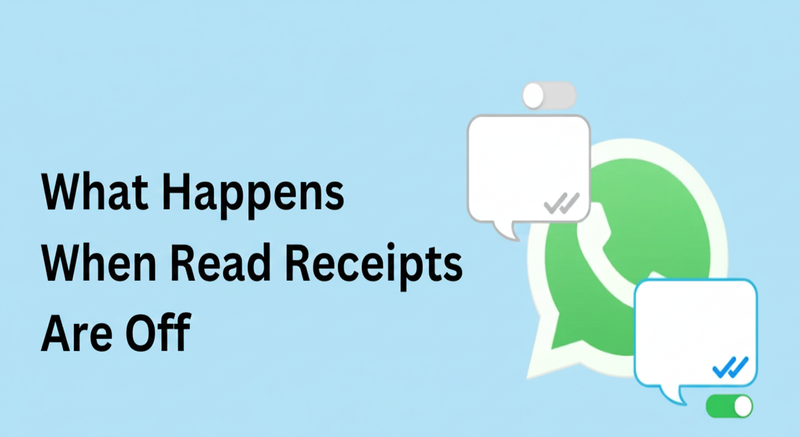
Disabling read receipts (blue ticks) has these key effects in WhatsApp chats:
Turn this learning into your next WhatsApp campaign.
Start with Sendwo’s free plan, explore WhatsApp broadcasts, automation, AI chatbot flows, and upgrade only when your business needs more power.
- Personal Chats: Neither you nor your contacts will see blue ticks on messages you read or send. In practice, messages will only show gray ticks (sent/delivered) regardless of being read. You won’t see blue ticks on messages you send, and your contacts won’t see them when you read.
- Group Chats: Read receipts are unaffected in group chats. WhatsApp will still show double blue ticks once every group member has read the message. Your privacy setting does not hide group “read” status.
- Voice Messages: Voice notes are an exception. Usually, a blue microphone/check will still appear when the recipient plays a voice message. In other words, listening to a voice message typically sends a play receipt, even if text receipts are off.
- Status (Stories): Disabling read receipts also hides story views. You won’t see who viewed your status updates, and others won’t see your name if you view their status. (Turning read receipts back on later does not retroactively restore view info.)
For example, Airdroid explains: “once read receipts are turned off, the blue ticks in individual chats will no longer appear… This change won’t affect group chats… You also won’t be able to see when someone reads your messages”. Keep these points in mind as you decide whether to disable WhatsApp’s read receipts.
5. Tricks to Read Without Blue Ticks (Temporary Hacks)
If you prefer not to toggle off read receipts permanently, there are a few temporary workarounds:
- Airplane Mode: When you get a WhatsApp message, turn on Airplane Mode (disconnect from internet) before opening the chat. Then read the message. Since WhatsApp is offline, it can’t send the read receipt. Close the app and only then turn off Airplane Mode. (After you reopen WhatsApp later, it will send a receipt – so do this only if you don’t open the chat again.)
- Notification Preview: Read the message in the notification shade or lock screen without opening WhatsApp. For short texts, this shows the content without triggering a blue tick.
- WhatsApp Widget (Android): Add the WhatsApp widget to your home screen (long-press home screen → Widgets). This lets you scroll through chats and read messages without launching the app, thus delaying read receipts.
Use these hacks when you want to peek at messages without alerting the sender. Just remember they only work temporarily and require manual steps; disabling read receipts in Settings is the more permanent solution.
(FAQs)
Q: How to turn off blue tick in WhatsApp?
A: Go to Settings > Account > Privacy in WhatsApp, and toggle off Read Receipts. On Android you tap ⋮ > Settings > Account > Privacy, on iPhone tap Settings (gear icon) > Account > Privacy. This will disable the blue ticks.
Q: Can I disable the blue tick for just one contact?
A: No – WhatsApp’s read receipt setting is global. If you how to turn off blue tick in WhatsApp called Read Receipts, it applies to all individual chats. You cannot selectively disable blue ticks per person.
Q: What do “read receipts” in WhatsApp mean?
A: They refer to the two blue checkmarks that indicate a message was opened and read. In other words, once you see double blue ticks, you know the recipient has read your message.
Q: If I disable read receipts, can I still see when others read my messages?
A: No. Disabling read receipts is reciprocal. Neither party will see blue ticks for messages read by the other.
Q: Will turning off read receipts hide my Last Seen or Online status?
A: No. Read receipts are separate from Last Seen/Online. Disabling read receipts does not affect your Last Seen or Online visibility. Those have their own Privacy settings.
Q: Do blue ticks still show in group chats if I turn them off?
A: Yes. Group chat read receipts always work the same – blue ticks appear when everyone reads the message. Your read receipts setting only affects one-on-one chats.
Q: What about voice notes? Will they send blue ticks if I have read receipts off?
A: Generally, yes. Voice messages behave like an exception. Most guides (and WhatsApp’s own info) note that when the recipient plays a voice note, a blue play icon/checkmark will appear regardless of the read receipts setting. So assume voice notes will still send a confirmation when heard.
Q: How do I know if someone has turned off their blue ticks?
A: There’s no definitive way. If you only ever see gray ticks and never blue, it could be because they read receipts off (or they simply haven’t read it). WhatsApp offers no notification for someone disabling read receipts
Aditi Kamini
Aditi, a content marketer at SendWo, is a passionate writer and marketing enthusiast. She excels in driving revenue campaigns, building client relationships, and mastering content creation, SEO, customer service, and project management.