How to Import User Input Flow Data into Google Sheet
Learn how to import user input flow data into Google Sheets easily with SendWo to automate WhatsApp data management and real-time sync.
 By Snehil Prakash
Published: October 21, 2025
4 min read
By Snehil Prakash
Published: October 21, 2025
4 min read

Learn how to import user input flow data into Google Sheets easily with SendWo to automate WhatsApp data management and real-time sync.
One of the most powerful features in SendWo is the ability to collect and store user inputs from WhatsApp chatbot flows directly into Google Sheets in real-time.
Whether you’re capturing lead data, survey responses, or customer details, Google Sheets automation with your SendWo chatbot ensures all data is automatically recorded and organized without any manual effort.
Let us quickly understand all the steps to import user input flow data in Google Sheets in SendWo.
Why Connect SendWo with Google Sheets?
Here’s why this integration is a game-changer:
- Instant data collection: Every input a user gives through your WhatsApp chatbot is automatically saved in Google Sheets.
- Zero manual entry: No more copying messages or exporting data manually.
Real-time synchronization: See new entries appear instantly as users interact with your bot. - Centralized storage: Access all your WhatsApp chatbot data in one place.
- Improved analytics: Use built-in Google Sheets features for reporting, tracking, and performance analysis.
Step Involved in Importing User Input Flow Data in Google Sheet in SendWo
Step 1: Log in to Your SendWo Dashboard
- Log in to your SendWo Dashboard.
- From the left-hand sidebar, navigate to Chatbot Manager > WhatsApp Chatbot.
- Select or create a bot flow Design with Input Flow Elements
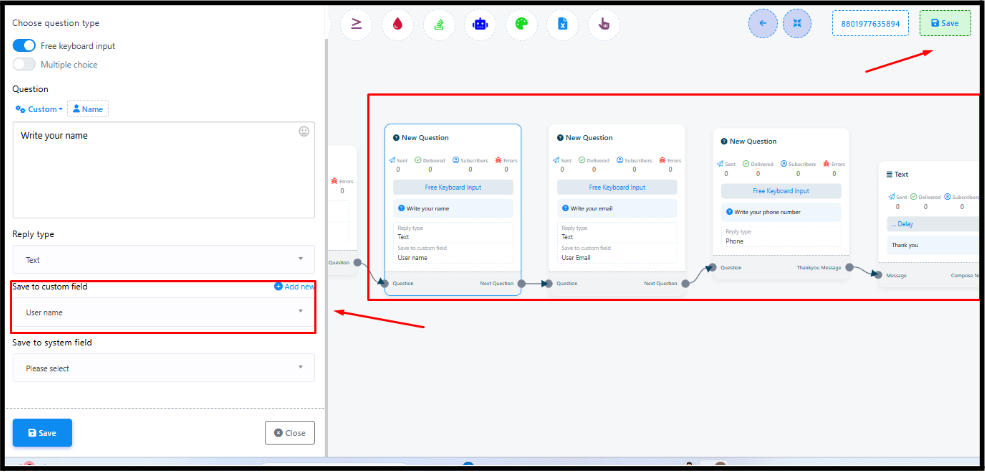
Step 2: Open Your Bot Flow and Identify the User Input Flow
In your chatbot builder, locate the message blocks where users provide inputs — for example:
- Name
- Phone number
- Feedback or preference
Each of these Input Nodes represents data that you can export to your Google Sheet.
Step 3: Create a Google Sheet for Storing Data
- Go to Google Sheets and create a new spreadsheet.
- Add column headers matching your chatbot inputs.
- Ensure that the column headers exactly match your expected field names and avoid spaces or special characters (use “Name” instead of “Full Name” for reliability).
- Example:
| Name | Phone Number | Message |
Copy the Google Sheet ID from the URL. It looks like this:
https://docs.google.com/spreadsheets/d/1AbCdEFgHiJkLmNoPQRsTuVWXYZ12345/edit
Turn this learning into your next WhatsApp campaign.
Start with Sendwo’s free plan, explore WhatsApp broadcasts, automation, AI chatbot flows, and upgrade only when your business needs more power.
- The bold part after /d/ and before /edit is your Sheet ID.
Step 4: Connect Google Sheet with SendWo
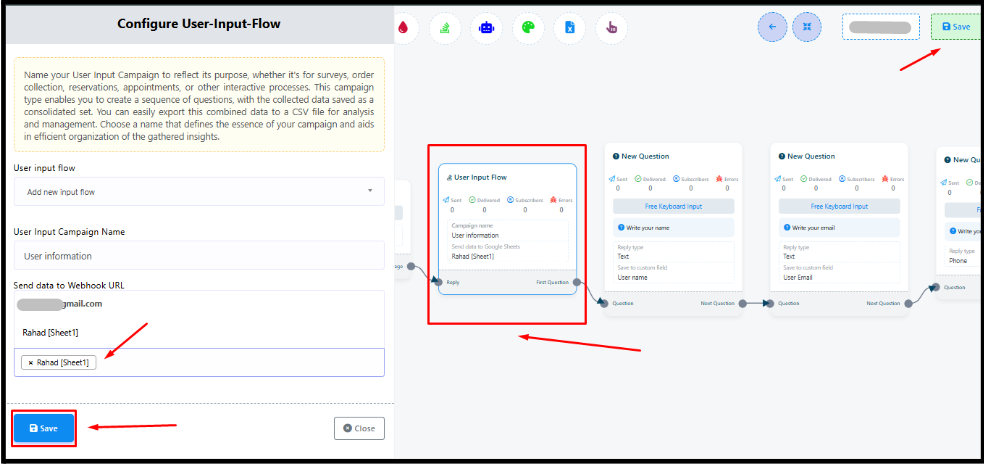
- To your SendWo chatbot builder, click the Google Sheet Integration option.
- Now, click Connect New Sheet and authorize SendWo to access your Google account.
- Paste the Google Sheet ID you copied earlier.
- Select the sheet name (tab) where data should be recorded.
Step 5: Map Your Chatbot Inputs to Google Sheet Columns
- Once connected, map each chatbot input field to its corresponding column of your Google Sheet.
- Example:
| Chatbot Field | Google Sheet Column |
| {{user_name}} | Name |
| {{user_email}} | |
| {{user_phone}} | Phone Number |
- Save your mapping once it's done.
This ensures that every time a user provides an input in your chatbot, the data is stored in the correct column of your Google Sheet.
Step 6: Test Your Integration
- Go to your WhatsApp bot and initiate the chat flow as a user.
- Enter test data (like name, email, etc.).
- Open your Google Sheet, and you’ll see the data appear automatically in no time.
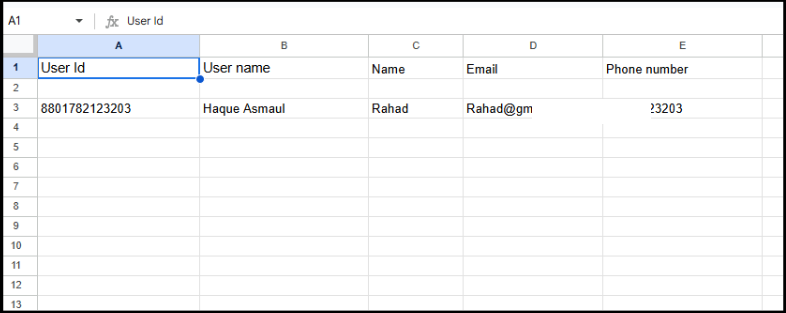
You’ve now successfully imported user input flow data from SendWo into Google Sheets.
Best Practices
To make the most of this integration, follow these best practices:
- Use unique sheet names for each campaign or bot flow.
- Always avoid editing the header row after integration since this can break the mapping.
- Limit one integration per bot flow. This will prevent data duplication.
- Regularly back up your sheets using Google Drive or export as CSV.
- Use filters and pivot tables to analyze leads and user behavior trends.
Final Word
Integrating Google Sheets with SendWo gives your WhatsApp automation an edge by making data management seamless, transparent, and organized. And with just a few clicks, you can transform your business and empower teams to make faster, smarter decisions.
1. Can I connect multiple Google Sheets to different chatbot flows in Sendwo?
Yes! SendWo allows you to link multiple Google Sheets, and each chatbot flow can push data into its own sheet for easier organization.
2. Is the data updated in real time?
Yes. Once a user submits an input on WhatsApp, it is instantly reflected in your connected Google Sheet.
3. Do I need coding knowledge for this integration?
No. The integration is 100% no-code and can be set up directly from your SendWo dashboard.
Snehil Prakash
Snehil Prakash is an expert WhatsApp consultant with SendWo. He has expertise in implementing WhatsApp API for enterprise businesses and built automation, chatbot and AI powered solution.