How to Add WhatsApp Business API Profile Details
Learn how to add WhatsApp Business API profile details in Meta Business Suite for better credibility and customer trust.
 By Snehil Prakash
Published: October 13, 2025
Updated: October 16, 2025
3 min read
By Snehil Prakash
Published: October 13, 2025
Updated: October 16, 2025
3 min read

Learn how to add WhatsApp Business API profile details in Meta Business Suite for better credibility and customer trust.
Having a professional WhatsApp Business API profile is essential for building customer trust. A complete profile, which includes your business name, description, address, email, website, and logo, helps customers find accurate information about your business.
The steps below will guide you through logging into Meta Business Suite (formerly Business Manager) and completing your WhatsApp Business API profile details.
Let's dive in.
1. Log In to Meta Business Suite
- Go to the Meta Business Suite web portal (or open the Business Suite app on mobile) and log in with the Facebook/Meta account. This should have admin access to your business.
- Ensure you have a Business Account (Portfolio) set up. If not, create one or ask your admin to grant access.
2. Navigate to Business Settings
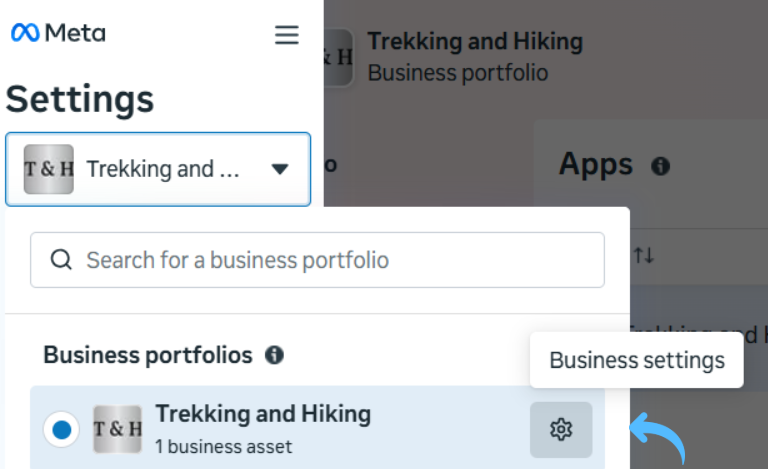
- Once logged in, click the Settings (gear) icon in the bottom left menu and select Business Settings.
- In Business Settings, look for the Accounts section in the left sidebar menu.
3. Access WhatsApp Accounts
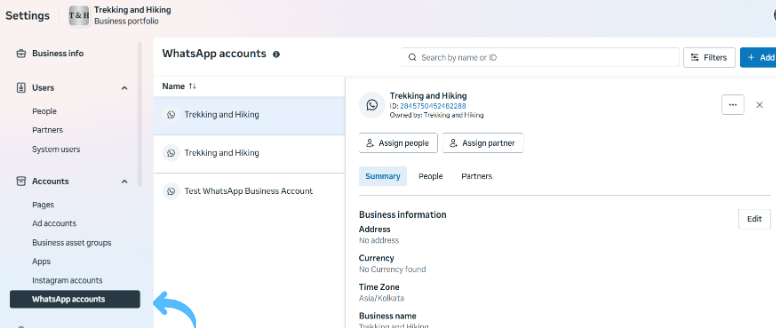
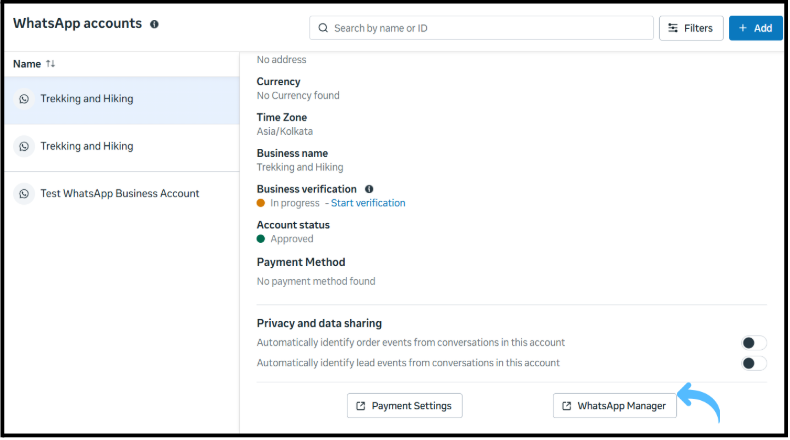
- Now, under Business Settings > Accounts > WhatsApp Accounts. This will show a list of WhatsApp Business API accounts linked to your portfolio.
4. Select WhatsApp Business Account
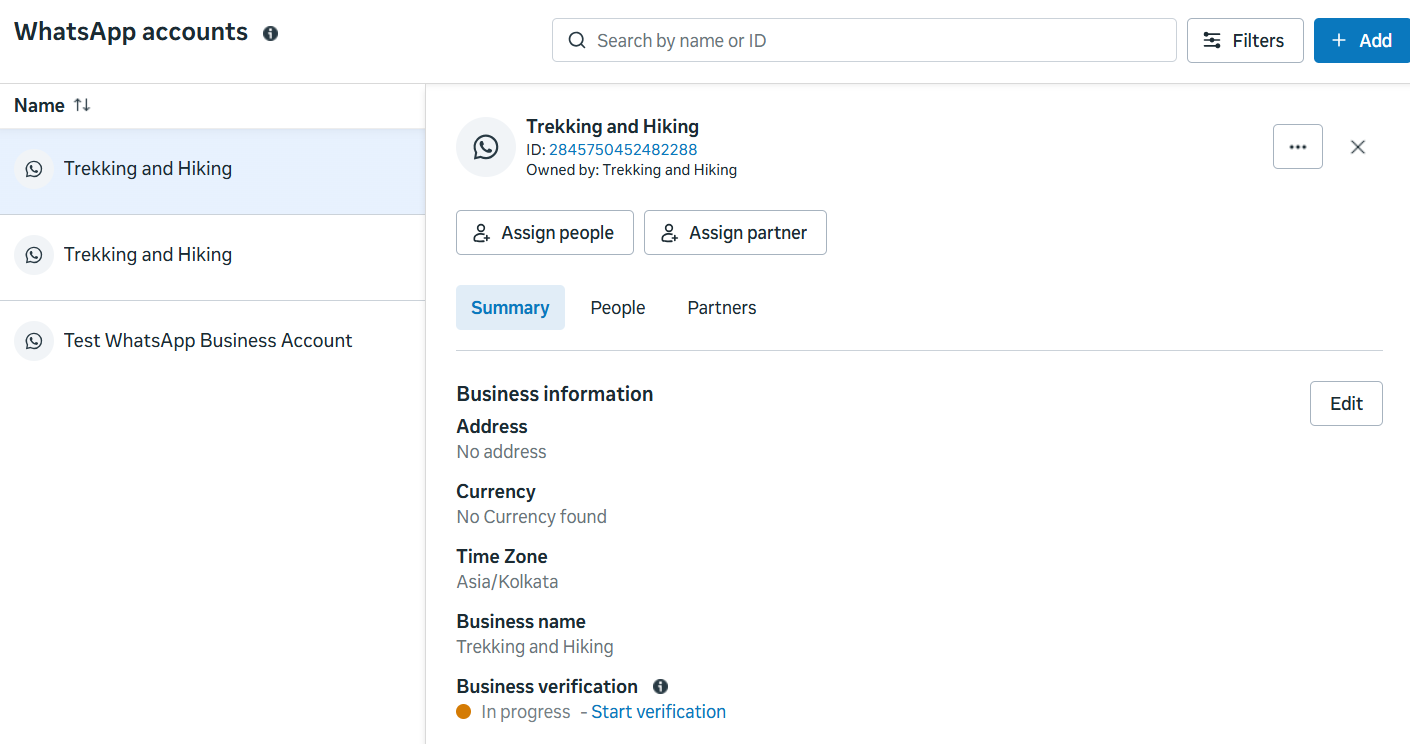
- In the WhatsApp Accounts panel, click on your business’s WhatsApp account. This will open the WhatsApp Manager interface.
5. Set Up WhatsApp Business Profile Details
- Under WhatsApp Manager, go to the Phone Numbers tab (often under Account Tools).
- Select the phone number that is associated with your WhatsApp Business API account.
- Click the Settings or Edit Profile button for that number. This usually appears as a gear icon or a pencil.
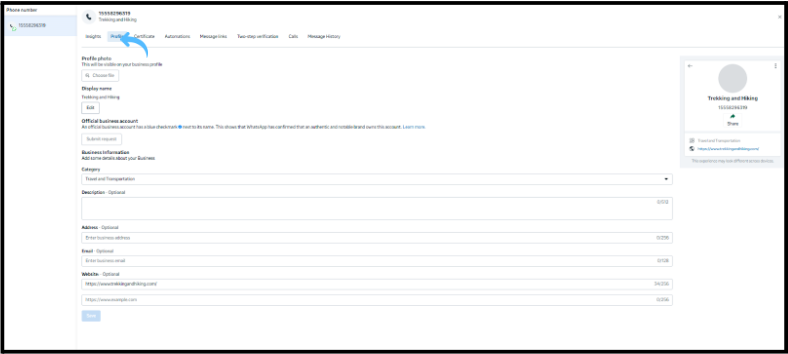
- Now open the Profile tab. Here you can enter and update your business profile information.

6. Fill in Business Profile Information
On the Profile page, fill in the mandatory fields with your official business details. These may include:
- Business Name (Display Name): Enter your official company name. This display name will show to customers in chats.
Note: Be careful not to change it frequently, and if it was previously approved, Meta may need to re-review it.
- Business Category: Select the most relevant industry categories for your business (e.g., “Retail”, “E-commerce”, “Restaurant”).
- Description/About: Write a short description of your business (a brief overview or tagline) so that customers learn about your products or services.
- Address: Enter your physical business address.
- Email and Website: Provide your valid contact email and official website URL.
- Profile Picture: Upload a clear square image (typically your logo or brand image). Meta recommends a square image with a maximum of 640×640 pixels (max 5 MB).
Tips: Each of these fields is visible to customers who view your profile. Please fill in as many details as possible to ensure the best customer experience.
Turn this learning into your next WhatsApp campaign.
Start with Sendwo’s free plan, explore WhatsApp broadcasts, automation, AI chatbot flows, and upgrade only when your business needs more power.
7. Save and Confirm
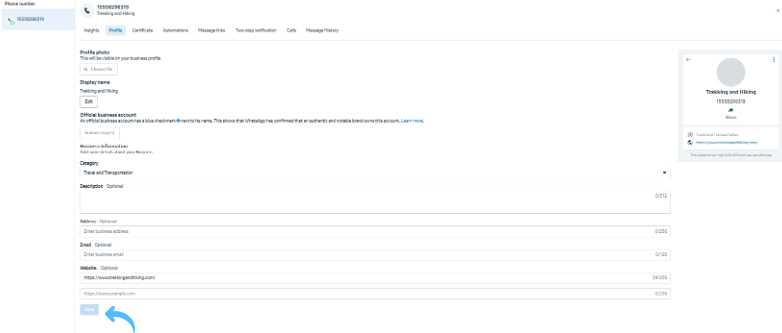
- After entering all details, click Save or Save Changes. This submits your profile updates.
- Your updated profile will now be sent to WhatsApp/Meta for processing. Most changes (like address or description) take effect immediately, however, changes to your display name or profile picture require review and approval.
You may receive a notification once your profile update is approved.
A complete profile increases credibility and facilitates easier connections with customers worldwide. Update your profile today to enhance visibility and trust, and start engaging with your customers on WhatsApp!
1. How do I update my WhatsApp Business API profile?
Use Meta Business Suite (business.facebook.com) and go to Business Settings > Accounts > WhatsApp Accounts. Then select your WhatsApp Business account and click on WhatsApp Manager. Navigate to Phone Numbers > select your number > Settings > Profile. Now edit the fields like name, address, description, etc. Finally, click Save to apply your changes.
2. What information should I include in my WhatsApp Business profile?
Always include your official Business Name/ Display Name, Business Categories, Description about your company, a valid address, Email, website, and a Profile Picture.
3. What size should my WhatsApp Business profile photo be?
WhatsApp recommends a square photo with a maximum edge of 640 pixels and a max file size 5 MB.
Snehil Prakash
Snehil Prakash is an expert WhatsApp consultant with SendWo. He has expertise in implementing WhatsApp API for enterprise businesses and built automation, chatbot and AI powered solution.