How to Send WhatsApp Broadcast with SendWo
Send WhatsApp broadcast with SendWo and segment contacts, import subscribers, build campaigns, and track results easily.
 By Snehil Prakash
Published: October 16, 2025
4 min read
By Snehil Prakash
Published: October 16, 2025
4 min read
Send WhatsApp broadcast with SendWo and segment contacts, import subscribers, build campaigns, and track results easily.
With this guide, we’ll help you walk through the four essential key steps to broadcast a WhatsApp message using SendWo.
1. Prepare Your Contact List in SendWo
Before sending any broadcast, always organize your contacts for targeted messaging. Let us quickly go through the easy steps to prepare a list in the dashboard.
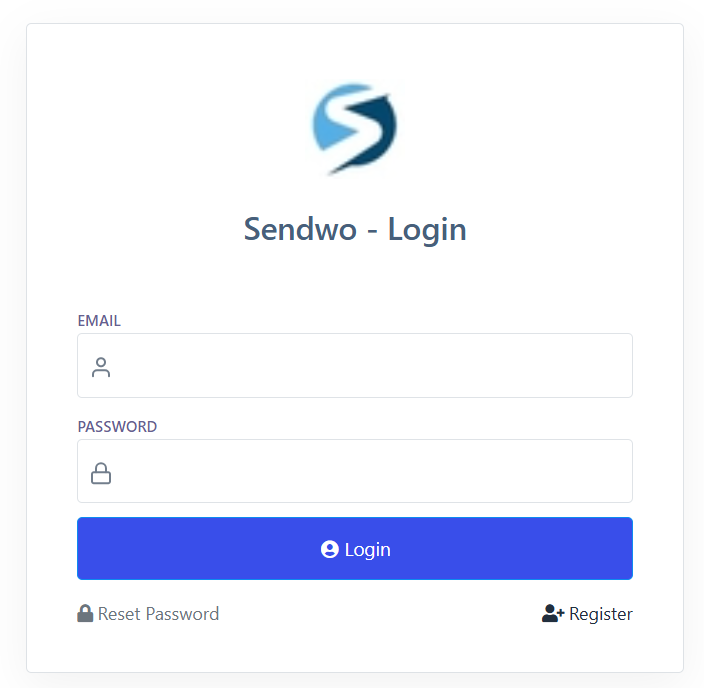
1.Log in: Go to the SendWo dashboard and log in with your credentials.
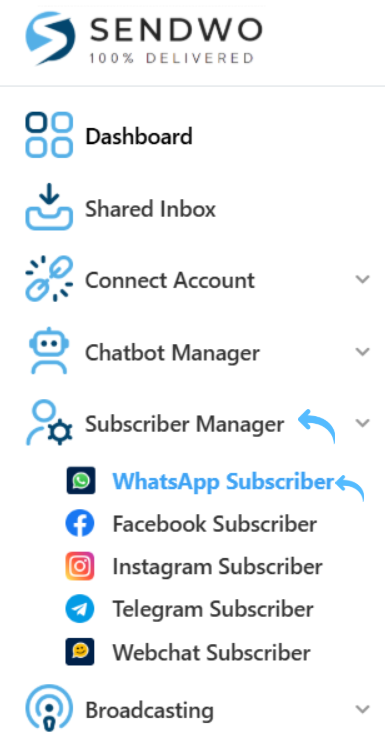
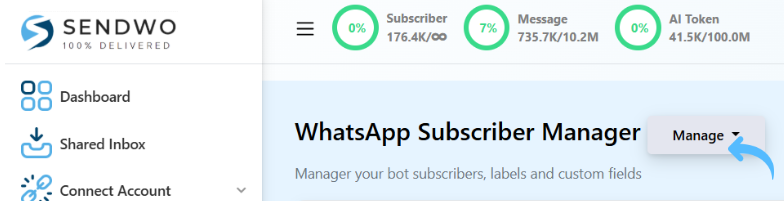
2. Go to Subscriber Manager: Under Subscriber Manager, click on WhatsApp Subscriber on the left menu.
3. Create a label for segmentation.
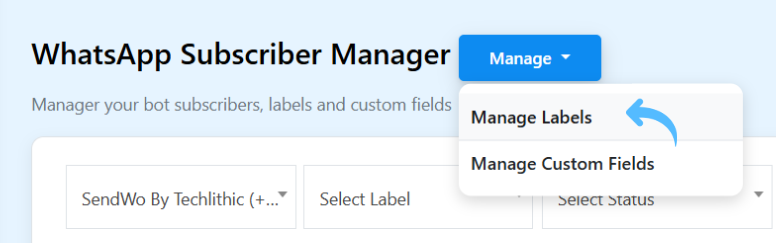
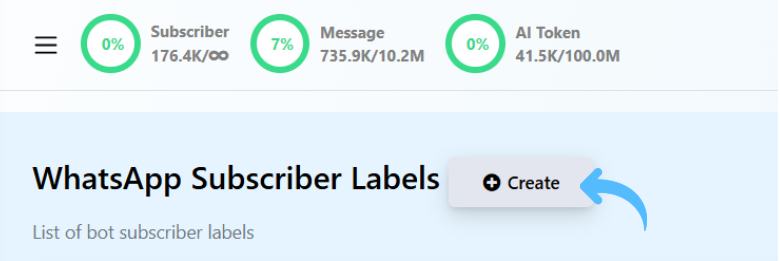
4. Click Manage > Manage Label, then click on “Create.”
5. Add the Label Name, select the bot.
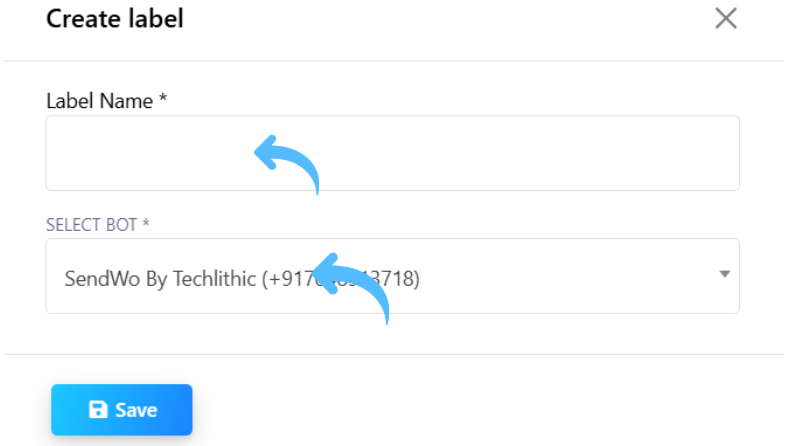
6. Click Save. You’ll see a success message, and the label will appear in your list.
Tips: Creating labels lets you segment your subscribers so you can send personalized broadcasts to each group.
2. Import Your Subscribers
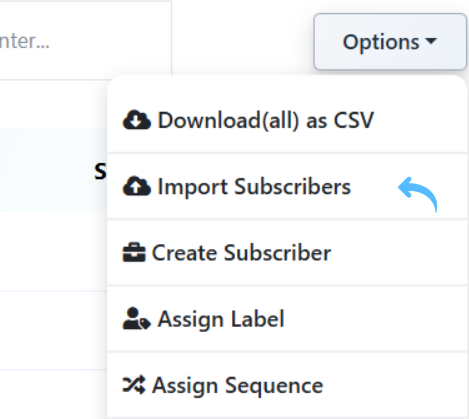
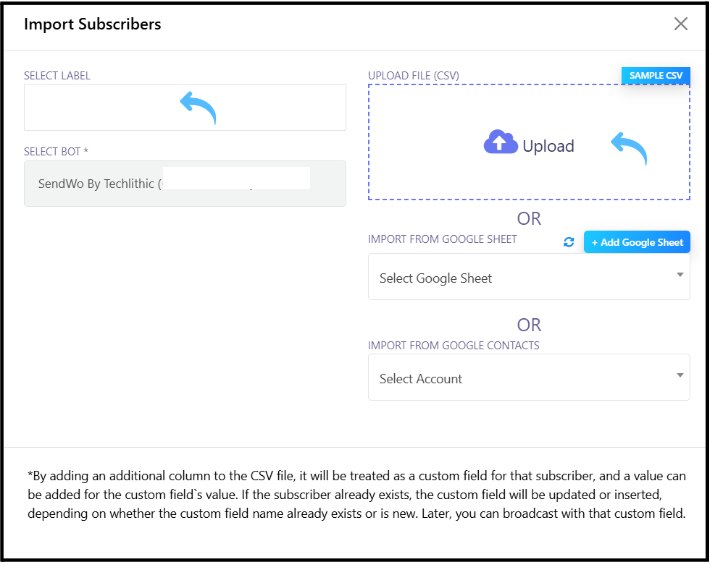
Next, get your contacts into SendWo and assign them to your label. In the WhatsApp Subscriber section of Subscriber Manager, click the Options button and choose Import Subscribers. In the import form, select the CSV file of your subscriber list (contacts), and select Label, then Save.


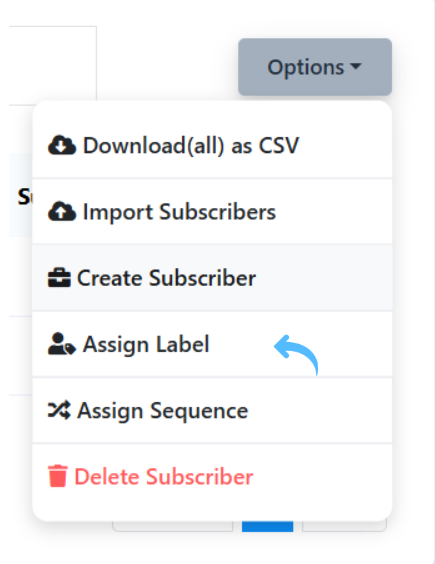
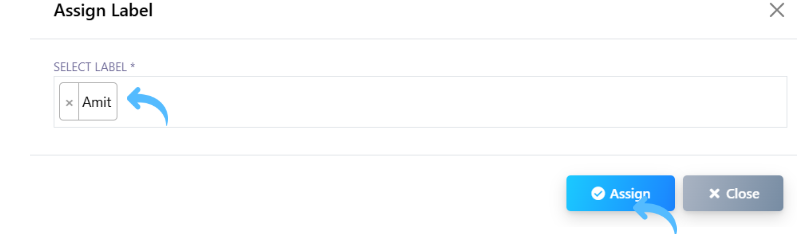
After import, select all subscribers and Assign Label you created.
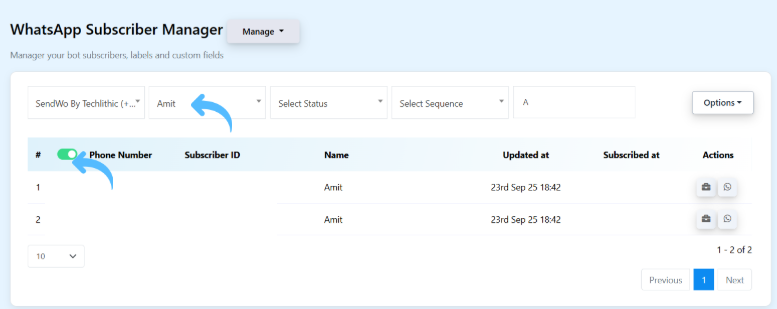
Tips: This ensures every contact in your list is tagged with the correct label. (You can also add contacts manually via Manual Subscribers, but bulk CSV import is much faster for large lists.)
3. Create a Broadcast Campaign
With contacts ready, set up the broadcast itself.
Turn this learning into your next WhatsApp campaign.
Start with Sendwo’s free plan, explore WhatsApp broadcasts, automation, AI chatbot flows, and upgrade only when your business needs more power.
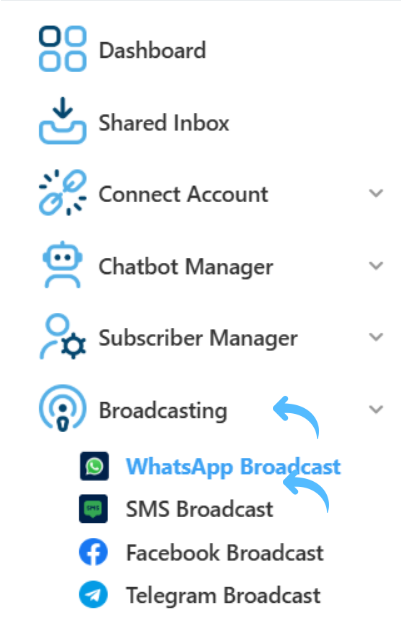
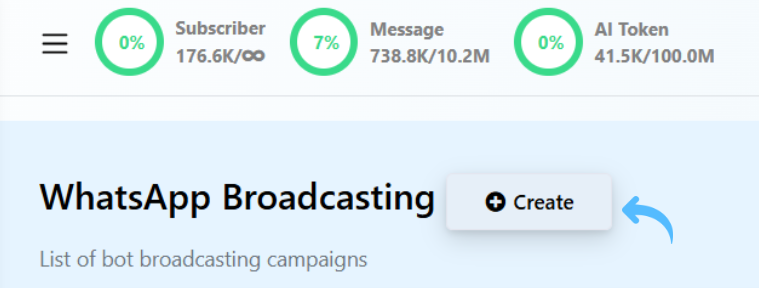
- In the left menu, click Broadcasting > WhatsApp Broadcast, then click Create to start a new campaign.
2. Add Campaign Name: Give your broadcast a clear name (e.g., “Spring Sale Broadcast”).
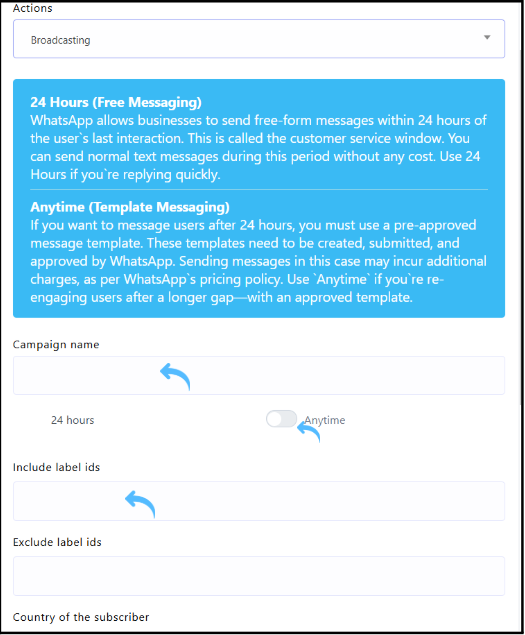
3. Include Label IDs: Select the label(s) you assigned to your target audience. (This ensures only those subscribers will receive your message.)
Once configured, click Save. Your broadcast campaign setup is now complete.
Exclude Label IDs: (Optional) Add any labels to exclude if you want to skip certain groups.
Next, choose the sending mode: SendWo offers 24 hour and Anytime options.
- 24 Hours mode lets you send any kind of message (text, images, PDFs, buttons, etc.) to subscribers who have interacted with your in the last 24 hours. Use this for maximum flexibility.
- Anytime mode is for contacts who haven’t messaged recently. In this case, you must use a pre-approved WhatsApp template message. If you pick Anytime, choose your approved template from the dropdown and set the Sending Time. You can even schedule the broadcast for a future date/time..
4. Start the Flow and Send the Broadcast
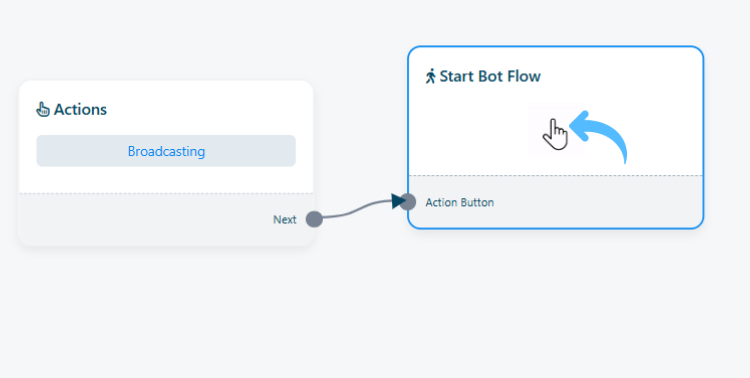
This is the final step to define what message will be sent.
- Double-click the Start Bot Flow node in your new campaign. This opens SendWo’s Visual Flow Builder.
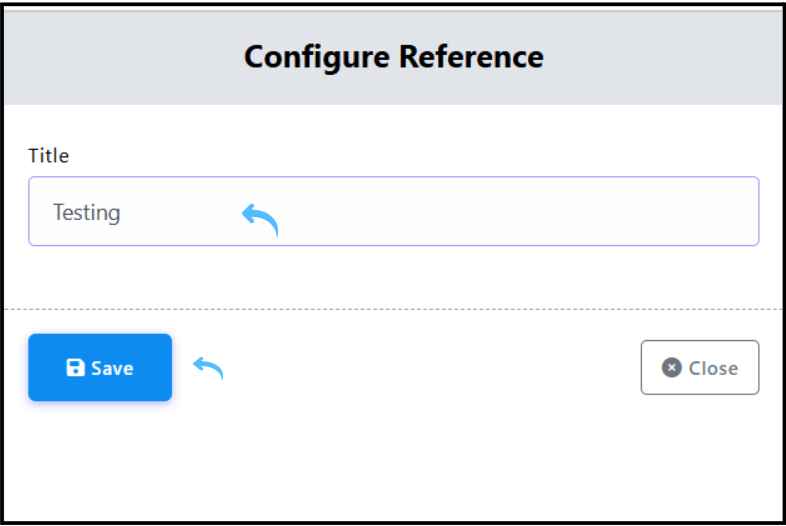
2. Add the title name for the flow, and click Save.
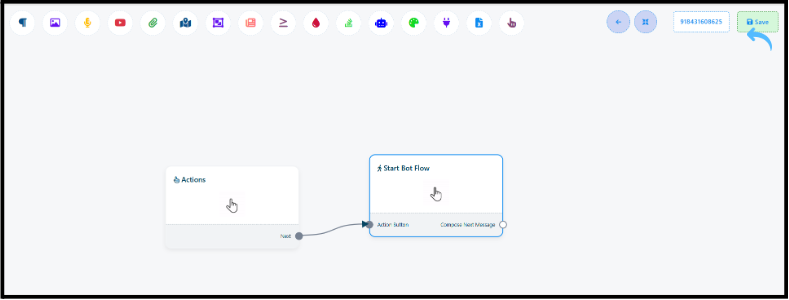
3. Compose Message: In the flow canvas, click the Start block and add your message content. You have complete freedom to add text, images, videos, or interactive elements like buttons and product carousels.
4. When your message is ready, click Save to create the flow on the Visual Flow Builder.
Tips: Personalize the message with variables like the recipient’s name for higher impact.
Once saved, SendWo will automatically launch the broadcast. Your message is sent to every contact under the selected label group. You’ll see a confirmation that the campaign is running. You can also track progress (delivery and open rates) on the WhatsApp Broadcast page of the dashboard.
And that’s it! You’ve successfully sent a WhatsApp broadcast via SendWo.
Log in to SendWo (it’s free to start, with no credit card required) and follow these steps to send your first broadcast. Whether you’re announcing a sale, sending updates, or sharing news, a WhatsApp broadcast via SendWo lets you connect with customers instantly.
1. Do recipients need to save my number?
Yes. According to WhatsApp's policy, broadcast messages are delivered only to contacts who have your number saved and have opted in to receive messages. Sending messages to people who haven’t saved your contact (or haven’t agreed to messaging) can be flagged as spam. Always upload only opted-in subscribers to avoid blocks.
2. Can I schedule a WhatsApp broadcast with SendWo?
Absolutely. When creating the campaign, set the mode to Anytime. This unlocks the Sending Time option. Choose “Later”, pick your preferred date, time, and time zone, and Save. SendWo will automatically send the broadcast at the scheduled time.
Snehil Prakash
Snehil Prakash is an expert WhatsApp consultant with SendWo. He has expertise in implementing WhatsApp API for enterprise businesses and built automation, chatbot and AI powered solution.