How to Import Contacts to SendWo Dashboard
Import contacts to SendWo Dashboard easily via CSV or Google Sheets using Subscriber Manager for targeted campaigns.
 By Snehil Prakash
Published: October 15, 2025
Updated: October 16, 2025
4 min read
By Snehil Prakash
Published: October 15, 2025
Updated: October 16, 2025
4 min read
Import contacts to SendWo Dashboard easily via CSV or Google Sheets using Subscriber Manager for targeted campaigns.
Managing your contact list is key to effective WhatsApp marketing, and SendWo’s platform is built around a powerful Subscriber Manager that helps you organize and engage your audience.
This guide will make you understand each step of importing contacts into your SendWo dashboard, which enables you to streamline your messaging campaigns.
Step 1: Log In to Your SendWo Dashboard
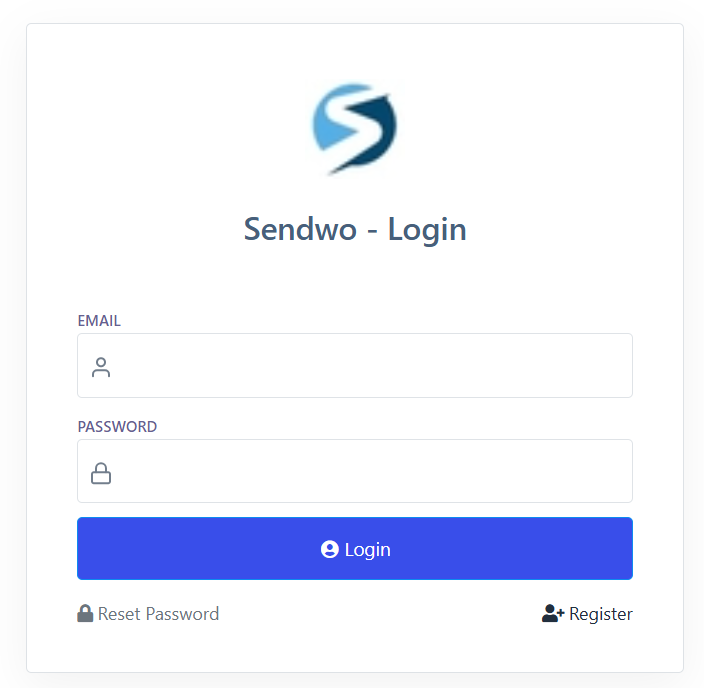
1. Go to the SendWo Dashboard and log in with your credentials.
2. Once logged in, navigate to the main Dashboard. Here, one can access all SendWo features.
Step 2: Access the Subscriber Manager
This step opens the subscriber list interface to the users. From here, you can create labels, add contacts, and send broadcasts.
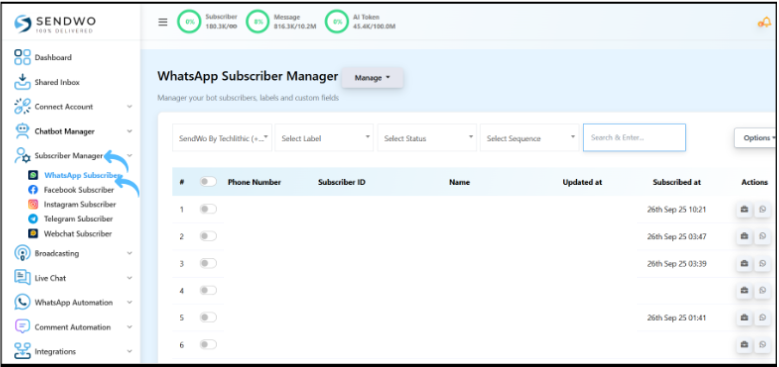
1. The Subscriber Manager is where you view and organize all your WhatsApp contacts.
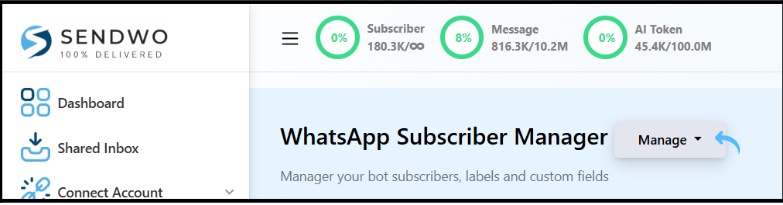
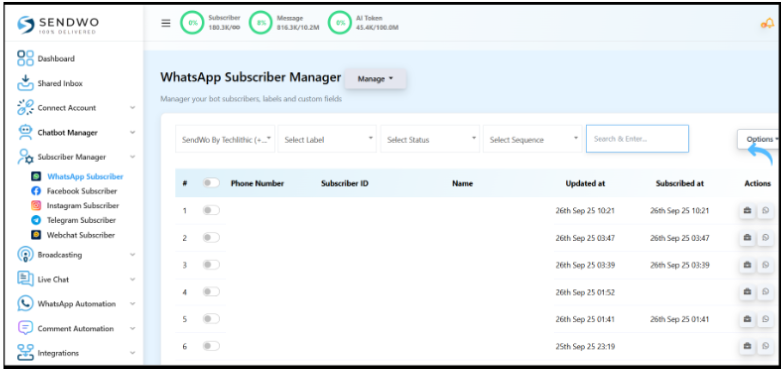
2. In your dashboard’s left sidebar, under the Subscriber Manager, click WhatsApp Subscriber.
Step 3: Create a Label
1. Click Manage > Manage Labels.
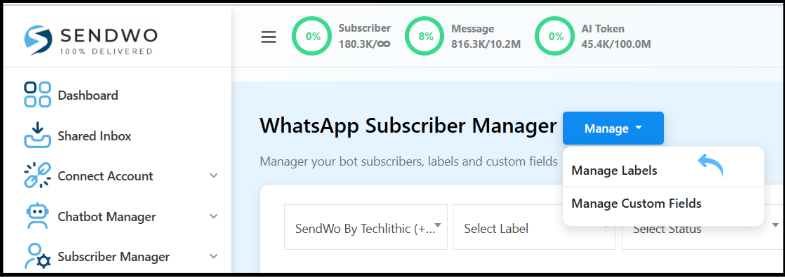
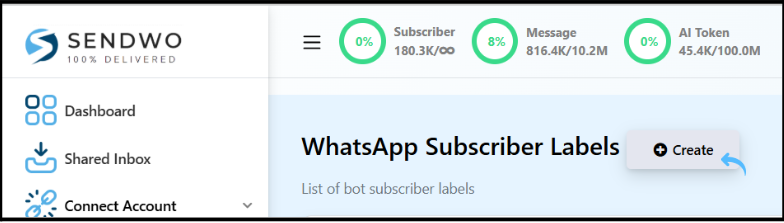
2. Once done, click the Create button to open a new-label form.
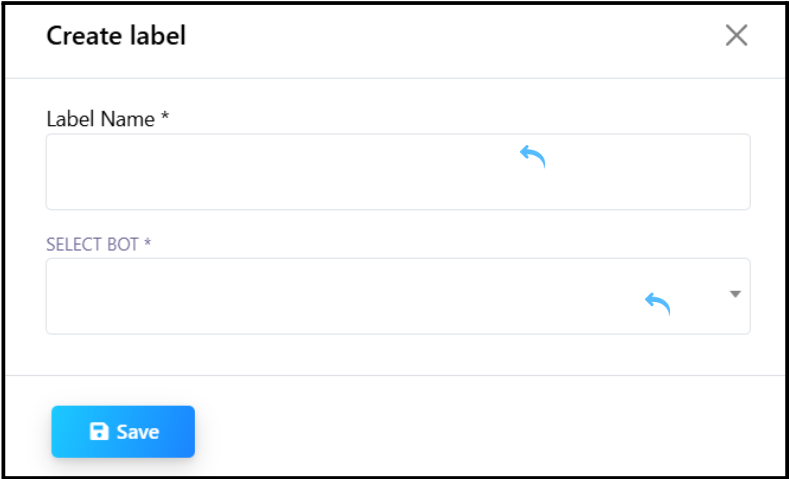
3. Enter a Label Name.
4. Select your Bot.
5. Click Save. You should see a success message, and the new label will appear in your list of labels.
Step 4: Add Subscribers to Your List
With a label ready, it’s time to add contacts.
Turn this learning into your next WhatsApp campaign.
Start with Sendwo’s free plan, explore WhatsApp broadcasts, automation, AI chatbot flows, and upgrade only when your business needs more power.
SendWo offers two options:
- Add them manually one by one,
- Bulk import via CSV.
Both options are found under the Options menu in the Subscriber Manager.
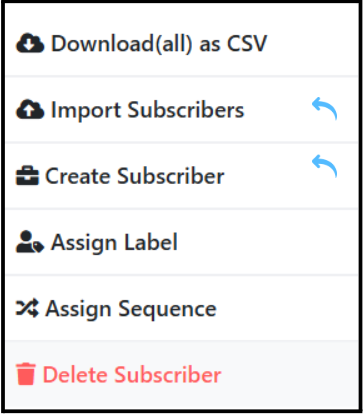
1. Click the Options button above your subscriber list. This opens a dropdown menu with various tasks.
2. Option A – Manual Entry: Select Create Subscribers. A form will pop up with the fields Name and Phone Number. Fill it in and click Save. You’ll see a success message, and that contact will be added to your list under the chosen label (if you assigned one later).
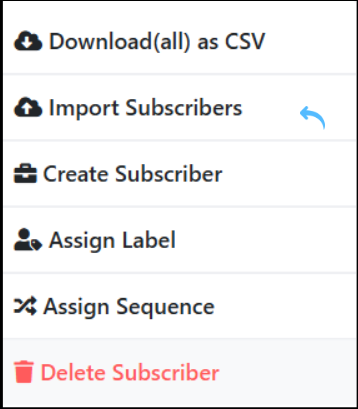
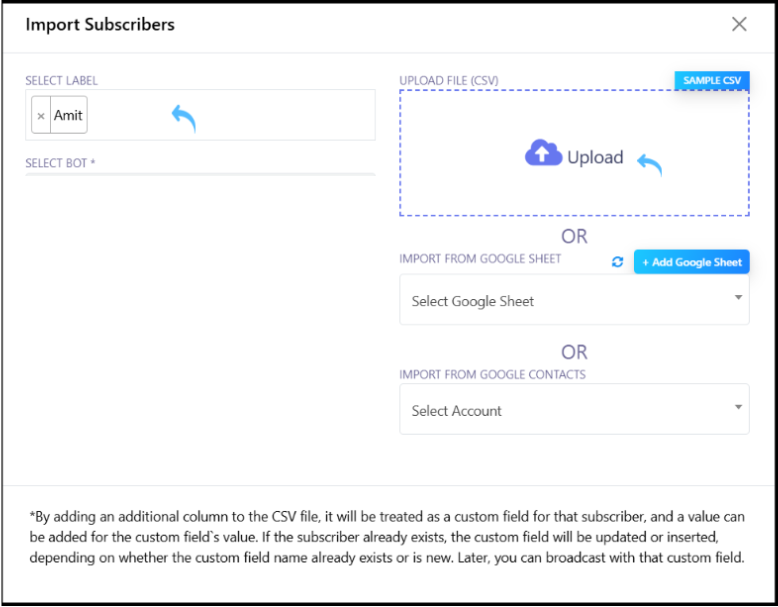
3. Option B – Bulk Import (CSV): In the same Options menu, choose Import Subscribers. This opens the import dialog. Follow the steps below:
a. Download the sample CSV file to see the exact format (it typically includes columns like “Name” and “Phone Number”). Prepare your contact list in a CSV file matching these columns. Each row should have a name and a phone number in international format.
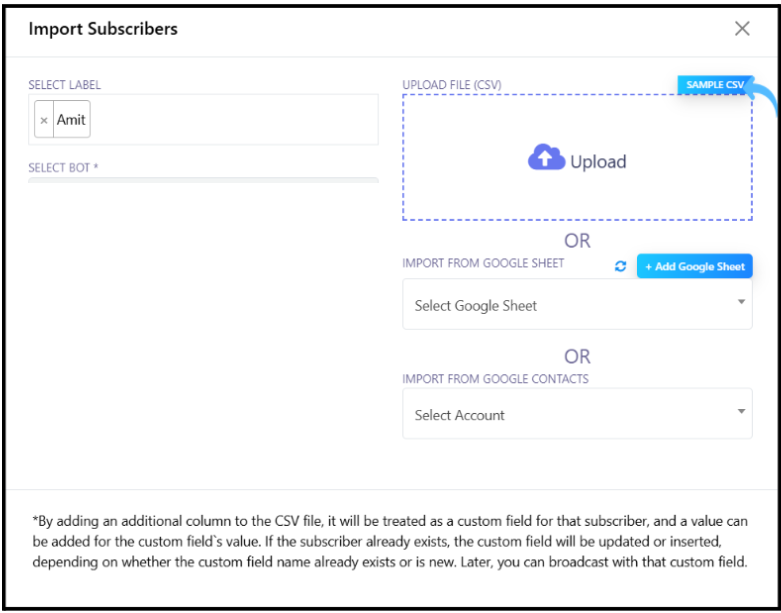
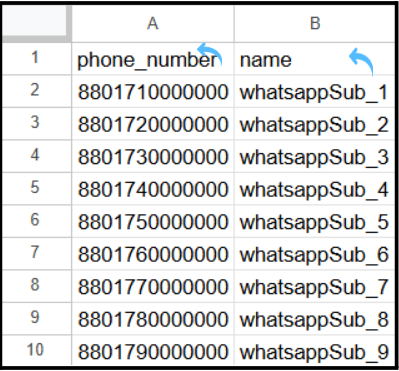
b. In the import form, click Upload and select your CSV file.
c. Use the Select Bot field to choose your WhatsApp bot. Also, use Select Label to pick the label you created earlier.
d. Click Upload to start the import process. Once, completed, you should see a confirmation once it’s complete.
Step 5: Verify Your Subscriber List
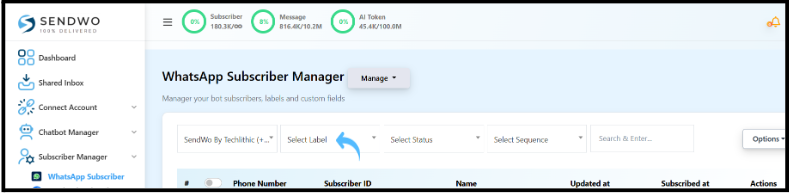
After importing, it’s wise to confirm if the contacts were added correctly. In Subscriber Manager, use the Select Label dropdown to filter contacts by your new label. Choose the label you created to see only those contacts. This lets you easily verify that all intended subscribers appear under that label.
Adding contacts to SendWo is a straightforward process that unlocks powerful WhatsApp marketing. Whether you target to add leads one at a time or bulk upload an entire CSV, SendWo’s Subscriber Manager streamlines it all with ease.
Ready to get started? Log in to your SendWo account and follow the steps above to import your contacts. Your next WhatsApp campaign awaits!
1. What file format does SendWo require for importing contacts?
SendWo uses a standard CSV (Comma-Separated Values) file for bulk contact import. Ensure your CSV has clear column headers (for example, Name and Phone Number) and that phone numbers are in international format. You can download the Sample CSV from the import dialog to see the exact format required.
2. Can I import contacts from Google Sheets instead of a CSV?
Yes. SendWo added Google Sheets integration. You can connect your Google account in the Settings > Google Sheets section and import contacts directly from a sheet. When importing from Sheets, you’ll map the sheet’s columns (like “Phone Number” and “Name”) to SendWo’s fields, and then finalize the import. This works similarly to the CSV import.
3. What is the Subscriber Manager in SendWo?
The Subscriber Manager is SendWo’s built-in contact CRM for WhatsApp. It helps you organize and segment your audience. It is “designed to efficiently handle and organize WhatsApp contacts and subscribers,” making it easy to manage lists and send personalized campaigns.
Snehil Prakash
Snehil Prakash is an expert WhatsApp consultant with SendWo. He has expertise in implementing WhatsApp API for enterprise businesses and built automation, chatbot and AI powered solution.