How to Create And Embed a WhatsApp Chat Widget
Learn to create and embed a WhatsApp Chat Widget on your website with SendWo and customize, track, and engage visitors instantly.
 By Snehil Prakash
Published: October 26, 2025
4 min read
By Snehil Prakash
Published: October 26, 2025
4 min read
Learn to create and embed a WhatsApp Chat Widget on your website with SendWo and customize, track, and engage visitors instantly.
Having a WhatsApp chat widget to your website allows visitors to start conversations instantly with your business on the world’s most popular messaging app. And, SendWo’s WhatsApp Chat Widget empowers you to fully customize the look, feel, and functionality of your widget to match your brand identity and boost customer engagement.
Why You Should Use SendWo’s WhatsApp Chat Widget
- Trusted Platform: Connect instantly through WhatsApp with a familiar and secure chat interface.
- Pre-Filled Messages: Speed up customer inquiries by sending preset questions automatically.
- Custom Design: Match widget colors, fonts, and placement with your website’s branding.
- Higher Conversions: The real-time communication increases trust and improves lead-to-sale conversions.
- No coding required: Get live chat on your website in minutes.
- Seamless integration: Works perfectly with WordPress, custom HTML sites, and eCommerce stores.
- Multi-agent access: Redirect chats to different team members via WhatsApp API routing.
- Conversion tracking: Measure engagement and leads directly from SendWo analytics.
- Cross-channel automation: Combine the widget with your SendWo Flow Builder for AI-driven replies and automated follow-ups.
Step 1: Access Chat Widget Settings in SendWo
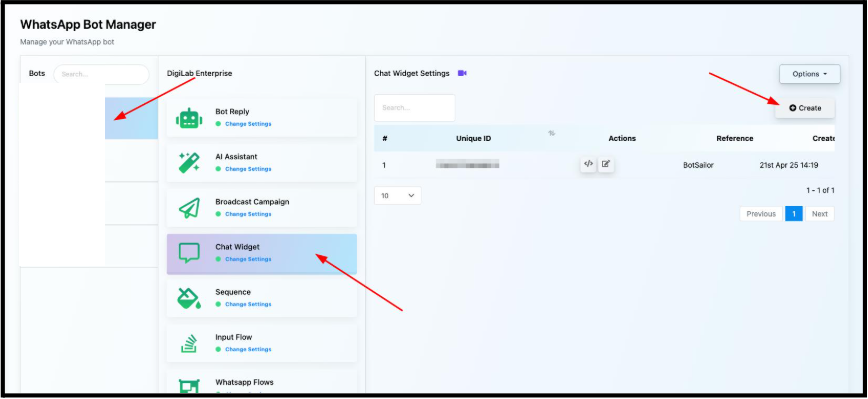
- Log in to your SendWo dashboard.
- From the sidebar, navigate to Chatbot Manager > WhatsApp Bot.
- Click on WhatsApp Bot Account (for example, Your Brand Name Bot).
- Now select Chat Widget under the selected bot.
- On the Chat Widget settings page, click the Create Widget button that is located at the top-right corner.
Step 2: Configure Your WhatsApp Chat Widget
Here, you’ll have several customization options.
Action Settings
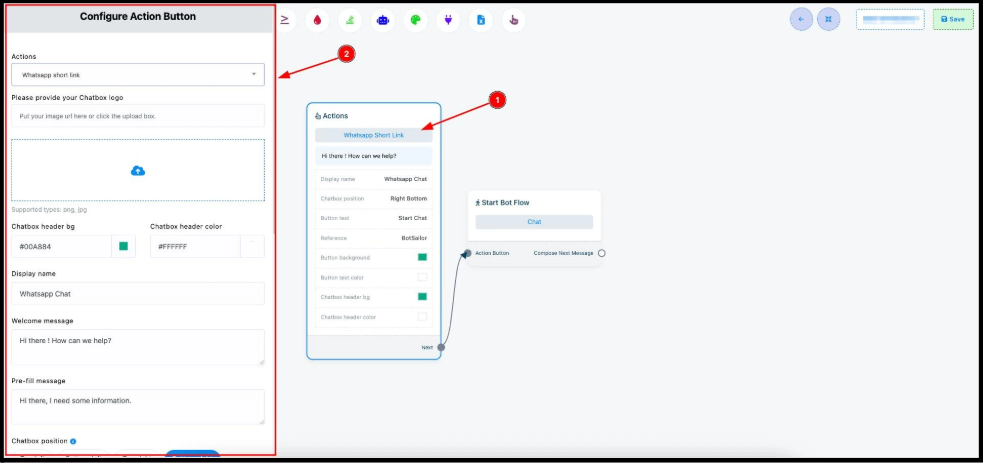
- Under Configure Action Button, select WhatsApp Short Link from the Actions dropdown. This step ensures users are redirected to a WhatsApp chat window when they click your button.
Brand Customization
- Upload your chatbot logo that can be PNG/JPG supported.
- Set your chatbox header background and text color to match your brand palette.
- Add your Display Name, Welcome Message, and Pre-Filled Message.
Position & Layout
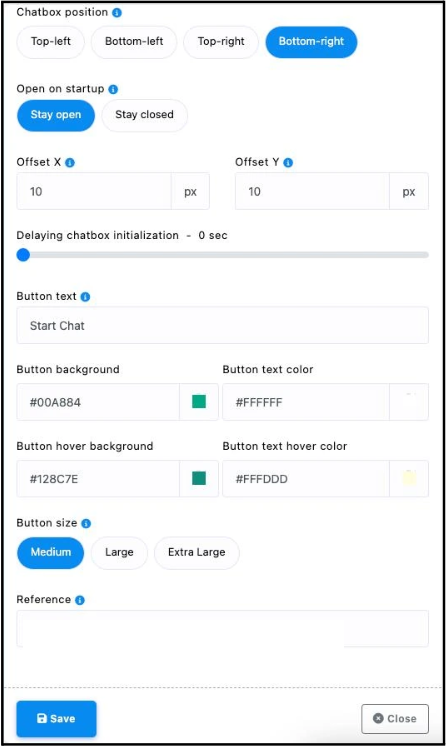
- Choose the Chatbox position located on the bottom-right or bottom-left.
- Adjust Offset X/Y positions to fine-tune placement.
- Decide whether the chat window should auto-open on page load or stay closed initially.
Button Customization
- Edit the Button Text (e.g., “Chat with Us on WhatsApp”).
- Choose button background color, text color, and hover effect.
- Select button size — Medium, Large, or Extra Large.
Internal Reference
- Add a Reference Name. This is mandatory.
Step 3: Finalize and Save Your Widget
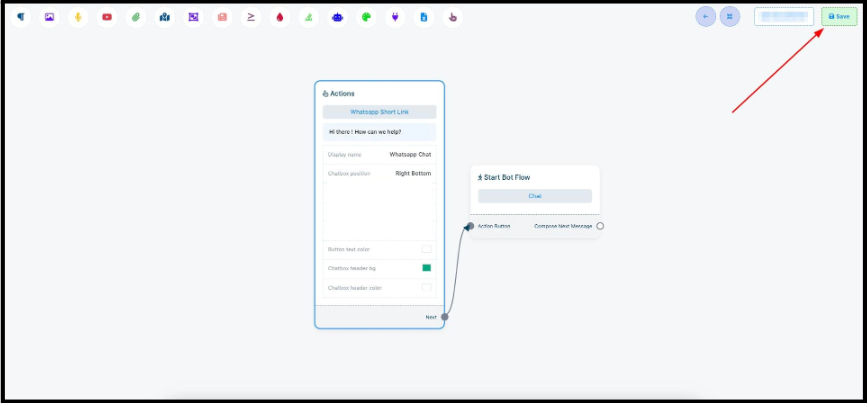
- Review your customization and click on the Save button located on the top-right corner.
- Next, click the Embed Code (</>) button to generate your widget’s script.
- Copy the script and paste it into your website’s HTML code, just before the closing </body> tag.
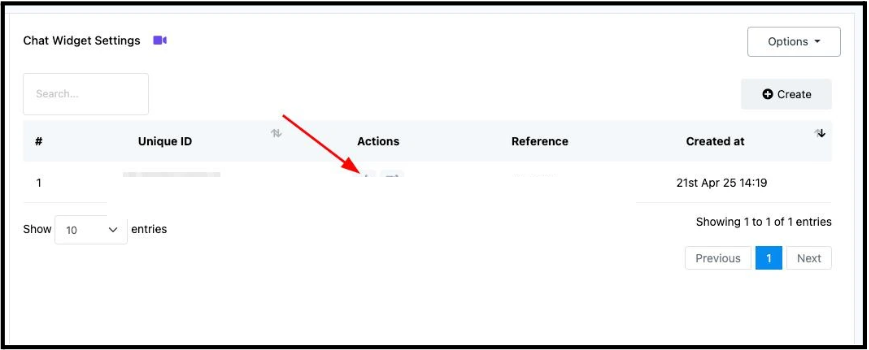
And here it is, your WhatsApp Chat Widget is now live!
Your visitors can now start chatting with you directly via WhatsApp without leaving your website.
Final Words
Start using SendWo’s Chat Widget today to build stronger, faster, and smarter connections with your customers.
1. Do I need coding experience to use it?
No. The chat widget is auto-generated by SendWo. You can simply copy and paste the script into your website’s HTML, and voila, it’s live.
Turn this learning into your next WhatsApp campaign.
Start with Sendwo’s free plan, explore WhatsApp broadcasts, automation, AI chatbot flows, and upgrade only when your business needs more power.
2. Can I customize the widget’s look and behavior?
Yes! You can personalize the features like, button style, placement, colors, logo, welcome message, and even hover effects to align with your brand identity.
3. Where should you paste the embed code?
Paste the copied script before the closing </body> tag in your site’s HTML file. For WordPress, use a custom HTML block or header/footer script plugin.
4. Is it responsive on mobile devices?
Absolutely Yes! The SendWo chat widget is fully responsive for all devices, including desktop, tablet, and mobile.
5. Can you edit or update the widget later?
Yes. You can modify the widget anytime in your SendWo dashboard. Changes will be reflected automatically on your live site.
6. Do you need a WhatsApp Business API account?
Yes. For SendWo’s WhatsApp Chat Widget, you must have a verified WhatsApp Business API account connected to your SendWo workspace.
7. Can you integrate it with the chatbot flow?
Absolutely! You can combine it with SendWo Flow Builder for automatic replies, FAQs, and AI-based conversations right from WhatsApp.
8. Is there any cost to create the chat widget?
No additional charges apply for SendWo users. This feature is included in your existing WhatsApp API plan.
Snehil Prakash
Snehil Prakash is an expert WhatsApp consultant with SendWo. He has expertise in implementing WhatsApp API for enterprise businesses and built automation, chatbot and AI powered solution.