
Describe the conversation
Explain the trigger, questions, answers and next steps in your own words. AI drafts the journey for review.
Multi-channel AI chatbot builder
Turn a prompt into a connected chatbot flow. Review the conversation, refine the canvas and test the experience before you save.
AI generation and revisions use Sendwo AI tokens. Available blocks and integrations depend on your selected channel and connected accounts.
Brands and teams that have used Sendwo.







































Create your way
Use AI for the first draft and the visual canvas for the details. You can also build every step yourself.
Explain the trigger, questions, answers and next steps in your own words. AI drafts the journey for review.
Edit messages, map customer fields, add conditions and connect actions on the same canvas.
Send captured details to your tools, continue with AI replies or route the conversation to your team.
From prompt to working flow
Start with your idea, refine the draft and test the experience before saving your chatbot.
Open the builder
Choose the chatbot account you want to build for, open the visual builder and select Generate with AI.
Describe the journey
Write the conversation you want, or choose one of the five prompt starters to fill the description for you.
Read and refine
Review the proposed conversation in Read the conversation. Check the questions, confirmations and field-mapping notes.
Place and keep
After placement, review the confirmation and choose Keep it to continue editing the generated flow.
Fine-tune the flow
Inspect every connection and make the final adjustments before testing.
Preview and save
Open Preview, send the starting keyword and walk through the flow as a customer would.
AI agents with your knowledge
Configure an AI agent with a prompt and connected knowledge sources. Sendwo’s RAG-based approach can use relevant source content to support answers.
A visual workspace you already know
Keep the familiar visual builder. Use guided buttons where the path is clear, AI replies for open questions and connected actions to move the work forward.
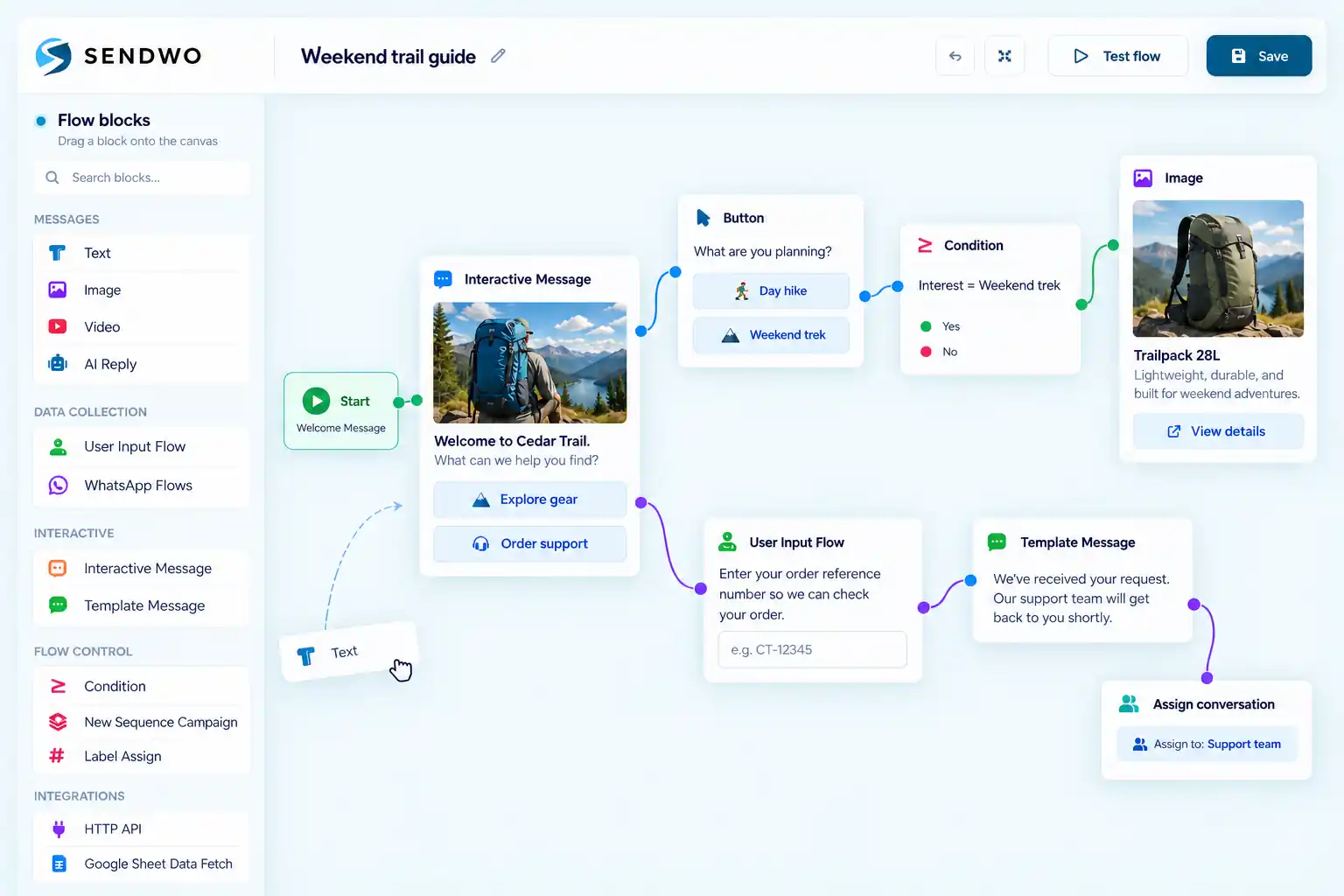
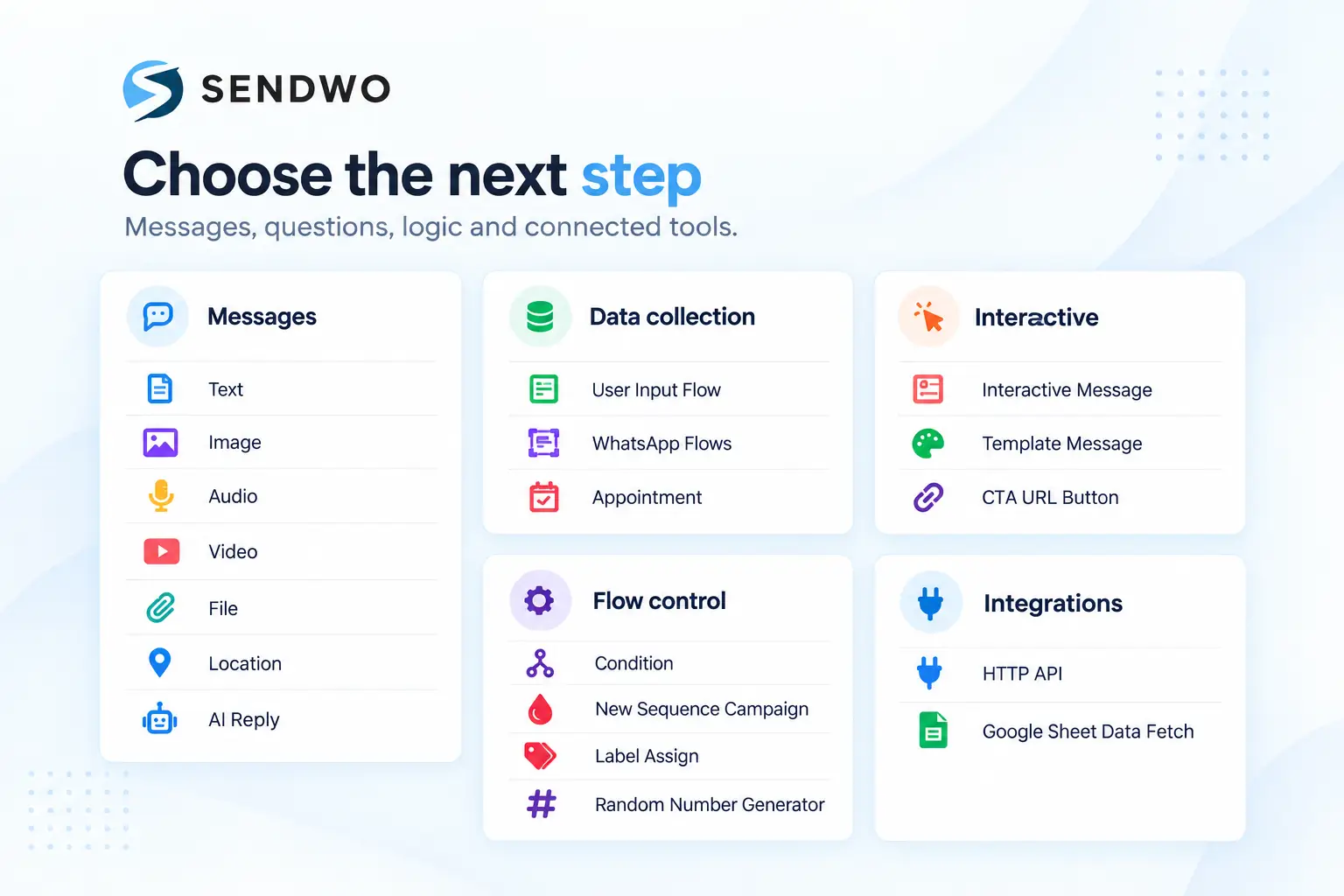
Messages, questions and actions
Start with a message, then add the blocks your selected channel supports.
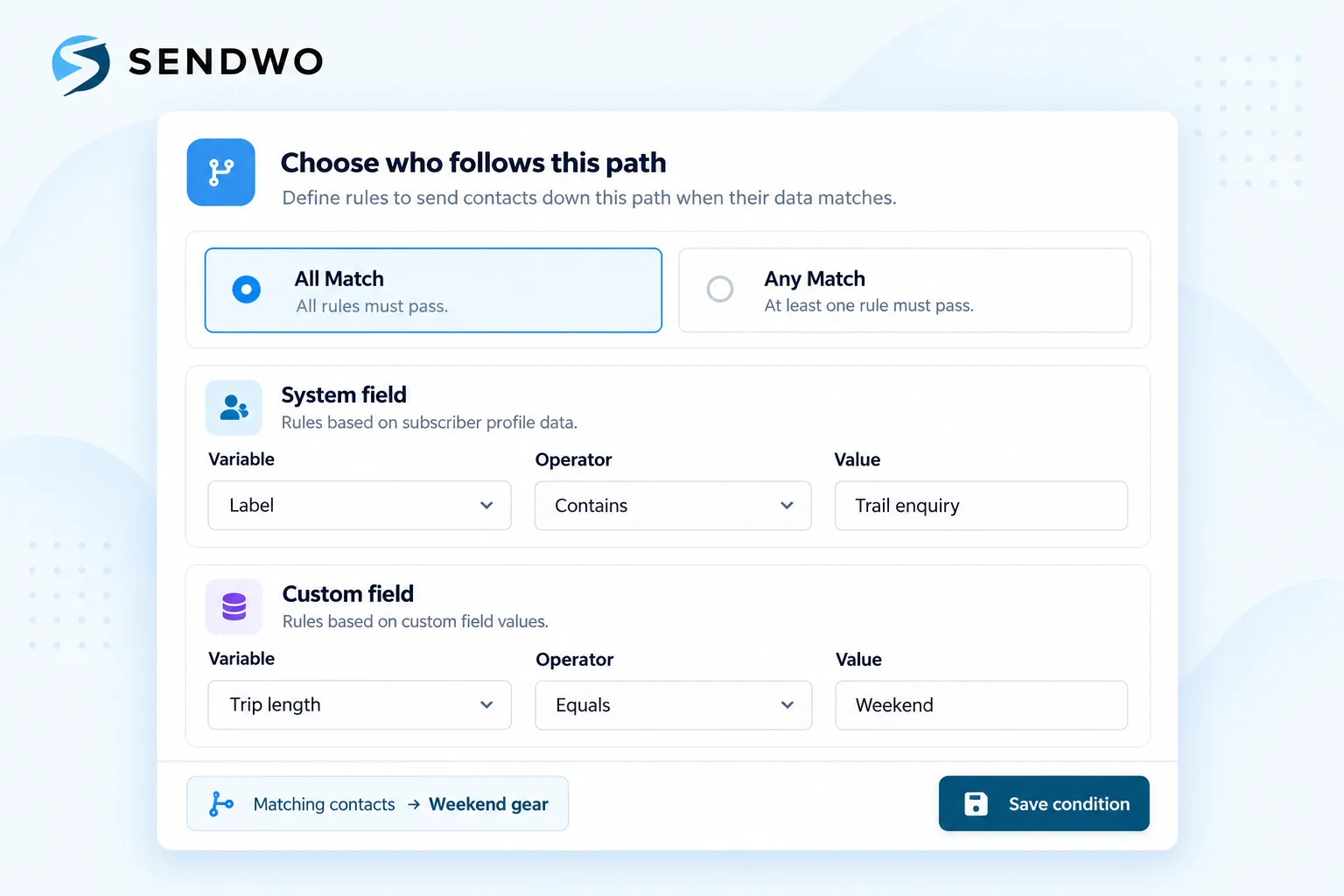
Conditions and routing
Route customers according to the information they share, their saved fields or the labels attached to their profile.
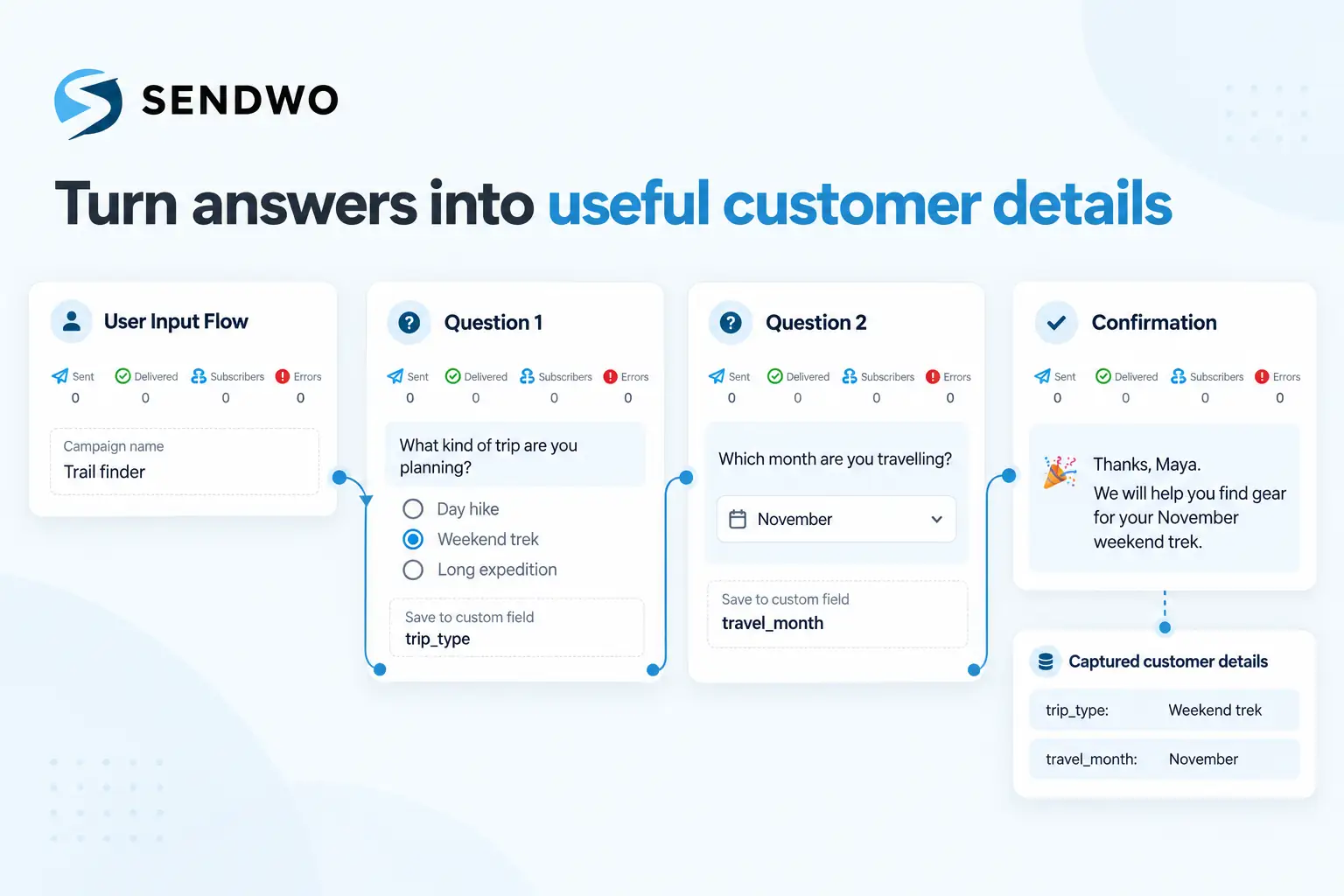
Personalization and data collection
Replace a long form with a guided exchange. Ask one question at a time and save each response for the next step.
Sequences and timing
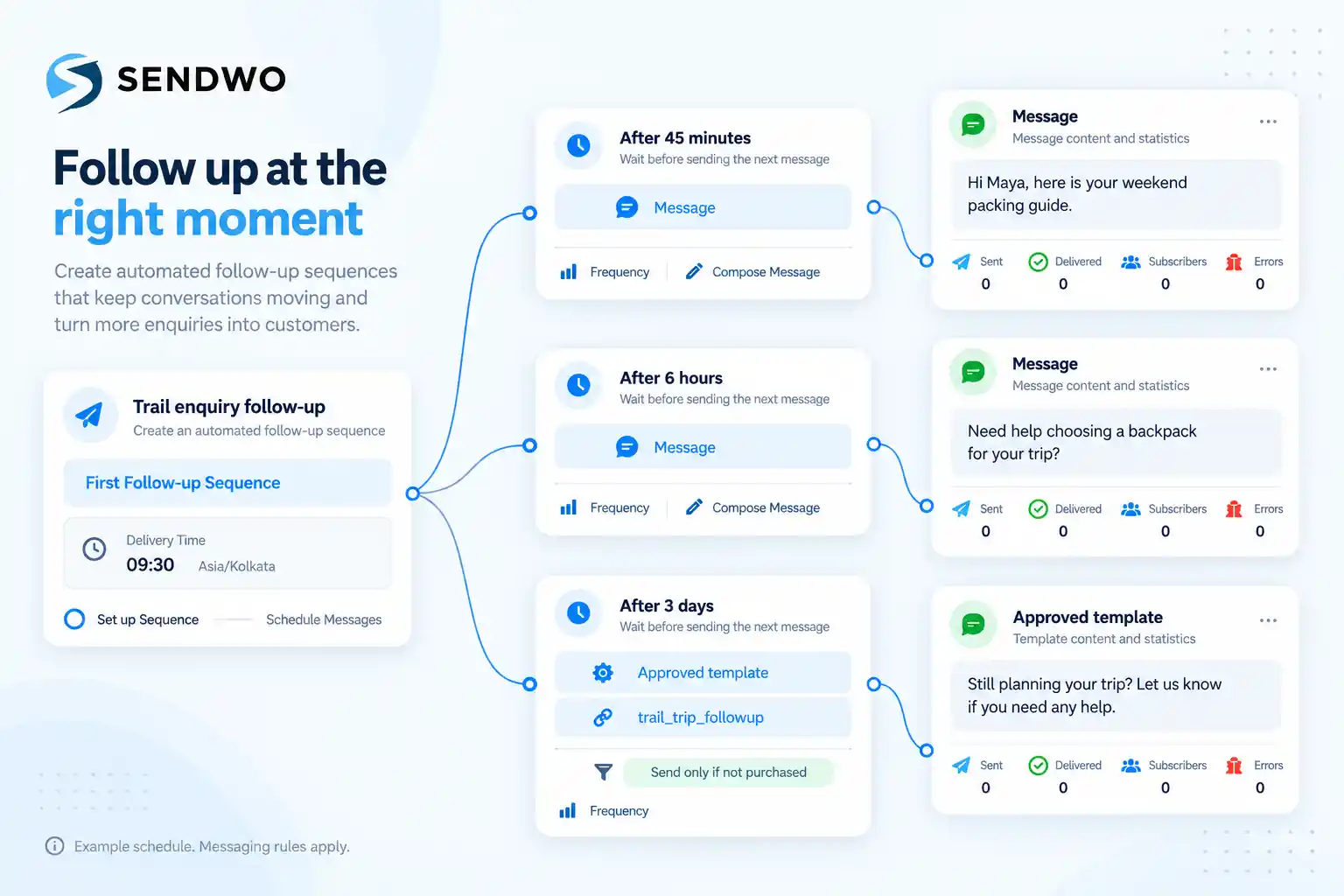
Continue the journey after the first exchange, with timed messages and conditions that keep the next step relevant.
Bot behaviour and customer experience
Configure fallback replies, availability and the way your team and automation work together.
Keep the conversation moving when there is no match.
Choose when automation should respond.
Make automation and human support work together.
Keep your bot-event integrations organized.
Outbound actions and webhooks
Name the webhook, enter its destination URL and select the event that should trigger it.
Turn captured details into the next step
Connect the relevant accounts once, choose where information should go and configure what happens after a contact shares it.
Keep new enquiries connected to your email marketing workflow.
Keep the information your bot captures in the spreadsheet your team uses.
Configure a direct automated email without building an autoresponder campaign.
Connect an SMS provider and configure the message to send.
Connected actions and control
Add or remove labels, save customer fields and organize subscribers so later steps can recognize their interests or status.
Call a configured external endpoint, send the relevant data and map useful response values back into the conversation.
Use connected Shopify or e-commerce tools and supported product blocks as part of the chatbot journey.
Add a route to a person, assign the conversation and let a teammate continue in Shared Inbox with customer context.
Export flows as JSON and import them when needed. Check compatible blocks, channel settings and account connections before using a flow.
Inspect bot activity and error reports when a response or connected action does not behave as expected.
How businesses use Sendwo
Meet the people using Sendwo for communication, enquiry handling and follow-up.

Promotions, product updates and follow-up conversations with buyers.


AI-assisted guest questions, resort enquiries and booking conversations.


Click-to-WhatsApp enquiries, automated replies and lead handling.


Class communications, learning-session updates and student reminders.

Questions, answered
It is a multi-channel visual builder for WhatsApp, Instagram, Facebook Messenger, Telegram and Web Chat. Describe a journey with Generate with AI or build it with drag-and-drop blocks, then review, test and save the flow.
You do not need to code the conversation. AI can draft the flow, and the canvas lets you edit its messages, questions and connections. External API or webhook integrations may require technical configuration such as an endpoint, credentials and field mapping.
No. You first read the proposed conversation. Place on canvas adds the flow to your editing workspace, and Keep it retains that placement. Review the blocks and use Preview to test the journey. Save is the step that saves and activates the flow.
Yes. Generating a flow uses Sendwo AI tokens, and asking AI to revise it through Change something also uses tokens. You can make manual edits on the canvas after placing the flow.
Yes. The five starters are Qualify a lead, Book an appointment, Answer product questions, Collect an order and Support handoff. They fill the prompt box so you can adapt the instructions before generating.
You can configure an AI agent with a prompt and knowledge sources such as pasted content, selected URL content, supported documents, media, Google Sheets and HTTP API connections. Review the source content and test the resulting answers.
Yes. User Input Flow can collect answers and map them to customer fields. Configured Google Sheets, autoresponder accounts, email and SMS APIs, HTTP APIs and outbound webhooks can use the collected information for your chosen workflow.
Configure a no-match reply and the fallback flow you want the bot to use. You can control its response frequency, add an AI-assisted route where appropriate, or offer a human-support path.
Yes. Configure business hours, off days, a special off-hours bot, shared-inbox bot and AI controls, signatures and session expiry settings. Your team can continue conversations in Shared Inbox.
No. Chatbot Builder maps the wider conversation. WhatsApp Flows creates structured in-chat form screens for WhatsApp, which can be opened from a supported WhatsApp Flow block. User Input Flow collects answers conversationally.
You can import or export flows in JSON format and inspect bot logs or error logs. Review channel-specific blocks and connected accounts when reusing a flow.
Available formats, blocks, settings and integrations depend on the selected channel and your connected accounts. Choose the channel you are building for, then configure and test the supported journey in that account.