
How to Set Up a WhatsApp AI Agent for Customer Service in Sendwo
Set up a WhatsApp AI agent in Sendwo for 24/7 customer support. Add FAQs, configure human handoff, and test replies before going live.
 By Aditi Kamini
Published: November 20, 2026
7 min read
Set up a WhatsApp AI agent in Sendwo for 24/7 customer support. Add FAQs, configure human handoff, and test replies before going live.
A customer messages your store on WhatsApp after closing and asks whether a gift can be returned in person. If your return policy covers that, your AI agent can answer right away. If the customer says the store already refused the return, someone on your support team needs to read the conversation and decide what to do.
This guide builds that setup in Sendwo. You’ll create a WhatsApp AI agent, give it a small set of support answers, and connect it to your bot. You’ll also test which messages it answers and which it passes to a person.
Before you start
You need a WhatsApp Business number connected to Sendwo and access to its bot in Chatbot Manager. If you still need to add the number, start with Sendwo’s WhatsApp connection via dedicated support. Check the AI access and token balance for your workspace before testing.
Gather the answers your team already gives to questions about delivery, returns, store hours, or pricing. Start with five or ten answers that someone on your team can confirm. If different product categories have different rules, write them out now. A vague return policy tends to produce a vague WhatsApp reply.
1. Create a support agent for your WhatsApp bot
From the left menu, open Chatbot Manager → WhatsApp Bot. Select your number under Bots / Accounts, then open AI → Agents → Create Agent.
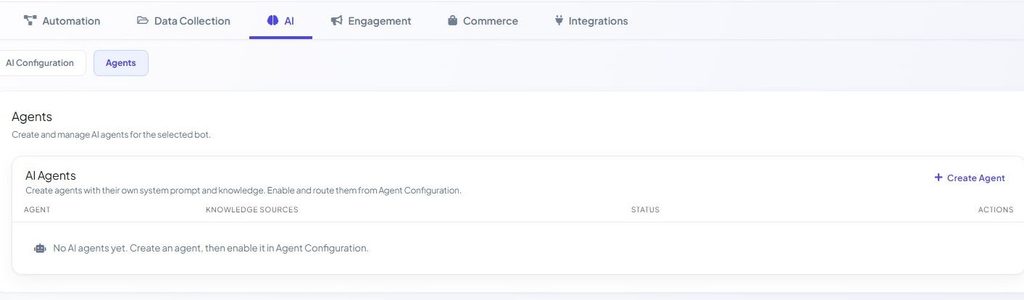
Under Name, enter WhatsApp Support. Leave the Slug blank to generate it from the name and keep Status set to Active. The Description can be as simple as “Answers delivery and return questions and routes exceptions to support.” The agent’s status controls whether it is available to select. You’ll enable it for the number separately in AI Configuration.
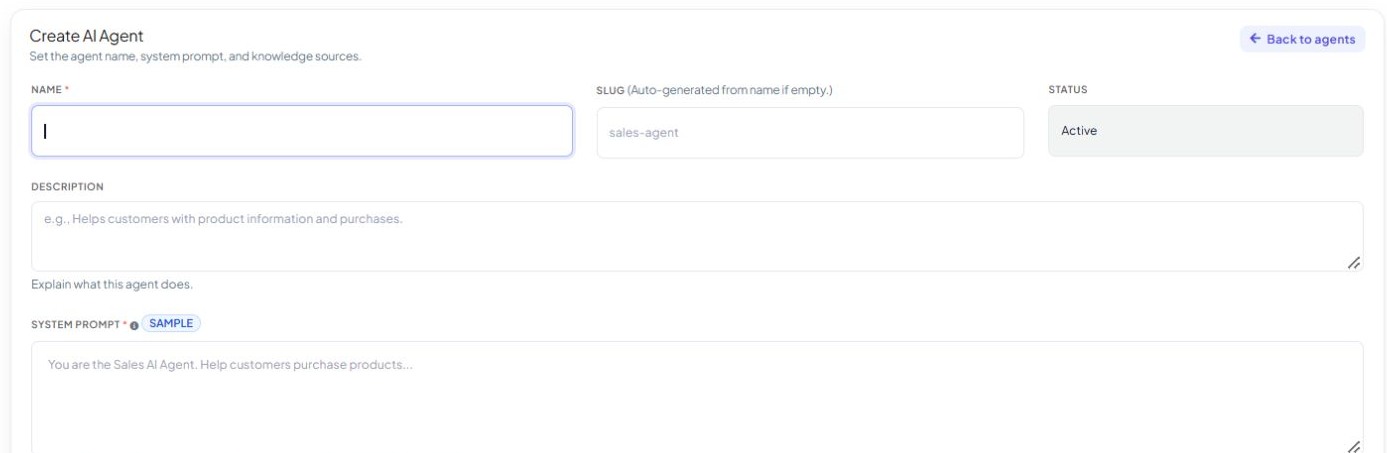
Paste instructions into System Prompt. Here’s one you can adapt for a store.
You’re the WhatsApp support assistant for our store. Use the attached knowledge to answer questions about delivery, returns and store hours. Use plain language and keep replies short. If an answer depends on where the customer lives, ask for their postcode before giving an estimate. Do not guess order status, approve a refund or promise a delivery date. If a customer asks for a person, reports a failed refund, or needs an answer you can’t verify, tell them you’ll pass the conversation to support and use the configured assignment action.
The prompt sets the ground rules. Put the actual policies in the knowledge set so you can update an answer without rewriting the prompt.
2. Add the answers the agent should use
Scroll to Knowledge Sources. Under Knowledge Set, choose Create New and enter a name such as Store support FAQs. If you already have a current set of answers, choose Select Existing and pick it from the dropdown.
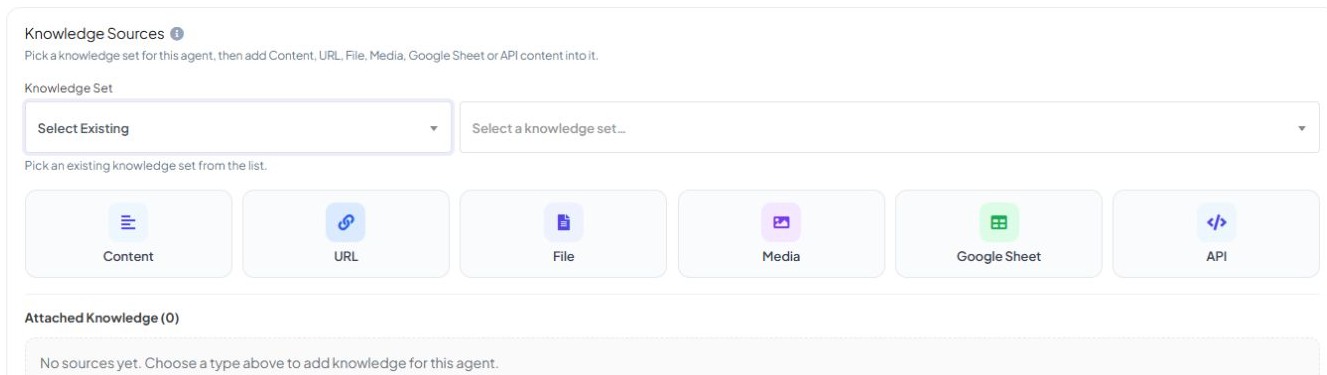
Choose Content to add FAQs directly. Write each question followed by the answer you want customers to receive. Include any exceptions that change the answer.
Can I return an unopened item?
Yes, within 14 days of delivery. Keep the original packaging and proof of purchase. Personalised items are excluded. If the item arrived damaged, ask our support team to review the order.
These are example policies. Replace them with your store’s terms before saving. Use Save in the Content panel and check that the source appears under Attached Knowledge.
Turn this learning into your next WhatsApp campaign.
Start with Sendwo’s free plan, explore WhatsApp broadcasts, automation, AI chatbot flows, and upgrade only when your business needs more power.
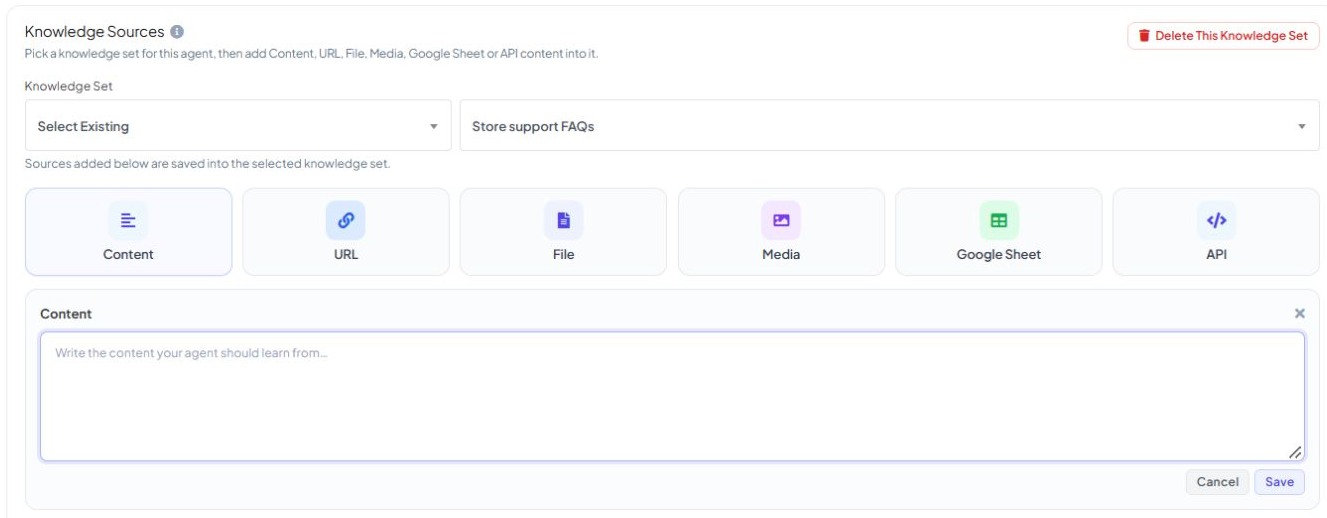
You can use URL to add a maintained shipping or returns page, or File for a support document. The same screen also offers Media, Google Sheet and API. For a first setup, one current source per policy makes it easier to trace where an answer came from.
When you’re happy with the prompt and sources, click Save Agent.
3. Choose when AI answers on WhatsApp
Return to AI → AI Configuration for the same WhatsApp number. Turn on AI Agent, then select WhatsApp Support under Active Agents. With one support agent, start by selecting that agent. If you add a second one later, Agent Routing → Add Rule lets you describe which messages it handles. For example, pricing and product questions can go to Sales while exchanges and damaged deliveries go to Support.
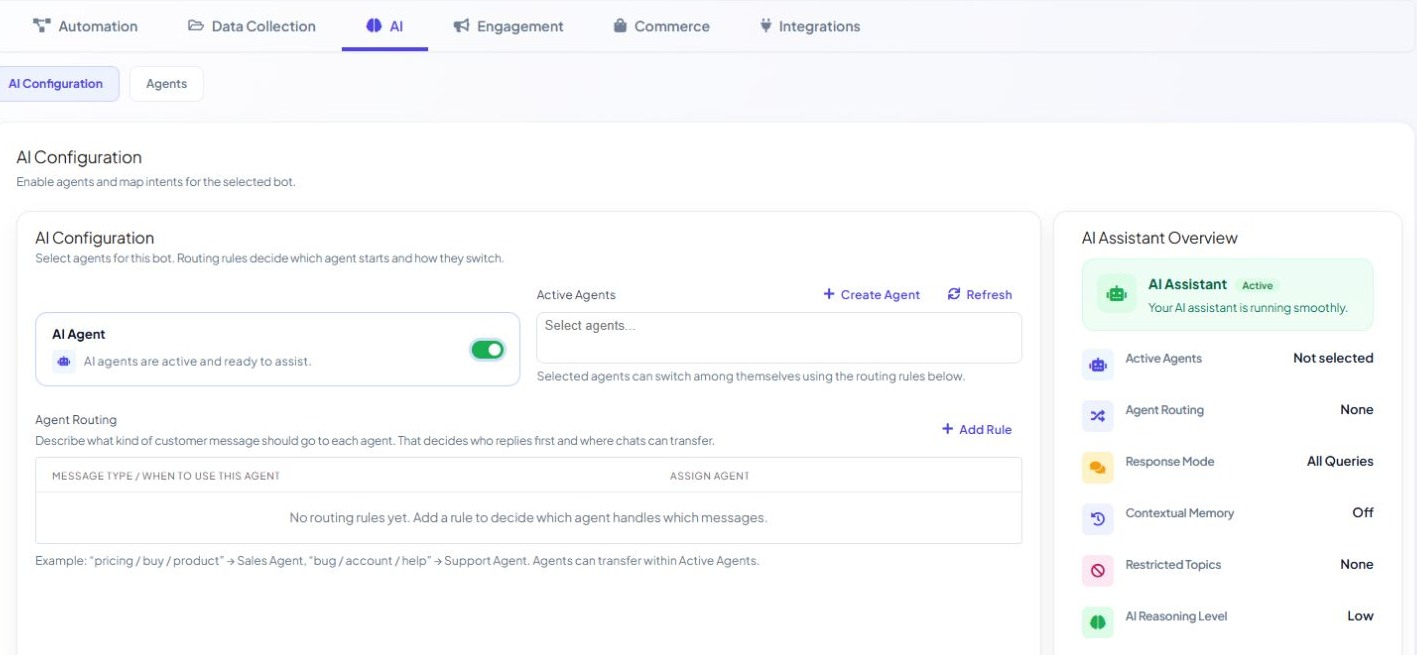
Under AI Response Mode, choose how the agent should work with your existing chatbot.
Choose AI as a Fallback Only if you already use keyword replies or bot flows. Those run first. The agent answers when a customer’s message doesn’t match them.
Choose AI Agent for All Queries if you want AI to handle every incoming question, including ones that would match a keyword or flow. Test any existing order menus or welcome flows you rely on before using this mode on your main number.
4. Set up the handoff to your support team
In AI Configuration, scroll to Assignment, turn on Assign to Team or Department and choose a team in Team / Department. In Assignment Message, tell customers what happens next. “I’ll pass this to our support team. Someone will reply here during our support hours” is enough if it matches how your team works.
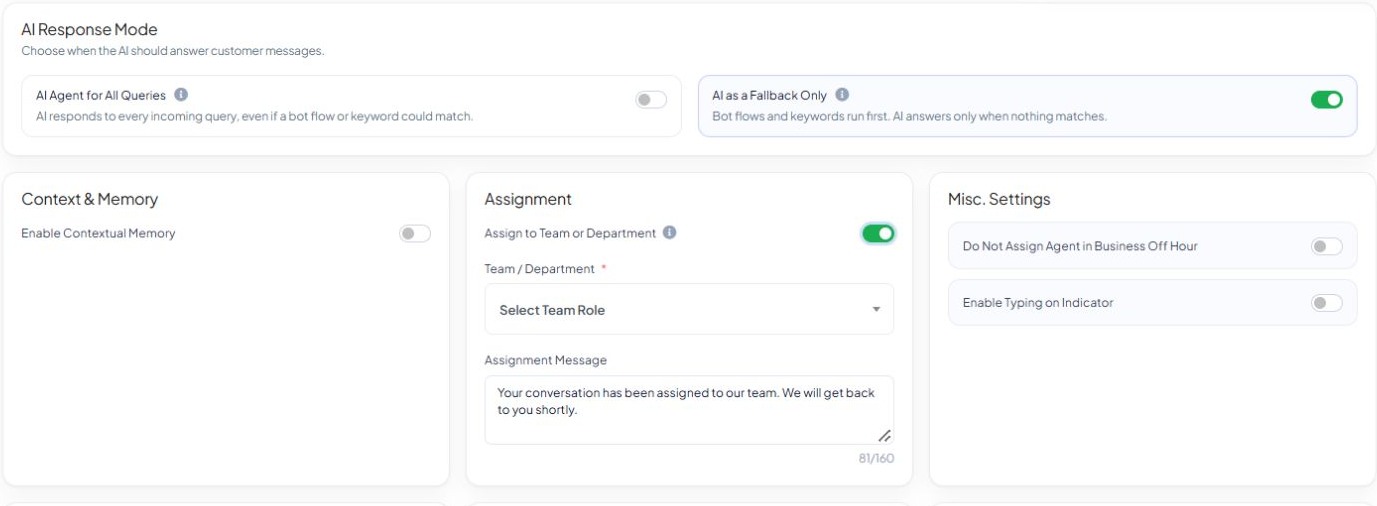
For specific cases such as “I want to talk to a person,” you can add a human assignment action to the agent’s System Prompt. Open Agents, edit your agent, type ## in the prompt editor and choose the assignment action and the intended team role or member from the suggestions. Keep the conditions for using the action next to it. Then save the agent and check in a test chat that the conversation reaches the right place in Shared Inbox. A reply that promises a handoff is only useful if the team receives the chat.
Check Business Hours if the team is offline overnight, especially the setting Do Not Assign Agent in Business Off Hour. Decide whether to assign chats for the next shift or let the customer know when the team returns. Click Save Settings when you’re ready to test the configured number.
5. Test it from another WhatsApp number
Send messages from a separate WhatsApp account to your connected business number. Use a test number for the bot if you have one. Open Shared Inbox while you run the checks so you can see both the customer reply and the assignment.
“CAN I RETURN A GIFT IF I OPENED IT?” should get an answer that matches your returns policy. Try another wording to make sure the response still holds.
“Where’s my order? It’s 10438.” should follow your existing tracking flow if there’s a matching keyword in fallback mode. If nothing matches and the agent has no order lookup, it should offer a way to get help without guessing a status.
“I want to speak to someone about a refund” should reach the intended team. Check that the customer receives the handoff message and that a team member can take over.
Send “That one. Can I return it in store?” after asking about a product. If the agent needs recent chat history to understand the follow-up, try Enable Contextual Memory and repeat the test.
Try a message outside business hours as well. If an answer is wrong, check the knowledge source for an outdated policy first. If the wrong automation replies, check the response mode and any keyword already mapped to that message.
What to automate once the first replies work
Delivery FAQs and return eligibility are usually a good first job. To answer “Where is my package?” with live tracking, connect a supported store or order lookup and configure the agent or bot flow to use it. A shipping policy can explain typical delivery times, but it cannot tell you whether a particular order shipped.
Keep cart reminders and other proactive messages in their own workflows. On the WhatsApp Business Platform, a customer message starts or resets the 24-hour customer service window. When the window has closed, use an approved message template for an outbound follow-up. See the WhatsApp Business Messaging Policy.
In the first week, read a sample of chats in Shared Inbox. Check how quickly customers got their first answer, which questions needed a handoff, and how often someone had to ask again. Add missing answers where you see a pattern. If AI tokens are running down faster than expected, check how many messages go to AI and how much conversation history you’re including before expanding to another topic.
Aditi Kamini
Aditi, a content marketer at SendWo, is a passionate writer and marketing enthusiast. She excels in driving revenue campaigns, building client relationships, and mastering content creation, SEO, customer service, and project management.