Imagine juggling two phones but needing one WhatsApp account. Thanks to WhatsApp Web, you can scan a QR code to link your chat across devices. In fact, WhatsApp now boasts over 3 billion users worldwide, sending 100+ billion messages daily. With so much traffic, it’s no surprise that businesses (around 50 million of them) rely on WhatsApp Web to sta y connected. Using the WhatsApp Web QR Code Mobile to Mobile method, you can open your chat on a second phone just like on a desktop. This guide (brought to you by SendWo) shows how to set it up, what it’s good for, and how to tr oubleshoot common issues. We’ll also cover the latest multi-device features and answer popular questions. Let’s dive in!
1. What is WhatsApp Web and the QR Code?
WhatsApp Web is simply the web client of WhatsApp (accessible at web.whatsapp.com) that lets you use WhatsApp on other devices. Instead of logging in with a password, WhatsApp generates a unique QR code on the screen of the second device. You scan that code with your phone’s camera to authenticate. This links the new device to your account securely. In practice, when you visit web.whatsapp.com (on a browser) you’ll see a QR login code. Opening your WhatsApp app on your main phone and going to Linked Devices → Link a Device activates the scanner. Point it at the QR code, and your chats and media will sync to the new device.
This QR-code method is actually very secure. The entire process is end-to-end encrypted – WhatsApp confirms that scanning the QR code only grants temporary access tied to your phone number, without ever sharing your password. In other words, only you can log in from that second device. Think of it as a private handshake between your phones. WhatsApp’s design even isolates the QR token so no one else can misuse it. The convenience of not typing a login and the safety of encryption make WhatsApp Web a trusted way to stay connected on multiple devices. In short, WhatsApp Web + QR code = a quick, safe way to mirror your chat on another device.
2. How to Use WhatsApp Web on a Second Mobile (Mobile-to-Mobile Scanning)
To use WhatsApp Web QR Code Mobile to Mobile, you simply treat one phone like the “desktop” and scan its QR with your primary phone. Here’s how:
Prepare both phones: Ensure your primary phone (Phone A) has WhatsApp installed and logged in. Make sure both phones have internet access. Use a modern browser (Chrome, Firefox, Safari) on the second phone (Phone B).
Open WhatsApp Web on Phone B: On Phone B, open your browser’s menu and select Desktop Site or Request Desktop Website. Then go to web.whatsapp.com . You should see the familiar WhatsApp Web login page with a QR code.
Figure: Enable Desktop mode on Phone B’s browser and visit web.whatsapp.com. You’ll see the WhatsApp login QR code appear on screen.
Scan the QR on Phone A: On your primary phone (Phone A), open WhatsApp and tap Menu (⋮) on Android or Settings on iPhone. Choose Linked Devices → Link a Device. This opens the camera viewfinder. Point it at the QR code displayed on Phone B’s screen. The app will recognize the code and instantly link the two devices.
Complete the linking: Once scanned, the WhatsApp interface from Phone A will load on Phone B’s browser. You can now view chats, send messages, and receive updates on Phone B exactly as you would on a desktop. Phone A must stay connected to the internet to keep everything synced.
Figure: On Phone A, tap Link a Device to activate the QR scanner (tapping the + icon if needed). Point it at Phone B’s screen to link both devices.
That’s it! You’ve effectively created a WhatsApp Web QR Code Mobile to Mobile bridge. Phone B is now acting like a WhatsApp Web client. You can chat, read and reply to message, and even send photos – all from the second phone’s browser.
3. Why Use WhatsApp Web on Mobile? Key Benefits
Linking WhatsApp across two phones may seem niche, but it has real-world advantages:
Multi-Device Access: Your WhatsApp can follow you anywhere. For example, if your phone’s battery dies or breaks (ouch), you can still use WhatsApp Web QR Code Mobile to Mobile device by having pre-linked it. In one story, when Lina’s phone cracked, she simply scanned the QR code on a friend’s phone and continued chatting without missing a beat.
Team Collaboration: Small businesses love this. Now multiple employees can handle one WhatsApp Business account. For instance, a clothing store had three staff members log into the same WhatsApp account on different devices via the QR code. This let each team member answer customer inquiries simultaneously from their own device. (WhatsApp’s official blog even highlights this: you can link up to four phones to one account, so your team can all use the same number.)
Easy File Transfer: It’s often faster than emailing. Imagine Rohit, who photographs products with his phone. Instead of emailing each image, he opens WhatsApp Web on his PC (or second phone), and scans the QR code. The photos instantly appear on his larger screen for editing and upload. No copying or cables needed.
Continuity: If you’re working on your laptop or secondary device and your phone rings, you don’t have to switch screens constantly. WhatsApp Web syncs messages, so you can quickly copy and paste text, share documents, or view long chats from the larger interface, saving time.
Security & Convenience: Since scanning the QR code doesn’t transmit your password, you can safely use public or shared devices as temporary terminals. And the link remains active until you sign out. (To end a session, just tap Log out under Linked Devices in the app.)
In short, using WhatsApp Web QR Code Mobile to Mobile keeps you productive and reachable. It turns any phone’s browser into an extension of your WhatsApp account, which is especially handy in business or urgent scenarios.
4. WhatsApp’s Multi-Device and Companion Mode (Latest Updates)
WhatsApp continues to evolve its multi-device support. In 2023 they introduced Companion Mode, officially allowing one account on multiple phones without juggling the old login each time. Now you can link up to 4 additional devices (phones, tablets, computers) under one number. Once linked, each device operates independently. That means you can chat from your office tablet even if your main phone is at home, as long as it’s connected initially.
Importantly, you don’t always need to scan a QR code with Companion Mode. WhatsApp now offers an alternative – you can enter your number on web.whatsapp.com and get a one-time code on your main device, which you use to authorize the new device. This streamlines linking a second phone. Businesses rejoice: as WhatsApp states, this makes “switching between phones without signing out” seamless. Staff members can now “respond to customers directly from their phones under the same WhatsApp Business account”.
To use this, ensure both devices have the latest WhatsApp version. Open Linked Devices on your primary phone and follow the prompts. Once you see the new “WhatsApp Web QR Code Mobile to Mobile” entry for your secondary phone, you’re done. Your chats, contacts and settings sync (all encrypted) so you’ll pick up where you left off. Just remember: WhatsApp enforces security – if your primary phone is inactive for long, it may log out companions.
Pro Tip: Even with multi-device, the QR code method still works great for a quick link. Combine both – use QR scanning to link instantly, then enable companion mode to keep devices connected long-term.
5. Tips & Troubleshooting
Even this simple process can have hiccups. Here are some quick fixes:
No QR Code Appearing? Make sure you’ve enabled “Desktop Mode” correctly on Phone B’s browser. If the QR doesn’t show or refreshes strangely, reload the page or try a different browser. A strong internet connection on both phones is essential.
QR Code Too Small or Won’t Scan? Rotate the phone to landscape or zoom out in the browser so the QR fills the screen. Clearing the browser cache or opening a fresh tab can help. Ensure Phone A’s camera has permission and focus is clear. Often, simply rotating or moving back until the QR fits in view does the trick. Session Dropped / Signed Out? By default, WhatsApp Web QR Code Mobile to Mobile only keeps one session active per account. Logging in on a new device will log out the previous one. If you need multiple concurrent sessions, use the official multi-device mode. Otherwise, just repeat the scan whenever needed.
Data Usage Concerns: Using WhatsApp Web QR Code Mobile to Mobile browser can consume more data than the app, since the full desktop interface and media sync live. If data is tight, ensure you’re on Wi-Fi or limit media downloads in settings.
App Version: WhatsApp Web QR Code Mobile to Mobile won’t work if your phone’s WhatsApp is outdated. Keep both app and browser up-to-date. Also, note that voice/video calls aren’t supported on Web – only messaging and media.
In most cases, following the step-by-step above and keeping devices charged fixes any issue. If a QR scan fails repeatedly, try tapping Log out from all devices in your app and start fresh. The key is patience and a steady setup – once linked, it usually “just works” until you manually log out.
FAQ
Q: Can I use WhatsApp Web on my mobile phone?
A: Yes! Although WhatsApp Web QR Code Mobile to Mobile was designed for desktops, you can use it on a second phone. Simply open a browser on Phone B, enable Desktop Mode, and go to web.whatsapp.com . Then scan the QR code with WhatsApp on your main phone. This effectively lets Phone B act as a desktop client.
Q: How do I link my WhatsApp to a second phone?
A: On your primary phone, open WhatsApp and tap Linked Devices → Link a Device. Then point its camera at the QR code shown on the second phone’s browser (opened to WhatsApp Web QR Code Mobile to Mobile). The code links the two devices instantly. Alternatively, use WhatsApp’s new companion mode (enter your number on web.whatsapp.com) to add the second phone without scanning.
Q: Can I have WhatsApp on two phones with the same number?
A: Yes. With companion mode, one WhatsApp account can be used on up to 4 additional phones. Each linked phone receives the same messages independently. Keep in mind that if your primary phone stays offline for too long, companion devices may log out for security.
Q: Do I need my phone to be online to use WhatsApp Web?
A: It depends. Without multi-device, the primary phone must stay connected to the internet to sync chats. However, once you use multi-device or companion mode, your linked phones and computers maintain their own connections. In other words, after initial linking, secondary devices can continue sending/receiving even if the main phone is offline.
Q: How secure is the QR code scan? Can someone steal my chats?
A: The QR login is very secure. The code is unique and only valid for a short time. Scanning doesn’t expose your password – it simply establishes an encrypted session tied to your phone number. WhatsApp explicitly uses end-to-end encryption and device verification during this process, so only your phone (the one that scanned) can use that login. Always keep your QR codes private and log out of devices you no longer use.
Q: Why won’t my WhatsApp Web scan?
A: Common issues: the code expired (it refreshes frequently), your camera didn’t focus, or the browser isn’t in desktop view. Simply refresh the browser, ensure “Desktop Site” is enabled, and try again. Also make sure no other app is blocking the camera. If problems persist, logging out and starting fresh usually solves it.
Q: How many devices can I connect to WhatsApp?
A: Officially, you can link your account to 4 devices in multi-device mode (this includes computers and phones), plus your one main phone. Regular WhatsApp Web (without companion mode) counts each link individually and will kick out older links if you exceed the limit.
Q: Can this replace using WhatsApp Business API or tools like SendWo?
A: No, WhatsApp Web QR scanning is simply a user interface feature. Tools like SendWo (which use WhatsApp Business API) are for bulk messaging, chat automation, and CRM integration. However, linking devices can complement those tools by letting your team stay logged in. For example, a support agent could use WhatsApp Web on a tablet and still send transactional messages through SendWo’s API on the backend.
Conclusion & Call to Action
Using the WhatsApp Web QR Code Mobile to Mobile feature keeps you flexible and always in touch. Whether you’re a freelancer coordinating projects or a store owner managing customer inquiries, linking your chats across devices can save time and headaches. As demonstrated, it only takes a few taps to connect phones: open the browser on one, scan with the other, and you’re chatting away.
For businesses, pairing this feature with a platform likeSendWo supercharges your strategy. SendWo’s WhatsApp Business API tools let you automate replies, send bulk messages, and integrate with your e-commerce. Meanwhile, you and your team can continue using familiar WhatsApp Web QR Code Mobile to Mobile to monitor and respond to chats in real time.
Upgrading to a new smartphone is exciting, but it often raises a big question: how to transfer chats from WhatsApp to new phone without losing precious messages and media. With WhatsApp boasting 3.3 billion active users in 2025, your chat history likely holds years of memories and vital information. The good news is that transferring WhatsApp data is easier than ever, thanks to built-in backup tools and official migration features. In this guide, we’ll walk you through step-by-step methods to migrate your WhatsApp chats safely and fully – whether you’re moving from Android to Android, iPhone to iPhone, or even between Android and iPhone. By following these instructions and tips, you can upgrade your device worry-free, knowing every message is backed up and ready on your new phone. Let’s dive in! how to transfer chats from WhatsApp to new phone.
1. Why Transferring WhatsApp Chats Matters
Your WhatsApp chats capture everything from family moments to work conversations. Losing this history when switching phones can be frustrating or even costly for businesses. By transferring how to transfer chats from WhatsApp to new phone, you preserve memories and maintain continuity. For example, a survey shows over 100 billion messages are sent daily on WhatsApp, so missing chat threads could mean losing crucial information. Whether it’s photos from a recent trip or client orders in a business group, keeping chats intact ensures nothing is lost in transition. Plus, for entrepreneurs using WhatsApp for customer support, platforms like SendWo rely on uninterrupted chat flows – seamless chat migration keeps your service smooth.
Key point: Always back up and transfer your WhatsApp chat history before changing devices. This way, you won’t lose any important conversations during the switch.
2. Backup Your WhatsApp Chats Before Switching
Before moving how to transfer chats from WhatsApp to new phone, create a fresh backup on your old device. This makes the transfer smooth and ensures you have a copy if anything goes wrong. WhatsApp provides two main backup methods:
Android (Google Drive):
Open WhatsApp on your Android phone.
Tap the three dots (⋮) > Settings > Chats > Chat backup.
Under Google Drive settings, choose a Google account and tap BACK UP.
Make sure you’re connected to Wi-Fi (especially if you have lots of media). This stores your messages and media in Google Drive, ready to restore on the new phone.
iPhone (iCloud):
Open WhatsApp on your iPhone.
Go to Settings > Chats > Chat Backup.
Tap Back Up Now to upload to iCloud (you may enable automatic backups here).
Ensure you’re signed into iCloud and have enough iCloud storage space. This saves your chat history and media to iCloud for later restoration.
Local Backup (Android):
WhatsApp also creates daily local backups on Android devices. For extra safety, you can copy the backup file manually: use a file manager to go to WhatsApp/Databases on your phone’s storage and copy the latest msgstore file to the new device (same folder). The next time you install WhatsApp on the new phone, it will detect and restore this local backup.
Export Chat (Any device):
For individual chats, WhatsApp lets you export chats (via email or other apps). In any chat, tap More ⋮ > More > Export Chat. You can email the chat to yourself (with or without media). Note: Exported chats aren’t importable back into WhatsApp; they’re just for archival or reading outside the app. Use this for specific important chats if needed.
Important: Always use the same phone number on the new phone when restoring. WhatsApp backups are tied to your number, so verify your number on the new device to retrieve the backup.
3. How to Transfer Chats from WhatsApp to New Phone on Android (to Android)
If you’re moving from one Android phone to another Android phone, WhatsApp makes it straightforward:
Using Google Drive Backup (Recommended):
On your old phone, create a Google Drive backup as described above.
Install WhatsApp on the new Android phone.
During setup, verify the same phone number and use the same Google account.
When prompted to restore chats, tap RESTORE.
Wait for the process to complete, then tap Next. Your chats will appear once initialization finishes.
This method retains all chats and media and is the easiest when both phones use Android and Google services.
Using Local Backup (Offline):
On the old device, open WhatsApp > Chats > Chat backup, and tap BACK UP (this ensures a fresh local backup on your phone’s storage).
Using a file explorer, go to WhatsApp/Databases on the old phone, copy the latest msgstore.db.crypt12 file.
Transfer this file to the same location (WhatsApp/Databases) on how to transfer chats from WhatsApp to new phone (you may need to create these folders). This can be done via USB cable or SD card.
Install WhatsApp on the new phone (do not open it yet).
Launch WhatsApp, verify your number, and WhatsApp will detect the local backup. Tap RESTORE when it appears.
All chats and media from the backup will be restored.
Tip: This offline method is handy if you have a lot of media or limited internet. It also works when you don’t want to use Google Drive.
4. Transfer WhatsApp Chats on iPhone (to iPhone)
For iPhone users switching to another iPhone, the process is similar using iCloud:
Using iCloud Backup (Standard):
Ensure your old iPhone is signed into iCloud and has WhatsApp iCloud permissions.
In WhatsApp, go to Settings > Chats > Chat Backup and tap Back Up Now. Wait for it to complete.
On your new iPhone, sign in with the same Apple ID (iCloud account).
Install WhatsApp from the App Store and verify your phone number.
WhatsApp will detect the iCloud backup. Tap Restore Chat History to begin.
Your chats and media will download. This may take time depending on backup size and Wi-Fi speed.
Using iTunes or Finder Backup:
If you prefer or if iCloud has limited space, you can back up your old iPhone to a computer via iTunes (Windows) or Finder (Mac):
Connect the old iPhone to your computer and create an encrypted backup (this includes WhatsApp data) in iTunes/Finder.
Connect the new iPhone to the computer and restore from this backup.
Once the phone is restored, install WhatsApp. It should retain all chat data.
Note: Encrypted backups are crucial to include app data like WhatsApp. Without encryption, WhatsApp data won’t transfer.
Tip: Always keep your WhatsApp and iOS updated to the latest versions before backup for compatibility.
Transfer WhatsApp Chats Between Android and iPhone
Switching platforms (Android ↔ iPhone) used to be tricky, but WhatsApp now offers official solutions:
Android → iPhone (Move to iOS App):
Reset or set up your new iPhone fresh (ensure it’s on iOS 15.5+).
During setup, on the “Apps & Data” screen, choose Move Data from Android.
On your Android phone, install Apple’s Move to iOS app from Google Play.
Open Move to iOS on Android and follow the on-screen prompts. A code will appear on the iPhone.
Enter this code in Move to iOS. Android will connect to the iPhone’s temporary Wi-Fi network.
In the transfer menu, select WhatsApp (and any other data you want). Tap Continue.
The app will prepare and begin transferring your WhatsApp chat and media to the iPhone. This may take several minutes.
Once the transfer completes, finish the iPhone setup.
Install WhatsApp on the iPhone, open it, verify your phone number, and tap Start when prompted to “Move Chats from Android”.
Why it works: Apple’s Move to iOS (with WhatsApp’s support) wirelessly migrates your entire chat history. Apple confirms that this process moves WhatsApp message and media to the new device . You need an iPhone with iOS 15.5+ and an Android phone running Android 5 or later, along with updated WhatsApp apps.
iPhone → Android (USB Cable or Smart Switch):
Prepare the Android device: It must be new or reset (Android 12 or above is required for the official transfer). Install the latest WhatsApp on Android but do not open it yet.
Connect the devices: Use a compatible Lightning-to-USB-C cable (or Lightning-to-USB adapter and USB-C cable) to link your iPhone and Android.
On the Android setup, select the option to “Transfer WhatsApp” or “Move Data from iPhone” when prompted.
On the iPhone, a prompt will appear to “Move chats to Android” – tap Start.
A QR code will display on the Android screen. Use the iPhone’s camera to scan this code within WhatsApp.
WhatsApp will prepare the data. Follow any on-screen prompts until transfer begins.
Once complete, continue setting up Android.
Open WhatsApp on Android, verify your phone number (same as iPhone), and when prompted, tap Restore. Your chats and media will appear.
This method is now officially supported for many Android phones. For example, Samsung’s Smart Switch uses a very similar cable + QR code flow: Samsung instructs users to “scan the QR code shown on your Galaxy phone using the iPhone’s camera” and then Start the transfer in WhatsApp. In short, connect and scan to move everything.
Alternative for iPhone→Android: If you can’t use a cable, Samsung phones let you sign in to iCloud via Smart Switch (wireless). You back up WhatsApp on iPhone to iCloud, then in Smart Switch on the Galaxy choose Receive data > iPhone, then Get data from iCloud. After signing in with your Apple ID, Smart Switch will download your WhatsApp content. Finally, install WhatsApp on the Galaxy and restore from the Smart Switch backup.
Key Requirements: Make sure both phones have the same WhatsApp number. On Android, your device should be on Android 12+ and the newest WhatsApp version. On iPhone, use iOS 15.5+ with updated WhatsApp. Under these conditions, the official transfer “will move your entire chat history, profile photos, groups, and settings” just as expected.
5. Other Transfer Methods and Tips
Beyond built-in tools, there are alternate ways to move chats:
Email Chat: WhatsApp lets you export conversations via email. In a chat, tap ⋮ > More > Export chat. Send it to your email (without encryption). how to transfer chats from WhatsApp to new phone, you can open these emails to read old messages, but note: exported chats won’t integrate back into WhatsApp. This is best for archiving a few essential chats (it’s free and doesn’t require Wi-Fi).
Third-Party Software: There are apps like MobileTrans, Dr.Fone, or iCareFone that promise one-click transfers (with or without a computer). For instance, Mutsapper is a free app that wirelessly moves chats from iPhone to Android. These tools may require installing software on both devices or a PC. Use them with caution and follow instructions carefully. They can be useful if the official methods aren’t working for you.
Local Storage (Android): You can also put a local backup on an SD card. On the old phone, backup WhatsApp (Settings → Chats → Chat backup). Then use a file manager to copy the /WhatsApp/Databases/msgstore.db.crypt12 file to an SD card. Insert the card into the new Android, install WhatsApp, and restore from that backup when prompted. This keeps data offline and secure.
Password-Protected Backups: On Android, WhatsApp offers End-to-end Encrypted Backups (Settings → Chats → Chat backup → End-to-end Encryption) to password-protect your Google Drive backup. On iPhone, you can add a backup password too. This adds a layer of security so only you can restore the backup.
Pro Tip: Always verify on the how to transfer chats from WhatsApp to new phone that WhatsApp’s local backup (Android) or iCloud backup (iPhone) completed successfully. Check the date/time of the last backup in WhatsApp’s settings before leaving your old phone.
6. Troubleshooting Common Issues
Even with the right steps, you might run into issues. Here are quick fixes:
Backup Not Found: If WhatsApp says no backup is available, ensure you’re using the same Google/iCloud account and same phone number. On Android, check Google Drive’s “Backups” to confirm your WhatsApp backup is there. On iPhone, ensure iCloud Drive is turned on for WhatsApp (iOS Settings > [your name] > iCloud).
Insufficient Storage: If how to transfer chats from WhatsApp to new phone runs out of space, delete unused apps or media before restoring. Transferring large chat histories (especially with many photos and videos) needs room.
Wrong Operating System Versions: Cross-platform transfers require up-to-date OS. Make sure Android is on version 12+ and iPhone on iOS 15.5+ for the official methods to work. If your Android is older, you’ll need to reset it to use the feature, or use manual export/email instead.
Transfer Stuck or Failed: When using Move to iOS or cable transfer, keep both phones unlocked, connected to power, and near each other. If the cable method stalls, try toggling Wi-Fi off then on, or use a different cable/adapter. For Move to iOS, ensure your Android has a stable internet connection during the transfer.
WhatsApp Reinstalled Prompt: If after transfer, how to transfer chats from WhatsApp to new phone still starts fresh (asking to create a new chat), it means it didn’t detect the backup. Double-check that you scanned the QR code correctly, or try the backup/restore steps again with both devices reset as needed.
If problems persist, consult WhatsApp’s official Help Center or your phone manufacturer’s support (Apple or Samsung have guides). But usually, carefully following the above methods resolves almost every case.
Conclusion
Migrating your how to transfer chats from WhatsApp to new phone can be smooth if you follow the right steps. Back up your chats first (to Google Drive or iCloud), then use WhatsApp’s restore or migration feature on the new device. Android-to-Android and iPhone-to-iPhone transfers are straightforward with cloud backups. For Android↔iPhone, use Apple’s Move to iOS app or a cable transfer (as official guidelines now support chat migration). Double-check your WhatsApp version and phone OS, and ensure you have sufficient storage space. With these preparations, your entire conversation history – from text messages to voice notes and photos – should appear on your new phone just as it was on the old one.
Ready to upgrade? Make sure to complete these transfer steps before erasing your old device. And if you rely on WhatsApp for business, consider SendWo for a seamless messaging experience. As an official WhatsApp Business Solution Provider, SendWo keeps your chats organized and safe, even during phone switches. Start your free trial on SendWo today and keep your communication flowing without interruption!
FAQs
Q: How to transfer chats from WhatsApp to new phone?
A: First, back up your chats on the old phone (Google Drive for Android, iCloud for iPhone). Then install WhatsApp on how to transfer chats from WhatsApp to new phone, verify the same phone number, and restore from the backup when prompted. WhatsApp will download your chat history and media.
Q: Can I move my WhatsApp from Android to iPhone?
A: Yes. Use Apple’s Move to iOS app during iPhone setup. Connect both phones, enter the code shown on the iPhone into the Android app, and select WhatsApp to transfer. WhatsApp chats and media will migrate to the iPhone. You’ll need iOS 15.5+ on the iPhone and Android 5+ on the old phone.
Q: Can I move WhatsApp from iPhone to Android?
A: Yes. Connect your iPhone and new Android with a Lightning-to-USB-C cable. Follow the prompts in WhatsApp (iPhone) to “Move chats to Android,” scanning the Android’s QR code. The chats will transfer directly. Many Android phones (like Samsung Galaxy) also support this via Smart Switch. Ensure Android 12+ is installed for this feature.
Q: How do I transfer WhatsApp without Google Drive or iCloud?
A: On Android, you can copy the local backup file (WhatsApp/Databases/…) from the old phone to the new one and then restore during WhatsApp setup. Alternatively, use Export Chat to email conversations (though this won’t import back into WhatsApp). For iPhone, you could use iTunes/Finder to back up and restore the entire device. Third-party tools (e.g., MobileTrans) can also move chats offline.
Q: Why won’t my WhatsApp backup restore on the new phone?
A: Common reasons: you’re not using the same Google/iCloud account or same phone number as the backup. Make sure WhatsApp on the new phone is logged in with the correct credentials. Also check that there is enough free storage and that you are connected to the internet or have inserted the SD card with the backup file. If you still can’t restore, try creating a fresh backup on the old phone and repeating the process.
Q: Is there a way to transfer only certain chats?
A: WhatsApp’s full backup will restore all chats. To move specific conversations, use Export Chat: open the chat, tap ⋮ > More > Export Chat, and choose to include media or not. Email it to yourself, then open it on how to transfer chats from WhatsApp to new phone. Note, this only saves the chat as a text file (with images as attachments if chosen); it won’t appear as a normal WhatsApp conversation.
Q: Will my WhatsApp messages stay encrypted after transfer?
A: Yes. WhatsApp uses end-to-end encryption for messaging. Backups can also be encrypted (you may set a backup password). During transfer, the data is moved securely. Ensure that the backup’s encryption (if any) is supported and enter the password on the new device if prompted.
Imagine you need to notify every person in a large WhatsApp group about an urgent announcement. how to tag everyone in WhatsApp group each member one by one is tedious, and WhatsApp doesn’t offer a straightforward “mention all” button in standard groups. So how to tag everyone in WhatsApp group? In this guide, we’ll explore step-by-step methods and proven tricks – both official and creative – to ensure your message reaches all members. We’ll cover built-in features like broadcast lists and Communities, manual mentions, and even third-party tools (likeSendWo) that can help you broadcast messages at scale. By the end, you’ll know exactly how to reach every member of a WhatsApp group without missing a person.
1. Why You Might Need to Tag Everyone
how to tag everyone in WhatsApp group is useful for important updates or urgent alerts. For example:
Urgent Announcements – Safety alerts, exam cancellations, or time-sensitive news. Tagging all members ensures no one misses it.
Event Planning – Wedding invitations, class reunions, or community events often need a quick RSVP from the entire group. A group-wide ping can boost responses.
Work or School Groups – Team leads and teachers may need to reach every student or colleague about meeting changes or deadlines. Tagging all makes sure everyone sees the notice.
Customer or Fan Communities – Businesses or communities using how to tag everyone in WhatsApp group often want to broadcast offers or updates to all members.
In each case, notifying all group members at once prevents information gaps. However, because WhatsApp lacks a one-click “notify everyone” feature (aside from certain Community tools), group admins must use workarounds to achieve the same effect.
2. Understanding WhatsApp Mentions and Notifications
On WhatsApp, typing @ in a group chat brings up the list of members. Selecting a name mentions that person, and they receive a notification even if the group is muted. This is useful for calling out individuals, but not all at once. Unlike some chat apps, WhatsApp standard groups don’t have a built-in “@everyone” command anymore. (WhatsApp briefly tested an “@everyone” feature, but it was officially removed from regular groups.)
That means in a normal group chat you can only mention one person at a time. If you need to reach every member, you’ll have to either manually mention everyone, use other WhatsApp features, or rely on a broadcasting tool. We’ll go through each of these options below.
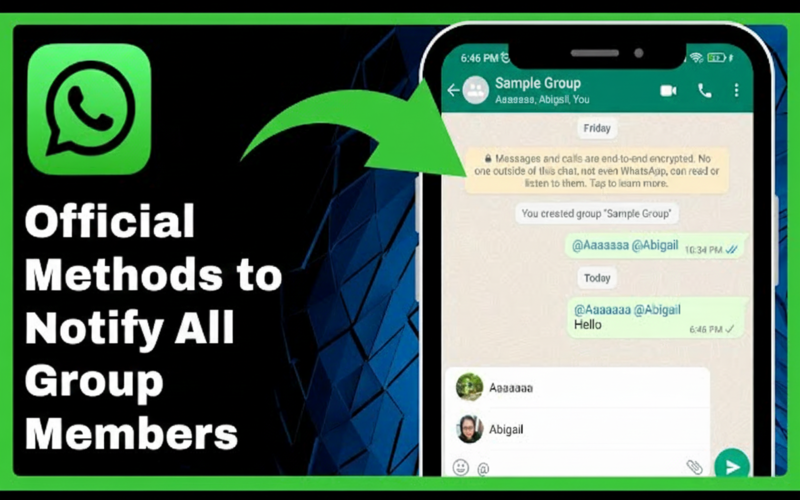
3. Official Methods to Notify All Group Members
Even though there’s no single “tag all” button in a normal group chat, WhatsApp offers a few official ways to notify a large audience:
WhatsApp is gradually rolling out an “Everyone” mention in some versions. To try this:
Step 1: Update your WhatsApp to the latest version (or join the beta program for early features).
Step 2: Open the group chat and tap the message box. Type the @ symbol.
Step 3: Look carefully at the suggestion list. If WhatsApp supports group-wide mentions for you, you might see an “Everyone” option or the group’s name listed.
Step 4: Tap Everyone or the group name, type your message, and send. This will notify all members at once (in some tests this even overrides mute settings).
If you see an @everyone or group-name suggestion, you’ve found the easiest solution tohow to tag everyone in WhatsApp group. Unfortunately, this feature isn’t available to everyone yet. If you don’t see it, move on to the next methods.
Use WhatsApp Communities (Announcement Group)
WhatsApp Communities include a special Announcement Group where admins can broadcast to all members of the community. If your group is part of a WhatsApp Community and you’re an admin, you can effectively notify everyone by mentioning the group name:
Open the subgroup (that you manage) inside the Community.
In the message box, type @ and look for the group’s name in the popup list.
Tap the group name; this tags all participants in that subgroup simultaneously.
Write and send your message as usual.
This is currently the only official “tag everyone” method on WhatsApp – but it only works within Communities. If you don’t use WhatsApp Communities, skip to the next option.
Broadcast List (One-to-One Delivery)
A Broadcast List sends a private copy of your message to each recipient. It’s not a group chat mention, but it ensures everyone gets the message. To use a broadcast list:
Go to the Chats screen, tap the ⋮ menu (Android) or Lists (iOS), and choose New Broadcast.
Select the contacts (up to 256) you want to notify and tap Create.
Type your message and send it.
Each person receives your message as a normal one-on-one chat (so they don’t see others). Remind recipients to save your number in their contacts – otherwise they won’t get your broadcast message. This method is perfect for private announcements: everyone is notified, but replies come individually. Unlike group tagging, broadcasts won’t interrupt a muted group chat because they are direct messages.
Manually Mention Everyone
If the above methods aren’t an option, the old-fashioned way is to manually mention each person:
In the group chat, type @ and select the first person’s name.
Repeat the @ mention for each additional member you want to notify.
Write your message and send it once all are mentioned.
This works, but it’s tedious in large groups. Techpoint notes it’s the only remaining method for standard groups if “Everyone” isn’t available. For very large chats, consider splitting into smaller subgroups or enlisting co-admins to tag in parts.
4. How to Tag Everyone in WhatsApp Group Step-by-Step
Update WhatsApp: Ensure you have the latest app version (or join the beta) to access any new mention features.
Look for “Everyone”: Open the group, tap @, and see if “Everyone” or the group name appears in the suggestions. If it does, select it, type your message, and hit send. Try Communities: If you’re in a WhatsApp Community, mention the group’s name as shown above. This will ping all sub-group members.
Use Broadcast Lists: If you need one-to-one delivery, create a Broadcast List (Chats → Menu → New Broadcast), add contacts, and send your messag. Remember, recipients must save your number to receive broadcasts.
Manual Mentions: Finally, if nothing else works, type @ and mention each name you want to notify. It’s manual but effective for small to midsize groups.
If you manage many groups or large audiences, consider WhatsApp Business API tools. Platforms like SendWo let you use official bulk messaging features to reach hundreds or thousands of contacts at once. These solutions avoid WhatsApp’s limits on manual tagging and ensure you comply with messaging policies.
5. Best Practices and Tips
Tagging everyone is powerful but should be used wisely:
Be Selective: Only use group-wide mentions for important or urgent updates. Casual chit-chat or minor news can overwhelm members.
Keep It Concise: When you notify all, keep the message short and clear. State your point or call-to-action right away, so people don’t have to scroll.
Respect Time and Tone: Avoid spamming. Schedule announcements at reasonable hours. A friendly, respectful tone is more effective.
Test First: Try any new method or message on a smaller group (or a test account) before sending to everyone.
Use Official Tools: Don’t rely on hacky scripts or bots. WhatsApp can ban accounts that use unauthorized mass-tagging tools. Instead, stick with WhatsApp features (mentions, broadcasts) or approved Business API solutions.
Encourage Saving Numbers: For broadcasts, remind people to save your contact. Unreceived messages often happen because recipients haven’t saved the sender’s number.
Combine Approaches: You can mix methods – for example, use a broadcast list and tag a few admins in the group. Just ensure people know where to respond.
Example Scenario:
Jane, a community manager, must announce a sudden meeting change to her 50-member how to tag everyone in WhatsApp group. First, she tries typing @ in the group chat. No “Everyone” appears. Jane then creates a Broadcast List of all 50 members (after making sure they have her number saved). She sends the new meeting details via broadcast so everyone gets it privately. Finally, she drops a short post in the group chat tagging a few key team leads by name to encourage further discussion. This approach ensures the message reached all members (via broadcast) and sparks group replies (via mentions).
Conclusion
In 2025, how to tag everyone in WhatsApp group isn’t a mystery, but it does require the right method. If an official “Everyone” mention is available in your app, use it for a single-click notification. Otherwise, rely on WhatsApp’s features: Broadcast Lists for private one-to-one messages, or the Announcement Group within a Community for public posts. Manual mentions (@name) work too but can be slow for big groups.
For businesses and power users, consider a professional tool like SendWo. SendWo’s platform supports bulk WhatsApp broadcasts using the official Business API, letting you message customer lists efficiently without tagging individuals. With SendWo you can schedule templates, segment your audience, and ensure delivery – all fully compliant.
No matter which method you choose, always use tagging responsibly: keep messages concise, respect your audience’s time, and follow WhatsApp’s guidelines. With these tips, you’ll confidently reach every member of how to tag everyone in WhatsApp group.
(FAQ)
Q: H ow to tag everyone in WhatsApp group at once?
A: Not directly in a standard group chat. WhatsApp removed the universal @everyone tag for regular groups. The only way to tag all at once is via a Community’s announcement group (by mentioning the group name) or by using workarounds like broadcast lists.
Q: How do Broadcast Lists differ from tagging?
A: A Broadcast List sends your message as a private message to each person (up to 256 contacts). Recipients see it as a one-on-one chat. In contrast, mentioning someone (@name) is done inside a group chat. Broadcasts require the receiver to have your number saved.
Q: Can muted group members still receive a mention?
A: Yes. A mention creates an @ notification, so even if a member has the group muted, they’ll see your name in the message notification. (Note: some experimental "tag all" features may override mutes in testing.)
Q: What if I try to use a script or tool to tag everyone?
A: Be careful. Unofficial mass-tagging scripts or bots can violate WhatsApp’s terms and get your account restricted. Always use WhatsApp’s official methods (broadcast lists, communities) or an approved API service like SendWo.
Q: How many people can I have in a Broadcast List?
A: You can add up to 256 contacts in a Broadcast List. If you need to reach more people, send multiple lists or use a business API solution.
Q: Who can send messages in a WhatsApp Announcement Group?
A: Only the Community admins can post announcements in the Community’s Announcement Group. All members in the Community can see those posts.
Imagine this: you’re texting your local grocery store or a friendly chatbot on WhatsApp, browsing fresh produce and pantry staples, then placing your order without ever opening a browser. Grocery shopping on WhatsApp is revolutionizing retail by bringing everything to your chat window. In 2022, Reliance’s JioMart in India launched an end-to-end Grocery Shopping on WhatsApp. Users simply send “Hi” to JioMart’s WhatsApp number, browse thecatalog, add items to cart, and pay—all within the same chat. This convenience empowers even first-time online shoppers to buy daily essentials just by sending a message.
WhatsApp isn’t just for chatting with friends anymore – it’s turning into a super-app for shopping and commerce. With over 2 billion users worldwide (and 500 million in India alone), WhatsApp offers incredible reach. Brands love it too: WhatsApp messages see ~98% open rates (versus ~20% for email), and about 80% are read within 5 minutes. That immediacy translates into high engagement – campaigns on WhatsApp often convert at 45–60%, compared to just 2–5% for email or SMS. It’s no wonder Mark Zuckerberg hailed JioMart on WhatsApp as “our first-ever end-to-end shopping experience” on the app. People feel comfortable and secure on WhatsApp (73% prefer chat over email or phone support), making it a natural choice for grocery shopping on WhatsApp.
1. Why Grocery Shopping on WhatsApp is Perfect?
Immediate Accessibility: WhatsApp is on most smartphones by default. With 2.9 billion users on WhatsApp/Messenger, groceries are just a chat away. You don’t need a new app; just send a message.
Convenience and Time-Saving: Skip long lines and traffic. You can browse product catalogs anytime, anywhere – at home, at work, or even on the go. Add items to your cart via chat in seconds, and avoid physical checkout queues.
High Engagement: Messages on WhatsApp get noticed. A staggering 98% of messages are opened, and most people read them almost immediately. This means stores can quickly engage you with new deals or order updates right in the chat thread.
Personalized Chat Support: Unlike impersonal apps, WhatsApp feels like talking to a friend or store assistant. You can ask about product availability, prices, or dietary information in real time. Advanced AI chatbots can even recommend items based on your past orders, making the experience personal and intuitive.
Trust and Security: WhatsApp uses end-to-end encryption for chats, so your order details and payment data stay private. In markets where WhatsApp payments (via UPI, credit cards, etc.) are available, transactions happen securely inside the app. Plus, having a verified business profile with address and hours builds trust.
Instant Order Updates: From the moment you place an order, you get real-time notifications. WhatsApp can confirm your order, update you when it’s packed or out for delivery, and send a friendly reminder if you left items in your cart. This transparency boosts confidence that your groceries will arrive on time.
Exclusive Deals and Offers: WhatsApp lets stores share promo code and flash sale alerts directly with opted-in customers. Since 73% of people are on WhatsApp daily, you’ll see these deals sooner. In fact, JioMart recovered about 10% of lost carts by sending WhatsApp reminders – sales that would have been lost otherwise.
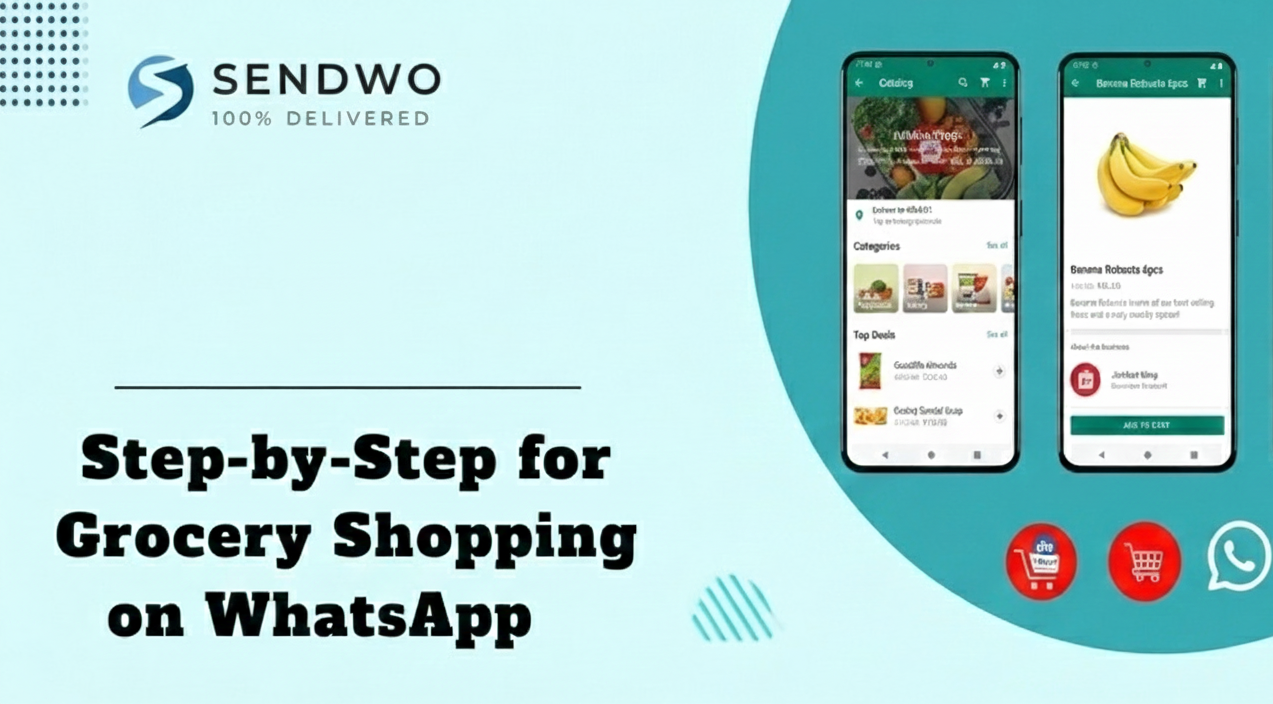
2. Step-by-Step for Grocery Shopping on WhatsApp
Get the Store’s WhatsApp Number or Link. Local grocers or chains will publicize a WhatsApp contact (often with a “Click to chat” link). For JioMart, users simply message “Hi” to +91 7977079770.
Browse the Catalog. The store’s WhatsApp shows a product catalog: images, prices, descriptions. You can scroll menus in the chat or request a category (“Show me fruits” for example).
Add Items to Cart. Chat commands or buttons let you pick quantities. You might type something like “Add 2 kg of apples” or tap “Add to cart” in the interface.
Review Your Cart. At any time, you can say “View cart” and WhatsApp shows all selected items. You can adjust quantities or remove items right in the chat.
Checkout and Payment. When ready, you proceed to checkout inside WhatsApp. Payment can be completed via integrated UPI (in India, for example) or other payment methods. The entire payment screen pops up within the chat (no need to switch apps).
Receive Order Confirmation. You’ll get an order summary and receipt right in your WhatsApp thread. The store can then send you updates (order accepted, out for delivery, etc.) via automated notifications.
For consumers, the result is a seamless chat experience. Everything happens in one place: you never have to leave WhatsApp to shop. As JioMart’s launch showed, “people can now buy groceries from JioMart right in a chat”. As one executive put it, WhatsApp shopping “further simplifies Grocery Shopping on WhatsApp for users” – especially for those new to online shopping.
3. Case Study: JioMart on WhatsApp in India
In August 2022, Meta and India’s Reliance Retail announced JioMart on WhatsApp – the world’s first fully in-chat grocery store. This made WhatsApp a direct storefront: anyone in India can start by messaging “Hi” to the JioMart number. JioMart’s catalog (millions of grocery items) then appears in chat. The user adds to cart and pays via WhatsApp’s UPI integration. Mark Zuckerberg highlighted that this partnership was “first-ever end-to-end shopping” on WhatsApp.
The impact was huge. Millions of new customers – including those never before shopping online – got an easy way to order groceries. Reliance’s chairman Mukesh Ambani explained this aligns with their vision to make India a digital economy leader. The experience was so successful that Meta now aims to expand similar shopping features to other businesses in India and beyond.
Beyond India: WhatsApp Grocery Globally
WhatsApp grocery isn’t limited to India. In Brazil, informal WhatsApp groups and startups have long connected shoppers with food vendors. In fact, Brazilians have been buying and selling all kinds of goods on WhatsApp since 2011. During the pandemic, a community-run WhatsApp group model even gave rise to startups like Trela, which organizes grocery orders for communities via WhatsApp. A business expert noted: “WhatsApp is going towards the super-app concept, concentrating all aspects of our lives in one place”.
Similarly, local shops worldwide – from Southeast Asia to Latin America – have adopted WhatsApp to take grocery orders by chat. For example, neighborhood “kirana” stores in India and Latin America often accept orders and payments over WhatsApp. Even in markets without formal integration, many small grocers simply use WhatsApp Business to share catalogs and chat with customers.
In short, Grocery Shopping on WhatsApp is a global trend, with retailers big and small embracing it. Whether it’s a giant like JioMart or your local grocer, the result is the same: customers get an ultra-convenient way to shop, and stores get a powerful new sales channel.
4. Setting Up WhatsApp Shopping for Your Store
For grocery store owners or chains, enabling WhatsApp shopping is straightforward with the right tools. Here’s how businesses can get started:
Create a WhatsApp Business Profile: Download WhatsApp Business or apply for the WhatsApp Business API (for larger operations). Fill in your store’s name, logo, address, and hours. A complete profile builds trust with shoppers. For enterprise features (like chatbots or bulk messaging), partner with an official Business Solution Provider such as SendWo.
Build Your Product Catalog: Use WhatsApp’s built-in catalog feature to list all your groceries. Add high-quality images, descriptions, and prices for each product. This mini-storefront is what customers will browse in chat, so make it attractive and up-to-date.
Enable the Cart and Checkout: Turn on the WhatsApp Shopping Cart feature (available in many markets) so customers can add items to a cart directly in the chat. Then integrate WhatsApp Pay or UPI payments if possible. This means buyers can finalize the purchase right inside WhatsApp, streamlining the flow.
Set Up Quick Replies and Chatbots: Pre-define answers for common questions (e.g. opening hours, delivery time, popular items). Advanced stores can deploy an AI chatbot that handles queries 24/7 – suggesting products, confirming orders, or upselling extras. Chatbots can even interpret simple messages like “I need milk and bread,” making order placement super easy (as JioMart’s bot does).
Promote Your WhatsApp Channel: Let customers know they can order via WhatsApp. Display your WhatsApp number on receipts, websites, social media, and in-store signage. Use SendWo’s messaging tools to broadcast catalogs or deals to opted-in subscribers – for example, share a weekly specials menu on WhatsApp to generate orders.
Monitor and Optimize: Use WhatsApp’s messaging statistics and SendWo’s analytics to see what sells. Track open rates (around 98%!), reply rates (~40%), and conversion metrics. Adjust your responses and product offerings based on customer feedback in the chat.
By following these steps, a grocery business can transform its WhatsApp number into a digital storefront. SendWo (an official Meta Business Solution Provider) can help with the technical integration – from setting up the API and chatbot to managing message templates. This means even a small shop can deliver a polished, Amazon-like experience entirely on WhatsApp.
FAQs
Q: How do I start Grocery Shopping on WhatsApp?
A: If your local store or supermarket supports it, simply send a message (often “Hi”) to their WhatsApp number. For example, in India JioMart’s number is +91 7977079770. You’ll see a product catalog pop up. Browse items, add to cart, and then follow the prompts to check out.
Q: Can I really pay on WhatsApp for groceries?
A: Yes. In supported regions (like India), WhatsApp has integrated payment options (UPI, credit cards, etc.) directly into the chat interface. You pay inside the app without needing an external payment link. This is secure (WhatsApp uses encryption) and convenient – many find it easier than cash or separate payment portals.
Q: Which grocery stores can I order from on WhatsApp?
A: Big examples include JioMart (India). Beyond that, many local grocers around the world – especially in Asia and Latin America – accept orders via WhatsApp. Even if a store doesn’t have an official integration, they might still chat with you on WhatsApp to take your order and process payment manually. If you’re unsure, ask your favorite grocer if they have a WhatsApp ordering service.
Q: Is shopping on WhatsApp available everywhere?
A: The official in-chat shopping feature (with carts and payments) has rolled out mainly in markets like India and Brazil. However, in practice people use WhatsApp to buy groceries in many countries. Rules vary: payment features may not be live everywhere yet. But even without that, WhatsApp Business allows sellers to receive orders and send invoices, so it’s catching on globally.
Q: Is it safe to shop groceries on WhatsApp?
A: Yes. WhatsApp encrypts all messages end-to-end, so your chat is private. Payments through UPI or credit card on WhatsApp use secure financial systems. Just be sure you’re chatting with the official store account (look for a business profile with a green tick when available). Avoid sharing sensitive information beyond what’s needed for the purchase.
Q: What if I have a question or a problem with my order?
A: WhatsApp is designed for instant messaging, so you can simply reply in the order chat. Many businesses provide 24/7 support via chatbots or quick replies, meaning you get fast answers about availability, substitutions, or delivery issues. This is one of the biggest perks of conversational commerce – you get help immediately in the same chat thread.
Conclusion
Grocery shopping on WhatsApp is more than a novelty – it’s a practical, user-friendly way to buy everyday items. By blending chat convenience with a full shopping cart, it offers unmatched ease for customers and higher sales for merchants. Retailers who adopt this conversational commerce gain a competitive edge: WhatsApp’s hyper-engagement and personalization mean your promotions actually get seen, and your customers stick around.
If you’re a Grocery Shopping on WhatsApp seller, embrace this trend now. Set up WhatsApp shopping to delight your customers with seamless ordering, 24/7 support, and exclusive chat-only deals. SendWo, as an official WhatsApp Business Solution Provider, can help you launch fast – from configuring your business account and chatbot to managing large-scale messaging campaigns.
WhatsApp, with over 2 billion users worldwide, uses blue ticks (two blue checkmarks) to show when a message has been read. While helpful, these read receipts can feel intrusive. As Times of India notes, blue ticks “can raise privacy concerns and social pressures” because people may feel rushed to respond. If you’ve ever googled “how to turn off blue tick in WhatsApp” or “how to remove blue tick from WhatsApp,” you’re in the right place. This guide covers exactly how to disable blue tick in WhatsApp on Android and iPhone (and even on WhatsApp Web), what read receipts mean, and tips to use WhatsApp more privately. We’ll also answer common questions like “how to disable blue tick in WhatsApp” and “read receipts in WhatsApp means what”, so you can keep your messaging stress-free. Let’s dive in! how to turn off blue tick in WhatsApp.
1. Understanding WhatsApp Ticks (Read Receipts)
WhatsApp uses checkmarks (ticks) to indicate message status. Here’s how they work:
One gray check – Message sent (to WhatsApp’s server) but not yet delivered.
Two gray checks – Message delivered to the recipient’s device.
Two blue checks (✓✓) – Recipient has read your message.
In other words, blue ticks mean “seen”. The image above shows this sequence (Sent ▶ Delivered ▶ Seen). Turning off blue ticks is the same as disabling read receipts: other people will no longer know when you’ve read their messages (and vice versa).
2. Why Disable Blue Ticks (Read Receipts)?
Many users turn off read receipts for privacy and peace of mind. With blue ticks on, you may feel pressured to reply immediately. As Times of India explains, blue ticks confirm delivery but they “may also create a sense of urgency to respond promptly”. Disabling them can reduce stress.
Benefits of disabling blue ticks include:
More privacy: Others won’t see the “seen” status, letting you read messages discreetly.
Less pressure: You can reply on your own time, avoiding anxiety of being “caught online.” Disabling read receipts means “protect your privacy and avoid feeling pressured to reply immediately”.
Control: You dictate your conversations. As Wati notes, turning off blue ticks lets you “engage in conversations on your own terms”.
Reduced misunderstanding: Without immediate “seen” indicators, delays in replying won’t upset senders.
SendWo’s own experience shows business users value this control too. WhatsApp Business accounts have the same setting, so a team can disable blue ticks to manage customer expectations without stress. In short, if you want to know how to turn off blue tick in WhatsApp for privacy or calmer chats, it’s a quick setting change away.
3. How to Turn Off Blue Tick in WhatsApp (Step-by-Step)
Disabling blue ticks is built into WhatsApp’s privacy settings. Here’s how to do it on each platform:
On Android:Open WhatsApp, tap the three-dot menu ☰, choose Settings > Account > Privacy, then toggle off Read receipts.
On iPhone (iOS): Open WhatsApp and tap Settings (gear icon) at the bottom, then go to Account > Privacy and how to turn off blue tick in WhatsApp called Read Receipts.
On WhatsApp Web/Desktop: In WhatsApp Web, click the three dots or gear icon, select Settings > Privacy, and uncheck Read Receipts.
Each of these steps will disable the blue ticks (read receipts) for personal chats. Remember: when you turn off read receipts, it applies both ways. The sender won’t see blue ticks on messages you read, and you won’t see blue ticks for messages the sender reads.
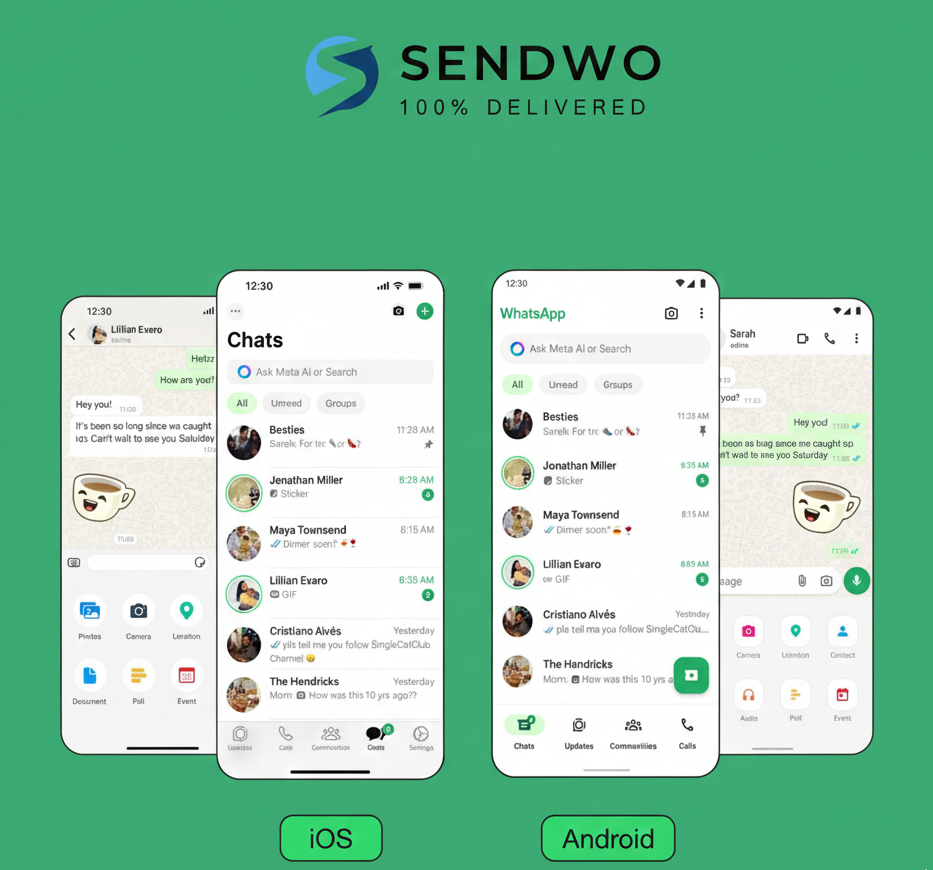
On iPhone, tap Settings in the bottom menu, then go to Account > Privacy. You’ll find the Read Receipts switch there. Just turn it off to disable blue ticks.
On Android, tap the three-dot menu in WhatsApp’s top bar, select Settings, then Privacy under Account. Toggle off Read Receipts to stop sending blue checks. The screenshot shows how the menu looks. Once done, WhatsApp will no longer send or receive blue ticks in individual chats.
For WhatsApp Business users, the procedure is the same as regular WhatsApp. After how to turn off blue tick in WhatsApp, you can always re-enable read receipts by following these steps again.
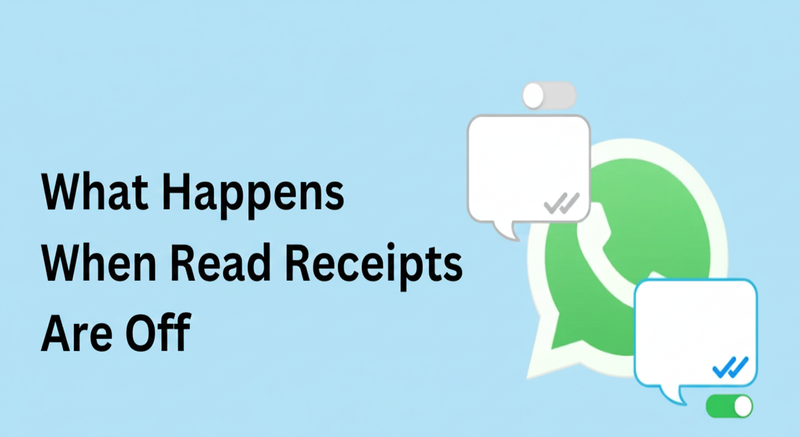
4. What Happens When Read Receipts Are Off?
Disabling read receipts (blue ticks) has these key effects in WhatsApp chats:
Personal Chats: Neither you nor your contacts will see blue ticks on messages you read or send. In practice, messages will only show gray ticks (sent/delivered) regardless of being read. You won’t see blue ticks on messages you send, and your contacts won’t see them when you read.
Group Chats: Read receipts are unaffected in group chats. WhatsApp will still show double blue ticks once every group member has read the message. Your privacy setting does not hide group “read” status.
Voice Messages: Voice notes are an exception. Usually, a blue microphone/check will still appear when the recipient plays a voice message. In other words, listening to a voice message typically sends a play receipt, even if text receipts are off.
Status (Stories): Disabling read receipts also hides story views. You won’t see who viewed your status updates, and others won’t see your name if you view their status. (Turning read receipts back on later does not retroactively restore view info.)
For example, Airdroid explains: “once read receipts are turned off, the blue ticks in individual chats will no longer appear… This change won’t affect group chats… You also won’t be able to see when someone reads your messages”. Keep these points in mind as you decide whether to disable WhatsApp’s read receipts.
5. Tricks to Read Without Blue Ticks (Temporary Hacks)
If you prefer not to toggle off read receipts permanently, there are a few temporary workarounds:
Airplane Mode: When you get a WhatsApp message, turn on Airplane Mode (disconnect from internet) before opening the chat. Then read the message. Since WhatsApp is offline, it can’t send the read receipt. Close the app and only then turn off Airplane Mode. (After you reopen WhatsApp later, it will send a receipt – so do this only if you don’t open the chat again.)
Notification Preview: Read the message in the notification shade or lock screen without opening WhatsApp. For short texts, this shows the content without triggering a blue tick.
WhatsApp Widget (Android): Add the WhatsApp widget to your home screen (long-press home screen → Widgets). This lets you scroll through chats and read messages without launching the app, thus delaying read receipts.
Use these hacks when you want to peek at messages without alerting the sender. Just remember they only work temporarily and require manual steps; disabling read receipts in Settings is the more permanent solution.
(FAQs)
Q: How to turn off blue tick in WhatsApp?
A: Go to Settings > Account > Privacy in WhatsApp, and toggle off Read Receipts. On Android you tap ⋮ > Settings > Account > Privacy, on iPhone tap Settings (gear icon) > Account > Privacy. This will disable the blue ticks.
Q: Can I disable the blue tick for just one contact?
A: No – WhatsApp’s read receipt setting is global. If you how to turn off blue tick in WhatsApp called Read Receipts, it applies to all individual chats. You cannot selectively disable blue ticks per person.
Q: What do “read receipts” in WhatsApp mean?
A: They refer to the two blue checkmarks that indicate a message was opened and read. In other words, once you see double blue ticks, you know the recipient has read your message.
Q: If I disable read receipts, can I still see when others read my messages?
A: No. Disabling read receipts is reciprocal. Neither party will see blue ticks for messages read by the other.
Q: Will turning off read receipts hide my Last Seen or Online status?
A: No. Read receipts are separate from Last Seen/Online. Disabling read receipts does not affect your Last Seen or Online visibility. Those have their own Privacy settings.
Q: Do blue ticks still show in group chats if I turn them off?
A: Yes. Group chat read receipts always work the same – blue ticks appear when everyone reads the message. Your read receipts setting only affects one-on-one chats.
Q: What about voice notes? Will they send blue ticks if I have read receipts off?
A: Generally, yes. Voice messages behave like an exception. Most guides (and WhatsApp’s own info) note that when the recipient plays a voice note, a blue play icon/checkmark will appear regardless of the read receipts setting. So assume voice notes will still send a confirmation when heard.
Q: How do I know if someone has turned off their blue ticks?
A: There’s no definitive way. If you only ever see gray ticks and never blue, it could be because they read receipts off (or they simply haven’t read it). WhatsApp offers no notification for someone disabling read receipts
WhatsApp has become one of the most essential communication tools in the world, connecting over 3 billion users across different countries, devices, and networks. Whether you're chatting with friends, managing business conversations, or running marketing campaigns, WhatsApp ensures secure and seamless communication. But behind this simplicity lies an important security layer that protects every user account — What is the Six Digit Code for WhatsApp.
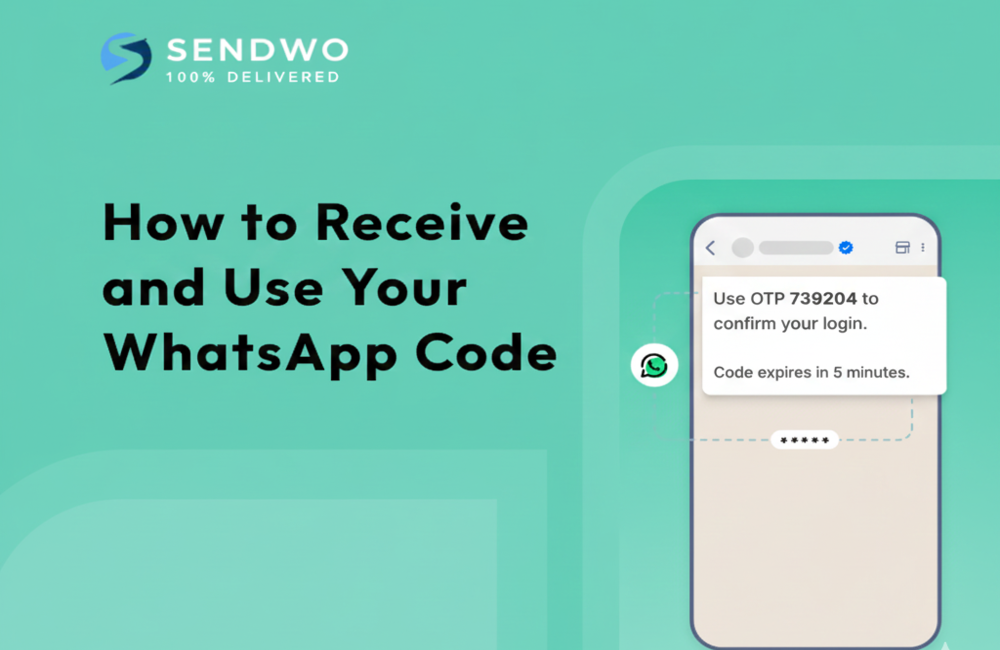
Whenever you install WhatsApp for the first time, switch to a new phone, or reinstall the app, you are required to verify your mobile number. This is where the six-digit code comes into play. WhatsApp automatically sends a unique one-time password (OTP) to your registered phone number via SMS or sometimes through an automated voice call. This code is randomly generated and valid only for a short period, making it a secure way to confirm that you are the rightful owner of that number.
Think of What is the Six Digit Code for WhatsApp as a digital key. Just like banking OTPs or secure login codes, it acts as a protective barrier that prevents unauthorized access to your account. Every time you attempt to log in, a new code is generated, ensuring that even if someone tries to misuse an old code, it won’t work. This dynamic and time-sensitive nature makes the verification process highly secure and reliable.
Understanding what the six-digit code for WhatsApp means is crucial, especially in today’s digital environment where online security threats are increasing. Many users unknowingly share this code with others, which can lead to account hacking or unauthorized access. That’s why it’s important to not only know how the code works but also how to use it safely and responsibly.
In this detailed guide, we’ll break down everything you need to know about the what is the Six Digit Code for WhatsApp — what it is, how it works, how to receive it quickly, common issues you might face, and the best security practices (like enabling two-step verification) to keep your account fully protected.
1. What is the Six Digit Code for WhatsApp?
what is the Six Digit Code for WhatsApp is simply a one-time password (OTP) used to verify your phone number. Whenever you register or log in, WhatsApp sends this code to your phone to confirm your identity. Key points:
OTP for verification: The 6-digit code is a temporary OTP sent to authenticate your account.
Unique & temporary: It’s a random number that changes each time you verify. Each code is unique and expires quickly.
Delivered via SMS or call: After entering your number, WhatsApp sends the code via SMS (and if needed, via an automated voice call).
Account security: Entering the code proves you own the number. Importantly, never share this code with anyone, as doing so could let attackers hijack your account.
In short, this verification code is just like the OTP you get for online banking: random, time-limited, and personal. For example, Gadgets Now explains it’s “a random combination of six numbers… sent via SMS or call to authenticate a WhatsApp account”.
2. How to Receive and Use Your WhatsApp Code
Getting the code is straightforward if your phone can receive SMS or calls. Follow these steps:
Enter your number. Open WhatsApp and type in your country code and phone number.
Request the code. Tap Next or Verify. WhatsApp will automatically send a 6-digit code via SMS to that number.
Check your messages. Look in your SMS inbox for a message reading “Your WhatsApp code: XXXXXX.” Enter that six-digit code into the app. This completes the verification.
Use “Call me” if needed. If you don’t get an SMS, tap Call me in WhatsApp. The app will call your phone and read the code aloud.
Retry if necessary. Ensure you entered the correct phone number (including country code) and have network coverage. Sometimes there’s a delay, so wait a few minutes before requesting the code again or trying the “Call me” option.
As one guide notes, after you tap Next, “WhatsApp will send a 6-digit verification code via SMS to that number… Enter that code to finish logging in.”. Once you enter the correct, what is the Six Digit Code for WhatsApp, your WhatsApp account is activated on the device and you can begin chatting.
3. Why a 6-Digit Code? (Security)
WhatsApp uses a six-digit code as a balance between security and usability. A 6-digit code has 1,000,000 possible combinations, which makes it extremely hard for an attacker to guess at random. In comparison, a 4-digit code only has 10,000 combinations. As security experts explain, this length greatly increases protection while still being easy to remember. In other words,what is the Six Digit Code for WhatsApp is a sweet spot: it’s strong enough to thwart most hacks, but short enough that the average person can enter it quickly.
Two-Step Verification (6-Digit PIN)
Beyond the one-time code, WhatsApp offers Two-Step Verification for extra security. This is an optional 6-digit PIN that you set in advance. If enabled, WhatsApp will ask for this PIN whenever you register your number on a new device. This means even if someone steals your SMS code, they still can’t complete the login without your personal PIN. To activate it, go to Settings > Account > Two-step verification, turn it on, and choose a 6-digit PIN (you can also add a recovery email). As the SendWo guide explains: “Pick a 6-digit PIN… This extra PIN protects your account even if someone somehow gets your SMS code”. We highly recommend enabling two-step verification to protect your WhatsApp account.
Troubleshooting: Not Receiving Your WhatsApp Code?
Sometimes the code doesn’t arrive instantly. Here are some tips:
Check your number and network: Confirm the country code and number are correct, and that you have cell reception.
Wait a few minutes, then retry: SMS delivery can be delayed. Give it a minute and try requesting the code again if needed.
Use “Call me”: If SMS still doesn’t come through, tap the “Call me” option. WhatsApp will call your number and speak the code.
Restart or other issues: Occasionally restarting your phone can help. If the code never arrives, try toggling airplane mode or checking that your SMS app isn’t blocking message.
Contact support: If problems continue, you may need to contact WhatsApp support from within the app.
By following these steps (also summarized in the SendWo login guide), most users quickly receive the code and get logged in.
Be very cautious about sharing this code. A common scam works like this: someone posing as a friend or WhatsApp employee tells you they accidentally sent you a code and asks you to forward it. If you do, they instantly hijack your account. For example, the New Indian Express reports that even celebrities fell victim to this “six-digit code scam”. The most important advice is simple: never share the six-digit code sent to your phone with anyone. WhatsApp will never call or text you asking for this code outside the app. If you receive a code without requesting it, just ignore it and consider enabling two-step verification for added security.
Conclusion
The six-digit code for WhatsApp is simply a one-time password that confirms your phone number during login. It’s random and short-lived, and should be guarded carefully. By understanding how to receive this code and following best practices (like enabling two-step verification), you keep your WhatsApp account secure.
If you’re using WhatsApp for business or need more control over your messaging, consider using SendWo — a robust WhatsApp Business API platform. SendWo lets you manage verified messaging at scale and helps you automate tasks safely. Get started with SendWo today and make your WhatsApp communications seamless and secure.
FAQs
1. What is the Six Digit Code for WhatsApp?
It’s a one-time verification code (OTP) sent to your phone via SMS or call when you register or verify WhatsApp. It proves you own the number.
2. How do I receive the WhatsApp verification code?
Enter your phone number in WhatsApp. The app will automatically send you a 6-digit code by SMS. If SMS fails, tap “Call me” and WhatsApp will read the code to you.
3. Why didn’t I get my WhatsApp code?
Common reasons include entering the wrong number or having poor reception. Double-check your country code and number, then try again or use the call option. Sometimes waiting a minute solves delays.
4. Can I find the code in my email or online?
No. WhatsApp only sends the code via SMS or voice call to your phone. If someone asks for your code via email or a website, it’s a scam.
5. What if I receive a WhatsApp code I didn’t request?
That likely means someone else is trying to register your number. Don’t share the code with anyone. Ignore the message or call, and consider enabling two-step verification to lock your account.
Imagine receiving Facebook security codes through WhatsApp without ever opting in, or feeling uneasy that your WhatsApp activity might tie into your Facebook profile. You’re not alone. With WhatsApp’s global user base near 3 billion as of 2024, many have linked their accounts across Meta’s platforms for convenience. However, privacy concerns and a desire for control drive users to separate these services. In fact, a controversial policy update in 2021 sparked an exodus of over 30 million users to rival apps like Signal and Telegram – a clear sign that people value keeping WhatsApp and Facebook separate.
If you’re wondering “how to remove WhatsApp from Facebook?”, this comprehensive guide will walk you through the process step-by-step. We’ll cover why unlinking can be beneficial, how to do it on personal accounts and business pages, and what changes after you disconnect them. Let’s get started on reclaiming your privacy and independence on these apps to how to remove WhatsApp from Facebook.
1. Why Unlink WhatsApp from Facebook?
Removing the connection between WhatsApp and Facebook can bring greater privacy, security, and focus to your digital life. Here are a few reasons users decide to unlink:
Privacy and Data Control: Facebook (Meta) owns WhatsApp, and linking accounts allows more data sharing between the apps. By unlinking, you limit cross-platform data flow, giving you more control over personal information. Your chat stay end-to-end encrypted, and you reduce any metadata or account info being shared behind the scenes. For privacy-conscious users, this separation is a relief.
Stop Unwanted Verification Codes: Lately, Meta has been integrating WhatsApp as a login verification method. Some people were surprised to find Facebook sending two-factor authentication codes to WhatsApp by default. If you prefer SMS or email codes – or you don’t use WhatsApp on that number anymore – unlinking will stop Facebook from relying on WhatsApp for verification. This puts you back in control of how you receive security messages.
Avoid Cross-Platform Features: Keeping accounts linked means Facebook can suggest WhatsApp as a contact option (and vice versa). Your Facebook friends might see a WhatsApp button on your profile or business page, and Facebook ads could prompt chats on WhatsApp. Unlinking how to remove WhatsApp from Facebook these features. For instance, any “Click to WhatsApp” ads or WhatsApp buttons on Facebook Pages disappear once unlinked, preventing unwanted messages from Facebook users. This makes each platform more focused on its own purpose.
Business and Personal Separation: Many businesses link WhatsApp Business to Facebook pages for customer communication. If your strategy changes or you no longer want that integration, removing WhatsApp from your Facebook Page will detach the messaging button and ad integrations. This can simplify your workflow or allow you to connect a different number. Similarly, personal users might have added their WhatsApp number to Facebook Marketplace or profile and now wish to how to remove WhatsApp from Facebook it to stay private.
2. How to Remove WhatsApp from Facebook (Step-by-Step)
Removing WhatsApp from Facebook can mean a few different things depending on how it’s linked. We’ll cover two main scenarios for how to remove WhatsApp from Facebook:
Unlinking WhatsApp from your personal Facebook account – using Meta’s Accounts Center or your Facebook profile settings. This covers removing any official connection between your Facebook account and WhatsApp (like shared login or account info). It also stops Facebook from sending login codes to WhatsApp.
Removing WhatsApp from a Facebook Business Page – if you connected a WhatsApp number to your Facebook Page (commonly done for WhatsApp Business contact buttons or ads).
We’ll also mention how to do it directly from the WhatsApp app as an alternative. Follow the method that fits your situation. Don’t worry – whichever route you choose, you will not delete your WhatsApp account or chats by unlinking. It only severs the connection between the two platforms.
WhatsApp and Facebook Integration: If you linked your accounts for convenience, you can just as easily disconnect WhatsApp from Facebook using the official settings. This restores privacy and separates your profiles.
3. Unlinking WhatsApp from Your Facebook Account (Personal Profile)
If your personal Facebook and WhatsApp are linked via the Meta Accounts Center, or if Facebook is using WhatsApp for verification, use this method. We’ll go through the steps on the Facebook app (the process is similar on the Facebook website in a browser).
Steps to disconnect WhatsApp from a Facebook account:
Open Facebook Settings: Launch the Facebook app on your phone. Tap the menu (≡ icon – on iPhone it’s at bottom right, on Android top right). Scroll down and tap Settings & Privacy, then tap Settings.
Go to Accounts Center: In Settings, find and tap Accounts Center. This is Meta’s centralized hub for connected accounts. Here you might see your Facebook, Instagram, and WhatsApp accounts listed if they’re linked.
Select “Accounts” and Find WhatsApp: Within Accounts Center, tap Accounts. You’ll see the accounts connected to your profile. If your WhatsApp is linked, you will see your WhatsApp number listed (usually labeled with the WhatsApp logo or “WhatsApp”).
Remove the WhatsApp Account: Tap on your WhatsApp number/account, then choose how to remove WhatsApp from Facebook from Accounts Center (or a similar “Remove” option). The system will ask for confirmation. Confirm by tapping Remove Account and proceed with any prompts (you might need to tap Continue and then Yes, how to remove WhatsApp from Facebook to finalize).
Confirmation: Once done, your WhatsApp is unlinked from Facebook. To double-check, go back to Accounts in Accounts Center – the WhatsApp account/number should no longer appear there. Also, Facebook will now default back to other verification methods (like SMS) since WhatsApp is no longer an option on your account.
By following the above steps, you’ve successfully unlinked your accounts. Your Facebook and WhatsApp will now operate independently.
4. Removing WhatsApp from a Facebook Page (Business Page Unlink)
If you connected a WhatsApp Business number to a Facebook Page (often done to enable the WhatsApp message button on the page or to run ads that open WhatsApp chats), use this method. Unlinking how to remove WhatsApp from Facebook, WhatsApp contact button from the page and disable any ad integrations.
Here’s how to remove WhatsApp from Facebook Page:
Open your Page Settings: Go to your Facebook app (or Meta Business Suite app if you use that). Navigate to your Facebook Page and tap Settings (on the page, you might find this under the Manage Page menu or a gear icon, depending on the interface). Make sure you have admin access to the page.
Find WhatsApp in Page settings: Scroll through the Page settings for an option like WhatsApp or Linked Accounts. In the latest Page experience, there is often a section to add or edit your WhatsApp number. If your page is currently linked to WhatsApp, you will see the number displayed here (and possibly a note that a WhatsApp button is active on your page).
Remove the WhatsApp number: Tap on the WhatsApp number or the edit option. You should see an option to how to remove WhatsApp from Facebook account from the page. Select Remove and confirm when prompted. Facebook will then unlink that WhatsApp Business account from your page.
Verify Removal: The WhatsApp section should now prompt you to add a number (as if none is linked). Also, check your Facebook Page – the WhatsApp message button should no longer appear to visitors. If you were running “Click to WhatsApp” ads, those ads will no longer send people to your WhatsApp chat after this removal, so plan to adjust or pause those campaigns to avoid confusion.
By unlinking WhatsApp from your business page, you ensure customers can’t message that WhatsApp via Facebook anymore. This is useful if you’re changing your business contact strategy or handing the page to someone else.
5. (Alternative) Disconnecting WhatsApp via the WhatsApp App
You can also initiate the unlinking from WhatsApp’s side, which achieves the same result. This is handy if you don’t have access to Facebook at the moment or find it easier to use WhatsApp settings. The process uses the Accounts Center integrated in WhatsApp.
To how to remove WhatsApp from Facebook:
Open WhatsApp Settings: On your phone, open WhatsApp. Go to Settings (tap the gear icon on iPhone, or the three-dot menu > Settings on Android).
Account > Accounts Center: In WhatsApp Settings, tap Account. If your WhatsApp is linked to a Facebook/Meta account, you will see an Accounts Center option here (sometimes labeled as just “Accounts” under Meta Accounts Center). Tap Accounts Center.
Remove Linked Accounts: Inside Accounts Center (now within WhatsApp), tap Accounts. You should see the linked Facebook account listed (or Instagram, if applicable). Tap your Facebook account name. Then choose Remove Account and confirm the removal. WhatsApp will likely ask “how to remove WhatsApp from Facebook from Accounts Center?” – confirm to unlink it.
Restart WhatsApp: It’s a good idea to close and reopen WhatsApp after unlinking, just to ensure the changes take effect. According to one guide, restarting WhatsApp clears any cached data related to the link. When you go back to Settings > Account, the Accounts Center should no longer show a connected Facebook account.
This WhatsApp-side method is essentially doing the same thing as the first method, just from the other app. After completion, you can also verify on Facebook’s Accounts Center that WhatsApp is gone.
By now, how to remove WhatsApp from Facebook – congratulations! Next, let’s discuss what changes (and what doesn’t) after unlinking, so you know exactly what to expect.
6. What Happens After You Remove WhatsApp from Facebook?
You might be wondering what the immediate effects are once you disconnect WhatsApp from Facebook. The good news is that your core WhatsApp experience remains unchanged – your messages, contacts, and groups on WhatsApp are all intact. Unlinking only affects the way Facebook and WhatsApp interact, not the apps themselves.
Here’s a breakdown of what to expect:
WhatsApp still works normally: Removing the link won’t delete any chats, photos, or your account on WhatsApp. Your conversations and media remain on your phone as before. WhatsApp will continue to function as a standalone messaging app with no impact on performance or functionality. In other words, unlinking does not affect the WhatsApp app’s performance or features at all – it’s as secure and speedy as ever, just without Facebook integration.
Facebook continues to work normally: Your Facebook account is unchanged except for anything related to WhatsApp. By unlinking, you’ve simply told Facebook not to consider WhatsApp in its features. You can log in to Facebook, use Messenger, etc., just as you did before. The only difference is Facebook won’t try sending you WhatsApp notifications or show WhatsApp-specific prompts.
Removed cross-platform features: Any features that relied on the Facebook–WhatsApp link will stop. For personal accounts, for example, Facebook will stop sending login or security code to WhatsApp (they’ll revert to SMS/email if that’s how it was before). For businesses, any “Message us on WhatsApp” buttons on Facebook Pages will disappear once the number is removed. Also, Facebook ads that used to open WhatsApp chats will no longer function unless you relink and set them up again. Essentially, Facebook and WhatsApp go back to being separate silos.
Improved privacy boundary: Unlinking establishes a stronger privacy boundary between the two services. While WhatsApp chats have always been private (end-to-end encrypted), now your WhatsApp account info (like your phone number) is no longer tied to your Facebook profile or used in Facebook’s ad targeting. Facebook can’t use the fact that you have WhatsApp linked to suggest you to friends or sync your status, etc. You’ve gained a bit more peace of mind, knowing that the data each platform has about you stays on that platform.
Need to manage business communications differently: If you were using the integration for business, note that you may need alternate solutions now. For example, if you unlinked your WhatsApp Business from your Facebook Page, customers from Facebook can’t message you on WhatsApp directly. You might need to provide a different contact method on your page (like a contact form or a Messenger link) or be ready to respond via other channels. For marketers, you’ll also lose any combined insights or audience customizations that came from the link. It’s worth it for privacy, but plan ahead so your customers aren’t left hanging.
Overall, nothing “breaks” by removing WhatsApp from Facebook – you simply lose some integrated features. Many users consider this a worthwhile trade-off for the added privacy and control. Your WhatsApp remains fully functional and safe, and your Facebook does too, each on its own.
7. Tips to Keep Your WhatsApp and Facebook Separate (and Secure)
Unlinking is a big step toward privacy. If you want to go further in keeping a healthy separation between WhatsApp and Facebook (and other Meta services), consider these extra tips:
Use distinct contact info for each account: If possible, use a different email/phone number for Facebook and WhatsApp. This way Meta has a harder time auto-linking them. For instance, you might keep WhatsApp on your personal number and use a different number (or just email) for Facebook. This prevents accidental connections through contact syncing.
Avoid using Facebook to log into other services: Many apps offer “Log in with Facebook” as a quick option. It’s convenient, but remember it ties those apps to your Facebook profile (and indirectly to WhatsApp if linked). To maintain separation, use separate logins (email/password or phone) for services, especially those related to messaging or contacts. This reduces the web of links between your accounts.
Review app permissions on your phone: Sometimes Facebook and WhatsApp might access the same data on your device (like contacts or location). After unlinking, you can double-check permissions. For example, you might disable Facebook’s access to your phone contacts if you’re concerned it could upload your WhatsApp contacts. Keeping permissions minimal ensures each app only sees what it needs to function.
Don’t cross-post content intentionally: Avoid the temptation to share WhatsApp status to Facebook story, or vice versa, which is a feature on newer versions. By not cross-posting between WhatsApp, Facebook, and Instagram, you maintain clear boundaries. Treat WhatsApp as a separate space – for instance, use it just for direct messaging, and use Facebook for social networking or business pages. This mindset keeps your communications siloed as you prefer.
Keep an eye on Accounts Center: Meta’s Accounts Center is where linking happens. Even after unlinking, it’s good to occasionally check Accounts Center (via any Meta app) to ensure no new linkages appeared. Meta sometimes introduces new features, so staying vigilant will let you spot if, say, Instagram or a future app tried to link with WhatsApp. Fortunately, Accounts Center puts you in control – nothing links without your action, and you can how to remove WhatsApp from Facebook accounts anytime.
By following these practices, you ensure that your decision to separate WhatsApp and Facebook remains in effect. You’ll use each platform on your own terms, with minimal data overlap. This ultimately creates a safer and more intentional online experience, where you decide how and where your information is used.
Conclusion & Call to Action
In this article, we’ve shown that removing WhatsApp from Facebook is quick and empowering. With just a few taps in the settings, you unlinked your accounts and took control of your digital privacy. Now, Facebook and WhatsApp operate independently – your chats stay private on WhatsApp, and your Facebook profile is free of any WhatsApp ties.
Remember, you haven’t lost any functionality in WhatsApp itself. You’ve simply turned off the pipeline that shared info between the two platforms. Going forward, you can enjoy WhatsApp on your own terms, without worrying about who on Facebook can see your number or whether Facebook is sending messages to your WhatsApp.
Take charge of your communication. We encourage you to review your other app connections as well – maybe unlink Instagram or any service you no longer use. The power is in your hands to create the online privacy you want.
At SendWo, we’re passionate about helping you make the most of messaging apps safely and effectively. ? If you found this guide useful, be sure to share it with friends who might have the same question. For more tips on WhatsApp and social media management, explore our blog and consider subscribing for regular updates. And if you’re a business looking to leverage WhatsApp for outreach without sacrificing control, check out SendWo’s solutions – we specialize in user-friendly WhatsApp marketing tools that keep you in the driver’s seat.
FAQs
1. Does removing WhatsApp from Facebook delete my chats or account?
No. Unlinking WhatsApp from Facebook does not delete your chats, media, groups, or WhatsApp account. Everything remains safe and unchanged.
2. Will WhatsApp still work normally after unlinking from Facebook?
Yes. WhatsApp will work exactly the same. You can message, call, and use all features as usual. Only Facebook-related features are disabled.
3. What changes on Facebook after unlinking WhatsApp?
Facebook will remove WhatsApp integrations like the WhatsApp contact button, login codes via WhatsApp, and Click-to-WhatsApp ad usage. The rest of Facebook stays unaffected.
4. Is it better for privacy to unlink WhatsApp from Facebook?
For many users, yes. Unlinking reduces data sharing between platforms and keeps your WhatsApp number separate from Facebook’s systems.
5. Is WhatsApp automatically linked to Facebook?
No. WhatsApp is only linked if you manually connect it or enable certain Meta features. You can unlink it anytime.
Imagine picking up your phone one morning and opening WhatsApp, only to find the familiar interface has suddenly turned green. The chat bubbles, icons, and headers now sport a brighter green hue instead of the old color you were used to. If you’ve experienced this surprise, you’re not alone. Millions of users have been asking, “Why has my WhatsApp turned green?” on social media and forums in recent months. Spoiler alert: it’s not a glitch or a virus – it’s an official update from WhatsApp (owned by Meta) designed to refresh the app’s look and feel. In this comprehensive guide, we’ll delve into why WhatsApp changed its color scheme, what it means for you, and how to navigate the new green interface like a pro. Why has my WhatsApp Turned Green logo reflecting the app's refreshed color scheme and brand identity.
1. WhatsApp’s Green Interface Update Explained
So, Why has my WhatsApp Turned Green now? The short answer is that WhatsApp rolled out a major design update in 2024 that introduced a new, consistent green color palette across the app. According to an official statement from Meta, this change was part of an effort to “bring a modern, new experience to WhatsApp” and “make it more accessible and easier to use”. In other words, WhatsApp refreshed its interface to keep the app looking fresh and user-friendly – and the iconic green color took center stage in the redesign.
This update was gradually rolled out starting in early 2024. It initially caught many users off guard, especially on iPhones. On iOS devices, WhatsApp’s interface had previously used a lot of blue tones (for example, chat bubbles for outgoing messages were blue). After the update, everything switched to shades of green, matching WhatsApp’s signature logo color. The result? iPhone users woke up to a very different-looking app, and many hopped onto X (Twitter) and other platforms to voice their surprise and confusion. One startled user tweeted, “Who the hell told WhatsApp that all this green was a good idea??” – reflecting the mixed feelings toward the sudden visual change.
For Android users, the change was less dramatic. WhatsApp’s Android app has always been green-themed to some extent (the WhatsApp icon and header were green). The 2024 update did tweak the shade of green to a slightly different tone, but it’s a subtle shift many might not notice without a side-by-side comparison. Android users did benefit from other interface improvements though – for example, WhatsApp’s dark mode became one shade darker for better readability, and more neutral colors were added in places so that the iconic green accents stand out more intentionally.
No, it’s not a bug or hack: If you’re worried something is wrong with your phone because Why has my WhatsApp Turned Green, rest assured it’s an intended change. Many users initially suspected a glitch, but WhatsApp’s green interface is official and permanent. In fact, Meta has confirmed that everyone will eventually see the new green design and there’s no opt-out option to revert to the old color scheme. A community expert on Apple’s forum clarified to confused iPhone users: “It’s just a new update, don’t worry your iPhone isn’t hacked… WhatsApp decided to change the color to green to match their brand”. So, the bottom line is: Why has my WhatsApp Turned Green, because the app was updated with a brand-new design.
2. When and How Did WhatsApp Turn Green?
To give you a bit of timeline, WhatsApp’s green makeover rolled out in phases:
Testing and Initial Launch: Rumblings of a new interface began in late 2023, and by February 2024 some iOS users started seeing the new green theme after updating their app. This was a staggered release; not everyone got it at once.
iOS Users Get the Green Update: The change was most noticeable on iPhones because WhatsApp’s iOS version had used a blue-colored chat bubble/theme for years. The update flipped the color scheme to WhatsApp’s trademark green across all screens. By March 2024, early adopters on iOS were buzzing about their chats turning green overnight.
Global Rollout by Spring 2024: Over the next couple of months, more regions and users received the update. For example, by April 2024 many users in India (and elsewhere) on iOS woke up to find Why has my WhatsApp Turned Green-themed instead of the usual blue. Android users also got app updates with the refreshed design around this time (though again, the color difference for Android was minor).
By Mid-2024: The new interface had reached the majority of WhatsApp’s 2+ billion users worldwide. If someone’s WhatsApp was still blue at that point, it just meant they hadn’t updated their app yet. (And indeed, WhatsApp’s team made sure that sooner or later, everyone would have to update – the old design was being phased out completely.)
3. Why Only iOS Had Blue (and Why It’s Green Now)
You might be wondering: Why were iPhone users seeing blue in the first place, Why has my WhatsApp Turned Green? Historically, WhatsApp’s design on iOS followed some of Apple’s design conventions. On iPhones, the outgoing chat bubbles in WhatsApp used a blue shade (similar to iMessage’s blue bubbles), presumably to feel native to iOS. Meanwhile, Android’s WhatsApp always used green bubbles. This meant for years there was a slight platform inconsistency – WhatsApp looked a bit different on iOS vs Android.
With this update, WhatsApp/Meta decided to unify the brand’s look across all platforms. Green has always been WhatsApp’s primary brand color (Why has my WhatsApp Turned Green, logo with the white chat bubble phone icon). Now the entire interface aligns with that brand identity on every device. Meta likely wanted WhatsApp to be instantly recognizable with its trademark green no matter where you use it. An added benefit is consistency: if a user switches from iPhone to Android or vice versa, WhatsApp will now look and feel more uniform.
From a branding perspective, green also conveys certain meanings that WhatsApp may want to emphasize. According to branding experts, green often symbolizes growth, freshness, and security. By doubling down on green, WhatsApp reinforces its identity as a secure, trustworthy messaging app – the green color subtly reminds users of encryption and safety (think of how green is used for “secure” padlock icons in browsers). In an age where privacy is paramount, that psychological association doesn’t hurt. WhatsApp’s team even mentioned that using color more intentionally was a goal, so that users can “focus on the things that matter most on the screen” without unnecessary clutter.
4. What Exactly Changed in WhatsApp’s New Design?
The headline change in this update is obviously the color scheme – WhatsApp’s interface is now a vibrant green theme. But that’s not all. This was a comprehensive design refresh. Here are the key changes and new features introduced:
New Green Color Palette: The shade of green used throughout the app is slightly different from the old one. It’s a bit brighter and more eye-catching than the previous dark green. Meta’s design team experimented with dozens of shades (they “considered over 35 different color iterations”) before landing on this one that aligns perfectly with WhatsApp’s brand. The green is used more sparingly but intentionally – for example, important icons or buttons are green, whereas less critical UI elements might be gray or neutral. This contrast helps important features stand out.
iOS: Blue to Green, plus Layout Tweaks: On iPhones, all the blue elements Why has my WhatsApp Turned Green – this includes chat bubbles for sent messages, header bars, icons for things like send button or attachments, and even link previews (hyperlinks that used to show as blue text are now green text in WhatsApp). In addition, WhatsApp gave iOS a slight layout refresh: some icons changed shape/style and there’s a bit more spacing between buttons and elements for a cleaner look. For instance, the Settings, Calls, and Chats icons at the bottom got a redesign (more rounded, outline-style icons) and extra padding was added to make tapping easier. Even the WhatsApp logo now appears at the top of the Chats tab on iOS, reinforcing the brand presence.
Android: Darker Dark Mode & Bottom Navigation: On Android, WhatsApp’s dark mode got even darker. Based on user feedback, the dark theme was tuned one notch deeper, improving contrast and legibility for nighttime use. The light mode on Android also gained more whitespace for a cleaner appearance. Another big change for Android is the introduction of a bottom navigation bar (finally catching up to iOS which had bottom tabs all along). The main tabs – Chats, Calls, Communities, Status (now called “Updates”) – moved from the top of the screen down to the bottom, making navigation more ergonomic for your thumb. This follows modern Android design guidelines and makes the app more consistent across platforms.
Refreshed Icons and Illustrations: WhatsApp updated many of its icons to a new style. Meta describes them as a rounded, outlined style now. If you look closely, icons for things like New Chat, Settings, or the various action buttons have a more minimalist line-based design. Along with that, the fun doodle illustrations (for example, the background pattern or the graphics you see when you have no chats) were also refreshed to match the new aesthetic, and some even have subtle animations to feel more lively.
New Attachment Tray on iOS: Another nice tweak for iPhone users – sending photos or files is smoother now. Previously, tapping the “+” or attachment icon on iOS brought up a full-screen menu. With the update, it open an expandable bottom tray instead. This means you can still see part of your chat while choosing a photo or document to send, making the process more intuitive.
Improved Chat Management (Filters): To help users manage conversations, WhatsApp introduced chat filters in the chat list. If you have a lot of chats, you can now filter them (e.g., unread messages, or view only group chats) with one tap using the new filter buttons at the top of the chat list. This feature, combined with the new navigation bar, makes it easier to quickly find specific chats without endless scrolling.
Performance and Accessibility: While not visually obvious, Meta indicated that many of these changes were aimed at improving usability and accessibility. The increased spacing, higher contrast text onWhy has my WhatsApp Turned Green background, and larger tap targets all help make WhatsApp easier to use for all, including people who may have visual impairments or use screen readers. The new color scheme was tested to ensure it’s readable in various conditions – for instance, the chosen green provides better visibility in direct sunlight and on different screens. In fact, tests showed that the new green improved visibility under bright light by ~19%, and it even consumes about 3% less power on OLED screens (since it’s slightly less saturated). Little improvements like these enhance the overall experience.
Bonus – New Formatting Features: Alongside the visual changes, WhatsApp also rolled out functional updates around the same time. One noteworthy addition was new text formatting options in chats. WhatsApp introduced the ability to create bulleted lists, numbered lists, block quotes, and code blocks in your message. This was a big deal for power users who wanted to add more style to their messages (imagine neatly sending a shopping list or emphasizing a quote in a chat). These features show that WhatsApp’s update wasn’t just about a pretty new color – it’s about making conversations more productive and fun too. So if you’re exploring the new green WhatsApp, try out typing “- ” at the start of a line to make a bullet list, or “```” to create a monospaced text block – it’s pretty handy!
In summary, Why has my WhatsApp Turned Green update is part of a broader refresh to keep the app modern. Yes, the color is the most noticeable change (and the one that got everyone talking), but as we can see, WhatsApp’s team used this opportunity to introduce many usability enhancements. It’s like giving the app a fresh coat of paint and renovating the rooms inside at the same time.
5. Why Did WhatsApp Make This Change? (The Bigger Picture)
Whenever a popular app makes a major design change, users inevitably ask “Why change something that wasn’t broken?” In the case Why has my WhatsApp Turned Green, there are a few key reasons behind the scenes:
Unified Branding: WhatsApp has always been associated with the color green – its logo, website, and marketing all use green heavily. However, the in-app experience on some platforms (like iOS) didn’t fully reflect that. By turning the interface green universally, Meta is strengthening WhatsApp’s brand identity. Now, the moment you open WhatsApp, the color scheme itself tells you what app you’re in. This kind of brand consistency can improve logo recall by around 7%, which is significant for a product used by billions. In fact, after the update, WhatsApp noticed a small uptick in usage of WhatsApp Business features, likely because the branding was more front-and-center.
Keeping the App Feeling “Fresh”: Apps, like any product, can start to feel stale if the design never changes over the years. Competing messaging apps and social media constantly update their look to appear modern and exciting. WhatsApp’s last major design tweak was quite a long time ago, so this green overhaul signals a “new era” for the app’s look. It grabs user attention and says “hey, WhatsApp has evolved.” This is a common strategy in tech – a visual refresh can rekindle user interest and make an old app feel new again. Indeed, WhatsApp likely hoped that a fresh design would get people talking (which it did) and re-engaging with the app.
User Experience Improvements: Beyond branding, WhatsApp’s designers had concrete UX (user experience) goals. The new color scheme was chosen not just to look good, but to be easier on the eyes. The bright blue on white (on iOS) could be stark; the new green is a bit softer in contrast. WhatsApp claims the green interface can reduce eye strain during long chats, especially in low-light conditions. And remember, they paired the color change with things like darker dark mode and better spacing – all aimed at making the app more comfortable to use for longer periods. There’s data to back this: internal tests reportedly showed the new design reduced visual fatigue by 23% in long usage sessions. So this isn’t change for the sake of change; it has usability rationale.
Strategic Consistency Across Meta Apps: Meta (Facebook’s parent company) has a history of aligning the design language of its family of apps (Facebook, Instagram, WhatsApp, etc.). By updating WhatsApp’s interface, Meta brings it closer in line with modern design practices seen in their other apps. It wouldn’t be surprising if some elements of this WhatsApp redesign (like the bottom nav bar on Android, or the rounded icon style) were influenced by user interface research that Meta conducted across all their products. Consistency in design can make it easier for Meta to introduce cross-app features down the line, and it also reinforces that WhatsApp is part of the Meta ecosystem without explicitly rebranding it.
Standing Out and Future-Proofing: WhatsApp faces competition from apps like Telegram, Signal, WeChat, and others. While WhatsApp has the advantage of a massive user base, it still needs to keep up with trends. A slick new design can appeal to younger users and markets where design trends change quickly. By adopting a clean, modern green aesthetic (some call it a more “Material” look on Android and a more “flat design” on iOS), WhatsApp ensures it doesn’t feel outdated. Meta’s design team likely also had an eye on future features – the refreshed interface can better accommodate new functions, such as integrating AI assistants or payment features, without looking cluttered. Think of the redesign as laying a groundwork that will serve for the next several years of updates.
To sum up, WhatsApp turned green for solid reasons: to unify its look, improve user comfort, refresh the brand image, and set the stage for future enhancements. It was a bold move (as evidenced by the initial outcry from some users), but one that Meta anticipated. They knew there would be some resistance – internal models predicted about 15–20% of users would initially dislike any major UI change, but that 90% would adapt within 45 days. And indeed, after the first few weeks of surprise (and even some 1-star app reviews by upset users), most people have settled into the new design. The initial spike of negative feedback subsided after about a month as users grew accustomed to the green. Now, it’s fair to say Why has my WhatsApp Turned Green and the majority of users have embraced it as the new normal.
6. How to Adapt to WhatsApp’s New Green Interface
Change can be hard, especially when it’s an app you use daily. If you’re still getting used to all the green in WhatsApp, here are a few practical tips to help you adapt (and even make the most of it):
Embrace Dark Mode if Bright Green Feels Harsh: If the light green background in chats is too bright for you, consider using Dark Mode on WhatsApp. In dark mode, the bubbles and accents turn a dark teal/green which some find more soothing on the eyes at night. On iPhone, WhatsApp will follow your system dark mode setting (or you can set WhatsApp to always use dark mode in its settings). This way, you still have the new design, but with a darker palette that might feel closer to the old colors. Many users who initially disliked Why has my WhatsApp Turned Green in light mode found the dark mode variant more acceptable.
Change Chat Wallpaper for Contrast: WhatsApp allows you to set custom wallpapers or background colors for your chat threads. If the new green bubbles aren’t to your liking, try changing the chat wallpaper to something that tones it down. For example, a darker or patterned wallpaper Why has my WhatsApp Turned Greentext bubbles pop less aggressively. While this doesn’t change the bubble color, it can affect the overall feel of the chat screen and make you more comfortable with the new look.
Understand There’s No Official Way to Go Back: It’s important to know that WhatsApp does not offer any toggle to revert the interface to the old blue or previous desig. The change is here to stay (Meta has called it irreversible and the “new norm” for all users). So, avoid searching for sketchy apps or “WhatsApp old version” APKs that promise to restore the old colors – installing those could risk your security or get your number banned. The safest course is to stick with the official app and get used to its updates.
Leverage New Features: Instead of just focusing on the color, explore the new features that came with the update. Try using the new list formatting, check out the attachment tray if you’re on iOS, or use the chat filters to organize your messages. By engaging with these features, you might start to appreciate the update as an improvement rather than just a cosmetic change. You’ll find that WhatsApp has become more functional and slick. For instance, creating a quick bullet list in WhatsApp (thanks to the new formatting options) can be oddly satisfying and useful for planning tasks with friends.
Adjust Phone Theme Settings (Android Only): If you’re on Android and you notice WhatsApp’s colors look even more different (for example, it doesn’t match screenshots of others’ WhatsApp), check your Android system theme settings. Newer Android versions (with Material You design) can auto-tint app colors based on your phone’s wallpaper or theme. It’s possible WhatsApp is adopting some custom colors due to this. To fix it, you can go into WhatsApp Settings > Chats > App Theme, and select Light or Dark instead of “System default.” Why has my WhatsApp Turned Green theme rather than any adaptive colors. Similarly, in your Android display settings, you can disable dynamic theming or change the accent color. This will ensure WhatsApp stays the pure WhatsApp green intended by the designers.
Give It Some Time: This might sound like generic advice, but it holds true. Often when a UI changes, our initial reaction is negative simply because it’s unfamiliar. Psychologists note that people have a change aversion bias – we’re inclined to dislike changes to things we’re used to, even if the change is objectively neutral or positive. If after a week or two you still really dislike Why has my WhatsApp Turned Green, then your feelings are valid. But chances are, after using WhatsApp for a while, you’ll stop noticing the color altogether and it will just feel normal. Remember when Facebook or Instagram last changed their look? Most of us complained for a week and then forgot about it. The same will likely happen with WhatsApp. Already, a large portion of users have adapted and moved on. Give yourself that adjustment period.
Communicate Feedback (if it matters to you): If you have strong feelings about Why has my WhatsApp Turned Green interface (good or bad), consider sending feedback to WhatsApp. There’s a “Contact Us” or “Send Feedback” option in WhatsApp settings. While you can’t change the design back yourself, user feedback is still valuable. If enough users express a particular grievance (e.g., “the green is too bright” or “please allowtheme choices”), WhatsApp might take that into account in future updates. They might not revert to blue, but they could, for example, add an option for users to pick an accent color, or further tweak the green’s tone. WhatsApp has listened to user feedback on features in the past, so it’s not out of the question.
Finally, keep in mind why this change happened – it was to improve the app and align with WhatsApp’s identity. The app isn’t fundamentally different: your chats, features, and how you use WhatsApp all remain the same. It’s very much like your favorite store renovating with new paint on the walls; the products and people are the same, it just looks a bit different. And just like a store makeover can eventually feel welcoming after the newness wears off, the hope is that WhatsApp’s interface will feel just as comfortable (or more so) as the old one with a bit of use.
Conclusion
Change is never easy, especially when it hits an app you use every day to stay in touch with friends, family, and colleagues. WhatsApp’s shift to a green-themed interface might have been jarring at first, but it comes from a place of improvement and brand unity. By understanding the reasons behind the update – from enhancing usability to unifying the app’s look – it’s easier to appreciate the thought that went into it.
The new green WhatsApp is here to stay, and in time it’s likely to feel just as familiar as the old design. In fact, many users are already reporting that after a few weeks, they barely remember what the old interface looked like. WhatsApp has successfully turned the page to a fresh chapter, all while continuing to introduce features that make messaging more engaging (like those new text formats and chat filters).
As users, the best we can do is adapt and take advantage of what the updated app offers. Instead of asking “why has my WhatsApp turned green?” in frustration, we can confidently answer: because WhatsApp is evolving for the better. So the next time you open the app and see that vibrant green header or chat bubble, know that it’s a small part of a bigger effort to keep your messaging experience secure, modern, and enjoyable.
Call to Action: If you found this deep-dive helpful, stay tuned for more updates and tips on getting the most out of WhatsApp. Here at SendWo, we keep a close watch on every WhatsApp change so we can help users and businesses adapt quickly. ? Explore SendWo – our platform takes WhatsApp to the next level, whether you’re a business wanting to send out bulk messages or an enthusiast looking to leverage WhatsApp’s full potential. Don’t let changes slow you down – embrace them and turn them into opportunities! Check out our resources and consider signing up for a free account with SendWo to supercharge your WhatsApp communication today. Happy messaging! ?
FAQ
Q1: Why has my WhatsApp Turned Green?
It’s part of WhatsApp’s 2024 design update. Why has my WhatsApp Turned Green interface to match its brand color across all devices. It’s not a glitch.
Q2: Is this green update a bug or hack?
No. It’s an official update by WhatsApp, not a bug or hack. The color change is intentional and completely safe.
Q3: Can I change it back to blue?
No, you can’t. WhatsApp doesn’t allow reverting to the old blue theme. Only light and dark modes are available within the app.
Q4: Why do only iPhone users notice it?
iPhones had blue chats before, so the green change stands out more. Android already used green, so users there saw only minor tweaks.
Q5: When did WhatsApp turn green?
The update rolled out in late February 2024, with most users noticing between March and April. It was mentioned in app update notes and tech news.
In today's digital world, knowing how to introduce yourself on WhatsApp is a key skill for making a strong first impression. Whether you're reaching out to a new friend, joining a group link, or contacting a client, the way you say "hello" can shape the entire conversation. WhatsApp has over 3 billion users worldwide, who collectively send more than 100 billion messages every day. It’s not just for personal chats – 175 million people message a WhatsApp Business account every day. With such massive usage, a clear and friendly how to Introduce Yourself on WhatsApp can help you stand out and build instant rapport.
1. Why a Good WhatsApp Introduction Matters
Your WhatsApp introduction message is more than just a hello – it's your first impression in someone’s chat window. A thoughtful introduction can immediately convey who you are and why you’re messaging, making the other person feel comfortable engaging with you. Here are a few reasons a good introduction on how to Introduce Yourself on WhatsApp is so important:
Sets a Friendly Tone: A warm, polite opener makes you sound approachable. This can put the recipient at ease and make them more receptive to your message.
Establishes Identity and Context: Stating your name (and, if relevant, how you obtained their contact or where you met) prevents confusion. It answers the immediate question, "Who is this and why are they messaging me?"
Builds Trust and Credibility: Particularly in professional or business settings, how to Introduce Yourself on WhatsApp properly shows respect. It demonstrates that you value the other person's time and are transparent about your intentions. This can build trust from the very first message.
Encourages Response: An effective intro often ends with an invitation to talk (like a question or a prompt). By clearly showing interest in communicating, you make it easier for the other person to reply. This can kick-start meaningful conversations rather than being ignored.
Avoids Misunderstandings or Spam Vibe: On WhatsApp, messages from unknown numbers can easily be mistaken for spam or scams. By immediately introducing who you are and how you are connected, you reduce the chance of your message being ignored or reported. This is especially critical for businesses reaching out to new customers on WhatsApp.
In short, how to Introduce Yourself on WhatsApp functions as the foundation for your conversation. It’s your chance to make a positive impact in a crowded chat list and ensure the person on the other end actually reads and responds to what you have to say. With WhatsApp boasting an astonishing 98% open rate (versus about 20% for emails), there's a very high chance your introduction will be seen – so make it count!
2. What is an Introduction Message on WhatsApp?
An introduction message on WhatsApp is the first message you send when starting a new conversation or joining a new group. In simple terms, it's your personal introduction delivered via a WhatsApp chat. This message typically tells the recipient who you are and why you’re reaching out, all in a concise, friendly way, See how to Introduce Yourself on WhatsApp.
Key characteristics of how to Introduce Yourself on WhatsApp include:
Brief and Clear: It’s a short greeting that quickly provides your name (or company name) and any necessary context. You don't want to drop a wall of text as your first message. A sentence or two is often enough in personal chats, maybe a bit more in professional intros.
Context-Setting: A good intro message will often mention how you got the person's contact or why you are contacting them. For example, "Hi Mark, this is Sarah. Jane from the book club gave me your number." This immediately explains the connection.
Friendly Tone: Even if it's a formal or business context, the tone should be courteous and approachable. On WhatsApp, people expect a more conversational feel (compared to, say, email). For businesses, how to Introduce Yourself on WhatsApp might be slightly more structured but should still feel human and warm.
Relevant to the Setting: The style of your introduction may vary by context:
In a personal chat, your introduction might be very casual (e.g., "Hey, it's Alex – we met at John’s party last weekend!").
In a professional one-on-one chat, you'll likely be a bit more formal and to-the-point (e.g., "Hello, I'm Dr. Emily Stone. I got your contact from Professor Jacobs regarding the research project.").
In a group chat, especially if not everyone knows you, your intro might be to the whole group (e.g., "Hi everyone, I'm Priya. I just joined the team and I'm excited to work with you all!").
For business-customer conversations, an introduction message could be an automated greeting or template that introduces the business or agent (for example, a WhatsApp Business auto-reply: "Hello and thank you for contacting GreenLeaf Services. I'm Anna, here to assist you today.").
First-Step of Engagement: Think of it as knocking on someone's door politely before the conversation. It opens a channel for dialogue. Unlike a broadcast advertisement, an intro message invites a two-way conversation from the start.
In essence, the introduction message on WhatsApp functions as a bridge between two parties who are about to communicate on this platform. It respects the personal nature of WhatsApp by being direct and considerate. No one likes getting a random message with no explanation – a proper introduction prevents that awkwardness. It’s a small upfront effort that can pay off with smoother, more productive chats afterward.
3. How to Introduce Yourself on WhatsApp: Step-by-Step Guide
Now let's get into the step-by-step process of how to Introduce Yourself on WhatsApp. Whether you're messaging someone new or a group of people, these steps will help you craft a great introduction message:
Start with a Friendly Greeting: Open with a simple, warm greeting. A “Hi” or “Hello” is often sufficient. You can add time-specific greetings like “Good morning/afternoon/evening” if it’s relevant. Example: “Hello!” or “Hi everyone, good morning!” Starting on a friendly note sets a positive tone and makes your message feel welcoming.
State Your Name (and Possibly Your Role): Right after the greeting, how to Introduce Yourself on WhatsApp by name. This is crucial – if the recipient hasn’t saved your number, they need to know who is messaging. For personal chats, first name might be enough; in professional contexts or group intros, your full name and role/title can be appropriate. Example: “I’m Alice Brown, a friend of John’s.” or “My name is Kevin Lee, and I’m joining as a software engineer in the team.” Stating your name up front establishes your identity clearly.
Mention How You Got Their Contact or Why You're Connecting: Providing context is key to avoid any confusion or skepticism. Explain briefly how you obtained their number or what prompted you to message. This could be through a mutual friend, an event where you met, an online group, or a business context (like they filled a form on your website). For instance: “I got your contact from our mutual friend, Sam, who thought we should connect,” or “I saw your inquiry on our website.” If you’re joining a group, you might say something like, “Thanks for adding me – I heard about this group from Jane.” This step builds trust by showing the message is expected or at least relevant.
State Your Purpose for Messaging: In one sentence, explain why you are reaching out now. People appreciate knowing the reason right away. Keep it concise and relevant. For example: “I’m reaching out to discuss the project you mentioned,” or “I wanted tohow to Introduce Yourself on WhatsApp as I’ll be working with you on the new marketing campaign,” or for personal context, “Just wanted to say hi and connect after meeting at the conference.” If it's a business-to-customer message, it could be “Thank you for contacting [Your Business] – I’m here to help you with your inquiry about [Product].” Being upfront about your purpose helps avoid confusion and shows respect for the other person’s time.
Keep the Tone Polite and Appropriate: WhatsApp might feel informal, but it's important to match your tone to the context. If you're writing to a colleague or someone you don't know well, maintain professionalism: no slang, and use proper grammar. For friends or peers, a more relaxed, cheerful tone is fine. Always be courteous – phrases like "please" and "thank you" can go a long way in written messages. And be careful with humor or sarcasm, as it may not translate well without voice tone or emojis. It's usually safer to be straightforward and polite on a first introduction.
Add a Personal Touch (Optional): Depending on context, it can be nice to include a personal or relatable element to make your introduction more memorable. This could be a shared interest or a common connection. For example: “I also graduated from XYZ University, a couple of years after you,” or “I’m a big fan of the same author you mentioned in the group.” In a business context, a personal touch could be expressing genuine enthusiasm: “I’m excited to be connecting with you.” Be careful to keep it brief – the goal is just to humanize your message a bit, not to tell your life story.
Invite a Response (Call-to-Action for Conversation): End your introduction in a way that encourages the other person to respond or continue the conversation. A simple open-ended question or a positive statement can work. For example: “How are you doing today?”, “Let me know when you’d be free to chat more about this.”, or “Looking forward to your response!”. In a group, you might say, “Excited to be here and learn from you all – feel free to reach out!”. For a business intro to a customer, something like “Let me know how I can assist you.” invites them to ask questions. By prompting a reply, you make it easier for them to know what to say next, turning your introduction into a two-way interaction.
Sign Off Politely (if appropriate): In many cases, especially in one-on-one messages, you might not need a formal sign-off like an email. But it’s good to close with a polite sign-off or emoji that matches the tone. It could be your name again (if a formal context), or a simple "Thanks" at the end of your message if you, say, asked them a question. Even an emoji ? or ? can serve as a friendly closer in casual chats. The key is to close on a positive, courteous note. For example: “Looking forward to hearing from you soon. – Alice.”
Using these steps, a complete introduction message might look something like this:
"Hello, I’m Alice Brown. I got your number from John Doe at the networking event last week. I’m reaching out because I enjoyed our chat about renewable energy and would love to continue that discussion. How have you been? Looking forward to connecting more!" This example greets, gives a name, explains context, states purpose, and ends with a question to prompt a reply. Tailor your own WhatsApp intro using the same principles, and you'll come across as confident, polite, and engaging from the very first message.
4. How to Introduce Yourself in a WhatsApp Group
How to Introduce Yourself on WhatsApp group can feel a bit different than a one-on-one chat. In a group, you might have an audience of many people, and you want to make a brief entrance without overdoing it and first You can join group. Here are some tips to remember when writing an introduction message in a group chat:
Greet the Group as a Whole: Start with a general greeting to everyone. For example: “Hi everyone!” or “Hello group, hope you all are doing well.” This acknowledges all members collectively, since you likely don't know them individually yet. It’s a friendly way to get everyone’s attention.
State Your Name and (If Relevant) Your Role: Just as in a personal chat, give your name promptly. In a group, it’s often helpful to add a bit of context about who you are, especially if it’s a professional or interest-based group. For instance: “I’m Sophia Chen, the new marketing intern,” or “My name is Arjun, and I'm excited to join you all in this book club.” If the group is work-related, including your job title or department can help others place you immediately.
Acknowledge the Group’s Purpose or Topic: Show that you understand what the group is about – this demonstrates respect and that you’re on the same page. Example: “I joined this group to learn more about graphic design and share ideas,” or “Looking forward to collaborating on the XYZ project with everyone.” Aligning your intro with the group’s theme helps others see that you’re there for the right reasons.
Keep It Short and Relevant: In group chats, messages can pile up quickly. A brief intro is best so you don't derail the ongoing conversation or bore anyone. You might express enthusiasm to be part of the group, but save detailed stories or off-topic info for later one-on-one chats. One or two sentences about you and your connection to the group is usually enough.
Be Respectful and Positive: Group dynamics vary, but as a newcomer, it's safest to strike a polite tone. Avoid making jokes that could be misinterpreted or bringing up anything too personal or controversial in your intro. Something like “Excited to be here and get to know everyone!” is a simple, positive note to end on. It makes people more likely to give you a warm welcome.
Example of a WhatsApp Group Introduction:
“Hi everyone, I’m Carlos Vega. I just joined the team as a software developer, and I’m excited to work with you all on the new project. Thanks for inviting me to the group – looking forward to collaborating with you!”
In this example, Carlos greets everyone, states who he is and why he’s there, and expresses enthusiasm. It's concise and on-point. Once you've how to Introduce Yourself on WhatsApp, you can then follow the group's lead on further interactions (like maybe sharing a fun fact if others do, or just joining the regular chat).
Remember, the goal of a group introduction is to let others know who the new person is without being disruptive. After your intro, it’s a good idea to read recent group messages or any pinned messages to familiarize yourself with ongoing discussions or rules. Then, you can comfortably jump into conversations as they come up.
5. Examples of Great WhatsApp Introduction Messages
Sometimes it helps to see actual examples of introduction messages to understand how to craft your own. Below are a few sample of how to Introduce Yourself on WhatsApp for different scenarios. You can use these as templates or inspiration, adjusting the details to fit your situation:
Example 1: Introducing Yourself to a New Professional Contact (One-on-One)
“Hello Dr. Smith, my name is Kevin Patel – I'm a UX designer at CreativeX. I got your contact from Jane Davis, who suggested I reach out about the app design project. It was great hearing about your work, and I’d love to discuss how we might collaborate. Would you be open to a brief chat this week? Thank you!”
Why this works: It’s polite and professional. Kevin uses a formal greeting and title, states who he is and how he got Dr. Smith’s number, and clearly mentions why he’s texting (the app design project). He ends with a question to invite a response, and thanks them, which shows respect.
Example 2: Casual Introduction to Someone You Met Socially
“Hey Lily, it’s Marcus here – we met at Sam's barbecue last weekend. ? I hope you don’t mind me messaging. I really enjoyed our conversation about hiking trails. I just found that blog about the Himalayas we talked about – can’t wait to share it with you. How are you doing today?”
Why this works: It’s friendly and personal. Marcus reminds Lily where they met (providing context), uses a casual tone and even an emoji to keep it light. He mentions a specific thing they talked about (hiking trails) to create a personal connection. Ending with a question encourages Lily to reply.
Example 3: Introduction in a New WhatsApp Group (Informal Setting)
“Hi everyone! I’m Nina, and I just joined this group. I’m friends with Alex and have heard great things about this chat. I love travel and photography, and I’m excited to be part of the conversation here. Looking forward to getting to know you all!”
Why this works: In a group context, Nina keeps it short yet personable. She greets all, shares her name and a couple of relevant personal interests (since this sounds like a casual/social group). She also mentions knowing an existing member (Alex), which helps others place her. The tone is upbeat and inclusive.
Example 4: WhatsApp Business Introduction to a Customer (Automated Greeting)
“Hello, and thank you for contacting BrightHome Services! ? I’m Anna, your virtual assistant. We appreciate your interest. How can I help you today?”
Why this works: This message is likely an automated greeting from a business via WhatsApp Business API or app. It immediately thanks the customer for reaching out (politeness), how to Introduce Yourself on WhatsApp the business name and the representative’s name (even if it's a bot or agent), and invites the customer to state their need. The tone is friendly and helpful. Even though it might be automated, it feels personal and responsive, which is key in customer service.
Feel free to adapt these examples to your own style. The exact wording should fit your voice and the situation. The common thread in all effective introduction messages is clarity, friendliness, and context. You can mix in some enthusiasm or personal flavor as appropriate, but always make sure the core information (who you are and why you’re writing) is easy to grasp in one quick read.
5. Do’s and Don’ts of WhatsApp Introductions
To ensure your introduction messages are well-received, keep in mind these essential do’s and don’ts. Following these best practices will help you avoid common pitfalls and impress your contacts right from the first message:
Do: ✔️ Be Clear and Concise – How to Introduce Yourself on WhatsApp in a straightforward manner. A brief message with one or two sentences is usually ideal. People tend to skim long messages, so get to the point politely. For example, “Hi, I’m Aria from XYZ Company. Met you at the conference and would love to follow up on our chat.” is clear and concise.
Do: ✔️ Mention Context or Mutual Connection – Always explain how you got the person's contact or why you’re messaging them, especially if you’re an unfamiliar person popping up in their WhatsApp. This prevents your message from feeling out-of-the-blue. E.g., “Dr. Lee gave me your number and suggested I reach out regarding the job opening.” This way, the recipient immediately knows this isn’t spam and why they should care.
Do: ✔️ Use a Friendly, Appropriate Tone – Match your tone to the situation while staying courteous. If it's a work contact or senior person, lean towards polite and professional language (no text slang, use proper capitalization and punctuation). If it's a peer or friend, you can be more casual and cheerful. Either way, be respectful. Maybe include a polite wish like “Hope you’re doing well!” to start on a positive note.
Do: ✔️ Check Your Profile & Number Name – On WhatsApp, your profile photo, display name, and status are visible when someone taps your number. Make sure they align with the impression you want to give. A clear profile picture (it could be your face in a friendly, professional-looking photo) and an appropriate status message (or just a simple one) can support your introduction. If you’re contacting someone new, they might click your profile to see who you are, so ensure it doesn’t raise any red flags.
Do: ✔️ Proofread Before Sending – Take a second to read your introduction message before hitting send. Correct any typos or autocorrect mistakes, and ensure the names (like the recipient’s name or mutual friend’s name) are spelled correctly. A clean, error-free intro shows attention to detail. Also, double-check that you’re sending it to the right chat! You don’t want to introduce yourself to the wrong person or group by accident.
Don’t: ❌ Send a Blank “Hi” Message – One-word or bare-bones messages like just “Hi” or “Hello” with no additional info are a big no-no when how to Introduce Yourself on WhatsApp. Many people find this irritating because it forces them to respond with “Who is this?” or ignore the message. Always follow up your greeting with your name and reason for texting in that first message. For example, don’t just say “Hi.” and wait – that can come across as spammy or make you seem unsure. Instead, combine it as shown in the examples earlier.
Don’t: ❌ Overwhelm with Too Much Information – While it’s important to give context, avoid turning your intro into a full biography or a long pitch. Don’t write five paragraphs about your life story or a detailed history of your company in the first message. Too much text can be off-putting. Save the extended details for later in the conversation when appropriate. The introduction should be a bite-sized snippet about you, not the whole meal.
Don’t: ❌ Use Informal Language in Formal Contexts – Slang, excessive emojis, or very informal language can be a turn-off if you’re messaging someone in a professional or formal situation. For instance, starting a business intro with “Yo ? what’s up” is obviously not suitable. Even things like “hey bro” to someone you just met for work might come across as unprofessional. When in doubt, err on the side of polite and slightly formal for the first message; you can always adjust the tone based on how they respond or the rapport you build later.
Don’t: ❌ Neglect Response Etiquette – An introduction is the first step; what comes next matters too. If the person replies, don’t keep them waiting for ages – respond in a timely manner to continue the conversation you initiated. Conversely, if you don’t get a response immediately, don’t spam them with multiple follow-ups like “???” or “Hello, why no response?”. Give it some time; people might be busy. A gentle follow-up after a reasonable period (like a day or two) is okay, but never pressure someone to reply. Also, avoid sending large attachments or links in your very first message unless they expect it – it can trigger suspicion or seem too pushy.
Don’t: ❌ Forget to Personalize Templates – If you use a template or example (like those we provided) for a WhatsApp introduction, always customize it for the person or group you’re messaging. A generic-sounding intro can feel spammy. For example, if you send “Dear customer, I am reaching out regarding your interest in our product…” to an individual, it feels impersonal. Instead, mention their name or something specific. Even businesses using WhatsApp should personalize how to Introduce Yourself on WhatsApp with the recipient's name or relevant details when possible. It shows that you’re treating them as a person, not just a number on a list.
By keeping these do’s and don’ts in mind, you’ll avoid the common mistakes and come across as polite, genuine, and professional (when needed). The bottom line is to think about how your message will be received on the other end: put yourself in the recipient’s shoes. Is your introduction helpful and polite, or would it confuse/annoy you if you received it? Adjust accordingly, and you’ll be on the right track.
Conclusion
Mastering how to introduce yourself on WhatsApp can significantly improve your communication in both personal and professional spheres. A great introduction message on WhatsApp helps you break the ice, build trust, and set the stage for meaningful conversation. Remember that whether you're texting a new friend or a potential client, people appreciate clarity and friendliness. By greeting warmly, stating who you are, providing context, and showing a bit of personality, you're more likely to get a positive response and forge a strong connection from day one.
As WhatsApp continues to be a powerhouse platform with billions of users and unbelievably high engagement (with message open rates around 98%), the introductions you make there are often the first step to lasting relationships – be it a friendship, a successful team project, or a loyal customer. So take the tips from this guide and put them into practice next time you find yourself typing "Hi" to someone new on WhatsApp. A little thoughtfulness in that first message can go a long way!
Call to Action: If you're a business or professional looking to take your WhatsApp communication to the next level, consider leveraging tools to streamline your outreach. SendWo – an all-in-one WhatsApp marketing automation platform – can help you send personalized introduction messages, manage bulk chats, and even set up automated greeting messages to welcome new contacts sendwo.com. With features like chatbots, broadcast lists, and analytics, SendWo enables you to build strong customer relationships from the very first “Hello.” Ready to how to Introduce Yourself on WhatsApp count? TrySendWo for free today and see how it can transform your messaging strategy. Start creating those powerful first impressions at scale, and watch your engagement soar!
(FAQs)
Q1: What is a good introduction message on WhatsApp?
A: Keep it concise, friendly, personalized with name/context/purpose. Example: “Hello Michael, Alicia from BrightMarketing here. Following up on our LinkedIn chat about SEO. Excited to connect!”
Q2: How to Introduce Yourself on WhatsApp group chat?
A: Greet the group, share your name/role/reason for joining briefly. Example: “Hi everyone! I’m Samir, final-year student prepping for exams. Looking forward to studying together.”
Q3: How do I introduce my business on WhatsApp to new customers?
A: Use warm greetings via Business app, state company/name, offer help. Example: “Hi! ? SparkClean Services here. I’m Maria—how can we assist today?” Add quick replies for consistency.
Q4: Is WhatsApp okay for professional introductions?
A: Yes, if consented and professional—it's fast with high open rates. Confirm opt-in, time respectfully, match their tone. Prefer email if unsure.
Imagine handing your phone to a friend to show a photo, and suddenly a private WhatsApp message pops up on your screen. Awkward, right? With over 2 billion users worldwide, WhatsApp is one of the most popular messaging apps. We share personal and professional conversations on it every day, so it’s natural to want a way to keep certain chats away from prying eyes. Fortunately, WhatsApp offers features to hide or lock your chats for added privacy. In this comprehensive guide, we’ll explore how to hide chat in WhatsApp using built-in options like Chat Archive and the newer Chat Lock feature (including the secret code option to completely conceal locked chats). We’ll also cover how to lock chats in WhatsApp with passwords or biometrics, and answer common questions about hiding conversations. By the end, you’ll know exactly how to secure your WhatsApp messages and keep nosy onlookers out of your business. Let’s dive in!. Here you can know how to hide chat in WhatsApp.
1. Why Would You Want to Hide WhatsApp Chats?
Hiding WhatsApp chats can be useful in many real-life scenarios. Maybe you’re planning a surprise birthday party and don’t want the secret chat to be seen. Or perhaps you share your phone with family and need to keep work conversations confidential. Here are some common reasons people look to how to Hide Chat in WhatsApp:
Protecting Privacy: Keep sensitive personal chats (like intimate conversations or financial details) out of sight from anyone who might glance at your WhatsApp. Shared Devices: If you occasionally hand your phone to someone (e.g. to make a call or show a picture), hiding certain chats ensures they won’t stumble upon private messages.
Preventing Snooping: In case your phone is unlocked or someone knows your phone passcode, locked chats add an extra layer of security beyond how to hide chat in WhatsApp app lock.
Organizing Chats: Archiving chats can simply declutter your main inbox. For example, you might how to Hide Chat in WhatsApp old conversations you don’t need to see every day but aren’t ready to delete.
No matter the reason, WhatsApp’s features can help keep your conversations hidden and secure. Next, we’ll look at the official methods of how to hide chat in WhatsApp step-by-step.
Method 1: Hide WhatsApp Chats by Archiving Them
One simple way to how to Hide Chat in WhatsApp (without deleting it) is to use the built-in Archive feature. Archiving a chat will remove it from your main chat list, tucking it away in an “Archived” folder. This is great for tidying up your chat screen or keeping certain conversations out of immediate view. Archived chats stay in the archive until you manually unarchive them, and you can still access them whenever needed.
Key Points about WhatsApp Chat Archive:
The Archive feature hides your chats from the main screen but does not delete them. You can unarchive at any time to bring the chat back.
By default, WhatsApp will keep chats archived even if new messages come in. This means your hidden chats won’t pop back up when the person messages you (as long as a certain setting is enabled).
Notifications: If you receive a new message in an archived chat, you will still get a notification (unless you muted the chat), but the chat stays in the Archived section by default. This helps maintain privacy while ensuring you don't miss messages.
2. How to Archive a WhatsApp Chat (Android & iPhone)
Archiving a chat is quick and works similarly on Android and iOS, with slight interface differences:
Open WhatsApp and go to Chats: On your phone, launch WhatsApp and make sure you’re viewing the list of chats (the “Chats” tab).
Select the chat to hide: Scroll and find the conversation (individual or group) that you want to hide.
On Android, long-press on the chat thread you want to archive.
On iPhone, swipe left on the chat thread, then tap Archive (or you can long-press on the chat and choose Archive from the menu).
Archive the chat: Tap the Archive icon (a box with a downward arrow) or select “Archive” from the menu. The chat will immediately disappear from your main chat list and move to the Archived Chats folder.
That’s it! The conversation is now hidden. You’ll find an “Archived” section at the top or bottom of your chat list (location may vary by app version). On newer versions, an Archived box appears at the top if you have archived chats; on some others it might be at the bottom of the list.
3. How to Unarchive (Restore) a Chat
If you need to bring a hidden chat back to your main list (for example, the conversation is active again or you archived it by mistake):
Scroll to the Archived Chats section in WhatsApp (pull down on the chat list to reveal the Archived folder at top, or scroll to bottom if it’s there). Tap on Archived Chats to open it.
Find the chat you want to unhide.
On Android, long-press the chat and tap the Unarchive (box with upward arrow) icon. On iPhone, swipe left on the chat and tap Unarchive.
The chat will reappear in your main chat list (typically in the same chronological position as its last message).
Note: Archiving is a quick “hide” solution but not a security feature. Anyone who knows how to check your WhatsApp archives can still open the chat. For added security (locking with a password or fingerprint), WhatsApp has another feature – Chat Lock – which we’ll cover next.
Method 2: Lock Chats in WhatsApp for Enhanced Privacy
For truly sensitive conversations, you may want more than just hiding the chat – you might want to lock it with a passcode or fingerprint. WhatsApp’s Chat Lock feature (introduced in 2023) does exactly that. It locks a specific chat thread behind your device’s authentication, and removes it from the regular chat list into a special Locked Chats folder. This means even if someone is looking at your WhatsApp, they won’t see the locked chat at all unless they have your fingerprint, Face ID, or secret code to access it.
When you lock a chat, WhatsApp also hides the content of that chat in notifications – notifications will just say “1 new message” without revealing sender or message preview. This way, your private conversation stays truly private.
4. How to Lock Chats in WhatsApp (Android & iOS)
Before you start, make sure you have the latest version of WhatsApp installed, because Chat Lock is a relatively recent feature. Also, you need to have device authentication (screen lock like PIN/fingerprint/Face ID) enabled for it to work. Here are the steps to lock an individual chat:
Open the chat you want to lock: Launch WhatsApp and go to the chat (individual or group) that you wish to secure. You can lock one-on-one chats or group chats in the same way.
Go to Contact Info / Chat Settings:
On Android: Long-press the chat from the list, tap the three-dot menu in the top-right, and select “Chat Lock” from the options. (Alternatively, open the chat, tap the contact name at the top to enter Contact Info, then scroll to Chat Lock).
On iPhone: Open the chat, tap the contact’s name at the top to open the Contact Info screen, then you’ll find the Chat Lock option there.
Enable Chat Lock: In the Chat Lock settings for that contact, tap “Lock this chat with fingerprint/Face ID” (the wording may vary based on your device). If it’s your first time, you might see a Continue button – tap it to proceed.
Confirm your authentication: WhatsApp will prompt you to confirm via fingerprint, Face ID, or phone passcode (depending on what lock method your phone uses). Complete the authentication to activate the lock on that chat.
Chat is now locked and hidden: Once enabled, WhatsApp will move that conversation to a Locked Chats folder. You should see a message like “This chat is locked” or an icon of a lock on the chat. The chat will no longer appear in your main chat list for others to see. Now your chat is locked! To verify, go back to the main Chats list – you won’t see that conversation listed anymore.
How to Access Locked Chats: To find your locked (hidden) chats, swipe down on the chat list screen. This reveals the Locked Chats folder (usually above the chat list). Tap Locked Chats, then authenticate with your fingerprint/Face ID or passcode to open it. Inside, you’ll see all chats you’ve locked. You can open the conversation, read and reply as normal (once unlocked), and it will stay locked after you exit.
How to Unlock (Remove Lock) from a Chat: If you decide to remove the lock and bring the chat back to normal list, simply go into that locked chat’s Contact Info again, find Chat Lock and turn off the “Lock this chat” option. After confirming your authentication, the chat will return to the main chat list.
If you don’t see the Chat Lock option, make sure WhatsApp is updated to the latest version. The feature rolled out globally around mid-2023, so older versions might not have it. Also, note that Chat Lock requires a device capable of biometric or passcode lock. If your phone doesn’t support fingerprint or Face ID and you haven’t set a passcode, the feature may not appear. In that case, setting up a device lock or updating the app should help.
5. How to Hide Chat in WhatsApp (Using a Secret Code)
WhatsApp took chat privacy a step further by introducing a “Secret Code” feature for Chat Lock in late 2023. This allows you to completely how to Hide Chat in WhatsApp folder itself from your chat list. In other words, if you enable a secret code, no one will even know you have locked chats on your WhatsApp – the locked folder won’t be visible at all unless the code is used.
Here’s how the Secret Code feature works:
Set a unique password or code for your Locked Chats. This can be an easy-to-remember word, phrase, or even an emoji combination. It’s separate from your phone’s passcode.
When a secret code is set, the “Locked Chats” folder disappears from the app’s main screen. The only way to access your locked chats is to search for that secret code in WhatsApp’s search bar.
Upon searching the code, WhatsApp will prompt you to authenticate (fingerprint/Face ID or the code itself), and then reveal the Locked Chats folder and its contents.
Steps to Hide Locked Chats with a Secret Code:
First, lock at least one chat using Chat Lock (as described above). The secret code option typically appears once you have something in Locked Chats. Here you can know how to hide chat in WhatsApp.
Go to Chat Lock settings: There are two ways:
If you have the Locked Chats folder visible, tap on it, authenticate, then tap the “Chat Lock settings” or gear icon within the Locked Chats screen. Or, open any locked chat’s Contact Info, go to Chat Lock, and you should see settings related to secret code.
Enable Secret Code: In Chat Lock settings, find the option for Secret Code. Choose a code or password that you'll remember. It can be any word or phrase (even with emoji) that isn’t obvious. Enter the code and confirm it. For example, you might set the code to an inside joke or an emoji sequence.
Locked Chats folder disappears: Once set, exit settings. You will notice that the Locked Chats entry is no longer shown in your chat list menu. It’s now hidden.
Access your hidden locked chats: To open your locked chats now, tap on the ? Search icon in WhatsApp and type your secret code. When you search that code, WhatsApp recognizes it and will reveal the Locked Chats folder. You’ll then need to authenticate (fingerprint/FaceID or the code itself) to view the chats.
This secret code method makes your locked conversations truly covert – someone peeking at your WhatsApp wouldn’t even see a hint that certain chats exist. It’s perfect for ultra-private chats or scenarios where you share a phone. Just be sure not to forget your secret code! If you do, WhatsApp hasn’t provided a recovery method yet, so you’d need to remember it or possibly reinstall WhatsApp (which is a hassle). Choose a code that’s memorable to you but not obvious to others to how to hide chat in WhatsApp.
Bonus: Lock the Entire WhatsApp App (App Lock)
Aside from hiding individual chats, remember that WhatsApp also offers an App Lock feature (separate from Chat Lock). You can lock the entire WhatsApp application with your fingerprint or Face ID. This means anyone trying to open WhatsApp on your phone will need to pass that authentication first. It’s a good general privacy step, especially if you often leave your phone unattended.
On Android: Go to WhatsApp Settings > Privacy > Fingerprint Lock. Turn it on and register your fingerprint. You can set it to lock immediately or after a certain idle time.
On iPhone: Go to WhatsApp Settings > Privacy > Screen Lock and enable Face ID or Touch ID lock for the app.
App Lock is useful, but keep in mind it protects the app when someone tries to open WhatsApp. Once you’ve unlocked the app (with your fingerprint/FaceID), all chats are normally visible unless you use the above Chat Lock for specific conversations. So for maximum privacy, use both: App Lock to guard entry into WhatsApp, and how to Hide Chat in WhatsApp particular chats even if the app itself is open.
Method 3: Using Third-Party Apps or Mods (Caution)
Before WhatsApp introduced the official chat lock, some users turned to third-party apps or modified WhatsApp versions to how to hide chat in WhatsApp with a password. For instance, an app called GBWhatsApp (a popular modded WhatsApp) has a built-in feature to hide chats behind a pattern lock. While these methods did work to an extent, they come with significant caveats:
Security Risks: Third-party mods are not authorized by WhatsApp and could pose privacy/security risks. Your data might not be as secure, and using unofficial apps could even get your number banned by WhatsApp’s service.
Complex Setup: To use mods like GBWhatsApp, one must install an APK outside the Play Store (on Android) or even jailbreak an iPhone. This is technical and voids certain security measures.
Stability: Modded apps may not be as stable or up-to-date with the latest WhatsApp features (ironically, now that official WhatsApp has Chat Lock, the mods aren’t as necessary).
In short, we do not recommend relying on third-party apps to how to Hide Chat in WhatsApp now that WhatsApp provides official solutions. Stick to the official WhatsApp features (Archive and Chat Lock) for a safer and smoother experience. They achieve the same goals – hiding your chats or locking them with a passcode – without the extra risk. For example, WhatsApp’s own Chat Lock allows you to how to hide chat in WhatsApp without archive and protect them with fingerprint, eliminating the need for. Always prioritize your data privacy by using trusted methods.
6. Additional Tips for Keeping WhatsApp Chats Private
Beyond hiding and locking chats, here are a few more tips to maintain privacy on WhatsApp:
Use Disappearing Messages: For highly confidential conversations, consider using WhatsApp’s Disappearing Messages feature. When enabled, messages in a chat automatically delete after a set period (24 hours, 7 days, or 90 days) once seen. This way, there’s no long-term record of the chat on your phone . It’s not exactly “hiding” a chat, but it ensures sensitive messages don’t stick around.
Mute Notifications or Hide Previews: If you’re worried about people seeing your message previews, turn off message preview in your phone’s notification settings, or mute particularly sensitive chats. Muting a chat won’t hide it, but it stops notifications from drawing attention. Combined with archiving, this keeps a low profile for that chat.
Keep WhatsApp Updated: WhatsApp continues to add privacy features (for example, the Chat Lock and secret code rolled out in 2023). Stay updated to get the latest options for chat privacy. New updates might include things like locking chats on companion devices (e.g., WhatsApp Web) or setting custom passwords for chats, as hinted by WhatsApp.
Common Sense: Lastly, remember that the person on the other end of your chat can still see the messages – so hiding chats protects you from local snooping, but always trust the contacts you’re chatting with. If something is extremely sensitive, think twice before sending it digitally.
By combining these tips with the chat hiding/locking methods above, you can message confidently knowing your privacy is under your control.
Conclusion: Take Control of Your WhatsApp Privacy
In today’s world, privacy is power. We all love WhatsApp for its convenience, but that doesn’t mean we have to leave our private conversations exposed. Now you’ve learned how to hide chats in WhatsApp – from simply archiving chats to locking them with passwords or fingerprints, and even using a secret code for ultimate secrecy. These features give you granular control over who can see what on your WhatsApp.
It’s time to put this knowledge into action: Go ahead and try hiding or locking a chat that you want to keep confidential. Update your app to the latest version and use Chat Lock to secure those important conversations. You’ll gain peace of mind knowing your chats are safe from prying eyes.
Call to Action: Found this guide useful? Don’t keep it to yourself! Share it with friends or colleagues who might also benefit from enhanced WhatsApp privacy. And if you’re interested in more pro tips on messaging or using WhatsApp for business, be sure to check out SendWo’s blog and services for the latest insights. Protect your conversations today, and chat with confidence!
FAQ
Q1. How to Hide Chat in WhatsApp without deleting them?
Yes. You can archive chats to hide them from your main list or lock them for added privacy. Both options keep the chat intact.
Q2. What’s the difference between archiving and locking a chat?
Archive: Hides a chat in Archived Chats—no password needed.
Lock: Moves it to Locked Chats, protected by fingerprint, Face ID, or passcode, with hidden notifications.
Q3. How can I find hidden or locked chats?
Archived Chats: Open the Archived Chats folder (top or bottom of chat list).
Locked Chats: Swipe down on chats, authenticate, or search your secret code to reveal them.
Q4. Can I use a password instead of fingerprint to lock chats?
Yes. With Secret Code, you can set a custom password different from your phone’s passcode.
Q5. Is Chat Lock available on WhatsApp Web/Desktop?
Not yet. Locked chats stay hidden on linked devices and can only be managed from your phone.