Action Button Settings in SendWo
Learn how to configure Action Button Settings in SendWo to automate greetings, routing, and replies across WhatsApp and other channels with ease.
 By Snehil Prakash
Published: October 30, 2025
4 min read
By Snehil Prakash
Published: October 30, 2025
4 min read
Learn how to configure Action Button Settings in SendWo to automate greetings, routing, and replies across WhatsApp and other channels with ease.
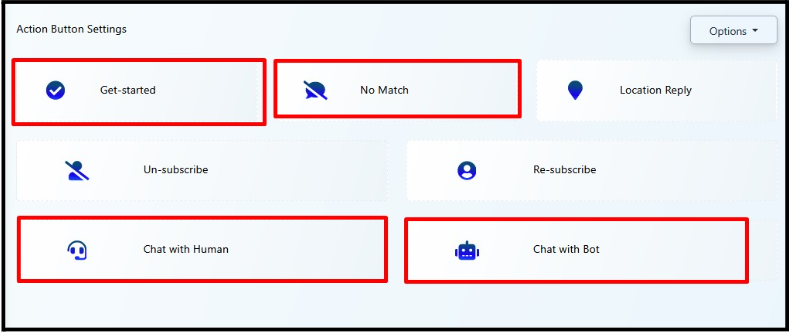
Every great chatbot needs a solid backbone for handling user interactions, and in SendWo, that backbone is powered by Action Buttons.
Action Buttons in SendWo are pre-defined system triggers that simplify user journeys and make your automation smarter. SendWo’s Action Buttons are directly integrated into the Flow Builder, empowering you to edit, extend, and automate workflows and keeping your automation fully aligned with the business goals.
Why Action Buttons Matter
- Eliminate manual setup for common tasks.
- Ensure consistent responses for key interactions.
- Allow seamless handover between bot and human agents.
- Make personalization scalable through the Flow Builder.
Common Use Cases
Action Buttons can be used in several scenarios in real-world automation :
- Send a warm greeting when a user clicks Get Started.
- Handle unmatched queries using the No Match button.
- Switch to a live human agent via Chat with Human.
- Bring users back to automation using Chat with Bot.
- Manage subscriptions with buttons like Unsubscribe / Resubscribe.
- Respond to shared locations using the Location Reply trigger.
Frequently Used Action Buttons in SendWo
1. Get Started
The Get Started button is your chatbot’s welcome handshake. It’s the default entry point when a user interacts with your WhatsApp or Facebook bot for the first time.
Inside SendWo’s Flow Builder, you can:
- Set a personalized welcome message.
- Capture user details like name or phone number.
- Trigger quick replies or guided menus.
This button creates a strong first impression and ensures every new user is properly onboarded into your automation journey.
2. No Match
At times, users type something your bot doesn’t recognize. That’s where the No Match button saves the day.
In SendWo:
- You can send a fallback message like “Sorry, I didn’t get that - would you like to talk to an agent?”
- Offer your users dynamic options to redirect back to a valid flow.
- Automatically notify a support team if needed.
This ensures users never hit a dead end in conversation.
3. Location Reply
Perfect for businesses with physical stores or delivery zones. When users share their location on WhatsApp, the Location Reply action triggers an instant response.
You can configure the flow to:
- Shows the nearest store or service availability.
- Estimated delivery time is suggested.
- Location-specific offers or information.
4. Unsubscribe
The Unsubscribe button lets users opt out of receiving future messages.
Customize the flow in:
Turn this learning into your next WhatsApp campaign.
Start with Sendwo’s free plan, explore WhatsApp broadcasts, automation, AI chatbot flows, and upgrade only when your business needs more power.
- Confirmation message are sent.
- Remove user tags from campaigns or sequences.
- CRM status or subscription fields are automatically updated.
5. Resubscribe
The Resubscribe button helps the user to rejoin with your updates again.
You can:
- Send a reactivation greeting.
- Restore tags and sequences.
- Add the user back into ongoing campaigns.
6. Chat with Human
The Chat with Human button instantly switches control from bot to human agent if needed.
Configure it to:
- Notify your agent or team inbox.
- Pause automated replies temporarily.
- Send a waiting message like “You’ll be connected shortly.”
In SendWo, this is seamlessly managed via the Shared Inbox, where agents can take over conversations from WhatsApp, Instagram, Telegram, or Webchat, all in one place.
7. Chat with Bot
After a human chat session, users can be switched back to the automated bot using this button.
You can:
- Send a friendly message like “The bot is back to assist you!”
- Resume the previous flow or trigger a main menu.
How to Configure Action Buttons in SendWo
Setting up or customizing Action Buttons takes only a few clicks:
- Log in to Dashboard > Bot Manager.
- Select your WhatsApp number and open Bot Reply.
- Select the Options menu located on the top-right corner.
- Choose Reset Action Buttons or edit any button (e.g., Get Started, No Match).
- Now you’ll be redirected to the Visual Flow Builder.
- Modify the default reply message, add logic, or connect APIs.
- Save and Publish your flow.
Note: All default Action Button replies in SendWo use plain text nodes which means you can easily personalize them using variables like {{first_name}}, {{phone}}, or connect them to external APIs for advanced logic.
Summary Table
| Button Name | Purpose | Where to Use |
| Get Started | Entry point for new users | WhatsApp, Facebook |
| No Match | Respond to unmatched user inputs | All platforms |
| Chat with Human | Escalate chat to a live agent | Support automation |
| Chat with Bot | Resume automation after human chat | After agent handover |
| Unsubscribe | Allow users to opt out | Compliance & user management |
| Resubscribe | Reactivate unsubscribed users | Re-engagement campaigns |
| Location Reply | Auto-reply when a location is shared | Geo-based or delivery use cases |
Conclusion
The Action Button Settings empowers you with a quick and easy way to manage your core chatbot actions. With just a few clicks, you can greet users, route messages to agents, manage subscriptions, and ensure every user gets a meaningful response.
Configure once. Automate everything. Engage smarter - with SendWo.
1. Can you disable certain Action Buttons in SendWo?
No. However, you can leave their responses blank or minimal if it is not required.
2. Can you connect Action Buttons with APIs or external logic?
Yes. Using SendWo’s Flow Builder, you can connect them to APIs, condition checks, or CRM updates.
3. Are these buttons available across all platforms?
Yes. Most are universal (WhatsApp, Instagram, Telegram, Webchat). A few, like Location Reply, work best with WhatsApp.
4. What happens if you reset the Action Buttons?
Resetting restores them to default templates; however, you can re-edit and customize anytime from the Flow Builder.
Snehil Prakash
Snehil Prakash is an expert WhatsApp consultant with SendWo. He has expertise in implementing WhatsApp API for enterprise businesses and built automation, chatbot and AI powered solution.