Imagine switching to a new phone and finding that none of your WhatsApp contacts appear in your address book. With WhatsApp now serving over 3 billion users globally (exchanging more than 100 billion messages daily), situations like this are increasingly common. Whether you’ve lost your device or simply forgot to save a number outside of WhatsApp, keeping your WhatsApp contacts synced with your phone is crucial for seamless communication. The good news? WhatsApp’s latest updates introduced features to easily how to Sync WhatsApp Contacts to Your Phone, ensuring you never lose those important numbers. In this comprehensive guide (brought to you by SendWo), we’ll walk you through how to Sync WhatsApp Contacts to Your Phone step by step on both Android and iPhone – along with tips, troubleshooting, and an FAQ to cover all your questions.
1. Why Syncing WhatsApp Contacts with Your Phone Matters
Keeping WhatsApp contacts in sync with your phone’s address book is more than just convenience – it can be a lifesaver for your data and communication continuity. Here’s why it’s important:
Seamless Communication: WhatsApp uses phone number as contact IDs. If a friend messages you on WhatsApp and you never save them to your phone contacts, you might only see a number in other apps. Syncing ensures names and numbers appear in your regular phone dialer and SMS apps, so you can call or text them outside WhatsApp easily.
Backup and Device Switching: If you lose or upgrade your phone without a cloud backup of contacts, WhatsApp might still show your chat list (via its own backup) but your phone won’t have those numbers saved. By how to Sync WhatsApp Contacts to Your Phone (and thereby to Google or iCloud), you won’t lose your connections when switching devices. For example, one user who lost all phone contacts was relieved to find WhatsApp had them, how to Sync WhatsApp Contacts to Your Phone saved the day.
Multi-Device Use: With WhatsApp now allowing multiple linked devices, including a second phone or WhatsApp Web, managing contacts has evolved. You can add or edit a contact on one device and have it on others. Syncing to your main phone book ensures consistency across devices – no matter where you add a contact, it’s available everywhere.
Privacy and Control: Perhaps you don’t want every WhatsApp chat in your phone book – or vice versa. The recent updates let you choose whether to keep a contact only in WhatsApp or also in your phone’s contacts. This way, you could keep some chats private to WhatsApp (they won’t clutter your phone book) or how to Sync WhatsApp Contacts to Your Phone them if needed. Having this control means you decide how integrated WhatsApp is with your personal contacts list.
In short, how to Sync WhatsApp Contacts to Your Phone ensures you have all your important numbers at your fingertips, protects against losing contacts, and gives you flexibility in managing your digital address book. Next, let’s explore exactly how to do it step by step on Android and iPhone.
2. How WhatsApp Contact Sync Works
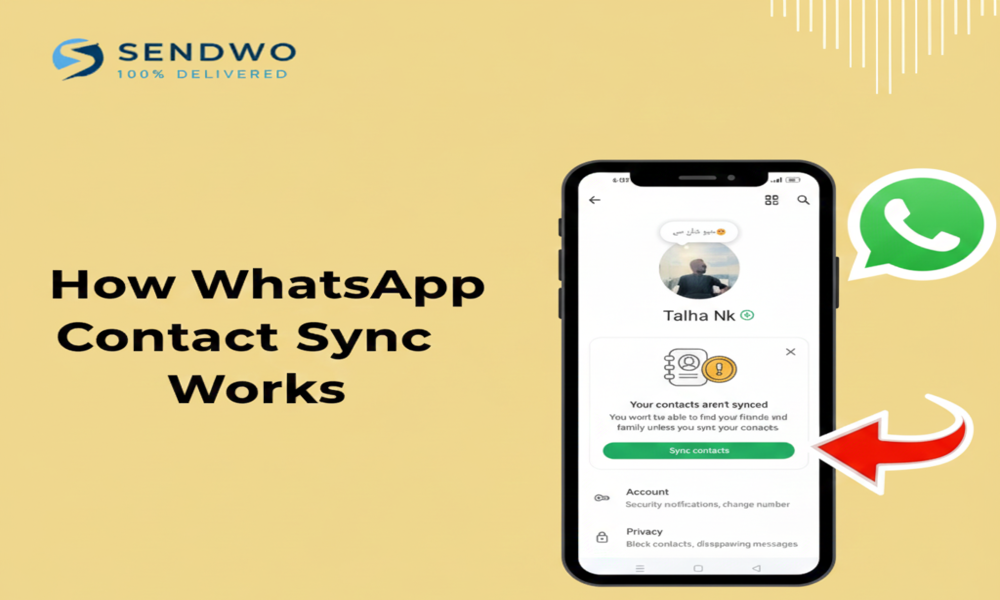
Before diving into the steps, it helps to understand how to Sync WhatsApp Contacts to Your Phone feature. In late 2024, WhatsApp rolled out a privacy update that changed how contacts are handled:
WhatsApp Contacts Setting: In WhatsApp Settings > Privacy > Contacts, there is now a “WhatsApp Contacts” toggle. When this toggle is ON, WhatsApp will keep newly added contacts inside WhatsApp only (not adding them to your phone’s address book). When it’s OFF, WhatsApp will how to Sync WhatsApp Contacts to Your Phone (saving them to your device’s contacts).
“Sync contact to phone” Toggle: Additionally, whenever you add a new contact within WhatsApp, you’ll see a handy toggle labeled “how to Sync WhatsApp Contacts to Your Phone.” If you turn this on at the time of adding, WhatsApp will save that how to Sync WhatsApp Contacts to Your Phone contacts automatically. If you leave it off, the contact stays only in WhatsApp. This granular control is great for keeping certain contacts visible only in WhatsApp if you prefer.
Bulk Sync Option: What if you’ve already got a bunch of WhatsApp-only contacts and now want them all in your phone book? WhatsApp’s privacy setting allows a bulk sync. By toggling off the “WhatsApp Contacts” option, you’ll be prompted to “Save all contacts to phone” before the contacts are removed from WhatsApp’s internal list. Confirming this will push all those WhatsApp-stored contacts into your phone’s address book in one go.
Automatic Restoration: WhatsApp also introduced a new secure storage system for contacts (Identity Proof Linked Storage) so that even if you reinstall the app or get a new device, your WhatsApp contacts (the ones you hadn’t synced) can be restored within WhatsApp. However, to have them in your phone’s contacts, you would still need to sync using the steps we’ll cover.
In essence, WhatsApp now gives you the choice: keep contacts exclusively in the app or merge them with your phone’s contacts. By leveraging this feature, how to Sync WhatsApp Contacts to Your Phone whenever needed. Let’s see how to do this on Android and iOS.
3. How to Sync WhatsApp Contacts on Android (Step-by-Step)
On Android devices, WhatsApp usually how to Sync WhatsApp Contacts to Your Phone contacts automatically once permissions are granted. If some WhatsApp contacts aren’t showing up in your phone book (or in WhatsApp itself), follow these steps to synchronize them:
Step 1: Allow WhatsApp to Access Contacts. First, ensure WhatsApp has the permission to read your contacts. On your Android phone, go to Settings > Apps (or Application Manager), find WhatsApp, and tap Permissions. Make sure Contacts permission is Allowed. If it was off, turn it on – this is essential for syncing. (If you don’t grant this, WhatsApp can’t see your phone contacts at all.)
Step 2: Refresh WhatsApp’s contact list. Now open WhatsApp, tap the New Chat button (usually a green icon at the bottom), then tap the menu (⋮) in the top-right and choose “Refresh”. This forces WhatsApp to re-scan your address book and update the in-app contacts list. After a moment, any new or previously missing contacts from your phone should appear in WhatsApp’s contact list. (For example, if you just added someone in your phone’s Contacts app, this ensures WhatsApp catches up.)
Step 3: Use WhatsApp’s built-in sync toggle for bulk sync. If you have contacts that appear in WhatsApp but not in your phone’s Contacts app, these are likely stored within WhatsApp only (perhaps added on another device or before you gave permission). To export them to your phone all at once, do the following:
In WhatsApp, go to Settings > Privacy > Contacts. You’ll see an option called “WhatsApp Contacts” with a toggle switch. Turn this off.
When you toggle it off, WhatsApp will prompt you with a message asking if you want to “Save all contacts to phone” before it proceeds. Check the box or select the option to how to Sync WhatsApp Contacts to Your Phone, then confirm (the option might say “Delete and save all contacts on phone” – which means it will delete the WhatsApp-only copies after saving them on your phone).
Wait a few moments for the process to complete. This action will copy all WhatsApp-stored contacts into your Android’s main contacts list. You can verify by opening your phone’s Contacts app and searching for those contacts – they should now be present with names and numbers.
Step 4: (Optional) Re-enable WhatsApp’s contact storage if desired. After syncing, you might choose to turn the WhatsApp Contacts toggle back ON (in the same Privacy > Contacts settings). This will mean future new contacts you add via WhatsApp stay within the app unless you manually sync them. It’s up to you. If you leave it off, then going forward WhatsApp will always add new contacts straight to your phone’s address book by default (which may actually be convenient). Consider your preference for privacy vs. convenience here.
Step 5: Verify and back up. Your WhatsApp contacts should now be merged into your phone’s contacts. It’s wise to back up your contacts at this point. On Android, ensure your how to Sync WhatsApp Contacts to Your Phone with your Google account (go to Settings > Accounts > [Your Google Account] > Sync > Contacts). This way, all those newly saved contacts are safely backed up to the cloud. The next time you switch phones, they’ll come along automatically when you sync Google.
Figure: WhatsApp’s new “how to Sync WhatsApp Contacts to Your Phone” toggle appears when adding a contact. This feature lets you choose on-the-spot whether a contact should be saved to your phone’s address book or kept only within WhatsApp. Always enable it if you want the contact in your device’s contacts.
4. How to Sync WhatsApp Contacts on iPhone (Step-by-Step)
On iPhones, WhatsApp integration with Contacts works a bit differently but the core idea is the same. By default, WhatsApp read from your iPhone’s contacts (when given permission) to show who’s on WhatsApp. With the new update, you can also push contacts the other way (from WhatsApp to phone). Here’s how to make sure your WhatsApp contacts sync on iOS:
Step 1: Enable Contacts access for WhatsApp. On your iPhone, open Settings, scroll down and tap Privacy & Security, then tap Contacts. Find WhatsApp in the list and make sure the toggle is ON (green). This grants WhatsApp permission to view and edit your contacts. If WhatsApp was not listed or toggle was off, that was likely why contacts weren’t syncing. Toggle it on and launch WhatsApp again.
Step 2: Refresh WhatsApp contacts list. Open WhatsApp on your iPhone. Go to the Chats tab, tap the New Chat (compose) icon. In the contacts list that appears, pull the list down to refresh it. This will make WhatsApp re-fetch contacts from your iPhone’s address book. After refreshing, any new contacts you added to the phone should now reflect in WhatsApp (and vice versa, names for WhatsApp users should display if their number was in your phone).
Step 3: Sync WhatsApp-only contacts to iPhone’s contacts. If you have been adding contacts within WhatsApp (for example, saving a new number through a WhatsApp chat), you might notice they don’t show up in the iOS Contacts app. This is expected behavior unless you sync them. Use the new feature to fix this:
In WhatsApp, go to Settings > Privacy > Contacts (similar to Android). You’ll see the “WhatsApp Contacts” toggle here as well. Toggle it off.
When toggling off, WhatsApp will ask if you want to save the contacts to your phone before removal. Choose the option to “Save all contacts to phone” (on iOS it might phrase it slightly differently, but the idea is the same). Confirm the action.
WhatsApp will now export all those WhatsApp-stored contacts into your iPhone’s Contacts app. This means those contacts will be visible in the Phone/Contacts app just like any regular contact. For example, if you had saved a friend’s number via WhatsApp but not through the Phone app, it will now create an entry for that friend in your iPhone contacts automatically.
Step 4: Verify in Apple Contacts and iCloud. After the sync, open the iPhone’s Contacts app and check for the previously missing entries. They should appear with whatever names you had set in WhatsApp. It’s also a good idea to ensure these are saved to your default contacts account (likely iCloud). Usually, when WhatsApp adds them, they go to the iCloud contacts by default. To be sure, you can open one new contact in Contacts app and scroll down – it should show “WhatsApp” as linked account or simply be in All Contacts. If you use iCloud or another service to sync contacts, double-check that these contacts are now part of that and get backed up to iCloud. This way, if you ever lose your iPhone or switch to a new one, those contacts will be restored from iCloud.
Step 5: Future behavior – decide your preference. Now that your WhatsApp contacts are synced, you have a decision to make. If you leave WhatsApp Contacts off in settings, going forward WhatsApp will save every new contact you add (via the app) to your iPhone contacts automatically. If you turn it on again, new contacts added in WhatsApp will stay only in WhatsApp. Many users choose to keep it off (so everything stays unified in Contacts). Others prefer on (to keep phone book cleaner). For example, if you often add temporary acquaintances on WhatsApp that you don’t want polluting your main contacts, you might keep it on (not syncing) and only occasionally turn it off to batch-save important ones. It’s up to your workflow.
5. Troubleshooting WhatsApp Contact Sync Issues
Most of the time, the above steps should sync your WhatsApp contacts to your phone smoothly. But if you’re still encountering issues – like contacts not showing up, names not appearing, or sync not working – try these troubleshooting tips:
Ensure correct contact format: WhatsApp will only recognize a contact if the number is in your phone book with the proper format (including country code). If someone isn’t showing up in WhatsApp, check that their number in your Contacts app includes the international dialing code (e.g. +1 for US, +44 for UK). Incorrectly saved numbers might not match WhatsApp’s database of users.
Check contact visibility (Android): On Android, your Contacts app might be filtering some entries. Open your phone’s Contacts and ensure all contact groups or accounts are visible (e.g., Gmail, Device, SIM, WhatsApp if applicable). In some phones, WhatsApp contacts might be in a separate group – make sure “All contacts” are being shown. You can usually tap the three-bar or “Groups” option in Contacts app and select all sources.
Re-sync via Accounts (Android): Android treats WhatsApp as an account for contact syncing. You can try a manual sync: go to Settings > Accounts, select WhatsApp, and look for a “Sync Contacts” option. If it’s off, turn it on, or tap Sync now. If you had duplicate contacts (from another account and WhatsApp), this might have created confusion in the past, but using the new one-time sync method should have resolved that by consolidating entries.
“Show All Contacts” in WhatsApp (older versions): If you’re on an older WhatsApp version (pre-2024) or using a device that hasn’t updated, WhatsApp had an option in Settings > Contacts called “Show all contacts.” Make sure this is enabled. This setting was meant to display even those contacts without phone number or those that might be hidden. It’s largely obsolete now, but worth checking if your app is outdated.
Contact names not showing (only numbers): If you see numbers instead of names in WhatsApp, it usually means WhatsApp can’t read your phone contacts. Double-check the permission (as in step 1 above) – especially on iPhone, if you denied access initially, the app will just show numbers. Go to iPhone Settings > Privacy > Contacts > WhatsApp and allow it. On Android, ensure Contacts permission is granted and also that you have saved that person’s number in your phone. After fixing, use the Refresh contacts feature in WhatsApp again.
Pull-to-refresh properly (iPhone): On iOS, after adding new contacts or enabling sync, remember to open the New Chat screen and pull down to refresh. iPhones don’t have a “Refresh” button, but this gesture triggers the same action.
Restart or reinstall if needed: If things are still out of whack, a simple restart of your phone can sometimes clear sync issues. In more stubborn cases, consider reinstalling WhatsApp (after backing up chats). When you reinstall and grant permissions, WhatsApp will load contacts fresh. Thanks to WhatsApp’s new contact storage system, even WhatsApp-only contacts should restore within the app on reinstall. Once reinstalled, try the sync toggle again. One guide suggests that reinstalling helped when WhatsApp contacts refused to appear despite correct settings.
Keep WhatsApp updated: Lastly, make sure you’re using the latest version of WhatsApp from the App Store or Play Store. The ability to sync contacts to phone was a recent addition, so older versions might not support it fully. Updating ensures you have all the newest features and bug fixes for contact management.
If after all these steps a particular contact still isn’t syncing, there’s a chance that contact might not actually be on WhatsApp (you can verify by trying to start a WhatsApp chat with them; WhatsApp will prompt to invite if they’re not registered). Otherwise, the above measures cover the common culprits.
For most users, the process is now straightforward and reliable – a far cry from earlier days when, for example, iPhone users were told “you can’t do it” without manual work. Now you have the tools to sync in seconds.
6. Pro Tips for Managing WhatsApp Contacts
To wrap up the guide, here are some best practices and tips to keep your contacts organized going forward:
Always save new numbers promptly: When someone messages you on WhatsApp and isn’t already in your contacts, save their contact info immediately (WhatsApp usually gives an “Add to Contacts” option in the chat). Be sure to enable the “Sync contact to phone” toggle at that moment. This one step ensures you don’t have to do a cleanup later – the contact goes straight into your phone book.
Use Google/iCloud for backup: Rely on your phone’s cloud backup (Google Contacts on Android, iCloud on iPhone) to keep a secure copy of all contacts. After syncing WhatsApp contacts to phone, they become like regular contacts, so they will upload to your cloud if that’s enabled. It’s worth double-checking that cloud sync is on; for instance, on Android: Settings > Accounts > Google > Sync Contacts, and on iPhone: Settings > [Your Name] > iCloud > Contacts = ON. This way, even if WhatsApp’s internal backup fails, you have a solid backup in the cloud.
Clean up duplicates: Sometimes you might end up with duplicate entries (for example, if you saved John’s number on your phone and also had John as a WhatsApp-only contact that you then synced). Use your Contacts app’s merge feature or a contacts cleaner app to merge duplicates. On Android Google Contacts, you can find Duplicates and merge. On iPhone, if duplicates occur, you might see a notice in Contacts suggesting to link them. Cleaning up keeps your address book tidy.
Periodic sync checks: It’s not a bad idea to occasionally open WhatsApp settings and toggle the sync off then on (or vice versa) if you suspect something is off. This can act as a “refresh” of the link between WhatsApp and your phone’s contacts. However, note that toggling off then on repeatedly isn’t usually needed unless you intentionally want to unsync future contacts. Generally, once you’ve done the one-time sync (and left it off), you’re set.
Business use – organize contacts: If you use WhatsApp for business networking or sales, you may end up with hundreds of new contacts. Create groups or labels in your phone’s contacts (Google Contacts lets you label, iPhone lets you assign to groups via iCloud) to categorize WhatsApp contacts (e.g., “WhatsApp Clients 2025”). This makes it easier later to maybe remove or export them. Also, consider using a CRM or a tool like SendWo to manage large contact lists – you can import your phone contacts into SendWo’s platform for bulk messaging and marketing campaigns seamlessly.
By following these tips, you’ll maintain a robust and organized contacts list that plays nicely with WhatsApp. You’ll never be scrambling to find a number outside WhatsApp or worrying that a contact exists only in one app.
Conclusion
Keeping how to Sync WhatsApp Contacts to Your Phone is a small task that saves huge headaches down the line. Now that you know how to sync WhatsApp contacts to your phone for both Android and iPhone, you can ensure all your friends, family, colleagues, and customers are readily available in your address book. No more losing contacts during phone upgrades or manually copying numbers from WhatsApp to your phone – it’s all handled with a few toggles and taps.
We’ve covered the why, how, and what-if’s of how to Sync WhatsApp Contacts to Your Phone. At the end of the day, staying connected is what matters – and WhatsApp’s features are finally catching up to our needs. Take a moment today to sync your contacts and back them up. You’ll thank yourself later when all your important WhatsApp contacts are safely stored and accessible whenever you need them.
Call to Action: If you found this guide helpful, please share it with others who might be struggling with their how to Sync WhatsApp Contacts to Your Phone. And if you’re a business owner or power user, consider leveraging tools like SendWo to supercharge your WhatsApp communications. SendWo (an official WhatsApp Business Solution Provider) helps you manage contacts, send bulk messages, and automate chats – perfect for staying in touch with all those contacts you just synced! Don’t let your connections go to waste – keep them organized and reach out effectively. ? Try SendWo for free today and take your WhatsApp engagement to the next level!
FAQs
Q1: How do I auto-sync WhatsApp contacts to my phone?
Go to WhatsApp Settings > Privacy > Contacts, turn off “WhatsApp Contacts”, and confirm to save them to your phone. Ensure WhatsApp has contact access and sync is enabled under Settings > Accounts > WhatsApp.
Q2: Why aren’t my WhatsApp contacts showing in my phone?
Check that you’ve synced them, all contact groups are visible, and WhatsApp has contact permissions. Refresh WhatsApp’s contact list or restart your phone if needed.
Q3: Can WhatsApp sync with Google or iCloud?
Not directly, but once you save WhatsApp contacts to your phone, they sync with Google or iCloud if those backups are enabled.
Q4: Why does a contact show only a number, not a name?
You may not have saved the name, or it’s stored only in WhatsApp. Save it to your phone’s contacts and refresh WhatsApp’s contact list.
Q5: Does deleting a contact from my phone remove it from WhatsApp?
Deleting from your phone removes the name but not the chat. If “WhatsApp Contacts” is off, it deletes from both; if on, it stays in WhatsApp until you remove or block it.