How to Remove WhatsApp from Facebook Safely
Need to unlink WhatsApp from Facebook? Here is the complete guide to how to remove WhatsApp from Facebook.
 By Aditi Kamini
Published: December 16, 2025
Updated: March 23, 2026
14 min read
By Aditi Kamini
Published: December 16, 2025
Updated: March 23, 2026
14 min read
Need to unlink WhatsApp from Facebook? Here is the complete guide to how to remove WhatsApp from Facebook.
Imagine receiving Facebook security codes through WhatsApp without ever opting in, or feeling uneasy that your WhatsApp activity might tie into your Facebook profile. You’re not alone. With WhatsApp’s global user base near 3 billion as of 2024, many have linked their accounts across Meta’s platforms for convenience. However, privacy concerns and a desire for control drive users to separate these services. In fact, a controversial policy update in 2021 sparked an exodus of over 30 million users to rival apps like Signal and Telegram – a clear sign that people value keeping WhatsApp and Facebook separate.
If you’re wondering “how to remove WhatsApp from Facebook?”, this comprehensive guide will walk you through the process step-by-step. We’ll cover why unlinking can be beneficial, how to do it on personal accounts and business pages, and what changes after you disconnect them. Let’s get started on reclaiming your privacy and independence on these apps to how to remove WhatsApp from Facebook.
1. Why Unlink WhatsApp from Facebook?
Removing the connection between WhatsApp and Facebook can bring greater privacy, security, and focus to your digital life. Here are a few reasons users decide to unlink:
- Privacy and Data Control: Facebook (Meta) owns WhatsApp, and linking accounts allows more data sharing between the apps. By unlinking, you limit cross-platform data flow, giving you more control over personal information. Your chat stay end-to-end encrypted, and you reduce any metadata or account info being shared behind the scenes. For privacy-conscious users, this separation is a relief.
- Stop Unwanted Verification Codes: Lately, Meta has been integrating WhatsApp as a login verification method. Some people were surprised to find Facebook sending two-factor authentication codes to WhatsApp by default. If you prefer SMS or email codes – or you don’t use WhatsApp on that number anymore – unlinking will stop Facebook from relying on WhatsApp for verification. This puts you back in control of how you receive security messages.
- Avoid Cross-Platform Features: Keeping accounts linked means Facebook can suggest WhatsApp as a contact option (and vice versa). Your Facebook friends might see a WhatsApp button on your profile or business page, and Facebook ads could prompt chats on WhatsApp. Unlinking how to remove WhatsApp from Facebook these features. For instance, any “Click to WhatsApp” ads or WhatsApp buttons on Facebook Pages disappear once unlinked, preventing unwanted messages from Facebook users. This makes each platform more focused on its own purpose.
- Business and Personal Separation: Many businesses link WhatsApp Business to Facebook pages for customer communication. If your strategy changes or you no longer want that integration, removing WhatsApp from your Facebook Page will detach the messaging button and ad integrations. This can simplify your workflow or allow you to connect a different number. Similarly, personal users might have added their WhatsApp number to Facebook Marketplace or profile and now wish to how to remove WhatsApp from Facebook it to stay private.
2. How to Remove WhatsApp from Facebook (Step-by-Step)
Removing WhatsApp from Facebook can mean a few different things depending on how it’s linked. We’ll cover two main scenarios for how to remove WhatsApp from Facebook:
- Unlinking WhatsApp from your personal Facebook account – using Meta’s Accounts Center or your Facebook profile settings. This covers removing any official connection between your Facebook account and WhatsApp (like shared login or account info). It also stops Facebook from sending login codes to WhatsApp.
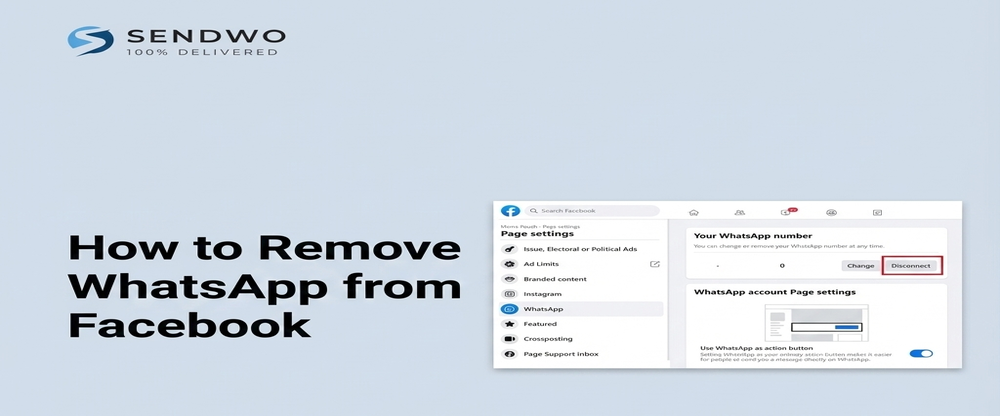
- Removing WhatsApp from a Facebook Business Page – if you connected a WhatsApp number to your Facebook Page (commonly done for WhatsApp Business contact buttons or ads).
- We’ll also mention how to do it directly from the WhatsApp app as an alternative. Follow the method that fits your situation. Don’t worry – whichever route you choose, you will not delete your WhatsApp account or chats by unlinking. It only severs the connection between the two platforms.
WhatsApp and Facebook Integration: If you linked your accounts for convenience, you can just as easily disconnect WhatsApp from Facebook using the official settings. This restores privacy and separates your profiles.
3. Unlinking WhatsApp from Your Facebook Account (Personal Profile)
If your personal Facebook and WhatsApp are linked via the Meta Accounts Center, or if Facebook is using WhatsApp for verification, use this method. We’ll go through the steps on the Facebook app (the process is similar on the Facebook website in a browser).
Steps to disconnect WhatsApp from a Facebook account:
- Open Facebook Settings: Launch the Facebook app on your phone. Tap the menu (≡ icon – on iPhone it’s at bottom right, on Android top right). Scroll down and tap Settings & Privacy, then tap Settings.
- Go to Accounts Center: In Settings, find and tap Accounts Center. This is Meta’s centralized hub for connected accounts. Here you might see your Facebook, Instagram, and WhatsApp accounts listed if they’re linked.
- Select “Accounts” and Find WhatsApp: Within Accounts Center, tap Accounts. You’ll see the accounts connected to your profile. If your WhatsApp is linked, you will see your WhatsApp number listed (usually labeled with the WhatsApp logo or “WhatsApp”).
- Remove the WhatsApp Account: Tap on your WhatsApp number/account, then choose how to remove WhatsApp from Facebook from Accounts Center (or a similar “Remove” option). The system will ask for confirmation. Confirm by tapping Remove Account and proceed with any prompts (you might need to tap Continue and then Yes, how to remove WhatsApp from Facebook to finalize).
- Confirmation: Once done, your WhatsApp is unlinked from Facebook. To double-check, go back to Accounts in Accounts Center – the WhatsApp account/number should no longer appear there. Also, Facebook will now default back to other verification methods (like SMS) since WhatsApp is no longer an option on your account.
By following the above steps, you’ve successfully unlinked your accounts. Your Facebook and WhatsApp will now operate independently.
4. Removing WhatsApp from a Facebook Page (Business Page Unlink)
If you connected a WhatsApp Business number to a Facebook Page (often done to enable the WhatsApp message button on the page or to run ads that open WhatsApp chats), use this method. Unlinking how to remove WhatsApp from Facebook, WhatsApp contact button from the page and disable any ad integrations.
Here’s how to remove WhatsApp from Facebook Page:
- Open your Page Settings: Go to your Facebook app (or Meta Business Suite app if you use that). Navigate to your Facebook Page and tap Settings (on the page, you might find this under the Manage Page menu or a gear icon, depending on the interface). Make sure you have admin access to the page.
- Find WhatsApp in Page settings: Scroll through the Page settings for an option like WhatsApp or Linked Accounts. In the latest Page experience, there is often a section to add or edit your WhatsApp number. If your page is currently linked to WhatsApp, you will see the number displayed here (and possibly a note that a WhatsApp button is active on your page).
- Remove the WhatsApp number: Tap on the WhatsApp number or the edit option. You should see an option to how to remove WhatsApp from Facebook account from the page. Select Remove and confirm when prompted. Facebook will then unlink that WhatsApp Business account from your page.
- Verify Removal: The WhatsApp section should now prompt you to add a number (as if none is linked). Also, check your Facebook Page – the WhatsApp message button should no longer appear to visitors. If you were running “Click to WhatsApp” ads, those ads will no longer send people to your WhatsApp chat after this removal, so plan to adjust or pause those campaigns to avoid confusion.
By unlinking WhatsApp from your business page, you ensure customers can’t message that WhatsApp via Facebook anymore. This is useful if you’re changing your business contact strategy or handing the page to someone else.
5. (Alternative) Disconnecting WhatsApp via the WhatsApp App
You can also initiate the unlinking from WhatsApp’s side, which achieves the same result. This is handy if you don’t have access to Facebook at the moment or find it easier to use WhatsApp settings. The process uses the Accounts Center integrated in WhatsApp.
Turn this learning into your next WhatsApp campaign.
Start with Sendwo’s free plan, explore WhatsApp broadcasts, automation, AI chatbot flows, and upgrade only when your business needs more power.
To how to remove WhatsApp from Facebook:
- Open WhatsApp Settings: On your phone, open WhatsApp. Go to Settings (tap the gear icon on iPhone, or the three-dot menu > Settings on Android).
- Account > Accounts Center: In WhatsApp Settings, tap Account. If your WhatsApp is linked to a Facebook/Meta account, you will see an Accounts Center option here (sometimes labeled as just “Accounts” under Meta Accounts Center). Tap Accounts Center.
- Remove Linked Accounts: Inside Accounts Center (now within WhatsApp), tap Accounts. You should see the linked Facebook account listed (or Instagram, if applicable). Tap your Facebook account name. Then choose Remove Account and confirm the removal. WhatsApp will likely ask “how to remove WhatsApp from Facebook from Accounts Center?” – confirm to unlink it.
- Restart WhatsApp: It’s a good idea to close and reopen WhatsApp after unlinking, just to ensure the changes take effect. According to one guide, restarting WhatsApp clears any cached data related to the link. When you go back to Settings > Account, the Accounts Center should no longer show a connected Facebook account.
This WhatsApp-side method is essentially doing the same thing as the first method, just from the other app. After completion, you can also verify on Facebook’s Accounts Center that WhatsApp is gone.
By now, how to remove WhatsApp from Facebook – congratulations! Next, let’s discuss what changes (and what doesn’t) after unlinking, so you know exactly what to expect.
6. What Happens After You Remove WhatsApp from Facebook?
You might be wondering what the immediate effects are once you disconnect WhatsApp from Facebook. The good news is that your core WhatsApp experience remains unchanged – your messages, contacts, and groups on WhatsApp are all intact. Unlinking only affects the way Facebook and WhatsApp interact, not the apps themselves.
Here’s a breakdown of what to expect:
- WhatsApp still works normally: Removing the link won’t delete any chats, photos, or your account on WhatsApp. Your conversations and media remain on your phone as before. WhatsApp will continue to function as a standalone messaging app with no impact on performance or functionality. In other words, unlinking does not affect the WhatsApp app’s performance or features at all – it’s as secure and speedy as ever, just without Facebook integration.
- Facebook continues to work normally: Your Facebook account is unchanged except for anything related to WhatsApp. By unlinking, you’ve simply told Facebook not to consider WhatsApp in its features. You can log in to Facebook, use Messenger, etc., just as you did before. The only difference is Facebook won’t try sending you WhatsApp notifications or show WhatsApp-specific prompts.
- Removed cross-platform features: Any features that relied on the Facebook–WhatsApp link will stop. For personal accounts, for example, Facebook will stop sending login or security code to WhatsApp (they’ll revert to SMS/email if that’s how it was before). For businesses, any “Message us on WhatsApp” buttons on Facebook Pages will disappear once the number is removed. Also, Facebook ads that used to open WhatsApp chats will no longer function unless you relink and set them up again. Essentially, Facebook and WhatsApp go back to being separate silos.
- Improved privacy boundary: Unlinking establishes a stronger privacy boundary between the two services. While WhatsApp chats have always been private (end-to-end encrypted), now your WhatsApp account info (like your phone number) is no longer tied to your Facebook profile or used in Facebook’s ad targeting. Facebook can’t use the fact that you have WhatsApp linked to suggest you to friends or sync your status, etc. You’ve gained a bit more peace of mind, knowing that the data each platform has about you stays on that platform.
- Need to manage business communications differently: If you were using the integration for business, note that you may need alternate solutions now. For example, if you unlinked your WhatsApp Business from your Facebook Page, customers from Facebook can’t message you on WhatsApp directly. You might need to provide a different contact method on your page (like a contact form or a Messenger link) or be ready to respond via other channels. For marketers, you’ll also lose any combined insights or audience customizations that came from the link. It’s worth it for privacy, but plan ahead so your customers aren’t left hanging.
Overall, nothing “breaks” by removing WhatsApp from Facebook – you simply lose some integrated features. Many users consider this a worthwhile trade-off for the added privacy and control. Your WhatsApp remains fully functional and safe, and your Facebook does too, each on its own.
7. Tips to Keep Your WhatsApp and Facebook Separate (and Secure)
Unlinking is a big step toward privacy. If you want to go further in keeping a healthy separation between WhatsApp and Facebook (and other Meta services), consider these extra tips:
- Use distinct contact info for each account: If possible, use a different email/phone number for Facebook and WhatsApp. This way Meta has a harder time auto-linking them. For instance, you might keep WhatsApp on your personal number and use a different number (or just email) for Facebook. This prevents accidental connections through contact syncing.
- Avoid using Facebook to log into other services: Many apps offer “Log in with Facebook” as a quick option. It’s convenient, but remember it ties those apps to your Facebook profile (and indirectly to WhatsApp if linked). To maintain separation, use separate logins (email/password or phone) for services, especially those related to messaging or contacts. This reduces the web of links between your accounts.
- Review app permissions on your phone: Sometimes Facebook and WhatsApp might access the same data on your device (like contacts or location). After unlinking, you can double-check permissions. For example, you might disable Facebook’s access to your phone contacts if you’re concerned it could upload your WhatsApp contacts. Keeping permissions minimal ensures each app only sees what it needs to function.
- Don’t cross-post content intentionally: Avoid the temptation to share WhatsApp status to Facebook story, or vice versa, which is a feature on newer versions. By not cross-posting between WhatsApp, Facebook, and Instagram, you maintain clear boundaries. Treat WhatsApp as a separate space – for instance, use it just for direct messaging, and use Facebook for social networking or business pages. This mindset keeps your communications siloed as you prefer.
- Keep an eye on Accounts Center: Meta’s Accounts Center is where linking happens. Even after unlinking, it’s good to occasionally check Accounts Center (via any Meta app) to ensure no new linkages appeared. Meta sometimes introduces new features, so staying vigilant will let you spot if, say, Instagram or a future app tried to link with WhatsApp. Fortunately, Accounts Center puts you in control – nothing links without your action, and you can how to remove WhatsApp from Facebook accounts anytime.
By following these practices, you ensure that your decision to separate WhatsApp and Facebook remains in effect. You’ll use each platform on your own terms, with minimal data overlap. This ultimately creates a safer and more intentional online experience, where you decide how and where your information is used.
Conclusion & Call to Action
In this article, we’ve shown that removing WhatsApp from Facebook is quick and empowering. With just a few taps in the settings, you unlinked your accounts and took control of your digital privacy. Now, Facebook and WhatsApp operate independently – your chats stay private on WhatsApp, and your Facebook profile is free of any WhatsApp ties.
- Remember, you haven’t lost any functionality in WhatsApp itself. You’ve simply turned off the pipeline that shared info between the two platforms. Going forward, you can enjoy WhatsApp on your own terms, without worrying about who on Facebook can see your number or whether Facebook is sending messages to your WhatsApp.
- Take charge of your communication. We encourage you to review your other app connections as well – maybe unlink Instagram or any service you no longer use. The power is in your hands to create the online privacy you want.
- At SendWo, we’re passionate about helping you make the most of messaging apps safely and effectively. ? If you found this guide useful, be sure to share it with friends who might have the same question. For more tips on WhatsApp and social media management, explore our blog and consider subscribing for regular updates. And if you’re a business looking to leverage WhatsApp for outreach without sacrificing control, check out SendWo’s solutions – we specialize in user-friendly WhatsApp marketing tools that keep you in the driver’s seat.
FAQs
1. Does removing WhatsApp from Facebook delete my chats or account?
No. Unlinking WhatsApp from Facebook does not delete your chats, media, groups, or WhatsApp account. Everything remains safe and unchanged.
2. Will WhatsApp still work normally after unlinking from Facebook?
Yes. WhatsApp will work exactly the same. You can message, call, and use all features as usual. Only Facebook-related features are disabled.
3. What changes on Facebook after unlinking WhatsApp?
Facebook will remove WhatsApp integrations like the WhatsApp contact button, login codes via WhatsApp, and Click-to-WhatsApp ad usage. The rest of Facebook stays unaffected.
4. Is it better for privacy to unlink WhatsApp from Facebook?
For many users, yes. Unlinking reduces data sharing between platforms and keeps your WhatsApp number separate from Facebook’s systems.
5. Is WhatsApp automatically linked to Facebook?
No. WhatsApp is only linked if you manually connect it or enable certain Meta features. You can unlink it anytime.
Aditi Kamini
Aditi, a content marketer at SendWo, is a passionate writer and marketing enthusiast. She excels in driving revenue campaigns, building client relationships, and mastering content creation, SEO, customer service, and project management.