Add a Meta Payment Method for WhatsApp API Billing
Add a payment method for WhatsApp API billing in Meta Business Suite, confirm it’s linked to your Sendwo account, and test your first template.
 By Aditi Kamini
Published: November 27, 2026
3 min read
Add a payment method for WhatsApp API billing in Meta Business Suite, confirm it’s linked to your Sendwo account, and test your first template.
Your WhatsApp number is connected to Sendwo. You go to send a broadcast, and Meta returns a payment error. If you skipped billing during setup, open Meta Business Suite and add a payment method to the account that sends your messages.
Your Sendwo plan has its own message allowance. Meta charges separately for billable WhatsApp API messages. Sendwo adds 0% markup to Meta’s messaging fees. Check Sendwo pricing and Meta’s WhatsApp pricing for details.
Step 1. Check which number you’re sending from
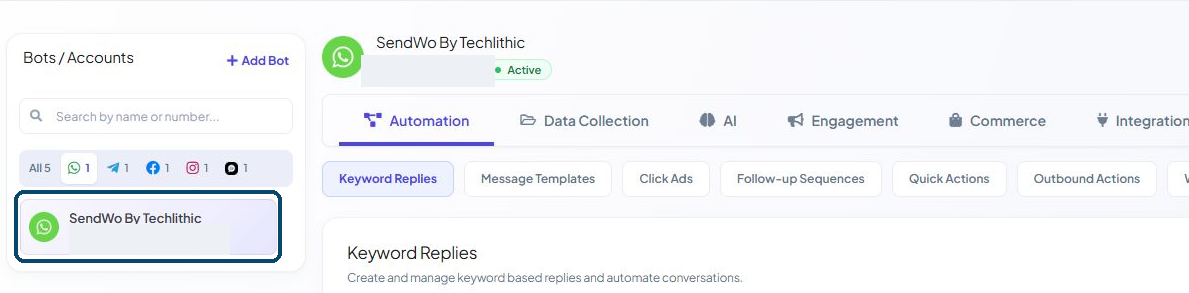
- Log in to Sendwo. In the left menu, click Chatbot Manager → WhatsApp Bot.
- Under Bots / Accounts, select the WhatsApp number you use for broadcasts. Keep this tab open so you can match the number in Meta.
Step 2. Find the matching messaging account in Meta
- Open Meta Business Suite. Select the business portfolio that owns the WhatsApp number, then click Settings.
- Under Accounts, click Messaging accounts. Select the messaging account you use with Sendwo.
- If you see several accounts, click the WhatsApp accounts tab inside the selected messaging account. Check which WhatsApp account is linked and match it to the number you found in Sendwo.
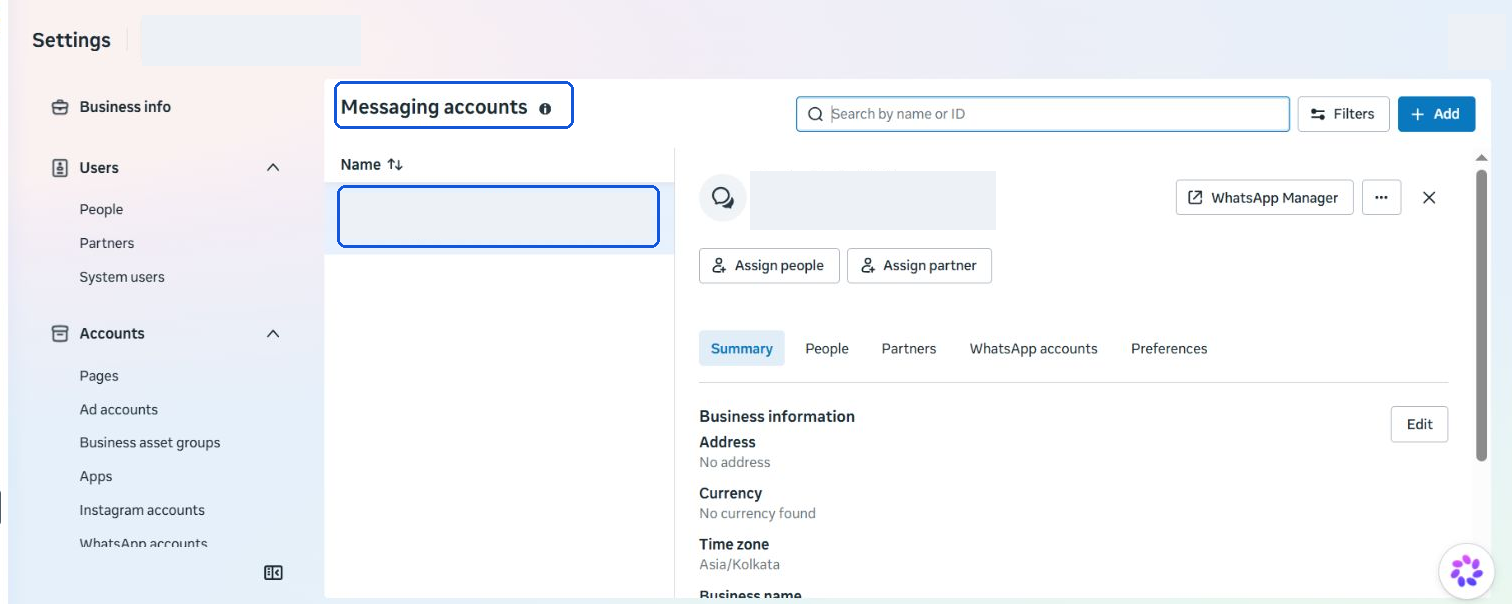
If your Meta menu only shows WhatsApp accounts, open that section, select the account that contains your number, and look for Payment settings.
Turn this learning into your next WhatsApp campaign.
Start with Sendwo’s free plan, explore WhatsApp broadcasts, automation, AI chatbot flows, and upgrade only when your business needs more power.
Step 3. Open the payment settings
- Open Summary in the selected account. Scroll down to Payment method and click Payment settings.

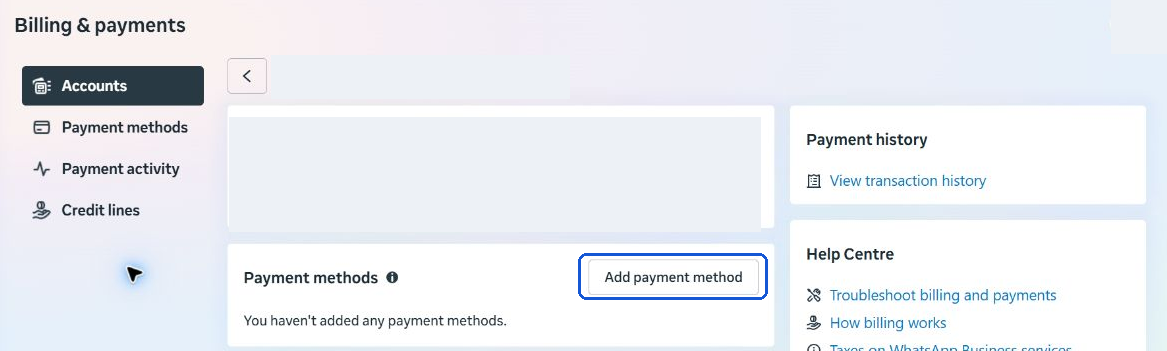
- In Billing & payments, find Payment methods and click Add payment method. If the button is missing or disabled, ask the person who manages billing for your business portfolio to open it.
Step 4. Review your billing country, currency and time zone
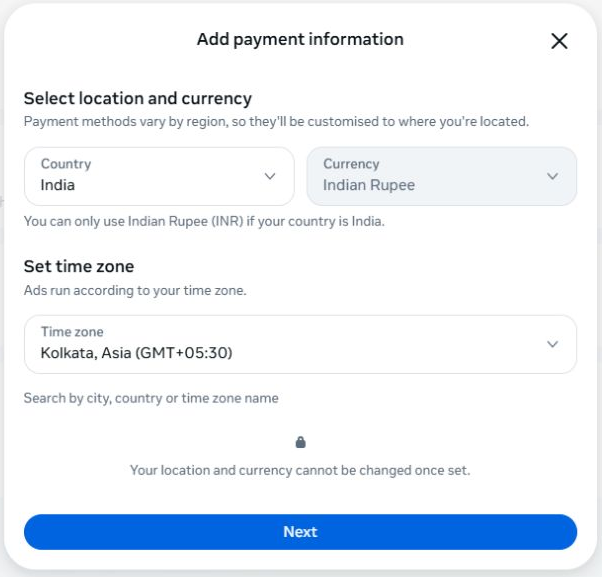
- If Meta opens the Add payment information screen, check Country, Currency and Time zone. The screenshot shows an India-based account. Use the details that apply to your business.
- Click Next only after you’ve checked all three fields. Meta can save your billing country and currency at this point, before you enter any card details. The setup screen warns that the country and currency cannot be changed once set.
Step 5. Add your card
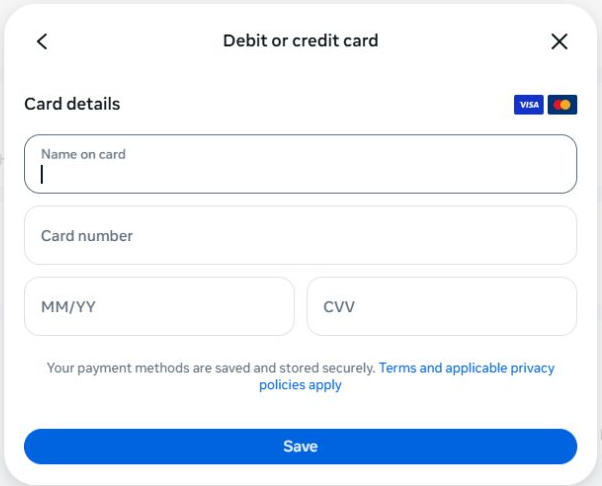
- Select Debit or credit card, or another payment method if Meta offers one for your account. Click Next.
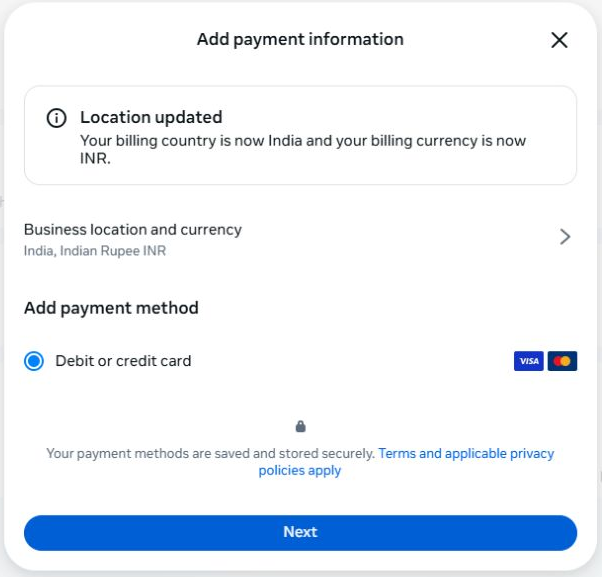
- For a card, fill in Name on card, Card number, expiry date and CVV. Click Save and complete any verification your bank or Meta asks for.
Step 6. Confirm the payment method is linked
- Return to Billing & payments and check that the saved payment method appears under Payment methods for the same messaging account.
- If Meta asks for more billing details or shows an outstanding balance, resolve that prompt before testing. If the account shows a restriction, follow the instructions in the Meta notice first.
Step 7. Test one template in Sendwo
- Go back to Sendwo. Using the same WhatsApp number, send one approved template to a test contact who has opted in.
- Open the WhatsApp broadcast report and check the recipient’s status. Wait for Delivered before retrying the campaign. Use the report to identify which recipients still need the message.
What to check if you still see error 131042
Meta uses 131042 for a payment-related error. Open Payment settings for the exact account you sent from and check for a missing, expired or declined payment method, a pending verification, or an unpaid balance.
If those checks look right and the test still fails, contact Sendwo support. Share the campaign name, when you ran the test, and the error shown in the recipient report. That gives support a specific send to investigate.
Aditi Kamini
Aditi, a content marketer at SendWo, is a passionate writer and marketing enthusiast. She excels in driving revenue campaigns, building client relationships, and mastering content creation, SEO, customer service, and project management.