How to Resolve Facebook AI Reply Not Displaying in Your Shared Inbox - 8 Quick Fix Checklist
Resolve Facebook AI reply not displaying in shared inbox: Refresh Page tokens, grant pages_messaging permissions, and disable Instant Replies.
 By Aditi Kamini
Published: April 24, 2026
Updated: May 11, 2026
11 min read
By Aditi Kamini
Published: April 24, 2026
Updated: May 11, 2026
11 min read
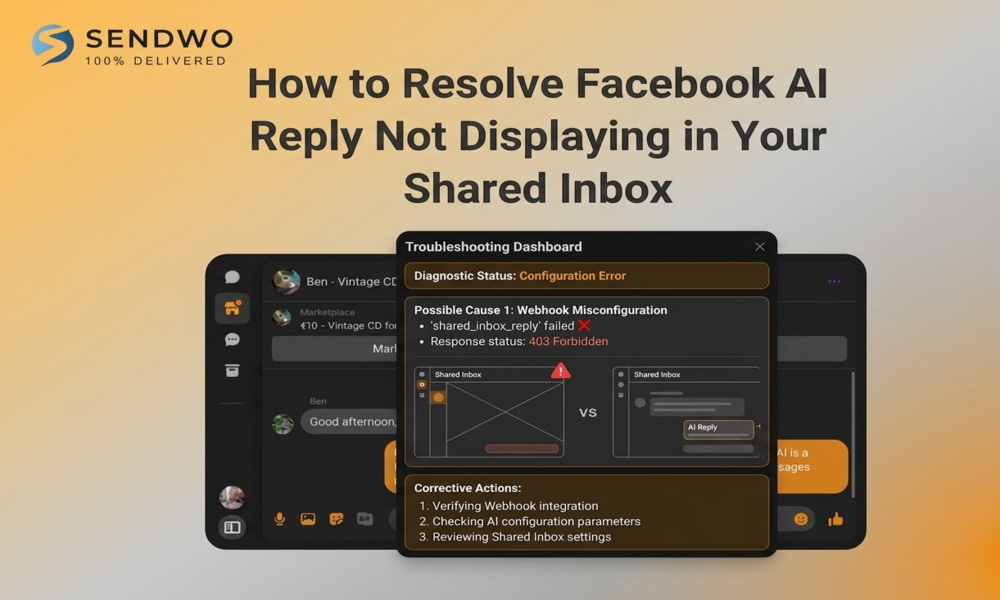
Resolve Facebook AI reply not displaying in shared inbox: Refresh Page tokens, grant pages_messaging permissions, and disable Instant Replies.
Managing customer messages across Facebook Messenger has become mission-critical: over 40 million businesses communicate on Messenger, sending 8 billion+ messages with customers every month. In fact, 85% of brands use Facebook Messenger for marketing and support, making it the world’s top business messaging channel.Let see How to Resolve Facebook AI Reply Not Displaying in Your Shared Inbox.
1. Understanding Facebook AI Replies and Shared Inboxes
First, let’s clarify what we mean by AI reply and shared inbox.
- AI Reply: Many businesses use chatbot automation on their Facebook Page Messenger. This can be a custom Chatbot (often powered by ChatGPT or another AI engine) that responds to customer messages with pre-trained answers or dynamic AI-generated text. For example, you might train an AI bot to answer FAQs about your products. When a customer sends a message, the AI bot sends an automated reply on the Page’s behalf.
- Shared Inbox: A shared inbox (or team inbox) is a unified customer service dashboard that centralizes all messages from multiple channels. In SendWo’s case, you can connect many Facebook Pages (and WhatsApp, Instagram, etc.) into one inbox, allowing your support team to see and manage every conversation in a single place. This makes collaboration easy – agents can assign chats, leave internal notes, and ensure no conversation is overlooked.
In a healthy setup, when a user messages your Facebook Page, that message appears in SendWo’s shared inbox under that user’s thread. If you have an AI chatbot enabled, the bot should respond. Its reply is then also logged in the shared inbox thread as a message from your Page. The agent will see both the user’s message and the AI reply in the conversation.
Key point: If your AI chatbot sends a reply to the user but it doesn’t show up in the shared inbox, it typically means there’s a configuration or permission issue. The user might still get the answer, but your team won’t see it logged in the conversation. This breaks visibility and can cause duplicate efforts or missed follow-ups.
2. Common Causes of AI Replies Not Appearing
There are several reasons a Resolve Facebook AI Reply might not display. Here are the most frequent culprits:
- Integration or Token Issues: The connection between Resolve Facebook AI Reply and your inbox system (SendWo) may be outdated or misconfigured. For example, an expired access token or missing permission can allow outgoing messages but prevent them from logging.
- Message Type / API Configuration: Facebook’s Graph API requires a messaging_type (e.g. RESPONSE) when sending replies. If the reply is sent with the wrong type or without proper attribution, it may not be recorded in the Page’s conversation history.
- Inbox Automation Conflicts: Facebook Business Suite has built-in “Inbox Automations” (like Instant Replies or FAQ Autoresponses). If those are enabled, they can override or interfere with external chatbots. For instance, if Business Suite’s Instant Reply is turned on, it may block or replace the chatbot’s reply.
- Shared Inbox Software Bug: Sometimes the fault lies in the team inbox platform itself. A recent software version might have a bug, or you may simply be using an older version that has been fixed in a newer update.
- Flow/Trigger Misconfiguration: If the AI reply is part of a conversational “flow” (sequence of messages triggered by user input), a missing trigger or misordered step might send the reply to the user without recording it.
Let’s look at each of these in more depth and how to address them.
1. Check Your Integration and Permissions
Every Facebook chatbot integration relies on the Page access token and granted permissions. If these expire or were never fully approved, messages can misbehave. Here’s what to do:
- Refresh the Page Token: In your SendWo settings (or on Facebook’s end), regenerate or refresh the access token for your Facebook Page. Facebook tokens typically last 90 days. A stale token can allow sending but not logging messages. After refreshing, reconnect the Page to ensure the new token is active.
- Verify Required Permissions: For Messenger apps, you usually need permissions like pages_messaging and pages_messaging_subscriptions. Go to your Facebook Developer Dashboard for the app that’s linked to SendWo and confirm the messaging permissions are approved. If they were revoked or not granted, re-submit them.
- Resubscribe Webhooks: Make sure your app is subscribed to the right webhook events (Messages, Message Replies, Messaging Insights, etc.). In Facebook’s Webhooks settings for your app, verify that Page-Scoped IDs (psid) and message events are properly checked. If you recently changed webhooks, the shared inbox might not see incoming messages or replies.
- Re-Authorize Page in SendWo: Sometimes the simplest fix is to disconnect and reconnect the Facebook Page in SendWo (under Integrations or Bot Manager). This forces a fresh handshake with Facebook’s APIs and can resolve hidden sync issues.
Performing these steps ensures that your Resolve Facebook AI Reply app integration is fully up-to-date and has all the rights to read and write messages. If an AI message is sent by the bot, it should now correctly appear in the conversation.
2. Inspect the Messenger Platform Configuration
Facebook’s Messenger API requires certain parameters when sending messages. If the AI bot is sending replies via the Graph API, check:
- Messaging Type: Ensure the bot uses messaging_type: RESPONSE when replying to a user’s message. This tells Facebook it’s a standard response in an active thread. If set to something like UPDATE or missing entirely, the message might bypass the normal conversation log.
- Tagging (Optional): For non-24h messages (outside the 1-day window), a message_tag is needed. Although user replies usually stay within 24h, ensure that when using message tags you choose an appropriate tag (like HUMAN_AGENT) that allows logging. Some third-party libraries (like n8n’s nodes) have flags to “log this message” – make sure any such setting is enabled. If your bot’s API call lacks the flag or uses a private tag, Resolve Facebook AI Reply might still deliver the text to the user without recording it under the conversation in the Page Inbox.
- Ensure Proper “Sender” Attribution: The bot’s reply should come from the Page ID, not a generic app or user ID. In the Graph API call, use the Page Access Token and ensure the sender.id is the Page-scoped ID for the user, and recipient.id is the Page’s ID. Mis-labeling this can cause the message to be treated as a detached notification.
While these settings are a bit technical, any misstep here often leads to “ghost” messages that users see, but agents do not. If you manage your own chat flows, double-check the code or tool (e.g., n8n, chat builder) to ensure it conforms to Resolve Facebook AI Reply API guidelines. (For example, one developer noted that missing a “log this message” flag in n8n caused replies not to appear.)
Turn this learning into your next WhatsApp campaign.
Start with Sendwo’s free plan, explore WhatsApp broadcasts, automation, AI chatbot flows, and upgrade only when your business needs more power.
3. Review Business Suite and Automations
Facebook’s own Business Suite Inbox Automations can override chatbot replies. It’s wise to audit these settings:
- Instant Replies & Away Messages: Go to your Facebook Page > Inbox > Automations (or Settings). If “Instant Reply” is turned on, it will automatically send a preset message to any inbound message. If you also have a chatbot replying, the Instant Reply might be taking precedence or blocking the bot’s answer. Either disable Instant Reply or customize it carefully so it doesn’t conflict. The same goes for Away Messages or FAQs.
- Meta AI Features: If you have new “AI” features enabled by Facebook (like suggested replies powered by Meta AI), be aware these are user-facing and unrelated to your Page’s bot. They shouldn’t block your bot, but it’s worth toggling off any new experiments in the Page settings to eliminate variables.
- Page Inbox Settings: In Page Settings > Messaging, ensure “Show a Messenger Greeting” or “General Messaging Permissions” aren’t limiting replies. Sometimes, turning certain toggles off and on (saving settings) can refresh the inbox behavior.
For example, one walkthrough explains how to set up an Instant Reply: toggle it on, check “Messenger” as the channel, and write the automated message.While you may not need Instant Reply (if a bot handles it), understanding these toggles is key. If an Auto-Reply is active, try turning it off temporarily to see if your AI bot’s response then shows up.
3. Resolve Facebook AI Reply Quick Fix Checklist
To summarize, here’s a checklist of quick actions to get your Resolve Facebook AI Reply showing:
- Refresh Integration – Reconnect your Facebook Page in SendWo and refresh the access token.
- Verify Permissions – Ensure pages_messaging and other required scopes are approved.
- Check Facebook Settings – Turn off conflicting auto-replies in Business Suite (Inbox Automation).
- Update Platform – Confirm you’re running the latest SendWo version with the January 2026 fix.
- Test API Calls – If using custom code, make sure messaging_type: RESPONSE and proper tags are set.
- Review Bot Flows – Ensure each chatbot flow is correctly triggered and has a clear reply action.
- Clear Cache / Logout – Sometimes simply clearing browser cache or logging out/back in can surface recent updates.
- Try Another Browser or Device – Occasionally, UI glitches can hide messages. Test on desktop vs mobile, or a different browser.
After each change, send a test message to your Facebook Page and confirm whether the AI bot’s response now appears in the shared inbox. Often, one of the above steps will solve it.
4. Real-World Example
- Imagine you run a small e-commerce shop. On a busy Monday morning, a customer messages your Facebook Page asking about shipping time. You have a SendWo chatbot that automatically replies: “Hello! Orders usually ship within 2 business days.” The customer receives this reply. However, your support team notices no new message in the SendWo inbox for this user – meaning none of the agents see the conversation.
- By following the steps above, you discover that the Facebook Page had an outdated token. You re-authorize the page in SendWo. Now, when another customer asks the same question, the bot replies and the conversation shows up properly: the user’s inquiry and the AI’s answer are both logged in the shared inbox. Your team can now review and follow up as needed.
- This illustrates why fix is crucial: if your team didn’t spot that first message, you might miss upselling opportunities or customer issues. By ensuring AI replies appear, you keep the human team in the loop.
5. Best Practices to Avoid Future Issues
To prevent this from happening again:
- Monitor Integration Status: Periodically check the “Integrations” page in SendWo (or your tool) for any warning icons on your Facebook connection.
- Automatic Token Refresh: If available, set your Facebook token to auto-renew (some platforms handle this).
- Regular Updates: Subscribe to SendWo’s newsletter or blog for product updates, so you know when fixes are released.
- Test New Flows: Whenever you create or modify a chatbot flow, do a quick live test to confirm the reply shows up.
- Document Configuration: Keep a simple doc of your Facebook Page’s settings (which automations are on/off) so that if something changes, you can spot it fast.
- Contact Support Early: If you see even one case of a missing reply, tackle it immediately. Letting the issue persist can mask bigger problems.
By following these practices, you minimize downtime and ensure your Facebook AI automation runs smoothly. Remember: a unified inbox is only as good as its integration. When your AI replies reliably appear in the team inbox, you boost customer satisfaction and team efficiency.
Conclusion and Call to Action
- Missing AI replies in your shared inbox can derail customer support, but the fix is often straightforward. Check your integrations and tokens, review Resolve Facebook AI Reply settings, and keep your SendWo platform updated. These steps will restore full visibility of all conversations.
- If you’re not already using a unified inbox, consider giving SendWo a try. SendWo’s all-in-one dashboard lets you “connect unlimited Facebook Pages & Messenger Inbox” and automate replies with AI or human agents across every page. This means no more switching accounts or losing messages – everything is in one place. Sign up for SendWo today and keep your Resolve Facebook AI Reply flowing seamlessly.
FAQ
1Q: Why isn’t my Facebook Messenger AI reply showing up in the shared inbox?
A: There are a few common causes. Often it’s due to an outdated integration token or missing Messenger permissions, so refreshing the Page connection fixes it. It can also happen if Resolve Facebook AI Reply own “Instant Reply” or other auto-messages are enabled, interfering with your chatbot. Ensure your chatbot uses the proper messaging_type (RESPONSE) when sending messages. Finally, check that your inbox software is updated – SendWo and others released fixes for this exact issue.
2Q: How do I connect my Facebook Page to a shared inbox like SendWo?
A: In SendWo’s dashboard, go to Integrations or Bot Manager and choose “Connect Facebook”. You’ll be prompted to log into Facebook and authorize your Page. Make sure you grant all required permissions (Messaging, Webhook, etc.). Once connected, all incoming Messenger conversations from that Page will start feeding into the shared inbox.
3Q: What Facebook permissions are needed for AI chatbot replies?
A: Your app needs at least pages_messaging and pages_messaging_subscriptions to send and receive messages. It should also be subscribed to the Page’s messages and message_reactions webhook events. In Facebook’s Graph API, the bot should send replies as messaging_type=RESPONSE. If these are set correctly, the AI replies will post in the conversation thread.
4Q: What should I do if future AI replies still fail to appear?
A: If troubleshooting steps don’t work, contact SendWo support. Provide details (screenshots, logs) of what happened. Their team can check if it’s a new bug or configuration issue. Also consider posting in SendWo’s community (if available) to see if others are affected. Most importantly, act quickly so customers aren’t left waiting.
5Q: Does disabling Facebook’s Inbox Automations help?
A: Yes, it often does. If Resolve Facebook AI Replyor Away Messages are enabled, try disabling them to prevent conflicts. This ensures your chatbot’s AI responses have priority. Just remember to manually replicate any critical auto-responses (like after-hours notices) inside your chatbot flow if you disable the built-in ones.
Aditi Kamini
Aditi, a content marketer at SendWo, is a passionate writer and marketing enthusiast. She excels in driving revenue campaigns, building client relationships, and mastering content creation, SEO, customer service, and project management.