You Need the Official WhatsApp to use this Account – Fix Issue
Facing the “You need the official WhatsApp to use this account” error? Learn the reason behind this warning and follow simple, step‑by‑step solution
 By Aditi Kamini
Published: December 30, 2025
Updated: March 24, 2026
8 min read
By Aditi Kamini
Published: December 30, 2025
Updated: March 24, 2026
8 min read
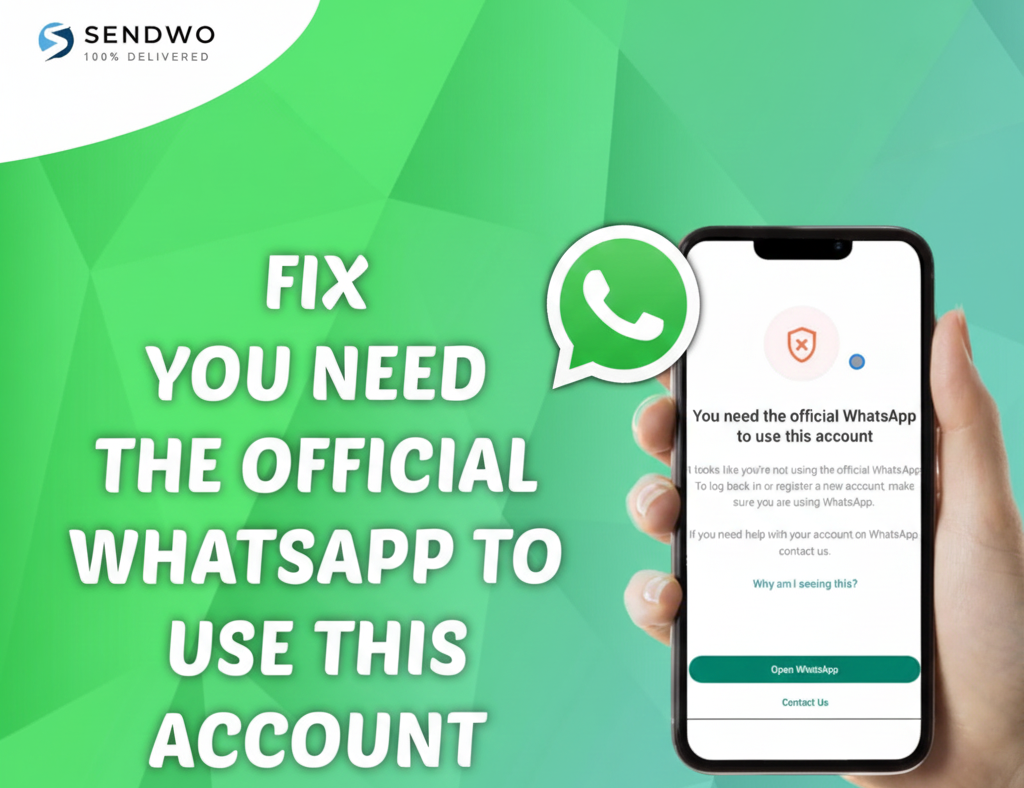
Facing the “You need the official WhatsApp to use this account” error? Learn the reason behind this warning and follow simple, step‑by‑step solution
WhatsApp is used by over 3 billion people worldwide, so getting locked out of your account with a strange message can be very frustrating. One common stumbling block is the error message: “You need the official WhatsApp to use this account.” This usually pops up when you try to verify your number or switch devices. Simply put, WhatsApp is telling you only an official, authentic WhatsApp app is allowed for that account. In this post, we’ll break down why this happens and walk you through proven fixes to get your account working again. (And yes, the solution is usually simpler than it seems – no hacks or unsafe downloads needed.)
Image: A user opening WhatsApp on a smartphone – only the official app is accepted to avoid security risks. Seeing the “official app required” warning often means WhatsApp detected something unexpected. For example, running a modified version of WhatsApp (like GBWhatsApp, FMWhatsApp or other clone) will trigger this block. Even a legitimate install can hit this error if the app isn’t updated, your account was restricted, or your device fails security checks. We’ll cover all the key reasons below, and then show you step-by-step how to fix it.
1. Why You See This Message (Common Causes)
This error is WhatsApp’s way of protecting users and their accounts. Here are the most common reasons you might see it:
- Using an Unofficial/Modded App: If you installed WhatsApp from a third-party source or a modified client (GBWhatsApp, FMWhatsApp, WhatsApp Plus, etc.), WhatsApp will refuse access. These mods violate WhatsApp’s terms and often lack necessary security, so the official server blocks them.
- Outdated WhatsApp Version: Running an older WhatsApp release can cause glitches or misidentification. Always keep WhatsApp updated via the Google Play Store or Apple App Store to avoid compatibility errors.
- Account Ban or Restriction: Sometimes this message appears if your account has been banned orblocked by WhatsApp. For example, sending too many automated messages or using banned clients can lead to temporary or permanent bans. WhatsApp may use this “official app required” notice to indicate your account is under review.
- Play Protect / Certification Issue (Android): On Android devices, Google’s Play Protect checks app integrity. If your phone is rooted, running a custom ROM, or hasn’t passed Google’s certification, WhatsApp may block it. You can check this under Play Store → Settings → Play Protect certification – if it’s Not Verified, WhatsApp might refuse to run.
- Compatibility or Migration Issues: In rare cases, switching between very old/new OS versions or transferring data between different devices (e.g. Android → iPhone) can trigger integrity checks. Always follow official migration tools and ensure both devices are updated.
Understanding the cause will help you apply the right fix. In most cases, the solution is simply to use the genuine WhatsApp app and version on a supported device.
2. You Need the Official WhatsApp to use this Account (How to Fix)
Here are practical steps you can take, in order, to resolve this issue:
Turn this learning into your next WhatsApp campaign.
Start with Sendwo’s free plan, explore WhatsApp broadcasts, automation, AI chatbot flows, and upgrade only when your business needs more power.
- Install the Official WhatsApp App: Delete any unofficial or modded WhatsApp from your phone. Go to the Google Play Store (Android) or Apple App Store (iOS) and download You Need the Official WhatsApp to use this Account Messenger. Ensure the app is published by “WhatsApp LLC” (Meta). Launch it and go through the registration process. This alone fixes the error in most cases.
- Update or Reinstall WhatsApp: If you already had the official app, make sure it’s the latest version. Update via the store. If the error persists, try clearing app data/cache and reinstalling WhatsApp. On Android, go to Settings → Apps → WhatsApp → Storage → Clear Data/Cache. Then uninstall and reinstall from the official store. (Don’t worry – you can back up your chat to Google Drive or iCloud before uninstalling to restore them later.)
- Grant Necessary Permissions: During setup, WhatsApp may ask for permission to read SMS for automatic OTP verification. Granting this temporarily can help the verification process. Once your account is set up, you can revoke SMS permissions if you prefer. Lack of SMS permission can sometimes block the verification flow.
- Disable Parallel Space/Multiple Accounts: WhatsApp now supports multiple accounts natively. If you used any “dual apps” feature or separate work profile to run two WhatsApp accounts, disable it and try again. Ensure you’re only running WhatsApp in the normal app profile.
- Check Device Certification (Android Only): If you’re on Android and still see the error, check Google Play Protect certification. In the Play Store, tap your profile → Play Protect certification. It should say “Certified”. If it says “Not Verified”, WhatsApp may block your login. To fix this, unroot your device, relock the bootloader, or install a factory (stock) ROM that is Google-certified. Users have reported that restoring the original firmware or getting the device certified resolved the error.
- Try a Different Device: As a diagnostic step, try verifying your WhatsApp account on a different phone if available. If it works there, the problem is specific to your original phone. (For example, some have noted that logging in once on an iPhone can temporarily bypass the error on their Android account.)
- Use WhatsApp Business App (if applicable): If the affected account is a business number, download the WhatsApp Business app from the store and try registering there instead. (In some cases, switching to the Business app has helped users, since it’s also an official client.)
- Use WhatsApp Web (Companion Device): As a workaround, you can try registering via WhatsApp Web or the multi-device companion feature. For example, log into WhatsApp Web from a browser, then scan the QR code with a secondary device that is already logged in to your account. This effectively links devices and may allow you to get around the error. (This is an advanced trick – only attempt it if you already have at least one verified WhatsApp on another device.)
- Contact WhatsApp Support or Appeal: If you believe your account was banned by mistake, you can contact WhatsApp Support through the app or email (support@whatsapp.com). Explain the situation calmly. Sometimes bans (especially temporary ones) lift after 24-48 hours. However, note that if the ban was due to clear policy violations (spam or mods), support may not lift it easily. Still, if all else fails, reaching out or submitting an in-app “Contact Us” report can be worth a try.
- Prevent Future Issues: Going forward, avoid any unofficial software or tweaks. Use You Need the Official WhatsApp to use this Account app or the official WhatsApp Business API for bulk messaging. For businesses, using a provider like SendWo, which is powered by the Official WhatsApp Business API, is the safest way to send messages at scale without risking account flags.
If you’ve followed these steps, the “official app required” message should disappear, and your account will verify normally. In short: stick to You Need the Official WhatsApp to use this Account channels and maintain your app and device properly, and this error will go away.
FAQ
Q: What exactly does “the official WhatsApp” mean?
A: It means the app downloaded from a trusted source (Google Play Store or Apple App Store) whose developer is WhatsApp LLC (Meta). In other words, the genuine WhatsApp application. Third-party clients, cloned apps, or unofficial APKs are not considered “official.” Using the real WhatsApp app ensures you pass WhatsApp’s security checks.
Q: Can I get banned for using GBWhatsApp or other mods?
A: Yes. WhatsApp’s terms explicitly forbid third-party or modified versions. Using GBWhatsApp, FMWhatsApp, or similar apps can lead to a temporary or permanent ban on your number
geekinstructor.com. WhatsApp treats these mods as security risks. The “official WhatsApp required” message is often a sign that your account has been flagged for using an unsupported app.
Q: I only had the official app, why am I still seeing the error?
A: Occasionally this happens even on the official app if WhatsApp’s servers have incorrectly flagged your account or there’s a glitch. Try uninstalling, clearing data/cache, and reinstalling as described above. Also check that your device passes security checks. If the issue persists and you’re sure you used the real app, the problem might be a misapplied ban. You can try reaching out to WhatsApp Support, but often the quickest fix is the reinstall on an official channel.
Q: Will resetting my phone fix this issue?
A: Resetting (factory reset) should generally not be needed, and is usually a last resort. If your device fails certification or has deep-rooted issues, a reset to stock firmware might help. However, in most cases, the simpler steps above will suffice. Only consider resetting if everything else fails and you back up your data first.
Q: Is there any safe way to “bypass” this message without uninstalling my current app?
A: The recommended solution is always to use the official app. Some users have tried tricks like installing WhatsApp on another device and linking accounts via QR code, but these are workarounds, not guaranteed fixes. The safest and proper fix is to switch to the You Need the Official WhatsApp to use this Account from the store. Shortcuts or hacks may only work temporarily and can risk your account.
Conclusion
- The “You need the official WhatsApp to use this account” error is essentially WhatsApp telling you to use a supported app on a secure device. In almost all cases, the fix is to switch back to the genuine WhatsApp client, update it, and ensure your device is certified. Doing this will get you back online.
- For businesses and power users, the takeaway is clear: rely on You Need the Official WhatsApp to use this Account solutions. Using platforms like SendWo, which leverage You Need the Official WhatsApp to use this Account Business API, means you’ll never be caught by such errors. Official API use comes with WhatsApp’s blessing (and no fear of unexpected bans), letting you broadcast messages and interact with customers smoothly.
Aditi Kamini
Aditi, a content marketer at SendWo, is a passionate writer and marketing enthusiast. She excels in driving revenue campaigns, building client relationships, and mastering content creation, SEO, customer service, and project management.