How to Hide Name on WhatsApp Notification iPhone - Easy Guide
If you’re searching for how to hide name on WhatsApp notification iPhone, this guide breaks down what’s actually possible on iOS, what isn’t, and the methods that reliably protect your privacy—without forcing you to turn off WhatsApp completely. Here is your full guide for how to Hide Name on WhatsApp Notification iPhone. 1. Why hiding […]
 By Aditi Kamini
Published: April 3, 2026
Updated: April 8, 2026
7 min read
By Aditi Kamini
Published: April 3, 2026
Updated: April 8, 2026
7 min read
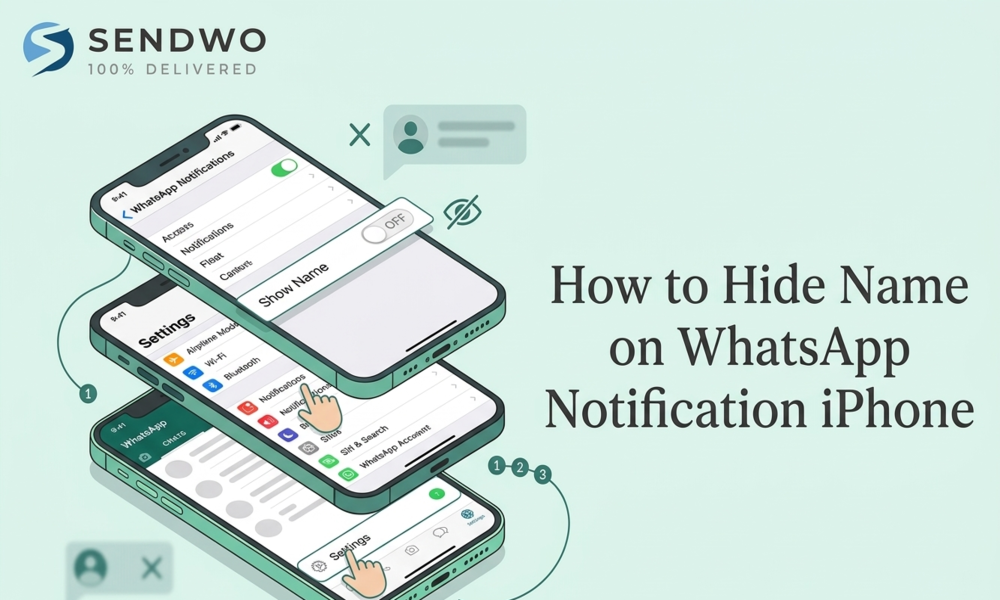
If you’re searching for how to hide name on WhatsApp notification iPhone, this guide breaks down what’s actually possible on iOS, what isn’t, and the methods that reliably protect your privacy—without forcing you to turn off WhatsApp completely. Here is your full guide for how to Hide Name on WhatsApp Notification iPhone. 1. Why hiding […]
If you’re searching for how to hide name on WhatsApp notification iPhone, this guide breaks down what’s actually possible on iOS, what isn’t, and the methods that reliably protect your privacy—without forcing you to turn off WhatsApp completely. Here is your full guide for how to Hide Name on WhatsApp Notification iPhone.
1. Why hiding the sender name matters more than ever
- WhatsApp sits at the center of daily life for billions of people—Meta disclosed that it crossed 3+ billion monthly users in 2025, which explains why so much personal and business communication ends up in WhatsApp chat.
- Now add “real life.” Most privacy leaks don’t happen through hacking—they happen through screens being visible.
- A security research slide deck presented via USENIX includes several widely cited “shoulder surfing” indicators, including that people often don’t realize they’re being observed and that sensitive information is frequently visible to onlookers.
- And a large consumer survey summary (11,000 respondents across Europe) reported that 56% of people have accidentally viewed someone else’s screen in public—and 24% admitted doing so out of curiosity.
2. What “hide name” really means on iPhone notifications
On iPhone, a WhatsApp notification typically has two “layers” of information:
- The sender/chat name (often shown as the notification title)
- The preview/content (message text snippet, image preview, etc.)
Apple’s notification controls let you choose when previews appear (Always / When Unlocked / Never).
Apple also explains that previews can include things like message text and other details, and you can override preview behavior per app.
Here’s the key detail most competitors gloss over:
Hiding previews does not always hide the sender name.
Multiple user reports and some third‑party guides note that even with previews disabled, messaging apps may still show the sender/chat title while hiding the message body.
So if your goal is specifically:
- “I want the phone to show ‘WhatsApp: 1 new message’ (no name)”
- …you’ll want the methods below—especially Chat Lock and Lock Screen alert controls.
3. How to hide name on WhatsApp notification iPhone using methods that actually work
Use WhatsApp Chat Lock for sensitive chats
- If you want the cleanest “no-name” result without killing WhatsApp notifications, focus on WhatsApp’s Chat Lock feature.
- WhatsApp’s own help content states that when chats are locked, notification content and contact information are hidden, and notifications appear in a generic format like “WhatsApp: 1 new message.”
- A recent privacy guide also describes enabling Chat Lock from inside the chat/contact details and highlights it as a way to prevent message previews from exposing private information.
How to set it up (typical flow on iPhone):
- Open the WhatsApp chat you want to protect.
- Tap the contact/group name at the top to open chat details.
- Turn on Chat Lock / Lock Chat (wording may vary) and confirm with Face ID/Touch ID if prompted.
When this is the best choice
- You only need certain conversations (VIP clients, personal chats, HR) to be anonymous on the lock screen.
- You still want to receive alerts—just not the names.
Real-world example A founder uses WhatsApp for investors, customers, and family. They lock only investor/customer chats—so a lock-screen alert never reveals a specific name in a public setting, but family chats can still show normally.
Turn off WhatsApp Lock Screen alerts to hide everything visible
- If you want zero chance of a sender name appearing on the lock screen, the most reliable method is to stop WhatsApp from showing notifications on the lock screen at all.
- Apple explicitly allows you to choose where notifications appear (Lock Screen, Notification Center, or Banners).
- Practical guides also point out you can disable the Lock Screen alert style per app.
Recommended “discreet but usable” setup
Turn this learning into your next WhatsApp campaign.
Start with Sendwo’s free plan, explore WhatsApp broadcasts, automation, AI chatbot flows, and upgrade only when your business needs more power.
- Lock Screen: Off
- Banners: Off
- Notification Center: Optional (see the next section for extra hardening)
- Badges: On (so you still notice unread messages)
- Sounds: Optional (sound/vibration without names on screen)
This configuration is especially useful if you’re in shared spaces (coworking, classrooms) or you regularly put your phone face-up.
Switch Lock Screen display to Count view for a stealthier look
- If you want notifications enabled but prefer a lock screen that doesn’t “broadcast” details, iOS supports different lock screen layouts.
- Apple documents Count / Stack / List display modes, and says you need iOS 16 or later to change how notifications appear.
- In Count view, your phone shows only the total number of notifications at the bottom of the lock screen, and you can tap/swipe to reveal them.
Why this helps
- Your lock screen looks clean and anonymous at rest—often just “X Notifications.”
- It reduces “drive-by” privacy leaks where someone glances at your screen while you’re not actively using it.
Important caveat If you still allow banners, a notification may briefly appear when it arrives. If you want maximum discretion, pair Count view with Banners Off.
4. Tighten privacy beyond your lock screen
Disable Notification Center access when the phone is locked
- Even if you Hide Name on WhatsApp Notification iPhone banners, someone could potentially swipe to Notification Center from the lock screen (depending on your settings). Apple explains you can control which features are accessible when locked.
- If your goal is “nothing gets revealed until Face ID/passcode,” review Allow Access When Locked options—especially Notification Center.
Check your Apple Watch notifications
- If you wear an Apple Watch, remember: notifications can appear on your wrist even if you’ve made your iPhone lock screen stricter.
- Apple’s Watch guidance explains you can set per‑app notification handling and choose Mirror my iPhone or customize behavior (Allow Notifications / Send to Notification Center / Notifications Off).
- If you’re hiding WhatsApp sender names for privacy, you’ll likely want to ensure your Watch isn’t showing them in a meeting.
If you use iPhone Mirroring on Mac, your iPhone notifications can appear there too
- This is a newer privacy “gotcha.” Apple states that after iPhone Mirroring connects, iPhone notifications can automatically appear on your Mac, and you can control which apps appear on Mac (including an app-level “Show on Mac” option).
- If you’re serious about notification privacy, audit this setting—especially on shared work Macs or during presentations.
5. Troubleshooting when names still show
You set Show Previews to Never, but the sender name still appears
- This scenario is common enough that users publicly report it, especially for chat apps.
- In practice, “Show Previews” is primarily about content, and the sender/title may still appear.
Fix that reliably
- Use Chat Lock for the conversations where you must Hide Name on WhatsApp Notification iPhone.
- Or remove WhatsApp from the Lock Screen/Banners entirely and rely on badges.
You want privacy, but you still need alerts
Try this combination (high signal, low exposure):
- Lock Screen: Off
- Banners: Off
- Badges: On
- Sounds: On (optional)
This uses Apple’s supported per-app notification locations while preventing on-screen name exposure.
You muted notifications and now they “disappear”
- Apple notes that muting an app’s notifications can send them directly to Notification Center and prevent lock-screen display, sounds, and banners.
- If you expected banners and now you only see them later, check whether you muted that app from the lock screen options.
FAQ
1. Can I hide only the WhatsApp sender name but still see “you have a message”?
Yes—in the most reliable way—by using WhatsApp Chat Lock for the chats you want to keep anonymous. WhatsApp indicates that locked chats Hide Name on WhatsApp Notification iPhone contact info and show a generic notification like “WhatsApp: 1 new message.”
2. Does iPhone “Show Previews: Never” hide the sender name too?
Not always. Apple’s “Show Previews” setting is about the preview content (like message text), and user reports plus some guides note that the sender/title can still appear for chat notifications even when previews are hidden.
3. How do I hide WhatsApp notifications from the lock screen completely?
Go to iPhone Settings → Notifications → WhatsApp and disable Lock Screen notifications (and optionally Banners). Apple supports choosing where notifications appear (Lock Screen / Notification Center / Banners).
4. What’s the quickest privacy setup for meetings?
A strong “meeting-safe” combo is:
- Lock Screen: Off
- Banners: Off
- Display As: Count view
Count view Hide Name on WhatsApp Notification iPhone notification details behind a simple number at the bottom of the lock screen.
5. Will hiding WhatsApp names on iPhone also hide them on Apple Watch?
Not automatically. Apple Watch can mirror iPhone notifications or be customized per app. Review WhatsApp notification behavior in the Watch app (Mirror my iPhone vs Custom).
Aditi Kamini
Aditi, a content marketer at SendWo, is a passionate writer and marketing enthusiast. She excels in driving revenue campaigns, building client relationships, and mastering content creation, SEO, customer service, and project management.