How to Highlight in WhatsApp - Easy Guide
how to highlight in WhatsApp is not just a “cool trick,” but a practical skill—whether you’re a student coordinating projects, a parent managing a school group, or a business trying to make an offer stand out. 1. Why highlighting matters on WhatsApp in 2026 What makes WhatsApp powerful is also what makes it chaotic: it’s […]
 By Aditi Kamini
Published: March 31, 2026
Updated: April 8, 2026
7 min read
By Aditi Kamini
Published: March 31, 2026
Updated: April 8, 2026
7 min read
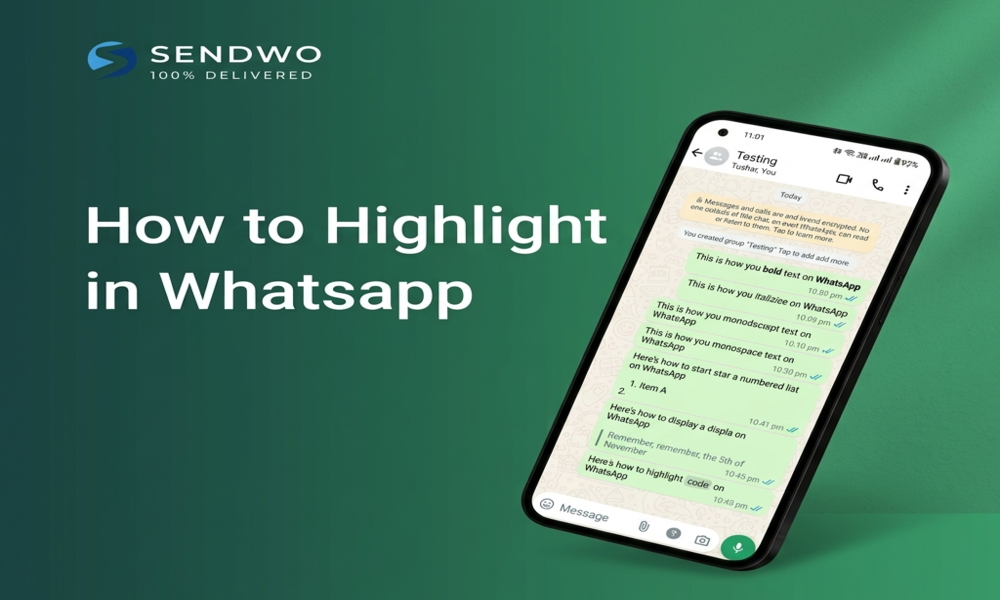
how to highlight in WhatsApp is not just a “cool trick,” but a practical skill—whether you’re a student coordinating projects, a parent managing a school group, or a business trying to make an offer stand out. 1. Why highlighting matters on WhatsApp in 2026 What makes WhatsApp powerful is also what makes it chaotic: it’s […]
how to highlight in WhatsApp is not just a “cool trick,” but a practical skill—whether you’re a student coordinating projects, a parent managing a school group, or a business trying to make an offer stand out.
1. Why highlighting matters on WhatsApp in 2026
What makes WhatsApp powerful is also what makes it chaotic: it’s fast, frequent, and always-on.
When a platform routinely handles 100B+ messages per day, clarity becomes a competitive advantage in personal chats and a revenue advantage in business chats.
Highlighting helps you:
- Make key words pop so people don’t miss them (deadlines, links, addresses, prices).
- Keep critical information visible at the top of a chat (so you stop repeating yourself).
- Bookmark something to return to later (without scrolling through thousands of messages).
- Call attention to specific people in a busy group (so the right person sees the request).
- Create visually obvious updates in Status with text overlays and creative tools.
And for business use cases, Highlight in WhatsApp isn’t only visual—it’s strategic. WhatsApp’s business tools and pricing are built around delivered messages and message categories, so the clearer your message is, the better your outcomes and (often) the better your costs.
2. What “highlight” means in WhatsApp
People search “how to highlight in WhatsApp” expecting a bright yellow marker like a PDF highlighter. WhatsApp doesn’t offer a literal “background highlight” tool inside regular chat text. Instead, WhatsApp gives you several practical ways to make something stand out—depending on what you mean by “highlight.”
Think of Highlight in WhatsApp as four categories:
- Text emphasis (in a message)
Use bold, italic, strikethrough, monospace, quotes, inline code, and lists. - Message importance (inside a chat)
Pin a message so it stays in a banner at the top of the chat, or star it like a bookmark. - Attention control (inside groups)
Mention someone (or @all), react with an emoji, or add member tags for roles in larger groups. - Visual emphasis (Status, photos, videos)
Add text overlays, draw, and use creative Status tools (collages, stickers/music features in recent updates).
Once you know which kind of Highlight in WhatsApp you need, the “how-to” becomes easy.
3. How to highlight text in WhatsApp messages
WhatsApp includes built-in text formatting so your words visually stand out in any chat—1:1 chats, group chats, and (in many cases) across mobile + desktop experiences.
Use WhatsApp’s built-in formatting menu
If you don’t want to remember symbols, WhatsApp supports a formatting menu where you select your typed text and apply formatting (such as bold or italics). This is part of WhatsApp’s message formatting feature set.
A simple workflow that works for most users:
- Type your message.
- Select the text you want to emphasize.
- Choose the formatting option (e.g., Bold, Italic, Strikethrough, or Monospace).
Use formatting shortcuts (the fastest method)
WhatsApp also supports quick formatting syntax—fast enough that many power users do it mid-sentence. Official formatting options include:
- Bold: text
- Italic: text
- Strikethrough: ~text~
- Monospace:
text - Bulleted list: begin each line with - or *
- Numbered list: begin each line with 1. , 2. , etc.
- Quote (block quote): begin the line with >
- Inline code: wrap text with backticks like
text
These “newer” formatting tools—lists, block quotes, and inline code—were publicly discussed as being rolled out to improve readability (especially in group chats)
Troubleshooting: “My formatting isn’t working”
Most formatting issues happen for avoidable reasons:
- You accidentally added a space between the symbol and text
For example, * sale * often doesn’t render the way you want. Many guides recommend keeping symbols directly attached to the text. - Your text contains special characters that trigger formatting
If you’re writing something like variable_names or identifiers, consider monospace or inline code to avoid accidental italics. Inline code is an official formatting option. - You need a visual highlight (color) in a normal message
WhatsApp chat formatting changes style—not background color. For true “colored emphasis,” use Status tools and media editing instead.
4. How to highlight important messages inside chats
Sometimes you don’t need fancy formatting—you need the message to stay findable.
WhatsApp offers built-in ways to surface important information:
Turn this learning into your next WhatsApp campaign.
Start with Sendwo’s free plan, explore WhatsApp broadcasts, automation, AI chatbot flows, and upgrade only when your business needs more power.
Pin a message at the top of a chat
- Pinned messages are one of the most direct “highlight” tools because they remain visible in a banner at the top of the chat.
- Key pinned-message facts (from WhatsApp’s Help Center):
- You can pin up to three messages in a chat.
- Pinned messages can stay pinned for 24 hours, 7 days, or 30 days.
Best uses for pinned messages:
- Meeting links or group rules in large groups.
- Order or delivery instructions in a customer thread (where everyone needs the same reference point).
- A checklist message (when you want the group to follow steps without re-asking).
Star messages to bookmark them for later
- Starring is basically WhatsApp’s version of “Save this.”
WhatsApp lets you:
- Star or unstar a message.
- View all starred messages from a dedicated Starred section.
- Starred messages are perfect when:
- You want to keep a receipt, address, or important detail without pinning it for everyone.
- You’re collecting “things I need to do later” from different chats.
Pin a chat to keep a conversation at the top
Pinning a chat is different from pinning a message:
- Pin chat = keeps the whole conversation fixed at the top of your chat list.
Pin message = highlights a specific message inside one conversation. - WhatsApp’s Help Center notes that pinned chats make it easier to quickly find selected chats at the top of your chat list.
- Use mentions and reactions to draw attention in groups
In noisy groups, formatting alone isn’t enough—people may not even see your message.
5. How to highlight in WhatsApp Status and media
If your goal is visual highlighting—colors, big text overlays, drawing attention—you’ll get much more impact using Status or photo/video editing tools.
Highlight with text overlays on photos and videos
WhatsApp includes editing tools that let you add text to photos or videos using a Text (T) tool and adjust your text.
This is ideal for:
- “Limited-time offer” callouts
- Event reminders with date/time slapped on the image
- Location highlights (“We’re here →”)
Create a Status designed to be noticed
- WhatsApp’s Help Center explains how to create and share a Status (including text statuses and photo statuses).
- You can also add captions and text using the text tool while creating a status on web/desktop experiences.
Mention people in Status to highlight someone directly
WhatsApp supports Status mentions, which lets you mention people (and in some cases groups) so the mention is notified and easier to notice.
This is great for:
- Shout-outs (“@John congrats!”)
- Team updates (“@Design team review this”)
- Family reminders (tag the person who always misses the plan)
Conclusion and next steps with SendWo
By now, you can see the “real” answer to how to highlight in WhatsApp is not one trick—it’s a toolkit:
- Use formatting when you need emphasis.
- Use pinned messages for persistent visibility.
- Use starred messages for personal bookmarking.
- Use mentions and reactions to control attention in groups.
- Use Status and media editing when you need visual impact.
Now, if you’re a business,Highlight in WhatsApp becomes more than readability—it becomes a measurable part of customer engagement.
That’s where Meta Platforms’s business ecosystem matters: the WhatsApp Business Platform is designed for interactive CTAs, rich media, and structured customer journeys.
And pricing is per delivered message, based on message category (marketing, utility, authentication, service) and market.
Actionable CTA
If you want your WhatsApp marketing to feel less like spam and more like a helpful, readable conversation, build campaigns that are:
- Scannable (lists + clear headings)
- Persistently accessible (pinned messages for groups, starred messages for staff workflows)
- Policy-aligned (opt-in + templates + correct category)
SendWo’s own positioning highlights starting options (“Start free” / “Book a demo” messaging on its homepage). Use that as your next step: set up a compliant template library, apply WhatsApp formatting intentionally, and turn your most important messages into “can’t miss” moments.
FAQ
1. How do I highlight text on WhatsApp?
Use WhatsApp’s built-in text formatting: bold, italic, strikethrough, monospace, quotes, bullet lists, numbered lists, and inline code. These are official formatting options in WhatsApp’s Help Center.
2. How do I make text bold in WhatsApp?
Wrap the word or phrase in asterisks: like this. Bold is listed as an official WhatsApp formatting option.
3. How do I highlight a message so I can find it later?
Use “Starred messages.” WhatsApp supports starring/un-starring messages and viewing a list of starred messages.
4. How do I pin an important message in WhatsApp?
WhatsApp allows you to pin up to three messages in a chat. Pinned messages appear in a banner at the top and can be pinned for 24 hours, 7 days, or 30 days.
5. Can I pin more than one message in a chat?
Yes. WhatsApp’s Help Center states you can pin up to three messages to the top of a chat.
Aditi Kamini
Aditi, a content marketer at SendWo, is a passionate writer and marketing enthusiast. She excels in driving revenue campaigns, building client relationships, and mastering content creation, SEO, customer service, and project management.