How to insert Whatsapp Flows Data into Google Sheets - Easy Guide
Learn how to insert WhatsApp Flows data into Google Sheets automatically using webhooks, Google Apps Script, or no‑code tools
 By Aditi Kamini
Published: April 9, 2026
Updated: April 10, 2026
9 min read
By Aditi Kamini
Published: April 9, 2026
Updated: April 10, 2026
9 min read
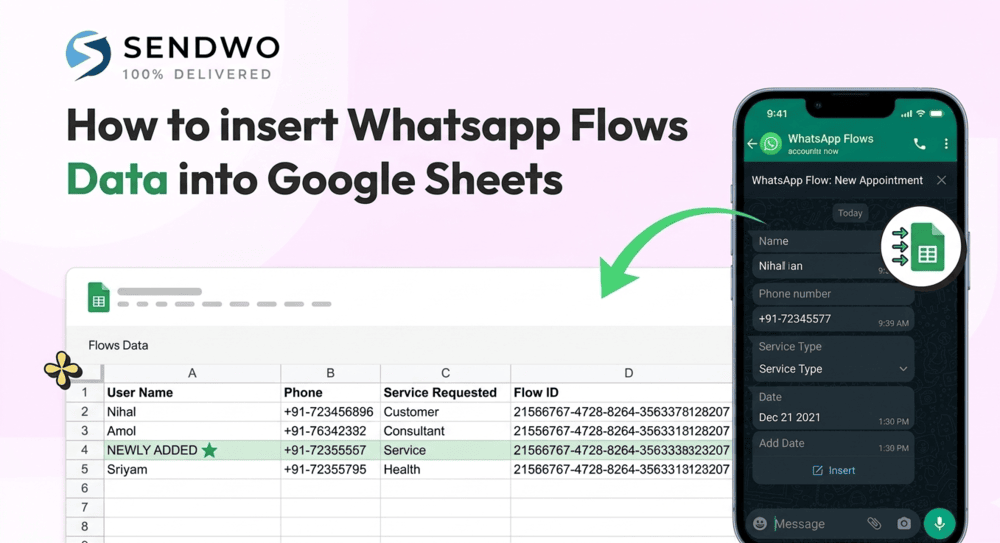
Learn how to insert WhatsApp Flows data into Google Sheets automatically using webhooks, Google Apps Script, or no‑code tools
In this guide, we’ll break down “How to insert Whatsapp Flows Data into Google Sheets” means in practice, why this is a growth advantage, how the data flow works under the hood, and how to set it up in SendWo.
1. What’s changing: WhatsApp Flow submissions now land in Google Sheets
WhatsApp Flows were designed to reduce friction by letting businesses create in-chat experiences—so customers can complete tasks “right in their chat box,” without needing an external website or app download.
When you pair that with automatic insert Whatsapp Flows Data into Google Sheets, you get a simple but powerful outcome:
- Every Flow submission becomes structured, usable data—immediately—inside the spreadsheet your team already knows.
- SendWo documents this as a native workflow: it can collect and store user inputs from WhatsApp chatbot flows directly into Google Sheets in real time, eliminating manual entry and letting teams keep a centralized record of responses.
This is not just a nice-to-have integration. It’s a conversion and operations upgrade:
- Marketing gets clean lead capture (no data decay).
- Sales gets fast follow-up (the moment a lead submits).
- Support gets structured tickets (issue type, order ID, priority).
- Ops gets a simple source of truth (Sheets can become the “light CRM” for early-stage workflows).
And you’re not alone in wanting this. The market is actively moving here—multiple WhatsApp automation providers are publishing 2026 guides specifically on connecting insert Whatsapp Flows Data into Google Sheets for real-time, structured capture.
What counts as Flow data and where it comes from
“Flow data” typically means structured inputs a user submits through a Flow interface—like text fields, dropdowns, radio buttons, and multi-step selections.
WhatsApp describes Flows as a structured way to collect information using form inputs (including drop-down menus, radio buttons, and text fields), replacing clunky back-and-forth messaging and links.
Common Flow submission fields businesses capture include:
- Name, phone, email
- Product interest or category selection
- Preferred appointment date/time
- Order numbers and issue types
- Location, branch selection, budget range
- Survey responses (NPS, feedback, ratings)
On the technical side, insert Whatsapp Flows Data into Google Sheets can be self-contained or connected to an endpoint for real-time data exchange, and WhatsApp also provides webhooks for tracking Flow events and performance.
2. Why this matters: speed, trust, and measurable revenue impact
If your lead capture system doesn’t match how customers want to communicate, you’re forcing friction into the buying journey.
WhatsApp Business research (Kantar, commissioned by Meta Platforms) found that across 22 markets:
- 73.3% of consumers prefer messaging when communicating with a business.
- 72.4% are more likely to purchase from a brand that offers messaging.
- 74.6% trust a business more when they can exchange messages with it.
- 66.8% feel frustrated when messaging isn’t offered as a contact option.
That’s why Flows matter: they keep customer actions inside chat, reducing drop-off. WhatsApp positioned Flows as a way to unlock more flexibility by removing friction and efficiently addressing customer needs.
Now insert Whatsapp Flows Data into Google Sheets, and you also remove internal friction:
- No one is “catching up” on leads at end of day.
- No one is cleaning messy, unstructured chat transcripts.
- No one is reconciling different sources of truth across teams.
This is especially useful for lean teams that live in spreadsheets: a Sheet can act like a simple lead tracker, booking register, feedback dashboard, or support queue, and you can analyze it with filters, pivot tables, charts, and automation on top.
What the scale tells you about where this is going
A channel is only as valuable as its reach and daily behavior.
- WhatsApp crossed 3 billion monthly users (announced during Meta’s Q1 2025 earnings discussion).
- The WhatsApp Business app (for small businesses) crossed 200 million monthly active users in 2023, indicating massive SMB adoption.
In that context, “Flow → Sheets” is not a gimmick. It’s a practical modernization of lead capture and operations for the way business messaging is already being used at scale.
3. How it works: from WhatsApp Flow to spreadsheet row
From a business perspective, the workflow is simple:
Turn this learning into your next WhatsApp campaign.
Start with Sendwo’s free plan, explore WhatsApp broadcasts, automation, AI chatbot flows, and upgrade only when your business needs more power.
- A user open a Flow inside WhatsApp (lead form, booking, survey, support intake).
- They submit structured answers.
- Those answers are inserted into Google Sheets as a new row.
- Your team triggers next actions: follow-up message, call, assignment, nurture campaigns.
Under the hood, the reason this is possible is the same reason modern messaging automation works at all: webhooks + structured payloads.
- WhatsApp Business explains webhooks as a way for services to send data “whenever something happens,” enabling real-time automation.
- WhatsApp also notes that received message events can include interaction details when users click buttons, not just typed text—important when you’re collecting structured input.
- Insert Whatsapp Flows Data into Google Sheets can also connect to a business endpoint for real-time data exchange, and WhatsApp highlights that webhooks can be used to monitor Flow metrics (status changes, error rates, endpoint performance).
- For Flow-specific events and response handling, Meta’s Flows references point to subscribing to Flow response message webhooks and receiving Flow responses via controlled payload structures.
In SendWo’s workflow, once the Google Sheet is connected, you map chatbot/Flow input fields to the target spreadsheet columns so each new submission lands in the right place.
Data mapping patterns that keep your Sheet clean
Getting data into a spreadsheet is easy. Getting it into a spreadsheet without breaking your process a month later is what separates a quick hack from an operational advantage.
SendWo’s tutorial recommends a very spreadsheet-native rule: set up headers that match your expected fields, and avoid changing the header row after mapping.
Key patterns that tend to work best:
- Use stable, “boring” column headers :- SendWo specifically advises avoiding spaces/special characters in headers and keeping field names reliable—for example, “Name” rather than “Full Name.”
- Map each field intentionally :- SendWo shows a mapping approach where each chatbot field is mapped to a specific Sheet column (for example, name/email/phone).
- Avoid duplication and broken mappings :- SendWo recommends limiting one integration per bot flow to prevent duplication, and avoiding edits to the header row after integration because it can break the mapping.
- Design your Sheet to answer real questions :- Once your Flow data is structured, you can use spreadsheet logic to answer practical business questions like:
- “Which campaign drove the most qualified leads this week?”
- “Which branch is getting the most booking requests?”
- “Which issue type is spiking in support tickets?”
SendWo even encourages using filters and pivot tables to analyze leads and user behavior trends once the data is in Sheets.
4. Insert Whatsapp Flows Data into Google Sheets
SendWo positions insert Whatsapp Flows Data into Google Sheets as a drag-and-drop form builder that helps collect customer info on WhatsApp, trigger automated replies after form submissions, and surface analytics.
On the Google Sheets side, SendWo’s tutorials document a no-code connection where Flow inputs can be logged automatically into Google Sheets.
Below is a practical setup walkthrough (written for speed and reliability, not fluff).
Step one: Create or identify the Flow you want to track
In the bot/Flow builder, identify the places where users provide structured inputs—name, email, phone number, feedback, preferences, etc. (SendWo describes these as input nodes that can be exported to Sheets).
Step two: Create a Google Sheet that matches your Flow fields
Create a spreadsheet and add column headers that match your data fields. SendWo recommends keeping headers stable and avoiding spaces/special characters for reliability.
Step three: Copy your Google Sheet ID
SendWo’s guide highlights that your Sheet ID is the bold part of the URL between /d/ and /edit/.
Step four: Connect Google Sheets inside SendWo
SendWo outlines a no-code connection flow:
- Choose the Google Sheet integration option inside the builder,
- Connect and authorize your Google account,
- Paste the Sheet ID,
- Select the Sheet tab where rows should be recorded.
If you’re setting this up from the broader integration panel, SendWo also documents signing in with Google, syncing sheet data, and selecting/creating the sheet from inside SendWo’s interface.
Step five: Map Flow inputs to Sheet columns
- This is the “make it or break it” step. SendWo explicitly describes mapping each chatbot input field to its corresponding Sheet column and saving the mapping so every new submission is written cleanly into the correct column.
Step six: Test end-to-end in the real WhatsApp experience
- SendWo recommends running a test submission and checking the spreadsheet to confirm the data appears automatically, essentially validating the real-time sync.
Step seven: Lock in best practices so it doesn’t break later
SendWo’s best-practices guidance is worth following because it prevents mapping failures and messy data:
- Use unique sheet names for each campaign or bot flow.
- Avoid editing the header row after integration to prevent mapping breaks.
- Consider a dedicated Google account/service approach and review permissions as team members change.
Compliance reminder (don’t skip this): opt-in is required
- WhatsApp’s Business Messaging Policy states you may only contact people if they provided their phone number and you have received opt-in permission confirming they want subsequent messages or calls.
- WhatsApp’s Business Terms also place responsibility on the business to secure required rights/consents (including opt-in) and to provide necessary legal/privacy disclosures (like having a privacy policy and labeling marketing messages).
- If you’re collecting personal data through Flows and storing it in Sheets, it’s also smart to understand the WhatsApp Business Data Processing Terms, which are explicitly framed around how personal information in customer data is processed under the Business Terms (including the controller/processor framework and security responsibilities).
Actionable conclusion and CTA
- If messaging is where customers prefer to talk—and Flows are how customers complete actions—then Google Sheets insertion is how your team actually uses the data without delay.
- This is exactly why combining Flows with Sheets is so powerful: you’re not just “collecting leads.” You’re building an operational pipeline where every submission is instantly usable—by sales, support, operations, and marketing.
- SendWo positions its insert Whatsapp Flows Data into Google Sheets feature as a form-led system for collecting customer info with automated follow-ups and analytics, built to help convert conversations into customers.
- If you want to launch your first Flow-to-Sheets workflow, start by building a single lead capture Flow, mapping three core fields (name, phone, intent), and testing the sync—then expand to bookings, surveys, and support intake as your team gains confidence.
FAQ
1. What are WhatsApp Flows, exactly?
WhatsApp Flows are a feature of the WhatsApp Business Platform that lets businesses create structured, in-chat experiences (forms and multi-step journeys) so customers can complete tasks without leaving WhatsApp.
2. Can WhatsApp Flow submissions be saved automatically to Google Sheets?
Yes—this is the core workflow described in SendWo’s documentation: user inputs collected through chatbot/Flow interactions can be stored directly in Google Sheets in real time, with field-to-column mapping controlling how values land in the sheet.
3. How do I insert Whatsapp Flows Data into Google Sheets without coding?
SendWo documents this as a no-code workflow: connect your Google account/sheet, paste the Sheet ID, select the tab, map inputs to columns, then test. SendWo explicitly states the integration can be set up directly from the dashboard without coding knowledge.
4. What data can I insert into Google Sheets from a WhatsApp Flow?
Typically: contact details, preferences, booking selections, survey answers, and any other structured fields your Flow collects. WhatsApp highlights that Flows are built around structured inputs (text fields, radio buttons, dropdowns), making the data naturally compatible with spreadsheet rows.
5. Do WhatsApp Flows support webhooks or API-based data exchange?
Yes. WhatsApp explains that Flows can be connected to endpoints for real-time data exchange, and that webhooks can be used for tracking Flow metrics and performance. Meta’s Flows references also point to Flow response message webhooks and Flow response payload structures.
Aditi Kamini
Aditi, a content marketer at SendWo, is a passionate writer and marketing enthusiast. She excels in driving revenue campaigns, building client relationships, and mastering content creation, SEO, customer service, and project management.