How to Transfer Chats from WhatsApp to New Phone-Easy & Positive Ways
Learn how to Transfer Chats from WhatsApp to New Phone Android/iPhone in minutes! Official QR code, backup restore guide—no PC needed.
 By Aditi Kamini
Published: December 22, 2025
Updated: March 24, 2026
14 min read
By Aditi Kamini
Published: December 22, 2025
Updated: March 24, 2026
14 min read
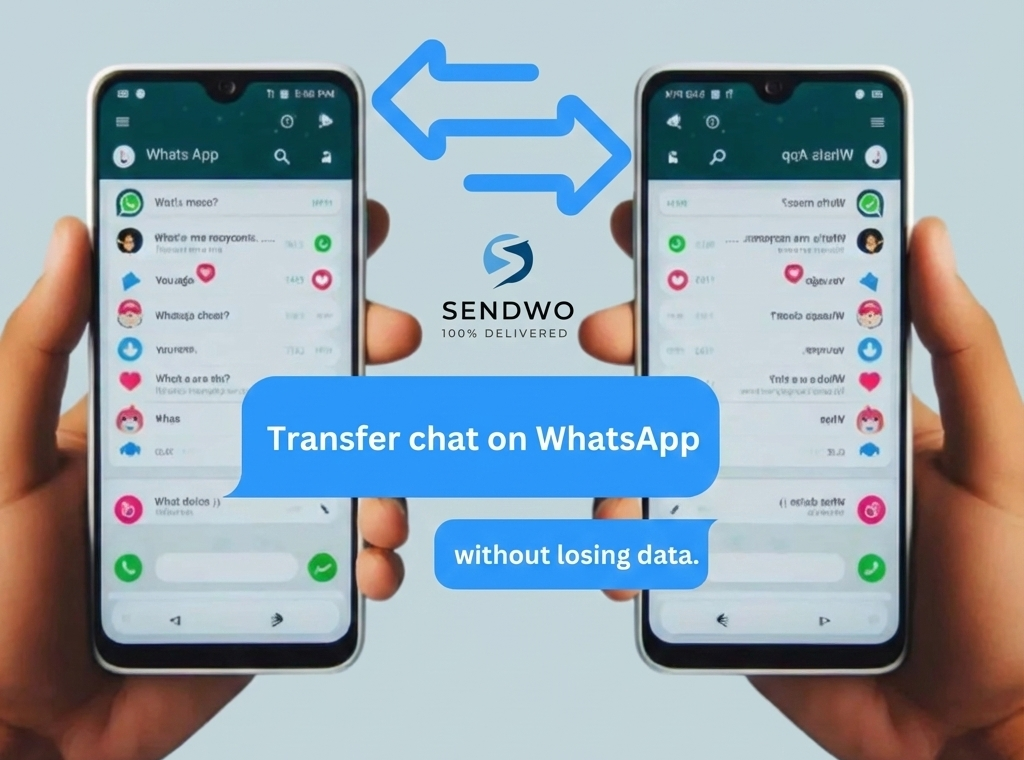
Learn how to Transfer Chats from WhatsApp to New Phone Android/iPhone in minutes! Official QR code, backup restore guide—no PC needed.
Upgrading to a new smartphone is exciting, but it often raises a big question: how to transfer chats from WhatsApp to new phone without losing precious messages and media. With WhatsApp boasting 3.3 billion active users in 2025, your chat history likely holds years of memories and vital information. The good news is that transferring WhatsApp data is easier than ever, thanks to built-in backup tools and official migration features. In this guide, we’ll walk you through step-by-step methods to migrate your WhatsApp chats safely and fully – whether you’re moving from Android to Android, iPhone to iPhone, or even between Android and iPhone. By following these instructions and tips, you can upgrade your device worry-free, knowing every message is backed up and ready on your new phone. Let’s dive in! how to transfer chats from WhatsApp to new phone.
1. Why Transferring WhatsApp Chats Matters
Your WhatsApp chats capture everything from family moments to work conversations. Losing this history when switching phones can be frustrating or even costly for businesses. By transferring how to transfer chats from WhatsApp to new phone, you preserve memories and maintain continuity. For example, a survey shows over 100 billion messages are sent daily on WhatsApp, so missing chat threads could mean losing crucial information. Whether it’s photos from a recent trip or client orders in a business group, keeping chats intact ensures nothing is lost in transition. Plus, for entrepreneurs using WhatsApp for customer support, platforms like SendWo rely on uninterrupted chat flows – seamless chat migration keeps your service smooth.
- Key point: Always back up and transfer your WhatsApp chat history before changing devices. This way, you won’t lose any important conversations during the switch.
2. Backup Your WhatsApp Chats Before Switching
Before moving how to transfer chats from WhatsApp to new phone, create a fresh backup on your old device. This makes the transfer smooth and ensures you have a copy if anything goes wrong. WhatsApp provides two main backup methods:
Android (Google Drive):
- Open WhatsApp on your Android phone.
- Tap the three dots (⋮) > Settings > Chats > Chat backup.
- Under Google Drive settings, choose a Google account and tap BACK UP.
Make sure you’re connected to Wi-Fi (especially if you have lots of media).
This stores your messages and media in Google Drive, ready to restore on the new phone.
iPhone (iCloud):
- Open WhatsApp on your iPhone.
- Go to Settings > Chats > Chat Backup.
- Tap Back Up Now to upload to iCloud (you may enable automatic backups here).
Ensure you’re signed into iCloud and have enough iCloud storage space.
This saves your chat history and media to iCloud for later restoration.
Local Backup (Android):
WhatsApp also creates daily local backups on Android devices. For extra safety, you can copy the backup file manually: use a file manager to go to WhatsApp/Databases on your phone’s storage and copy the latest msgstore file to the new device (same folder). The next time you install WhatsApp on the new phone, it will detect and restore this local backup.
Export Chat (Any device):
For individual chats, WhatsApp lets you export chats (via email or other apps). In any chat, tap More ⋮ > More > Export Chat. You can email the chat to yourself (with or without media). Note: Exported chats aren’t importable back into WhatsApp; they’re just for archival or reading outside the app. Use this for specific important chats if needed.
Important: Always use the same phone number on the new phone when restoring. WhatsApp backups are tied to your number, so verify your number on the new device to retrieve the backup.
3. How to Transfer Chats from WhatsApp to New Phone on Android (to Android)
If you’re moving from one Android phone to another Android phone, WhatsApp makes it straightforward:
Using Google Drive Backup (Recommended):
- On your old phone, create a Google Drive backup as described above.
- Install WhatsApp on the new Android phone.
- During setup, verify the same phone number and use the same Google account.
- When prompted to restore chats, tap RESTORE.
- Wait for the process to complete, then tap Next. Your chats will appear once initialization finishes.
This method retains all chats and media and is the easiest when both phones use Android and Google services.
Using Local Backup (Offline):
- On the old device, open WhatsApp > Chats > Chat backup, and tap BACK UP (this ensures a fresh local backup on your phone’s storage).
- Using a file explorer, go to WhatsApp/Databases on the old phone, copy the latest msgstore.db.crypt12 file.
- Transfer this file to the same location (WhatsApp/Databases) on how to transfer chats from WhatsApp to new phone (you may need to create these folders). This can be done via USB cable or SD card.
- Install WhatsApp on the new phone (do not open it yet).
- Launch WhatsApp, verify your number, and WhatsApp will detect the local backup. Tap RESTORE when it appears.
- All chats and media from the backup will be restored.
Tip: This offline method is handy if you have a lot of media or limited internet. It also works when you don’t want to use Google Drive.
4. Transfer WhatsApp Chats on iPhone (to iPhone)
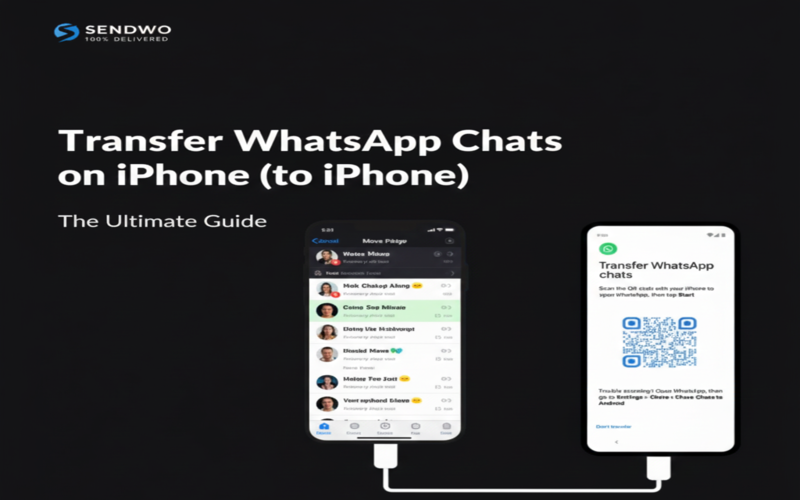
For iPhone users switching to another iPhone, the process is similar using iCloud:
Using iCloud Backup (Standard):
- Ensure your old iPhone is signed into iCloud and has WhatsApp iCloud permissions.
- In WhatsApp, go to Settings > Chats > Chat Backup and tap Back Up Now. Wait for it to complete.
- On your new iPhone, sign in with the same Apple ID (iCloud account).
- Install WhatsApp from the App Store and verify your phone number.
- WhatsApp will detect the iCloud backup. Tap Restore Chat History to begin.
- Your chats and media will download. This may take time depending on backup size and Wi-Fi speed.
Using iTunes or Finder Backup:
If you prefer or if iCloud has limited space, you can back up your old iPhone to a computer via iTunes (Windows) or Finder (Mac):
Turn this learning into your next WhatsApp campaign.
Start with Sendwo’s free plan, explore WhatsApp broadcasts, automation, AI chatbot flows, and upgrade only when your business needs more power.
- Connect the old iPhone to your computer and create an encrypted backup (this includes WhatsApp data) in iTunes/Finder.
- Connect the new iPhone to the computer and restore from this backup.
- Once the phone is restored, install WhatsApp. It should retain all chat data.
- Note: Encrypted backups are crucial to include app data like WhatsApp. Without encryption, WhatsApp data won’t transfer.
- Tip: Always keep your WhatsApp and iOS updated to the latest versions before backup for compatibility.
- Transfer WhatsApp Chats Between Android and iPhone
Switching platforms (Android ↔ iPhone) used to be tricky, but WhatsApp now offers official solutions:
Android → iPhone (Move to iOS App):
- Reset or set up your new iPhone fresh (ensure it’s on iOS 15.5+).
- During setup, on the “Apps & Data” screen, choose Move Data from Android.
- On your Android phone, install Apple’s Move to iOS app from Google Play.
- Open Move to iOS on Android and follow the on-screen prompts. A code will appear on the iPhone.
- Enter this code in Move to iOS. Android will connect to the iPhone’s temporary Wi-Fi network.
- In the transfer menu, select WhatsApp (and any other data you want). Tap Continue.
- The app will prepare and begin transferring your WhatsApp chat and media to the iPhone. This may take several minutes.
- Once the transfer completes, finish the iPhone setup.
- Install WhatsApp on the iPhone, open it, verify your phone number, and tap Start when prompted to “Move Chats from Android”.
Why it works: Apple’s Move to iOS (with WhatsApp’s support) wirelessly migrates your entire chat history. Apple confirms that this process moves WhatsApp message and media to the new device . You need an iPhone with iOS 15.5+ and an Android phone running Android 5 or later, along with updated WhatsApp apps.
iPhone → Android (USB Cable or Smart Switch):
Prepare the Android device: It must be new or reset (Android 12 or above is required for the official transfer). Install the latest WhatsApp on Android but do not open it yet.
Connect the devices: Use a compatible Lightning-to-USB-C cable (or Lightning-to-USB adapter and USB-C cable) to link your iPhone and Android.
- On the Android setup, select the option to “Transfer WhatsApp” or “Move Data from iPhone” when prompted.
- On the iPhone, a prompt will appear to “Move chats to Android” – tap Start.
- A QR code will display on the Android screen. Use the iPhone’s camera to scan this code within WhatsApp.
- WhatsApp will prepare the data. Follow any on-screen prompts until transfer begins.
- Once complete, continue setting up Android.
- Open WhatsApp on Android, verify your phone number (same as iPhone), and when prompted, tap Restore. Your chats and media will appear.
This method is now officially supported for many Android phones. For example, Samsung’s Smart Switch uses a very similar cable + QR code flow: Samsung instructs users to “scan the QR code shown on your Galaxy phone using the iPhone’s camera” and then Start the transfer in WhatsApp. In short, connect and scan to move everything.
Alternative for iPhone→Android: If you can’t use a cable, Samsung phones let you sign in to iCloud via Smart Switch (wireless). You back up WhatsApp on iPhone to iCloud, then in Smart Switch on the Galaxy choose Receive data > iPhone, then Get data from iCloud. After signing in with your Apple ID, Smart Switch will download your WhatsApp content. Finally, install WhatsApp on the Galaxy and restore from the Smart Switch backup.
Key Requirements: Make sure both phones have the same WhatsApp number. On Android, your device should be on Android 12+ and the newest WhatsApp version. On iPhone, use iOS 15.5+ with updated WhatsApp. Under these conditions, the official transfer “will move your entire chat history, profile photos, groups, and settings” just as expected.
5. Other Transfer Methods and Tips
Beyond built-in tools, there are alternate ways to move chats:
- Email Chat: WhatsApp lets you export conversations via email. In a chat, tap ⋮ > More > Export chat. Send it to your email (without encryption). how to transfer chats from WhatsApp to new phone, you can open these emails to read old messages, but note: exported chats won’t integrate back into WhatsApp. This is best for archiving a few essential chats (it’s free and doesn’t require Wi-Fi).
- Third-Party Software: There are apps like MobileTrans, Dr.Fone, or iCareFone that promise one-click transfers (with or without a computer). For instance, Mutsapper is a free app that wirelessly moves chats from iPhone to Android. These tools may require installing software on both devices or a PC. Use them with caution and follow instructions carefully. They can be useful if the official methods aren’t working for you.
- Local Storage (Android): You can also put a local backup on an SD card. On the old phone, backup WhatsApp (Settings → Chats → Chat backup). Then use a file manager to copy the /WhatsApp/Databases/msgstore.db.crypt12 file to an SD card. Insert the card into the new Android, install WhatsApp, and restore from that backup when prompted. This keeps data offline and secure.
- Password-Protected Backups: On Android, WhatsApp offers End-to-end Encrypted Backups (Settings → Chats → Chat backup → End-to-end Encryption) to password-protect your Google Drive backup. On iPhone, you can add a backup password too. This adds a layer of security so only you can restore the backup.
- Pro Tip: Always verify on the how to transfer chats from WhatsApp to new phone that WhatsApp’s local backup (Android) or iCloud backup (iPhone) completed successfully. Check the date/time of the last backup in WhatsApp’s settings before leaving your old phone.
6. Troubleshooting Common Issues
Even with the right steps, you might run into issues. Here are quick fixes:
- Backup Not Found: If WhatsApp says no backup is available, ensure you’re using the same Google/iCloud account and same phone number. On Android, check Google Drive’s “Backups” to confirm your WhatsApp backup is there. On iPhone, ensure iCloud Drive is turned on for WhatsApp (iOS Settings > [your name] > iCloud).
- Insufficient Storage: If how to transfer chats from WhatsApp to new phone runs out of space, delete unused apps or media before restoring. Transferring large chat histories (especially with many photos and videos) needs room.
- Wrong Operating System Versions: Cross-platform transfers require up-to-date OS. Make sure Android is on version 12+ and iPhone on iOS 15.5+ for the official methods to work. If your Android is older, you’ll need to reset it to use the feature, or use manual export/email instead.
- Transfer Stuck or Failed: When using Move to iOS or cable transfer, keep both phones unlocked, connected to power, and near each other. If the cable method stalls, try toggling Wi-Fi off then on, or use a different cable/adapter. For Move to iOS, ensure your Android has a stable internet connection during the transfer.
- WhatsApp Reinstalled Prompt: If after transfer, how to transfer chats from WhatsApp to new phone still starts fresh (asking to create a new chat), it means it didn’t detect the backup. Double-check that you scanned the QR code correctly, or try the backup/restore steps again with both devices reset as needed.
If problems persist, consult WhatsApp’s official Help Center or your phone manufacturer’s support (Apple or Samsung have guides). But usually, carefully following the above methods resolves almost every case.
Conclusion
Migrating your how to transfer chats from WhatsApp to new phone can be smooth if you follow the right steps. Back up your chats first (to Google Drive or iCloud), then use WhatsApp’s restore or migration feature on the new device. Android-to-Android and iPhone-to-iPhone transfers are straightforward with cloud backups. For Android↔iPhone, use Apple’s Move to iOS app or a cable transfer (as official guidelines now support chat migration). Double-check your WhatsApp version and phone OS, and ensure you have sufficient storage space. With these preparations, your entire conversation history – from text messages to voice notes and photos – should appear on your new phone just as it was on the old one.
Ready to upgrade? Make sure to complete these transfer steps before erasing your old device. And if you rely on WhatsApp for business, consider SendWo for a seamless messaging experience. As an official WhatsApp Business Solution Provider, SendWo keeps your chats organized and safe, even during phone switches. Start your free trial on SendWo today and keep your communication flowing without interruption!
FAQs
Q: How to transfer chats from WhatsApp to new phone?
A: First, back up your chats on the old phone (Google Drive for Android, iCloud for iPhone). Then install WhatsApp on how to transfer chats from WhatsApp to new phone, verify the same phone number, and restore from the backup when prompted. WhatsApp will download your chat history and media.
Q: Can I move my WhatsApp from Android to iPhone?
A: Yes. Use Apple’s Move to iOS app during iPhone setup. Connect both phones, enter the code shown on the iPhone into the Android app, and select WhatsApp to transfer. WhatsApp chats and media will migrate to the iPhone. You’ll need iOS 15.5+ on the iPhone and Android 5+ on the old phone.
Q: Can I move WhatsApp from iPhone to Android?
A: Yes. Connect your iPhone and new Android with a Lightning-to-USB-C cable. Follow the prompts in WhatsApp (iPhone) to “Move chats to Android,” scanning the Android’s QR code. The chats will transfer directly. Many Android phones (like Samsung Galaxy) also support this via Smart Switch. Ensure Android 12+ is installed for this feature.
Q: How do I transfer WhatsApp without Google Drive or iCloud?
A: On Android, you can copy the local backup file (WhatsApp/Databases/…) from the old phone to the new one and then restore during WhatsApp setup. Alternatively, use Export Chat to email conversations (though this won’t import back into WhatsApp). For iPhone, you could use iTunes/Finder to back up and restore the entire device. Third-party tools (e.g., MobileTrans) can also move chats offline.
Q: Why won’t my WhatsApp backup restore on the new phone?
A: Common reasons: you’re not using the same Google/iCloud account or same phone number as the backup. Make sure WhatsApp on the new phone is logged in with the correct credentials. Also check that there is enough free storage and that you are connected to the internet or have inserted the SD card with the backup file. If you still can’t restore, try creating a fresh backup on the old phone and repeating the process.
Q: Is there a way to transfer only certain chats?
A: WhatsApp’s full backup will restore all chats. To move specific conversations, use Export Chat: open the chat, tap ⋮ > More > Export Chat, and choose to include media or not. Email it to yourself, then open it on how to transfer chats from WhatsApp to new phone. Note, this only saves the chat as a text file (with images as attachments if chosen); it won’t appear as a normal WhatsApp conversation.
Q: Will my WhatsApp messages stay encrypted after transfer?
A: Yes. WhatsApp uses end-to-end encryption for messaging. Backups can also be encrypted (you may set a backup password). During transfer, the data is moved securely. Ensure that the backup’s encryption (if any) is supported and enter the password on the new device if prompted.
Aditi Kamini
Aditi, a content marketer at SendWo, is a passionate writer and marketing enthusiast. She excels in driving revenue campaigns, building client relationships, and mastering content creation, SEO, customer service, and project management.