Imagine this scenario: you have an important conversation on WhatsApp – maybe a surprise plan with a friend or sensitive work details – and you lock that chat for privacy. Later, you need to revisit that conversation but can’t find it at first glance. Don’t worry. WhatsApp’s Chat Lock feature keeps certain conversations in a hidden folder, and opening them is straightforward once you know how. This guide will walk you through every step to how to open locked chat in whatsApp, whether on Android, iPhone, or WhatsApp Web.
WhatsApp continues to grow in popularity, with over 2 billion users worldwide. Privacy is a top concern – in fact, 98% of all WhatsApp messages are end-to-end encrypted and about 65% of users employ chat lock features to protect their conversations. Understanding how to unlock those secured chats keeps your own data accessible and secure.
1. How to open locked chat in whatsApp on Your Phone
If a chat is locked, you won’t see it in the main list until you unlock it. Here’s how to open locked chat in whatsApp on Android or iPhone:
Swipe Down on Chats: Open WhatsApp and go to the Chats screen. Swipe down from the top of your chat list. This reveals a how to open locked chat in whatsApp section (it’s hidden when you first open the app).
Tap “Locked Chats”: A Locked Chats button or folder will appear at the top. Tap it to how to open locked chat in whatsApp list.
Figure: The Locked Chats folder (outlined in green) appears after swiping down on the Chats screen. Tapping it prompts a security unlock.
Authenticate: WhatsApp will prompt you to unlock via your chosen method (fingerprint, Face ID, or PIN). Use the same device password you set for chat lock. Once you authenticate, the Locked Chats folder opens.
Select and Open the Chat: Inside Locked Chats, you’ll see the conversations you previously locked. Tap any chat to open it normally; it will move back into your main chat list after unlocking.
On WhatsApp Web/Desktop, the Locked Chats option is visible by default (no swipe needed). Click Locked Chats and you will be prompted to enter your secret code (which you must have set up on your phone first). Once you enter the code, the locked chats appear and you can open them there as well.
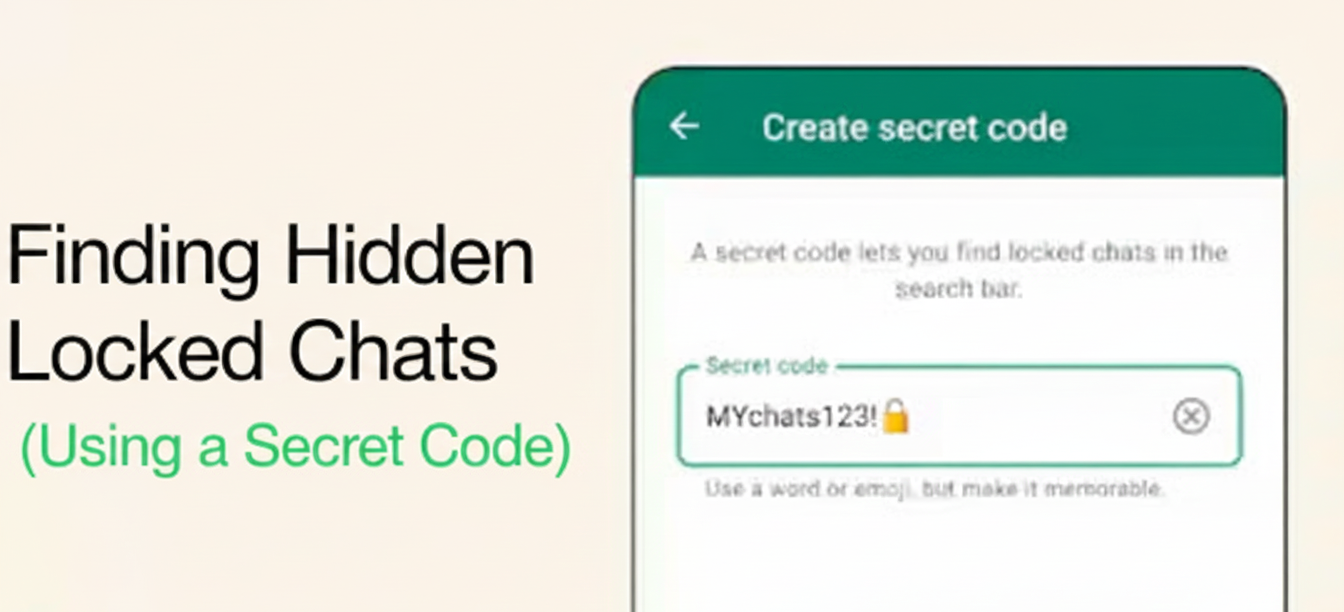
2. Finding Hidden Locked Chats (Using a Secret Code)
WhatsApp also lets you hide the locked chats folder entirely using a secret code. In this mode, the Locked Chats tab won’t appear in your chat list. Instead, you reveal it by searching your secret code: Enter the Secret Code in Search: Tap the search icon at the top of WhatsApp’s Chats screen and type the secret code you set (for example, 12345).
Reveal Locked Chats: After entering the correct code, the Locked Chats folder appears in search results. Tap it and authenticate to how to open locked chat in whatsApp.
Figure: Typing a secret code (shown in the search bar) into WhatsApp reveals the hidden how to open locked chat in whatsApp folder.
This technique hides the fact that how to open locked chat in whatsApp at all, unless someone knows the code. As Tech Crunch explains, when hidden, your locked chats “can only be discovered by typing [the] secret code in the search bar”.
3. What to Do If You Forget Your Secret Code
Forgot your secret code? Don’t panic – you have options:
Use Biometric (Fingerprint/Face Unlock): If you enabled fingerprint or Face ID for Chat Lock, you can still unlock. For example, on Android add a new fingerprint in your phone’s security settings. Then open WhatsApp and swipe down to Locked Chats and use your fingerprint to unlock. Once inside, go to Settings > Privacy > Chat Lock and disable or reset the secret code.
Backup & Reset (Android/iOS): If biometrics fail, back up your chats first (WhatsApp Settings > Chats > Chat backup). Then go to Settings > Privacy > Chat Lock and choose “Unlock and clear locked chats.” This will clear the secret code and unlock all chats (note: it temporarily removes locked content from the folder). You can then restore your chat history from the backup.
Open via Contacts (Android): On Android, a handy trick is to open the locked chat from your Contacts app. Find the contact in your phone’s address book, tap “Message via WhatsApp,” and it will launch WhatsApp and prompt you to unlock that chat. This way you can access the chat and then remove the lock in its settings if needed.
Keep in mind: if you forget the code and didn’t back up, your locked chats cannot be recovered. WhatsApp warns that there’s “no direct way to recover locked chats unless you have a backup”. Regular backups ensure you won’t lose messages even if you reset Chat Lock.
FAQs
1. How do I unlock a locked chat on WhatsApp?
Swipe down on your Chats screen and tap Locked Chats to open the folder, then authenticate with your PIN/fingerprint/Face ID. The chat will then open normally.
2. How do I find hidden locked chats on WhatsApp?
If you hid locked chats with a secret code, tap the search icon and enter that code (e.g. “1234”). This reveals the Locked Chats folder.
3. Can I open locked chats on WhatsApp Web?
Yes. On WhatsApp Web/Desktop, click Locked Chats and then enter your secret code (set up on your mobile app) when prompted.
4. What if I forgot my WhatsApp chat lock password?
Use your device’s fingerprint or Face ID to unlock, or back up your chats and use Unlock and clear locked chats in Settings to reset the code. Without a backup, the locked chats may be lost.
5. Will anyone know if I lock or unlock a chat?
No – locking a chat only affects your device. The conversation appears normal to the other person, and they won’t receive any notification about your chat lock.
Conclusion
Opening a locked chat in WhatsApp is simple once you know the steps. Just swipe down on your Chats list, tap Locked Chats, and authenticate to reveal the folder. If your chats are hidden with a secret code, type that code in the search bar to bring them back. Now you can securely lock your private conversations without fear of losing access.
Ready to make the most of WhatsApp? Try SendWo’s free WhatsApp marketing platform to streamline your messaging and grow your business. For more WhatsApp tips and tutorials, visit the SendWo blog – your guide to smarter, safer communication!
WhatsApp is the world’s leading messaging app, with over 3 billion monthly active users worldwide. Every day, people send more than 100 billion messages on WhatsApp. To protect such a vast network of conversations, WhatsApp uses your phone number as your account ID. In other words, the only way to log in to WhatsApp is by verifying your mobile number. In this guide, we’ll walk through WhatsApp Login with Phone Number step by step. We’ll also cover WhatsApp Web/desktop logins, security best practices, troubleshooting tips, and answers to common questions. By the end, you’ll have a rock-solid understanding of WhatsApp Login with Phone Number process—and how to use it safely for personal or business chats.
1. Why WhatsApp Uses Your Phone Number
Unlike some apps that use usernames or email addresses, WhatsApp ties each account to a real phone number. This design has big advantages:
Security and Identity: Using your mobile number ensures that only someone who can receive an SMS or call to that number can activate the account. In effect,WhatsApp Login with Phone Number is your identity on WhatsApp.
Seamless Contacts: WhatsApp can automatically link you to all contacts who have each other’s numbers saved. When you log in with your number, your phonebook instantly populates your WhatsApp contact list. This makes it easy to stay connected without manual invitations or usernames.
Simplicity: There’s no separate “username” or email to remember. Your login process is simply: enter country code + phone number, then verify a code sent to that number. It’s straightforward and fast on any new device.
This phone-based login works the same for personal and business accounts. Even on the WhatsApp Business app or when using the WhatsApp Business API (as with SendWo), you still register and WhatsApp Login with Phone Number. In fact, as one source explains, “the WhatsApp app login has the same flow. You just need to add your number, get the 6-digit code, and you’re ready to go”.
Key Point: Whether it’s WhatsApp Messenger or WhatsApp Business, logging in always requires your phone number and the 6-digit code that WhatsApp sends to it
2. Step-by-Step: WhatsApp Login with Phone Number
Follow these steps to get started with WhatsApp on any device. We’ll cover both mobile and web/desktop logins. Make sure you have a working phone number (SIM card active) and an internet connection before you begin.
Figure: WhatsApp mobile login screens. First, install the WhatsApp app, agree to the terms, then enter your country code and phone number. You’ll receive a 6-digit verification code to complete login.
On Your Mobile (Android/iPhone)
Install and open the app. Go to the Google Play Store (Android) or App Store (iPhone) and download WhatsApp. Launch it and tap “Agree and Continue” to accept Meta’s terms.
Enter your country code and phone number. WhatsApp will show a country selector. Choose your country; this automatically inserts the correct dialing code (e.g. +1 for USA, +91 for India). Then type your full mobile number (no extra zeros or symbols). Double-check it carefully – even a small typo can prevent you from getting the code.
Verify with the 6-digit code. After entering your number, tap Next. WhatsApp will send a 6-digit verification code via SMS to that number (it may also offer a “Call me” option if the SMS is delayed). Enter that code into the app as soon as you receive it. This step proves you own the number. For example, as one expert notes: “You just open WhatsApp, pick your country, and type your phone number. WhatsApp sends you a 6-digit code. Enter that code to finish logging in. That’s it!”.
Set up your profile (optional). Once verified, you’ll be asked to create a profile: add your name and (optionally) a photo. This helps friends recognize you.
Enable two-step verification (highly recommended). Go to Settings > Account > Two-step verification and Turn On. Pick a 6-digit PIN and add a recovery email. This extra PIN protects your account even if someone somehow gets your SMS code. If you ever re-register WhatsApp, you’ll need this PIN in addition to the code.
By now, you should be WhatsApp Login with Phone Number. WhatsApp will automatically import your contacts (who are also on WhatsApp) and restore any local backup if you chose to.
Troubleshooting Tip: If the verification code doesn’t arrive, first check that you entered the correct number and country code. Ensure you have mobile reception and internet. Try the “Call me” option to get the code by voice. Wait a few minutes in case of network delays.
On WhatsApp Web or Desktop
WhatsApp also runs in web browsers and desktop apps. These let you chat on your computer by linking to your phone’s account. Traditionally, you link by scanning a QR code. However, WhatsApp now offers two methods: using the QR code or using your phone number with a code.
Option A: QR Code (most common)
On your computer, open a browser and go to web.whatsapp.com (or download the WhatsApp Desktop app).
On your phone, open WhatsApp and tap Menu (⋮) > Linked Devices (on iPhone, go to Settings > Linked Devices).
Tap Link a Device. This opens the camera.
Point your phone’s camera at the computer screen to scan the QR code shown on web.whatsapp.com.
Your WhatsApp chats will instantly appear on the browser.
Note: Your phone must remain on and connected to the internet for WhatsApp Web to work. If the phone loses connection, WhatsApp Web will disconnect. Always log out on public computers for security.
Option B: Phone Number (new feature)
If you can’t scan the QR code (e.g. a broken camera), you can log in by entering your phone number directly on the WhatsApp Web site. This is a recent feature that makes linking devices easier. Here’s how it works:
On your computer, open web.whatsapp.com. Click the link or button that says “Link with phone number” (some layouts may label it slightly differently).
A prompt will ask for your phone number. Enter your country and phone number (the same number you use on WhatsApp) and click Next. A unique code will appear on the screen.
On your phone’s WhatsApp app, go to Linked Devices > Link a Device, then choose “Phone number” (or simply tap Link a Device and then “WhatsApp Login with Phone Number”).
Your phone will ask for a one-time code. Type the code displayed on your computer into your phone. This links the accounts. Within seconds, your chats will load on the browser.
Figure: WhatsApp Login with Phone Number. Enter your country code and number on web.whatsapp.com, then verify the code on your phone.
After linking, you’ll stay logged in on that browser until you manually log out or clear cookies. This phone-number method was introduced in 2023, and WhatsApp explains: “You can WhatsApp Login with Phone Number on WhatsApp Web to receive a one-time code… which you can use on your phone to enable device linking.
Key Point: Even when using WhatsApp Web, your phone is required. You’ll always need to have your phone (on or online) to approve the login, whether by QR code or code. As one source warns: “No, you need your phone to scan the QR code or get the login code. Your phone must stay connected to the internet for WhatsApp Web to work.”
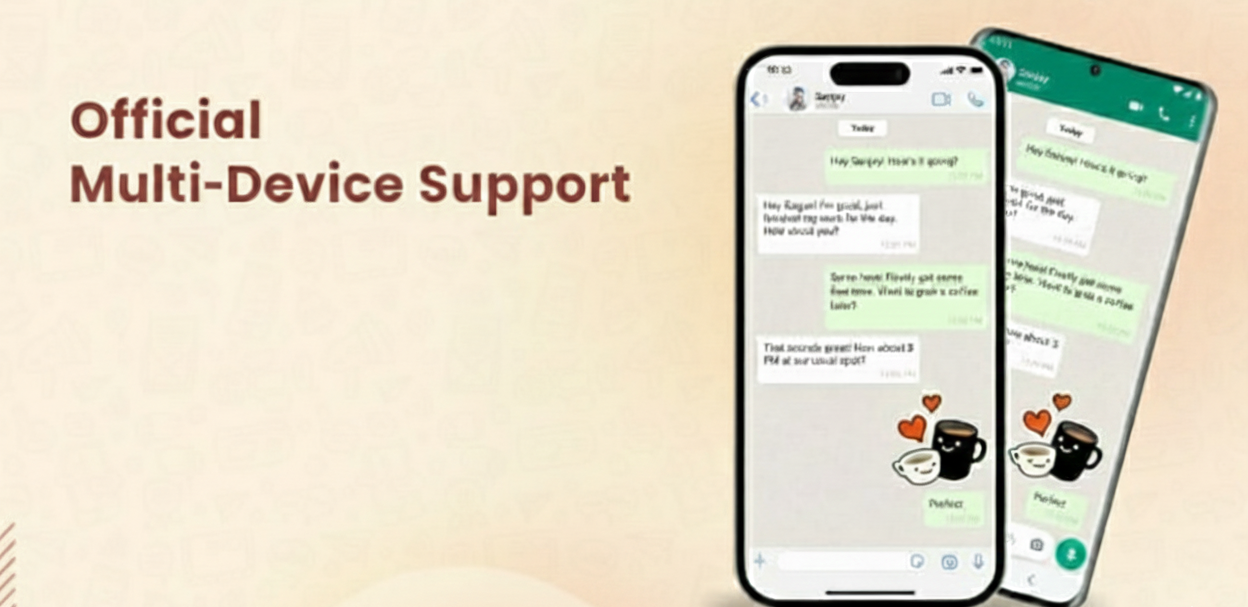
Once logged in on the web or desktop, you can chat just like on mobile. WhatsApp will sync messages in real-time. You can have up to four linked devices plus one phone. If your phone goes offline for a short time, web/desktop will keep working thanks to WhatsApp’s multi-device feature (as long as the connection was recently active).
3. Two-Step Verification and Security Best Practices
After logging in with your number, securing your account is crucial. Follow these best practices:
Never share your verification code. WhatsApp will never ask for your 6-digit SMS code in a chat or call. Treat it like a password. “Never share your code with anyone… Keep your code private to protect your account,” advises WhatsApp itself.
Enable Two-Step (2FA). Go to Settings > Account > Two-step verification and turn it on. Create a PIN and add an email for recovery. This adds a second layer – even if someone steals your SMS code, they’ll still need the PIN.
Use a Strong Voicemail PIN. Some attackers try to intercept SMS via voicemail. Set a strong PIN on your voicemail so they can’t simply call your number and retrieve the code.
Review Linked Devices. Periodically check Settings > Linked Devices on your phone and remove any device you don’t recognize. This logs out unknown sessions.
Keep the App Updated. Always update to the latest WhatsApp version on your phone and desktop. Updates patch security holes.
Be Mindful of Public Wi-Fi. When using WhatsApp Web on public networks, log out afterwards. Public Wi-Fi can sometimes allow others to hijack an open session.
By following these steps, you lock down your WhatsApp account. Cybersecurity experts note: “It is crucial to never share the six-digit registration code or your two-step verification PIN with anyone. Enabling two-step verification adds an extra layer of security…”. Think of your WhatsApp account like a bank vault: protect both the code and the PIN!
4. Troubleshooting Common Login Issues
Even with a smooth process, you might encounter hiccups. Here are some quick fixes:
No SMS code received: Check your number and country code carefully. Ensure your phone has signal and internet (Wi-Fi or mobile data) turned on. Try the “Call me” option – WhatsApp will dial your phone and speak the code aloud. Wait 5–10 minutes before retrying; network delays can happen.
Stuck on QR code (Web): Make sure the QR code is fully visible and not warped. Clean your phone camera lens and ensure good lighting. If it still won’t scan, try logging out of web.whatsapp.com and logging back in.
Account locked out: If someone else tried to log in with your number, you’ll get a message like “Try again in X hours.” Don’t panic. It’s a security feature. Just wait the specified time and ensure you enter the right code when you retry. In the meantime, enable two-step verification if you haven’t – it helps prevent locks.
WhatsApp blocked in your region: In rare cases, some countries temporarily block WhatsApp. If you can’t reach WhatsApp’s servers, try using a VPN or switch to a different network. For example, one source notes that WhatsApp login is “available almost everywhere. Some regions block it, in which case, a VPN can help”.
Phone number changed: If you change your SIM or phone number, WhatsApp provides a “Change Number” feature in Settings. This safely migrates your account to the new number. Without using that feature, you’ll have to register the new number and potentially lose some data.
Following these troubleshooting tips should resolve most login issues. For persistent problems, check the WhatsApp Help Center or contact WhatsApp support.
5. Logging into WhatsApp for Business
WhatsApp Business users follow the same login process. Whether you’re using the WhatsApp Business App (for small businesses) or the WhatsApp Business API (for bulk messaging), you register an active phone number in the same way. There’s no separate password – each business number is verified via the 6-digit code.
One common question is whether the login process differs for business accounts. The answer is no: “No, the WhatsApp app login has the same flow. You just need to add your number, get the 6-digit code, and you’re ready to go”.
After login, Business users can leverage extra features (catalogs, automated replies, message templates, etc.), but the initial verification is identical to personal WhatsApp. If you’re setting up a business solution, you’ll also connect your number to a business API provider (like SendWo) after verifying it. SendWo’s platform, for example, guides you to connect your verified number through a simple onboarding form, then you can start sending bulk or automated messages easily.
In short: Whether for personal chat or professional outreach, the WhatsApp Login with Phone Number is the same. The real difference is what you do after you log in – for businesses, that might include setting up chatbots, message templates, or integrating with CRM, which tools like SendWo can help with.
Frequently Asked Questions
Q: How do WhatsApp Login with Phone Number?
A: Open the WhatsApp app, select your country, and enter your phone number. WhatsApp will send a 6-digit verification code via SMS or call. Type in that code on the app to finish WhatsApp Login with Phone Number. It’s that simple.
Q: Can I use WhatsApp Web on my computer without my phone?
A: No. To log into WhatsApp Web (or desktop), you must use your phone. Either scan the QR code on web.whatsapp.com with your phone’s WhatsApp, or use the new phone-number link method (see above). In both cases, your phone needs to approve the login and remain connected to the interne.
Q: What if I don’t receive the verification code?
A: First, double-check your phone number and country code. Make sure your phone has network signal. Then, try the “Call me” option to get the code by a voice call. Wait a few minutes and try again. Often, a brief retry or switching from Wi-Fi to mobile data can solve it. If problems persist, verify that you haven’t blocked WhatsApp in your network or accidentally blacklisted the number.
Q: Is WhatsApp login different for Business accounts?
A: No. Both WhatsApp Messenger and WhatsApp Business (app or API) use the same login flow. You always add your phone number and verify it with the 6-digit code. The only difference is in the features available after login.
Q: Do I need a phone number to log in to WhatsApp?
A: Yes – absolutely. Every WhatsApp account is tied to a phone number. If you don’t have a mobile number to verify, you can’t create or log in to an account. As one source bluntly puts it, “Yes. No number means no account. That’s non-negotiable.”
Q: Can I use one WhatsApp account on two phones?
A: Thanks to WhatsApp’s companion mode, yes. Install WhatsApp on the second phone, then choose “Link as companion” from the menu. You’ll see a QR code or can opt to use your phone number to link. On your primary phone, go to Linked Devices > Link a Device and scan the code (or enter the code shown). This lets you keep one account active on two phones.Q: Is it safe to share my WhatsApp verification code?
Conclusion & Call to Action
WhatsApp Login with Phone Number is quick and secure – just enter your phone number and verify the code. Once you’re in, you can connect with over 3 billion users globally. For businesses and marketers, having that verified WhatsApp number is the first step toward reaching customers effectively.
Now that you know how WhatsApp login works, take the next step in scaling your outreach. With SendWo’s free WhatsApp marketing platform, you can turn that single verified number into a powerful communication tool. Send bulk notifications, set up auto-replies, build chatbots, and collect payments – all from your verified WhatsApp number.
Ready to elevate your WhatsApp game? Sign up for SendWo today and start broadcasting, automating, and selling on WhatsApp with confidence. It’s free to start and uses WhatsApp’s official Business API, so your account stays safe from bans.
WhatsApp is the world’s most popular messaging app, with over 3 billion active users worldwide and nearly 597 million users in India. Many people and businesses want to use WhatsApp without sharing their personal SIM-based number – for privacy, testing, or running multiple accounts. A virtual number (a cloud-based phone number) makes this possible. In this guide, we’ll explain what a WhatsApp virtual number is, why you might need one, and exactly how to get a free virtual number for WhatsApp – including tips for India. We’ll cover the latest trends and best tools (including SendWo’s platform) to help you set up WhatsApp easily and securely.
We provide Virtual numbers for WhatsApp
Starting from $20per month [ Cost varies from country to country ]
A virtual phone number works just like a regular number, except it isn’t tied to a physical SIM card or phone. Instead, it exists in the cloud. As one provider explains, “Virtual numbers are like regular phone numbers, but without a need for a SIM card or physical installations”. You can buy or rent these numbers online and use them to receive calls and SMS messages. When you use a virtual number with WhatsApp, you simply enter that number during signup or verification, and WhatsApp will send the confirmation code to the virtual number’s inbox. This lets you activate and run a WhatsApp account on any device without using a personal SIM.
Importantly, a virtual number can be local or international. For example, a virtual number service might offer phone numbers from 90+ countries. This means a business could establish a local WhatsApp presence globally: customers dial a local number and reach your WhatsApp, without you needing a local SIM. In short, a WhatsApp virtual number is just another phone line – it’s “like adding one more phone to your system” – but all handled online.
2. Why Use a Free Virtual Number for WhatsApp?
Using a Free Virtual Number for WhatsApp has several big benefits:
Privacy & Anonymity: You can register WhatsApp without exposing your personal phone number. For example, Grizzly SMS notes that a virtual number is the “best solution” to register on WhatsApp “without revealing your personal number”. This keeps your identity secure and your personal number private.
Multiple Accounts: If you need several WhatsApp accounts (e.g. separate personal and business accounts, or testing accounts), virtual numbers let you create extra profiles easily. You’re not limited by how many SIMs you own.
Spam Protection: Using a disposable or temporary number means you can ditch it if it starts getting spam. As Grizzly SMS puts it, a temporary WhatsApp number is perfect when you want to “avoid spam or need one-time access”.
Global Reach: Businesses can target customers in different countries. For example, you could buy a virtual Indian number to connect with WhatsApp users in India, or a US/UK number to appeal to those markets. This creates a local presence without physical offices. In fact, one provider recommends virtual WhatsApp numbers to “reach customers worldwide without the hassle of managing multiple local numbers”.
Flexible Communication: Virtual numbers often come with extra features (call forwarding, SMS forwarding, etc.). You can receive the WhatsApp verification code or even forward SMS/calls to your real phone. Many apps allow calling and messaging on these numbers like a normal phone.
OTP and Marketing: For marketers or developers, virtual numbers simplify automation. SendWo, for example, offers on-demand virtual numbers specifically for bulk WhatsApp marketing. You can create new WhatsApp accounts or handle OTP (one-time password) authentications using these numbers. This is invaluable for large campaigns or customer support where you need many lines.
In summary, a WhatsApp virtual number lets you maintain privacy, run multiple accounts, and scale communications globally. It’s a common trick for businesses, testers, and privacy-conscious users alike. As one case study noted, switching to a dedicated virtual WhatsApp number helped a growing online retailer streamline communication, maintain personal privacy, and expand reach internationally.
3. How to Get a Free Virtual Number for WhatsApp
Getting a free virtual number for WhatsApp usually means using certain apps or web services. Be aware that truly “free” options often have limitations (like ads, region locks, or expiration). But for simple uses (personal chat, testing), they can work great. Here’s how to do it:
We provide Virtual numbers for WhatsApp
Starting from $20per month [ Cost varies from country to country ]
Use free phone/VoIP apps: In the US and Canada, services like Google Voice, TextNow, and Talkatone let you claim a free phone number. For example, Google Voice provides free U.S. numbers (Free Virtual Number for WhatsApp, with voicemail and forwarding). TextNow also gives you a free U.S. or Canadian number (ad-supported, but no cost). Talkatone is another app where you can get a free U.S. phone number over Wi-Fi. To use these, simply install the app, pick a free number, and then enter that number in WhatsApp. WhatsApp will send a verification code via SMS or call, which you can read in the app or on the service’s website. (Tip: some free numbers work better with voice-call verification than SMS.) Once you enter the code in WhatsApp, your account is active with that Free Virtual Number for WhatsApp.
Try free virtual number apps: There are smartphone apps dedicated to providing temporary or virtual numbers. For instance, the Numero eSIM app offers a way to earn a US Free Virtual Number for WhatsApp by collecting in-app coins. They advertise you can “get your own free US number” to use for WhatsApp verification. Once obtained, you can make calls, send SMS, and receive the WhatsApp code on that number just like a normal phone. Another example is Hushed, which often has a free trial period (then paid).
Use online SMS services (trial/demo): Some websites let you use temporary numbers to receive SMS codes online. These are often used for verification. Free versions may have public lists of numbers (so codes might not be private), but they can work for one-time WhatsApp setup. (Be cautious: many of these are public, so not very secure.)
Limitations to remember: Free virtual numbers can be unreliable long-term. As Sobot notes, a free US number “may expire if inactive” and often isn’t stable for business use. If the number gets reused, you might lose WhatsApp access. Also, most free services only offer US/Canada numbers; Indian Free Virtual Number for WhatsApp are nearly impossible.
Setup Steps: Once you pick a provider and have a number, setting up WhatsApp is straightforward. Install WhatsApp on your phone or PC, enter the Free Virtual Number for WhatsApp with country code, then receive the code. If WhatsApp tries to SMS the code, you check your app or website for the incoming SMS; if it calls, answer through the app. One guide describes this process with Grizzly SMS: “enter the [virtual] phone. The system notifies you about sending SMS. To receive it, go to the website. A notification will appear in your account. Open and copy the confirmation code. Insert the code into WhatsApp.”. After entering the code, WhatsApp activates normally.
4. Virtual Number for WhatsApp in India
India is WhatsApp’s largest market, but getting a Free Virtual Number for WhatsApp there is tough. Due to new regulations, Indian messaging services now have strict rules. In late 2025, India’s Department of Telecommunications mandated that apps like WhatsApp can only work with an active SIM card. In other words, you generally must use a real Indian phone number to register or keep using WhatsApp in India. The DoT’s directions require messaging apps to ensure a SIM is present at all times and to force periodic logouts otherwise.
This means that most convenient Free Virtual Number for WhatsApp tricks (which often use foreign or cloud-based numbers) may not function for WhatsApp in India. If WhatsApp detects a number not tied to an active Indian SIM, it could block it or eventually deactivate the account.
What can you do? There aren’t any truly Free Virtual Number for WhatsApp compliant with these rules. If you absolutely need a number for WhatsApp India (business or personal), you might have to purchase a virtual or VoIP number from a service provider – or use official APIs. For example, some platforms sell verified Indian numbers for WhatsApp setup. Using such a number, you can register WhatsApp in India, use local business features, or access India-only promotions.
In short, if you’re in India: the government expects WhatsApp to be SIM-bound, so free anonymous WhatsApp numbers are effectively obsolete. For business applications, consider services like SendWo, which offers official WhatsApp integrations. SendWo can help you connect Indian customers properly, using approved methods (they even support WhatsApp Business accounts with verified numbers).
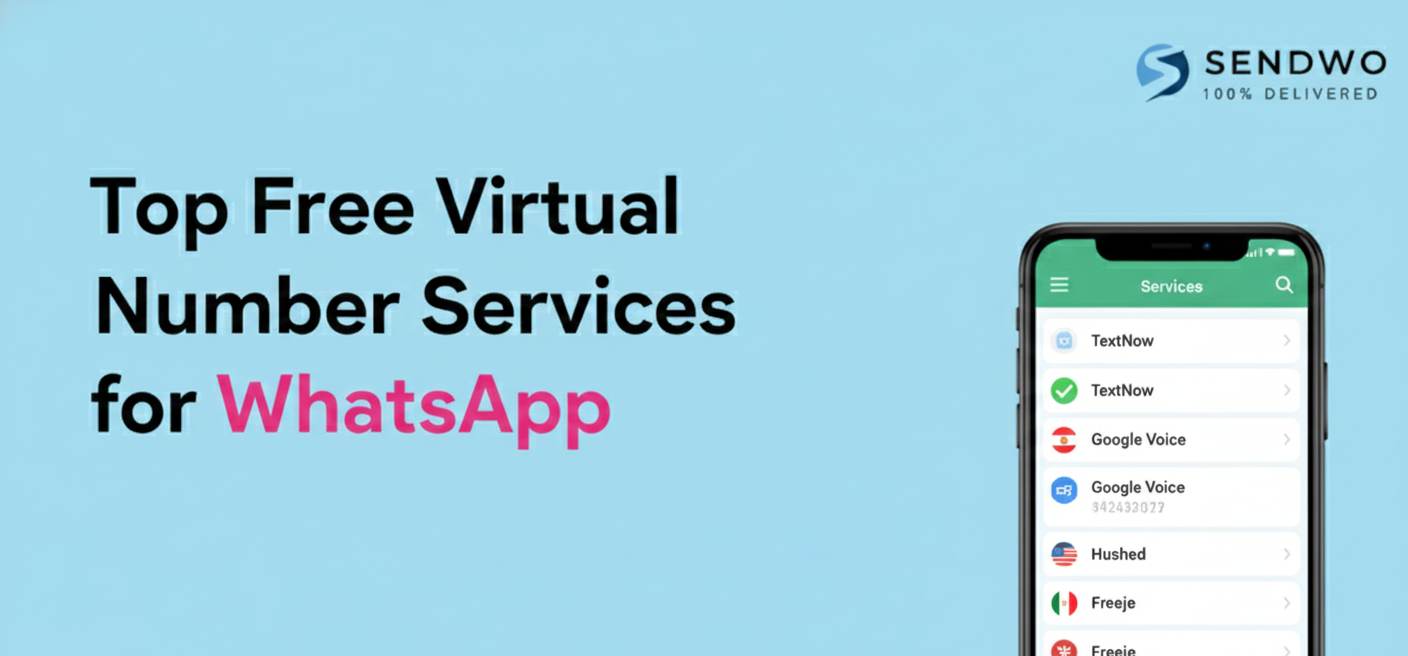
5. Top Free Virtual Number Services for WhatsApp
Many people ask “Which apps give Free Virtual Number for WhatsApp?”. Here are some popular options (mostly for U.S./Canada numbers):
We provide Virtual numbers for WhatsApp
Starting from $20per month [ Cost varies from country to country ]
Google Voice: Provides a free US phone number (you keep it long-term). Easy to use on PC or mobile. You may need a one-time existing number to sign up, but afterwards it’s free. Known to work with WhatsApp if you’re in the US.
TextNow: This app offers free U.S./Canadian numbers (ad-supported). It allows unlimited texting over Wi-Fi. Many users successfully verify WhatsApp with a TextNow number. Just keep the number active or risk losing it.
Talkatone: Another free voice/SMS app giving a US number. Also ad-supported. It works on Wi-Fi and can be used for WhatsApp setup.
Hushed (trial): Hushed provides disposable numbers from many countries. They often have a trial or low-cost plan for a number. Useful for short-term needs (e.g. testing).
Numero eSIM: As mentioned above, this app lets you earn a free U.S. number by collecting points. Once obtained, it acts like a regular phone line (for WhatsApp, calls, SMS).
Sobot (official API): Not free, but worth noting. If you need a business-grade solution, Sobot provides official WhatsApp Business API access and can supply numbers (with reliability and official certification) for enterprises.
Pros & Cons: Free numbers are great to start fast and cost nothing, but they have drawbacks. They may get reassigned if inactive, some may fail verification if heavily used, and many are limited to North America. For personal testing, they’re fine; but for long-term business use, consider paid or official options.
If a free US number isn’t available (or you’re outside US/Canada), you may need a paid virtual number provider. Services like Grizzly SMS, Twilio, or Plivo sell numbers from many countries, including India, UK, etc. These aren’t free, but they’re reliable and support WhatsApp verification. Often they offer “pay-as-you-go” pricing or packages. Some even sell in bulk for marketing.
6. Setting Up WhatsApp with a Virtual Number
Once you have a virtual number in hand, the WhatsApp setup is straightforward. Here’s the typical process:
Install WhatsApp: Download WhatsApp Messenger (or Business) on your device.
Enter Your Virtual Number: Open WhatsApp and when prompted for your number, choose the correct country and type in the virtual number. Double-check the country code!
Receive Verification Code: WhatsApp will attempt to send a 6-digit code via SMS or call. If it’s SMS, you need to check the virtual number’s SMS inbox (on the app or service website). If it’s a call, answer it through the service.
Retrieve the Code: Get the code from your virtual number provider’s app or portal. For example, Grizzly SMS instructs you to “go to the website… a notification will appear… Open and copy the confirmation code”.
Enter Code in WhatsApp: Type the code into WhatsApp. If correct, your WhatsApp account is now active on that number.
Complete Setup: Finish any profile details. If prompted for name or picture, enter as usual.
That’s it! You’re now using WhatsApp with a virtual number. Remember: if WhatsApp ever forces re-verification, you’ll need access to that number again to get a new code. For temporary numbers (some services expire them after one use), this means you might lose the account when the number deactivates.
Example: A Grizzly SMS guide walks through exactly this: first they buy a number, then “install the application or program… specify [the number]… the system notifies you about sending SMS… go to the website… the code appears… insert the code into WhatsApp.” It took only seconds. The same steps apply to almost any virtual number service.
7. SendWo: An Easy Solution for WhatsApp Numbers
If you need a hassle-Free Virtual Number for WhatsApp solution, especially for business campaigns, consider SendWo. SendWo is a complete WhatsApp marketing platform that already includes virtual numbers for verification and messaging. With SendWo you can create a free account and access bulk WhatsApp tools, and they even offer on-demand virtual numbers for account setup. As SendWo explains: “Sendwo provides on-demand virtual mobile numbers for bulk WhatsApp marketing that can be used to create WhatsApp accounts or to manage OTPs for authentication.”.
In practice, this means you don’t have to hunt down third-party apps or worry about expired free numbers. SendWo lets you add multiple WhatsApp numbers (even rotate them) to run campaigns, all through their cloud interface. If you want to test a WhatsApp number, verify an account, or launch large-scale messaging, SendWo has you covered with integrated virtual numbering, analytics, and compliance. (Tip: You can even start on SendWo’s Free Forever plan – no credit card – and upgrade only if you need more messages or numbers.)
Frequently Asked Questions
Q: Can I use a free virtual number for WhatsApp verification?
A: Yes, for US/Canada you can use free apps like Google Voice, TextNow, or TextPlus to get a number and receive the OTP, but these numbers can be region-limited, recycled, or expire; for serious or business use, a paid provider or a platform like Sendwo is more reliable.
Q: Is it legal to use a virtual phone number on WhatsApp?
A: Generally yes, as long as you respect WhatsApp’s Terms of Service and local telecom laws, and you don’t use the number for spam or illegal activity.
Q: How long do temporary WhatsApp numbers last?
A: Many “burner” numbers work only for 20–60 minutes (just long enough to get a code), while app-based numbers like TextNow can last longer but may be reclaimed if you stay inactive.
Q: Can I get an Indian free virtual number for WhatsApp?
A: Truly Indian Free Virtual Number for WhatsApp are extremely rare due to regulations; in most cases you’ll need a paid or enterprise solution, and tools like Sendwo can help with compliant WhatsApp Business numbers.
Q: Which is the best free app for a WhatsApp number?
A: For US/CA, Google Voice is strong if you qualify, while TextNow and Talkatone are easy to set up; outside these regions, you usually have to rely on trials or low-cost virtual number services rather than fully free options.
Q: How do I use multiple WhatsApp accounts?
A: Use a different (real or virtual) number for each account, then run them via clone apps or dual-app features on Android, separate devices/profiles on iPhone, or manage many numbers centrally with a platform like Sendwo.
Conclusion
Virtual numbers unlock new possibilities for WhatsApp – from safeguarding your personal number to enabling global marketing campaigns. We covered what virtual phone numbers are, why you might want one, and step-by-step how to get a free virtual number for WhatsApp. We also discussed India-specific rules, the pros and cons of free services, and even shared top providers.
Whether you’re testing WhatsApp bots, running side businesses, or engaging customers worldwide, virtual numbers can make it simpler. For a robust solution, consider SendWo, which bundles Free Virtual Number for WhatsApp with a full WhatsApp marketing suite. With SendWo’s free plan, you can start experimenting immediately, create new WhatsApp accounts on the fly, and send bulk messages without worrying about SIMs or numbers. After setting up your number, it’s important to understand message status indicators like what does double tick mean in WhatsApp to track communication effectively.
We provide Virtual numbers for WhatsApp
Starting from $20per month [ Cost varies from country to country ]
Imagine you're juggling multiple WhatsApp group chats – family, work, school, and maybe a hobby group – and important updates get lost in the noise. Now picture having one umbrella space that ties related groups together, making it easy to broadcast announcements and organize discussions by topic. That's exactly What is Communities in WhatsApp offers. Launched globally in late 2022, What is Communities in WhatsApp are a game-changing feature designed to streamline group conversations on WhatsApp. In this comprehensive guide, we'll explore what Communities in WhatsApp are, how they work, what is the use of community in WhatsApp, and how you can make the most of this feature. Let's dive in!
1. What is a WhatsApp Community?
What is Communities in WhatsApp “group of group chats” – a new feature that allows you to connect multiple related WhatsApp groups under one umbrella structure. This means What is Communities in WhatsApp can bring together separate group chat (for example, different class groups in a school or various teams in a company) into a single coordinated hub. Members can then easily switch between topic-specific sub-groups while also receiving broad announcements that go out to everyone in theWhat is Communities in WhatsApp.
2. How does it work?
When you create a Community, WhatsApp automatically creates an Announcement group for that community. This Announcement group is a one-way broadcast channel where only community admins can post messages to reach all members of the Community in one go. Meanwhile, the Community can contain multiple sub-groups for different topics or departments. For instance, a school Community might include separate groups for each classroom or grade, and a work Community might include groups for each project team. All these sub-groups live under the same Community banner, keeping related chats organized in one place
WhatsApp Communities were built with real-world group networks in mind. Think of a school principal using a Community to unite all the class group chats: parents and teachers can discuss in their respective class groups, while the principal posts school-wide announcements (like event dates or policy changes) in the Community Announcement group that reaches everyone. Similarly, neighborhood groups, volunteer organizations, sports clubs, or workplace teams can all benefit from a Community structure that keeps conversations focused yet interconnected.
Privacy and security are core to What is Communities in WhatsApp. Like all WhatsApp chats, Communities are end-to-end encrypted, so your messages and calls remain private – not even WhatsApp can read or listen to them. Additionally, your phone number is only visible to other members who share a group with you, not to every member of the Community at large. This means you can participate in a Community without exposing your number to people you don't interact with directly, a nice privacy upgrade over traditional large group chats
WhatsApp Communities let you connect related group chats in one place. A Community includes an admin-only Announcement group to broadcast updates to all members, and multiple sub-groups for different topics – members can easily switch between groups under the community umbrella.
3. How Do WhatsApp Communities Work? Key Features and Structure
Multiple Groups Under One Umbrella: A single WhatsApp Community can contain many group chats (sub-groups) centered around different topics or purposes. You can either create new groups or add existing group chats into a Community. For example, a company’s Community might include groups like “Marketing Team”, “Engineering Updates”, and “All-Staff Social”. All these sub-groups are listed within the Community, making it easy for members to find and join the conversations relevant to them.
Announcement Group: Every Community comes with a special Announcement group that all members are part of by default. This group is marked with a ? (speaker) icon and is used for one-to-many broadcasts. Only community admins can send messages in the Announcement group, which is perfect for important news, alerts, or updates that everyone in the Community. Regular members cannot chat back in this particular group, which keeps it uncluttered – think of it like a newsletter or bulletin board for the whole Community. (Recent update: WhatsApp now even allows members to reply to announcements in a structured thread format, so admins can get feedback without turning the announcement feed into a chaotic chat.)
Admin and Member Roles: In Communities, admins have enhanced powers to manage the space. Community admins can add or remove groups, invite or remove members, and send announcements to everyone. They also moderate content – for instance, they can delete inappropriate message across the Community groups if needed. A Community can have multiple admins (up to 20 admins can share management duties)eazybe.com, making it easier to handle large communities. Members, on the other hand, participate in the sub-group chats, can react to messages or vote in polls, but cannot post in the Announcement channel or make structural changes. Members are free to exit a Community silently (without notifying everyone) whenever they want, just as they could leave a regular group.
Capacity and Size Limits: What is Communities in WhatsApp are built for large-scale communication, but there are still limits to keep things manageable. As of the latest updates, a single Community can include up to 100 sub-groups and can have up to 2,000 members in total (i.e. the Announcement group can broadcast to 2,000 people at once). Each sub-group within the Community can host up to 1,024 members, which is the current limit for a normal WhatsApp group. These numbers are huge compared to old WhatsApp groups (which were once limited to 256 members). With Communities, you could theoretically organize and reach thousands of people across various sub-groups..) Also, community invites are private – Communities aren't publicly discoverable in-app, so you join via an invite link or being added by an admin, keeping membership controlled.
New Group Features: Alongside what is Communities in WhatsApp, WhatsApp rolled out several new features to enhance group interactions. These apply to groups (especially within Communities) to improve large discussions. Notable features include: Emoji reactions to messages (so you can quickly ? or ❤️ a message instead of typing a new reply), in-chat polls that let admins or members vote and gauge opinions in real time (great for deciding meeting times or making group decisions), large voice calls supporting up to 32 people on a single call (useful for community-wide meetings or hangouts), and file sharing up to 2 GB so large documents or media can be sent without hassle. These tools make managing a community easier and more interactive. In fact, in May 2024 WhatsApp introduced Event creation (letting you schedule events in a group and see RSVPs) specifically in Community groups, further helping organize real-life meetups or virtual events. All these improvements raise the bar for what you can do in WhatsApp group chats and Communities.
Privacy & Moderation: What is Communities in WhatsApp were designed with privacy in mind. All messages are end-to-end encrypted, ensuring only participants can read them. Additionally, phone number of members are not exposed to the entire Community – you only see the phone number of someone who is in a same sub-group as you or if you are both community admins. This prevents harvesting of member contact info and adds a layer of confidentiality in large communities. Admins also have moderation tools to keep the Community safe: they can remove problematic messages (for everyone), eject members who violate rules, and even downgrade other admins if necessary to maintain a healthy environment. Members can report abuse or block others just like in regular chats. Overall, Communities give admins control to ensure things stay spam-free and respectful, while members have control over their participation (they can leave quietly or mute the announcement notifications if needed).
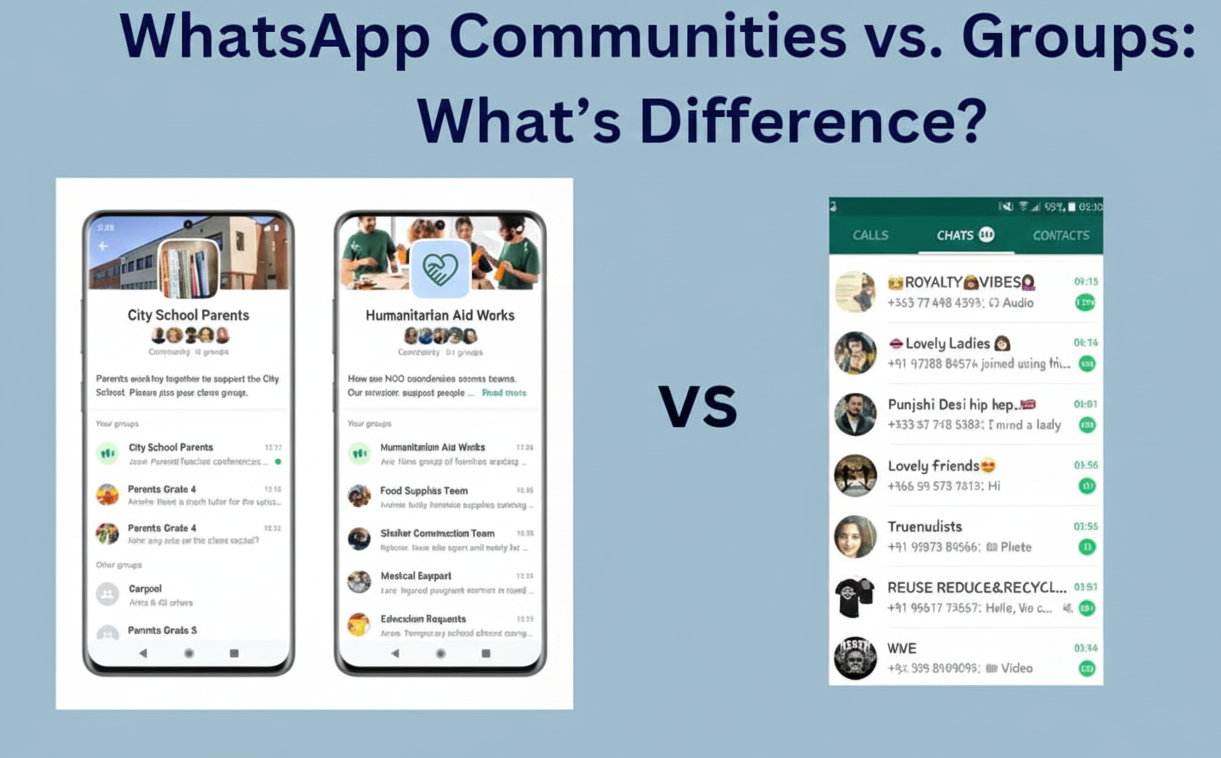
4. WhatsApp Communities vs. Groups: What's the Difference?
You might be wondering how Communities differ from the regular WhatsApp group chats you're used to. Here’s a quick breakdown of WhatsApp Communities vs WhatsApp Groups and what sets them apart:
Structure: A Group is a single chat room for people to message each other. A Community, on the other hand, is like a folder of multiple group chats. It organizes several related groups under one umbrella with an Announcement channel tying them together. Think of a Community as the whole house and groups as the individual rooms inside it.
Communication Flow: In a standard group, every member can send messages and everyone sees them in one continuous chat thread. In a Community, most conversations happen in the various sub-group chats (where members interact freely), plus there's the Announcement group for one-way broadcasts to all members. This two-layer system means what is Communities in WhatsApp can support both broad announcements (without chatter interrupting them) and smaller focused discussions in parallel.
Member Capacity: WhatsApp Groups currently support up to 1,024 members in one chat. What is Communities in WhatsApp massively expand the reach: you can have several groups each up to 1,024 members, and up to 2,000 unique members in the overall Community network. In practical terms, a Community could connect a lot more people than a single group by splitting them into sub-groups. For example, a Community could include 10 groups of 200 members each, all under one umbrella, easily surpassing the old group size limits while keeping discussions segmented by topic.
Admin Control and Roles: Group admins manage one chat; Community admins oversee an entire ecosystem of groups. Communities allow multiple admins (up to 20) and give them tools to manage all included groups centrally (adding/removing groups, controlling membership, posting announcements). Regular groups have admins too, but their scope is limited to that single group. Also, members in Communities can leave without alerting everyone – in a normal group, WhatsApp posts a system message when someone leaves, but exits from a Community are silent, avoiding any awkwardness.
Discovery & Joining: Many WhatsApp groups can be joined via shareable links and some are even semi-public. Communities are more private – they are not searchable within WhatsApp and you can only join via an invite from a Community admin or by being added. This keeps What is Communities in WhatsAppmore closed and controlled, which is ideal for organizations or schools that don't want random people stumbling in. It also means if you're looking to market or broadcast to unknown audiences, Communities might not be the tool (a broadcast list or WhatsApp Channel might suit that use-case better).
Information Overload: In large group chats, it’s easy to feel overwhelmed by hundreds of messages on all sorts of topics. What is Communities in WhatsApp tackle this by organizing conversations into sub-groups. Members can choose which sub-groups to join based on their interest or role, rather than being flooded by everything. The Announcement group ensures important info stands out by keeping it separate from chatter. This structure reduces information overload significantly – for example, a community member can pay attention to just the announcements and the few sub-groups they care about, instead of muting a busy all-purpose group or sifting through off-topic messages.
In summary, WhatsApp Groups are great for small-scale collaboration and casual chats, but Communities are built for managing larger networks of people with multiple discussion threads, all while keeping those discussions organized and everybody in the loop on key announcements. If you find your group chats outgrowing themselves or branching into different topics, it might be time to create a Community.
5. What Is the Use of Community in WhatsApp? (Benefits and Use Cases)
Why did WhatsApp introduce Communities, and who are they for? created to help people stay organized and connected when they have lots of related conversations. Here are some of the key uses and benefits of WhatsApp Communities:
Organized Communication: The primary use of a Community is to organize group conversations by topic or category. This is hugely beneficial for schools, clubs, and organizations. For example, a school can have one Community for all parents and teachers, subdivided into classes, extracurricular groups, etc. No more giant all-school chats where important messages get buried; instead, each class has its own group, and school-wide notices go in the announcement channel where everyone sees them . It's easier to find information because it's sorted by context.
Broadcast Important Updates Efficiently: Communities shine when you need to send announcements to a large audience. Community admins can post in the Announcement group and instantly notify everyone in all the sub-groups. This is great for urgent alerts (think: a weather cancellation for all sports team groups in a league, or a CEO’s message to all departments in a company). Unlike normal groups, the message won't get lost in chatter – it's right there in the announcements feed. As a bonus, recent updates now allow members to reply to these announcements in an organized thread, so admins can get feedback or answer questions without derailing the main news feed.
Focused Group Discussions: Community members can join only the sub-groups that matter to them, which keeps their chats relevant. In a neighborhood Community, for instance, you might have separate groups for general discussions, local events, and security alerts. Residents who only care about security can stick to that group and check announcements, rather than being spammed by every neighborhood chat. Communities help prevent information overload by segmenting topics, yet still linking everyone together when needed.
Enhanced Collaboration Tools: Communities come with all the new WhatsApp features that aid collaboration – polls for gathering opinions, large voice/video calls for meetings, and file sharing for documents. This makes WhatsApp a more powerful platform for teamwork or group coordination. A volunteer group Community could run a poll to choose a charity event date, share PDFs of plans, and hop on a 20-person call – all within WhatsApp, all within their Community.
Use Cases for Businesses: Businesses and brands are also exploring Communities to engage with their audience in a structured way. For example, a small business could create a Community for VIP customers: sub-groups for product discussion, feedback, and support, with an announcements channel for new product drops or exclusive offers. This creates a brand community where loyal customers feel a sense of belonging and get insider updates. (Since Communities are invite-only, a brand could invite select customers to join for an exclusive feel.) For internal use, companies can use Communities to organize teams and departments – it’s like a mini intranet on WhatsApp. In fact, WhatsApp designed Communities with organizations in mind, so that teams, clubs, and workplaces could coordinate better while keeping conversations secure.
Better Moderation and Safety: From a use-case perspective, Communities are useful for those who need to manage large groups with control and safety. Community admins can ensure rules are followed across all sub-groups – they can broadcast community guidelines in the Announcement group, quickly remove any harmful content, and oversee the tone of discussions. This is ideal for youth groups, advocacy networks, or any community where maintaining a respectful environment is important. Everyone in a Community knows there's an admin presence across all chats, which can deter spam or misconduct. And if someone does act out, they can be removed from the entire Community in one step, rather than hunting through each group.
Examples in Action: To make it more concrete, let's look at a couple of scenarios:
Neighborhood Watch: A neighborhood forms a WhatsApp Community to improve communication. They have one Announcement group for community-wide alerts (like "Suspicious activity reported on Elm Street"), and sub-groups for General Chat, Pet Owners, Local Events, and Emergency Response. Neighbors join the ones relevant to them. When a storm hits, the admins post updates and safety tips in Announcements (reaching everyone), while the General Chat buzzes with folks checking on each other. The Emergency Response group organizes help for anyone in trouble. This Community keeps the neighborhood tightly informed and connected, far better than a single chaotic group chat or dozens of disjointed ones.
Company Internal Communications: A mid-sized company adopts What is Communities in WhatsApp to replace some email chains. They create a Community for all employees. Within it are groups like HR & Announcements (an Announcement group for HR notices and company news), Team Discussions (each department like Marketing, Sales, Engineering has its own group), and Social & Fun (an optional group for off-topic chat and bonding). Now, when the CEO or HR needs to announce a policy update or an all-hands meeting, it goes in the Announcement channel – employees see it without HR having to send mass individual messages. Teams coordinate in their own chats, but if someone has a question about the announcement, they can reply to it (thanks to the new reply-to-announcement feature) or ask in their team group. The result: communication is streamlined, and employees don't miss important info in an overflowing all-company chat.
In essence, the use of What is Communities in WhatsAppis to create a more organized, scalable, and engaging way to connect people who share a common affiliation or interest. Whether you're a community leader trying to rally members, a business aiming to engage customers, or just someone tired of managing dozens of separate group chats, Communities provide a centralized solution. They combine the intimacy of group messaging with the reach of broadcasting, all while keeping things tidy and secure.
6. How to Create a WhatsApp Community (Step by Step)
Setting up a WhatsApp Community is straightforward and can be done from your mobile app (Android or iOS) or even WhatsApp Web/Desktop. If you've used WhatsApp groups, you'll find this pretty easy. Here's how to get started:
Open WhatsApp and Go to the Communities tab: On Android, tap the new Communities icon at the top of your Chats screen. On iPhone, the Communities tab appears at the bottom of the app. Click that to enter the Communities section.
Start a New Community: Tap “New Community” (it might also show as Start Your Community). WhatsApp will prompt you to set up your community. Enter a Community name, add a description that explains the purpose of your community, and set a profile photo or icon that represents it. (Tip: Choose a clear name and image, since all members will see these and it sets the tone.)
Create or Add Groups: After the basic info, WhatsApp will ask you to add groups to your Community. You have two choices:
Create New Groups: You can make a brand-new subgroup on the spot (for example, "Project A Team" or "Grade 10 Parents"). You'll be asked to name the group and add members to it just like creating a normal WhatsApp group.
Add Existing Groups: Alternatively, you can pull in some of your existing group chats (perhaps you already have a few related groups that you want to unite). Note: You must be an admin of an existing group to add it to a Community; you can't add groups where you're just a member and not admin. You can add up to 100 groups into one Community (more than enough for most uses!). You can also skip adding groups for now and do it later – but a Community isn't very useful until it has at least one subgroup for people to chat in.
Finalize and Launch: Once you've added one or more groups (new or existing), tap the checkmark or Create button. WhatsApp will create your Community and automatically generate the Announcement group for it. By default, anyone who was in the groups you added will receive an invitation to join the new Community. When they accept, they'll be part of the Community and in the Announcement channel.
Invite Members: You can invite more people to the Community by using the Invite link or QR code that WhatsApp provides for your Community. This link will invite people to join the Community (and typically you might assign them to relevant sub-groups once they're in). Remember, people have to join the Community first to see its sub-groups and announcements. You can share this invite link privately – since communities are invite-only, you might post it in an email to your organization or send directly to contacts.
Manage Your Community: As the Community admin, you can now manage it through the Community settings. You can add or remove sub-groups, appoint other admins, and moderate content. It’s a good idea to set some community guidelines and share them in the Announcement group (for example, no spamming, respect others, etc.). All community admins can post in Announcements and manage the Community info. Regular group admins (of sub-groups) can continue to manage their individual groups, but they won't automatically have rights to manage the whole Community unless you promote them to Community admin.
Engage and Enjoy: Now that your Community is live, encourage members to explore the sub-groups that interest them. They can tap the Community name and see a list of all groups under it, and join those groups if they want. As an admin, you can send out a welcome message in the Announcement group to introduce the Community's purpose and maybe highlight which sub-groups are available. Going forward, post announcements for key updates, and keep an eye on group chats to ensure everything runs smoothly. Communities can grow large, so having a few co-admins (for different time zones or areas of responsibility) can be helpful.
Managing and Moderation Tips: Running a big Community might seem daunting, but WhatsApp gives you tools to simplify it. For example, all Community members will see an Announcement group message, so you don't need to repeat info in each group – a single announcement does the job. If a subgroup chat gets too noisy or off-topic, consider creating another subgroup for that topic or reminding members of the community rules. Members can always mute busy groups or just leave ones that aren't relevant to them, so encourage people to customize their notifications to avoid overwhelm. As an admin, you can also remove any group from the Community if it's no longer needed or merge groups if appropriate. Keep the Community purpose clear and the structure well-organized, and you'll find it's much easier to handle than dozens of unconnected groups.
7. Conclusion of What is Communities in WhatsApp
What is Communities in WhatsApp are transforming the way we connect in groups by making large-scale communication more organized, efficient, and engaging. This feature takes the best parts of group chat – real-time discussion, personal connection – and scales it up with structure and admin tools to keep everything coherent. If you frequently coordinate information among a big group of people (be it a business, community organization, classroom, or fan club), WhatsApp Communities could be a game-changer for you. It's like having your own private social network within WhatsApp, tailored to your group's needs and interests.
The best part is how easy and user-friendly What is Communities in WhatsApp are. They live right inside the WhatsApp app everyone already knows, lowering the barrier for members to join and participate. No new app to download, no complex setup – it’s an extension of WhatsApp's familiar interface. This means your Community members will likely adapt quickly and appreciate having a central hub for all related chats.
So, what are you waiting for? Now that you know What is Communities in WhatsApp are and how to use them, you can start one for your group and take your communication to the next level. Whether you're uniting your customers, organizing a local initiative, or just tired of managing disjointed group chats, give Communities a try. Start by creating your own WhatsApp Community today and invite your core groups to join. It's free, secure, and could save you a lot of headaches in managing conversations.
(Call to Action) ? Ready to supercharge your WhatsApp communication? If you're a business or community leader looking to get the most out of WhatsApp, consider using tools like SendWo alongside What is Communities in WhatsApp. SendWo offers powerful WhatsApp marketing and automation features that complement What is Communities in WhatsApp – helping you broadcast messages, set up chatbots, and manage customer interactions at scale. Combine the structure of WhatsApp Communities with SendWo’s capabilities to create an unbeatable engagement strategy. Get started now and watch your community thrive on WhatsApp!
(FAQ)
Q: What is a WhatsApp Community?
A: A WhatsApp Community links multiple related groups under one umbrella with an Announcement group for all members and sub-groups for specific topics.
Q: How is it different from a regular group?
A: Communities have up to 2,000 members across many groups, an Announcement channel for admins, segmented conversations, and enhanced privacy with invite-only access.
Q: Who can create a Community?
A: Anyone with the updated regular WhatsApp app can create one; Business app users cannot. Groups added must be admin-controlled.
Q: How many can join?
A: Up to 2,000 members total. Sub-groups can hold 1,024 members each, with multiple groups under one Community.
Q: Are Communities safe?
A: Yes, all chats are end-to-end encrypted, phone numbers are limited to subgroup members, and admins can moderate content.
Q: Can members reply to announcements?
A: Yes, replies are organized separately so discussion doesn’t clutter announcements, with muted notifications by default.
Q: What if someone leaves?
A: Leaving the Announcement group means leaving the whole Community quietly, removing access to its groups; only admins know who left.
In today’s fast-paced world, timing is everything in communication. Imagine sending birthday wishes at midnight or launching a marketing campaign exactly at 9 AM without being awake. WhatsApp – with over 3 billion active users globally and an astounding ~98% open rate is a powerful channel for personal and business messaging. Yet, WhatsApp does not natively let you schedule messages. Fortunately, there are workarounds and tools that make scheduling possible, saving you time and boosting engagement. In this guide, we’ll explain why scheduling WhatsApp messages matters, cover How to Schedule Messages on WhatsApp on various platforms, and show how businesses can use official tools like SendWo to plan broadcasts. Read on to automate your outreach and stay organized.
1. Why Schedule WhatsApp Messages?
How to Schedule Messages on WhatsApp offers big benefits for both individuals and businesses:
Save time: Automated messaging frees up hours. Companies that use scheduling and automation recover about 20–30% of employee work time. Rather than manually sending the same update hundreds of times, you can set it once.
Higher engagement: Sending messages at optimal times boosts response rates. For example, messages sent in the evening (8 PM–midnight) have about 20% higher engagement than midday posts. Timed messages meet customers when they are most attentive.
Meet customer expectations: Studies show 85% of consumers prefer proactive WhatsApp updates from brands, and 75% expect 24/7 responsiveness. How to Schedule Messages on WhatsApp (like auto-replies or follow-ups) help maintain constant communication and customer satisfaction.
Better conversions: One report found businesses using scheduled WhatsApp campaigns saw about 32% more conversions than those sending messages manually. Reaching people at the right moment can directly impact sales and leads.
Global reach and consistency: How to Schedule Messages on WhatsApp lets you send messages in customers’ local time zones, ensuring a global audience is covered. It also ensures brand messaging is consistent and timely, regardless of staff availability
High open rates: WhatsApp messages see roughly 98% open rate – far above email’s ~21%. This means your scheduled WhatsApp alerts or offers are very likely to be seen.
By planning ahead, you can engage contacts efficiently and free your team to focus on high-value tasks. In short, automated, well-timed WhatsApp messages boost productivity and keep customers happy.
2. Can You Schedule WhatsApp Messages Natively?
Short answer: No built-in scheduler in WhatsApp. Neither the regular WhatsApp app nor the WhatsApp Business app has a “send later” button for arbitrary messages. However, that doesn’t mean scheduling is impossible. Users have devised two main workarounds
Personal use (manual solutions): Individuals can use third-party tools or smartphone features. For example, Android apps like SKEDit or Wasender can automate sending texts at a set time. iOS users can use Apple’s Shortcuts app to build an automation that sends a WhatsApp message at a scheduled time.
Business use (official tools): Businesses and professionals can use the WhatsApp Business App and the WhatsApp Business API for automation. The Business app has an “Away message” scheduler (to auto-reply outside office hours). More powerfully, the Business API (through a service like SendWo) lets you schedule broadcasts and reminders in advance So while WhatsApp doesn’t offer native scheduling, how to Schedule Messages on WhatsApp texts with assistance – either via your phone’s apps or by using official marketing tools. In the next sections, we’ll explore each method in detail.
3. How to Schedule Messages on WhatsApp (Away Messages)
If you use the WhatsApp Business app, how to Schedule Messages on WhatsApp are limited auto-replies using the “Away message” feature. This is primarily intended for letting customers know you’re offline (for example, outside business hours). Here’s how it works:
Install and set up WhatsApp Business: Download WhatsApp Business from the Google Play Store (Android) or App Store (iOS). Register your number and complete your profile.
Access Business Tools: In the app, tap the three-dot menu (Android) or settings (iOS), then choose Business tools.
Enable Away Message: Select “Away message”, then turn on the toggle to send away messages automatically.
Schedule the Away Message: Tap the schedule option. You can set it to send outside business hours, or define a custom schedule. Write your message (for example: “Thank you for contacting us! We’ll get back to you soon.”) and save.
Add Recipients (Optional): You can choose to send the away message to all customers or only a custom list. Once configured, WhatsApp Business will automatically send your “away” text during your chosen hours. This is not the same as sending a one-off promotional message, but it is useful for scheduling generic replies.
Key point: The Business app’s scheduling is limited to these automated replies. You cannot schedule a one-time marketing message or chat reply at a future date in the app. For that, you need other methods (see below).
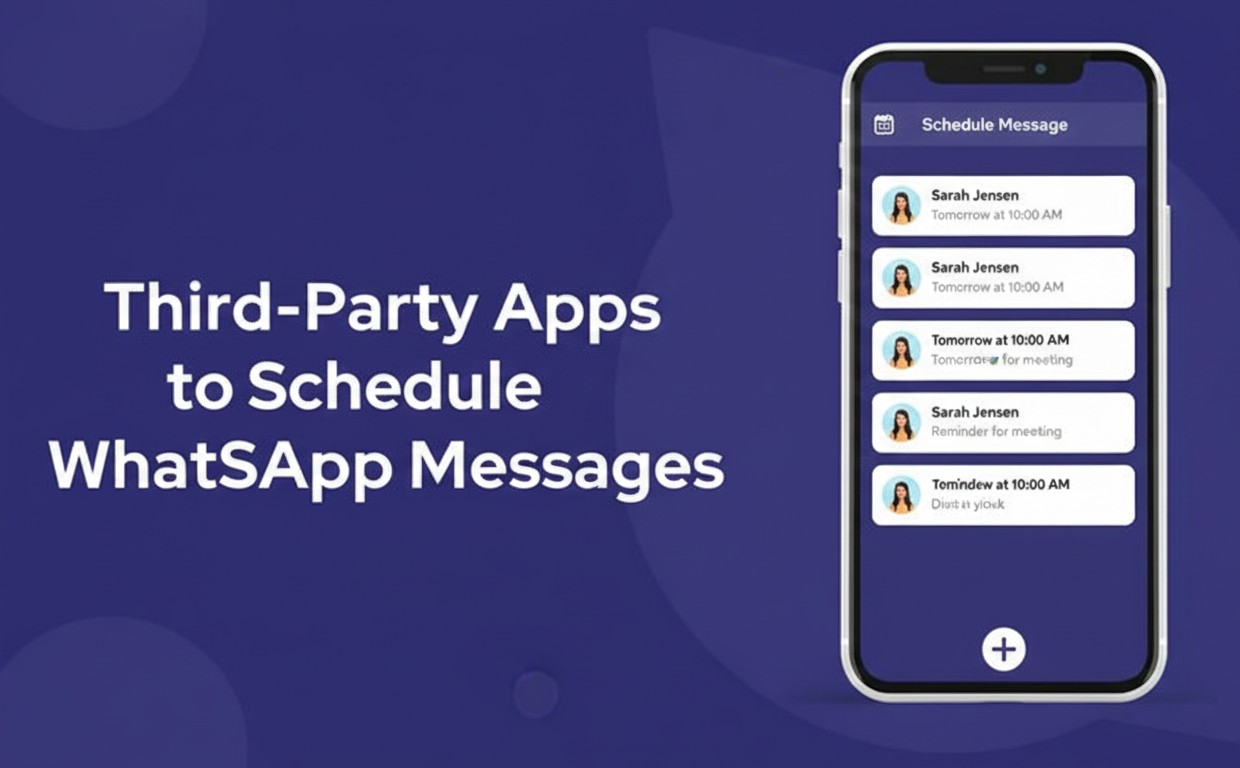
4. Third-Party Apps to Schedule WhatsApp Messages
For personal and small-business users, third-party apps can fill the gap. These apps run on your phone and simulate sending at the scheduled time with how to Schedule Messages on WhatsApp.
Be aware: using such apps usually requires granting special permissions (accessibility) and can have privacy or battery implications. Use them carefully.
Android Apps (e.g. SKEDit)
On Android, popular schedulers include SKEDit and Wasender. For example, SKEDit lets you automate WhatsApp (as well as SMS, emails, calls). Here’s a quick overview of using SKEDit
Download SKEDit: Install SKEDit – Schedule WhatsApp, SMS & Call from Google Play
Set up permissions: Open SKEDit and sign up. Grant Accessibility permission to SKED it so it can trigger WhatsApp for you.
Create a Schedule: In SKEDit, tap the plus icon and choose WhatsApp. Select the contact you want to message. Type your message and set the date/time to send. You can also enable “Ask me before sending” if you want a reminder just before it goes out.
Save the schedule: SKEDit will then automatically open WhatsApp and send the message at the right time. (Note: if you disable the “ask me” alert, SKEDit may require turning off your phone’s lock screen and power-saving features, which raises privacy/security concerns.). Other Android scheduling apps work similarly. They queue your message and launch WhatsApp when the time comes.
iPhone (iOS) with Shortcuts
Apple’s Shortcuts app can automate messages on a schedule. While not officially a “WhatsApp feature,” here’s a general approach:
Install Shortcuts: Ensure Apple’s Shortcuts app is on your iPhone (free on the App Store)
Create Automation: In Shortcuts, go to the Automation tab and tap “Create Personal Automation.” Choose Time of Day and set when you want the message sent (e.g. 9:00 AM tomorrow). Add WhatsApp Action: Tap Add Action, search for “Send Message via WhatsApp”. If needed, first create a Text action and enter your message text. Then add “Send Message through WhatsApp”, select the recipient(s).
Save and Run: Finish the automation and save. At the scheduled time, Shortcuts will run and open WhatsApp with the message ready. (Note: You’ll usually have to tap “Send” manually or confirm, due to iOS restrictions.). This method doesn’t fully auto-send without any touch (Apple locks down the last step). But it does queue a WhatsApp message at your chosen time.
Caveats: These phone-based solutions can be finicky. They may break if your device restarts, or if permissions change. And because they often require disabling locks or battery optimizations (see SKEDit), they are best for one-off needs, not large campaigns.
5. Scheduling via WhatsApp Business API and Tools
For serious business use, the most reliable way is to use the WhatsApp Business API through a platform like SendWo. These official tools are designed for bulk messaging and include scheduling, templates, analytics, and compliance safeguards. Here’s how the process typically works:
Connect Your WhatsApp Business API number: Sign up on a WhatsApp API platform (e.g. SendWo) and complete verification. You’ll link your business number via the API (official onboarding forms make this easy)
Create and Submit Templates: WhatsApp requires pre-approved message templates for outbound communications. In SendWo, you can draft a message (with buttons, media links, etc.) and submit it for Meta’s approval
Import Contacts: Upload your contact list (CSV file or via integration) into SendWo, segmenting as needed. Ensure all recipients have opted in to receive your messages.
Schedule Your Broadcast: In the SendWo dashboard, choose your approved template and contact list, then pick “Schedule.” Set the date/time for sending. You can also send immediately or save it for later.
Send & Analyze: At the scheduled time, SendWo will automatically dispatch the messages via the WhatsApp API. Afterward, check SendWo’s analytics dashboard for delivery and engagement stats.
Using SendWo (or similar tools) has big advantages: compliance and scale. Because SendWo is built on WhatsApp’s Business API, it won’t get your number banned as long as you follow rules. You can schedule large campaigns (thousands of messages) days in advance and track every send. In fact, SendWo explicitly lets you “schedule WhatsApp campaigns in advance” so your messages go out without you needing to be online
Steps at a Glance: To recap, here’s a simplified setup using SendWo
Schedule your message and let SendWo broadcast it for you.
This approach is ideal for businesses running marketing blasts, order updates, event reminders, etc. It frees you from timing issues and ensures every customer gets their message exactly when planned.
6. Best Practices for Scheduled WhatsApp Messages
To make your scheduling strategy effective and customer-friendly, follow these best practices:
Respect local time zones: How to Schedule Messages on WhatsApp in your recipients’ local time. Avoid middle-of-the-night sends (typically stick between 8 AM and 9 PM local time)
Personalize content: Use dynamic fields (names, order details, etc.) in your templates. Personalized messages have up to 41% higher engagement. Tailoring content shows you value each recipient.
Segment your audience: Don’t blast everyone the same message. Schedule different broadcasts for different groups (new customers, loyal clients, etc.) at the most relevant times for each.
Test and iterate: A/B test send times. Try sending some messages on weekday mornings and others on evenings to see what yields better open/reply rates. Use SendWo’s analytics to learn and refine your schedule.
Avoid over-messaging: Even if you can send 24/7, don’t spam. Maintain a reasonable frequency. Quality and relevance trump quantity. As Gallabox points out, scheduling is powerful only if messages stay helpful and desired
Compliance first: Only message people who have opted in. Follow WhatsApp’s policies closely. Authorized API tools like SendWo ensure you use approved templates and honor consent, keeping you compliant
Set up fallbacks: Combine scheduling with auto-responders. For example, if someone replies to a scheduled message, an autoresponder or chatbot flow can handle common replies immediately, improving customer experience
By following these guidelines, your scheduled outreach will feel timely and professional, rather than robotic or intrusive.
(FAQs)
Q: Can I schedule WhatsApp messages on my phone?
A: WhatsApp has no built‑in scheduler. On Android you can use apps like SKEDit, and on iPhone you can use Apple Shortcuts to trigger messages at a set time.
Q: How to Schedule Messages on WhatsApp Business app?
A: You can only schedule “Away messages” during non‑business hours from Business tools → Away message. For real scheduling and broadcasts, you need an external tool or WhatsApp Business API.
Q: Which Android apps can schedule WhatsApp messages?
A: Popular options are SKEDit, Wasender, and Do It Later; they let you draft a message, pick contacts, set date/time, and send automatically, but need special permissions like Accessibility.
Q: Can I schedule WhatsApp messages on iPhone?
A: Yes, using the Shortcuts app with a time‑based automation that prepares a WhatsApp message; often you must confirm or tap Send at the scheduled time.
Q: What is the best tool to schedule WhatsApp messages?
A: For business use, an official WhatsApp API platform like SendWo is best, as it supports scheduled campaigns, contact management, and chatbots with compliant messaging and transparent WhatsApp fees.
Finding your WhatsApp Unban Request Message unexpectedly can be alarming. Millions of people rely on WhatsApp daily, and being locked out disrupts everything. With WhatsApp cracking down hard on misuse (for example, 92.3 million Indian accounts were banned in 2024 for policy abuse, and 6.8 million scam-linked accounts globally were removed in the first half of 2025), it’s important to understand why bans happen and how to appeal them. This guide explains the ban process, how to draft an effective WhatsApp Unban Request Message, and steps to take so you regain access. We’ll also share tips to avoid bans in the future (especially for businesses using SendWo’s WhatsApp API).
1. Why Your WhatsApp Account Might Be Banned
WhatsApp uses automated systems and user reports to enforce its rules. Common causes of bans include sending spam or unsolicited marketing messages, using unofficial modified apps, or violating the Terms of Service. Here are the top reasons accounts get locked:
Sending Spam or Bulk Messages: Blasting unsolicited offers or mass marketing to random number triggers spam filters
Using Third-Party/Modified Apps: Apps like GBWhatsApp or bots often violate WhatsApp’s security, so their use leads to bans
Automated Messaging or Scraping: Sending repetitive auto-messages or scraping group/contact data is detected as abuse
Too Many Groups or Messages: Inviting lots of unknown people to groups or sending extremely high volumes in a short time looks suspicious
Breaking Terms of Service: Any violation of the official rules – like hate speech, illegal content, or data misuse – can get your account suspended
Impersonation or Malicious Content: Posing as someone else, sharing malware or scams, or links to harmful sites will trigger a ban
High Number of Reports/Blocks: If many users block or report your account in a short period, WhatsApp may flag you as a nuisance
These systems are strict. For example, an average of 250,000 Indian accounts were banned every day in 2024. If even a few recipients report or block you, it can snowball into a ban. Always follow WhatsApp’s policies to avoid getting flagged.
2. What Happens When You’re Banned
If WhatsApp bans your number, you’ll see an in-app message like “This account is not allowed to use WhatsApp”or “This account is temporarily banned.” The app will usually not let you send or receive any messages until the ban is lifted. Bans come in two types:
Temporary Ban: Lasts a few hours to a couple of days. Often issued for moderate violations (e.g. minor spam or using an unofficial app briefly). A countdown timer may even appear. Once time is up, the account typically unlocks automatically.
Permanent Ban: Result of serious or repeated violations (like confirmed scams or repeat policy abuse). These bans are harder to reverse. WhatsApp states that permanent bans usually cannot be reversed if the violation is severe.
When banned, WhatsApp expects you to request an appeal if you think it was a mistake. The fastest way is via the app itself. On the ban screen, tap “Request Review” or “Contact Us”, and write an appeal. WhatsApp will ask you to provide details. Alternatively, you can email or submit a form on their website (see steps below). Keep in mind: approval is not guaranteed. In fact, only a tiny fraction of appeals succeed. One report found that in January 2025 only 111 out of 4,212 ban appeals were accepted (about 1 successful appeal per 37). But a well-crafted WhatsApp Unban Request Message is your best shot.
Above: WhatsApp’s ban screen and review flow. Initially you see “This account is not allowed to use WhatsApp.” Tapping “WhatsApp Unban Request Message Review” lets you submit an appeal. If granted, you’ll eventually see “Your account has been restored.”
3. Steps to Take Immediately After a Ban
If you’re banned, follow these official steps:
Review the Ban Notice: When the banned message appears, read any details. It might hint at why you were flagged (e.g. spam, third-party app). This can guide your response.
Switch to the Official App: If you were using an unofficial client or modded app, uninstall it and reinstall the official WhatsApp from Google Play or App Store. This ensures you can use “WhatsApp Unban Request Message Review” or re-register if needed.
Submit In-App Review: On the ban screen, tap “WhatsApp Unban Request Message Review” (or “Support/Contact Us”). In the message box, write a clear appeal explaining your situation (more on wording below).
Contact WhatsApp Support: If the in-app option isn’t visible or you prefer email, write to support@whatsapp.com (for Android) or iphone-support@whatsapp.com (for iPhone) from the email tied to your number. You can also use WhatsApp’s online contact form.
Wait Patiently for a Reply: WhatsApp advises waiting at least 24–72 hours for a response. Don’t flood them with repeated messages – multiple appeals can slow things down. Check your email (including spam folder) and WhatsApp for updates.
4. Crafting Your WhatsApp Unban Request Message
Writing a polite, clear unban message is crucial. Support agents review thousands of WhatsApp Unban Request Message, so stand out by being respectful and concise. Follow these best practices
Be Respectful and Professional:Open courteously (e.g. “Dear WhatsApp Support Team,”). Avoid any blame or anger, even if you’re frustrated. A polite tone can greatly improve your chances.
Identify Your Account: Include your full phone number (with country code) and account name if relevant. For example: “My number is +1 234-567-8901.” This helps them immediately find your profile.
Explain Briefly: Clearly state what happened or what you think caused the ban. If it was a mistake, say so (e.g. “I was wrongly flagged”). If you did violate a rule, admit it and promise it won’t happen again. Honesty and responsibility go a long way.
Keep It Concise: Support staff are busy. Write a short message (a few sentences or a short paragraph) that gets to the point. Long, complicated letters may be skimmed or ignored.
Use Official Language: Mention that you will abide by the rules. For example: “I will only use the official app and comply with all WhatsApp policies going forward.” This shows willingness to follow guidelines.
Proofread: Check for clarity and spelling. A well-written message reflects your seriousness.
Submit Through Official Channels: Only send your appeal via WhatsApp’s in-app “WhatsApp Unban Request MessageReview” or the official support email/form. Avoid any third-party appeal services – they are scams.
Example Message:
Dear WhatsApp Support Team,
My WhatsApp number +1 234-567-8901 was recently banned. I believe this may be a mistake, as I always use the official app and did not send spam. I rely on WhatsApp for work and personal messages. Please review my account and let me know how I can restore access. I will make sure to follow all guidelines going forward.
Thank you for your time and help.
This sample is polite, includes the number, and promises compliance. Tailor your own message similarly to your situation.
After Your WhatsApp Unban Request Message: What to Expect
Once you’ve sent the appeal, wait for WhatsApp’s response. Typically they reply via an in-app notification or email within a few days. If they need more information, they may ask, so check carefully. If your appeal is approved, you’ll see a confirmation (often “Your account has been restored”)and regain access. If denied, WhatsApp usually won’t say exactly why. In that case, you may consider trying again politely after some time. If it was a temporary ban (timer), often just waiting it out also works.
Important: Don’t keep uninstalling and reinstalling or repeatedly writing appeals; that can appear as abuse. Also, don’t lose hope – sometimes a temporary ban lifts on its own after the cooldown period
5. Tips to Avoid Future Bans (Stay Safe on WhatsApp)
Prevention is the best cure. Here are key tips to keep your account in good standing:
Use Official Tools: If you send bulk messages for business, use WhatsApp’s approved solutions. The WhatsApp Business API (through a platform like SendWo) is built for high-volume messaging. WhatsApp explicitly states that they will not ban your number for large volumes if you follow opt-in rules. With SendWo, you use official channels and templates, which dramatically lowers ban risk.
Only Message Opted-In Contacts: Never blast random numbers. Only message users who have given clear permission (e.g. they signed up to receive your messages). This respects user consent and WhatsApp policy.
Warm Up Your Number: Don’t flood messages all at once, especially from a new number. Start slow (few dozens of messages per day) and gradually increase. This signals to WhatsApp that your behavior is normal.
Personalize and Add Value: Make your messages relevant and friendly. Personalized content is less likely to be marked as spam. For example, use the recipient’s name or reference a recent interaction.
Watch Frequency and Timing: Avoid sending mass messages in one burst. Spread them out (e.g. 100 messages per hour instead of 1,000 at once). Also send during reasonable hours for your audience. Receiving spam at 3AM is a quick way to get reported.
Respect Opt-Outs: If anyone asks to stop or replies with “STOP,” remove them immediately. Include a clear unsubscribe option. This protects your reputation.
Follow WhatsApp’s Rules: Familiarize yourself with WhatsApp’s Business and Commerce policies. Don’t send prohibited content (political calls without disclaimer, adult content, unauthorized financial services, etc.). Regularly review policy updates.
Train Your Team: If others manage your account, ensure everyone knows best practices. Consistency prevents accidental abuses.
Monitor Quality Rating: If using the Business API, watch your quality dashboard (High/Medium/Low). A Low rating (too many blocks/reports) will throttle your account. Improve content or pause campaigns if quality dips.
By following these best practices – many of which are built into SendWo’s platform – you can minimize the chance of bans. In fact, SendWo’s official blog notes that using the API properly keeps your number safe even with thousands of messages. When you run campaigns responsibly, most businesses send daily updates to large groups without issues.
6. Conclusion and Call to Action
Getting banned on WhatsApp is a headache, but with the right approach you can often recover quickly. Remember to act calmly: use WhatsApp’s official appeal channels, write a respectful and concise WhatsApp Unban Request Message, and wait for the team’s response. Use our templates and tips above to make your message clear. After you’re back in, take steps to prevent another ban by sticking to WhatsApp’s rules.
For businesses, the smartest move is to use a dedicated WhatsApp API provider like SendWo. SendWo’s platform ensures you send messages only to consenting contacts, uses approved templates, and monitors performance – all of which keep your account in good standing. Our users can send bulk notifications, customer updates, and marketing alerts at scale without risking bans
Ready to safeguard your WhatsApp communications? Get started with SendWo today and enjoy compliant, hassle-free messaging. Try our official WhatsApp API solution for free, or contact our support team to learn more. Keep your messages flowing – safely and securely!
FAQ
Q1. How long does a WhatsApp ban last?
A. Temporary bans usually last from a few hours up to about 48 hours. Permanent bans last indefinitely unless WhatsApp support decides to lift them.
Q2. How can I appeal my WhatsApp ban?
A. Use “WhatsApp Unban Request MessageReview” on the ban screen inside WhatsApp, and/or contact support via the official email for your platform and the online contact form. Share your phone number with country code, basic account details, and a brief explanation.
Q3. What should I write in my WhatsApp Unban Request Message?
A. Keep it short and polite: state your number, say your account was banned, explain why you think it’s a mistake, and confirm you use the official app and will follow the rules. Add any relevant context like device changes.
Imagine juggling personal messages and business chats on the same computer. With WhatsApp serving over 3 billion users worldwide, many professionals want to run multiple accounts or sessions on one PC. This guide explains how to “clone” WhatsApp Desktop in practical, safe ways. We’ll cover official multi-device support, simple browser tricks, and smart workarounds. By the end, you’ll know How to Clone WhatsApp Desktop side-by-side on Windows or Mac – all without risking your account.
1. Main reasons you might want to Clone WhatsApp Desktop
Here are the main reasons you might want to clone WhatsApp Desktop:
Personal vs Business Chats: Keep work messages separate from family or friends for better focus and privacy.
Multiple Communities: Manage different WhatsApp groups or clients from one machine without logging in/out constantly.
Cross-Border Convenience: Use one domestic and one international WhatsApp number side-by-side for travel or global business.
Safe Device Migration: Clone chat data when moving to a new phone so no message is lost.
Multi-Tasking on Desktop: For instance, a support agent can run two WhatsApp Web windows on the same computer to serve multiple customers.
All these scenarios are why cloning or mirroring WhatsApp sessions can boost productivity.
2. Official Multi-Device Support
Before exploring tricks, note that WhatsApp now has an official multi-device feature. You can link up to 4 devices (computers, tablets, etc.) to a single WhatsApp account. To use it, open WhatsApp on your phone, go to Settings → Linked Devices → Link a Device, and scan theQR code on web.whatsapp.com or the Desktop app. This syncs your chat across devices without needing your phone to stay online.
WhatsApp also recently announced an official way to add a second account on one Android device. If you have two SIMs (or eSIMs), you can tap Add Account in WhatsApp settings to switch between a work and personal account. This is great for phones, but it still requires a separate number. And importantly, WhatsApp’s own blog cautions users to avoid unofficial clones or fake apps : “only use the official WhatsApp” to keep messages secure.
In summary, the safest official routes are:
Linked Devices (Multi-Device Beta): Up to 4 devices per account (one WhatsApp number).
Multi-Account on Android: Two accounts on one phone (each with its own number)
Everything else is a workaround.
Method 1: Use Separate Browsers or Profiles
One easy way to clone WhatsApp Desktop is by using different browser sessions. Each browser (or browser profile) maintains its own cookies and logins. Here’s how:
Two Browsers: Open WhatsApp Web (web.whatsapp.com) in Chrome for Account A and in Edge (or Firefox) for Account B. Log into each with a different phone number by scanning the QR codes. Now each browser stays logged in independently. You can even open Chrome and Edge side-by-side on your screen.
Separate Browser Profiles: Modern browsers allow multiple profiles. In Chrome or Edge, go to Settings → Profiles → Add to create a new user profile. Launch this profile’s window and log into WhatsApp Web with Account B. Your main profile keeps Account A. This “profile trick” effectively gives you two isolated browsers.
Figure: In this dual-browser setup, one user opens WhatsApp Web in Chrome and another in Edge. Each runs a different account simultaneously.
Both approaches are practical and require no special software. You’re just using two web sessions. If you prefer not to download anything extra, this is the simplest solution.
Method 2:Use an Android Emulator or Virtual Machine
If you need a completely separate WhatsApp instance on your PC, you can use an Android emulator (like BlueStacks, Nox, or Genymotion). Here’s the idea:
Install an Emulator: Download and set up an Android emulator on your Windows or Mac machine.
Add WhatsApp: Inside the emulator, go to the Google Play Store and install WhatsApp (or WhatsApp Business) like on a phone.
Register with a Second Number: Launch WhatsApp in the emulator and register it with a different phone number (via SMS or voice verification). This creates a fully separate WhatsApp account inside the emulator.
Run WhatsApp Desktop on PC: On your computer, you can now run WhatsApp Desktop (or Web) tied to the emulator’s WhatsApp account, while your real phone is on Account A. Essentially, your PC is acting as an Android device for Account B.
This method effectively clones WhatsApp Desktop by giving you a virtual Android device on the same computer. You can switch between your main WhatsApp Desktop and the emulator’s WhatsApp side-by-side.
Figure: You could set up an Android emulator on your PC to run a second WhatsApp account. This image shows a modern multi-monitor desk; similarly, you’d run one account on the host OS and another inside a virtual Android.
Method 3: WhatsApp Desktop App Instances
Another advanced trick is to run multiple Windows user accounts or use virtualization so you can open separate instances of the WhatsApp Desktop app:
Windows User Accounts: Create a second Windows login user. Switch to that user and install WhatsApp Desktop there, logging in with Account B. Then you can switch between Windows users to access each WhatsApp.
Virtual Machines: Run a virtual OS (e.g. VirtualBox/VMware) on your PC. Install WhatsApp Desktop in the VM as Account B. This is similar to the emulator approach but uses a full OS.
WSL/Containers: On Linux or Windows Subsystem for Linux with GUI support, you could run a desktop container with WhatsApp.
These methods are more complex and less user-friendly, use how to Clone WhatsApp Desktop app environment. They require technical setup and resources, so they’re best for power users who really need full separation.
3. Safety and Best Practices for How to Clone WhatsApp Desktop
Keep in mind: WhatsApp’s Terms of Service officially allow only one phone number per WhatsApp account. Using unofficial “modded” WhatsApp versions (like WhatsApp Plus) or random cloning tools is risky. WhatsApp explicitly warns against imitations or fake versions – they can lead to permanent bans. Always stick to official methods (multi-device linking or separate official apps like WhatsApp Business) to stay safe.
When using any of the above methods, be careful with QR codes and codes: never share your WhatsApp verification code. Only scan QR codes from the official web.whatsapp.com site or Desktop app. And if you use an emulator or VM, make sure it’s secure and up-to-date.
4. Conclusion and Call to Action
For Cloning How to Clone WhatsApp Desktop isn’t a single built-in feature, but by using the tricks above you can effectively run multiple WhatsApp accounts on one computer. Whether you use multiple browsers, an Android emulator, or virtual machines, these methods let you juggle personal and business chats side-by-side.
For businesses, a smarter solution is using a WhatsApp Business API platform like SendWo. SendWo lets you manage unlimited chats, broadcast campaigns, and multi-agent inboxes on WhatsApp without manually cloning anything. It’s powered by the official WhatsApp Business API, so you won’t get banned and you get extra automation features.
Ready to streamline your WhatsApp messaging? Sign up for SendWo’s free plan to integrate WhatsApp Business into your workflow. With SendWo, you can handle multiple conversations and accounts from one dashboard, so you never have to log out again.
FAQ
Q1. How can I use two WhatsApp accounts on one computer?
A. You can’t merge them, but you can run two sessions side by side by using different browsers (Chrome + Edge), separate browser profiles, or an emulator/second OS user account.
Q2. Is cloning WhatsApp Desktop safe and legal?
A. There’s no official “clone” feature, but using multiple official sessions (Web, Desktop, WhatsApp Business) is fine if you stick to official apps and links; avoid third-party “clone” tools.
Q3. Does WhatsApp support multiple devices?
A. Yes, the multi-device feature lets you link up to 4 additional devices (PCs, tablets, etc.) to a single WhatsApp account, all active with the same number, but each account still needs its own primary phone.
Q4. How many devices can I link to one WhatsApp account?
A. You can link up to 4 devices at the same time, plus the main phone, for example 2 laptops and 2 tablets with one number.
Q5. What’s the risk of using fake “WhatsApp clone” apps?
A. Fake or modified WhatsApp apps can steal your data and may get your number banned, so always use official WhatsApp apps and the built-in multi-device feature only.
Ever needed to send a quick WhatsApp message to someone without cluttering up your contact list? You’re not alone. WhatsApp boasts over 3 billions of monthly active users, and many of those conversations are one-offs – whether it’s a customer inquiry, a seller from an online marketplace, or a delivery person. Normally, WhatsApp expects you to add a person as a contact before messaging, which isn’t always practical. The good news is you can use How to WhatsApp Without Saving Number - Complete Guide, and it’s easier than you might think. In this comprehensive guide, we’ll walk you through exactly How to WhatsApp Without Saving Number. We’ll cover why you might want to do this, outlines of easy methods (including new features and handy tricks), and answer common questions. By the end, you’ll be messaging unsaved numbers like a pro – no extra contacts required!
1. Why Send WhatsApp Messages Without Saving the Number?
Why would anyone want to message on WhatsApp without saving a contact? There are plenty of scenarios where this makes sense:
One-Time Conversations: Often you might have a single interaction – for example, contacting a business or service for a quote, verifying a one-time passcode, or messaging a seller for details about an item. In such cases, saving the number permanently is unnecessary. Keeping it unsaved avoids clutter in your phonebook with the help of how to WhatsApp Without Saving Number.
Privacy and Contact List Clutter: Your personal contacts list is for friends, family, and important connections. Adding every delivery agent or customer service number can make it messy. Sending a WhatsApp without saving the number keeps your contacts list clean and maintains your privacy (the person on the other end won’t see your personal info beyond what’s in your profile).
Business Leads and Marketing: For businesses, WhatsApp is a powerful tool with billions of users. But if your company interacts with hundreds or thousands of customers, saving each number is impractical. Imagine a growing startup generating many leads – you wouldn’t want to manually save each client’s number before shooting them a message. Learning to how to WhatsApp Without Saving Number streamlines outreach and can even help boost sales. (In fact, over 50 million companies use WhatsApp for marketing and customer communication, and they certainly aren’t hand-saving every customer’s number!)
Speed and Convenience: Sometimes you’re in a hurry and just need to fire off a quick WhatsApp message. Bypassing the add-contact step saves time. For example, if you’re meeting someone new and just need to send your location pin via WhatsApp, it’s much faster to message them directly without creating a new contact entry.
In short, the ability to use WhatsApp without saving numbers is a huge convenience in both personal and professional contexts. Now, let’s dive into How to WhatsApp Without Saving Number using the top methods available.
2. How to Send WhatsApp Without Saving Number
There are several proven ways to How to WhatsApp Without Saving Number. Below, we detail seven easy methods – from official WhatsApp features to handy tricks and tools – so you can choose the one that fits your needs. Each method works for WhatsApp on both Android and iPhone, unless noted otherwise. Let’s get started!
Use WhatsApp’s Click-to-Chat Link
One of the simplest and most direct ways to How to WhatsApp Without Saving Number “Click to Chat” feature. This method uses a special web link (URL) that instantly opens a chat with the phone number you specify. It’s an official WhatsApp feature, so it’s safe and works on any device (smartphone or PC).
How to WhatsApp Without Saving Number using Click-to-Chat:
Open a web browser on your phone or computer. (You can use any browser, like Chrome, Safari, etc.)
Type the URL https://wa.me/ in the address bar, replacing with the phone number you want to message, in international format
Important: Omit any plus sign, dashes, parentheses, or leading zeros. Include the country code at the beginning. For example, for a US number +1 (234) 567-8901, you’d enter: https://wa.me/12345678901 . For an Indian number +91 98765 43210, use https://wa.me/919876543210.
Hit Go/Enter. WhatsApp will automatically launch and open a chat with that number. If you’re on a phone, it will open the WhatsApp app with a new chat window. On a computer, it will open WhatsApp Web or the desktop app and prompt you to start the chat (make sure you’re logged in on WhatsApp Web/Desktop).
Start messaging! You can now type and send messages to that unsaved number just like any other chat. ?
This click-to-chat link is extremely handy. You can even bookmark the base URL or create a shortcut to quickly enter numbers. In fact, some websites let you generate these links easily – but doing it yourself is simple enough.
What about QR codes? WhatsApp also allows generating a QR code for a chat. Essentially, it’s the same idea as the link, but in scannable form. You can use a WhatsApp link generator (including WhatsApp Business tools or third-party generators) to create a QR code that encodes the wa.me link. When someone scans QR Code it, it opens a chat with you (or whatever number is embedded) without needing to save your contact. This is useful for business owners who want customers to contact them easily – for example, you might print the QR code on a flyer or display it on a website. The customer just scans and chats and see How to WhatsApp Without Saving Number.
Overall, the click-to-chat link is the easiest and most practical option provided by WhatsApp itself for messaging unsaved numbers. No extra apps required, and it works across platforms.
Start a New Chat by Phone Number (WhatsApp’s New Feature)
Until recently, the click-to-chat link was the primary official method to start chats with unsaved contacts. However, WhatsApp has now introduced a new in-app feature that lets you start a conversation by directly entering a phone number in the app – no external link needed. This convenient feature rolled out in 2023, and it’s available on both iOS and Android with the latest WhatsApp version
Here’s how to use the built-in “message unsaved number” feature:
Update WhatsApp to the latest version (via the App Store or Google Play). This feature only works on up-to-date apps.
Open WhatsApp and go to the Chats tab. Tap the new chat icon (the “Compose” button – usually a message icon or + symbol).
At the top of the New Chat screen, you’ll see a search bar. Type the full phone number of the person you want to message, including country code (e.g. typing +1 234 567 8901 or 12345678901 for a US number).
Wait a second – WhatsApp will search its user database for that number. If an account exists for the number, you will see that unsaved contact’s profile appear, even though they aren’t in your address book.
Tap on the contact that appears. WhatsApp will open a chat window with them, allowing you to start messaging without ever saving the contact to your phone
It’s that simple. Essentially, WhatsApp now lets you use the app like a dialer for chats, which many users had been requesting for years. No more workarounds needed – just type the number and go.
Do note that you need the entire number; partial name or number search won’t work for unsaved contacts. Also, if the number isn’t registered on WhatsApp, you’ll get a message saying the user wasn’t found (so double-check the country code and number).
This feature is a game-changer for quick messaging. For example, if you meet a new client and want to WhatsApp them directions, you can open WhatsApp, enter their number, and shoot the message right away – all while on the call with them, perhaps. It removes the friction of creating a new contact entry just to chat. According to early reports, WhatsApp introduced this to simplify user experience and help “screen” unknown numbers before adding them. Keep in mind, if you don’t see this option, ensure your app is updated; it was gradually rolled out.
Use a WhatsApp Group (Message Members Without Saving)
Another clever trick to how to WhatsApp Without Saving Number is to leverage WhatsApp group chats. If you and the person you want to contact are both members of a common WhatsApp group, you can directly message them privately with just a tap – no need to have them in your contacts.
How it works: In any WhatsApp group, the members list often shows participants who are not in your contacts as their phone numbers. You can initiate a private chat with those participants easily with the help of how to WhatsApp Without Saving Number.
Open the WhatsApp Group Chat where both you and the target person are members.
Scroll to find the person’s phone number in the list of group members (or find a message they sent in the group).
Tap on their number (at the top of the chat or on their message header). A small profile pop-up will appear with options.
In that pop-up, select “Message” (or “Send Message”). WhatsApp will open a one-on-one chat window with that person, even though you haven’t saved their number.
Type and send your message as usual.
This method is super handy in community or work groups. For instance, imagine you’re in a project group chat and need to ask a colleague (whose number you haven’t saved yet) a question privately – just tap their number in the group and start chatting away privately, unsaved. No awkward “Who is this?” introductions needed, since they’ll see it’s you from the common group context. you can use how to WhatsApp Without Saving Number.
Use the “Message Yourself” Trick
WhatsApp’s Message Yourself feature (your personal notepad chat) isn’t just for notes – it can be exploited to message others without saving their number. Here’s the trick: by sending a phone number to yourself in a chat, WhatsApp will recognize it as a number and offer to start a chat with that number. Essentially, you use your own chat as a bridge.
How to do it:
Open WhatsApp and find your personal chat. On newer versions, WhatsApp creates a chat with your own number called “Message Yourself” (you can also find it by searching your own name or “You” in contacts). If you don’t have this, you can create a group with a trusted friend and remove them, leaving you alone – the group then becomes a space where you can send yourself messages.
In the chat with yourself, type or paste the full phone number you want to contact (including country code). Send it to yourself as a message.
WhatsApp will detect this is a phone number and usually turn it into a clickable link (it appears blue on many devices)
Tap the number in the message. WhatsApp will show options like dialing the number or chatting via WhatsApp. Select “Chat with +” (the wording may vary slightly)
A new WhatsApp chat window with that unsaved number will open instantly, where you can start messaging them.
This method effectively uses WhatsApp’s own hyperlink detection. It’s great for a quick one-off message. For example, let’s say you jotted down a plumber’s phone number and need to WhatsApp them – just paste it to yourself and tap to start the chat. No need to save “Plumber Joe” in your contacts forever.
One advantage of the Message Yourself trick is that it doesn’t require leaving the WhatsApp app or using a browser. It’s all within WhatsApp, making it feel seamless. Plus, you retain a record in your own chat of what numbers you contacted (which can be handy as a mini-logbook).
Use iPhone Shortcuts or Google Assistant (Hands-Free Methods)
If you’re someone who loves using your phone’s smart features, you can also send WhatsApp messages to unsaved numbers using voice commands or shortcuts:
Apple iPhone (Shortcuts/Siri): On iOS, the Shortcuts app can automate the process of messaging an unsaved number. In fact, creative users have made ready-to-use Siri Shortcuts (often called “WhatsApp Unsaved Number” or similar). By installing a shortcut, you can often just tap it or ask Siri to run it, then input the number when prompted, and it will launch WhatsApp with that number’s chat. For example, a typical Shortcut workflow might ask you for the number (you type or paste it in a prompt), then automatically do the wa.me link trick in the background. Once set up, it’s very quick – you could even tell Siri, “Run WhatsApp chat shortcut,” and then speak or input the number.
Android (Google Assistant): Android users have it even easier in some respects. Google Assistant can send WhatsApp messages via voice command using just the phone number. Simply trigger Assistant by saying “Hey Google” (or long-pressing Home) and then say: “Send a WhatsApp message to .” For example: “Send a WhatsApp message to +1 2345678901”. Google Assistant will confirm which app to use (if needed) and then ask for your message content. You can speak the message, and Assistant will send it via WhatsApp to that unsaved number. No contact needed.
Another approach: You can say “Hey Google, send WhatsApp to +919876543210 saying I’ll be there in 5 minutes.” This one-liner command gives the number, app, and message in one go. Assistant will usually confirm (“Sending to WhatsApp number…”) and then dispatch the message. This is great when you’re on the move or driving – completely hands-free and no need to add a new contact just to shoot a quick text.
Call-to-Action: If you regularly need to message people on How to WhatsApp Without Saving Number – especially in bulk – consider giving SendWo a try. It streamlines the whole process and comes with additional marketing features to grow your business. Start with SendWo for free and experience how much easier your WhatsApp communications can be.
Conclusion: Connect on WhatsApp Faster (No Contact Required!)
In today’s fast-paced world, nobody wants extra hurdles just to say a quick “hello” or send important information. Thankfully, you’ve learned that saving a contact is NOT a requirement to WhatsApp someone. From using the simple wa.me link trick, to leveraging WhatsApp’s new built-in search for unsaved numbers, to clever workarounds like groups, self-chat, or third-party tools – you now have an entire toolkit to message anyone instantly. This not only saves you time but keeps your address book free of “temporary” contacts.
What’s next? Go ahead and try these methods next time you need to message a new number. You’ll love the convenience. And if you’re a business or power user, don’t forget to check out solutions like SendWo to supercharge your WhatsApp outreach. SendWo can help you How to WhatsApp Without Saving Number at scale, while also managing campaigns and automating follow-ups – a game-changer for growing your reach.
Ready to WhatsApp without the hassle? The next time someone says “text me on WhatsApp, here’s my number,” you’ll confidently fire off that message without fumbling through your contacts app. It’s all about working smarter on WhatsApp. Happy chatting!
Don’t let manual contact-saving slow you down. Try out SendWo’s free bulk WhatsApp messaging tool today and keep the conversations flowing effortlessly!
FAQs
1. How can I send a WhatsApp message without saving the number on iPhone?
Open Safari and type https://wa.me/ (with country code, no symbols) to start a chat instantly. You can also type the number in WhatsApp’s New Chat search bar, use an iOS Shortcut, or ask Siri to run it.
2. How do I WhatsApp someone without adding them on Android?
Use https://wa.me/ in any browser, or type the number in WhatsApp’s New Chat search bar. You can also say “Send a WhatsApp to ” via Google Assistant or use apps like Truecaller or Direct Message for WhatsApp.
3. Can I message an unsaved number from PC or WhatsApp Web?
Yes. Go to https://wa.me/ on your browser. It opens WhatsApp Web or your desktop app directly. Just ensure your phone is online if using WhatsApp Web.
4. Is it safe and allowed?
Yes, it’s an official WhatsApp feature. Just avoid spamming or sending unwanted messages to maintain good account health.
5. How can I send bulk messages to unsaved numbers?
Use an official business solution like SendWo, which uses WhatsApp Business API. Import unsaved numbers, personalize messages, schedule broadcasts, and track analytics — all while staying compliant.
Imagine sending a WhatsApp message to a close friend and only seeing one grey tick for hours. You check their profile – no photo, no status updates, and their “last seen” timestamp is gone. WhatsApp calls don’t go through. You start to wonder: did they block me? This scenario is more common than you might think. With over 3 billion users worldwide relying on WhatsApp for daily communication, it's no surprise many people eventually ask, "How to Know if Someone Blocked You on WhatsApp?"
The truth is, WhatsApp won’t notify you if you’ve been blocked – to protect users’ privacy. That means if someone blocks you, it’s up to you to figure it out using subtle clues. In this comprehensive guide, we’ll walk you through all the telltale signs of being blocked, how to double-check if it’s really a block or just a misunderstanding, and what you can do next. By the end, you’ll know exactly how to tell if someone blocked you on WhatsApp using multiple reliable indicators – all while staying respectful and maintaining good messaging etiquette. Let’s dive in!
How Do I Know If Someone Blocked My Number on WhatsApp
To find out if someone blocked you on WhatsApp, look for a combination of these key signs:
No “Last Seen” or “Online” Status: You can no longer see the contact’s last seen timestamp or online status in the chat window.
Profile Picture is Missing or Not Updating: The person’s profile photo has disappeared or never changes anymore, and you can’t view their WhatsApp Status updates.
Messages Only Show One Checkmark: Any message you send to that contact never gets a second tick (delivery checkmark); it stays on a single grey tick.
WhatsApp Calls Won’t Connect: Your voice or video calls to the person fail to connect – it rings once or not at all, and they never answer.
Can’t Add to Group Chat: When you try to add that contact to a new WhatsApp group, you get an error saying you are not allowed to add them.
If you observe several of these indicators together, it’s very likely that the person has blocked you on WhatsApp. Keep in mind that each sign by itself isn’t 100% proof – for example, a missing “last seen” could simply be hidden by privacy settings. But when multiple signs show up at the same time (for instance, no profile photo and one-tick messages and call failures), then the evidence of a block is strong. Here you can know How to Know if Someone Blocked You on WhatsApp.
2. Missing Last Seen and Online Status
One of the first things people notice when they suspect a block is that the contact’s “last seen” or “online” indicator disappears. On WhatsApp, you normally see a “last seen at [time]” message under a contact’s name at the top of a chat, or you see “online” when they are actively using WhatsApp. If someone has blocked you, this information will no longer be visible to you. Here you can know How to Know if Someone Blocked You on WhatsApp.
Why this happens: When a user blocks you, WhatsApp hides their activity status from you. You won’t see when they were last online, nor will you see the “online” tag even if they’re currently using the app. It will look as if they never come online at all.
Caveat: Not seeing a last seen or online status isn’t a guarantee you’re blocked. WhatsApp allows users to control who can see their last seen/online info. The person might have turned off Last Seen visibility for everyone or set it so only their contacts can see it. They might also have used “My Contacts Except…” privacy setting to hide their last seen from specific people (possibly you). Additionally, if you’ve disabled sharing your own last seen, WhatsApp by default won’t show you others’ last seen either. Finally, occasional server glitches or the person not being in your contacts can also result in no last seen showing.
Bottom line: A missing last seen or online status can be a clue, especially if you used to see it and suddenly can’t. But consider other explanations too unless this sign comes alongside others like profile photo disappearance and undelivered messages.
3. Profile Picture and Status Updates Disappear
Another red flag is changes to the contact’s profile info. If you are blocked, typically you won’t see the person’s profile picture anymore – it might revert to the default WhatsApp gray avatar or just remain blank. Similarly, you will stop seeing any new Status updates from that contact (the 24-hour photo/video stories), as well as their “About” info or status message in their profile. Here you can know How to Know if Someone Blocked You on WhatsApp.
Normal behavior: On WhatsApp, people often update their profile photo or share Status posts. If the person’s profile picture never changes (or suddenly vanishes to a blank image) and you can’t view their Status updates at all, blocking is a possible cause.
Why this happens: When blocked, WhatsApp prevents you from viewing the contact’s personal updates. From your perspective, it’s as if their profile froze in time (or reset). Any new profile photo they set or any Status story they post will not be visible to you. You also can’t see updates to their “About” line.
Caveat: A missing profile photo or status isn’t definitive proof on its own. The contact might have removed their picture intentionally or set their photo visibility to “Nobody” or “My Contacts only” (and you might not be saved as a contact). They could simply not be posting any Status stories recently. Or they deleted their account, in which case everyone would see a blank profile for them. So, context matters – if this happens together with message and call issues, then it points toward a block.Here you can know How to Know if Someone Blocked You on WhatsApp.
4, Messages Show Only One Checkmark
Perhaps the most telling sign of all is what happens to your WhatsApp messages to the person. Normally, WhatsApp uses a checkmark system: one grey tick means “sent”, two grey ticks mean “delivered to the recipient’s phone”, and two blue ticks mean “read” (if read receipts are on). If you’re blocked, **any message you send will never go beyond a single grey checkmark. It will never show a second tick, because your messages are not actually being delivered to the blocked contact’s phone.
For example, you send a "Hi" – it shows one tick (sent to the server), but hours or days go by and it never turns to two ticks. This is a strong indicator of a block. Here you can know How to Know if Someone Blocked You on WhatsApp.
Why this happens: When someone blocks you, WhatsApp halts all your messages to that person on its servers. Since the message isn’t delivered, you won’t get the second checkmark. From your end it looks like they’re perpetually offline or out of coverage.
5. WhatsApp Calls Fail (Ring Once or Disconnect)
Another clue is the behavior of WhatsApp voice or video calls. If you attempt to call the person and the call never really rings them, it could mean you’re blocked. Usually, when you call on WhatsApp, you’ll hear it ringing until the person answers or it times out. But if you’re blocked, what happens is often:
The call might ring briefly just once and then disconnect.
In many cases, it won’t ring at all on the receiver’s end; you’ll just see “Calling…” or “Connecting…” and then it drops.
You won’t ever see a “ringing” status for more than a moment, and of course the person won’t answer (since their phone isn’t actually ringing with your call). Here you can Know, How to Know if Someone Blocked You on WhatsApp.
Why this happens: Blocking on WhatsApp means the person won’t receive your calls. From their perspective, nothing happens – they get no incoming call. On your side, WhatsApp quickly realizes the call can’t be completed (because you’re blocked) and it aborts.
Other explanations: A failed WhatsApp call could also occur if the person has no internet connection at that moment, or if their phone is off. It might also happen if they simply hit the “decline” button on your call or their device is set to Do Not Disturb (silencing incoming WhatsApp calls). One or two failed call attempts might just mean they’re unavailable. However, if every attempt over multiple days results in a call failure, and this happens alongside one-tick messages and no profile visibility, then it strongly suggests you’ve been blocked.
6. Unable to Add the Contact to a Group Chat (The Ultimate Test)
If you want a near-definitive way to confirm a block, try the group chat test. This method involves attempting to create a WhatsApp group with the person you suspect has blocked you, Here you can Know How to Know if Someone Blocked You on WhatsApp.
Create a new WhatsApp group with a trivial name.
Add one or two friends to the group first (you can remove them later).
Now try to add the suspect contact into that group.
What to look for: If WhatsApp displays a message like “Couldn’t add contact” or “You are not authorized to add this participant”, and it consistently refuses to add them, this means that person has blocked you. When someone has blocked you, WhatsApp will not allow their account to be added by you in any group – it’s a built-in safeguard.
On the other hand, if you were not blocked, you would be able to add them (unless they’ve changed their settings to prevent being added to groups by unknown contacts, which is a less common scenario and would show a different error).
The group test is considered the most reliable confirmation because it’s not affected by privacy settings or the person’s phone status. Whether they’ve hidden their last seen or not, whether their phone is off or on – if you’re blocked, WhatsApp simply won’t let you add that person to a group you create. This is a clear indicator that goes beyond the more ambiguous clues above. Here you can know How to Know if Someone Blocked You on WhatsApp.
7. How to Know if Someone Blocked You on WhatsApp
If you suspect a block but want to be extra sure, here are a couple of methods to double-check your situation here you can know How to Know if Someone Blocked You on WhatsApp.
1. Use the Group Chat Trick (Revisited)
As mentioned, the group chat test is the most conclusive check. Try adding the person to a new group. If you consistently see a message like “Can’t add this contact”, you can be confident you’re blocked. This method is effective because privacy settings or offline status won’t prevent adding someone to a group – only a block does. Just remember to delete the test group afterward if it’s not needed (and perhaps apologize to any friend you roped in for testing).
2. Check via Another WhatsApp Account
If possible, compare what you see using a different WhatsApp account. This could be:
A second phone/number of yours: If you happen to have a second WhatsApp (for example, WhatsApp Business or a spare phone), add the person on that account and see their info.
A trusted friend’s account: Ask a mutual friend (or family member) who also has the contact saved to peek at their WhatsApp profile for you.
What to compare: Look at the person’s profile and activity from the other account. Does that account see a profile picture or status updates that you cannot see? Do messages from the friend’s phone to that person get two ticks (delivered)? If the other account shows things normally (e.g. the profile photo is visible to them, or their message got delivered) while your account still shows nothing, then it confirms your number is blocked by Someone.
If neither you nor the friend can see any info or get messages delivered, the person might be truly offline, have deleted WhatsApp, or hasn’t saved either of you in contacts (if privacy settings are at play). But if only your phone is having these issues and not others, the block is almost certain. Here you can know How to Know if Someone Blocked You on WhatsApp
3. Keep Observing Over a Few Days
Sometimes the simplest approach is patience. Give it a day or two if you notice one-tick messages and missing statuses. If the situation persists unchanged (and you know the person is likely active otherwise), it strengthens the case for a block. If, however, you suddenly see two ticks on a message or the profile picture returns, then it was probably a temporary issue or privacy setting change – not a block.
In short, confirming a block often means gathering multiple pieces of evidence and possibly using creative tests like group chats or alternate accounts. Once you have your answer, it’s best to accept it and move forward, as we’ll discuss next.
Conclusion
Getting blocked on WhatsApp can be confusing, but signs like missing profile photos, one-tick messages, and failed calls usually reveal the truth. No single clue confirms it, so look for multiple hints before deciding.
If you’re blocked, stay calm and respect their choice. It’s a reminder that everyone controls their digital boundaries.
For businesses, focus on meaningful engagement so customers want to hear from you. SendWo helps you do that with official WhatsApp API tools for safe, effective, and automated messaging. Try it free and build better WhatsApp connections. Here you can know How to Know if Someone Blocked You on WhatsApp.
FAQ
1. Can you see messages from someone who blocked you?
No. You won’t receive new messages or updates from them once blocked.
2. Will WhatsApp notify you if someone blocks you?
No. There’s no alert. You’ll only notice indirect signs like missing profile info or messages stuck on one tick.
3. Can you unblock yourself if someone blocked you?
No. Only they can unblock you. You can try contacting them through another channel if needed.
4. Does deleting your WhatsApp account remove blocks?
No. Deleting or reinstalling WhatsApp with the same number won’t change existing blocks.
5. Can you see their online status if blocked?
No. You won’t see their “online,” “last seen,” or profile updates.
6. What about group chats?
You’ll still see each other’s messages in shared groups, but not in private chats.
7. Can you call someone who blocked you?
No. Your calls won’t go through or show as missed calls for them.
8. Why do messages show one tick?
It means your message was sent but not delivered—usually because you’re blocked.
WhatsApp’s check mark system – those little ticks that appear next to your messages – can sometimes be puzzling. A double tick mark in WhatsApp (two gray check marks) indicates that your message has successfully been delivered to the recipient’s device. Meanwhile, a single gray tick means the message was sent from your phone but hasn’t reached their phone yet, and two blue ticks mean the message was read. With over 2 billion users on WhatsApp, it’s normal for people to wonder about the exact meaning of these ticks.
1. Key Takeaways
One gray tick (✓) – Your message left your phone and reached WhatsApp’s server, but has NOT yet reached the recipient’s device.
Two gray ticks (✓✓) – Your message was delivered to the recipient’s phone. It does NOT mean they’ve read it yet.
Two blue ticks (✓✓) – The recipient opened and read your message. (If they have turned off read receipts, the ticks will stay gray.)
Group chats: Two gray ticks mean your message is delivered to the group (each member’s device). Blue ticks appear only when everyone in the group has read your message.
If a single gray tick persists for a long time, the recipient might be offline (phone off or no internet). A single tick could also mean you’re blocked, but it’s not the only sign.
Sendwo (an official WhatsApp API platform) uses the same tick system in its delivery reports – helping you track if your bulk WhatsApp messages are sent, delivered, or read by your contacts.
2. WhatsApp Check Marks
When you send a WhatsApp message, you’ll notice check mark symbols appear next to it. These WhatsApp check marks (or ticks) are WhatsApp’s way of giving you live feedback on your message status
They act as read receipts and let you know if a message was sent, delivered, or read. Let’s break down each symbol so you know exactly what’s happening with your messages:
3. Single Tick (One Gray Checkmark)
After you hit send, the first thing you might see is a single gray check mark (✓). This single tick means your message has successfully left your device and reached WhatsApp’s server. In simple terms, the message is sent, but not yet delivered to the other person’s phone. There are a few reasons you might see one gray tick for a while:
The recipient’s phone is turned off or not connected to the internet. WhatsApp can’t deliver the message until their device comes online. The recipient’s phone might be in airplane mode or otherwise temporarily offline.
They might not have opened WhatsApp recently (in rare cases, if the app isn’t running in the background, delivery could be delayed).
You might have the wrong phone number or the person isn’t using WhatsApp on that number.
It’s also possible (though not as common) that the person has blocked you, in which case your messages will only ever show one tick and never reach the recipient’s device
4. Double Tick Mark in WhatsApp (Two Gray Checkmarks)
When you see two gray check marks (✓✓) next to your message, this is the famous Double Tick Mark in WhatsApp that everyone talks about. Two gray ticks mean that your message has been delivered to the recipient’s phone. In other words, the message made it across the network and onto their device successfully. However, it does not mean the person has read your message yet – it only confirms delivery. The Double Tick Mark in WhatsApp saying “ Message delivered.”
Whether you’re messaging a friend or using WhatsApp for business, the meaning of the Double Tick Mark in WhatsApp is the same. (Even WhatsApp Business accounts with a verified green badge operate with the same gray and blue tick system – the green verification check mark is separate and only indicates a verified business, not message status).The Double Tick Mark in WhatsApp will appear as soon as the message reaches the other device, and they will remain gray until the recipient reads the message.
5. Double Blue Tick (Two Blue Checkmarks)
Finally, when those two gray ticks turn to two blue ticks (✓✓), it indicates that your message has been read by the recipient. The blue check marks are WhatsApp’s way of saying “ message seen.” As soon as the person opens your chat and views the message, the gray ticks go blue. Now you can be confident that the recipient has seen your content.
If you do not see blue ticks, there are two main possibilities: either the person hasn’t read the message yet, or they have turned off read receipts in their settings. WhatsApp allows users to disable the blue tick read receipts for privacy. If they have this turned off, your message might stay at two gray ticks even after they read it
. (Keep in mind that if they disable read receipts, you won’t see blue ticks, and likewise they won’t see blue ticks when you read their message.)
Here’s a quick summary of the WhatsApp tick marks and what they mean:
Check Mark What It Means
One gray tick (✓) Message sent from your phone (not delivered yet)
Two gray ticks (✓✓) Message delivered to the recipient’s device (not read yet)
Two blue ticks (✓✓) Message read by the recipient (they opened the chat)
No matter if you use WhatsApp for personal chats or business chats (or even if you send messages via a platform like Sendwo), these check marks always mean the same thing. This consistency makes it easy to track your message status at a glance.
6. Double Tick Mark in WhatsApp
In WhatsApp, a Double Tick Mark in WhatsApp (two gray ticks) appears once your message is delivered to the recipient’s phone. It confirms delivery but not reading – the ticks will turn blue only after the message is opened by the recipient.
Delivery Status
So, what exactly happens when you send a WhatsApp message? Understanding the flow will clarify why and when you see that Double Tick Mark in WhatsApp. Here’s how the message delivery process works:
You send a message from your WhatsApp. The message leaves your device and is sent to WhatsApp’s servers.
WhatsApp processes the message on its server and assigns it a timestamp (and a unique ID). At this point, it’s on WhatsApp’s network, waiting to reach the recipient.
A single gray tick (✓) appears next to your message in the chat. This indicates that the message successfully reached WhatsApp’s server (it has been sent from your phone, but not yet delivered to your contact).
Two gray ticks (✓✓) will appear once WhatsApp delivers the message to the recipient’s device. Now the message is on your friend’s phone (or whatever device they use for WhatsApp).
If (and only when) the recipient open WhatsApp and views your message, the two gray ticks will turn into two blue ticks (✓✓) – confirming the message has been read.
You might notice that the Double Tick Mark in WhatsApp can show up quickly or take some time, depending on the situation. For example, if the recipient’s phone is online and WhatsApp is active, you might see the Double Tick Mark in WhatsApp almost instantly after the single tick. But if their phone is off or they have no internet access, your message will stay at one tick until they come online. WhatsApp uses its servers to continuously try delivering your message, so even if there’s a delay, it will turn into a double tick as soon as the message gets through. (If the message remains as one tick indefinitely, it could mean the number is not registered on WhatsApp or you might have been blocked.)
Note: The Double Tick Mark in WhatsApp always means the message was delivered to the device, but not necessarily read. It’s essentially waiting for the recipient to read it. Until those ticks turn blue, you can assume the person hasn’t seen your message yet.
7. Why Double Tick May Not Appear
Sometimes you send a message and it stubbornly shows only one gray tick, never turning into a Double Tick Mark in WhatsApp. Why would the Double Tick Mark in WhatsApp not show up? Here are some common reasons:
The recipient’s phone is off or offline: If their device is powered down or not connected to the internet (Wi-Fi or cellular data), WhatsApp can’t deliver the message to the phone. Your message is stuck on the server (one tick) until the phone comes online.
The phone is in airplane mode: Similar to being off, if they enabled airplane mode (or any setting that cuts off connectivity), the message won’t reach the device at that time.
No internet connection: Maybe the person has their phone on but has no data or Wi-Fi currently. Until they regain connectivity, you won’t get the Double Tick Mark in WhatsApp.
The person hasn’t opened WhatsApp: On some phones, if WhatsApp is not running in the background and the user hasn’t opened the app in a while, messages might queue on the server. As soon as they launch WhatsApp, the pending messages get delivered (and the Double Tick Mark in WhatsApp appear).
You have the wrong number: If the phone number isn’t registered on WhatsApp or it’s the wrong contact, your message might never deliver to a device. (Often in this case, the single tick might eventually turn into a failure icon after a long time, or just never get a Double Tick Mark in WhatsApp because there’s no destination for delivery.)
The recipient blocked you: This is a possibility to consider. If someone has blocked you on WhatsApp, any message you send to them will only show one gray tick – it will never be delivered to their phone. However, one tick alone isn’t proof of blocking; you’ll usually see other signs like no profile photo updates, no last seen status, and your calls to them won’t go through.
8. Blue Ticks in WhatsApp
The blue ticks are the clearest indicator that your message has been read. In a one-on-one chat, two blue ticks will appear the moment the recipient opens your conversation and the message renders on their screen. This is your confirmation that the message isn’t just delivered, but actually seen by the other person. Many users immediately look for the blue ticks to answer the question: “Did they read my message?”
Keep in mind a couple of caveats:
If the recipient hasn’t read your message yet (maybe they saw the notification but didn’t open the app), the ticks will remain gray until they do open it.
If the recipient has turned off read receipts (a privacy setting in WhatsApp), you will not see blue ticks at all in your chat with them. In that case, messages will stop at the two gray tick stage even after being read. (Similarly, if you disable read receipts on your side, others won’t see blue ticks when you read their messages.)
In summary, two blue ticks = message read. If you don’t see the blue ticks and you know the person likely saw your message, check your settings or theirs for disabled read receipts. Also remember that blue ticks are a two-way street – if you turn yours off, you won’t send blue ticks or receive blue ticks from others.
Message Info: Delivery and Read Times
WhatsApp provides a handy feature called Message Info that lets you dig deeper into the status of a particular message. You can use it to find out exactly when your message was delivered and when it was read. To use this feature, open your WhatsApp chat, then tap and hold on your sent message, and choose the “Info” option (it might appear as an ⓘ icon or under a menu labeled “Info”). This will bring up the Message Info screen, which shows detailed timestamps:
Delivered – the time your message was delivered to the recipient’s device.
Read or Seen – the time when the recipient actually read the message (i.e., when the ticks turned blue on their end).
FAQs
1. What does a single gray tick mean on WhatsApp?
A single gray tick (✓) means your message was sent from your phone but hasn’t been delivered to the recipient’s device yet. Their phone may be off, offline, or out of network coverage.
2. Why do I see two gray ticks but not blue?
Two gray ticks (✓✓) mean your message was delivered but not read yet. Blue ticks appear only when the person opens the message and read receipts are enabled on both sides. If they stay gray, the person hasn’t read it or has disabled read receipts.
3. Can I hide blue ticks on WhatsApp?
Yes. Go to Settings → Account → Privacy → Read Receipts and turn it off. You won’t see others’ blue ticks either. (Note: This doesn’t apply to group chats or voice messages.)